

A new phishing campaign is targeting social media managers with fake job offers pretending to be from computer hardware company Corsair. This scam aims to infect victims with information-stealing malware like DarkGate and RedLine by having them download infected files attached to the fake job offers.
Cybersecurity firm WithSecure uncovered this campaign and linked it to Vietnamese cybercriminal groups behind previous ‘Ducktail’ campaigns first detected in 2022. These campaigns try to steal valuable Facebook business accounts that can be misused for malicious advertising or sold to other hackers.
This detailed guide will explain how the Corsair job scam works, help you recognize the tactics used, and provide steps to take if you downloaded any suspicious files.
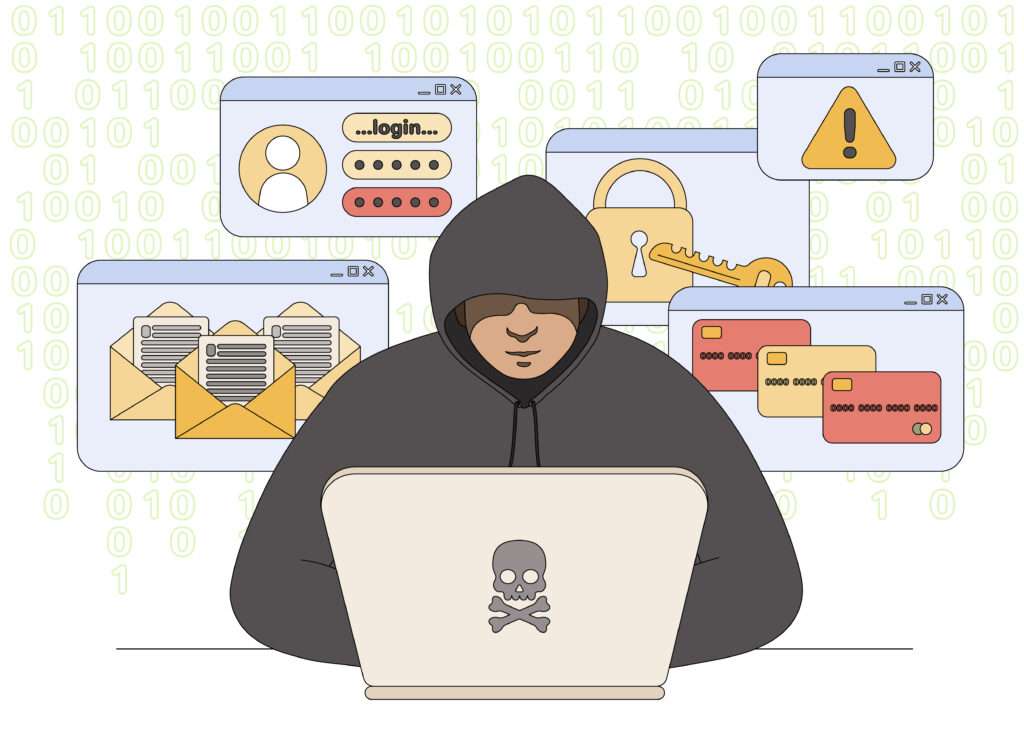
Overview of the Fake Corsair Job Offer Scam
The threat actors behind this scam have been targeting potential victims mainly in the United States, United Kingdom, and India who list social media management in their LinkedIn profiles. The lure is a fake job posting for a Facebook Ads Specialist role at Corsair delivered via LinkedIn messages and posts.
The goal is to trick targets into downloading ZIP archives containing malware-laden PDFs, Word documents, or text files. WithSecure’s analysis of the metadata inside these malicious archives points to the RedLine and DarkGate information-stealing malware being distributed currently.
Once installed on a victim’s computer, this malware can:
- Steal sensitive data like login credentials, financial information, screenshots, browser histories, etc.
- Gather system information like installed software, hardware devices, and configurations.
- Record keystrokes to grab passwords, messages, and other confidential data.
- Take remote control of the infected computer.
- Spread laterally in a network by exploiting vulnerabilities.
The stolen data allows the attackers to gain access to the victim’s social media accounts and business assets. Compromised Facebook advertising accounts, in particular, can earn the hackers money through malicious ads or reselling the assets.
Step-by-Step Breakdown of the Fake Job Offer Scam Process
The fake Corsair job offer scam is designed to manipulate busy professionals into hastily downloading attachments containing malware. Here is how the scam typically progresses:
1. Initial Contact Over LinkedIn
The first contact is initiated via LinkedIn messages or fake job posts. The attackers create convincing profiles often posing as Corsair HR representatives or recruiters at staffing agencies.
The messages will mention an open position for a Facebook Ads Specialist role at Corsair that fits the target’s experience. A brief role description and enticing salary figure are given to lure them in.
2. Request to Download Job Details
The next step sees the scammer direct the target to download full job details from a Google Drive or Dropbox link:
“Please download the attached document that outlines the job description, responsibilities, and salary information for the Facebook Ads Specialist position. You can find all the details here: g2.by/corsair-JD”
The Google Drive or Dropbox link redirects to a ZIP archive download like Salary and new products.8.4.zip.
3. Malware Hidden in Job Details Files
This ZIP archive contains malware-laden files like:
- Job Description of Corsair.docx – A Word doc with an embedded VBS script
- Salary and new products.txt – Benign text file
- PDF Salary and Products.pdf – Malicious PDF
The Word document contains macros or VBS scripts that will execute once opened to download additional malware components. The PDF likely exploits an Adobe Reader vulnerability to install malware.
4. Malware Installation & Activity
Once executed, the VBS script copies and renames curl.exe to initiate the next stage infection. It downloads and executes autoit3.exe along with an obfuscated AutoIt3 script.
This script then constructs the DarkGate malware using code strings present in the script itself. The malware has modules to:
- Steal browser data, credentials, screenshots, etc.
- Record keystrokes to grab sensitive info entered by the user
- Remotely take control of the infected system
- Spread laterally to other computers on the network
Within 30 seconds of infection, DarkGate attempts to disable security software to evade detection. The attackers likely have full access to the compromised computer at this stage.
5. Results for the Attackers
With their malware successfully installed on the target’s computer, the attackers can now steal passwords, business accounts, financial information, and other valuable data.
Access to social media and advertising accounts are a prime target. The hackers can misuse or resell compromised Facebook business assets. They can also leverage corporate email accounts for further social engineering attacks.
This gives the threat actors valuable data, pivot points into corporate networks, and potential monetary gain.
What to Do If You Downloaded Suspicious Files
If you downloaded and opened any suspicious Word docs, PDFs, or other files from unknown contacts on LinkedIn, follow these steps to secure your systems:
1. Disconnect From the Internet and Network
Immediately unplug your computer’s internet connection and disconnect from any office networks. This prevents malware from communicating with command servers or spreading.
2. Scan for Malware
Install quality antivirus software like Malwarebytes or ESET if you don’t have any. Perform a full system scan to detect and remove any potential malware.
3. Change All Passwords
Assume all your passwords have been compromised. Carefully change passwords for email, social media, financial services, and work software accounts. Avoid reusing any old passwords. Enable two-factor authentication wherever possible.
4. Contact Corsair and LinkedIn
Notify Corsair that cybercriminals are posing as recruiters and using fake job offers in their name. Also contact LinkedIn to report the fake accounts spreading malware.
5. Check Accounts for Suspicious Activity
Carefully check your social media, payment accounts, and email accounts for any unauthorized access, posts, or transactions. Report any strange activity to the providers. Monitor account activity closely over the next few months.
6. Wipe and Restore the Infected Device
The safest option is to wipe the infected hardware completely and reinstall the operating system and software from scratch. Restore cleaned files and data only from known good backups. If this is not feasible, at least follow steps 1-5.
7. Inform Your IT Department
If you were using a work device or credentials, alert your IT security team. They can assess risks to the broader organization, scan network activity, and take steps to prevent a wider breach.
Stay vigilant against potential follow-up attacks aimed at your employer or clients. The attackers may leverage any compromised accounts or data for additional phishing attempts, client email spoofing, or other social engineering.
Is Your Device Infected? Run a Free Malware Scan
Slow performance, constant pop-ups, or strange behavior? These are classic signs of a malware infection. The fastest way to find out is to scan your device with Malwarebytes Free — one of the most trusted malware removal tools available.
The free version detects and removes the most common threats, including:
- Adware — the cause of those annoying pop-ups
- Browser hijackers — unwanted redirects and changed homepages
- Trojans and spyware — hidden programs stealing your data
- Potentially unwanted programs (PUPs) — software you never asked for
👉 Select your device below — Windows, Mac, or Android — then follow the simple steps to download Malwarebytes, scan your system, and remove any threats it finds. The scan usually takes 5 to 20 minutes.
Run a Malware Scan with Malwarebytes for Windows
Malwarebytes is one of the most popular and trusted anti-malware tools for Windows — and it’s completely free for removing infections. It catches threats that many antivirus programs miss, including adware, browser hijackers, and trojans. Follow the steps below to scan and clean your PC in just a few minutes.
Download Malwarebytes
Click the button below to download the latest version of Malwarebytes for Windows from the official source. The free version is all you need — it will scan your computer and remove adware, browser hijackers, and other malicious software at no cost.
Download MalwarebytesOfficial installer for Windows 11 and 10. Your download starts right away.Want real-time protection? See Malwarebytes Premium Malwarebytes Free for WindowsScans and removes malware at no cost
-
Install Malwarebytes
When the download finishes, open your Downloads folder and double-click the MBSetup file. If Windows shows a User Account Control pop-up, click “Yes” to allow the installation.

Follow the On-Screen Prompts to Install Malwarebytes
The setup wizard will walk you through a few quick screens:
-
Choose where you’re installing the program — “Personal Computer” or “Work Computer” — then click Next.

-
Malwarebytes will now install on your device. This usually takes under a minute.

-
When installation is complete, the “Welcome to Malwarebytes” screen will open automatically.

-
On the final screen, click Open Malwarebytes to launch the program.

-
Enable “Scan for Rootkits”
Before scanning, turn on rootkit detection so Malwarebytes can find even the most hidden threats. Click the Settings gear icon on the left side of the screen.

In the settings menu, find “Scan for rootkits” and click the toggle so it turns blue.

Done? Click “Dashboard” in the left pane to return to the main screen.
Start the Scan
Click the blue Scan button. Malwarebytes will automatically update its virus database and start checking your computer for malware.

-
Wait for the Scan to Finish
The scan checks your entire system for browser hijackers and other malicious programs, so it can take 5 to 20 minutes depending on your computer. Feel free to do something else — just check back occasionally to see the progress.

-
Quarantine the Detected Threats
When the scan is done, you’ll see a list of everything Malwarebytes found — malware, adware, and potentially unwanted programs. Click the “Quarantine” button to remove all of them at once.

Malwarebytes will now remove the malicious files and registry entries and move them safely into quarantine.

-
Restart Your Computer
Some threats can only be fully removed after a reboot. If Malwarebytes asks you to restart, click Yes. Once you’re logged back in, Malwarebytes has finished removing the threats it found.

That’s it — your Windows PC is now clean of trojans, adware, and other malware, and should be back to running smoothly.
If you are still having problems with your computer after completing these instructions, then please follow one of the steps:
- Run a computer scan with ESET Online Scanner
- Ask for help in our Windows Malware Removal Help & Support forum.
Run a Malware Scan with Malwarebytes for Mac
Malwarebytes for Mac is a free on-demand scanner that removes the malware other security software tends to miss — adware, browser hijackers, and unwanted programs included. Cleaning an infected Mac with Malwarebytes has always been completely free, and it’s our go-to recommendation. Follow the steps below to scan and clean your Mac in just a few minutes.
-
Download Malwarebytes for Mac
Click the button below to download the latest version of Malwarebytes for Mac.
Download MalwarebytesOfficial installer for macOS. Your download starts right away.Want real-time protection? See Malwarebytes PremiumMalwarebytes Free for MacScans and removes malware at no cost -
Open the Malwarebytes setup file
When the download finishes, open your Downloads folder and double-click the setup file to begin the installation.

-
Follow the On-Screen Prompts to Install Malwarebytes
The Malwarebytes for Mac Installer will guide you through a few quick screens. Click “Continue” and keep following the prompts until the installation completes.



When the installation is complete, Malwarebytes opens to the Welcome to Malwarebytes screen. Click “Get started“.
-
Select “Personal Computer” or “Work Computer”
Malwarebytes will ask what type of computer you’re installing it on. Click either Personal Computer or Work Computer, whichever applies.

-
Start the Scan
Click the “Scan” button. Malwarebytes will automatically update its detection database and begin checking your Mac for malware.

-
Wait for the Scan to Finish
Malwarebytes will scan your Mac for adware, browser hijackers, and other malicious programs. This can take a few minutes, so feel free to do something else — just check back occasionally to see the progress.

-
Quarantine the Detected Threats
When the scan is done, you’ll see a list of everything Malwarebytes found. Click the “Quarantine” button to remove all the threats at once.

-
Restart Your Mac
Malwarebytes will now remove all the malicious files it found. Some threats can only be fully removed after a reboot — if Malwarebytes asks you to restart, allow it. Once you’re logged back in, your Mac is clean.

That’s it — your Mac is now free of adware, rogue browser extensions, and other potentially harmful software.
If you are still experiencing problems while trying to remove a malicious program from your computer, please ask for help in our Mac Malware Removal Help & Support forum.
Run a Malware Scan with Malwarebytes for Android
Malwarebytes for Android automatically detects and removes dangerous threats like malware and ransomware so you don’t have to worry about your most-used device being compromised. Aggressive detection of adware and potentially unwanted programs keeps your Android phone or tablet running smooth.
-
Download Malwarebytes for Android.
You can download Malwarebytes for Android by clicking the link below.
Get Malwarebytes for AndroidOpens Google Play in a new tab.Want real-time protection? See Malwarebytes Premium for AndroidMalwarebytes for AndroidScans your phone and removes malware at no cost -
Install Malwarebytes for Android on your phone.
In the Google Play Store, tap “Install” to install Malwarebytes for Android on your device.

When the installation process has finished, tap “Open” to begin using Malwarebytes for Android. You can also open Malwarebytes by tapping on its icon in your phone menu or home screen.

-
Follow the on-screen prompts to complete the setup process
When Malwarebytes will open, you will see the Malwarebytes Setup Wizard which will guide you through a series of permissions and other setup options.
This is the first of two screens that explain the difference between the Premium and Free versions. Swipe this screen to continue.
Tap on “Got it” to proceed to the next step.
Malwarebytes for Android will now ask for a set of permissions that are required to scan your device and protect it from malware. Tap on “Give permission” to continue.
Tap on “Allow” to permit Malwarebytes to access the files on your phone.
-
Update database and run a scan with Malwarebytes for Android
You will now be prompted to update the Malwarebytes database and run a full system scan.

Click on “Update database” to update the Malwarebytes for Android definitions to the latest version, then click on “Run full scan” to perform a system scan.

-
Wait for the Malwarebytes scan to complete.
Malwarebytes will now start scanning your phone for adware and other malicious apps. This process can take a few minutes, so we suggest you do something else and periodically check on the status of the scan to see when it is finished.

-
Click on “Remove Selected”.
When the scan has been completed, you will be presented with a screen showing the malware infections that Malwarebytes for Android has detected. To remove the malicious apps that Malwarebytes has found, tap on the “Remove Selected” button.

-
Restart your phone.
Malwarebytes for Android will now remove all the malicious apps that it has found. To complete the malware removal process, Malwarebytes may ask you to restart your device.
That’s it — your Android phone is now clean — no more malicious apps, adware, or browser redirects.
If you are still having problems with your phone after completing these instructions, then please follow one of the steps:
- Restore your phone to factory settings by going to Settings > General management > Reset > Factory data reset.
- Ask for help in our Mobile Malware Removal Help & Support forum.
Stay Protected: Block Ads and Malicious Sites
Now that your device is clean, keep it that way. Most infections start with a malicious ad or a fake download button — so blocking them at the source is your best defense.
We recommend AdGuard, which blocks malicious ads, phishing pages, and dangerous redirects before they can reach you.
👉 Download AdGuard and browse safely
Frequently Asked Questions About the Fake Corsair Job Offer Scam
What is the fake Corsair job offer scam?
This is a phishing campaign where attackers pretend to recruit for Corsair and send fake job offers containing malware to social media managers and ad account pros. The goal is to infect them with info-stealing malware.
How does the scam work?
It starts with a message on LinkedIn about an appealing role at Corsair. You get directed to download a ZIP file with job details that hides malware-laden PDFs and Word docs. If you open these, it will infect your computer.
What malware is being distributed?
Researchers found evidence of DarkGate and RedLine stealer malware in the phishing attachments. These steal data like passwords, screenshots, credentials, and browser history.
What’s the end goal of this scam?
The attackers want to hijack valuable social media advertising accounts, especially Facebook Business accounts. Compromised accounts can be misused or resold by the hackers.
Why target social media managers?
These roles likely have access to corporate social media accounts. Stealing just 1-2 Facebook ad accounts gives the hackers plenty of money-making potential.
How do I recognize this scam?
Be suspicious of unsolicited LinkedIn messages about vague Corsair roles that urgently direct you to download job description files from Google Drive or Dropbox.
What should I do if I downloaded suspicious files?
Disconnect your device from internet/network immediately. Scan for malware, reset passwords, contact Corsair/LinkedIn, monitor accounts closely for unauthorized activity.
How can I avoid falling for this scam?
Never download files from strangers. Always verify LinkedIn contacts and job offers directly on company sites before engaging. Use security tools to scan links and attachments.
Who is behind this scam campaign?
Researchers attribute it to Vietnamese cybercriminal groups that have been running ‘Ducktail’ campaigns focused on stealing social media assets since last year.
The Bottom Line
The fake Corsair job offer scam demonstrates how far cybercriminals will go to compromise corporate assets including social media advertising accounts. The carefully crafted social engineering lures in this campaign play on people’s desire for career growth and urgency to apply for a hot new role.
But stopping to verify the source, double-check linked URLs, and scan attachments could have prevented infection. The lure of a hot new job opportunity cost the targets their credentials, data, and access in the end.
Defending against these threats means adopting a careful, suspicious approach to unsolicited contacts and job offers. Scrutinize every link and attachment, no matter how appealing the message seems. Stick to visiting job sites directly rather than clicking embedded links.
Investing in stronger email and endpoint security solutions also adds multiple layers of protection. Combining vigilance with the right mix of defenses can help companies safeguard their social media assets and business accounts from compromise.

Join the discussion
0 commentsShare your experience or ask a question about this article.
Discussion
Start the conversation
Have a question or something useful to share? Add the first comment.