

Webmail login activity scam emails have become one of the most convincing tricks cybercriminals use to steal account credentials. These emails look official, create a sense of urgency, and often mimic the exact design of trusted providers. Many people open them during a rushed moment and do not realize the message is fake until it is too late.
This guide explains what these scam emails look like, why they work so well, and how you can recognize them instantly. The overview below is written to be easy to scan and even easier to understand so you can protect yourself before scammers get a chance to trick you.
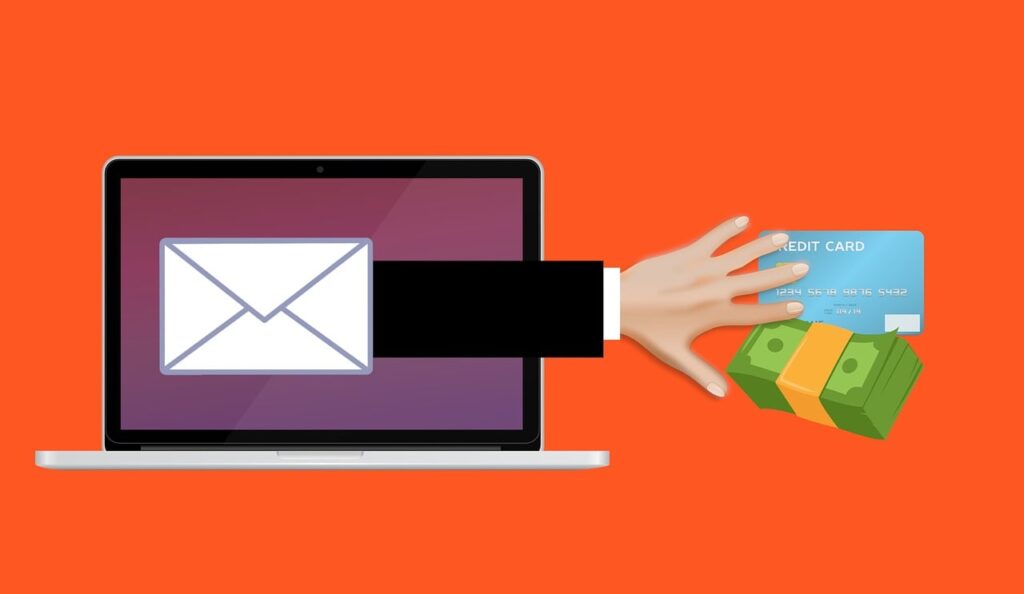
Scam Overview
Webmail login activity scam emails are phishing messages designed to steal your email password by pretending to warn you about suspicious sign-ins. These emails usually claim that someone logged into your account from another country or device. They use panic, urgency, and trust in familiar branding to push you toward clicking a fake link.
Below is a detailed breakdown of how these scams are structured, why they succeed, and what red flags you should watch for.
What These Emails Typically Claim
Scammers build these messages around a few predictable themes. You might see claims such as:
• Your email was accessed from a different location
• Multiple login attempts were blocked
• Your account has been temporarily suspended
• Your password has been compromised
• Immediate verification is required to prevent deactivation
These claims are intentionally alarming. They play on the fear of losing control of your email, which is connected to nearly every other online service you use.
How Scammers Make These Emails Look Trustworthy
Most scam emails imitate the visual style of major email providers. Scammers know that people trust messages that look familiar, so they borrow design elements including:
• Clean layouts
• Official-looking logos
• Support-style language
• Tables listing login details
• Buttons that resemble real security links
Some scammers even imitate the tone of automated security notifications. The message might say something like, “We detected suspicious activity. Please review immediately.” When paired with a polished layout, the email feels legitimate at first glance.
The Common Structure of a Webmail Login Activity Scam Email
While designs vary, most scam emails follow a predictable structure. Understanding this structure makes it easier to spot the scam before you click anything.
1. A Subject Line That Creates Urgency
Common subject lines include:
• Security Alert
• Unusual Login Attempt
• Recent Login Activity
• Account Access Restricted
• Verify Your Account Immediately
These subjects are designed to make you open the message without hesitation.
2. A Header That Mimics an Email Provider
Many scams use headers like “Webmail,” “Mail Security,” “Account Alert,” or the name of a real provider.
The goal is to make you think the email came from your own service.
3. A Table Showing Fake Login Attempts
This is one of the most convincing elements. The table usually includes:
• Dates and times
• Foreign cities
• Different devices
For example, the message might claim that your account was accessed from London, Tokyo, or Sydney. These are deliberately chosen because they are far from where you live. The unexpected locations heighten your concern.
4. A Button That Leads to a Fake Website
The email almost always includes a button with wording such as:
• Review Account Activities
• Secure Your Account
• Verify Login
• Stop Recent Activity
The button does not lead to your provider’s real website. It takes you to a fake login page where scammers collect your password.
Why These Scams Work So Well
Even people who are comfortable with technology fall for these emails. The success of this scam comes from several factors that combine to lower your guard.
1. The Emails Look Extremely Realistic
Today’s phishing emails often contain:
• Correct spelling and grammar
• Professional layouts
• High-quality graphics
• Familiar colors and fonts
• Convincing signatures and footers
Older scams were easier to spot. The modern versions look nearly identical to legitimate messages.
2. Urgency Triggers an Emotional Reaction
Scammers want you to feel panic. They know that when people believe their security is at risk, they act quickly. Urgency reduces the time you spend evaluating whether the message is authentic.
3. Most People Check Email on Their Phone
On mobile:
• Sender addresses are harder to inspect
• URLs are not fully visible
• Buttons are easier to tap instinctively
• The small screen hides design flaws
This makes the scam more effective, especially during busy moments.
4. Email Is the Gateway to Everything Else
Once scammers gain access to your inbox, they can do far more than read your messages. They can:
• Reset passwords for banking, shopping, and social media
• Lock you out of your own accounts
• Access private documents
• Steal sensitive information
• Impersonate you to scam friends, clients, or coworkers
Your email account is often the single most valuable login you own, which is why scammers target it so aggressively.
A Typical Real-World Scenario
To understand how easy it is to fall for this scam, imagine a common situation.
You wake up early and check your messages before starting your day. A new email catches your attention. The subject says “Security Alert” and inside the email you see a list of login attempts from overseas. The layout looks familiar. You instantly feel uneasy.
Without thinking, you tap the button that says “Review Account Activities.” A login page appears. It looks exactly like your provider’s site. You enter your email and password. The page refreshes and loads normally. Nothing seems wrong.
But in the background, the scammer has already captured your credentials.
Within minutes, they log into your email. They look for financial statements, password reset links, and personal information. They might quietly set up a forwarding rule to send themselves copies of your future emails. They might browse your history to see which services you use. A few hours later, you may notice unusual notifications, spam sent from your account, or password reset requests you did not initiate.
This scenario happens every day to people who never considered themselves vulnerable to scams.
Why These Scams Keep Evolving
Scammers constantly refine these emails because they work. Large-scale phishing operations send millions of messages at once. Even if only a small fraction of recipients enter their information, the scammers profit.
Over the years, these emails have grown more sophisticated. Early versions were full of spelling mistakes and poor formatting. Modern versions include polished graphics, clean writing, and realistic security terminology. Some use real code snippets from legitimate providers. Others include disclaimers or copyright notices to appear official.
The evolution continues because scammers follow the same pattern as marketers. If a certain design leads to more victims, they use it. If a particular subject line yields more clicks, they repeat it. Over time, the scam becomes more convincing, more refined, and harder for the average person to identify.
How The Scam Works
Webmail login activity scam emails follow a predictable pattern, but each stage of the process is carefully designed to trick you. Scammers rely on psychology, familiarity, and technical deception to guide victims from the initial email to the moment their credentials are stolen.
Below is a detailed, step-by-step breakdown of how the scam unfolds, with subheadings that make it easy to follow each phase.
Step 1: The Scammers Create a Highly Polished Email
The scam always begins with the creation of an email that looks convincing. Scammers study real notifications from popular email providers so they can mimic:
• Layouts
• Fonts
• Buttons
• Security-style language
• Color schemes
• Table structures
• Branding elements
They reproduce common components such as:
• A header that says “Webmail” or the name of a real provider
• A message claiming your account was accessed from an unfamiliar location
• A table showing false login attempts
• A button or link prompting you to verify your identity
This attention to detail makes the email feel familiar. When something looks familiar, your brain automatically gives it more credibility. The scammers rely heavily on this effect.
Step 2: The Scammers Choose Locations That Trigger Concern
A key tactic is the use of foreign cities in the “Recent Activity” table. These cities are chosen because they feel far away and suspicious. You might see locations such as:
• London
• Tokyo
• Sydney
• Frankfurt
• São Paulo
• Singapore
The dates and times often appear recent. Some scammers even adjust them to match your timezone. The purpose is to create the impression that someone has accessed your inbox within the last few hours.
This triggers urgency. When people feel pressure, they react more emotionally and less analytically. Scammers know that urgency is one of the most powerful tools in social engineering.
Step 3: The Email Pushes You Toward the Fake Link
Once the message has captured your attention, the scammer needs you to click the button. This is the moment the phishing attack begins.
Common button labels include:
• Review Account Activities
• Verify Account
• Secure Inbox
• Stop Unauthorized Sign Ins
• Restore Access
The wording is carefully chosen to make you feel that clicking is the responsible or necessary action. The scammers also design these buttons to look familiar, often matching the style of real support or security notifications.
On mobile devices the button usually appears centered and bold. It stands out visually and feels natural to tap.
Step 4: The Button Redirects to a Fake Login Page
After clicking, you are taken to a website that looks identical to your provider’s login page. Scammers either:
• Clone the real HTML and styling, or
• Use templates designed to closely imitate legitimate pages
The fake site copies everything a user expects to see, including:
• Logo
• Background colors
• Input fields
• Security icons
• Footer links
The URL is often the only giveaway. It might contain odd phrases, random numbers, or slight misspellings. On a desktop screen you might notice these differences, but on a phone browser the full URL is often hidden.
Everything on the page is designed to make you comfortable. If the site looks familiar, you are less likely to question why you were redirected there.
Step 5: The Victim Enters Their Login Credentials
Once you enter your email and password, the credentials are immediately sent to the scammer’s database. This is the main goal of the entire operation.
Some fake pages include additional fields such as:
• Backup email
• Phone number
• Recovery codes
• Two-factor authentication codes
Scammers request these extra details because they make it easier to bypass real security measures later.
In many cases, the login form does not produce any error message. Instead, the page silently forwards your information to the scammers and then redirects you to the real login page. This makes victims assume nothing unusual happened.
Step 6: The Fake Page Redirects You to the Real Site
Redirection is one of the most deceptive parts of this scam. After stealing your credentials, the scammer sends you straight to the actual login page of your email provider. You may see the page refresh. You may get a standard login prompt. You may even get logged in successfully if your browser already stores your credentials.
This trick reduces suspicion. Many victims think the page simply reloaded and do not connect the experience to anything harmful. Hours may pass before they realize something is wrong.
Step 7: The Scammer Logs Into Your Email Account
Once the scammer has your credentials, they act quickly. Email accounts are extremely valuable because they unlock so many other services. After logging in, the scammer will typically:
• Review your inbox
• Search for banking statements
• Look for financial-related messages
• Identify which accounts are linked to your email
• Scan for saved passwords
• Look for personal information they can exploit
This process often takes only a few minutes. Many scammers use automated tools to extract data quickly and efficiently.
Step 8: The Scammer Changes Your Security Settings
If the scammer wants long-term access, they modify your account settings. They may:
• Change your recovery email
• Add a forwarding rule to receive copies of your messages
• Create filters that hide their activity
• Update your phone number
• Enable new login methods that lock you out
Forwarding rules are especially common because they are subtle. Your inbox continues to function normally, but every incoming message is quietly sent to the scammer as well.
Step 9: The Scammer Tries to Reset Passwords for Other Accounts
Once they control your email, they can trigger password resets for other services such as:
• Banks
• PayPal
• Online shopping accounts
• Social media
• Cloud storage
• Subscription services
Email is the hub of your online identity. That makes it a prime target. Even if scammers cannot access your financial accounts immediately, they may gather information that helps them impersonate you later.
Step 10: The Scammer Uses Your Email to Target Other People
A compromised email account can be used to:
• Send new phishing emails
• Scam your contacts
• Request money from friends
• Distribute malware
• Apply for fraudulent loans
• Open online accounts under your name
Because these messages come from your actual inbox, they appear genuine to the recipients.
Step 11: The Victim Realizes Something Is Wrong
Most victims become aware of the scam when they notice:
• Password reset emails they did not request
• Strange login notifications
• Sent messages they did not write
• Missing emails
• Security alerts from other accounts
By the time these symptoms appear, the scammer may already have accessed sensitive information. This is why quick action after falling for the scam is so important.
How To Spot This Scam
Spotting a webmail login activity scam becomes much easier once you know the warning signs. Scammers rely on urgency, visual imitation, and subtle manipulation, but their messages often contain small details that reveal their true nature. The following points will help you identify these emails instantly, even when you are distracted or in a hurry.
Check the Sender Address Carefully
The fastest way to identify a scam is to examine the sender’s email address. Many phishing emails display a name that looks familiar, but the actual address usually contains clues such as:
• Strange domain names that do not match your provider
• Extra numbers or letters
• Misspellings
• Long, unfamiliar combinations of characters
• Free email domains used for “security alerts”
A genuine email provider will never send security alerts from a random or personal address.
Look for Suspicious or Overly Urgent Wording
Scam emails often rely on fear to get you to act quickly. Red flags include:
• Excessive urgency
• Threats of immediate deactivation
• Demands to “verify now”
• Unnatural phrasing
• Messages that feel rushed or aggressive
Legitimate providers may warn you about suspicious activity, but the tone is usually calm, informative, and measured.
Inspect the Links Before Clicking
Hover over any button or link, or press and hold on mobile, to reveal the full URL. Signs of a scam include:
• Domains that do not match the real provider
• Extra words or random strings of numbers
• Slightly altered spellings of well-known websites
• URLs that end with unfamiliar extensions
If you are unsure, do not click. Instead, open your email account directly in your browser.
Notice Any Visual or Formatting Errors
Even well-designed phishing emails sometimes show subtle mistakes. These may include:
• Inconsistent spacing
• Misaligned tables
• Odd font changes
• Low-quality images
• Missing elements found in real alerts
A single small error does not guarantee it is a scam, but several together should raise suspicion.
Be Cautious of “Login Activity” Tables Showing Foreign Cities
These tables are designed to scare you. If you see locations such as:
• London
• Tokyo
• Sydney
• Frankfurt
and you know you have never logged in from there, do not click anything. Go directly to your real inbox security dashboard instead.
The Button Looks Real, but the Message Feels Off
A polished button does not mean the email is safe. Phishing buttons often:
• Mimic real security link wording
• Are larger or more prominent than typical provider buttons
• Use colors slightly off from the real brand
• Redirect to fake login pages
If something feels even slightly unusual, trust your instinct.
Variants of This Scam
Although most webmail login activity scams follow a similar formula, scammers constantly experiment with new variations. Being familiar with these variants helps you stay ahead of unexpected approaches.
Variant 1: “Mailbox Storage Full” Scam
This version claims your inbox has reached its storage limit. It warns that you will no longer receive emails unless you “increase your quota” or “upgrade storage.” The button leads to a fake login page.
Key signs include:
• Threats of message loss
• Mentions of storage capacity
• Fake quotas like “98% full”
Variant 2: “Account Deactivation Notice”
This variation claims your email will be deactivated within 24 or 48 hours unless you verify your identity. The urgency is higher, and the scammers hope panic overrides caution.
Common wording includes:
• Immediate suspension
• Verify to continue
• Scheduled for deletion
Variant 3: “New Device Sign-In” Alert
This version lists a device such as:
• Windows PC
• iPhone
• Chrome browser
• Android phone
The format is similar to real device alerts, making it especially convincing.
Variant 4: “Failed Delivery Notice”
This variation claims an important message could not be delivered due to a security error. It prompts you to “restore delivery” or “unlock messages.”
Victims often click because they think they missed a critical email.
Variant 5: “Email Upgrade Required”
Scammers claim your email service is being updated and you must “re-authenticate” or “upgrade security settings” to continue using it. Businesses are often targeted with this version.
Variant 6: “Two-Factor Authentication Disabled”
This version claims your 2FA protection was recently turned off. It urges you to click a link to enable it again. The goal is to exploit your desire for security.
Variant 7: Mobile-Only Phishing Pages
Some scammers design phishing sites that break on desktop but look perfect on mobile. They know most victims will view the email on their phone, where flaws are harder to spot.
What To Do If You Have Fallen Victim to This Scam
If you clicked the phishing link or entered your credentials, try to stay calm. You can still protect your account and limit the damage. Follow these steps carefully and in order.
1. Change Your Email Password Immediately
Your first priority is to lock the scammer out. Change your password to a strong, unique one. Make sure it is not used for any other account.
2. Enable Two-Factor Authentication
If your email provider supports two-factor authentication, turn it on immediately. Choose an authentication app rather than SMS whenever possible.
3. Check Your Account Recovery Options
Review and update the following:
• Backup email
• Phone number
• Security questions
• Recovery codes
Remove anything you do not recognize.
4. Look for Suspicious Forwarding Rules
Scammers often set up automatic forwarding so they can continue reading your emails. Check your settings and delete any rules you did not create.
5. Review All Login Activity
Most email providers show recent login locations and devices. Review the list and remove any unfamiliar sessions.
6. Revoke Access to Connected Apps
Go through the list of apps and services linked to your email account. Remove anything suspicious or unfamiliar.
7. Run a Malware Scan on Your Devices
Scammers sometimes pair phishing attacks with malware. Scan your computer and phone using reputable security tools to ensure they are clean.
8. Check Other Accounts for Unauthorized Activity
Since scammers may try to reset passwords elsewhere, review:
• Bank accounts
• PayPal
• Shopping sites
• Social media
• Cloud storage
Look for unusual transactions, login attempts, or profile changes.
9. Update Passwords on Any Account Connected to Your Email
This includes financial services, digital wallets, and social platforms. Use unique passwords for each account to prevent one breach from spreading.
10. Inform Friends or Colleagues if Necessary
If the scammer sent messages from your account, tell your contacts not to click any suspicious links that may have come from you.
11. Notify Your Email Provider if You Cannot Log In
If you have been locked out, contact your provider’s support team as soon as possible. Most services offer options for account recovery.
12. Monitor Your Accounts Closely for the Next Few Weeks
Cybercriminals sometimes wait before using stolen information. Keep an eye on your inbox, financial activity, and login notifications.
Is Your Device Infected? Run a Free Malware Scan
Slow performance, constant pop-ups, or strange behavior? These are classic signs of a malware infection. The fastest way to find out is to scan your device with Malwarebytes Free — one of the most trusted malware removal tools available.
The free version detects and removes the most common threats, including:
- Adware — the cause of those annoying pop-ups
- Browser hijackers — unwanted redirects and changed homepages
- Trojans and spyware — hidden programs stealing your data
- Potentially unwanted programs (PUPs) — software you never asked for
👉 Select your device below — Windows, Mac, or Android — then follow the simple steps to download Malwarebytes, scan your system, and remove any threats it finds. The scan usually takes 5 to 20 minutes.
Run a Malware Scan with Malwarebytes for Windows
Malwarebytes is one of the most popular and trusted anti-malware tools for Windows — and it’s completely free for removing infections. It catches threats that many antivirus programs miss, including adware, browser hijackers, and trojans. Follow the steps below to scan and clean your PC in just a few minutes.
Download Malwarebytes
Click the button below to download the latest version of Malwarebytes for Windows from the official source. The free version is all you need — it will scan your computer and remove adware, browser hijackers, and other malicious software at no cost.
Download MalwarebytesOfficial installer for Windows 11 and 10. Your download starts right away.Want real-time protection? See Malwarebytes Premium Malwarebytes Free for WindowsScans and removes malware at no cost
-
Install Malwarebytes
When the download finishes, open your Downloads folder and double-click the MBSetup file. If Windows shows a User Account Control pop-up, click “Yes” to allow the installation.

Follow the On-Screen Prompts to Install Malwarebytes
The setup wizard will walk you through a few quick screens:
-
Choose where you’re installing the program — “Personal Computer” or “Work Computer” — then click Next.

-
Malwarebytes will now install on your device. This usually takes under a minute.

-
When installation is complete, the “Welcome to Malwarebytes” screen will open automatically.

-
On the final screen, click Open Malwarebytes to launch the program.

-
Enable “Scan for Rootkits”
Before scanning, turn on rootkit detection so Malwarebytes can find even the most hidden threats. Click the Settings gear icon on the left side of the screen.

In the settings menu, find “Scan for rootkits” and click the toggle so it turns blue.

Done? Click “Dashboard” in the left pane to return to the main screen.
Start the Scan
Click the blue Scan button. Malwarebytes will automatically update its virus database and start checking your computer for malware.

-
Wait for the Scan to Finish
The scan checks your entire system for browser hijackers and other malicious programs, so it can take 5 to 20 minutes depending on your computer. Feel free to do something else — just check back occasionally to see the progress.

-
Quarantine the Detected Threats
When the scan is done, you’ll see a list of everything Malwarebytes found — malware, adware, and potentially unwanted programs. Click the “Quarantine” button to remove all of them at once.

Malwarebytes will now remove the malicious files and registry entries and move them safely into quarantine.

-
Restart Your Computer
Some threats can only be fully removed after a reboot. If Malwarebytes asks you to restart, click Yes. Once you’re logged back in, Malwarebytes has finished removing the threats it found.

That’s it — your Windows PC is now clean of trojans, adware, and other malware, and should be back to running smoothly.
If you are still having problems with your computer after completing these instructions, then please follow one of the steps:
- Run a computer scan with ESET Online Scanner
- Ask for help in our Windows Malware Removal Help & Support forum.
Run a Malware Scan with Malwarebytes for Mac
Malwarebytes for Mac is a free on-demand scanner that removes the malware other security software tends to miss — adware, browser hijackers, and unwanted programs included. Cleaning an infected Mac with Malwarebytes has always been completely free, and it’s our go-to recommendation. Follow the steps below to scan and clean your Mac in just a few minutes.
-
Download Malwarebytes for Mac
Click the button below to download the latest version of Malwarebytes for Mac.
Download MalwarebytesOfficial installer for macOS. Your download starts right away.Want real-time protection? See Malwarebytes PremiumMalwarebytes Free for MacScans and removes malware at no cost -
Open the Malwarebytes setup file
When the download finishes, open your Downloads folder and double-click the setup file to begin the installation.

-
Follow the On-Screen Prompts to Install Malwarebytes
The Malwarebytes for Mac Installer will guide you through a few quick screens. Click “Continue” and keep following the prompts until the installation completes.



When the installation is complete, Malwarebytes opens to the Welcome to Malwarebytes screen. Click “Get started“.
-
Select “Personal Computer” or “Work Computer”
Malwarebytes will ask what type of computer you’re installing it on. Click either Personal Computer or Work Computer, whichever applies.

-
Start the Scan
Click the “Scan” button. Malwarebytes will automatically update its detection database and begin checking your Mac for malware.

-
Wait for the Scan to Finish
Malwarebytes will scan your Mac for adware, browser hijackers, and other malicious programs. This can take a few minutes, so feel free to do something else — just check back occasionally to see the progress.

-
Quarantine the Detected Threats
When the scan is done, you’ll see a list of everything Malwarebytes found. Click the “Quarantine” button to remove all the threats at once.

-
Restart Your Mac
Malwarebytes will now remove all the malicious files it found. Some threats can only be fully removed after a reboot — if Malwarebytes asks you to restart, allow it. Once you’re logged back in, your Mac is clean.

That’s it — your Mac is now free of adware, rogue browser extensions, and other potentially harmful software.
If you are still experiencing problems while trying to remove a malicious program from your computer, please ask for help in our Mac Malware Removal Help & Support forum.
Run a Malware Scan with Malwarebytes for Android
Malwarebytes for Android automatically detects and removes dangerous threats like malware and ransomware so you don’t have to worry about your most-used device being compromised. Aggressive detection of adware and potentially unwanted programs keeps your Android phone or tablet running smooth.
-
Download Malwarebytes for Android.
You can download Malwarebytes for Android by clicking the link below.
Get Malwarebytes for AndroidOpens Google Play in a new tab.Want real-time protection? See Malwarebytes Premium for AndroidMalwarebytes for AndroidScans your phone and removes malware at no cost -
Install Malwarebytes for Android on your phone.
In the Google Play Store, tap “Install” to install Malwarebytes for Android on your device.

When the installation process has finished, tap “Open” to begin using Malwarebytes for Android. You can also open Malwarebytes by tapping on its icon in your phone menu or home screen.

-
Follow the on-screen prompts to complete the setup process
When Malwarebytes will open, you will see the Malwarebytes Setup Wizard which will guide you through a series of permissions and other setup options.
This is the first of two screens that explain the difference between the Premium and Free versions. Swipe this screen to continue.
Tap on “Got it” to proceed to the next step.
Malwarebytes for Android will now ask for a set of permissions that are required to scan your device and protect it from malware. Tap on “Give permission” to continue.
Tap on “Allow” to permit Malwarebytes to access the files on your phone.
-
Update database and run a scan with Malwarebytes for Android
You will now be prompted to update the Malwarebytes database and run a full system scan.

Click on “Update database” to update the Malwarebytes for Android definitions to the latest version, then click on “Run full scan” to perform a system scan.

-
Wait for the Malwarebytes scan to complete.
Malwarebytes will now start scanning your phone for adware and other malicious apps. This process can take a few minutes, so we suggest you do something else and periodically check on the status of the scan to see when it is finished.

-
Click on “Remove Selected”.
When the scan has been completed, you will be presented with a screen showing the malware infections that Malwarebytes for Android has detected. To remove the malicious apps that Malwarebytes has found, tap on the “Remove Selected” button.

-
Restart your phone.
Malwarebytes for Android will now remove all the malicious apps that it has found. To complete the malware removal process, Malwarebytes may ask you to restart your device.
That’s it — your Android phone is now clean — no more malicious apps, adware, or browser redirects.
If you are still having problems with your phone after completing these instructions, then please follow one of the steps:
- Restore your phone to factory settings by going to Settings > General management > Reset > Factory data reset.
- Ask for help in our Mobile Malware Removal Help & Support forum.
Stay Protected: Block Ads and Malicious Sites
Now that your device is clean, keep it that way. Most infections start with a malicious ad or a fake download button — so blocking them at the source is your best defense.
We recommend AdGuard, which blocks malicious ads, phishing pages, and dangerous redirects before they can reach you.
👉 Download AdGuard and browse safely
Frequently Asked Questions
What happens if I clicked the link but did not enter my password?
If you only clicked the link but did not type anything, you are likely safe. Still, you should:
• Close the page
• Clear your browser history
• Run a quick security scan
• Monitor your inbox for unusual activity
The scam only works when credentials are entered.
Are these emails dangerous even if I do not respond?
The emails themselves are not harmful unless you interact with them. Simply receiving or opening the message does not compromise your account.
Why do scammers want my email password?
Your email is the key to almost everything you do online. With access to your inbox, scammers can:
• Reset your passwords
• Access financial accounts
• Steal personal information
• Impersonate you
• Target your contacts
Your email account provides access to your entire digital identity.
Do scammers target specific people?
Not usually. Most of these emails are mass-distributed to millions of accounts. Scammers rely on a small percentage of people falling for the trick.
How do scammers make their emails look so real?
They copy real notifications from legitimate providers, reuse brand colors, and sometimes clone complete layouts. Many phishing kits are sold online, which makes creating convincing emails easy for criminals.
Can antivirus software detect these emails?
Antivirus tools can sometimes flag phishing links, but they cannot catch everything. Email filters block many scams, but the most sophisticated versions slip through.
Why did the email look like it came from my real provider?
The sender’s display name can be faked. Scammers set the name to something like “Mail Support” or “Security Team,” even if the real address is suspicious.
What should I do if the scammer already changed my password?
If you cannot recover the account through normal methods, use your provider’s “Account Recovery” or “Forgot Password” process. If those fail, contact support directly.
Can this scam affect my phone or computer?
Simply clicking the link usually does not install malware, since the primary goal is to steal your credentials. However, it is always wise to run a malware scan to be safe.
The Bottom Line
Webmail login activity scam emails are designed to look real, trigger fear, and push you into giving up your credentials without thinking. The scammers rely on polished designs and urgent language, but understanding how the scam works makes it much easier to spot the warning signs.
If you recognize the red flags and react quickly when something feels off, you can stay ahead of these attacks. And if you have already fallen victim, taking swift, methodical action can secure your account and prevent further damage.

Join the discussion
0 commentsShare your experience or ask a question about this article.
Discussion
Start the conversation
Have a question or something useful to share? Add the first comment.