


eFix Pro is a system optimizer utility, which is promoted via other free downloads, and once installed it claims that several issues were been detected on your computer.
However, if you try to fix these issues, eFix Pro will state that you need to buy its full version before being able to do so.
![[Image: eFix Pro virus]](https://malwaretips.com/blogs/wp-content/uploads/mwt-media/2f/2f76c757f4ef871eb15083bdbf21d3ba2c00b9aec5622f5d0a16bc6844bafa55/7ba045ebea2993ef2ad20fb75508783cd15aab16a83da59576afbe14b860b8cd-799.webp "eFix Pro system optimizer")
eFix Pro is a paid system optimizer program that is typically added when you install another free software (video recording/streaming, download-managers or PDF creators) that had bundled into their installation this program. Very often users have no idea where did it come from, so it’s not surprising at all that most of them assume that eFix Pro is a virus. This program is also bundled within the custom installer on many reputable download sites, so if you have downloaded a software from these websites, chances are that eFix Pro was installed during the software setup process.
eFix Pro it’s technically not a virus, but it does exhibit plenty of malicious traits, such as rootkit capabilities to hook deep into the operating system, browser hijacking, and in general just interfering with the user experience. The industry generally refers to it as a “PUP,” or potentially unwanted program.
Some examples of the interface, fake alerts, fake scanning results, and pop-ups displayed by eFix Pro are shown below:
![[Image: eFix Pro malware]](https://malwaretips.com/blogs/wp-content/uploads/mwt-media/85/85689cabb02480e5d172d2efbef96a580440c5e0332f90b742c186e0fa4644eb/c43676c65e881b855112a0eb3ccfb99aa6915fa98b6bc92436f9380cb1475960-800.webp "eFix Pro errors")
![[Image: eFix Pro activation key]](https://malwaretips.com/blogs/wp-content/uploads/mwt-media/a9/a961e173df02759dab1eb54b6eb3af52b045fe67c84eec64b040c8e3515fe23d/d047ced569c4f646006e042ea824ca81409435dcebcb8d57a363db6d8f78256e-891.webp "eFix Pro License")
The Windows registry is a database that Windows and its applications store their settings in. It contains hundreds of thousands of entries. Some of the entries may be slightly outdated — maybe you’ve uninstalled a program and it left a key or two behind, or maybe a there’s a file extension with no associated application.
eFix Pro scan your registry for these outdated entries and offer to remove them. Because there are so many registry entries to go through, this program may sometimes also remove useful registry entries, causing you problems. The Web is full of stories from people who have run a registry cleaner and encountered problems. In a best case scenario, eFix Pro will remove a few hundred unnecessary entries and reduce the size of your registry by a few kilobytes. This makes no different in perceptible performance.
If you must use a registry cleaner, you don’t have to pay anything. Using a free registry cleaner, such as the registry cleaner included with the respected CCleaner utility, is good enough.
You should always pay attention when installing software because often, a software installer includes optional installs, such as this eFix Pro. Be very careful what you agree to install.
Always opt for the custom installation and deselect anything that is not familiar, especially optional software that you never wanted to download and install in the first place. It goes without saying that you should not install software that you don’t trust.
How to remove eFix Pro (Virus Removal Guide)
This page is a comprehensive guide, which will remove eFix Pro pop-ups from your computer, and any other adware program that may have been installed during the setup process.
Please perform all the steps in the correct order. If you have any questions or doubt at any point, STOP and ask for our assistance.
STEP 1: Uninstall eFix Pro program from your computer
STEP 2: Remove eFix Pro adware with AdwCleaner
STEP 3: Remove eFix Pro virus with Malwarebytes Anti-Malware Free
STEP 4: Double-check for the eFix Pro infection with HitmanPro
STEP 1 : Uninstall eFix Pro programs from your computer
In this first step, we will try to identify and remove any malicious program that might be installed on your computer.
- To uninstall the eFix Pro program from your computer, click the Start button, then select Control Panel, and click on Uninstall a program.
If you are using Windows 8, simply drag your mouse pointer to the right edge of the screen, select Search from the list and search for “control panel“. Or you can right-click on a bottom left hot corner (formerly known as the Start button) and select Control Panel from there, then select Uninstall a program.
![[Image: Uninstall a program]](https://malwaretips.com/blogs/wp-content/uploads/mwt-media/2a/2a46a9e643eeeb764fb164177551c571817a8b4d4fe8141504dca801f8abc8cc/f2a64da5c9bbae588b1c04059e9f6a1e9a413554048666c6db3aa65196a7b99a-557.webp "Click on Uninstall a program")
- When the Add/Remove Programs or the Uninstall a Program screen is displayed, scroll through the list of currently installed programs and uninstall eFix Pro, AVG SafeGuard Toolbar and any other recently installed or unknown programs from your computer.
![[Image: Uninstall eFix Pro program from Windows]](https://malwaretips.com/blogs/wp-content/uploads/mwt-media/1b/1bb7d7e6ec4adfd7f7c08018605a012b5d2734eb3a71c578bcf34857738fb5ae/2fefe8bda366ada98da04b40eb96261f671a1674070f8b77666970bdfef27a9e-738.webp "Uninstall eFix Pro program from Windows")
Depending on what program has installed eFix Pro system optimizer, the above programs may have a different name or not be installed on your computer.
If you are having issues while trying to uninstall the eFix Pro program, you can use Revo Uninstaller to completly remove the unwated programs from your machine.
STEP 2: Remove eFix Pro adware from your computer with AdwCleaner
The AdwCleaner utility will scan your computer and web browser for the eFix Pro malicious files, browser extensions and registry keys, that may have been installed on your computer without your knowledge.
- You can download AdwCleaner utility from the below link.
Download AdwCleanerFree official download. Nothing to install. - Before starting AdwCleaner, close all open programs and internet browsers, then double-click on the AdwCleaner icon.
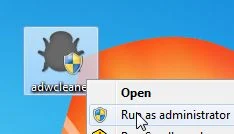
If Windows prompts you as to whether or not you wish to run AdwCleaner, please allow it to run. - When the AdwCleaner program will open, click on the Scan button as shown below.
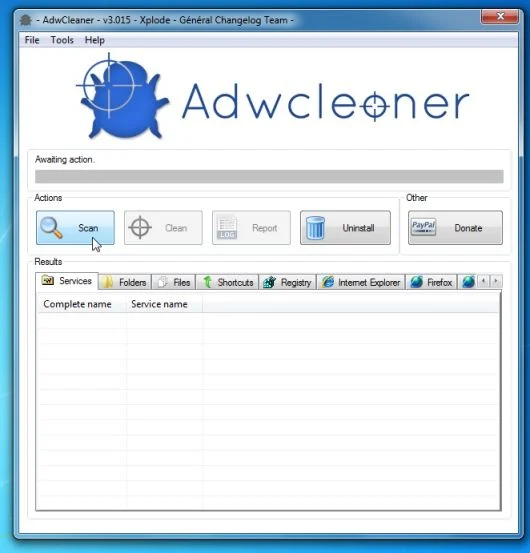
AdwCleaner will now start to search for the eFix Pro malicious files that may be installed on your computer. - To remove the eFix Pro malicious files that were detected in the previous step, please click on the Clean button.
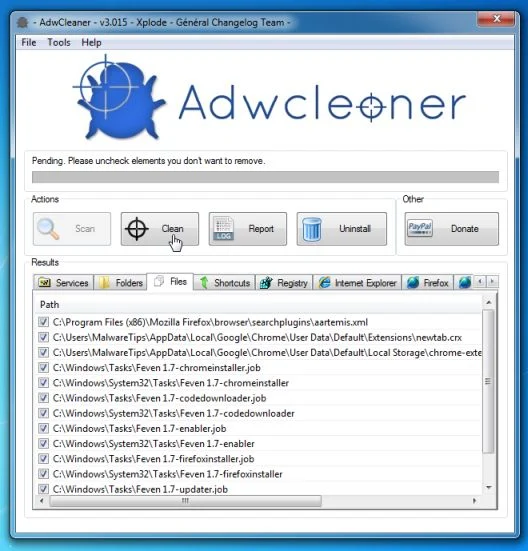
- AdwCleaner will now prompt you to save any open files or data as the program will need to reboot the computer. Please do so and then click on the OK button. AdwCleaner will now delete all detected adware from your computer. When it is done it will display an alert that explains what PUPs (Potentially Unwanted Programs) and Adware are. Please read through this information and then press the OK button. You will now be presented with an alert that states AdwCleaner needs to reboot your computer.
Please click on the OK button to allow AdwCleaner reboot your computer.
STEP 3: Remove eFix Pro virus with Malwarebytes Anti-Malware Free
Malwarebytes Anti-Malware Free uses industry-leading technology to detect and remove all traces of malware, including worms, Trojans, rootkits, rogues, dialers, spyware, and more.
It is important to note that Malwarebytes Anti-Malware works well and should run alongside antivirus software without conflicts.
- You can download Malwarebytes Anti-Malware Free from the below link, then double-click on the icon named mbam-setup.exe to install this program.
Download MalwarebytesFree official installer. Your download starts right away. - When the installation begins, keep following the prompts in order to continue with the setup process, then at the last screen click on the Finish button.
![[Image: Malwarebytes Anti-Malware final installation screen]](https://malwaretips.com/blogs/wp-content/uploads/mwt-media/47/471448d4dd5aa1d55ea545effccf0ac9c8ccb5a29622da4e38ac677b5d8c37b5/9f473303c15a00262451cc5a56b904de929157b59e19e3cfb2c03ec88f643390-402.webp "Malwarebytes Anti-Malware installation screen")
- On the Scanner tab, select Perform quick scan, and then click on the Scan button to start searching for the eFix Pro malicious files.
![[Image: Malwarebytes Anti-Malware Quick Scan]](https://malwaretips.com/blogs/wp-content/uploads/mwt-media/1e/1eb209597ca2f06e596fd060345ac7e3100355f1ec8fc8ea2d9dec7abbb05ea0/3afba9b0b97b56945ffc33817ac48f7433c799241a22e422966180b76473a906-521.webp "Run a Quick Scan with Malwarebytes Anti-Malware")
- Malwarebytes’ Anti-Malware will now start scanning your computer for eFix Pro as shown below.
![[Image: Malwarebytes Anti-Malware scanning for eFix Pro virus]](https://malwaretips.com/blogs/wp-content/uploads/mwt-media/f6/f6ecfba43df64204df40586070483f260cb91fa07d5cc90cb4c3a588d159ff30/5b6b2687853201a40d29fe27e142cc66b0852745bbad3900a21030a10399cb4c-521.webp "Malwarebytes Anti-Malware scanning for eFix Pro")
- When the Malwarebytes Anti-Malware scan has finished, click on the Show Results button.
![[Image: Malwarebytes Anti-Malware scan results]](https://malwaretips.com/blogs/wp-content/uploads/mwt-media/84/84c62dd46289424dbc686abc53672cb0810111920c8c0bbd69e973844d0a9ab0/a4c04aa700e641f47afec9965f79ff346740668e5952955ccbe5b4c3658b5897-521.webp "Malwarebytes when the system scan has completed")
- You will now be presented with a screen showing you the computer infections that Malwarebytes Anti-Malware has detected. Make sure that everything is Checked (ticked), then click on the Remove Selected button.
![[Image: Malwarebytes Anti-Malwar removing eFix Pro]](https://malwaretips.com/blogs/wp-content/uploads/mwt-media/d8/d86b6a8bac0e4ece9fd2d259a83db71487943f6b04b567edb0e9adcc3200f492/4eb94651b0e34cc99689c56dc71cd0a49444498ed05c5803ea55fda1cfee1b1f-521.webp "Malwarebytes Anti-Malwar removing eFix Pro")
STEP 4: Double-check for the eFix Pro infection with HitmanPro
HitmanPro is a second opinion scanner, designed to rescue your computer from malware (viruses, trojans, rootkits, etc.) that have infected your computer despite all the security measures you have taken (such as anti virus software, firewalls, etc.). HitmanPro is designed to work alongside existing security programs without any conflicts. It scans the computer quickly (less than 5 minutes) and does not slow down the computer.
- You can download HitmanPro from the below link:
Download HitmanProOfficial Sophos download. Free scan, free 30-day trial to remove threats. - Double-click on the file named HitmanPro.exe (for 32-bit versions of Windows) or HitmanPro_x64.exe (for 64-bit versions of Windows). When the program starts you will be presented with the start screen as shown below.
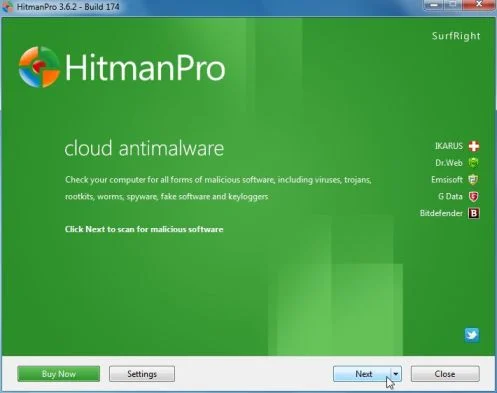
Click on the Next button, to install HitmanPro on your computer.
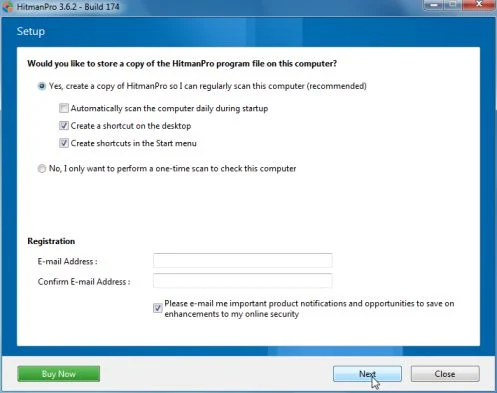
- HitmanPro will now begin to scan your computer for eFix Pro malicious files.
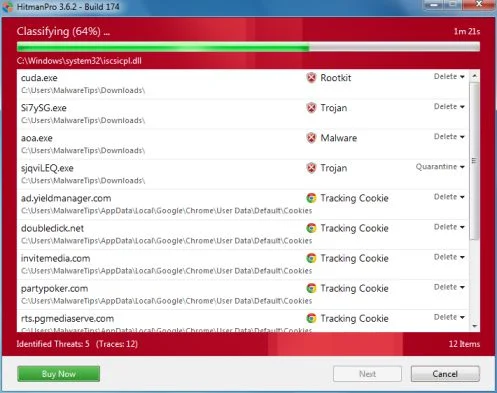
- When it has finished it will display a list of all the malware that the program found as shown in the image below. Click on the Next button, to remove eFix Pro adware.
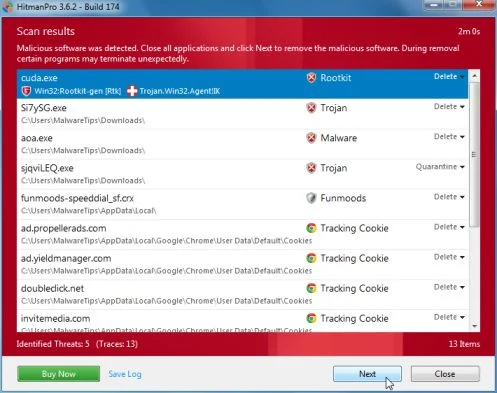
- Click on the Activate free license button to begin the free 30 days trial, and remove all the malicious files from your computer.
![[Image: HitmanPro 30 days activation button]](https://malwaretips.com/blogs/wp-content/uploads/mwt-media/7f/7f063c87fa029d8cd40df3f7faf43765ba1bb9e82c8d5a64c8a49de788018196/2a8400863f3c81fd7d6411e20166dfacdf0bc73e14522edea93a637003240dc1-497.webp "HitmanPro free 30 days trial")
Your computer should now be free of the eFix Pro infection. If your current anti-virus solution let this infection through, you may want to consider purchasing the PRO version of Malwarebytes Anti-Malware to protect against these types of threats in the future, and perform regular computer scans with HitmanPro.
If you are still experiencing problems while trying to remove eFix Pro virus from your machine, please start a new thread in our Malware Removal Assistance

Join the discussion
0 commentsShare your experience or ask a question about this article.
Your progress
Did these steps help?
Let us know how the guide worked for you.
Describe what you see and the step you reached. Keep passwords and other private information out.
Discussion
Start the conversation
Have a question or something useful to share? Add the first comment.