

A message says your email never reached its recipient. If you were waiting on a reply, that small warning can suddenly explain an uncomfortable silence.
The subject asks for a quick review, and a settings button seems ready to help. Before using it, look at what the notice actually tells you.
Overview
The warning turns a delivery problem into a password risk
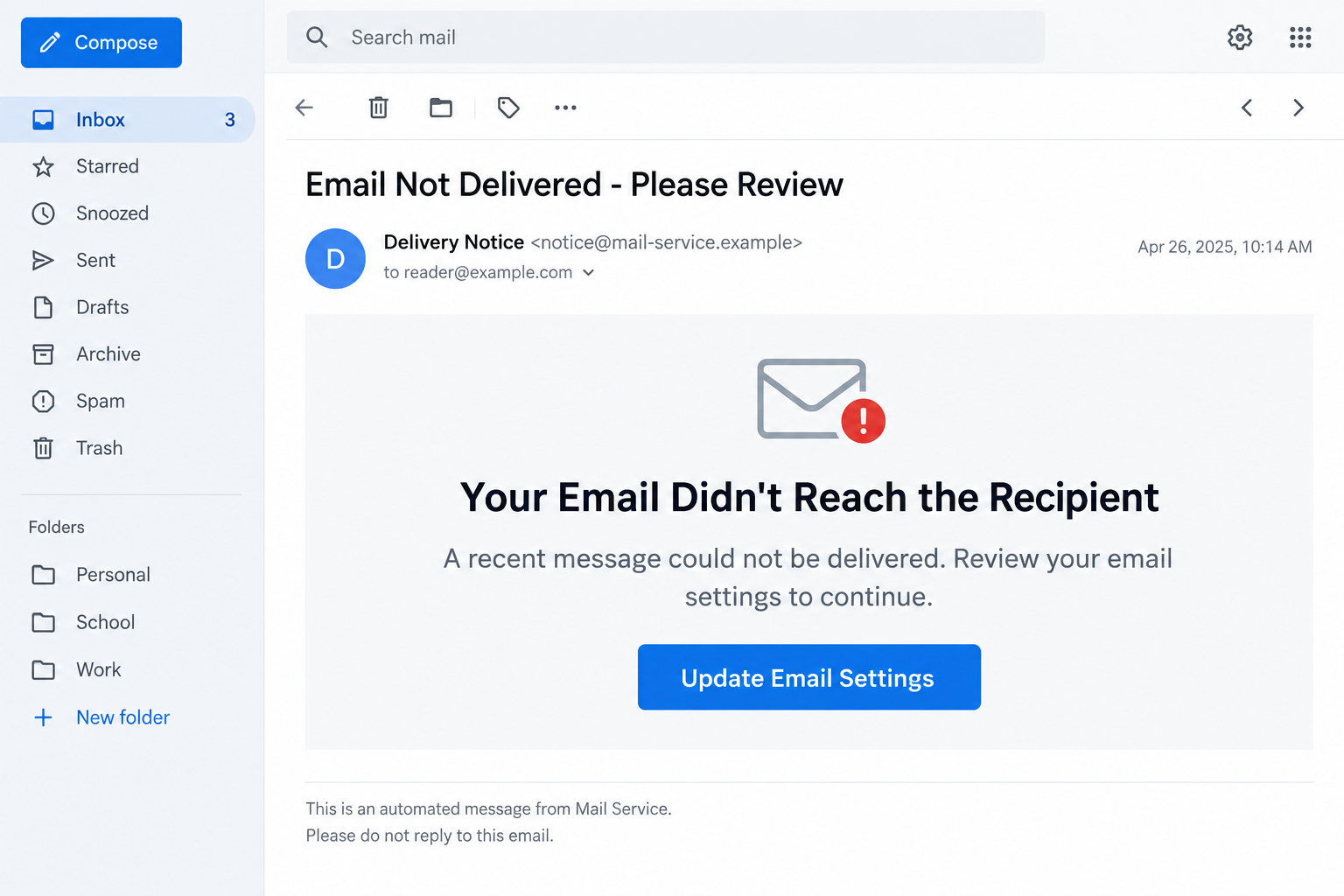
The “Your Email Didn’t Reach the Recipient” email scam uses a supposed outgoing delivery failure to steer readers toward an untrusted account-settings page.
The documented message does not identify the failed correspondence or establish which provider sent the warning. Its solution is a button rather than a useful delivery diagnosis.
That distinction matters. A genuine bounce can help you correct an address or troubleshoot delivery. This lure asks you to trust a new route into your account.
What the available specimen establishes
A specimen documented in October 2026 pairs a failed-delivery claim with an account-update control. It does not prove that any of your messages actually went missing.
The linked destination was unavailable during the reported investigation. We cannot verify its final login design, technical behavior, or whether it remains active.
The image here illustrates the email using fictional details. It is not a capture from an affected person’s mailbox or proof of the unavailable destination.
The safest next action is a separate delivery check
Open your usual email application independently. Find the message you actually sent, check its recipient, and use your provider’s established support route if something is wrong.
- Look for a specific failed message, recipient, and explanation.
- Compare the alert with your Sent folder and any genuine delivery report.
- Keep passwords away from pages reached through the unsolicited repair button.
- Report the suspicious notice without replying to its sender.
You do not have to decide whether every technical detail is convincing. You only need to avoid letting an unexpected email choose where you sign in.
A Real Bounce Gives You Something to Investigate
Email sometimes fails for ordinary reasons. An address can contain a typo, a receiving mailbox can be full, or a mail server can reject a message.
Google’s guidance on bounced messages explains that delivery notices include an error to help identify the problem.
For example, an incorrect destination calls for checking the recipient’s address. Changing your mailbox password would not repair a typo in someone else’s address.
This gives you a useful question: does the suggested fix match the reported failure? A vague request to update everything avoids explaining what needs fixing.
Do not judge solely by formatting. Real delivery reports can look plain, awkward, or technical. A polished card is not more reliable because it reads smoothly.
Likewise, the absence of a familiar error number is a clue, not a complete verdict. Providers present errors differently, and attackers can copy convincing diagnostic text.
Compare the notice with an actual event. Who was the recipient? When did you send the message? Is its subject or other identifying information consistent?
If you never sent the referenced email, do not immediately conclude that someone controls your account. Spoofing can also cause delivery reports for messages you never wrote.
That possibility deserves a separate account check, particularly if other suspicious activity exists. It does not make the stranger’s repair link safe to use.
For work accounts, the administrator can examine delivery records. A message trace or server log is more useful than guesses based on an unsolicited button.
How the Email Didn’t Reach the Recipient Scam Works
Step 1: A routine-looking notice interrupts an unfinished conversation
The lure starts with something familiar: an email you expected another person to receive. It can catch attention without promising money or threatening legal consequences.
Someone waiting for a customer response may mentally connect the notice to a recent quotation. A job applicant might think it explains an employer’s silence.
These are examples of how the message can feel relevant. The specimen does not show that its sender knew either person’s conversations or accessed their mailbox.
A recipient’s own uncertainty fills the gap. Instead of asking how the sender knows about a delivery failure, the reader begins thinking about lost time.
The first useful pause comes here. Find the conversation yourself before accepting the notice as an explanation for it.
Step 2: The email offers reassurance without useful diagnostics
The documented message makes the problem sound easy to resolve. That calmer tone can be persuasive because it resembles ordinary customer-service communication.
There is still a pressure mechanism: something you meant to send supposedly has not arrived. Fixing it feels like part of completing your original task.
But reassurance is not a diagnostic result. A sender must still explain which service encountered the error and which message requires attention.
Ask whether the notice distinguishes a bad destination from a temporary rejection. Those situations require different responses; a universal account-update button explains neither.
Do not alter server settings simply to make the warning disappear. Unnecessary changes can create a genuine mail problem while leaving the suspicious message unresolved.
Step 3: The repair button chooses an unfamiliar sign-in route
A button can say anything its author chooses. Its label does not tell you who operates the destination or whether that organization hosts your mailbox.
Previewing a link without opening it can expose an unrelated domain. If the address is confusing, there is no need to decode every character yourself.
Use a bookmark or open the mail application you already use. This preserves a known starting point while you investigate the alleged failure.
Even a destination containing your email address is not proof of legitimacy. A sender already knows where it delivered the message and can reuse that information.
For this specimen, the unavailable endpoint prevents a confirmed description of the next screen. Claims about a particular cloned provider or adaptive login would be speculation.
Step 4: A settings check can become credential collection
In credential-phishing versions of this pattern, the next page asks the reader to authenticate before completing the promised repair.
The change in task is easy to miss. You began checking delivery, but are now providing account access to whoever controls the form.
A password entered into an impostor page should be treated as exposed, even if the page later reports an error or sends you elsewhere.
A page can also request a verification code. Never approve an unexpected sign-in prompt merely because the emailed instructions say it is necessary.
The practical boundary is simple: confirm account issues through the provider first. Do not authenticate a repair process whose origin you have not established.
Step 5: Mailbox access can spread the consequences beyond one message
If stolen credentials work, the attacker may gain information far more valuable than the supposedly failed email: invoices, conversations, recovery messages, and trusted contacts.
Existing correspondence can make later impersonation more convincing. An attacker who reads a discussion may know which payment, document, or appointment a contact expects.
These are possible consequences of account compromise, not confirmed events for every recipient of this notice. Receiving it alone does not establish unauthorized access.
The response should therefore match what happened. Ignoring the message and submitting a password require very different recovery efforts.
Act quickly if credentials were entered, but avoid panic-driven changes to unrelated systems. Start with the account and exposure you can identify.
Sender and Settings Checks That Actually Help
Read the address, then verify the relationship
Expand the sender details instead of relying on a display name. Look for a domain that matches the provider or organization responsible for your mailbox.
An apparent match still needs context. Compromised accounts can send genuine-looking correspondence, while authorized providers sometimes use separate notification domains.
When unsure, ask your established support contact about the exact notice. Do not use a telephone number or reply address supplied only by the questionable message.
Ask what setting is supposedly wrong
A legitimate support instruction should identify the relevant service and change. “Update settings” without that context is too vague to justify handing over a password.
Do not disable spam protection, remove multifactor authentication, or install a repair program just to satisfy an unexplained delivery warning.
If your provider confirms a real configuration issue, follow its instructions from the authenticated account or support conversation you initiated independently.
Check the recipient through an existing channel
For important correspondence, a known telephone number or established messaging conversation can answer whether the person received it. Keep sensitive contents out of public channels.
Verify the address before resending. Sending repeated copies to a mistyped address does not solve the problem and could disclose information to the wrong person.
For a business deadline, document the genuine delivery issue and tell the relevant colleague. This addresses the practical problem without relying on the suspicious alert.
What to Do if You Have Fallen Victim to This Scam
-
Stop using the notice’s controls. Close its destination and stop entering information. Record whether you only viewed it, clicked, submitted credentials, or downloaded anything.
If you only read the email, use the provider’s phishing-report function. Receipt alone is not evidence that your device or mailbox was compromised.
-
Secure any password you submitted. Visit the real provider independently, preferably from a trusted device, and change the exposed password to a unique one.
Replace that password on other accounts where you reused it. If you cannot sign in, use the provider’s established recovery process instead of a search-result support number.
-
Review ongoing account access. Inspect recent security activity, signed-in devices, recovery details, and connected applications. Remove access you do not recognize through the provider’s controls.
Google’s compromised-account checklist is useful for Google users. For managed mail, ask your administrator to check sessions and account changes.
-
Check how mail is handled. Examine forwarding addresses, inbox rules, delegated access, and messages you did not send. An intruder may change these without deleting your inbox.
Keep a record of suspicious settings before correcting them. Tell work IT promptly if business correspondence, customer details, or payment instructions might have been exposed.
-
Protect conversations that could be abused. Warn affected contacts through a trusted channel if your account sent deceptive messages or an attacker accessed a sensitive discussion.
For any changed bank details or unexpected payment request, confirm directly with the intended recipient. Contact your bank immediately if money was sent fraudulently.
-
Check the device when the exposure warrants it. If you installed software, ran a downloaded file, or noticed persistent redirects, seek device cleanup assistance.
Malwarebytes can help check for malicious or unwanted software. AdGuard can reduce exposure to some deceptive ads, but neither replaces securing an exposed email account.
A clean scan cannot retract information already submitted. Keep account recovery and device inspection as separate tasks, each matched to what actually happened.
-
Preserve a useful incident record. Save the message, relevant headers, destination address, and approximate interaction times. Avoid including passwords or verification codes in reports.
Report financial fraud to the appropriate authorities. Reject anyone who contacts you promising guaranteed recovery in exchange for a fee or another account login.
A Quick Routine for Future Delivery Warnings
Build your check around three facts: the message you sent, the person you sent it to, and the service responsible for delivery.
If a warning cannot be connected to those facts, leave its repair instructions alone. A notice should help establish the problem before asking you to solve it.
For teams, agree on one route for suspicious mail. A simple forwarding procedure to internal support is easier to follow than several competing reporting instructions.
Administrators should distinguish reporting from ordinary forwarding when headers matter. Use the organization’s preferred reporting tool so investigators receive the information needed to assess the original.
Do not publish the complete message in a public forum if it contains private addresses, customer names, or signed links. Redact those details before sharing examples.
Finally, fix genuine delivery issues using documented diagnostics. Avoid treating every bounce as fraud, since missed legitimate errors can also disrupt important communication.
Frequently Asked Questions
Is the “Your Email Didn’t Reach the Recipient” notice legitimate?
The documented unsolicited settings-update message is a phishing lure. Similar wording can appear in real delivery reports, so verify the actual message and provider independently.
Does receiving it mean my email account was hacked?
No. A sender can target your address without accessing the mailbox. Investigate account activity if you submitted credentials or see independent signs of unauthorized use.
Can I use the button if I really have missing emails?
A real delivery problem does not authenticate that button. Open the normal mail service and ask its support team to investigate the failure.
Why does the message contain my own email address?
The sender needs your address to deliver the notice. Repeating it in the body or link creates familiarity without proving knowledge of your account settings.
What if I clicked but did not enter anything?
Close the page and check whether anything downloaded or permissions were granted. Clicking alone does not establish password theft; investigate further if another exposure occurred.
Should I resend the email immediately?
First check the destination and any genuine error report. Resend only after confirming the address and cause, especially when the message contains sensitive information.
The Bottom Line
The Email Didn’t Reach the Recipient scam exploits a normal concern: whether someone received what you sent. Its vague repair button is not a reliable diagnosis.
Check delivery through your actual provider. If you disclosed a password, secure the account and its active access instead of returning to the supposed settings fix.

Join the discussion
0 commentsShare your experience or ask a question about this article.
Discussion
Start the conversation
Have a question or something useful to share? Add the first comment.