

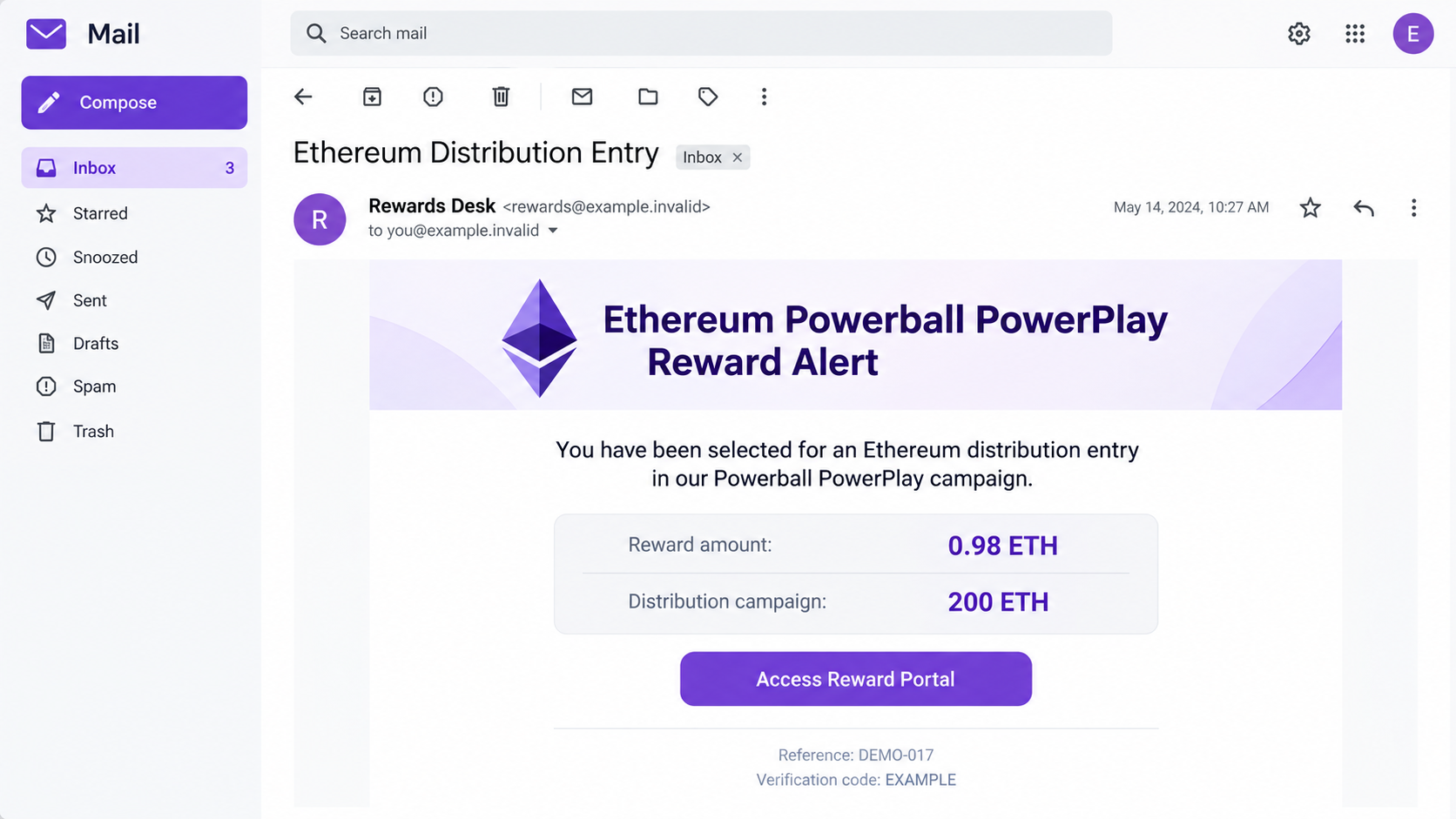
An email says your address has been selected for an Ethereum reward. The amount is specific, 0.98 ETH, and a portal is waiting for your claim.
A reference number and code make the offer look organized. Before claiming, check what connects you to this supposed draw.
Overview
A crypto giveaway borrows a lottery name
The Ethereum Powerball PowerPlay email scam presents an unsolicited prize as part of a digital-currency distribution. It combines familiar lottery wording with Ethereum terminology.
The reported message promises 0.98 ETH from an alleged 200 ETH campaign. It directs the recipient to a reward portal and asks for wallet-based eligibility checks.
Those claims do not establish a legitimate prize. No verified connection to Powerball or an authorized Ethereum promotion has been shown for this email.
Ethereum is a real network, and Powerball is a real lottery brand. Neither fact makes their names in an inbox message an endorsement of its offer.
Identifiers make the promise feel assigned to you
A reference number and verification code suggest that the sender has already created a claim record. That can make the next step feel administrative rather than risky.
But a sender can invent those identifiers along with the prize. They do not prove the existence of a funded payout, a drawing or an authorized organizer.
- The email says the recipient was selected for an Ethereum distribution.
- The advertised amount is 0.98 ETH, within a supposed 200 ETH campaign.
- A reward portal is presented as the place to complete eligibility.
- Reference details supply a sense of official recordkeeping without authenticating the sender.
The useful question is not whether 0.98 ETH would be valuable. It is why this particular sender has authority to offer it to you.
The promised portal does not reveal a verified payout process
The original linked destination was inaccessible. No exact fee screen, wallet approval, contract or executable was recovered for independent testing.
Payment demands, secret requests and malicious approvals are possible risks to recognize, not three steps confirmed in every recipient’s encounter with this sample.
The illustration uses fictional addresses, dates and claim identifiers. It shows the reported reward pitch without pretending to be an original email or transaction record.
Do not attempt to claim this offer to find out which trap appears. You can reject the false prize without exposing a wallet to its portal.
Powerball Wording Does Not Authenticate an Ethereum Distribution
A lottery-style name carries an implied story: there was a drawing, somebody kept records and a winner now needs to collect.
The email asks the recipient to accept that whole story before independently establishing any of those events. Its code then appears to be the remaining verification.
Powerball’s official scam guidance warns about unsolicited prize contacts and requests to pay collection fees. Genuine promotional exceptions do not validate an unrelated crypto email.
If you entered an actual promotion, verify its organizer and rules through the original official channel. Do not assume any later message mentioning a reward belongs to it.
A copied Ethereum symbol provides no additional authority. The network does not have a universal prize desk assigning ETH to email addresses.
The ethereum.org security guide explains common giveaway and impersonation risks. A stranger cannot authenticate a reward merely by referring to that real ecosystem.
Likewise, owning a wallet does not automatically enroll you in a lottery. A public blockchain address and an email address are not interchangeable proof of participation.
Keep the name, the claimed organizer and the payment request separate. Familiar words should not do the work of verifying the party asking you to act.
If another person sends you the same claim code, that still does not create a valid draw. It may simply show that a message is being circulated.
A different code would not authenticate it either. Numbering claims is easy; establishing the organizer’s authority is the part the email has not done.
Do not paste a real account’s verification code into a discussion to compare it with the prize identifier. Those are different records with very different security consequences.
You can discuss the suspicious wording without sharing a live code, wallet secret or private account screen.
How the Ethereum Powerball PowerPlay Email Scam Works
Step 1: Announce a Prize Before Establishing an Entry
The message starts with good news: your address has supposedly been selected. It invites you to focus on receiving the reward rather than understanding the selection.
A distribution campaign can sound plausible to someone familiar with crypto promotions. The lottery language adds a recognizable explanation for why the recipient was chosen.
That combination also reaches people who do not know much about either subject. They may assume a technical process explains the missing background.
Do not supply that explanation for the sender. Ask whether you entered anything, who organized it and where its genuine terms were published.
The reported email has not established a real entitlement to funds. A statement that you were selected is part of the claim, not independent confirmation of it.
If the only evidence of your prize is the message offering it, keep your money and account access out of the conversation.
Step 2: Make the Amount and Claim Record Feel Concrete
The 0.98 ETH figure is precise enough to feel calculated. The larger campaign amount suggests a pool from which your allocation could have been drawn.
A reference number and verification code extend that impression. They resemble the identifiers people receive after entering a real application or completing a transaction.
Here, however, they originate with the same unknown sender as the reward promise. One unsupported claim cannot verify another unsupported claim.
A code printed inside the email is also different from an authentication code issued by a service during a sign-in you initiated.
Do not share genuine exchange or mailbox security codes because a reward page asks for verification. Those codes can concern access to your own accounts.
The right comparison is with records from an independently verified organizer, not with more details generated inside the proposed claim portal.
Step 3: Move Eligibility Into a Wallet Interaction
The reported notice tells the recipient to use an active decentralized wallet. That moves the interaction closer to an account holding real assets.
Connecting a wallet can expose its public address and allow a site to request further actions. Connection by itself does not automatically transfer every asset.
Read any subsequent request as a separate decision. A payment, token allowance, message signature and recovery-phrase disclosure have different consequences.
Do not assume a button labeled Claim is limited to receiving. The actual request presented by the wallet matters more than the website’s reassuring label.
Ordinary receipt of ETH does not require giving the sender your private key. Nor does it require granting an unknown party control of unrelated tokens.
No particular permission request was confirmed for this unavailable portal. If you interacted, use the request you actually saw to guide your response.
Step 4: Turn the Promised Payout Into Something Valuable to the Sender
A false prize can be used to demand a payment, collect account information or seek wallet authority. These are alternative ways to exploit the same expectation.
A fee may be described as activation, administration or release. Renaming the payment does not prove that the prize exists or will follow it.
Network transaction costs deserve a separate distinction. Real blockchain activity can involve fees, but that fact does not authenticate an unsolicited reward or an unknown recipient.
A request to import a wallet into an unfamiliar tool is another reason to stop. Recovery information should not become an eligibility document for a supposed lottery.
If the page instead displays a balance, do not treat the number as funds you already control. A website can print a reward without sending anything.
The original portal’s unavailability leaves its exact extraction method unresolved. It does not create a reason to test the claim with a small payment or spare wallet.
Match the Risk to the Wallet Action
A public address is not a recovery secret
Sharing a public receiving address does not give someone the same control as sharing a private key. Do not confuse the two when describing the incident.
However, connecting that address to your email can reduce privacy and attract further targeting. Save what happened without volunteering more information to the sender.
If you received an unexpected token afterward, avoid interacting with an unknown claim link attached to it. Its presence does not validate the original prize.
Disconnecting is not the same as revoking permission
A wallet may let you disconnect a website so it no longer sees the current account through that connection. That does not necessarily cancel existing token allowances.
MetaMask explains this distinction in its dapp-disconnection guidance. Use controls appropriate to your actual wallet and network.
An allowance for a particular token is not automatically permission over native ETH or every other asset. The exact approval determines what needs attention.
A recovery phrase requires a different response
If a secret recovery phrase or private key was exposed, changing a website password is not a sufficient answer. The secret concerns control of the wallet itself.
Reach the wallet provider’s official security guidance from a trusted environment. Do not use tools or helpers supplied by the same reward operator.
For significant assets or an active theft, seek qualified incident help promptly. Never disclose the secret to a person who says they need it to investigate.
What to Do if You Have Fallen Victim to This Scam
Stop the claim before making another commitment. Close the page and reject further payment or signing prompts.
Do not add funds to a wallet because the sender claims it must qualify for distribution. A second transfer does not make the first promise genuine.
If you only received the email, report it and move on. There is no need to connect a wallet to prove that you are refusing the prize.
Write down the actual interaction. Record the site, wallet, network and approximate time, plus any transaction hash or approval details.
Distinguish connecting, signing a message, approving tokens and sending funds. If you are unsure what a request did, preserve its record for official wallet support.
Do not publish screenshots containing recovery words, private keys or account codes. Investigators need the transaction trail, not public access to your assets.
Review connections and approvals through trusted controls. Disconnect the suspicious site, then investigate any permissions you granted.
MetaMask’s approval-revocation instructions explain relevant token controls. Other wallets and networks may require different steps.
Revoking a permission cannot reverse a completed transfer. It also does not secure an exposed recovery phrase, which needs its own urgent assessment.
Contact the sending provider if you paid. Give the exchange or payment service the exact asset, destination, amount and transaction reference.
Ask about any remaining options without expecting a guaranteed reversal. Do not pay the reward sender another fee to cancel or refund the original payment.
If credentials for an exchange or email account were disclosed, secure that service independently. A wallet disconnect does not change an online account password.
Investigate device compromise only where there was device exposure. Report any installed wallet tool, extension, downloaded file or remote-access request.
An updated Malwarebytes scan can help examine suspicious software on a personal computer. AdGuard can reduce some advertising and browsing risks.
Neither application cancels blockchain approvals or restores cryptocurrency already sent. Keep those financial and permission checks separate from device cleanup.
Report the campaign and refuse recovery guarantees. Keep the original email and payment records for the appropriate fraud-reporting service in your location.
Tell the real wallet or exchange provider about ongoing unauthorized activity. Use contact details found through that service, not an account messaging you after a complaint.
A stranger promising to recover ETH for an advance fee can create another loss. Do not supply wallet secrets as proof that you deserve assistance.
Is Your Device Infected? Run a Free Malware Scan
Slow performance, constant pop-ups, or strange behavior? These are classic signs of a malware infection. The fastest way to find out is to scan your device with Malwarebytes Free — one of the most trusted malware removal tools available.
The free version detects and removes the most common threats, including:
- Adware — the cause of those annoying pop-ups
- Browser hijackers — unwanted redirects and changed homepages
- Trojans and spyware — hidden programs stealing your data
- Potentially unwanted programs (PUPs) — software you never asked for
👉 Select your device below — Windows, Mac, or Android — then follow the simple steps to download Malwarebytes, scan your system, and remove any threats it finds. The scan usually takes 5 to 20 minutes.
Run a Malware Scan with Malwarebytes for Windows
Malwarebytes is one of the most popular and trusted anti-malware tools for Windows — and it’s completely free for removing infections. It catches threats that many antivirus programs miss, including adware, browser hijackers, and trojans. Follow the steps below to scan and clean your PC in just a few minutes.
Download Malwarebytes
Click the button below to download the latest version of Malwarebytes for Windows from the official source. The free version is all you need — it will scan your computer and remove adware, browser hijackers, and other malicious software at no cost.
Download MalwarebytesOfficial installer for Windows 11 and 10. Your download starts right away.Want real-time protection? See Malwarebytes Premium Malwarebytes Free for WindowsScans and removes malware at no cost
-
Install Malwarebytes
When the download finishes, open your Downloads folder and double-click the MBSetup file. If Windows shows a User Account Control pop-up, click “Yes” to allow the installation.

Follow the On-Screen Prompts to Install Malwarebytes
The setup wizard will walk you through a few quick screens:
-
Choose where you’re installing the program — “Personal Computer” or “Work Computer” — then click Next.

-
Malwarebytes will now install on your device. This usually takes under a minute.

-
When installation is complete, the “Welcome to Malwarebytes” screen will open automatically.

-
On the final screen, click Open Malwarebytes to launch the program.

-
Enable “Scan for Rootkits”
Before scanning, turn on rootkit detection so Malwarebytes can find even the most hidden threats. Click the Settings gear icon on the left side of the screen.

In the settings menu, find “Scan for rootkits” and click the toggle so it turns blue.

Done? Click “Dashboard” in the left pane to return to the main screen.
Start the Scan
Click the blue Scan button. Malwarebytes will automatically update its virus database and start checking your computer for malware.

-
Wait for the Scan to Finish
The scan checks your entire system for browser hijackers and other malicious programs, so it can take 5 to 20 minutes depending on your computer. Feel free to do something else — just check back occasionally to see the progress.

-
Quarantine the Detected Threats
When the scan is done, you’ll see a list of everything Malwarebytes found — malware, adware, and potentially unwanted programs. Click the “Quarantine” button to remove all of them at once.

Malwarebytes will now remove the malicious files and registry entries and move them safely into quarantine.

-
Restart Your Computer
Some threats can only be fully removed after a reboot. If Malwarebytes asks you to restart, click Yes. Once you’re logged back in, Malwarebytes has finished removing the threats it found.

That’s it — your Windows PC is now clean of trojans, adware, and other malware, and should be back to running smoothly.
If you are still having problems with your computer after completing these instructions, then please follow one of the steps:
- Run a computer scan with ESET Online Scanner
- Ask for help in our Windows Malware Removal Help & Support forum.
Run a Malware Scan with Malwarebytes for Mac
Malwarebytes for Mac is a free on-demand scanner that removes the malware other security software tends to miss — adware, browser hijackers, and unwanted programs included. Cleaning an infected Mac with Malwarebytes has always been completely free, and it’s our go-to recommendation. Follow the steps below to scan and clean your Mac in just a few minutes.
-
Download Malwarebytes for Mac
Click the button below to download the latest version of Malwarebytes for Mac.
Download MalwarebytesOfficial installer for macOS. Your download starts right away.Want real-time protection? See Malwarebytes PremiumMalwarebytes Free for MacScans and removes malware at no cost -
Open the Malwarebytes setup file
When the download finishes, open your Downloads folder and double-click the setup file to begin the installation.

-
Follow the On-Screen Prompts to Install Malwarebytes
The Malwarebytes for Mac Installer will guide you through a few quick screens. Click “Continue” and keep following the prompts until the installation completes.



When the installation is complete, Malwarebytes opens to the Welcome to Malwarebytes screen. Click “Get started“.
-
Select “Personal Computer” or “Work Computer”
Malwarebytes will ask what type of computer you’re installing it on. Click either Personal Computer or Work Computer, whichever applies.

-
Start the Scan
Click the “Scan” button. Malwarebytes will automatically update its detection database and begin checking your Mac for malware.

-
Wait for the Scan to Finish
Malwarebytes will scan your Mac for adware, browser hijackers, and other malicious programs. This can take a few minutes, so feel free to do something else — just check back occasionally to see the progress.

-
Quarantine the Detected Threats
When the scan is done, you’ll see a list of everything Malwarebytes found. Click the “Quarantine” button to remove all the threats at once.

-
Restart Your Mac
Malwarebytes will now remove all the malicious files it found. Some threats can only be fully removed after a reboot — if Malwarebytes asks you to restart, allow it. Once you’re logged back in, your Mac is clean.

That’s it — your Mac is now free of adware, rogue browser extensions, and other potentially harmful software.
If you are still experiencing problems while trying to remove a malicious program from your computer, please ask for help in our Mac Malware Removal Help & Support forum.
Run a Malware Scan with Malwarebytes for Android
Malwarebytes for Android automatically detects and removes dangerous threats like malware and ransomware so you don’t have to worry about your most-used device being compromised. Aggressive detection of adware and potentially unwanted programs keeps your Android phone or tablet running smooth.
-
Download Malwarebytes for Android.
You can download Malwarebytes for Android by clicking the link below.
Get Malwarebytes for AndroidOpens Google Play in a new tab.Want real-time protection? See Malwarebytes Premium for AndroidMalwarebytes for AndroidScans your phone and removes malware at no cost -
Install Malwarebytes for Android on your phone.
In the Google Play Store, tap “Install” to install Malwarebytes for Android on your device.

When the installation process has finished, tap “Open” to begin using Malwarebytes for Android. You can also open Malwarebytes by tapping on its icon in your phone menu or home screen.

-
Follow the on-screen prompts to complete the setup process
When Malwarebytes will open, you will see the Malwarebytes Setup Wizard which will guide you through a series of permissions and other setup options.
This is the first of two screens that explain the difference between the Premium and Free versions. Swipe this screen to continue.
Tap on “Got it” to proceed to the next step.
Malwarebytes for Android will now ask for a set of permissions that are required to scan your device and protect it from malware. Tap on “Give permission” to continue.
Tap on “Allow” to permit Malwarebytes to access the files on your phone.
-
Update database and run a scan with Malwarebytes for Android
You will now be prompted to update the Malwarebytes database and run a full system scan.

Click on “Update database” to update the Malwarebytes for Android definitions to the latest version, then click on “Run full scan” to perform a system scan.

-
Wait for the Malwarebytes scan to complete.
Malwarebytes will now start scanning your phone for adware and other malicious apps. This process can take a few minutes, so we suggest you do something else and periodically check on the status of the scan to see when it is finished.

-
Click on “Remove Selected”.
When the scan has been completed, you will be presented with a screen showing the malware infections that Malwarebytes for Android has detected. To remove the malicious apps that Malwarebytes has found, tap on the “Remove Selected” button.

-
Restart your phone.
Malwarebytes for Android will now remove all the malicious apps that it has found. To complete the malware removal process, Malwarebytes may ask you to restart your device.
That’s it — your Android phone is now clean — no more malicious apps, adware, or browser redirects.
If you are still having problems with your phone after completing these instructions, then please follow one of the steps:
- Restore your phone to factory settings by going to Settings > General management > Reset > Factory data reset.
- Ask for help in our Mobile Malware Removal Help & Support forum.
Stay Protected: Block Ads and Malicious Sites
Now that your device is clean, keep it that way. Most infections start with a malicious ad or a fake download button — so blocking them at the source is your best defense.
We recommend AdGuard, which blocks malicious ads, phishing pages, and dangerous redirects before they can reach you.
👉 Download AdGuard and browse safely
Frequently Asked Questions
Is the 0.98 ETH reward an official Powerball prize?
No verified affiliation supports this email. Check actual lottery information through Powerball, not through a crypto reward portal introduced by an unsolicited message.
Does a reference number prove that I won?
No. A sender can invent a claim identifier and code. They do not authenticate the organizer, selection process or available funds.
Did the original portal use a wallet drainer?
The portal was inaccessible, so its precise mechanism was not independently confirmed. Payment demands, secret collection and malicious permissions remain possible risks, not verified steps.
Can a website empty my wallet just because I connected?
Connection alone is not automatically asset transfer. Review any additional payment, approval, signature or secret disclosure to understand the actual exposure.
Is every blockchain fee a scam?
No. Real transactions can have network costs. That does not make this prize genuine or justify paying a stranger to unlock an unsolicited reward.
Will removing malware recover the promised ETH?
No. Device cleanup does not create a real prize, undo completed transfers or revoke wallet permissions. Address each relevant exposure through its proper controls.
The Bottom Line
Do not claim the Ethereum Powerball PowerPlay reward or pay to release it. Specific numbers and claim codes do not make the unsolicited prize legitimate.
If you interacted, preserve the wallet and payment records. Respond to what you actually approved, sent or disclosed, and reject anyone selling guaranteed recovery.

Join the discussion
0 commentsShare your experience or ask a question about this article.
Discussion
Start the conversation
Have a question or something useful to share? Add the first comment.