


Your workplace email says a security upgrade requires another MFA check. It sounds like a small task you should finish before access is interrupted.
The request uses language you have probably seen during genuine sign-ins. That familiarity makes the route to the settings worth a closer look.
Overview
An enrollment notice turns security advice against the reader
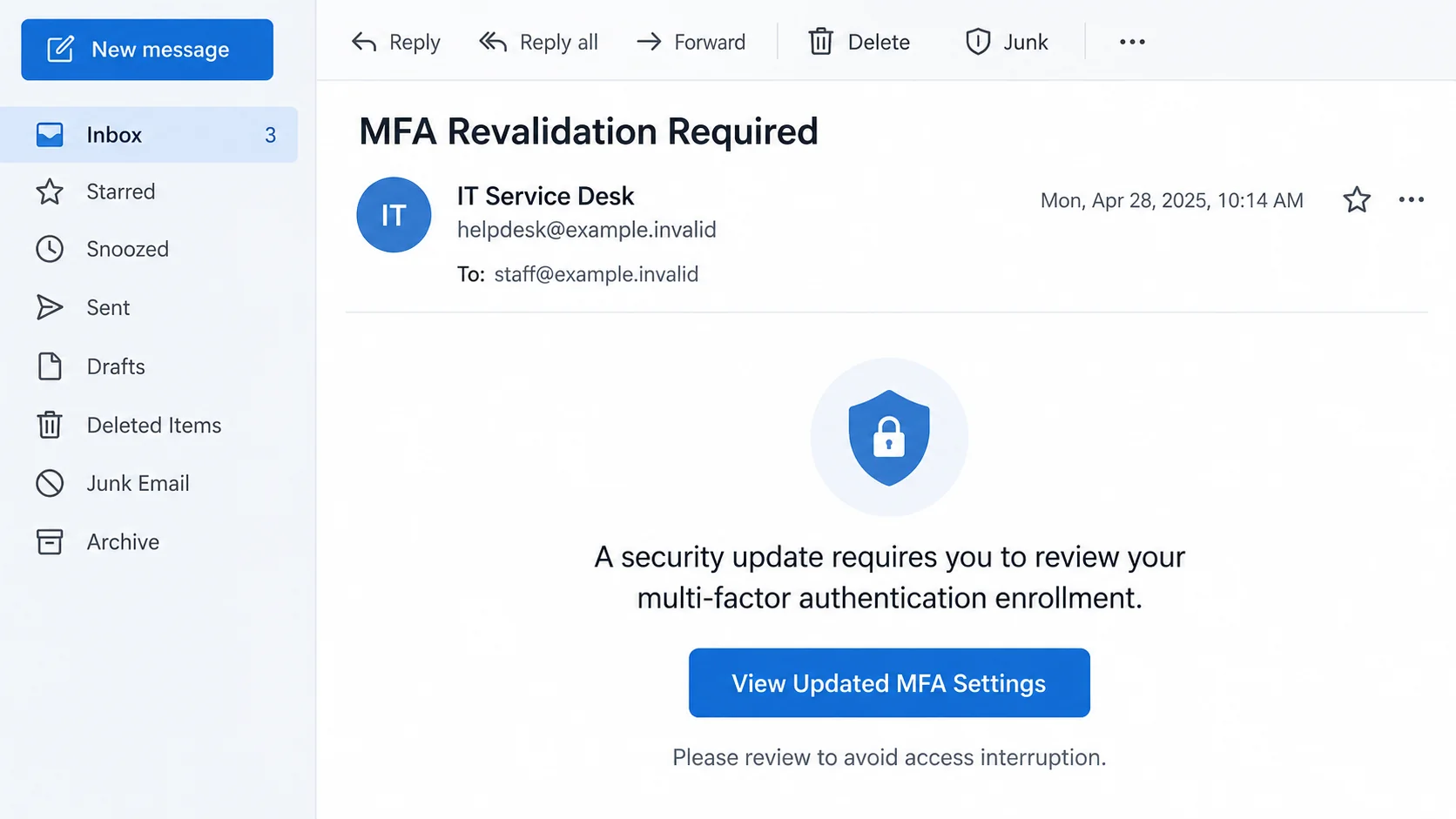
The MFA revalidation email scam impersonates an IT team and asks employees to confirm their authentication enrollment through a supplied link.
The reported notices refer to a recent upgrade and warn that access could be interrupted. One version presents the task as re-enrollment after an authentication-policy change.
The linked process is described as credential phishing. Instead of strengthening the employee’s sign-in, a false provider-style page collects login information.
The key distinction is not whether multi-factor authentication exists. It is whether your real organization initiated this request through the account system you actually use.
The help-desk identity and access warning work together
Employees may hesitate to challenge a security instruction, especially if it sounds like routine maintenance. The sender relies on that willingness to cooperate.
A notice about MFA can also feel safer than a request to disable protection. Here, the security terminology is what brings the recipient to the dangerous step.
- The sender presents itself as IT Service Desk or IT Operations.
- A security upgrade supposedly makes another enrollment check necessary.
- Continued access to work resources becomes the reason to act.
- A link to updated settings replaces an independently reached account-management route.
Do not judge the message by whether revalidation sounds technically possible. Real administrators can change policies, and a scammer can borrow the same vocabulary.
The historical destination is not the same as a current homepage
The domain yogisandyoginis[.]com was associated with the reported phishing route. A fresh visit to its root showed a yoga business, not the described credential page.
That observation does not establish that the business operated the scam. A historical path, redirect or compromised site cannot be reconstructed from its current homepage alone.
No working original form or specific MFA-bypass technique was independently recovered. The email illustration uses invented addresses and dates rather than a genuine employee’s message.
Keep the warning attached to the false IT request. Do not contact or accuse an unrelated business because its domain appeared in an older report.
Real MFA Changes Should Be Verifiable Outside the Email
Multi-factor authentication adds a check beyond a password. Depending on the service, you may use an app, security key, passkey or another approved method.
Organizations sometimes ask employees to register or update those methods. Replacing a device, enforcing a policy or introducing a new sign-in method can create legitimate tasks.
Microsoft’s security-information setup guidance describes registration within a work or school sign-in process. That does not authorize every email offering similar instructions.
Use your existing company portal or ask the actual support team. Find their details in your established directory, not in the notice you are checking.
Ask whether a change is underway, which users it affects and where the official instructions are published. A real instruction should survive that independent conversation.
If your organization confirms the task, follow its verified route. You do not need to reuse the untrusted message’s button to complete genuine enrollment.
A policy change can require a sign-in. That is different from sending your password to an unknown page or telling it to someone claiming to be support.
For a managed account, avoid improvising new authentication settings while the request is unresolved. Your administrator can distinguish a legitimate migration from an incident.
If you recently requested a replacement device, check the original support ticket. Compare its instructions with the new notice rather than assuming both belong to the same change.
A real support conversation gives you a separate place to ask whether another enrollment step is expected. You do not have to answer inside the questionable email.
When several staff members are affected, ask where the organization publishes its migration instructions. One verified announcement is more useful than a chain of uncertain forwards.
If the deadline is close, explain that you are checking an unexpected request. The real administrator can clarify the approved next step without asking for your password.
That preserves both goals: completing legitimate security work and avoiding an enrollment route introduced by an impersonator.
How the MFA Revalidation Email Scam Works
Step 1: Introduce a Security Change You Did Not Verify
The email places the recipient in the middle of an alleged upgrade. It speaks as though the organization has already decided what must happen next.
That framing removes the need to explain why an unknown sender should be trusted. You are encouraged to see yourself as late to an existing process.
A greeting using your name or work address can add familiarity. Such information does not prove that the sender belongs to your IT department.
The name IT Service Desk is a role, not a verified identity. An external message can display it without having access to your company’s support systems.
If the instruction was unexpected, compare it with internal announcements you reached independently. Do not treat another forwarded copy of the same email as confirmation.
A coworker receiving it too may simply mean several people were targeted. Ask the actual administrator whether this campaign belongs to the organization.
Step 2: Make Access Interruption the Cost of Waiting
The reported message says credentials must be confirmed to avoid losing access temporarily. That turns a verification question into a work-continuity concern.
You may imagine missed meetings, unavailable files or an interrupted deadline. The sender benefits if those possibilities feel more immediate than checking the link.
The pressure does not have to be dramatic. A calm administrative tone can work because employees are used to complying with ordinary security requirements.
Do not rely on spelling mistakes as the deciding test. A fluent notice can carry the same false instruction as a poorly written one.
If an interruption really is scheduled, your organization should be able to confirm it. An independent check is part of following security instructions responsibly.
Keep doing essential work through known services while seeking guidance, unless your real security team instructs otherwise. Do not grant an unknown page authority over the decision.
Step 3: Offer Updated Settings Through a Counterfeit Sign-In
The link appears to be a convenient path to MFA settings. In the reported flow, it instead leads to a page resembling the recipient’s email provider.
That resemblance can smooth over the transition. You were expecting a security task, so a login screen may feel like an ordinary prerequisite.
Look at the destination and the service relationship. A work logo or familiar password box cannot establish that the page is your organization’s identity system.
Do not enter a real password to test the page. A failed login message may be displayed after the information has already been collected.
If the page introduces an unfamiliar application, extension or setup utility, stop. A supposed enrollment task should not become an unverified software installation.
No specific software download was confirmed in this case. It is an exposure to report if your own encounter included one, not a feature to assume.
Step 4: Exploit the Gap Between a Password and Account Control
A stolen password gives an attacker something to try, but it does not prove that every account can be accessed. Existing authentication controls still matter.
Do not switch MFA off because a phishing page mentioned it. The sensible response is to investigate the disclosed secret and any additional action you took.
If you also approved a sign-in notification or supplied a one-time code, tell the administrator. That detail can change which access needs to be reviewed.
There is no verified finding here that this campaign used a particular session-stealing proxy. The actual login history should guide the incident response.
Someone with successful access may try to alter recovery methods or account permissions. An unchanged inbox appearance cannot settle whether those settings remain safe.
Account review therefore needs more than a screenshot of a new password confirmation. Your real support team should assess the permissions relevant to the affected service.
Tell Support Exactly Which Action Happened
Reading and clicking are not the same as signing in
Receiving the notice does not prove an intruder entered your account. If you clicked without submitting anything, say that clearly when reporting it.
Also mention unexpected downloads or permissions. Those are different facts from simply seeing a page, and support should not have to guess which occurred.
Do not revisit the link to reconstruct the experience. Write down what you remember and let the security team decide whether controlled examination is necessary.
A password attempt counts even if the form rejected it
If you tried more than one password, identify the affected accounts privately to the administrator. Do not paste any of those passwords into the report.
A rejection can encourage repeated attempts, giving the operator more than one secret. The page’s response does not tell you what it retained.
The same applies to an apparently harmless return to your normal mailbox. A redirect after submission is not a receipt proving your information went only there.
An approval needs its own explanation
Record whether you approved an app prompt, entered a code or changed an authentication method. Include the approximate time and any service name displayed.
These details help distinguish an attempted password theft from successful access or an unauthorized enrollment. You do not need to diagnose the technique yourself.
If you use Google, its compromised-account guidance offers the appropriate account checks. For an employer-managed service, coordinate those checks with its administrator.
What to Do if You Have Fallen Victim to This Scam
Leave the false enrollment flow. Do not approve another prompt or accept instructions to turn protection off.
Keep the email available for your organization’s reporting process. Note the time you interacted and whether you supplied information, rather than simply describing the message as suspicious.
Contact the real IT team immediately if credentials were submitted. Use a directory, known telephone extension or established support portal.
Explain that the email claimed an MFA upgrade. Include any approval, code, new app or changed method so support can assess the complete interaction.
A quick, accurate report is more useful than waiting until you can prove damage. Security teams can investigate an attempted compromise before you see consequences.
Change the exposed password through the genuine service. Use a trusted device and follow the administrator’s instructions for a managed account.
Replace reused copies elsewhere, without changing unrelated credentials merely because the email existed. Keep your replacement secrets out of support messages and screenshots.
Review active access and registered methods with support. Ask about unfamiliar sessions, recovery details, connected applications and enrollment changes.
Do not remove every method at random and lock yourself out. Have the administrator identify unauthorized changes while preserving a safe way back into the account.
Keep MFA enabled in the verified system. The scam’s use of security vocabulary is not a reason to abandon real protection.
Investigate software or browser exposure if it occurred. Tell support about anything downloaded, installed or granted unusual permissions.
Malwarebytes can help examine possible malware on a personal device. AdGuard can reduce unwanted ads and some unsafe browsing, but neither manages workplace authentication enrollment.
A clean scan should not close an account-compromise investigation. Passwords, sessions and authentication methods need their own checks.
Help stop the message spreading inside the organization. Report through the approved phishing channel and warn coworkers only as your team advises.
Do not mass-forward the live enrollment link as a warning. A security team can distribute indicators without turning the alert into another invitation to click.
Use Microsoft’s phishing advice as background, not as a substitute for your employer’s incident instructions.
Is Your Device Infected? Run a Free Malware Scan
Slow performance, constant pop-ups, or strange behavior? These are classic signs of a malware infection. A quick way to check is to scan your device with Malwarebytes Free, one of the most trusted malware removal tools available. If you only visited a scam page and didn’t download or install anything, this scan is optional.
The free version detects and removes the most common threats, including:
- Adware — the cause of those annoying pop-ups
- Browser hijackers — unwanted redirects and changed homepages
- Trojans and spyware — hidden programs stealing your data
- Potentially unwanted programs (PUPs) — software you never asked for
👉 Select your device below — Windows, Mac, or Android — then follow the simple steps to download Malwarebytes, scan your system, and remove any threats it finds. The scan usually takes 5 to 20 minutes.
Run a Malware Scan with Malwarebytes for Windows
Malwarebytes is one of the most popular and trusted anti-malware tools for Windows — and it’s completely free for removing infections. It catches threats that many antivirus programs miss, including adware, browser hijackers, and trojans. Follow the steps below to scan your PC and remove what Malwarebytes finds.
Download Malwarebytes
Click the button below to download the latest version of Malwarebytes for Windows from the official source. The free version is all you need — it will scan your computer and remove adware, browser hijackers, and other malicious software at no cost.
Download MalwarebytesOfficial installer for Windows 11 and 10. Your download starts right away.Want real-time protection? See Malwarebytes Premium Malwarebytes Free for WindowsScans and removes malware at no cost
-
Install Malwarebytes
When the download finishes, open your Downloads folder and double-click the MBSetup file. If Windows shows a User Account Control pop-up, click “Yes” to allow the installation.

Follow the On-Screen Prompts to Install Malwarebytes
The setup wizard will walk you through a few quick screens:
-
Choose where you’re installing the program — “Personal Computer” or “Work Computer” — then click Next.

-
Malwarebytes will now install on your device. This usually takes under a minute.

-
When installation is complete, the “Welcome to Malwarebytes” screen will open automatically.

-
On the final screen, click Open Malwarebytes to launch the program.

-
Optional: Check for rootkits with a Custom Scan
You don’t need to change any settings for a normal scan. The standard Threat Scan in the next step is enough for most problems, so you can go straight to it.
If you also want to check for rootkits, use a Custom Scan. In current versions of Malwarebytes, rootkit scanning is only available there:
- On the Scanner tile, click the three-dot menu and select Advanced Scan.
- Choose Custom Scan. In its options, check Scan for rootkits.
- Select your system drive (usually C:\) as the location to scan, then start the scan. It takes longer than a Threat Scan.
- When it finishes, review and quarantine the results as described in the steps below.
Rootkit scanning isn’t available on Windows devices with ARM processors.
Start the Scan
Click the blue Scan button. Malwarebytes will automatically update its virus database and start checking your computer for malware.

-
Wait for the Scan to Finish
The scan checks your entire system for browser hijackers and other malicious programs, so it can take 5 to 20 minutes depending on your computer. Feel free to do something else — just check back occasionally to see the progress.

-
Quarantine the Detected Threats
When the scan is done, you’ll see a list of everything Malwarebytes found — malware, adware, and potentially unwanted programs. Click the “Quarantine” button to remove all of them at once.

Malwarebytes will now remove the malicious files and registry entries and move them safely into quarantine.

-
Restart Your Computer
Some threats can only be fully removed after a reboot. If Malwarebytes asks you to restart, click Yes. Once you’re logged back in, Malwarebytes has finished removing the threats it found.

When the scan is done, check whether the problems you noticed have stopped. If they continue, see the options below.
If you are still having problems with your computer after completing these instructions, then please follow one of the steps:
- Run a computer scan with ESET Online Scanner
- Ask for help in our Windows Malware Removal Help & Support forum.
Run a Malware Scan with Malwarebytes for Mac
Malwarebytes for Mac is a free on-demand scanner that removes the malware other security software tends to miss — adware, browser hijackers, and unwanted programs included. Cleaning an infected Mac with Malwarebytes has always been completely free, and it’s our go-to recommendation. Follow the steps below to scan your Mac and remove what Malwarebytes finds.
-
Download Malwarebytes for Mac
Click the button below to download the latest version of Malwarebytes for Mac.
Download MalwarebytesOfficial installer for macOS. Your download starts right away.Want real-time protection? See Malwarebytes PremiumMalwarebytes Free for MacScans and removes malware at no cost -
Open the Malwarebytes setup file
When the download finishes, open your Downloads folder and double-click the setup file to begin the installation.

-
Follow the On-Screen Prompts to Install Malwarebytes
The Malwarebytes for Mac Installer will guide you through a few quick screens. Click “Continue” and keep following the prompts until the installation completes.



When the installation is complete, Malwarebytes opens to the Welcome to Malwarebytes screen. Click “Get started“.
Malwarebytes needs Full Disk Access to check your whole Mac. When it asks, open System Settings > Privacy & Security > Full Disk Access, turn on Malwarebytes (it may be listed as Malwarebytes Protection), and confirm with your password or Touch ID. Then return to Malwarebytes. On macOS Monterey and earlier, this setting is in System Preferences > Security & Privacy > Privacy.
-
Select “Personal Computer” or “Work Computer”
Malwarebytes will ask what type of computer you’re installing it on. Click either Personal Computer or Work Computer, whichever applies.

-
Start the Scan
Click the “Scan” button. Malwarebytes will automatically update its detection database and begin checking your Mac for malware.

-
Wait for the Scan to Finish
Malwarebytes will scan your Mac for adware, browser hijackers, and other malicious programs. This can take a few minutes, so feel free to do something else — just check back occasionally to see the progress.

-
Quarantine the Detected Threats
When the scan is done, you’ll see a list of everything Malwarebytes found. Click the “Quarantine” button to remove all the threats at once.

-
Restart Your Mac
Malwarebytes will now remove all the malicious files it found. Some threats can only be fully removed after a reboot — if Malwarebytes asks you to restart, allow it. Once you’re logged back in, check whether the problems you noticed have stopped. If they come back, save the scan report and ask for help in our forum.

If the problems you noticed continue after the scan, see the options below.
If you are still experiencing problems while trying to remove a malicious program from your computer, please ask for help in our Mac Malware Removal Help & Support forum.
Run a Malware Scan with Malwarebytes for Android
Malwarebytes for Android scans your phone or tablet for malware, adware, and potentially unwanted apps. The free version scans only when you start a scan. Real-time protection, which checks apps automatically, is part of the paid Premium version.
-
Download Malwarebytes for Android.
You can download Malwarebytes for Android by clicking the link below.
Get Malwarebytes for AndroidOpens Google Play in a new tab.Want real-time protection? See Malwarebytes Premium for AndroidMalwarebytes for AndroidScans your phone and removes malware at no cost -
Install Malwarebytes for Android on your phone.
In the Google Play Store, tap “Install” to install Malwarebytes for Android on your device.

When the installation process has finished, tap “Open” to begin using Malwarebytes for Android. You can also open Malwarebytes by tapping on its icon in your phone menu or home screen.

-
Follow the on-screen prompts to complete the setup process
When Malwarebytes opens, it walks you through a short setup. Tap Get started and follow the prompts. If you see an offer for a trial or a paid plan, read it before you accept. You can skip it and keep using the free scanner.
Malwarebytes will ask for permission to access the files on your phone so it can scan them. Tap Allow, or turn on the permission in the Android screen that opens, then return to Malwarebytes.
-
Run a scan with Malwarebytes for Android
On the main screen, tap Scan now. In some versions, you open the menu, tap Scanner, and then tap Run a scan.
-
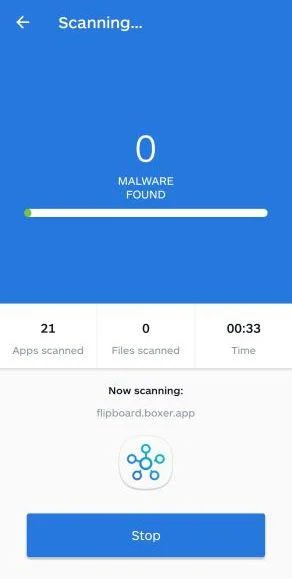
Wait for the Malwarebytes scan to complete.
Malwarebytes will now start scanning your phone for adware and other malicious apps. This process can take a few minutes, so we suggest you do something else and periodically check on the status of the scan to see when it is finished.
-
Remove the detected apps.
When the scan has been completed, you will see a list of the threats that Malwarebytes for Android has detected. Next to each detected item, tap the menu icon (three dots), then choose to uninstall the app or delete the file. Android then asks you to confirm. Tap OK or Uninstall to remove the app.
-
Restart your phone.
When the detected apps are removed, restart your phone if Malwarebytes asks you to. Then check whether the problems you noticed have stopped.
If the problems you noticed continue after the scan, see the options below.
If you are still having problems with your phone after completing these instructions, then please follow one of the steps:
- Ask for help in our Mobile Malware Removal Help & Support forum.
- Only as a last resort, reset your phone to factory settings. Read the warning below first.
- Back up your photos, videos, files, and messages, for example to your Google account or a computer.
- Make sure you know your Google account email and password. The phone asks for them after the reset. If you changed the password recently, Google recommends waiting 24 hours before you reset.
- On a Samsung phone, also make sure you know your Samsung account password.
- If you use an authenticator app for two-step verification, move your accounts to another device or save your backup codes first.
Stay Protected: Block Ads and Malicious Sites
No scan can prove a device is completely clean, so it helps to block threats before they reach you. Most infections start with a malicious ad or a fake download button — so blocking them at the source is your best defense.
We recommend AdGuard, which blocks malicious ads, phishing pages, and dangerous redirects before they can reach you.
👉 Download AdGuard and browse safely
Frequently Asked Questions
Can an employer genuinely require MFA re-enrollment?
Yes. Verify the policy through your normal administrator and complete it through the established account system, not an unexpected email’s untrusted route.
Does this scam prove MFA has been bypassed?
No. The reported mechanism collects credentials. Successful access, session compromise or unauthorized enrollment must be assessed using your actual account activity.
Should I disable MFA while changing the password?
No. Keep legitimate protection in place and follow verified support instructions. Disabling it because of an untrusted email can introduce another risk.
What if I approved a prompt after opening the link?
Report that approval immediately with the approximate time and service shown. It may matter even if you did not notice changes afterward.
Is the yoga business on the reported domain responsible?
That has not been established. Its current homepage is not the historical phishing path, and domain association alone does not identify the operator.
Does reading the email require a malware scan?
Reading alone is not evidence of infection. Device investigation becomes relevant when downloads, installed tools, granted permissions or suspicious behavior accompany the encounter.
The Bottom Line
Do not revalidate MFA through this false IT notice. Confirm genuine enrollment work through your organization and keep its real authentication protections enabled.
If you entered a password or approved access, tell the actual administrator promptly. Explain the full sequence so account access, methods and device exposure are handled separately.

Join the discussion
0 commentsShare your experience or ask a question about this article.
Discussion
Start the conversation
Have a question or something useful to share? Add the first comment.