

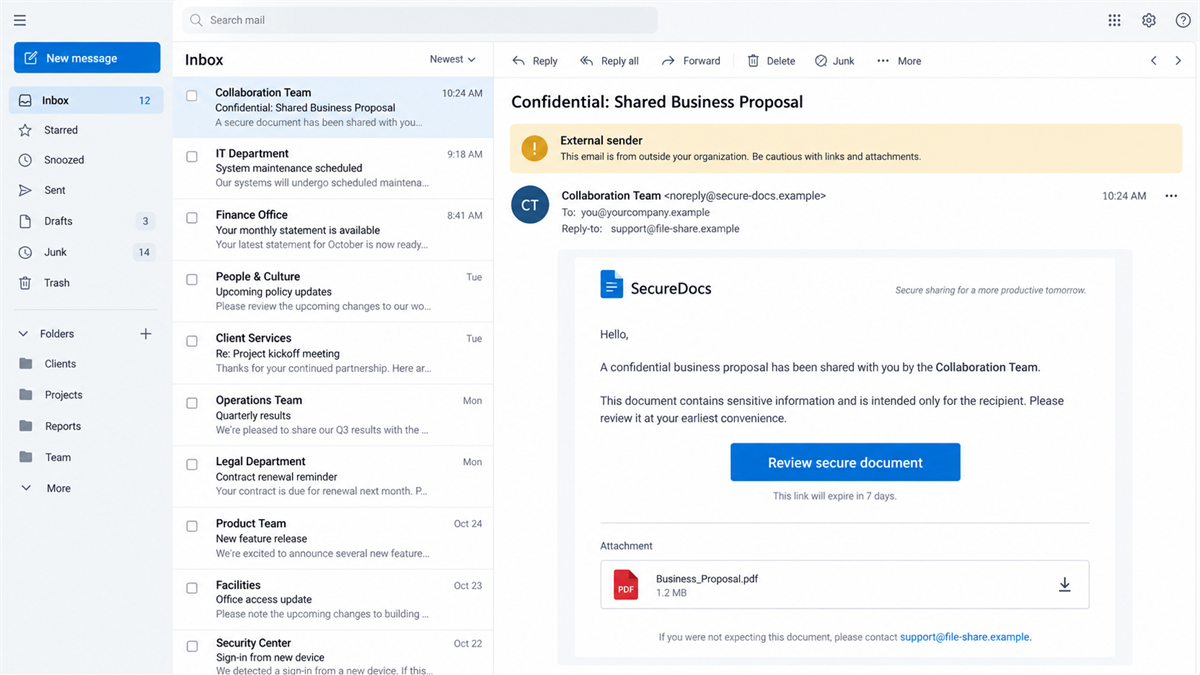
An email about a shared file, invoice, or expiring password lands in a work inbox. The link opens a polished page, produces a short code, and then sends the employee to Microsoft’s real sign-in website.
The address is genuine. The password prompt is genuine. Even multifactor authentication may appear exactly as expected.
That is what made the EvilTokens phishing scam so effective. The dangerous part was not the Microsoft page, but the session the victim was being asked to approve.
Overview
A real Microsoft page can still approve the wrong device
EvilTokens abused Microsoft’s device code sign-in flow, a legitimate feature created for devices that cannot easily display a full login form. A smart TV, printer, or conference-room system can show a short code and ask the user to enter it on another device.
MalwareTips has separately covered the Kali365 device-code phishing service. EvilTokens is a different named platform and Microsoft investigation, although both operations abused the same underlying authorization feature.
In the scam, the code did not belong to the employee’s device. It belonged to a sign-in session started by the attacker. When the victim entered that code at Microsoft’s real device login page and approved the request, the attacker received account access.
The victim did not have to type a password into a counterfeit form. If the employee was already signed in, the official page could move directly to the approval step. That removed one of the warning signs people have learned to expect from phishing.
The operation industrialized token theft
Microsoft’s September 2026 investigation describes EvilTokens as a phishing-as-a-service platform that compromised more than 12,000 inboxes at over 10,000 organizations worldwide. Microsoft tracks the developer and support operation as Storm-2992.
The service supplied phishing templates, redirect infrastructure, device-code pages, victim tracking, token management, and AI-assisted tools. Customers did not need to build the complete attack themselves. They could choose a lure, configure a campaign, and monitor captured access through a control panel.
Microsoft said affected industries included construction, financial services, real estate, higher education, healthcare, and wholesale distribution. The heaviest observed activity involved organizations in the United States, Canada, the United Kingdom, Australia, India, and France.
The stolen inbox becomes the next scam engine
Access to an email account is not just a privacy loss. EvilTokens customers could search mailboxes for invoices, wire instructions, executive conversations, and trusted business relationships. That information could support highly convincing payment fraud and new phishing messages sent from a real account.
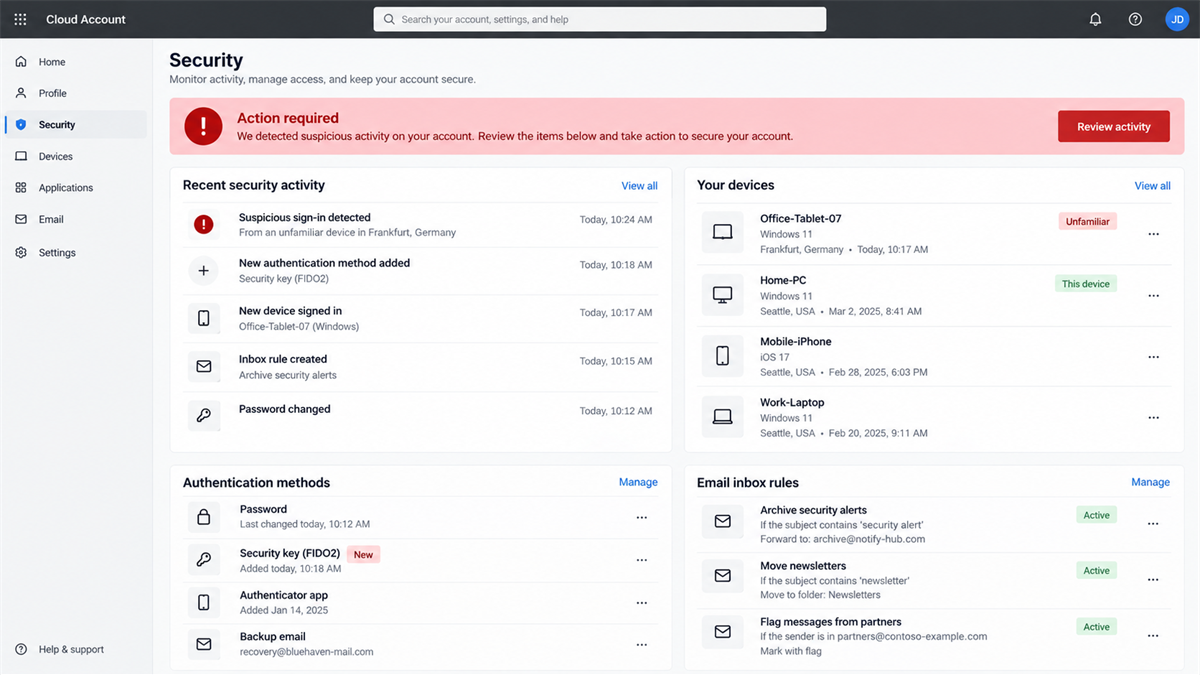
The platform also helped attackers create inbox rules, register devices, refresh access tokens, and explore Microsoft Graph data. A victim who changed only the password could still leave an attacker-controlled session or authentication method active.
- The lure may mention an invoice, proposal, shared file, voicemail, document signature, benefits notice, or password expiration.
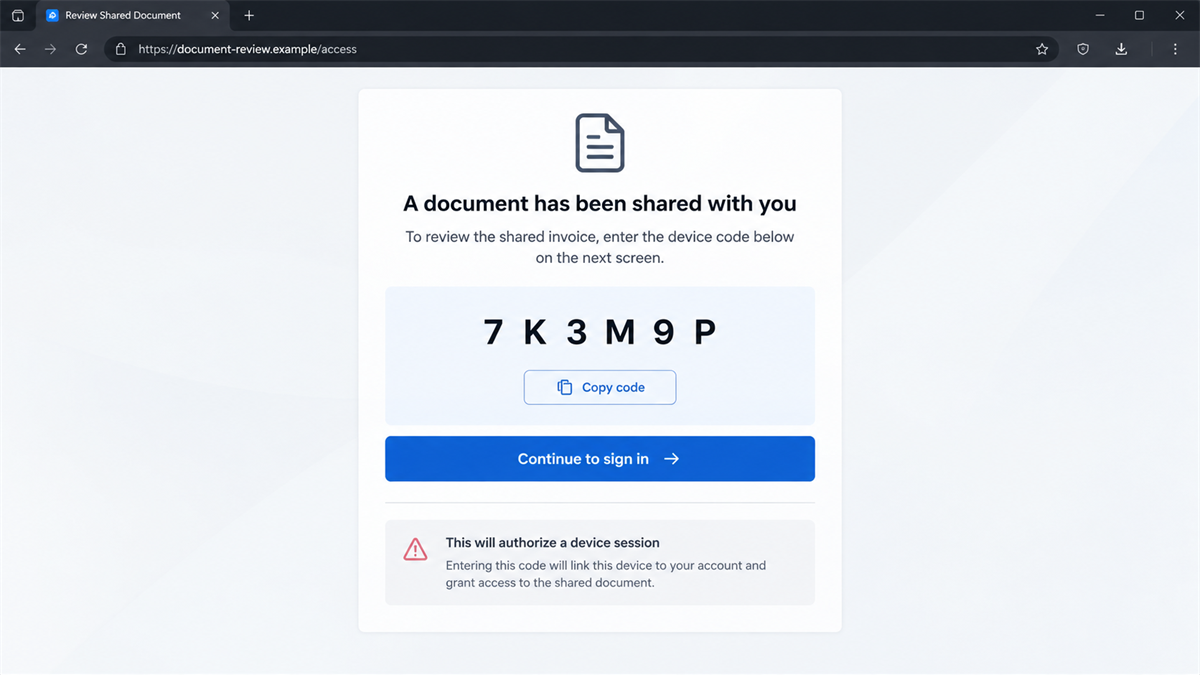
- The first page generates a short device code and may copy it automatically.
- The victim is sent to Microsoft’s legitimate device login page.
- Entering the code approves the attacker’s waiting session.
- Captured tokens can expose Outlook, OneDrive, SharePoint, Teams, and other cloud data.
- The compromised mailbox can be used for payment fraud and trusted follow-up phishing.
Why the EvilTokens Prompt Looked Safe
The browser eventually shows a Microsoft domain
Most phishing advice tells people to inspect the address bar. That remains useful, but EvilTokens deliberately arranged the flow so the most important sign-in step occurred on a real Microsoft domain. The victim’s browser was not necessarily displaying a copied password page at that moment.
The safer question is not only “Is this Microsoft?” It is also “Did I personally start a device sign-in for an app or device I recognize?” An official authorization page can faithfully complete a fraudulent request when the user approves the wrong session.
The code feels less sensitive than a password
A short, temporary code can look like a harmless document reference. Victims may assume it identifies the file they were sent, especially when the surrounding page says “Copy code” and “Continue with Microsoft.”
In reality, a device code is an authorization credential. It connects the person completing the Microsoft sign-in with the session that requested the code. Sharing or entering an unexpected code can be as consequential as handing over a live login session.
The campaign can match ordinary office work
EvilTokens offered 44 themes. Microsoft observed lures involving construction bids, partnership agreements, invoices, requests for proposals, shared files, password expiration, voicemail, eFax, compensation, and benefits.
Those subjects are effective because they do not look exotic. A purchasing employee expects bids. Finance expects invoices. Human resources expects benefits documents. The scammer can choose a pretext that fits the recipient’s job instead of sending the same crude warning to everyone.
Company and Checkout Checks
The email sender is not the service named in the message
A Microsoft, DocuSign, file-sharing, or invoicing logo does not establish who sent the email. Check the complete sender address, reply-to address, linked domain, and attachment type. A display name can be copied in seconds.
Messages from a compromised business account require a second test. Call the supposed sender through a known number or start a fresh message to an address already saved in company records. Do not verify the request by replying inside the suspicious thread.
The first page controls the meaning of the real sign-in
The Microsoft portal may be authentic, but the page that created the code is controlled by the phishing operator. It can describe the action as opening a document even though the underlying request is authorizing another device.
Read the official approval screen carefully. If the named application, organization, device, or requested action does not match something you initiated, cancel. A familiar domain cannot correct a dishonest explanation given on the previous page.
Support in the message leads back to the attacker
A phishing email may include a help link, phone number, or reply address for anyone who has trouble opening the file. Those channels keep the victim inside the attacker’s script and provide an opportunity for live coaching.
Use the organization’s published help desk directory or an internal support portal instead. A real support technician can confirm whether a device-code sign-in was requested and can review recent authentication events before access is granted.
The authorization screen is the real checkout
No card form appears, but the victim is still giving away something valuable. The approved token can grant access to business email, cloud files, contact lists, and conversations that reveal upcoming payments.
Treat an unexpected authorization request like a financial checkout. Verify who initiated it, what resource it opens, and why it is needed. The cost may arrive later as invoice fraud, data theft, extortion, or a compromised partner relationship.
How the EvilTokens Phishing Scam Works
Step 1: A believable business message creates urgency
The victim receives an email built around a routine work task. It may claim that a proposal is waiting, an invoice needs attention, a voicemail is available, or a password will expire soon.
The link can be hidden behind an image or routed through several services. Some versions use PDF or HTML attachments. Fake CAPTCHA pages and legitimate cloud platforms help the campaign avoid automated scanners before the real lure appears.
Step 2: The page requests a device code in the background
After the victim opens the lure, an automated script starts a device authorization request with Microsoft’s identity service. Microsoft generates a temporary code for the attacker’s session.
The phishing page displays that code as if it belongs to the document or task. It may place a large “Copy Code” button beside a “Continue with Microsoft” button, reducing the interaction to two familiar clicks.
Step 3: The victim visits Microsoft’s real portal
The Continue button opens the official device login page. Because the domain, certificate, and sign-in interface are genuine, the victim’s normal phishing instincts may relax.
If the user is not signed in, Microsoft requests a password and MFA on its own site. If a session is already active, the victim may only need to paste the code and confirm. The attacker never needs to build a counterfeit password form.
Step 4: Approval gives the attacker a usable token
While the victim completes the real sign-in, EvilTokens polls the authorization session every few seconds. Once Microsoft confirms approval, the attacker’s waiting session receives access tokens.
Those tokens represent an authenticated user. Depending on the permissions and account configuration, they can open email, files, contacts, and other Microsoft 365 resources without asking the attacker to repeat the victim’s MFA challenge.
Step 5: Persistence and mailbox reconnaissance begin
Microsoft observed attackers creating inbox rules, registering new devices, and using Microsoft Graph to map users, groups, permissions, mail, SharePoint, and OneDrive content. Some persistence actions occurred within minutes, while others were delayed to reduce attention.
EvilTokens included AI-assisted filtering that could identify finance staff, executives, pending invoices, wire details, and valuable business conversations. That turns a stolen inbox into a researched target list rather than a pile of random messages.
Step 6: Trusted accounts launch payment and phishing fraud
The attacker can reply inside real conversations or send new messages from the compromised account. Recipients see a genuine address, familiar signature, and believable context, so ordinary sender checks may pass.
A fake bank-detail change, urgent wire request, or shared-file notice can then reach colleagues and customers. Each new victim can provide another mailbox, allowing the fraud to move through connected organizations.
The Disruption Reduced Risk, but Did Not End It
Microsoft and partners coordinated a disruption of EvilTokens infrastructure in September 2026. Court records identify a civil action, and reporting on the operation described arrests in the United Kingdom. This is strong evidence that EvilTokens was a real criminal service, not a speculative label.
A disruption is not the same as erasing every stolen token or every copy of the technique. Microsoft warned that similar device-code phishing platforms exist, and EvilTokens affiliates can move to clones or replacement infrastructure.
Organizations should treat any historical compromise as an incident even if the original phishing page is offline. Tokens, added devices, mailbox rules, forwarded messages, and downloaded files must be reviewed separately.
Warning Signs Employees Should Recognize
- An unexpected file or invoice asks you to copy a short code.
- The message sends you to a device login page when you are not setting up a device.
- The sender pressures you to complete sign-in before a deadline.
- A PDF or HTML attachment opens a page instead of the promised document.
- A CAPTCHA or redirect chain appears before a routine Microsoft task.
- The official approval page names an app or device you do not recognize.
- A colleague asks you to ignore normal payment or verification procedures.
- New inbox rules hide, forward, move, or delete messages without your approval.
Device-code authentication is uncommon in everyday document sharing. If a shared file unexpectedly turns into a code-pasting exercise, stop and ask the internal help desk to confirm the request.
What to Do if You Have Fallen Victim to This Scam
- Contact the organization’s security team immediately. Explain that you entered an unexpected device code and approved a Microsoft sign-in. Timing matters because access tokens may remain usable for a period even after routine changes.
- Temporarily disable the affected account if your responders advise it. Microsoft notes that revoking refresh tokens may leave an existing access token usable for up to an hour. A short disable can support immediate containment.
- Revoke sessions and tokens. Administrators should revoke active sign-ins, refresh tokens, and device sessions. A password reset alone is not a complete response to token theft.
- Remove unauthorized authentication methods and devices. Review new MFA methods, registered devices, app consents, and security information. Require secure re-registration for the legitimate user.
- Inspect mailbox rules and forwarding. Delete rules that hide security alerts, move replies, forward mail externally, or erase messages. Review sent, deleted, archived, and recoverable items.
- Check cloud access and downloads. Review Exchange, OneDrive, SharePoint, Teams, and Microsoft Graph logs for unusual searches, mass file access, or new application activity.
- Warn finance staff and business partners. If the mailbox contained payment conversations, notify affected parties through a separate verified channel. Freeze suspicious transfers and call the bank’s fraud team.
- Scan endpoints with Malwarebytes. EvilTokens mainly targeted cloud sessions, but attachments and redirects can expose a device to additional threats. A current Malwarebytes scan can detect known malicious files or related payloads.
- Use AdGuard to reduce malicious redirects. AdGuard can block known phishing and advertising domains before some lure pages load. It does not prevent a user from approving a legitimate device portal, so account controls remain essential.
- Report and preserve evidence. Save the original email, headers, attachment, URLs, code page, sign-in time, and security logs. Report confirmed incidents to Microsoft, law enforcement, and the appropriate national cybercrime service.
Do not rely on a message from the compromised inbox to tell colleagues that the problem is fixed. Use a known phone number, internal incident channel, or verified secondary account until the mailbox is cleared.
Frequently Asked Questions
Was EvilTokens a confirmed criminal operation?
Yes. Microsoft documented the platform, attack infrastructure, victim scale, sales model, and phishing flow, then coordinated a legal and technical disruption with partners in September 2026.
Can EvilTokens steal an account without stealing the password?
Yes. The victim can unknowingly authorize the attacker’s device session through Microsoft’s legitimate device-code flow. The attacker receives tokens rather than the typed password.
Does MFA stop device code phishing?
Not when the victim completes MFA for the attacker’s request. Phishing-resistant controls, restricted device-code use, careful approval screens, and conditional access provide stronger protection.
Why does the real Microsoft domain not prove the request is safe?
Microsoft is accurately processing the device session tied to the code. The fraud is that the attacker created that session and misrepresented what the victim was approving.
Is changing the password enough after approval?
No. Responders should revoke sessions and tokens, remove added devices and authentication methods, inspect inbox rules, and review cloud access in addition to resetting credentials.
Is EvilTokens gone after the September disruption?
The disruption removed important infrastructure, but the technique and related services remain available to criminals. Any suspicious device-code request should still be treated as dangerous.
The Bottom Line
The EvilTokens phishing scam succeeded by placing a real Microsoft sign-in page at the center of a dishonest story. More than 12,000 compromised inboxes show that a familiar domain and working MFA do not make an unexpected authorization request safe.
If you did not start a device sign-in, do not enter the code. Cancel the request, verify the message through a separate channel, and report it before a stolen session becomes the next trusted email scam.

Join the discussion
0 commentsShare your experience or ask a question about this article.
Discussion
Start the conversation
Have a question or something useful to share? Add the first comment.