

If you receive a Bank of America email or text message that looks suspicious, it could be a phishing scam. These scams target Bank of America customers and aim to trick you into giving away your personal and financial information, such as your account details, social security number, and credit card information.
The messages may have the Bank of America logo and branding, making them seem legitimate. Scammers use urgent-sounding subject lines and warnings of account suspensions or fraudulent activity to create a sense of urgency. You may be asked to click on a link or call a phone number to address an issue with your account.
If you follow the instructions in the message, you may be directed to a fake website that looks like Bank of America’s official site. On this site, you may be asked to enter your personal and financial information, which is then captured by scammers.
What is the fake Bank of America email or SMS message?
Bank of America (BoA) is a leading American multinational financial institution that provides banking and financial services to customers worldwide. Unfortunately, scammers and cybercriminals are targeting BoA customers with phishing scams, which aim to steal their personal and financial information. These scammers use various means to contact BoA customers, such as email, SMS text messages, and phone calls, and use tactics such as urgency and fear to trick their potential victims into disclosing their account credentials.
One of the most common tactics used by these scammers is to send SMS text messages or emails that appear as if they were sent by the Bank of America. These messages usually ask the customer to call a particular phone number, visit a website, or respond to them with their personal or financial information. These messages may contain urgent language, such as “Time-Sensitive Message” or “Warning,” to prompt the customer to act quickly.
If a customer falls for this scam and provides their Bank of America account information, the scammers can use it to steal their money and commit fraud. They may also use the information to open new accounts in the victim’s name, apply for loans or credit cards, or sell the information on the dark web.
Here is what a typical Bank of America scam message looks like:
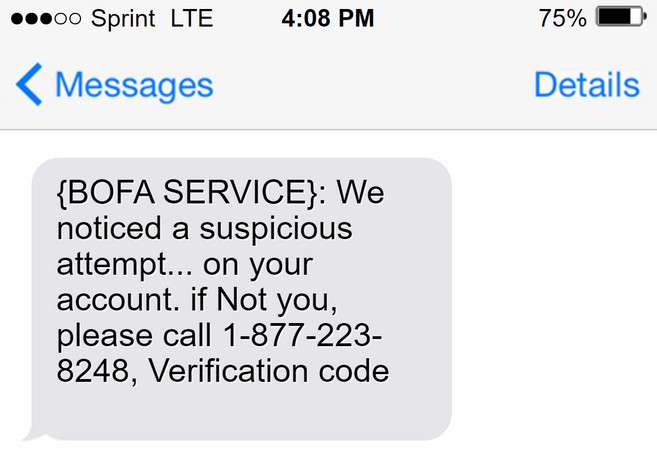
{BOFA SERVICE}: We noticed a suspicious attempt… on your account. if Not you, please call 1-877-223-8248, Verification code #..
Bank of America: On 12/28/2022 you added a new ACH recipient. Reply YES to confirm.
Visit: https://bankofamerica-mobile03.com/ to remove or stop this addition.
Dear Bank of America Customer, your onetime password for sending $1250 to Jennifer Hall is XXXXXX. Do not share this code with anyone. If you did not request this code press one on your phone now and to speak with customer support officer.
{BOFA SERVICE}: We noticed a suspicious attempt… on your account. if Not you, please call 1-877-223-8248, Verification code #…
From: Bank of America [mailto:vlsdqg@upgrade.com] Sent: Monday, February 20, 2017 6:40 AM To: customerservice@bankofamerica.com Subject: Time-Sensitive Message from Bank of America”
“Dear customer, please visit BankOfAmericaHelp.net (Ref #81923)”
“Please visit CardsBankOfAmerica.com (Customer #55863)”
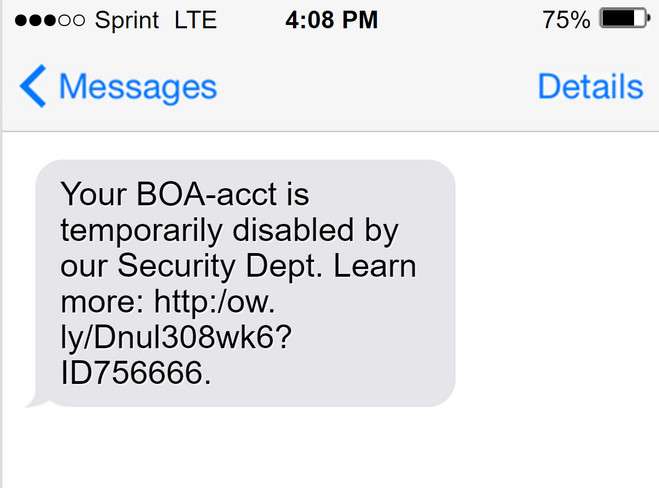
“Your BOA-acct is temporarily disabled by our Security Dept. Learn more: http:/ow. ly/Dnul308wk6?ID756666.”
“Warning / Please visit: apps-bankofamerica .com”
“Notification / You have an account notification: protect-bankofamerica .com”
“customers@boa-card.net / Customer alert / Please confirm www.boa-card .net”
“(Alert: Suspicious Activity) Case 160027. Please visit http://account.id1999310bankofamerica .com.
“Online / Security message: bankofamericauser.com”
“Account Notice) Case 1012181. Please visit http://client.bankofamerica-id14713 .com”
“(Attention: Suspicious Activity) Account notice: id412753-bankofamerica.com”
“Valued member, we detected unusual activity on your account. To securely update your information, follow the link: http://bankofamerica.text-id338. com”
“FRM:*Important-bankofamerica^MSG* MSG:Account Access Blocked. Please read this ASAP: xloginbofaadmin .com”
“(BofA)-Important Message – Due to recent updates in our system you need to verify your information. Click the link below: http://bankofamerica.sms- auth4427.com”
“BOfA: Your Bank Card is restricted due to failed payments. Follow www.USA-BankOfAmerica.com and remove Account limitation in 3 Easy Steps.”
“(Visit# wwv.bnkofameirca.com-jtjgw.confirm19id.net/ Now) [fgeck]We are sorry but your_Bank0fAmeirca-issues#”
“wvw2.boaonline.com-hnxst. review184id.net/Now)[188] We are sorry but your: BnkofAmerica-is-locked”
“(BoA) Debit Card locked. visit www.xxxxxxxxxx. BankOfAmerica-BoA.com”
“(855)996-0808 (BoA) Debit Card Locked. visit www.(my cell number). BankOfAmerica-BoA.com”
“(go-to: wvw.bnkofamerica.com-sect jays.confirm540.net/?nr=. We are sorry but your bnk0famerica-debit visa is locked”
“(Dear , this important Message is from BankofAmerica. Debit-Visa issues)Contact us now at 5182123866 and remove the limit. “
“18559333547: (BoA) Debit Card Locked. visit www.312xxxxx20. BankOfAmerica-BoA.com”
“(bank of america message: important – please call at 630-701-6543 to review your account. Client id: 55g5lpfxf3dd5an)”
“([B a n k O f A m e r I c a] UrgentMessage.Please Ring: (818) 688-4222)”
“Bank Of America – ACCOUNT LOCKED Member: 7735471815. Urgent CALL : (855) 277-7117
“([B A N K OF A M E R I C A] UrgentNotification Contact: 914 266 8559)”
“(Office My B.O.F.A Attention needed Contact: 9142668559)”
“(MYB.O.F.A Urgent Notification Contact: 914 266 8559)”
“(My Master Urgent Notification Contact: 914 266 8559)” came from 5078457487@sw.rr.com “
“([bank of america]}Your Attention Is Needed.Call 323 937 7432”
“71222127@ndiweb.com ([BOfA]UrgentNotification.Contact: 831-298-1164)”
“Direct debit issue.to solve please call now.”
“Fwd: (Please Contact Bank Of America HelpDesk @ 1(978) 290 5085)”
The Bank of America email or text message is a scam that aims to infect your device with malware to steal your personal and financial information.
If you receive the Bank of America email or text message, do not call the customer support number. Instead, report the scam to the relevant authorities and delete the email or text message. If you believe that your personal information or payment details have been compromised, you should also contact your bank or credit card provider as soon as possible.
If you receive the Bank of America email or any other suspicious email it is important to take the following steps:
-
Do not open any attachments or click on any links in the email. The attachment or link is likely to contain malware.
-
Do not provide any personal information. Scammers may ask for personal information, such as your address or credit card information, in order to steal your identity.
-
Verify the authenticity of the email and the sender.
-
Report the email as spam. This will help to prevent other people from falling victim to the scam.
-
If you have already opened the attachment, run a full scan on your device with Malwarebytes Anti-Malware.
-
If you have already provided personal information, contact your bank and credit card companies, and monitor your account for any suspicious activity.
It’s important to be cautious when receiving emails or text messages from unknown or suspicious sources and to take steps to protect yourself from potential scams.
Is the Bank of America email or text message real?
It is crucial to recognize these phishing scams and avoid falling for them. Bank of America will never ask you to provide your personal or financial information via SMS text message or email. If you receive a message that appears to be from Bank of America asking for this information, do not respond to it or click any links provided in the message. Instead, contact Bank of America directly using the number on your card or statement to verify the legitimacy of the message.
The fake Bank of America email or text message is a scam that tries to trick you into clicking on a link or opening an attachment. To make the email more credible, these scammers use fake invoice numbers, renewal dates, official logos, and promotional banners.
Here are signs that this email is a scam, even though it looks like it comes from a company you know — and even uses the company’s logo in the header:- A generic greeting is used in place of a name (eg. “customer,” “account holder,” or “dear”).
- The sender’s email address is not associated with a legitimate domain name
- The email invites you to click on a link to resolve an issue. Most reputable organizations will not ask users to disclose sensitive information (e.g. credit card numbers) by clicking on a link.
- There is a time limit or uncharacteristic sense of urgency
- Poor grammar, spelling, and sentence structure may hint that an email is not from a reputable source.
What should I do now?
We recommend that you ignore the content of the Bank of America email or text message and delete it from your Inbox.
If you have already fallen for this scam and provided your Bank of America account information to a phishing website or via email, you should contact Bank of America immediately to report the incident. Bank of America has a dedicated team that can help customers who have been victims of scams or fraud, and they will work with you to secure your account and prevent any further unauthorized activity.
If you have downloaded any attachments or clicked on any links from this email, or if you suspect that your computer might be infected with malware, you can follow the below steps to scan your device for malware with Malwarebytes and remove it for free.
Check if you’re device is infected with malware
The Bank of America phishing emails may contain malware within the attachments or links that appear in the body of the email. By interacting with the malware — for example, opening or downloading an attachment that contains a malicious payload — the user may unknowingly infect their device or network, enabling attackers to gain access to protected applications and data.
To check your computer or phone for Trojans, browser hijackers, or other malware and remove them for free, you run a scan with Malwarebytes Free.
Malwarebytes runs on Windows, Mac, and Android. Click the tab below for the device you want to scan, then follow the steps to remove any malware it finds.
Scan Your Computer with Malwarebytes for Windows
Malwarebytes is one of the most popular and trusted anti-malware tools for Windows — and it’s completely free for removing infections. It catches threats that many antivirus programs miss, including adware, browser hijackers, and trojans. Follow the steps below to scan and clean your PC in just a few minutes.
Download Malwarebytes
Click the button below to download the latest version of Malwarebytes for Windows from the official source. The free version is all you need — it will scan your computer and remove adware, browser hijackers, and other malicious software at no cost.
Download MalwarebytesOfficial installer for Windows 11 and 10. Your download starts right away.Want real-time protection? See Malwarebytes Premium Malwarebytes Free for WindowsScans and removes malware at no cost
-
Install Malwarebytes
When the download finishes, open your Downloads folder and double-click the MBSetup file. If Windows shows a User Account Control pop-up, click “Yes” to allow the installation.

Follow the On-Screen Prompts to Install Malwarebytes
The setup wizard will walk you through a few quick screens:
-
Choose where you’re installing the program — “Personal Computer” or “Work Computer” — then click Next.

-
Malwarebytes will now install on your device. This usually takes under a minute.

-
When installation is complete, the “Welcome to Malwarebytes” screen will open automatically.

-
On the final screen, click Open Malwarebytes to launch the program.

-
Enable “Scan for Rootkits”
Before scanning, turn on rootkit detection so Malwarebytes can find even the most hidden threats. Click the Settings gear icon on the left side of the screen.

In the settings menu, find “Scan for rootkits” and click the toggle so it turns blue.

Done? Click “Dashboard” in the left pane to return to the main screen.
Start the Scan
Click the blue Scan button. Malwarebytes will automatically update its virus database and start checking your computer for malware.

-
Wait for the Scan to Finish
The scan checks your entire system for browser hijackers and other malicious programs, so it can take 5 to 20 minutes depending on your computer. Feel free to do something else — just check back occasionally to see the progress.

-
Quarantine the Detected Threats
When the scan is done, you’ll see a list of everything Malwarebytes found — malware, adware, and potentially unwanted programs. Click the “Quarantine” button to remove all of them at once.

Malwarebytes will now remove the malicious files and registry entries and move them safely into quarantine.

-
Restart Your Computer
Some threats can only be fully removed after a reboot. If Malwarebytes asks you to restart, click Yes. Once you’re logged back in, Malwarebytes has finished removing the threats it found.

That’s it — your Windows computer is now free of trojans, adware, browser hijackers, and other malware.
If you are still having problems with your computer after completing these instructions, then please follow one of the steps:
- Run a computer scan with ESET Online Scanner
- Ask for help in our Windows Malware Removal Help & Support forum.
Scan Your Mac with Malwarebytes for Mac
Malwarebytes for Mac is a free on-demand scanner that removes the malware other security software tends to miss — adware, browser hijackers, and unwanted programs included. Cleaning an infected Mac with Malwarebytes has always been completely free, and it’s our go-to recommendation. Follow the steps below to scan and clean your Mac in just a few minutes.
-
Download Malwarebytes for Mac
Click the button below to download the latest version of Malwarebytes for Mac.
Download MalwarebytesOfficial installer for macOS. Your download starts right away.Want real-time protection? See Malwarebytes PremiumMalwarebytes Free for MacScans and removes malware at no cost -
Open the Malwarebytes setup file
When the download finishes, open your Downloads folder and double-click the setup file to begin the installation.

-
Follow the On-Screen Prompts to Install Malwarebytes
The Malwarebytes for Mac Installer will guide you through a few quick screens. Click “Continue” and keep following the prompts until the installation completes.



When the installation is complete, Malwarebytes opens to the Welcome to Malwarebytes screen. Click “Get started“.
-
Select “Personal Computer” or “Work Computer”
Malwarebytes will ask what type of computer you’re installing it on. Click either Personal Computer or Work Computer, whichever applies.

-
Start the Scan
Click the “Scan” button. Malwarebytes will automatically update its detection database and begin checking your Mac for malware.

-
Wait for the Scan to Finish
Malwarebytes will scan your Mac for adware, browser hijackers, and other malicious programs. This can take a few minutes, so feel free to do something else — just check back occasionally to see the progress.

-
Quarantine the Detected Threats
When the scan is done, you’ll see a list of everything Malwarebytes found. Click the “Quarantine” button to remove all the threats at once.

-
Restart Your Mac
Malwarebytes will now remove all the malicious files it found. Some threats can only be fully removed after a reboot — if Malwarebytes asks you to restart, allow it. Once you’re logged back in, your Mac is clean.

That’s it — your Mac is now free of adware, browser hijackers, and other malware.
If you are still experiencing problems while trying to remove a malicious program from your computer, please ask for help in our Mac Malware Removal Help & Support forum.
Scan Your Phone with Malwarebytes for Android
Malwarebytes for Android automatically detects and removes dangerous threats like malware and ransomware so you don’t have to worry about your most-used device being compromised. Aggressive detection of adware and potentially unwanted programs keeps your Android phone or tablet running smooth.
-
Download Malwarebytes for Android.
You can download Malwarebytes for Android by clicking the link below.
Get Malwarebytes for AndroidOpens Google Play in a new tab.Want real-time protection? See Malwarebytes Premium for AndroidMalwarebytes for AndroidScans your phone and removes malware at no cost -
Install Malwarebytes for Android on your phone.
In the Google Play Store, tap “Install” to install Malwarebytes for Android on your device.

When the installation process has finished, tap “Open” to begin using Malwarebytes for Android. You can also open Malwarebytes by tapping on its icon in your phone menu or home screen.

-
Follow the on-screen prompts to complete the setup process
When Malwarebytes will open, you will see the Malwarebytes Setup Wizard which will guide you through a series of permissions and other setup options.
This is the first of two screens that explain the difference between the Premium and Free versions. Swipe this screen to continue.
Tap on “Got it” to proceed to the next step.
Malwarebytes for Android will now ask for a set of permissions that are required to scan your device and protect it from malware. Tap on “Give permission” to continue.
Tap on “Allow” to permit Malwarebytes to access the files on your phone.
-
Update database and run a scan with Malwarebytes for Android
You will now be prompted to update the Malwarebytes database and run a full system scan.

Click on “Update database” to update the Malwarebytes for Android definitions to the latest version, then click on “Run full scan” to perform a system scan.

-
Wait for the Malwarebytes scan to complete.
Malwarebytes will now start scanning your phone for adware and other malicious apps. This process can take a few minutes, so we suggest you do something else and periodically check on the status of the scan to see when it is finished.

-
Click on “Remove Selected”.
When the scan has been completed, you will be presented with a screen showing the malware infections that Malwarebytes for Android has detected. To remove the malicious apps that Malwarebytes has found, tap on the “Remove Selected” button.

-
Restart your phone.
Malwarebytes for Android will now remove all the malicious apps that it has found. To complete the malware removal process, Malwarebytes may ask you to restart your device.
That’s it — your Android device is now free of malicious apps, adware, and browser redirects.
If you are still having problems with your phone after completing these instructions, then please follow one of the steps:
- Restore your phone to factory settings by going to Settings > General management > Reset > Factory data reset.
- Ask for help in our Mobile Malware Removal Help & Support forum.

Join the discussion
0 commentsShare your experience or ask a question about this article.
Discussion
Start the conversation
Have a question or something useful to share? Add the first comment.