

A message after a busy security conference can feel like one more introduction worth answering. This one started with a conversation about a future event.
The invitation led to a familiar document editor. What happened inside that document is the part readers need to understand before opening a similar invitation.
Overview
A conference connection that seemed to make sense
After Black Hat and DEF CON, people expect follow-up messages. Speakers, sponsors, researchers, and journalists exchange invitations while memories of the event are fresh.
That ordinary rhythm gave this fake conference planning Google Doc scam its opening. The first approach came through an X direct message, not a conventional email.
The sender appeared to represent CoinDesk and discussed an upcoming online conference. For a security researcher, that sounded plausible enough to inspect.
According to Huntress’s investigation, the account used a person’s photograph alongside another person’s name. That mismatch was one clue, not the whole case.
The researcher recognized the contact as suspicious and continued the conversation for analysis. The reported interaction is a documented attempt, not evidence that this researcher was infected.
The document became the pressure point
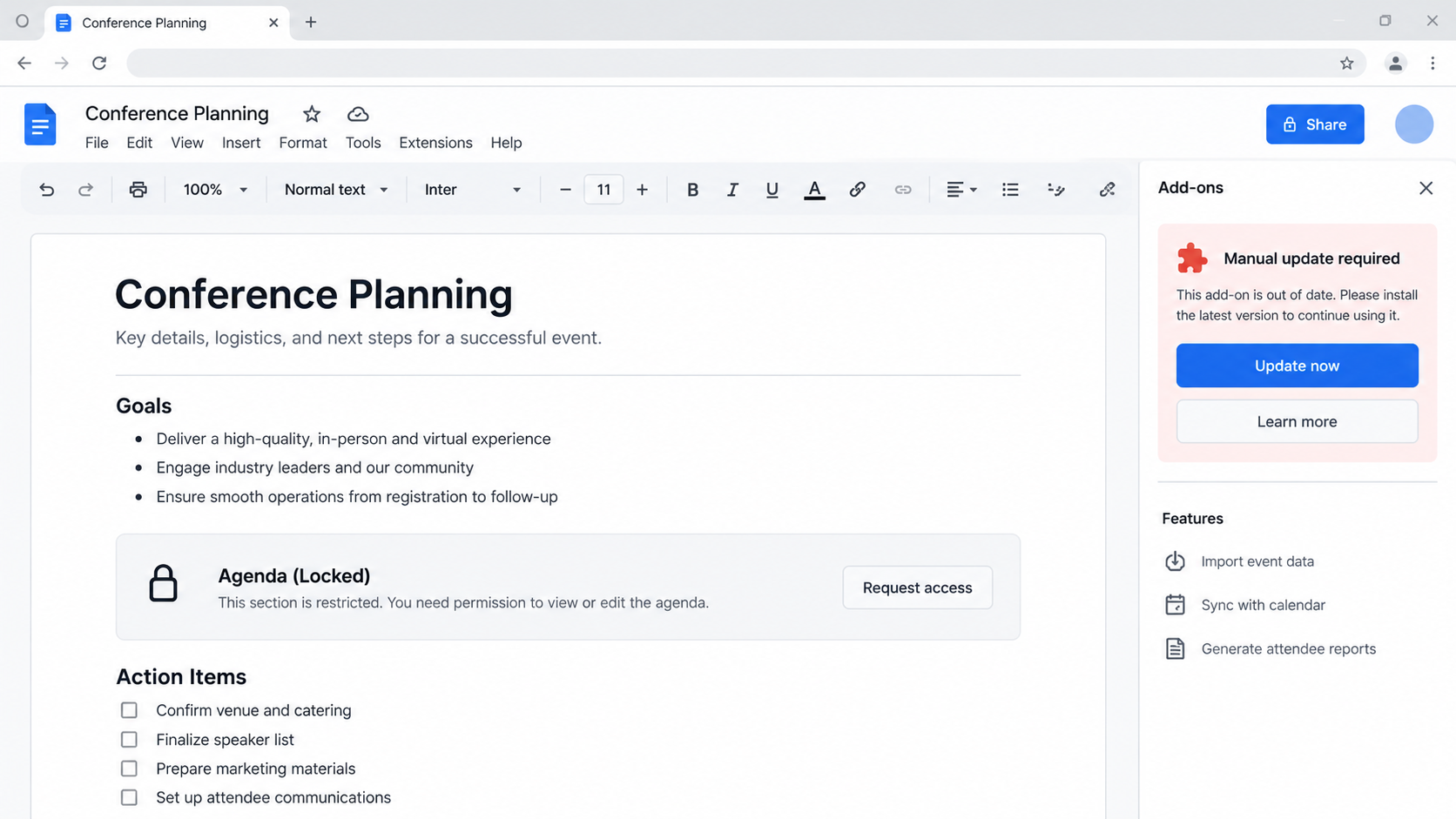
The actor shared a Google Doc styled as conference planning material and supplied an access key. The document appeared partly encrypted, inviting the recipient to unlock it.
Entering the supplied key failed. That failure mattered because a custom sidebar then framed the problem as something the reader needed to fix locally.
The sidebar offered a decryption process and a manual update. Both routes tried to move the recipient from reading a document toward running software.
A legitimate cloud document should not require an unrelated computer update merely to reveal an event agenda. That unexpected change in task is the central warning.
What was observed, and what remains uncertain
Huntress examined the document script, download paths, and a second DocSend-themed lure sent after the first approach failed.
Researchers identified an Atomic macOS Stealer-like payload in a disk image and a separate Windows chain involving a fake installer and remote-access components.
Some tested paths were broken or had already rotated. The macOS paste-command route entered a redirect loop during Huntress’s test, so it should not be described as successful.
The actor’s later document kept the pressure on. It imitated a secure file share and offered a supposed desktop viewer instead of a normal document.
- The approach used post-conference networking as its believable context.
- The Google Doc was a real document surface with attacker-controlled scripting.
- The supplied key appeared to fail by design, creating a reason to install an update.
- The macOS and Windows paths differed, so a single symptom list cannot cover both.
- The targeted researcher did not install the malware during the reported exchange.
How the Fake Conference Planning Google Doc Scam Works
Step 1: A believable person opens a conversation after the event
The actor reached out when conference attendees were still expecting introductions. Timing made an unsolicited message less surprising than it would be months later.
The profile claimed a senior marketing connection at a recognized crypto publication. That identity was part of the lure, not a verified endorsement.
The early messages asked about future conference plans and an online event. They did not immediately demand passwords or money.
That slow opening matters. A person who has already discussed dates and speakers may treat the next document as a continuation, not a fresh security decision.
Look at the sender’s history, account age, name-image consistency, and contacts. None proves legitimacy alone, but contradictions deserve a separate verification channel.
If a conference organizer truly needs your help, confirm through a known company site or an established colleague. Do not use contact details supplied only in the DM.
Step 2: The recipient receives a familiar cloud document
The shared Google Doc carried conference-planning language. A familiar platform lowers suspicion because people use it every day for ordinary collaboration.
The dangerous part was not Google’s name. The document contained attacker-controlled Google Apps Script that displayed a custom sidebar to an authenticated user.
The script was able to manage the on-page flow and offer different paths for macOS and Windows. It also collected information useful to the operator.
Many readers would see a document first and consider scripts later, if at all. The familiar page becomes a wrapper for an unfamiliar request.
Opening a cloud document is not the same as authorizing a local installer. Treat the moment it asks for desktop action as a new, independent decision.
Do not let the address bar’s trusted document domain validate every instruction inside the file. User-created content on reputable services can still be malicious.
Step 3: A supplied key fails and creates a repair pretext
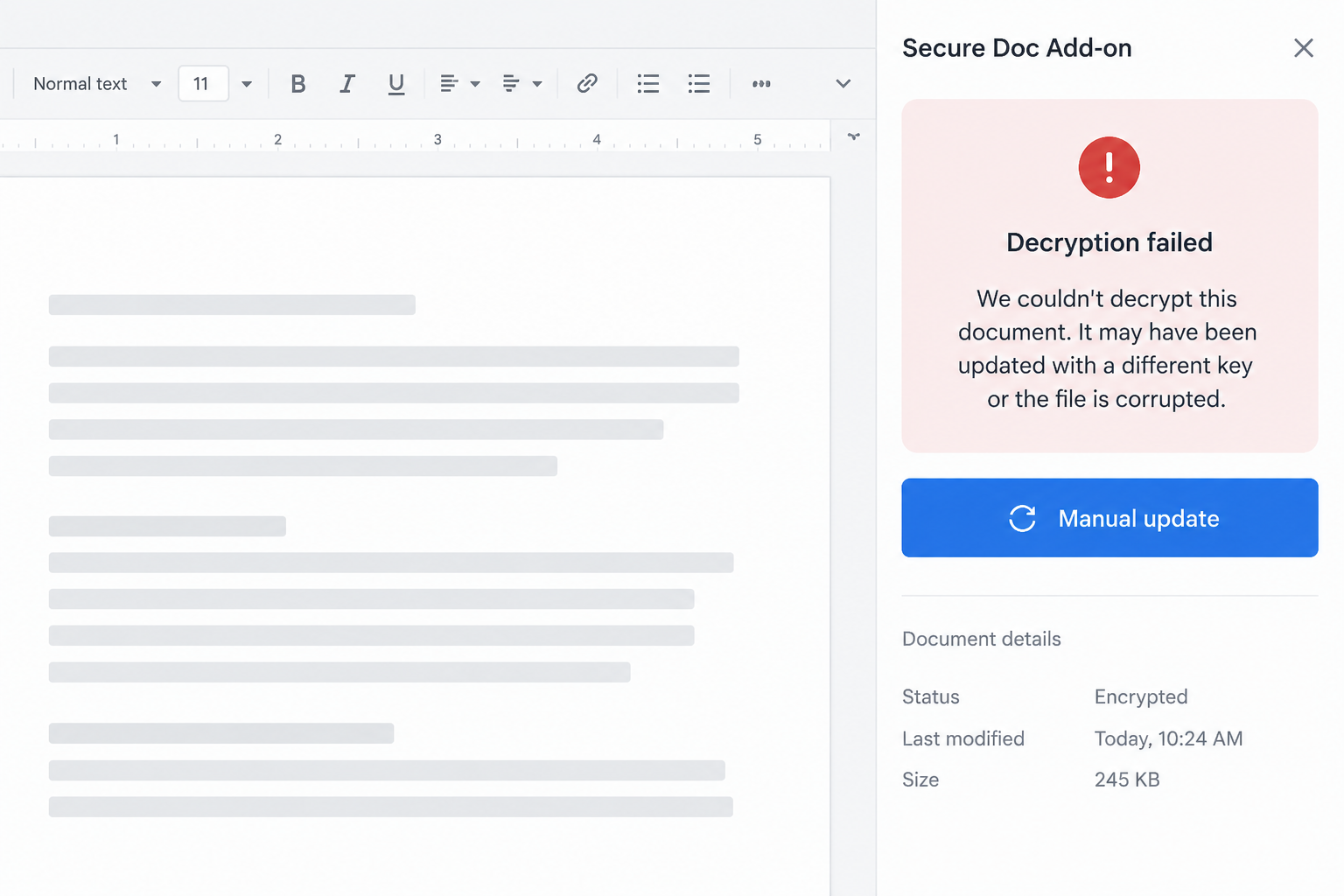
The actor gave the researcher an access key in the chat. When entered into the document’s panel, the key failed to reveal the promised content.
Huntress found that the apparent failure led to a decryption prompt and a manual update option. It looked like a technical inconvenience, not a new invitation.
That is the psychological hinge. A reader who believes they already passed the access check may focus on fixing the error instead of questioning it.
Cloud documents can legitimately have access restrictions. They do not need an unknown local program or shell command to unlock an event schedule.
When an access key fails, ask the organizer to share a readable copy using normal document permissions. A legitimate sender can resolve access without installing software.
If the response is another download or instructions to bypass a security warning, end the interaction. The friction is likely part of the plan.
Step 4: The fake fix becomes a software installation request
On macOS, the sidebar offered a paste-and-run route and a separate disk-image download. The downloaded application was presented as a needed document update.
Huntress’s macOS command test hit a redirect loop, so that route did not demonstrate a completed infection in the lab.
The manual download was different. Static analysis found behavior consistent with Atomic macOS Stealer, including interest in browser data, wallets, and keychain information.
The instructions also pushed the user past a macOS security warning. A request to override Gatekeeper for a conference document is particularly telling.
On Windows, the sidebar directed users toward a supposed connector update. Another route used a signed ClickOnce package to start installation from actor-controlled infrastructure.
The installation window could look routine while further content loaded. A signature on one component did not establish that the document sender or package was trustworthy.
Do not copy commands from an unexpected document into Terminal, PowerShell, or the Run box. A legitimate planning file has no reason to ask.
Step 5: A second document keeps the target engaged
When the first lure did not produce an installation, the actor followed up the next day. The new material imitated a Dropbox DocSend share.
The page claimed a desktop version was needed to view the file. That is another shift from a document-reading task to a software-execution task.
The site checked whether the visitor appeared to be on a Mac or Windows computer and served different installer paths.
For macOS, Huntress found a ZIP containing the same stealer family seen in the earlier route. Windows visitors received a counterfeit DocSend installer.
The Windows application displayed a polished onboarding sequence using familiar marketing language. No legitimate Dropbox software was installed by that package.
A busy recipient might interpret the smooth screens as proof the download worked. In this case, they were scenery while the underlying loader performed other actions.
A genuine document share should open through the provider’s normal web experience. Verify any desktop-app claim directly with that provider, never through the shared file’s landing page.
Step 6: The payload can reach beyond the document
The macOS sample aimed at saved browser information, cookies, wallets, keychain data, and other sensitive material. That is far beyond anything needed for conference planning.
Huntress also analyzed Windows payloads associated with the wider operation, including NetSupport configured for covert remote access and a component aimed at Ledger users.
Some infrastructure was unavailable when the researchers tested it. Those limits matter: an identified payload chain is not a verified count of infected attendees.
The risk to an individual is nevertheless serious. If a suspicious file was run, the computer may no longer be a safe place to change passwords or access wallets.
Remote access can also expose company documents or sessions. A work laptop needs its security team involved before cleanup destroys useful evidence.
The attack is not evidence that CoinDesk, Google Docs, or Dropbox DocSend are scams. Their identities or surfaces were borrowed to make the instruction look familiar.
Why the Document Looks Safer Than It Is
People judge a message by the platform around it. A recognized document editor, familiar sharing language, and a plausible conference topic all contribute to trust.
Here, the document editor was simply a stage. The attacker controlled the content and the custom sidebar that converted an access problem into an update demand.
The supplied key was another credibility cue. It made the interaction feel private and deliberate, even though the apparent error pushed the user toward malware.
Technical users are not immune. A security researcher might be curious about a conference agenda and accustomed to troubleshooting broken software.
The right question is not whether the page is familiar. Ask whether this specific task normally requires the requested action on your computer.
For an event document, the answer should be no. Permissions can be fixed by the owner; a device-wide update is not the remedy.
How to Check an Invitation Before Opening Its Files
Start with the human claim. Search for the organizer through its official site and compare the sender’s role with information you can independently verify.
Message the person through an established account or a known company address. Avoid replying to the same suspicious handle as your only check.
Look for a concrete event name, venue or platform, agenda, and contact person. Vague planning language can be reused across many targets.
If the document asks for a key, request normal access permissions or a plain PDF from the verified organizer. Do not troubleshoot by installing software.
Inspect downloaded file types before opening them. A document share should not quietly become a disk image, installer, archive, or command script.
Ask a security colleague to review the invitation if it reached a work account. Early reporting can protect other attendees receiving the same outreach.
Do not assume a popular professional event endorses everyone who mentions it afterward. Attackers reuse event names because legitimate networking creates openings.
What to Do if You Followed the Fake Conference Document Instructions
- Stop interacting with the document and preserve the message. Do not run a second installer to test the first. Save the X conversation, document link, file names, and approximate times.
- If you only opened the document, report the lure. Opening alone is not proof of infection. Tell your security team what appeared and whether you entered a key or downloaded anything.
- If you ran a file or command, isolate the device. Disconnect its network connection and stop using it for email, banking, and wallets. Contact workplace incident responders before deleting evidence.
- Secure accounts from another trusted device. Change important passwords, revoke suspicious sessions, and review multifactor settings. Prioritize email, cloud storage, company access, and financial accounts.
- Treat crypto secrets as exposed when warranted. If a wallet was accessible on the affected machine, move assets to a newly created wallet from a clean device. An exposed seed phrase cannot be repaired by changing a password.
- Scan and rebuild according to the exposure. Malwarebytes can help identify unwanted software, but a professional reimage may be safer after a confirmed stealer or remote-access infection. An ad blocker such as AdGuard reduces future malicious-page exposure, not an existing compromise.
- Watch for a second approach. The actor in this case changed from a Google Doc to a DocSend-themed lure. Warn teammates and conference contacts without forwarding a live malicious link.
Frequently Asked Questions
Is every encrypted Google Doc a scam?
No. The warning here is the combination of a failing supplied key and instructions to install software or run a command to read ordinary event material.
Did the Huntress researcher get infected?
No. Huntress says the researcher recognized the message as suspicious and continued the conversation to investigate the attempted attack.
Is CoinDesk involved in this campaign?
The attacker claimed to represent CoinDesk. The investigation describes impersonation, not a verified relationship with the publication.
What if I clicked the document but installed nothing?
Record what happened and report it. Clicking a link is not the same as executing the offered software, but account and device context still deserve review.
Why would a fake document ask for an update?
The update story gives a reason to run code unrelated to the original task. It turns an access problem into a malware-installation opportunity.
Can security software catch this automatically?
Some components may be detected, but changing downloads and user-approved execution reduce certainty. Prevention begins with refusing the unexpected installation request.
The Bottom Line
This fake conference planning Google Doc scam borrowed the rhythm of real post-event networking, then used a staged document error to request local software.
If an invitation cannot be read without a manual update, stop and verify the sender independently. A legitimate agenda is not worth bypassing your computer’s safeguards.

Join the discussion
0 commentsShare your experience or ask a question about this article.
Discussion
Start the conversation
Have a question or something useful to share? Add the first comment.