

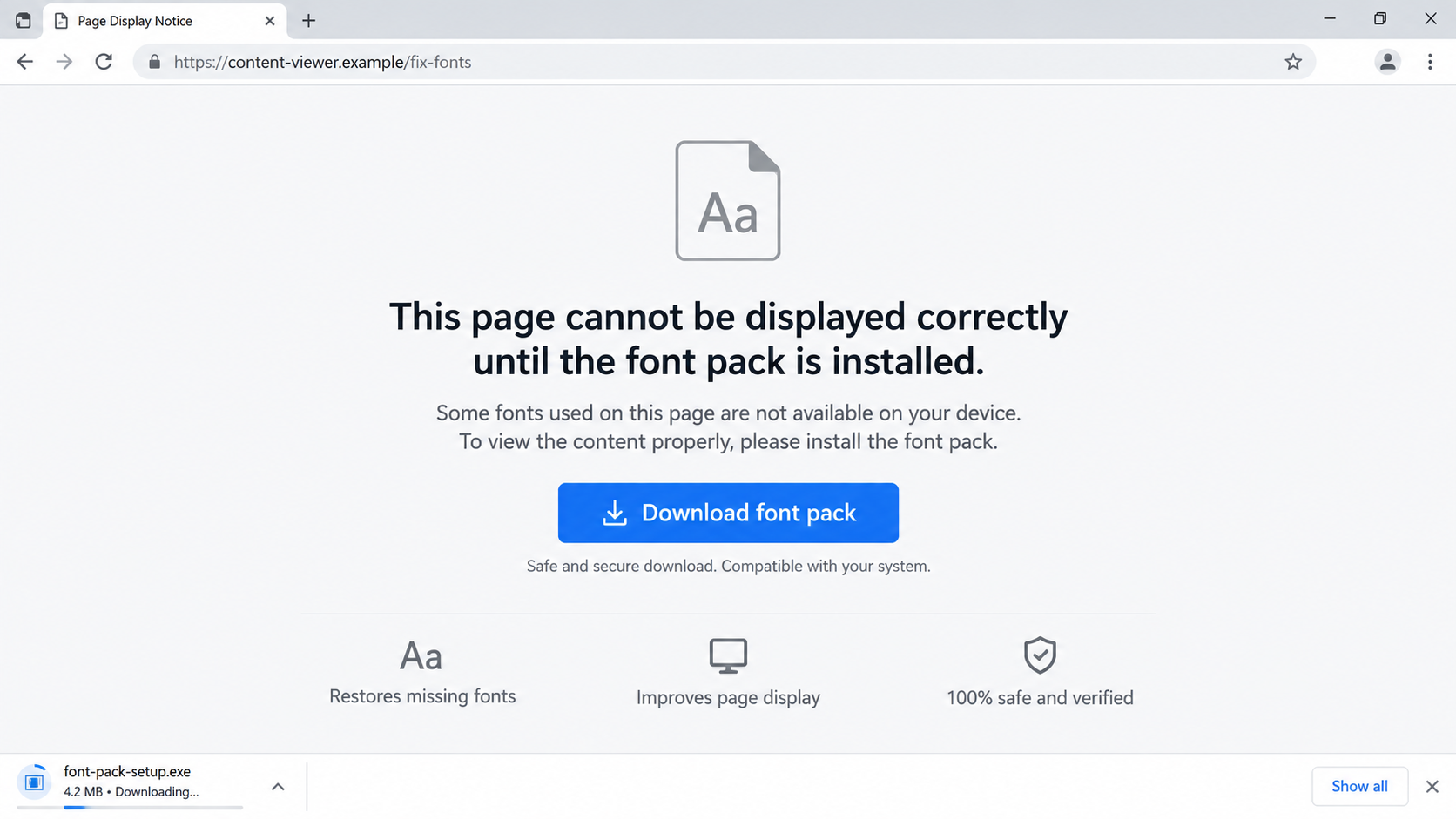
A page suddenly looks broken. Its text is scrambled, and a neat warning says a missing font pack will restore the content. The download button is right beside the explanation.
That feels like a small technical repair, not a security decision. The problem is that the page offering the “fix” may be the very thing that created the problem.
Overview
The missing-font alert is a software-download lure
A fake font-install alert claims that a page or document cannot display correctly until you download a font pack. The goal is to make you run a file supplied by the page, not to fix a genuine typography problem.
Proofpoint documented a historical campaign in which compromised sites displayed a fake Chrome font issue and offered a supposed update that was actually malware. The research dates to 2017; it shows the mechanism, not a verified new outbreak of that specific campaign.
The page can make its own text look damaged
In the documented case, malicious code on a compromised page altered the visible text to make it appear unreadable. The warning then provided a convenient “solution.” The visitor was asked to install an executable disguised as a font update.
Malwarebytes Labs also analyzed the HoeflerText font lure. A later toolkit report described reusable fake-error themes, including fonts. Those reports support the general technique without proving every current alert uses the same payload.
Downloading is not the same as installing
A page can trigger a file download, but the larger danger comes when a user opens and executes the file. If you saw a suspicious warning and did not run anything, your response can be different from someone who launched the installer.
Warning signs include:
- Only one site suddenly claims a browser font is missing.
- The page tells you to run an .exe, .msi, script, or archive to read ordinary text.
- A browser warning appears, but the site tells you to ignore it.
- The “update” comes from the site you were trying to read, not a trusted software source.
- The message pressures you to act before continuing or closing the page.
Why a Font Problem Makes a Good Trap
Most people have seen a document display with the wrong typeface. A browser page that looks garbled can therefore seem plausible. The attacker does not need to explain complex malware; they only need to offer a quick way to read the page.
The page’s appearance can be part of the trick. In Proofpoint’s documented campaign, code modified the content displayed to visitors, then offered an update to repair the manufactured issue. The warning and the “solution” came from the same compromised environment.
It is also easy to borrow trusted names. The alert may mention Chrome, Windows, or a well-known font. Those words do not make the download official. A site can write any brand into its own pop-up.
There is a legitimate side to fonts. Designers install typefaces from trusted sources, and Windows can add optional language fonts through system settings. Microsoft’s font guidance describes that operating-system route. An unexpected executable from a random page is a different decision.
Not every unreadable page is malicious. A browser setting, blocked web font, extension, network issue, or site bug can also change how text appears. The practical response is to stop and troubleshoot safely, not accept a page’s self-serving installer.
The exact file type matters. A font file can be a .ttf or .otf, although even files from untrusted sources warrant caution. An .exe or .msi is a program or installer, not simply a typeface document. Do not run it because a page says it is necessary.
How the Fake Font Install Scam Works
Step 1: The visitor reaches a compromised or deceptive page
The trigger can be a search result, ad, link, or a website that has been compromised. In the historical Proofpoint case, visitors to affected pages encountered injected code that changed what the browser displayed.
The fact that you reached a site you normally trust does not guarantee every script on it is safe. A compromised page can serve a deceptive message without the legitimate owner intending it.
Step 2: The text is made to look unreadable
The page may display broken characters, missing glyphs, or a blurred preview. This creates a reason for the warning to appear. The visitor sees a visible problem first, so the later “font fix” feels like a diagnosis.
That sequence is powerful because it seems testable: the page is hard to read. But a page can cause its own display error. A symptom shown by the untrusted page cannot prove that its proposed download is safe.
Step 3: A pop-up offers a specific repair
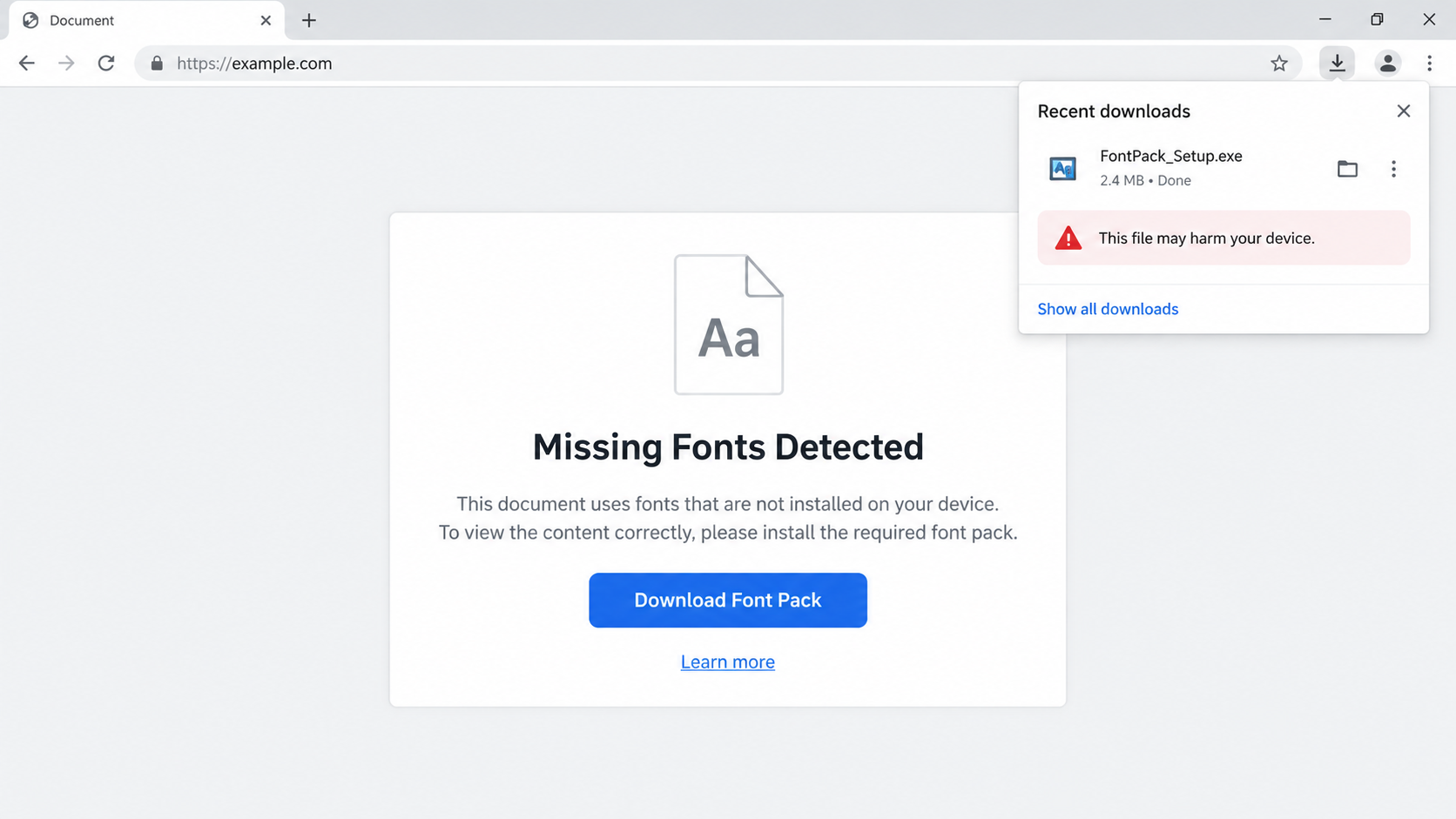
The alert may say your browser lacks a font pack or that a document needs special typography. It presents a button such as “Install fonts,” “Update,” or “Download font pack.” The design may imitate a system notice while remaining part of the webpage.
Look at where the warning lives. A browser-owned security message and a box drawn inside a website are different things. A website can imitate operating-system colors and icons, but it cannot grant itself authority to tell you what software to trust.
Step 4: The button delivers a file
The supposed font pack may arrive as an executable, installer, or archive. Proofpoint’s documented campaign used an executable named like a Chrome font update. The file name served the story; the program was not a normal font repair.
A browser may warn that the download could be harmful. Do not click through that warning because the page insists the file is required. You can close the tab and still investigate the display issue through trusted settings later.
Step 5: The victim runs the file
Execution is the point at which the malicious program can act. Depending on the payload, it might install unwanted software, steal information, or perform another attacker-controlled task. The historical Proofpoint case involved ad-fraud malware; other campaigns can differ.
A download that has not been opened is not equivalent to a completed infection. Still, do not leave the file where it could be launched accidentally. Quarantine or delete it, then scan if your security tools recommend it.
Step 6: The page may appear unchanged or redirect
After the file runs, the text may remain broken, reload, or send the visitor elsewhere. A change in the page’s appearance does not prove a successful repair. The important question is what the installer did on the device.
Some victims may not notice immediate harm. That is why a device check and account review are sensible after execution, especially if the machine holds work access, browser-saved passwords, or financial information.
Page, File, Browser, and Publisher Checks
Check whether the issue follows you
Open a trusted site in a fresh tab. If only one page has strange text, that points toward a site-specific issue rather than a missing system-wide font. Do not use the suspicious page’s download to run this test.
You can also try another updated browser or ask a trusted person whether the same page displays normally. If the site is important, contact its owner through a separate channel and describe the warning.
Identify the file type before opening it
Check the download’s actual extension, not just the label printed on the webpage. An executable, installer, or script can change the system. A ZIP can hide such a file inside it. Never treat a harmless-looking icon as proof of content.
File extensions may be hidden in some operating-system views. Show extensions in your file manager if needed, and keep the suspicious file closed. If you work for an organization, let its security team analyze the file instead.
Use trusted browser and system update routes
Browsers normally update through their own menus or managed update system. Windows optional fonts are handled through settings and trusted distribution paths. A random site should not become your software-update authority because its own content looks broken.
If a real font is required for a document, obtain it from the document owner or a reputable font vendor after confirming the licensing and source. That is different from running a generic “fix” pushed by an unfamiliar page.
Check the publisher and security warning
When a program asks for permission to make changes, read the publisher and file location. An unknown publisher or a browser harm warning is reason to stop. A digital signature, if present, should be verified, not merely noticed.
Do not allow a website to coach you through disabling protections. A legitimate troubleshooting guide should explain the issue and safe alternatives; pressure to bypass warnings is a sign that the installer deserves more scrutiny.
Safer Ways to Handle a Truly Broken Page
Close the alert first. Refresh the page only if you trust the site and do not have to click the download. If the message returns, leave and report the problem rather than repeating the same prompt.
Check that your browser and operating system are updated through their own settings. Disable a recently added extension if it is causing display issues, but do not install a new extension suggested by the suspicious page.
If the content is important, ask its owner for a PDF, plain-text version, or another trusted copy. A genuine publisher can provide access without requiring you to run an unknown program from a pop-up.
Workplace users should tell IT the page address and warning text. A compromised site can expose colleagues to the same lure, and the organization may need to block the link or alert the site owner.
Keep the distinction between a web font and local software clear. Modern pages can load fonts through ordinary browser mechanisms. A site insisting on a separate executable to show normal text is asking for far more access than the page itself needs.
What to Do if You Have Fallen Victim to This Scam
- If you only saw the alert, close the page. Do not click the “fix.” Save the URL and a screenshot if you need to report it. A visible warning alone does not mean malware installed; avoid turning a suspicious page into a device incident by following its instructions.
- If a file downloaded but you did not run it, remove it safely. Do not open the archive or installer to inspect it casually. Quarantine or delete it and run a trusted scan if your security tool recommends one. Tell workplace IT if the file landed on a managed computer.
- If you executed the file, disconnect sensitive activity. Stop signing in to banking, work administration, or other high-value services from that device. Run Malwarebytes and the security software already managed by your organization. If the scan finds a threat or the device behaves oddly, seek professional help.
- Change important credentials from a clean device. Prioritize email, banking, password manager, and workplace accounts that were accessible on the affected machine. Review sign-in history and active sessions. Do not assume a password change on the potentially infected computer is sufficient.
- Preserve evidence before cleanup if the loss is serious. Record the page URL, file name, download time, and any security alerts. Your IT team may need the sample and logs to understand what ran. Avoid forwarding the executable to friends or posting it online.
- Check financial and personal accounts. If payment or identity data may have been exposed, monitor accounts and contact the relevant provider. AdGuard can reduce exposure to malicious pages in the future, but it cannot undo a program that already ran or reverse stolen information.
- Report the source and beware of second-stage offers. Notify the site owner through a separate contact route if a legitimate page appeared compromised. Report the malicious URL to your browser or security provider. Ignore pop-ups or callers offering paid “repair” after the incident.
Frequently Asked Questions
Does a website ever need me to install a font to read it?
There are legitimate font-install scenarios for design work and documents, but ordinary web pages normally render through the browser. An unexpected executable demanded by a page is a strong warning sign.
Is a font pack .exe the same as a font file?
No. An .exe is a program. It may contain or install fonts, but it can also perform other actions. Do not run it because a page claims its text is broken.
Can merely visiting the page infect my device?
The documented fake-font campaign relied on a user executing the downloaded file. Browser vulnerabilities are a separate risk, so keep software updated, but do not assume a visit alone means the installer ran.
What if the download started automatically?
Do not open it. Remove or quarantine the file, note the source page, and scan if appropriate. Downloading and executing are different stages; your response should reflect what happened.
Was the Proofpoint campaign a current 2026 outbreak?
No. Proofpoint’s described fake Chrome font campaign was documented in 2017. It demonstrates a technique that later toolkits reused; the article does not claim that specific campaign is active now.
How can I fix a genuinely unreadable page?
Try a trusted browser update, check extensions, or contact the page owner. For Windows language fonts, follow Microsoft’s system guidance rather than a page’s unsolicited download button.
The Bottom Line
The fake font-install scam creates or exaggerates a display problem, then asks you to run software as the “repair.” A plausible technical explanation can hide a very different request for access to your device.
Do not run a font pack from an unexpected page. Close the prompt, verify the source, and troubleshoot through your browser, operating system, or the publisher’s trusted support route.

Join the discussion
0 commentsShare your experience or ask a question about this article.
Discussion
Start the conversation
Have a question or something useful to share? Add the first comment.