


A failed domain renewal is the kind of email you don’t want to leave until Monday. If the website brings in customers, a short warning can feel urgent.
This notice sounds like an ordinary card problem. Before handing over a new number, find out which account actually has a payment waiting.
Overview
The email borrows a real billing problem
The Squarespace payment could not be processed scam says a recent payment failed. It points to familiar explanations such as an expired card or a temporary payment error.
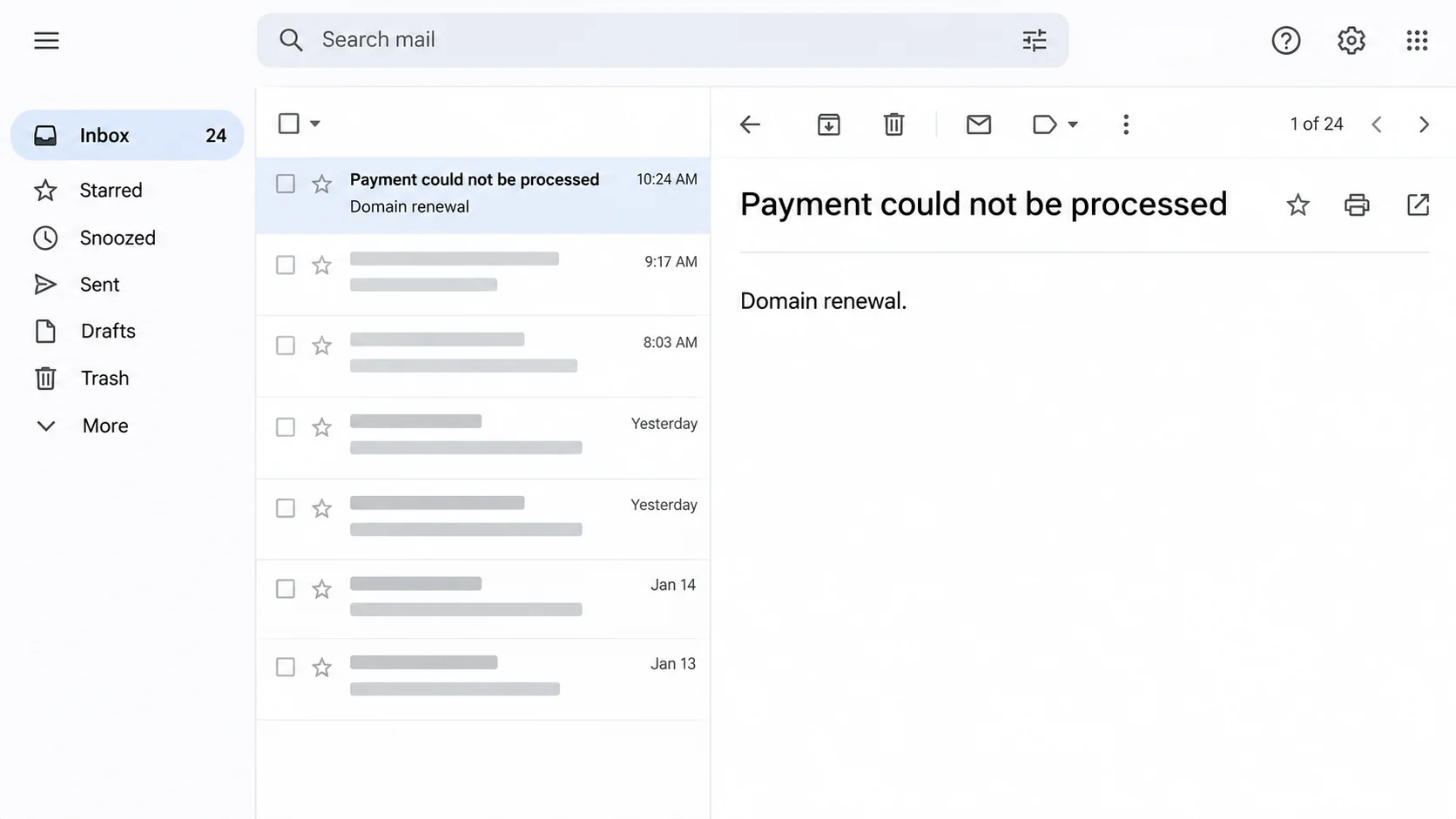
The subject references a domain renewal, while the body warns about service disruption. Together, they make updating a payment method feel like the quickest way to protect a site.
Renewal payments really can fail after a card expires. The question is whether your account or registrar shows a failure, not whether the email sounds plausible.
The image above is a reconstruction of the message theme. It isn’t a Squarespace notification and doesn’t show anyone’s domain or account.
The payment page collects the card rather than renewing the domain
The reported email directed people to an unrelated site with a checkout styled like a domain renewal. Its billing summary and two-day window weren’t records from Squarespace.
The form requested the card number, expiration, security code, and cardholder name. That puts the actual card at risk, even if the recipient never typed a Squarespace password.
Nothing in the reported flow showed an installer. A card disclosure calls for the issuer first, rather than treating the computer as infected just because the page was open.
Check the product before checking the payment
Domain registration, site subscriptions, and related services can have separate billing records. One may be current even if the other needs attention.
- Check which registrar manages the domain that matters to you.
- Look for the exact subscription in the official account rather than relying on the name in the message.
- Compare the renewal date and payment status with the account’s own record.
- Tell the card issuer if you supplied card details, even when no charge appears yet.
The counterfeit checkout is the issue here. It doesn’t indicate that Squarespace sent the email or that the service was breached.
How the Squarespace Payment Failure Scam Works
Step 1: The message arrives with an ordinary explanation
Domains and websites need periodic renewal. A business that has changed cards or billing staff may be accustomed to finding an occasional missed charge.
The notice doesn’t need to prove that you own a specific domain. It relies on your own knowledge filling that gap before you look at the name or account.
That makes this more convincing than a promise of a refund from a service you have never used. It gives the recipient a problem they already know how to solve.
Step 2: A feared service interruption makes a shortcut attractive
The email encourages a fast update to prevent disruption. The landing page adds a warning that only two days remain to finish the supposed purchase.
Neither page can tell you what the registrar will do with an account it doesn’t control. Time remaining in a page banner isn’t the expiry date recorded for your domain.
If you manage a store, newsletter, or client site, call the person who controls its subscriptions. You can check a real problem without disclosing a card number.
Step 3: The look of a checkout disguises a change of destination
The payment button opens a site unrelated to the real provider. The destination’s page design does not transfer the trust you have in an existing Squarespace account.
A page can show an itemized charge before asking for a card without having the ability to renew anything. It has not become a legitimate vendor by displaying a price.
You don’t need to inspect the rest of the form to decide. Close it and get the subscription record through the account you already use.
Step 4: The attacker gets payment information before any receipt is issued
The reported form asks for details used in card payments. Entering those values creates a risk that is independent of whether the fake site shows a success message.
An error can’t tell you who received the information. Don’t try again with a different card, and don’t wait for a fraud alert to decide whether to contact the issuer.
If a second message offers to fix the failure, contact the card issuer yourself. Use the bank’s app to check anything an unexpected caller claims.
How to Check the Real Squarespace Renewal
Start from the account you already use
Open Squarespace from a bookmark or type the known address into a new tab. Sign in through your normal route, not the one the payment notice supplied.
Check that you are in the account that owns the site or domain. A contractor can be a contributor without being able to change the owner’s billing information.
If a colleague set up the account, ask them to check the precise website or domain. Don’t accept a screenshot in a new email thread as approval to pay.
Compare the site and the domain separately
For a website subscription, open the affected site, then go to Billing and open Payment information to review the method connected to that site.
For a standalone domain, use the Domains dashboard, select the exact domain, and open Billing. Domains managed elsewhere need checking in that registrar’s portal.
An active website subscription doesn’t prove registration is current. Keep the two records separate so you don’t buy a second plan while trying to extend a domain.
Squarespace’s failed renewal instructions describe the available recovery routes. If the expected subscription isn’t shown, let the owner or support locate it before you make a payment.
Confirm a real change after saving it
If the official account shows a failure, use the payment control in that account. Verify that you’re updating the right service and the correct funding source before saving.
Save the correct method and look for the new receipt in Billing History. If the account offers Retry payment, confirm the service and balance before using it.
If the status hasn’t changed, contact actual Squarespace support rather than retrying through the original email. Don’t assume a button press means the registrar received the money.
If a client pays the bill, don’t ask for their card information. Tell them which service to check and let them sign in themselves.
What to Do After the Fake Squarespace Payment Email
-
If you only got the message, verify the renewal separately. Leave the original link unopened and report the email through your provider or work phishing process.
Use Squarespace’s reporting guidance if you want to report the impersonation. Don’t add your billing record or a copy of your card.
-
If you opened the checkout but didn’t enter information, close it. Note the time if your organization wants to investigate. Don’t return to copy a screenshot.
Check for anything unexpected the browser actually saved. The reported payment form itself isn’t evidence that you installed software or lost access to your account.
-
If you entered card details, contact the card issuer now. Use the banking app or the number on the physical card, not a number supplied by the email.
Tell the issuer which fields you entered and whether you approved anything else. Ask how to restrict or replace the card and flag any unauthorized use.
-
Separate card exposure from account exposure. If you also supplied an account password anywhere in the flow, change it from the official account and review access.
Start with the associated email account if it can reset the website login. Have the account owner check for unfamiliar contributors, billing changes, and notices.
-
Reconcile the actual transaction when activity appears. Record its amount, date, and merchant descriptor privately. An unexplained pending item and a posted charge can require different issuer actions.
Follow the issuer’s dispute process and keep its reference number. If the suspicious page displayed a receipt, don’t mistake it for the bank’s transaction record.
-
Restore essential renewals using the replacement method if needed. Replacing the card may affect legitimate renewals. Check your real subscription, registrar, and other business services after securing the exposed card.
Don’t assume that every company will automatically get the correct card. Make changes only from accounts you own or are authorized to manage.
If You Manage a Domain for Someone Else
Keep a short record of ownership and billing
Write down who owns the domain, who can sign in to the registrar, and who controls the payment method. Keep passwords and complete card numbers out of that record.
When clients receive their own billing notices, agree on an independent check and a known way to reach each other. A copied logo should never be that confirmation.
Make sure your records follow a website migration. Moving a website doesn’t necessarily move its domain registration or change the party that issues the renewal bill.
Keep a real failed renewal from becoming a rushed transfer
A notice about a payment is not a reason to approve a domain transfer. If the official account shows an unexpected ownership or transfer request, contact the registrar.
Save the approved renewal details independently. If a client later forwards a notice at a different price, compare it with the account before treating it as a new invoice.
Keep the bank dispute separate from the registry date. A card issuer can’t verify that your domain is protected, and a website dashboard can’t investigate your card.
Use the same check after handing a site over
When a client takes over billing, confirm which account and address will receive official notices. Remove obsolete contact instructions from your internal reference material.
The next time a payment alert arrives, you should be able to reach the current owner without reading the email’s support footer or relying on its deadline.
When a Legitimate Renewal Really Did Fail
Find out which payment method supplies the renewal
The card may be saved against a particular website or a separate group of domains. Replacing one payment method won’t necessarily fix every subscription in the account.
Squarespace’s billing instructions say a grouped domain can share a payment method with other domains. Read the account’s notice before applying a change to the whole group.
If the domain was bought through a reseller, make the change there. Look for the reseller name in the domain details or check the original purchase record.
Verify the retry before making another payment
A genuine provider might retry a failed card charge after you update the payment method. Look for the actual billing record before deciding you need to pay again manually.
If a receipt appears, match the service and date rather than assuming the first email was legitimate. The real transaction should stand on evidence without that message.
When a client is already working with the bank, ask who is authorized to update the provider account. One person handling both records can prevent accidental duplicate payments.
Don’t treat the countdown as a rule for every domain
Check the status the registrar shows for that domain. If it’s already expired or unavailable to renew normally, ask the registrar what options apply to the registration.
Don’t buy a costly recovery service because a follow-up claims the domain is about to be lost. The registrar is the party that can confirm the applicable state.
If you pay for more than one service, keep the account’s receipt with the affected item. The next renewal reminder will be easier to check against a known record.
Check that the payment update applied to the owner account, not just a contributor profile. You may need the owner to confirm it even if you manage the website.
Frequently Asked Questions
Does Squarespace send real payment failure notices?
Renewal failures can happen and legitimate notices can exist. Open the official account separately and match the notice to a real subscription before updating anything.
Is an active website proof that its domain is paid?
A working site and its registration have separate records. Confirm the domain status with the registrar and review the website subscription separately if they are managed in different places.
Should I wait for a charge before contacting my bank?
If you supplied your card details to the fake checkout, tell the issuer promptly. The absence of a charge at the moment you check doesn’t protect the data.
Does a counterfeit payment page change my Squarespace password?
Entering card details doesn’t itself change a Squarespace password. If you separately provided a password or approved an unexpected sign-in, treat that as an additional exposure.
Who should investigate a charge I don’t recognize?
Check the account where the card activity appears and contact its issuer. If you also recognize the merchant as Squarespace, verify the matching service from your official Billing panel.
Is the two-day deadline a real expiration date?
The countdown belongs to the fake checkout in this case. Look for the renewal or expiration date in the official domain record, where the real service is managed.
The Bottom Line
Don’t update a card through the payment button in this email. Open the account or registrar yourself and make changes only if it shows a real renewal failure.
If you entered card details, contact the issuer before waiting for a transaction. Check any real website or domain renewal separately after the card is protected.

Join the discussion
0 commentsShare your experience or ask a question about this article.
Community experiences
Did this happen to you?
Your experience could help someone recognize the same scam. Submit a private report for our team to review.
I experienced this tooReports are reviewed before publication. Sharing publicly is always your choice.
Discussion
Start the conversation
Have a question or something useful to share? Add the first comment.