

An email says an old compensation account has been waiting in your name. The balance is unusually precise, and somebody else has supposedly already tried to claim it.
You only need to confirm your interest to move things forward. Before replying, look at how the message explains a windfall you never knew existed.
Overview
The claimed balance is the bait
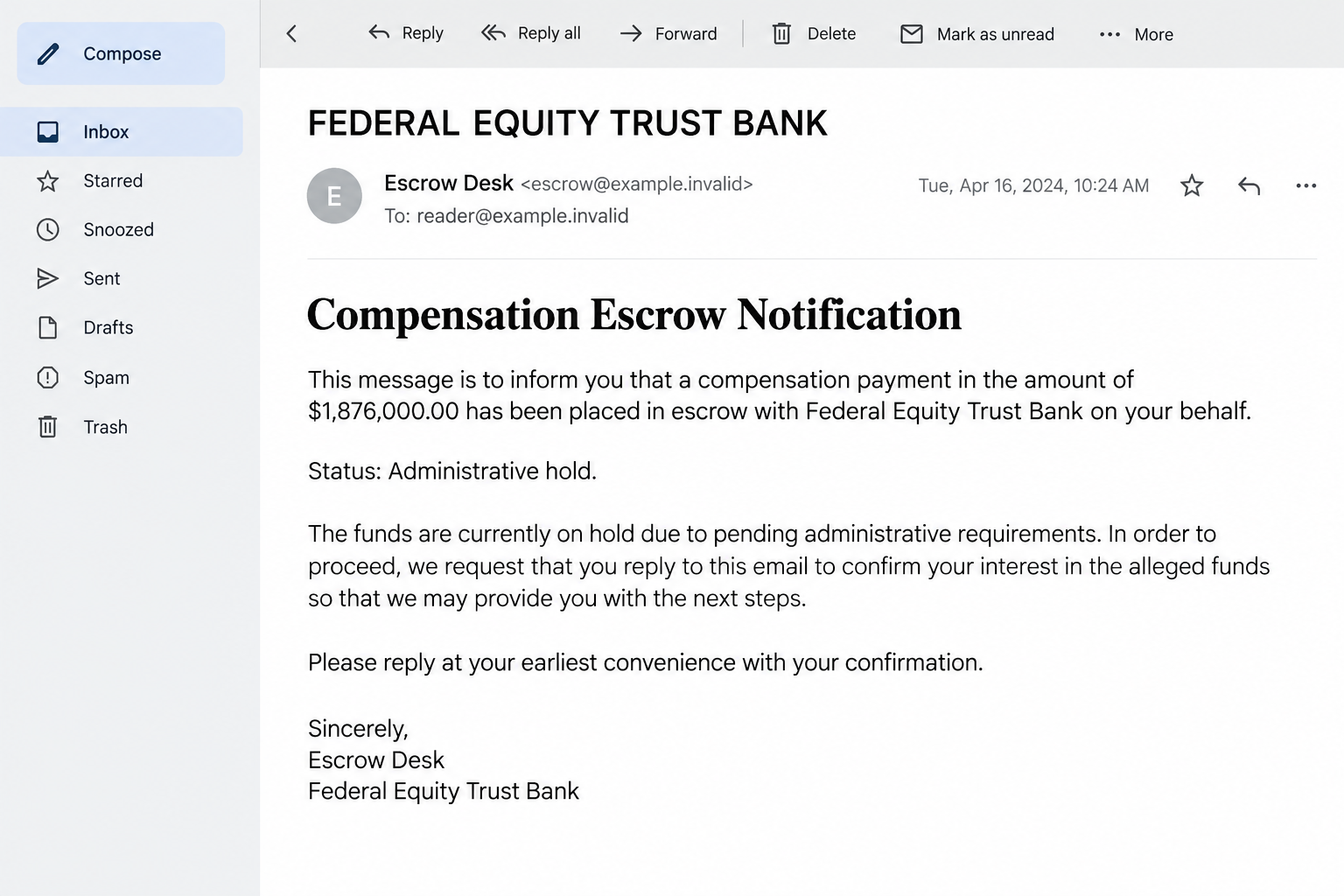
The Federal Equity Trust Bank email scam promises access to a supposed compensation escrow worth $1,876,000. It presents the sum as principal and accumulated interest.
The message says government-related awards or grants went undelivered because your contact information changed. An administrative hold supposedly remains until you reply.
None of that establishes a real account or entitlement. The notice is an advance-fee and information-collection lure, not evidence that a bank owes you that money.
The opening email asks for contact, not an already completed payment. Later demands for documents or release charges are possible escalation, not actions every recipient has taken.
A rejected third-party claim makes the sender look protective
The story includes another person whose inquiry was supposedly refused. That detail makes the purported bank seem careful about protecting funds on your behalf.
It also creates a reason to respond: someone else appears interested in an asset you didn’t know you had. Both the rival and the protective intervention remain unverified.
- An unsolicited balance is not a bank statement obtained through your own account.
- A manager’s title doesn’t establish employment or authority to release funds.
- A reply can expose information even before a fee is mentioned.
- A genuine unclaimed-property search should be independent of the person promising the money.
The safe decision doesn’t require chasing the escrow
Don’t reply, send documents, or pay to remove the supposed hold. Check any genuine unclaimed-property question through official records you locate yourself.
This warning concerns the described email and its claimed payout. It doesn’t accuse unrelated financial businesses with similar words in their names.
No underlying escrow record, actual release fee, or recipient payment was independently examined. The message’s confident account history should not be mistaken for verified financial records.
The Story Solves Every Doubt Before You Can Ask It
Why didn’t you hear about the money years ago? The email blames outdated contact details. Why is the amount so large? It adds accrued interest.
Why contact you now? A third party supposedly made an inquiry. Why can’t you access the funds immediately? There is an administrative hold.
Those answers fit together neatly. But consistency inside one message is not independent evidence that any part of the account exists.
A convincing explanation can make you feel that verification is almost complete. In reality, the account, award, bank relationship, and sender still need establishing.
Don’t supply your own history to make the story fit. A past move or an old benefit application doesn’t connect this sender with a real award.
The burden isn’t on you to disprove an unexpected fortune. The person claiming to hold it must have a verifiable identity and legitimate basis for contacting you.
How the Federal Equity Trust Bank Email Scam Works
Step 1: A formal banking identity introduces an unexpected asset
The email presents itself as a private-client communication. Its role titles and escrow language suggest that you’re dealing with someone accustomed to managing substantial accounts.
That can shift your attention from the sender’s identity to the balance. The opportunity begins to feel valuable before its origin has been established.
Don’t confuse a formal signature with a verified employee. A name, department, and professional title can all be typed into an ordinary email.
Likewise, words such as federal and trust aren’t regulatory credentials. A reassuring name doesn’t tell you which authority supervises the institution or which jurisdiction applies.
Start by asking whether you have any independently documented relationship with the claimed account. The message’s description of you as a beneficiary is not that documentation.
Step 2: The account history explains away your lack of knowledge
The supposed award dates back several years. The sender says notices failed because contact details were no longer current.
This explanation turns unfamiliarity into part of the story. Rather than treating the unexpected claim as a warning, you may see it as a recovered administrative mistake.
The asserted interest then makes the long delay sound beneficial. Waiting supposedly enlarged the account instead of raising questions about why you never knew it existed.
Don’t provide old addresses, identification, or family information to help the sender reconstruct that history. Those details can make future impersonation more convincing.
If a real award or payment might be outstanding, investigate the actual program or record independently. You don’t need this email’s manager to begin that check.
Step 3: The rival claimant adds urgency without an explicit countdown
The message says another inquiry was rejected because verification wasn’t sufficient. That makes the purported institution appear to have already protected your interests.
It can also create a feeling of competition. You may worry that silence will allow somebody else to receive what the message describes as yours.
There is no need for a flashing timer when the story supplies a rival. The emotional pressure comes from protecting a newly imagined asset.
But a named third party isn’t proof of a real inquiry. Don’t contact that person or send personal documents merely because the email inserts them into the narrative.
An authentic legal or financial claim should have a verifiable process. An unverified story about somebody else’s attempt doesn’t replace one.
Step 4: A small reply opens a larger conversation
The initial requested action sounds modest: confirm that you’re interested. It doesn’t yet look like handing over money.
Replying gives the sender a live conversation and an opportunity to tailor the next request. You may be asked for details under the guise of identifying the beneficiary.
The reported contact uses a consultant.com mailbox rather than independently authenticated institutional correspondence. That address needs verification, not assumptions about what its professional label means.
A generic email service alone isn’t a criminal verdict. The concern is its combination with an unsolicited fortune, unsupported account history, and a sender-defined release process.
Don’t send banking information simply because a reply seems low-risk. The conversation can become consequential before any payment button appears.
Step 5: Releasing the money can become the reason for another demand
An advance-fee escalation may introduce a charge supposedly needed before payment. Administrative language can make the expense sound like the final obstacle to receiving a much larger sum.
The opening notice doesn’t specify a release fee or payment method. You don’t need to wait for a bill before walking away from the false escrow.
If a fee arrives later, compare the actual requested action with the promise. You would be sending your own money to obtain an asset never independently confirmed.
A new document, manager, or department doesn’t resolve that gap if each introduction comes from the same unverified conversation.
Stop instead of paying for one more release step. A previous payment creates a recovery problem, not a reason to fund the next demand.
Real Unclaimed Money Has Independent Search Routes
Use the relevant official records
USAGov’s unclaimed-money guide explains that different kinds of funds have different search systems. There isn’t one universal database holding every possible payment.
State unclaimed-property offices handle many records. Other categories, such as unpaid wages or certain pension funds, have their own official routes.
Use the route matching your actual circumstances. The existence of genuine unclaimed money doesn’t authenticate a stranger’s claim to have found a large account for you.
Keep identity details within the real process you deliberately located. Don’t email them to the alleged relationship manager as a shortcut.
Verify the institution without borrowing its contact details
For an institution claiming U.S. bank-insurance status, the FDIC’s BankFind Suite is an official starting point. Other types of institutions may have different regulators.
Match the exact legal entity, location, and verified contact information. Finding a business with a similar name doesn’t connect it to the email.
A missing result by itself is not a universal fraud verdict. More importantly, a real bank’s existence doesn’t show that its staff sent a particular message.
Don’t phone a number from an unsolicited attachment to authenticate that same attachment. Establish the institution and communication route independently.
Separate a claim from an identity-check request
Legitimate financial processes can require identification. The question is whether you’ve established the real process before handing over sensitive material.
A request to confirm your name can grow into demands for a passport, signature, address, or account details. Each disclosure needs its own justified destination.
Don’t send a small sample of an identity document to test trust. Partial information can still be useful to someone building an impersonation.
What to Do if You Have Fallen Victim to This Scam
- End the escrow conversation.
Don’t reply again to explain your doubts, negotiate a fee, or request proof through the same sender. Block further contact after preserving useful evidence.
If you only expressed interest, stop there. A reply doesn’t automatically mean your bank account was accessed or your computer infected.
- Record exactly what you disclosed.
List the categories involved: contact details, identity documents, bank information, passwords, or payment records. Keep the secrets themselves out of casual notes.
This inventory helps you choose a proportionate response. Sending a phone number and sending an online-banking password are different exposures.
- Contact the institution that handled any money you sent.
Explain the false compensation claim, payment date, destination, and method. Ask whether the transaction can be stopped, recalled, challenged, or otherwise investigated.
Don’t assume a recall or refund is guaranteed. Keep the provider’s case reference and follow its requested evidence process promptly.
- Address identity misuse through the appropriate official process.
If identification or sensitive personal details were supplied, follow your country’s identity-fraud guidance. Notify the relevant document issuer or financial provider where appropriate.
In the U.S., IdentityTheft.gov offers recovery guidance. Describe what happened accurately rather than assuming every possible misuse has already occurred.
- Protect any credentials or software access separately.
Replace an exposed password through the genuine account and review unauthorized sessions. If a follow-up made you install software, investigate that device exposure.
Malwarebytes can help examine suspicious software. AdGuard may reduce deceptive ads and some unsafe browsing, but neither validates escrow funds or recovers a bank transfer.
- Save the conversation for reporting.
Keep original emails, sender details, payment receipts, and relevant account records. Use your mail provider’s reporting option and the appropriate local fraud authority.
Don’t publish identity documents while warning others. A report should help investigators understand the approach without exposing more private information.
- Reject paid recovery offers tied to the same story.
Someone may claim the funds are finally ready, but a different office needs a last payment. That doesn’t independently establish a real payout.
The FTC’s recovery-scam warning explains why people who already lost money can be targeted again. Don’t fund another promised rescue.
Is Your Device Infected? Run a Free Malware Scan
Slow performance, constant pop-ups, or strange behavior? These are classic signs of a malware infection. The fastest way to find out is to scan your device with Malwarebytes Free — one of the most trusted malware removal tools available.
The free version detects and removes the most common threats, including:
- Adware — the cause of those annoying pop-ups
- Browser hijackers — unwanted redirects and changed homepages
- Trojans and spyware — hidden programs stealing your data
- Potentially unwanted programs (PUPs) — software you never asked for
👉 Select your device below — Windows, Mac, or Android — then follow the simple steps to download Malwarebytes, scan your system, and remove any threats it finds. The scan usually takes 5 to 20 minutes.
Run a Malware Scan with Malwarebytes for Windows
Malwarebytes is one of the most popular and trusted anti-malware tools for Windows — and it’s completely free for removing infections. It catches threats that many antivirus programs miss, including adware, browser hijackers, and trojans. Follow the steps below to scan and clean your PC in just a few minutes.
Download Malwarebytes
Click the button below to download the latest version of Malwarebytes for Windows from the official source. The free version is all you need — it will scan your computer and remove adware, browser hijackers, and other malicious software at no cost.
Download MalwarebytesOfficial installer for Windows 11 and 10. Your download starts right away.Want real-time protection? See Malwarebytes Premium Malwarebytes Free for WindowsScans and removes malware at no cost
-
Install Malwarebytes
When the download finishes, open your Downloads folder and double-click the MBSetup file. If Windows shows a User Account Control pop-up, click “Yes” to allow the installation.

Follow the On-Screen Prompts to Install Malwarebytes
The setup wizard will walk you through a few quick screens:
-
Choose where you’re installing the program — “Personal Computer” or “Work Computer” — then click Next.

-
Malwarebytes will now install on your device. This usually takes under a minute.

-
When installation is complete, the “Welcome to Malwarebytes” screen will open automatically.

-
On the final screen, click Open Malwarebytes to launch the program.

-
Enable “Scan for Rootkits”
Before scanning, turn on rootkit detection so Malwarebytes can find even the most hidden threats. Click the Settings gear icon on the left side of the screen.

In the settings menu, find “Scan for rootkits” and click the toggle so it turns blue.

Done? Click “Dashboard” in the left pane to return to the main screen.
Start the Scan
Click the blue Scan button. Malwarebytes will automatically update its virus database and start checking your computer for malware.

-
Wait for the Scan to Finish
The scan checks your entire system for browser hijackers and other malicious programs, so it can take 5 to 20 minutes depending on your computer. Feel free to do something else — just check back occasionally to see the progress.

-
Quarantine the Detected Threats
When the scan is done, you’ll see a list of everything Malwarebytes found — malware, adware, and potentially unwanted programs. Click the “Quarantine” button to remove all of them at once.

Malwarebytes will now remove the malicious files and registry entries and move them safely into quarantine.

-
Restart Your Computer
Some threats can only be fully removed after a reboot. If Malwarebytes asks you to restart, click Yes. Once you’re logged back in, Malwarebytes has finished removing the threats it found.

That’s it — your Windows PC is now clean of trojans, adware, and other malware, and should be back to running smoothly.
If you are still having problems with your computer after completing these instructions, then please follow one of the steps:
- Run a computer scan with ESET Online Scanner
- Ask for help in our Windows Malware Removal Help & Support forum.
Run a Malware Scan with Malwarebytes for Mac
Malwarebytes for Mac is a free on-demand scanner that removes the malware other security software tends to miss — adware, browser hijackers, and unwanted programs included. Cleaning an infected Mac with Malwarebytes has always been completely free, and it’s our go-to recommendation. Follow the steps below to scan and clean your Mac in just a few minutes.
-
Download Malwarebytes for Mac
Click the button below to download the latest version of Malwarebytes for Mac.
Download MalwarebytesOfficial installer for macOS. Your download starts right away.Want real-time protection? See Malwarebytes PremiumMalwarebytes Free for MacScans and removes malware at no cost -
Open the Malwarebytes setup file
When the download finishes, open your Downloads folder and double-click the setup file to begin the installation.

-
Follow the On-Screen Prompts to Install Malwarebytes
The Malwarebytes for Mac Installer will guide you through a few quick screens. Click “Continue” and keep following the prompts until the installation completes.



When the installation is complete, Malwarebytes opens to the Welcome to Malwarebytes screen. Click “Get started“.
-
Select “Personal Computer” or “Work Computer”
Malwarebytes will ask what type of computer you’re installing it on. Click either Personal Computer or Work Computer, whichever applies.

-
Start the Scan
Click the “Scan” button. Malwarebytes will automatically update its detection database and begin checking your Mac for malware.

-
Wait for the Scan to Finish
Malwarebytes will scan your Mac for adware, browser hijackers, and other malicious programs. This can take a few minutes, so feel free to do something else — just check back occasionally to see the progress.

-
Quarantine the Detected Threats
When the scan is done, you’ll see a list of everything Malwarebytes found. Click the “Quarantine” button to remove all the threats at once.

-
Restart Your Mac
Malwarebytes will now remove all the malicious files it found. Some threats can only be fully removed after a reboot — if Malwarebytes asks you to restart, allow it. Once you’re logged back in, your Mac is clean.

That’s it — your Mac is now free of adware, rogue browser extensions, and other potentially harmful software.
If you are still experiencing problems while trying to remove a malicious program from your computer, please ask for help in our Mac Malware Removal Help & Support forum.
Run a Malware Scan with Malwarebytes for Android
Malwarebytes for Android automatically detects and removes dangerous threats like malware and ransomware so you don’t have to worry about your most-used device being compromised. Aggressive detection of adware and potentially unwanted programs keeps your Android phone or tablet running smooth.
-
Download Malwarebytes for Android.
You can download Malwarebytes for Android by clicking the link below.
Get Malwarebytes for AndroidOpens Google Play in a new tab.Want real-time protection? See Malwarebytes Premium for AndroidMalwarebytes for AndroidScans your phone and removes malware at no cost -
Install Malwarebytes for Android on your phone.
In the Google Play Store, tap “Install” to install Malwarebytes for Android on your device.

When the installation process has finished, tap “Open” to begin using Malwarebytes for Android. You can also open Malwarebytes by tapping on its icon in your phone menu or home screen.

-
Follow the on-screen prompts to complete the setup process
When Malwarebytes will open, you will see the Malwarebytes Setup Wizard which will guide you through a series of permissions and other setup options.
This is the first of two screens that explain the difference between the Premium and Free versions. Swipe this screen to continue.
Tap on “Got it” to proceed to the next step.
Malwarebytes for Android will now ask for a set of permissions that are required to scan your device and protect it from malware. Tap on “Give permission” to continue.
Tap on “Allow” to permit Malwarebytes to access the files on your phone.
-
Update database and run a scan with Malwarebytes for Android
You will now be prompted to update the Malwarebytes database and run a full system scan.

Click on “Update database” to update the Malwarebytes for Android definitions to the latest version, then click on “Run full scan” to perform a system scan.

-
Wait for the Malwarebytes scan to complete.
Malwarebytes will now start scanning your phone for adware and other malicious apps. This process can take a few minutes, so we suggest you do something else and periodically check on the status of the scan to see when it is finished.

-
Click on “Remove Selected”.
When the scan has been completed, you will be presented with a screen showing the malware infections that Malwarebytes for Android has detected. To remove the malicious apps that Malwarebytes has found, tap on the “Remove Selected” button.

-
Restart your phone.
Malwarebytes for Android will now remove all the malicious apps that it has found. To complete the malware removal process, Malwarebytes may ask you to restart your device.
That’s it — your Android phone is now clean — no more malicious apps, adware, or browser redirects.
If you are still having problems with your phone after completing these instructions, then please follow one of the steps:
- Restore your phone to factory settings by going to Settings > General management > Reset > Factory data reset.
- Ask for help in our Mobile Malware Removal Help & Support forum.
Stay Protected: Block Ads and Malicious Sites
Now that your device is clean, keep it that way. Most infections start with a malicious ad or a fake download button — so blocking them at the source is your best defense.
We recommend AdGuard, which blocks malicious ads, phishing pages, and dangerous redirects before they can reach you.
👉 Download AdGuard and browse safely
Help a Relative Step Away Without Turning It Into an Argument
The balance may represent a solution to very real problems. Challenging the email can feel, to the recipient, like taking away an opportunity rather than preventing harm.
Focus on the next action instead of debating every sentence. Ask them to pause payments and documents while checking the claim through a genuinely independent route.
Offer practical help gathering receipts and contacting their own bank. Don’t impersonate them or send a fresh reply to the supposed manager to investigate.
If several payments were made, preserve the sequence. Explaining how the demands changed can be more useful than focusing only on the largest amount.
Keep the conversation calm. Shame can push someone back toward the sender, who is still offering reassurance and a promised solution.
Frequently Asked Questions
Does the email prove there is an escrow account in my name?
No. The balance and account history are the sender’s claims. A genuine entitlement needs independent records and a verified institution, not just a notification.
Why does it mention another person trying to claim the funds?
The story makes the supposed bank appear protective and gives you a reason to respond. It doesn’t establish that a real third-party inquiry occurred.
Is replying harmless if I don’t pay anything?
A reply doesn’t itself transfer money, but it opens a conversation for further requests. Don’t provide personal information to explore an unsupported payout.
Does a consultant.com email address prove fraud?
Not by itself. Evaluate the entire unsolicited escrow claim and verify the institution independently. A professional-sounding mailbox label isn’t proof of a bank relationship.
Can genuine unclaimed money be found elsewhere?
Yes. Use official unclaimed-property and category-specific resources. Don’t let the existence of real funds validate this sender’s particular compensation story.
Should I pay a small charge to see whether the larger payout arrives?
No. Don’t risk money on this unsupported release process. If you already paid, contact the payment provider instead of financing another test.
The Bottom Line
Don’t reply to this Federal Equity Trust Bank compensation email or pay to release its supposed $1,876,000 escrow. The message doesn’t establish an account you can claim.
Investigate genuine unclaimed property independently. If you sent funds or sensitive information, stop the conversation and begin recovery with the appropriate verified provider.

Join the discussion
0 commentsShare your experience or ask a question about this article.
Discussion
Start the conversation
Have a question or something useful to share? Add the first comment.