


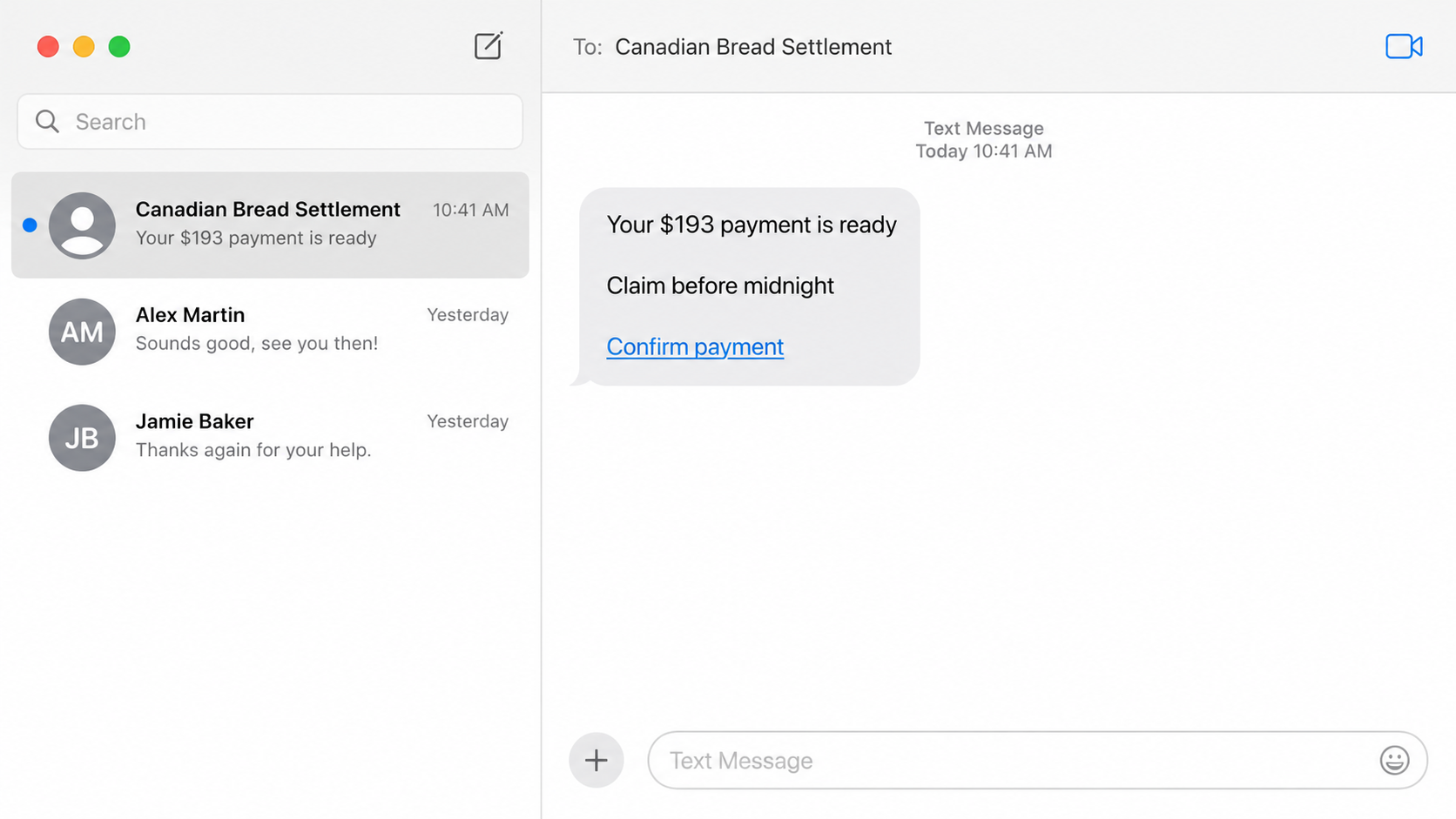
A text says money from the Canadian packaged bread settlement is ready for you. The amount feels specific, the lawsuit is real, and the link promises a quick deposit.
Those true details are being used to support a message the real settlement administrator did not send.
Overview
The settlement is genuine, but the surprise payout message may not be
The Canadian Bread Settlement scam is a phishing campaign that impersonates the real Canadian packaged bread class-action settlement. Fraudulent texts and emails claim the recipient can still register, confirm a payment, or collect an unclaimed refund.
The underlying settlement is real, which gives the lure credibility. Eligible Canadian residents had an opportunity to file claims connected to packaged bread purchases and alleged price fixing.
The criminal message is not part of that legal process. It uses the real story, familiar company names, and the expectation of a payout to lead recipients into a fake claim or banking page.
The official claim deadline has passed
The official national claim process closed on December 12, 2025. A message arriving now cannot legitimately create a new claim simply because the recipient clicks before an urgent deadline.
The official Canadian Bread Settlement website has published a security notice warning about phishing emails. It states that the administrator will not initiate communications at this stage and advises people not to provide card numbers, banking details, or one-time security codes.
Common scam messages claim:
- A new bread settlement claim is available
- An approved payment could not be deposited
- The recipient has only a few hours to confirm eligibility
- A larger refund is waiting than the real individual payment
- Bank or card details are needed to receive an Interac transfer
- A small processing fee will unlock the payout
- A one-time code is required to verify the deposit
The fake form is designed to take financial and identity data
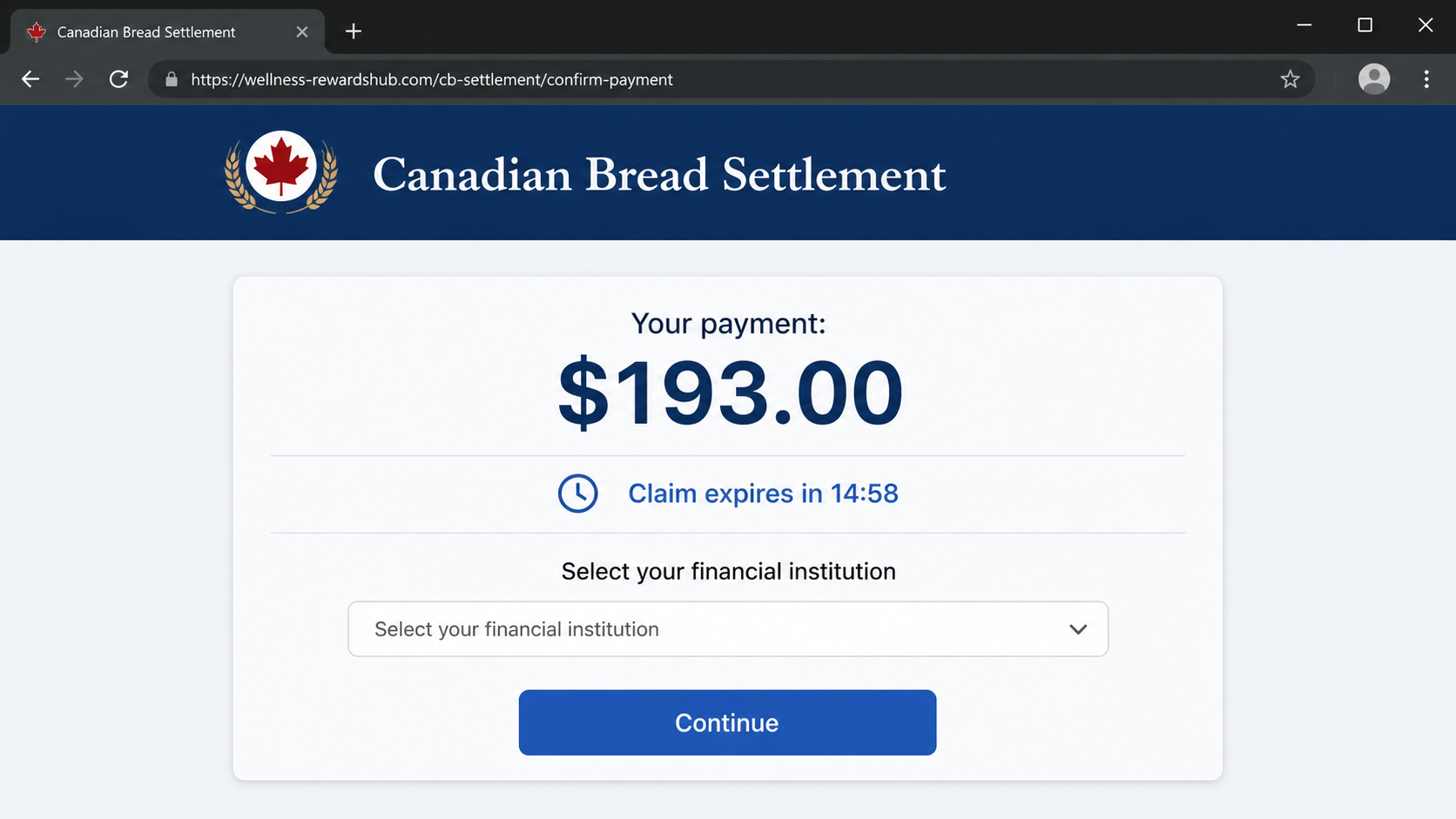
The link may open a page that copies the settlement’s colours, legal language, and references to Loblaw, Weston, or the $500 million settlement. The address, however, is not the official settlement domain.
The form can request a name, address, date of birth, phone number, card number, bank login, or one-time code. The information goes to the fraudster, not to the court-appointed administrator.
A stolen card can be charged, while banking credentials and codes can support account takeover. Identity information also makes later calls about taxes, refunds, and settlement corrections much more convincing.
What the Real Bread Settlement Looks Like
The national settlement involved claims related to packaged bread purchased for personal use between 2001 and 2021. The deadline for consumers to submit a claim was December 12, 2025.
Payments to approved claimants began in May 2026 and were issued by cheque or Interac e-Transfer. According to the official website, the payment would not exceed $49.11.
An approved claimant who had previously participated in the $25 Loblaw Card Program would receive $24.11. A claimant who had not participated would receive $49.11.
Those amounts matter because fraudulent messages may promise $145, $193, or another figure in the hundreds. A larger amount can feel exciting, but it does not match the published consumer distribution.
The official site also says the administrator does not need a claimant’s credit-card or banking information to make the payment. No text messages are being sent.
If you filed a valid claim and have a payment question, use the contact information published directly on the official website. Do not enter a phone number or link from the suspicious message into your verification path.
Why Settlement Phishing Is So Convincing
Class-action payments can be confusing even when they are legitimate. Claimants may wait months, receive unfamiliar emails, and use payment systems that require careful verification.
Scammers exploit that uncertainty. They time messages around news coverage and real payouts, then repeat accurate details copied from court notices and public websites.
A recipient may remember buying bread but not remember whether a claim was submitted. The criminal offers an easy answer: click now and the system will check eligibility.
The message may also reach someone who genuinely filed. For that person, the timing and subject feel even more relevant, and a fake deposit problem sounds plausible.
Real legal wording is not authentication. Settlement names, amounts, deadlines, administrator details, and court documents are public information that can be copied into a fraudulent page.
How the Scam Works
Step 1: A text or email announces settlement money
The message says the recipient is eligible, approved, or waiting for a bread settlement payment. It may use a Canadian phone number or a sender name that includes “Bread Settlement.”
Many campaigns send the same message widely. The recipient’s purchase history is not necessarily known.
Step 2: A specific amount and deadline create urgency
The promised refund may be larger than the real payment, increasing the temptation to act. A countdown or same-day deadline makes verification feel risky.
The claim that funds will be forfeited is designed to prevent the recipient from checking the official website.
Step 3: The link opens a lookalike settlement page
The page repeats names and facts from the real case. Its domain may contain words such as Canada, bread, class action, claim, or settlement.
A descriptive domain is not the official domain. A padlock only encrypts the connection to whoever controls the page.
Step 4: An eligibility form collects personal details
The victim enters a name, postal address, birthday, email, and mobile number. The questions resemble a normal claims form, so the information request seems routine.
The page often declares the visitor eligible regardless of the answers.
Step 5: The fake deposit requires financial information
The visitor is asked to select a bank, sign in, enter a card, or pay a small processing charge. The explanation may mention identity verification or Interac deposit routing.
The official administrator says it does not need card or banking information to issue the payment.
Step 6: A one-time code authorizes the attack
The criminal attempts a real bank login, card transaction, or wallet enrollment. A genuine security code arrives, and the fake page asks the victim to enter it.
That code can approve the attacker’s action. It is not proof that the settlement page is safe.
Step 7: Follow-up scams use the captured profile
A caller may claim the payment is delayed by tax, a failed deposit, or suspected fraud. Because the caller knows the submitted details, the conversation sounds official.
Another criminal may later offer to recover the money for an upfront fee. Recovery promises from unsolicited contacts are another form of fraud.
Company, Address, and Fulfillment Checks
Use only the official settlement domain
Type canadianbreadsettlement.ca yourself or use a bookmark created from a trusted notice. Do not rely on a similar domain found inside a text, email, advertisement, or sponsored search result.
Check every character. Added words, hyphens, different endings, and misspellings can be hidden on a narrow phone screen.
Do not trust a copied legal address
A phishing page may reproduce the real administrator’s office address, telephone number, court file, and company names. All are available publicly.
Verify through the official website rather than assuming the footer proves ownership of the page.
Match the message to your real claim history
Consider whether you filed before the December 12, 2025 deadline and which payment method you selected. A person who never filed cannot become an approved claimant through a surprise 2026 text.
Use the administrator’s official contact route for a missing valid payment. Do not disclose full card or bank credentials during the call.
Confirm the payout method and amount
The official site says consumer payments were sent by cheque or Interac e-Transfer and would not exceed $49.11. It also states that no text messages will be sent.
A promise of $145, $193, or another inflated payment, a texted claim link, or a request for credit-card details conflicts with those published facts.
How to Tell a Real Interac Payment From a Phishing Page
Do not judge an Interac message by colour and logo alone. Fraudulent emails and pages can copy familiar payment branding.
Start with your claim history. A real transfer should relate to a claim you actually submitted and an amount consistent with the official distribution.
Check the sender details and contact the settlement administrator independently when anything differs from the information you originally provided. Do not reply to the questionable email for confirmation.
If your bank supports automatic deposit and the payment is genuine, you should not need to give a stranger your card number, PIN, or a one-time security code.
When a transfer directs you to a bank-selection page, inspect the address before entering credentials. A fake page may imitate several Canadian banks and send each selection to the same criminal server.
If the message creates uncertainty, stop. Contact your bank using the number on the card and the administrator using the official site. A legitimate payment can be verified without rushing through an unfamiliar form.
Keep the original claim confirmation and any authentic payment notice together. Comparing claim numbers, the selected delivery method, and the email address used during registration can expose a message that merely guessed you were eligible.
Never test a questionable link with false details. Visiting and interacting can confirm that your phone number or email address is active, and the page may attempt redirects, notifications, or downloads before a form is submitted.
Warning Signs of the Fake Payout
- The message arrives by text about a new or unclaimed bread settlement payment
- You never filed a claim before the official deadline
- The promised amount is much higher than $49.11
- A countdown says the money will disappear within hours
- The domain merely resembles canadianbreadsettlement.ca
- The form asks for a card number to receive money
- A bank PIN or one-time code is requested
- A processing, release, or tax fee must be paid first
- The sender discourages contact with the administrator or bank
- The page declares everyone eligible after only a few questions
A genuine claimant can still receive an unfamiliar-looking payment message, so do not delete everything based on appearance alone. Verify it through the official settlement administrator before clicking or responding.
What to Do if You Have Fallen Victim to This Scam
- Stop using the page and save evidence. Capture the text or email, sender, website address, forms, phone numbers, promised amount, payment instructions, and every transaction.
- Call your bank immediately. Use the number on your card or statement. Explain which credentials, card details, codes, and payments were exposed, and ask about freezes, replacements, transfer recalls, and disputes.
- Change online banking credentials. Use a known-clean device, create a unique password, review trusted devices and payees, and ask the bank whether existing sessions or tokens must be revoked.
- Secure the email account. Change reused passwords, enable multifactor authentication, review forwarding rules and recovery details, and sign out unfamiliar sessions.
- Protect your identity. If a date of birth, address, identification document, or detailed financial profile was submitted, contact Equifax and TransUnion Canada about fraud alerts and monitor reports.
- Check the device for unwanted software. If the page downloaded a file or instructed you to install an app, remove it and run a full scan with Malwarebytes.
- Block malicious links and follow-ups. Report the domain and sender. A blocker such as AdGuard can reduce access to known phishing sites, but it cannot authenticate a settlement message.
- Contact the real administrator. Use only the contact details at canadianbreadsettlement.ca to report the impersonation and check the status of any valid claim.
- Report the fraud. File a report with the Canadian Anti-Fraud Centre and local police when money or identity information was stolen. Give your financial institution the report number.
- Expect recovery attempts. Ignore anyone who promises a refund for a fee or asks you to move money to a safe account. The scammer may reuse the profile you submitted.
Is Your Device Infected? Run a Free Malware Scan
Slow performance, constant pop-ups, or strange behavior? These are classic signs of a malware infection. A quick way to check is to scan your device with Malwarebytes Free, one of the most trusted malware removal tools available. If you only visited a scam page and didn’t download or install anything, this scan is optional.
The free version detects and removes the most common threats, including:
- Adware — the cause of those annoying pop-ups
- Browser hijackers — unwanted redirects and changed homepages
- Trojans and spyware — hidden programs stealing your data
- Potentially unwanted programs (PUPs) — software you never asked for
👉 Select your device below — Windows, Mac, or Android — then follow the simple steps to download Malwarebytes, scan your system, and remove any threats it finds. The scan usually takes 5 to 20 minutes.
Run a Malware Scan with Malwarebytes for Windows
Malwarebytes is one of the most popular and trusted anti-malware tools for Windows — and it’s completely free for removing infections. It catches threats that many antivirus programs miss, including adware, browser hijackers, and trojans. Follow the steps below to scan your PC and remove what Malwarebytes finds.
Download Malwarebytes
Click the button below to download the latest version of Malwarebytes for Windows from the official source. The free version is all you need — it will scan your computer and remove adware, browser hijackers, and other malicious software at no cost.
Download MalwarebytesOfficial installer for Windows 11 and 10. Your download starts right away.Want real-time protection? See Malwarebytes Premium Malwarebytes Free for WindowsScans and removes malware at no cost
-
Install Malwarebytes
When the download finishes, open your Downloads folder and double-click the MBSetup file. If Windows shows a User Account Control pop-up, click “Yes” to allow the installation.

Follow the On-Screen Prompts to Install Malwarebytes
The setup wizard will walk you through a few quick screens:
-
Choose where you’re installing the program — “Personal Computer” or “Work Computer” — then click Next.

-
Malwarebytes will now install on your device. This usually takes under a minute.

-
When installation is complete, the “Welcome to Malwarebytes” screen will open automatically.

-
On the final screen, click Open Malwarebytes to launch the program.

-
Optional: Check for rootkits with a Custom Scan
You don’t need to change any settings for a normal scan. The standard Threat Scan in the next step is enough for most problems, so you can go straight to it.
If you also want to check for rootkits, use a Custom Scan. In current versions of Malwarebytes, rootkit scanning is only available there:
- On the Scanner tile, click the three-dot menu and select Advanced Scan.
- Choose Custom Scan. In its options, check Scan for rootkits.
- Select your system drive (usually C:\) as the location to scan, then start the scan. It takes longer than a Threat Scan.
- When it finishes, review and quarantine the results as described in the steps below.
Rootkit scanning isn’t available on Windows devices with ARM processors.
Start the Scan
Click the blue Scan button. Malwarebytes will automatically update its virus database and start checking your computer for malware.

-
Wait for the Scan to Finish
The scan checks your entire system for browser hijackers and other malicious programs, so it can take 5 to 20 minutes depending on your computer. Feel free to do something else — just check back occasionally to see the progress.

-
Quarantine the Detected Threats
When the scan is done, you’ll see a list of everything Malwarebytes found — malware, adware, and potentially unwanted programs. Click the “Quarantine” button to remove all of them at once.

Malwarebytes will now remove the malicious files and registry entries and move them safely into quarantine.

-
Restart Your Computer
Some threats can only be fully removed after a reboot. If Malwarebytes asks you to restart, click Yes. Once you’re logged back in, Malwarebytes has finished removing the threats it found.

When the scan is done, check whether the problems you noticed have stopped. If they continue, see the options below.
If you are still having problems with your computer after completing these instructions, then please follow one of the steps:
- Run a computer scan with ESET Online Scanner
- Ask for help in our Windows Malware Removal Help & Support forum.
Run a Malware Scan with Malwarebytes for Mac
Malwarebytes for Mac is a free on-demand scanner that removes the malware other security software tends to miss — adware, browser hijackers, and unwanted programs included. Cleaning an infected Mac with Malwarebytes has always been completely free, and it’s our go-to recommendation. Follow the steps below to scan your Mac and remove what Malwarebytes finds.
-
Download Malwarebytes for Mac
Click the button below to download the latest version of Malwarebytes for Mac.
Download MalwarebytesOfficial installer for macOS. Your download starts right away.Want real-time protection? See Malwarebytes PremiumMalwarebytes Free for MacScans and removes malware at no cost -
Open the Malwarebytes setup file
When the download finishes, open your Downloads folder and double-click the setup file to begin the installation.

-
Follow the On-Screen Prompts to Install Malwarebytes
The Malwarebytes for Mac Installer will guide you through a few quick screens. Click “Continue” and keep following the prompts until the installation completes.



When the installation is complete, Malwarebytes opens to the Welcome to Malwarebytes screen. Click “Get started“.
Malwarebytes needs Full Disk Access to check your whole Mac. When it asks, open System Settings > Privacy & Security > Full Disk Access, turn on Malwarebytes (it may be listed as Malwarebytes Protection), and confirm with your password or Touch ID. Then return to Malwarebytes. On macOS Monterey and earlier, this setting is in System Preferences > Security & Privacy > Privacy.
-
Select “Personal Computer” or “Work Computer”
Malwarebytes will ask what type of computer you’re installing it on. Click either Personal Computer or Work Computer, whichever applies.

-
Start the Scan
Click the “Scan” button. Malwarebytes will automatically update its detection database and begin checking your Mac for malware.

-
Wait for the Scan to Finish
Malwarebytes will scan your Mac for adware, browser hijackers, and other malicious programs. This can take a few minutes, so feel free to do something else — just check back occasionally to see the progress.

-
Quarantine the Detected Threats
When the scan is done, you’ll see a list of everything Malwarebytes found. Click the “Quarantine” button to remove all the threats at once.

-
Restart Your Mac
Malwarebytes will now remove all the malicious files it found. Some threats can only be fully removed after a reboot — if Malwarebytes asks you to restart, allow it. Once you’re logged back in, check whether the problems you noticed have stopped. If they come back, save the scan report and ask for help in our forum.

If the problems you noticed continue after the scan, see the options below.
If you are still experiencing problems while trying to remove a malicious program from your computer, please ask for help in our Mac Malware Removal Help & Support forum.
Run a Malware Scan with Malwarebytes for Android
Malwarebytes for Android scans your phone or tablet for malware, adware, and potentially unwanted apps. The free version scans only when you start a scan. Real-time protection, which checks apps automatically, is part of the paid Premium version.
-
Download Malwarebytes for Android.
You can download Malwarebytes for Android by clicking the link below.
Get Malwarebytes for AndroidOpens Google Play in a new tab.Want real-time protection? See Malwarebytes Premium for AndroidMalwarebytes for AndroidScans your phone and removes malware at no cost -
Install Malwarebytes for Android on your phone.
In the Google Play Store, tap “Install” to install Malwarebytes for Android on your device.

When the installation process has finished, tap “Open” to begin using Malwarebytes for Android. You can also open Malwarebytes by tapping on its icon in your phone menu or home screen.

-
Follow the on-screen prompts to complete the setup process
When Malwarebytes opens, it walks you through a short setup. Tap Get started and follow the prompts. If you see an offer for a trial or a paid plan, read it before you accept. You can skip it and keep using the free scanner.
Malwarebytes will ask for permission to access the files on your phone so it can scan them. Tap Allow, or turn on the permission in the Android screen that opens, then return to Malwarebytes.
-
Run a scan with Malwarebytes for Android
On the main screen, tap Scan now. In some versions, you open the menu, tap Scanner, and then tap Run a scan.
-
Wait for the Malwarebytes scan to complete.
Malwarebytes will now start scanning your phone for adware and other malicious apps. This process can take a few minutes, so we suggest you do something else and periodically check on the status of the scan to see when it is finished.

-
Remove the detected apps.
When the scan has been completed, you will see a list of the threats that Malwarebytes for Android has detected. Next to each detected item, tap the menu icon (three dots), then choose to uninstall the app or delete the file. Android then asks you to confirm. Tap OK or Uninstall to remove the app.
-
Restart your phone.
When the detected apps are removed, restart your phone if Malwarebytes asks you to. Then check whether the problems you noticed have stopped.
If the problems you noticed continue after the scan, see the options below.
If you are still having problems with your phone after completing these instructions, then please follow one of the steps:
- Ask for help in our Mobile Malware Removal Help & Support forum.
- Only as a last resort, reset your phone to factory settings. Read the warning below first.
- Back up your photos, videos, files, and messages, for example to your Google account or a computer.
- Make sure you know your Google account email and password. The phone asks for them after the reset. If you changed the password recently, Google recommends waiting 24 hours before you reset.
- On a Samsung phone, also make sure you know your Samsung account password.
- If you use an authenticator app for two-step verification, move your accounts to another device or save your backup codes first.
Stay Protected: Block Ads and Malicious Sites
No scan can prove a device is completely clean, so it helps to block threats before they reach you. Most infections start with a malicious ad or a fake download button — so blocking them at the source is your best defense.
We recommend AdGuard, which blocks malicious ads, phishing pages, and dangerous redirects before they can reach you.
👉 Download AdGuard and browse safely
Frequently Asked Questions
Is the Canadian Bread Settlement itself fake?
No. The packaged bread class-action settlement is real. Criminals are impersonating it with fake texts, emails, websites, and payment forms.
Can I still submit a new consumer claim?
The official national claim deadline was December 12, 2025. A surprise message cannot reopen eligibility through a separate website.
How much was the real individual payment?
The official site says payments would not exceed $49.11. Eligible claimants who previously received the $25 Loblaw card were due $24.11, while others were due $49.11.
Will the settlement send a text message?
The official security notice says no text messages will be sent. Treat a texted bread settlement claim or payment link as fraudulent.
Does the administrator need my card number?
No. The official site says it does not require credit-card or banking information to issue payments. Never provide a PIN or one-time code.
What if I filed a real claim but did not receive payment?
Contact the settlement administrator using the telephone number or form published at canadianbreadsettlement.ca. Do not use contact details from an unexpected message.
The Bottom Line
The Canadian Bread Settlement scam works because the lawsuit and payouts are real. Criminals copy those facts, promise a larger or delayed payment, and send victims to a page that steals financial information.
Remember the decisive details: the claim deadline has passed, no text messages are being sent, the payment would not exceed $49.11, and card details are not required. Verify any uncertainty through the official settlement website before touching the link.

Join the discussion
0 commentsShare your experience or ask a question about this article.
Discussion
Start the conversation
Have a question or something useful to share? Add the first comment.