


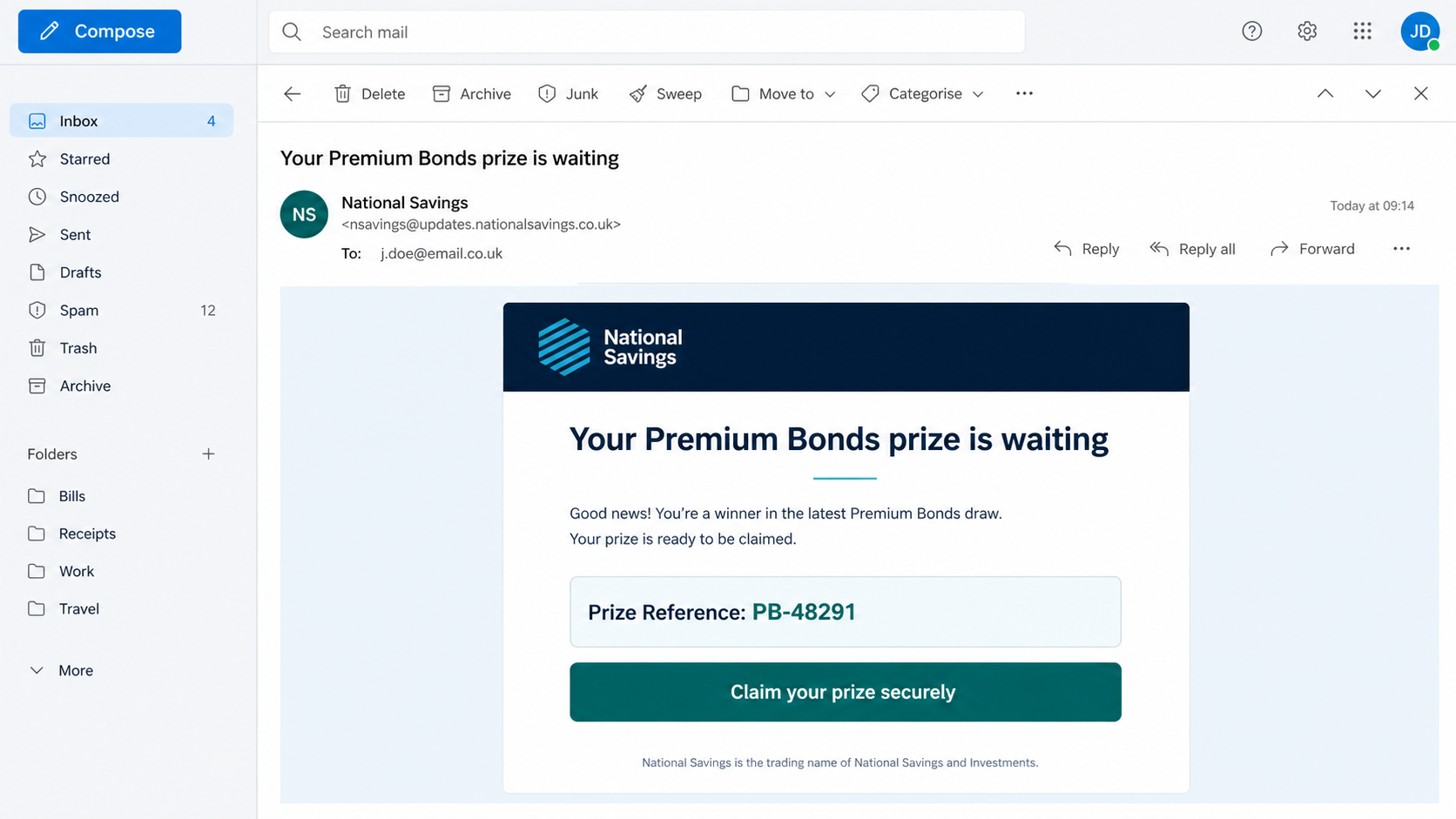
An email says your Premium Bonds have produced wonderful news, or that an urgent security update is waiting in your NS&I account. For a moment, it feels both official and personal.
That small pause is exactly what the sender wants. Before you click, there are several details worth checking.
Overview
NS&I scam emails imitate messages savers expect to receive
NS&I scam emails impersonate National Savings and Investments, the UK government-backed savings provider. They may announce a Premium Bonds prize, demand an account update, warn about restricted access, or present a form with an official-looking reference number.
The message can look convincing because it borrows familiar terms such as Premium Bonds, prize checker, NS&I number, secure message, Terms and Conditions, and account verification. A government logo and restrained design can make the email feel safer than ordinary spam.
NS&I is a legitimate organization. The scam comes from criminals who copy its identity, not from the real provider.
The link leads away from the real NS&I account
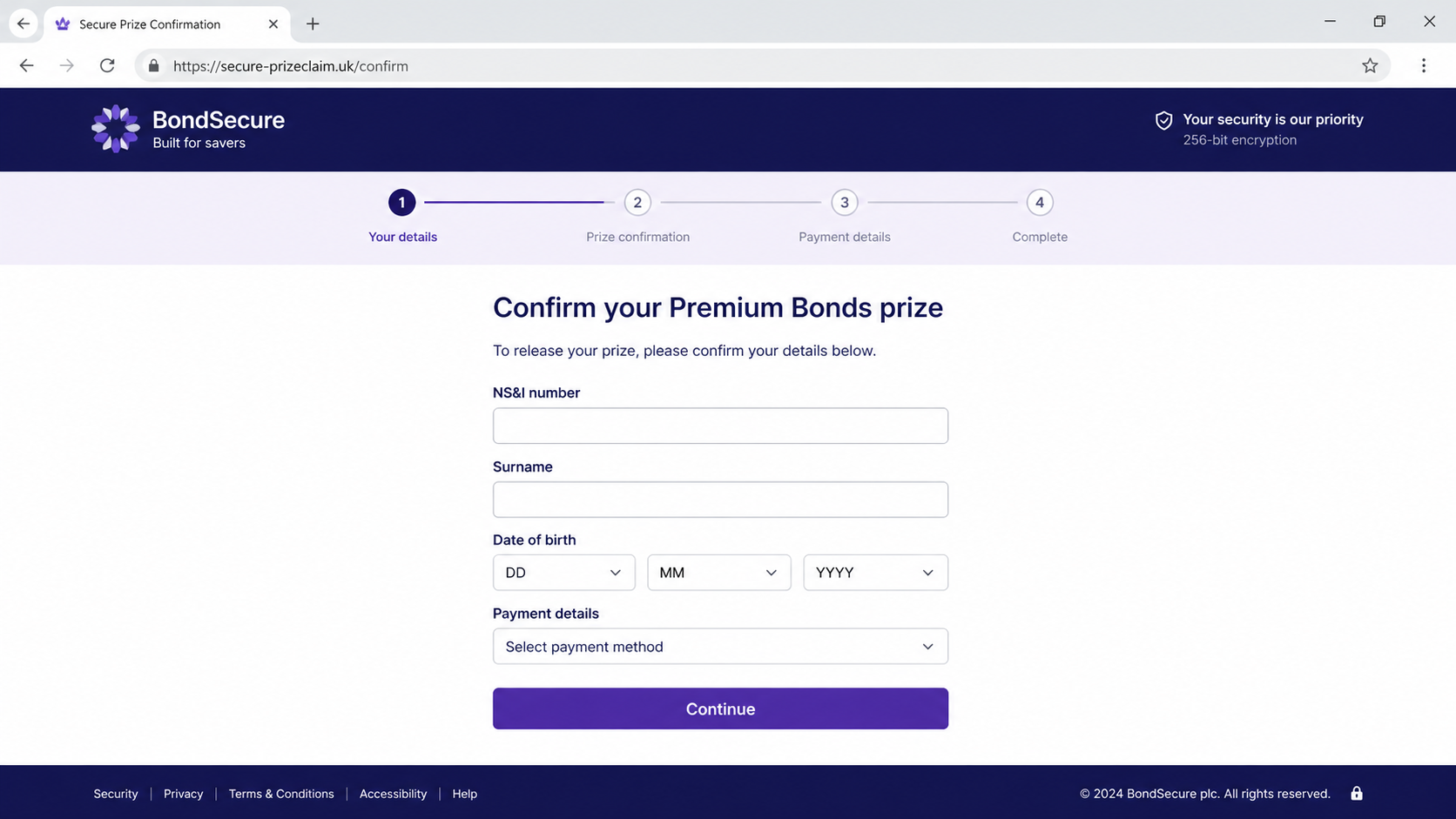
The button may say “View your prize,” “Update details,” or “Secure your account.” Its real destination can be a lookalike page designed to collect an NS&I number, surname, password, bank information, or identity documents.
Other versions move the conversation to a fake support agent. The victim may be told that a payment, tax, or release fee is necessary before winnings can be transferred.
Common NS&I phishing stories include:
- A Premium Bonds prize is waiting to be claimed
- Your password or security details have expired
- An account has been blocked after suspicious activity
- A new privacy notice or customer form must be accepted
- Your bank details must be confirmed before a payment
- An unrecognized withdrawal requires immediate review
- A prize must be reserved before a short deadline
A stolen login can expose savings and identity information
A fake page may collect enough information for account takeover, password-reset attempts, or convincing follow-up calls. If the same password protects email or banking accounts, the damage can spread beyond NS&I.
Bank details and identity documents can support payment fraud or impersonation. A criminal may also call later, quote the information already submitted, and claim to be an NS&I fraud investigator.
According to NS&I’s official email scam guidance, NS&I will not email a direct link to its login page or ask for online banking details by email. That makes an unexpected login button a reason to stop and verify.
The Premium Bonds Prize Story
Premium Bonds give scammers an unusually effective pretext. Many holders know prizes are drawn regularly, so an unexpected notification does not sound impossible.
A fraudulent email may claim that an unclaimed prize will expire or that payment failed because the registered bank account needs confirmation. The amount is often large enough to excite the recipient but not so extraordinary that it immediately sounds absurd.
The message may omit the exact amount and make the victim click to discover it. Curiosity then becomes the first commitment in a longer chain.
A genuine prize does not require a payment to release it. Taxes, courier charges, verification deposits, and insurance fees introduced by an unsolicited sender are classic advance-fee tactics.
Never use the email button to check whether you won. Open the official NS&I website yourself, use the official prize checker, or check through an app you previously installed from a trusted app store.
The Fake Update Form and Security Alert
Another version avoids the excitement of a prize and uses administrative language instead. It may reference an “updated customer form,” a new privacy policy, or a security review that must be completed.
A numbered form such as “NS&I ID2595” can look like internal paperwork. The reference proves nothing; anyone can type an official-looking number into an email.
The linked page often begins with ordinary information, then asks for increasingly sensitive details. Starting with a postcode or surname can make the later request for a password, card, or bank account feel like a normal progression.
Some pages deliberately reject the first password entered. This encourages the victim to try another password, giving criminals multiple credentials that may work on other services.
A fake security alert can also provide a phone number instead of a link. The person answering may ask for one-time passcodes while pretending to cancel a withdrawal. Those codes may actually approve the attacker’s login or payment.
How the Scam Works
Step 1: A convincing NS&I message reaches the inbox
The campaign sends large numbers of emails using copied branding, a display name such as “NS&I Customer Service,” and a subject about prizes, account access, or updated information.
The visible sender name is not proof of origin. Email accounts and domains can be forged or registered to resemble a genuine business.
Step 2: Reward or fear creates a reason to act now
A prize message creates excitement. A security warning creates anxiety. Both emotions reduce the chance that the recipient will calmly inspect the sender and destination.
The deadline may be measured in hours, even though a real financial provider can offer a safer way to resolve an account issue.
Step 3: A button opens a copied login or claim form
The page may closely resemble NS&I, but the address belongs to an unrelated domain. A padlock only means the connection is encrypted; it does not prove who operates the website.
The form asks for an NS&I number, surname, date of birth, postcode, password, or security answers. Every submitted field goes to the attacker.
Step 4: Banking and identity questions appear
After the first page, the victim may be asked to confirm a bank account, payment card, mobile number, passport, or driving licence. The story says these details are required to pay a prize or protect the account.
A legitimate-looking progress bar can keep the victim moving forward without reconsidering why so much information is needed.
Step 5: A one-time code completes the takeover
The scammer attempts a real login, password reset, card payment, or digital wallet enrollment. The victim receives a genuine code and is told to enter it on the fake page.
The code may authorize the criminal’s action rather than verify the supposed NS&I form. Read every code message carefully and never relay it to an unsolicited caller.
Step 6: A fee or transfer may be demanded
The fake prize can develop into an advance-fee scam. The sender invents a tax, administrative charge, refundable deposit, or identity-verification payment.
Once one payment succeeds, new obstacles appear. The criminal already knows the victim believes the story and may continue until the victim stops paying.
Step 7: Follow-up impersonation deepens the loss
A caller posing as NS&I, a bank, the police, or a recovery service may contact the victim. Previously stolen details make this second approach sound informed.
The caller may tell the victim to move savings to a “safe account.” No genuine fraud team needs a customer to transfer money into an account controlled by a stranger.
Company, Address, and Fulfillment Checks
Check the actual sender, not only the display name
NS&I says its legitimate service emails use addresses ending in @nsandi.com, including addresses such as noreply@nsandi.com and outgoing@nsandi.com. A lookalike ending, added word, or unrelated free-mail address is not the same domain.
Even a familiar visible address should not persuade you to use an embedded login link. Open the official service separately.
Use the independently found NS&I website
Type the known address into the browser, use a saved bookmark, or open the official app. Do not search for a “claim number” supplied by the suspicious email, because paid ads and copied pages can also mislead.
If an account warning is genuine, it should be visible through the trusted account channel or verifiable with support reached independently.
Do not trust an address copied into an email footer
Phishing emails frequently copy the real organization’s registered address, copyright line, and regulatory wording. Those details are public and easy to reproduce.
The important question is where the link goes and who controls the conversation, not whether the footer contains a genuine London address.
Confirm how a prize or payment should be delivered
Review the payment instructions inside your genuine NS&I account. Do not replace bank details through a link opened from an unexpected email.
A request for gift cards, cryptocurrency, cash, or a personal bank transfer is incompatible with a genuine Premium Bonds prize process.
Warning Signs in an NS&I Email
One spelling mistake does not prove fraud, and a polished email is not necessarily safe. Look at the whole path the message wants you to follow.
- The sender uses a domain that only resembles nsandi.com
- A button leads directly to a login or bank-confirmation page
- The email threatens immediate loss of access or a prize
- You are asked to pay before winnings can be released
- The page requests a full password and one-time code together
- A caller insists that you remain on the line during a transfer
- The reply address differs from the visible sender
- The message tells you not to contact your bank or family
Messages sent to a UK registered address may include part of the holder’s postcode, although NS&I notes that Premium Bonds winner emails are an exception. Personalization can be helpful context, but it is not enough to prove legitimacy.
Criminals can obtain names, postcodes, and investment interests from breaches, public records, or earlier phishing attempts. Never treat one correct personal detail as authentication.
How to Verify a Suspicious Message Safely
Do not click, reply, download attachments, or call the number in the message. Take a screenshot and record the sender and subject if you may need evidence.
Open your account independently and check for notices. If you need help, obtain the contact number from the official NS&I site or an authentic document already in your possession.
Hover over a link on a computer, or press and hold it on a phone without opening it, to preview the destination. A long redirect or unfamiliar host is a warning, but a familiar-looking address is still not a reason to enter credentials.
You can forward suspicious NS&I messages to phishing@nsandi.com. UK recipients can also forward phishing emails to report@phishing.gov.uk and suspicious texts to 7726.
Delete the email only after preserving anything needed for a bank, police, employer, or identity-theft report.
What to Do if You Have Fallen Victim to This Scam
- Stop communicating and preserve the evidence. Save the email, full sender address, website address, screenshots, phone numbers, payment instructions, and the time each event occurred.
- Contact NS&I through an official channel. Explain what information was entered and ask the real provider to secure the account, review activity, and document the impersonation.
- Call your bank immediately. If you disclosed bank or card details or sent money, ask about blocks, replacements, transfer recalls, payment disputes, and monitoring. Use the number on your card or statement.
- Change exposed passwords from a clean device. Start with email, then NS&I, banking, and any service using the same or similar password. Turn on multifactor authentication and remove unknown sessions or recovery details.
- Protect your identity. If a passport, driving licence, National Insurance number, or detailed identity profile was exposed, follow the issuing authority’s guidance and watch credit files for unfamiliar searches or accounts.
- Check the device for malware. If you opened an attachment, installed a program, or allowed remote access, disconnect the device from the internet and run a full scan with Malwarebytes. Remove remote-access tools you did not knowingly install.
- Block malicious pages and follow-up links. A reputable content blocker such as AdGuard can reduce exposure to known phishing and malicious advertising, but it does not replace careful verification.
- Report the fraud. Forward the phishing message to NS&I and the UK reporting service. Report financial loss to Action Fraud or the appropriate police service, and give banks the report reference.
- Expect a second approach. Ignore anyone promising recovery for an upfront fee. Genuine investigators do not need one-time codes or a transfer to a “safe account.”
Is Your Device Infected? Run a Free Malware Scan
Slow performance, constant pop-ups, or strange behavior? These are classic signs of a malware infection. A quick way to check is to scan your device with Malwarebytes Free, one of the most trusted malware removal tools available. If you only visited a scam page and didn’t download or install anything, this scan is optional.
The free version detects and removes the most common threats, including:
- Adware — the cause of those annoying pop-ups
- Browser hijackers — unwanted redirects and changed homepages
- Trojans and spyware — hidden programs stealing your data
- Potentially unwanted programs (PUPs) — software you never asked for
👉 Select your device below — Windows, Mac, or Android — then follow the simple steps to download Malwarebytes, scan your system, and remove any threats it finds. The scan usually takes 5 to 20 minutes.
Run a Malware Scan with Malwarebytes for Windows
Malwarebytes is one of the most popular and trusted anti-malware tools for Windows — and it’s completely free for removing infections. It catches threats that many antivirus programs miss, including adware, browser hijackers, and trojans. Follow the steps below to scan your PC and remove what Malwarebytes finds.
Download Malwarebytes
Click the button below to download the latest version of Malwarebytes for Windows from the official source. The free version is all you need — it will scan your computer and remove adware, browser hijackers, and other malicious software at no cost.
Download MalwarebytesOfficial installer for Windows 11 and 10. Your download starts right away.Want real-time protection? See Malwarebytes Premium Malwarebytes Free for WindowsScans and removes malware at no cost
-
Install Malwarebytes
When the download finishes, open your Downloads folder and double-click the MBSetup file. If Windows shows a User Account Control pop-up, click “Yes” to allow the installation.

Follow the On-Screen Prompts to Install Malwarebytes
The setup wizard will walk you through a few quick screens:
-
Choose where you’re installing the program — “Personal Computer” or “Work Computer” — then click Next.

-
Malwarebytes will now install on your device. This usually takes under a minute.

-
When installation is complete, the “Welcome to Malwarebytes” screen will open automatically.

-
On the final screen, click Open Malwarebytes to launch the program.

-
Optional: Check for rootkits with a Custom Scan
You don’t need to change any settings for a normal scan. The standard Threat Scan in the next step is enough for most problems, so you can go straight to it.
If you also want to check for rootkits, use a Custom Scan. In current versions of Malwarebytes, rootkit scanning is only available there:
- On the Scanner tile, click the three-dot menu and select Advanced Scan.
- Choose Custom Scan. In its options, check Scan for rootkits.
- Select your system drive (usually C:\) as the location to scan, then start the scan. It takes longer than a Threat Scan.
- When it finishes, review and quarantine the results as described in the steps below.
Rootkit scanning isn’t available on Windows devices with ARM processors.
Start the Scan
Click the blue Scan button. Malwarebytes will automatically update its virus database and start checking your computer for malware.

-
Wait for the Scan to Finish
The scan checks your entire system for browser hijackers and other malicious programs, so it can take 5 to 20 minutes depending on your computer. Feel free to do something else — just check back occasionally to see the progress.

-
Quarantine the Detected Threats
When the scan is done, you’ll see a list of everything Malwarebytes found — malware, adware, and potentially unwanted programs. Click the “Quarantine” button to remove all of them at once.

Malwarebytes will now remove the malicious files and registry entries and move them safely into quarantine.

-
Restart Your Computer
Some threats can only be fully removed after a reboot. If Malwarebytes asks you to restart, click Yes. Once you’re logged back in, Malwarebytes has finished removing the threats it found.

When the scan is done, check whether the problems you noticed have stopped. If they continue, see the options below.
If you are still having problems with your computer after completing these instructions, then please follow one of the steps:
- Run a computer scan with ESET Online Scanner
- Ask for help in our Windows Malware Removal Help & Support forum.
Run a Malware Scan with Malwarebytes for Mac
Malwarebytes for Mac is a free on-demand scanner that removes the malware other security software tends to miss — adware, browser hijackers, and unwanted programs included. Cleaning an infected Mac with Malwarebytes has always been completely free, and it’s our go-to recommendation. Follow the steps below to scan your Mac and remove what Malwarebytes finds.
-
Download Malwarebytes for Mac
Click the button below to download the latest version of Malwarebytes for Mac.
Download MalwarebytesOfficial installer for macOS. Your download starts right away.Want real-time protection? See Malwarebytes PremiumMalwarebytes Free for MacScans and removes malware at no cost -
Open the Malwarebytes setup file
When the download finishes, open your Downloads folder and double-click the setup file to begin the installation.

-
Follow the On-Screen Prompts to Install Malwarebytes
The Malwarebytes for Mac Installer will guide you through a few quick screens. Click “Continue” and keep following the prompts until the installation completes.



When the installation is complete, Malwarebytes opens to the Welcome to Malwarebytes screen. Click “Get started“.
Malwarebytes needs Full Disk Access to check your whole Mac. When it asks, open System Settings > Privacy & Security > Full Disk Access, turn on Malwarebytes (it may be listed as Malwarebytes Protection), and confirm with your password or Touch ID. Then return to Malwarebytes. On macOS Monterey and earlier, this setting is in System Preferences > Security & Privacy > Privacy.
-
Select “Personal Computer” or “Work Computer”
Malwarebytes will ask what type of computer you’re installing it on. Click either Personal Computer or Work Computer, whichever applies.

-
Start the Scan
Click the “Scan” button. Malwarebytes will automatically update its detection database and begin checking your Mac for malware.

-
Wait for the Scan to Finish
Malwarebytes will scan your Mac for adware, browser hijackers, and other malicious programs. This can take a few minutes, so feel free to do something else — just check back occasionally to see the progress.

-
Quarantine the Detected Threats
When the scan is done, you’ll see a list of everything Malwarebytes found. Click the “Quarantine” button to remove all the threats at once.

-
Restart Your Mac
Malwarebytes will now remove all the malicious files it found. Some threats can only be fully removed after a reboot — if Malwarebytes asks you to restart, allow it. Once you’re logged back in, check whether the problems you noticed have stopped. If they come back, save the scan report and ask for help in our forum.

If the problems you noticed continue after the scan, see the options below.
If you are still experiencing problems while trying to remove a malicious program from your computer, please ask for help in our Mac Malware Removal Help & Support forum.
Run a Malware Scan with Malwarebytes for Android
Malwarebytes for Android scans your phone or tablet for malware, adware, and potentially unwanted apps. The free version scans only when you start a scan. Real-time protection, which checks apps automatically, is part of the paid Premium version.
-
Download Malwarebytes for Android.
You can download Malwarebytes for Android by clicking the link below.
Get Malwarebytes for AndroidOpens Google Play in a new tab.Want real-time protection? See Malwarebytes Premium for AndroidMalwarebytes for AndroidScans your phone and removes malware at no cost -
Install Malwarebytes for Android on your phone.
In the Google Play Store, tap “Install” to install Malwarebytes for Android on your device.

When the installation process has finished, tap “Open” to begin using Malwarebytes for Android. You can also open Malwarebytes by tapping on its icon in your phone menu or home screen.

-
Follow the on-screen prompts to complete the setup process
When Malwarebytes opens, it walks you through a short setup. Tap Get started and follow the prompts. If you see an offer for a trial or a paid plan, read it before you accept. You can skip it and keep using the free scanner.
Malwarebytes will ask for permission to access the files on your phone so it can scan them. Tap Allow, or turn on the permission in the Android screen that opens, then return to Malwarebytes.
-
Run a scan with Malwarebytes for Android
On the main screen, tap Scan now. In some versions, you open the menu, tap Scanner, and then tap Run a scan.
-
Wait for the Malwarebytes scan to complete.
Malwarebytes will now start scanning your phone for adware and other malicious apps. This process can take a few minutes, so we suggest you do something else and periodically check on the status of the scan to see when it is finished.

-
Remove the detected apps.
When the scan has been completed, you will see a list of the threats that Malwarebytes for Android has detected. Next to each detected item, tap the menu icon (three dots), then choose to uninstall the app or delete the file. Android then asks you to confirm. Tap OK or Uninstall to remove the app.
-
Restart your phone.
When the detected apps are removed, restart your phone if Malwarebytes asks you to. Then check whether the problems you noticed have stopped.
If the problems you noticed continue after the scan, see the options below.
If you are still having problems with your phone after completing these instructions, then please follow one of the steps:
- Ask for help in our Mobile Malware Removal Help & Support forum.
- Only as a last resort, reset your phone to factory settings. Read the warning below first.
- Back up your photos, videos, files, and messages, for example to your Google account or a computer.
- Make sure you know your Google account email and password. The phone asks for them after the reset. If you changed the password recently, Google recommends waiting 24 hours before you reset.
- On a Samsung phone, also make sure you know your Samsung account password.
- If you use an authenticator app for two-step verification, move your accounts to another device or save your backup codes first.
Stay Protected: Block Ads and Malicious Sites
No scan can prove a device is completely clean, so it helps to block threats before they reach you. Most infections start with a malicious ad or a fake download button — so blocking them at the source is your best defense.
We recommend AdGuard, which blocks malicious ads, phishing pages, and dangerous redirects before they can reach you.
👉 Download AdGuard and browse safely
Frequently Asked Questions
Are all NS&I prize emails scams?
No. NS&I can send genuine communications about Premium Bonds. Verify a prize through the official prize checker, your independently opened account, or official support, never through an unexpected email link.
Will NS&I email a link to log in?
NS&I’s published guidance says it will not email a direct link to the login page. Open the official website or app yourself if a message says account action is required.
Does an @nsandi.com sender prove the email is safe?
It is a useful check, but visible sender details can sometimes be forged or compromised. The safest response is still to avoid the embedded link and verify through a channel you opened independently.
Do I have to pay tax or a fee to receive a Premium Bonds prize?
A demand for an upfront release, insurance, courier, or verification payment is a scam sign. Do not send money based on instructions from an unsolicited email or caller.
What if I entered my password but did not send money?
Treat the password as stolen. Change it immediately wherever it was reused, secure your email account, enable multifactor authentication, and contact NS&I through its official website.
Can a padlock prove the NS&I page is genuine?
No. The padlock shows that traffic to the page is encrypted. Criminal phishing sites can also use HTTPS, so the exact domain and independently verified route still matter.
The Bottom Line
NS&I scam emails succeed by attaching urgency to something many savers already recognize: a prize, an account notice, or a routine update. The design may be polished, but the dangerous step is always the same: it pushes you into a channel controlled by the sender.
Do not claim a prize, log in, or change bank details through an unexpected message. Open NS&I independently, verify the notice there, and contact your bank quickly if information or money has already been exposed.

Join the discussion
0 commentsShare your experience or ask a question about this article.
Discussion
Start the conversation
Have a question or something useful to share? Add the first comment.