

An email says a substantial transfer meant for you has been stopped. It offers an explanation strange enough to make you read the message twice.
Before replying to set the record straight, look carefully at the person asking. The proposed verification deserves more attention than the promised payment.
Overview
An intercepted $4.5 million transfer is the opening story
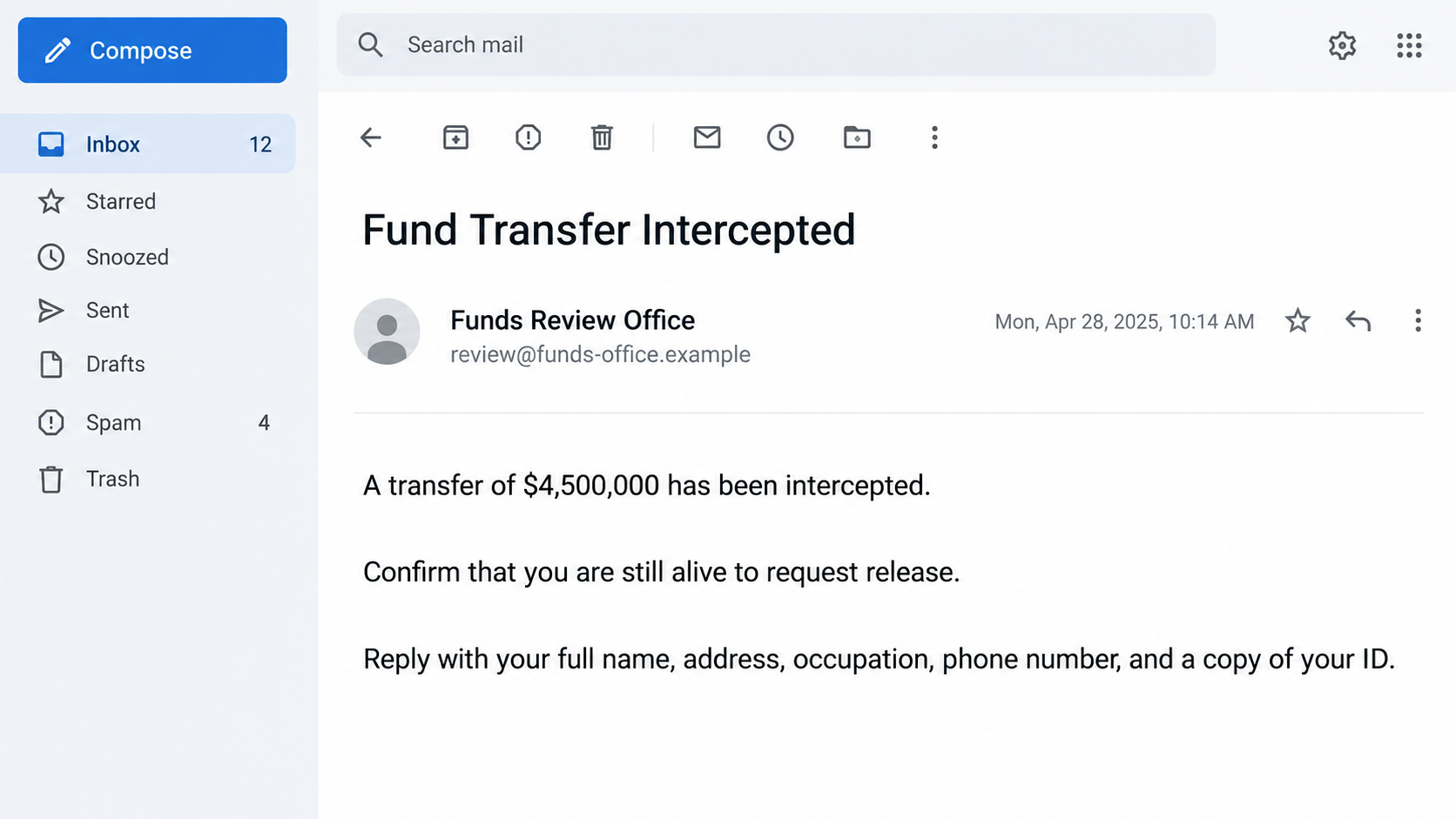
The Fund Transfer Intercepted email scam claims that $4,500,000 intended for the recipient has been held up because someone misrepresented their status.
The reported message names a supposed representative, Frank Cole II, and suggests that another person has tried to claim the funds.
That is the sender’s story, not evidence of an actual transfer or misconduct by a real person bearing that name. No entitlement is established by receiving the email.
The demand is to prove that you are still alive
The message requests a full name, address, occupation, telephone number, and identification copy. It frames those disclosures as the way to correct the record and release payment.
Its claimed authority is the director of the Financial Crimes Enforcement Network, or FinCEN. An official-sounding role is used to make a stranger’s request feel compulsory.
- A large payment appears without a verified financial history.
- A supposed representative is blamed for the interruption.
- The recipient is prompted to rebut a false personal status.
- Identity information is requested through the unsolicited conversation.
The identity request is established; later fees are not
The documented opening asks for information and an ID copy. Further administrative or transfer-fee demands are possible advance-fee extensions, not a confirmed charge in this sample.
The lead image is an original illustrative email with a fictional address and sample interface date. It is not an authentic capture of a recipient’s inbox.
No message was sent to the operator, no payment was made, and no malware was tested. Those limits do not make the unsolicited identity demand safe.
Why the “Still Alive” Claim Is So Manipulative
It creates an accusation you feel able to correct
A surprise prize may be easy to dismiss. A claim that someone has falsely described your status can feel more personal, even before you believe the money exists.
The obvious response seems simple: tell them you are alive. That impulse gives the sender a reply and an opportunity to request more information.
You do not need to disprove a stranger’s invented record. The sender must first establish a legitimate relationship, a real matter, and authority to request documents.
Replying “Who is this?” can also keep the exchange going. It gives the operator a chance to tailor the story around your questions and concerns.
A villain makes the supposed official look helpful
The alleged representative provides someone to blame. The person contacting you then appears to be protecting your interests rather than asking for something valuable.
This division is useful to a scammer. You may feel that sending documents will help the good official stop the bad representative from taking your payment.
However, both roles come from the same unverified message. A named adversary does not make the sender a trustworthy ally or prove an underlying dispute exists.
Do not search for a person with the same name and accuse them. A copied or invented name can misdirect attention toward someone unrelated to the scheme.
The verification sounds smaller than the promised reward
Compared with $4.5 million, sending an identification copy can seem like a minor administrative step. That comparison understates the value of the document being requested.
An ID may reveal a photograph, signature, document number, birth details, or residential information. Combining it with contact and employment details creates a more useful impersonation package.
Disclosure does not mean identity theft will inevitably occur. It does mean the information is no longer under your control, making a targeted response worthwhile.
How the Fund Transfer Intercepted Email Scam Works
Step 1: A financial problem is invented before any relationship is established
The sender starts with a supposedly interrupted payment, not an explanation of why you are entitled to it. The large amount becomes the central point of attention.
A real payment should connect to something you can identify independently: a verified agreement, account, estate, settlement, employer, or other genuine source.
If that connection is absent, do not supply one from your own life. A vague windfall story can sound relevant to people awaiting entirely unrelated money.
The email itself does not create a claim or impose a deadline you must obey. You can leave it unanswered while checking any genuine financial matter separately.
Step 2: A federal financial-crime role supplies borrowed authority
The message presents itself as coming from a senior FinCEN official. That can discourage questions, especially if the reader assumes government correspondence must be answered.
Official titles and names can be copied into ordinary email text. They are not authentication, and a signature image would not establish the sender’s identity either.
FinCEN’s impersonation warning says it does not freeze assets or ask people to pay for access to their funds.
That directly undermines the claimed financial-release process. Confirm institutional claims through independently reached official channels, not a telephone number or reply address supplied by the message.
Step 3: The alleged representative turns curiosity into personal urgency
The story says someone else has misrepresented your status and claimed rights to the funds. That creates a reason to intervene immediately.
The recipient may worry that ignoring the message will allow another person to collect money in their name. The sender benefits from that fear of losing control.
There is no need to negotiate with the supposed representative or contact anyone introduced by the email. Those additional contacts would still belong to the unverified story.
Instead, ask the foundational question: where is the independently verifiable evidence that any transfer belongs to you? A repeated assurance from the sender is not evidence.
Step 4: Proof of life becomes an identification-harvesting request
The request moves from a claim about money to a concrete action: send identifying details and a copy of a document to an unknown recipient.
Calling this verification changes the framing, not the exposure. The same information can be misused whether it was sent willingly or obtained through a false administrative pretext.
A partially obscured document is not a safe way to test the sender. Visible information can still be valuable, and sending it keeps the process moving.
There are legitimate proof-of-life procedures, including some pension arrangements. They do not authenticate this unsolicited payment story or justify using its proposed document-submission route.
Step 5: The conversation can be extended with further conditions
Once a recipient cooperates, an operator may introduce another obstacle, request more documents, or demand money before release. Those are possible developments, not observed stages for every recipient.
A later charge might be described as administrative, regulatory, or necessary to complete a transfer. The label does not establish a genuine obligation.
Sending documents earlier does not make a later request more legitimate. You can stop even if the sender says your file is nearly complete or cannot be withdrawn.
Watch for a second supposed official offering to resolve the first problem. A new name and document can be another part of the same deception.
Check the Claimed Office Without Sharing Your Identity
Verification should happen outside the suspicious exchange
Use the government agency’s official website and contact route. Do not ask the email sender to authenticate itself by sending another certificate or introducing a supervisor.
A fabricated document can be followed by another fabricated document. The volume of paperwork does not make the underlying claim more reliable.
When asking a genuine agency about an impersonation, describe the message without volunteering an ID copy. Follow that agency’s own instructions if it needs evidence.
Keep the reported sender’s contact details private when warning relatives. Publicly reposting the message can spread active links or expose your own address and identifying information.
Focus on the documents you actually sent
If you responded, write down the specific document type and visible fields. A driver’s license, passport, utility bill, and bank statement do not create identical risks.
Also record whether you provided account credentials or verification codes. Those require account-security action rather than only identity monitoring.
A name and email address alone do not prove that a loan was opened or an account taken over. Look for actual unauthorized activity while taking proportionate precautions.
Being precise helps an issuer, bank, or identity-recovery service give useful advice. It also prevents the scammer’s dramatic language from determining your response.
What to Do if You Fell Victim to This Scam
If you replied, you can stop now. You do not owe the sender another explanation, document, or payment to close a file that was never authenticated.
End contact and preserve the correspondence.
Save the original email, headers if available, submitted documents, and any subsequent messages. Keep a short timeline of what you sent and when.
After preserving evidence, report the email as phishing and block the sender. Avoid arguing about whether the promised transfer exists.
List the exact information exposed.
Include document numbers, photographs, signatures, birth details, contact information, banking details, passwords, and codes. Store this inventory securely, not in a public complaint.
If another person’s document was included, tell them promptly. Their response should be based on their own exposure rather than assumptions about yours.
Ask the document issuer about protective options.
Contact the relevant passport, licensing, or identity authority through its genuine website. Explain that a copy was sent to an impersonator and follow its instructions.
For U.S. identity misuse or sensitive identity exposure, IdentityTheft.gov provides a structured recovery starting point. Other countries have their own reporting arrangements.
Protect accounts if credentials or banking information were shared.
Change exposed passwords through the real services, replace reused credentials, and review active sessions, recovery details, and unfamiliar account changes.
Contact your bank using its established app or the number on your card. Explain what was disclosed and ask which safeguards fit that information.
Act immediately on any payment you made.
Contact the bank, card issuer, transfer service, or exchange used. Request the available fraud response for that payment and keep the transaction reference.
Refunds and reversals depend on the method and circumstances. Do not pay an additional fee to someone promising guaranteed recovery or government clearance.
Report the impersonation through genuine channels.
FinCEN’s official scam page directs reports to Treasury’s Office of Inspector General and the FTC. Use the links reached from that official page.
Include the original request and any payment or document details relevant to the report. Redact unnecessary personal information when warning others publicly.
Address software exposure separately.
If you installed software, ran a file, or granted remote access during the conversation, stop further financial use of that device until it is assessed.
Malwarebytes can help check for malicious software. AdGuard can reduce some malicious advertising exposure, but neither retracts documents already sent or guarantees recovery of money.
Is Your Device Infected? Run a Free Malware Scan
Slow performance, constant pop-ups, or strange behavior? These are classic signs of a malware infection. The fastest way to find out is to scan your device with Malwarebytes Free — one of the most trusted malware removal tools available.
The free version detects and removes the most common threats, including:
- Adware — the cause of those annoying pop-ups
- Browser hijackers — unwanted redirects and changed homepages
- Trojans and spyware — hidden programs stealing your data
- Potentially unwanted programs (PUPs) — software you never asked for
👉 Select your device below — Windows, Mac, or Android — then follow the simple steps to download Malwarebytes, scan your system, and remove any threats it finds. The scan usually takes 5 to 20 minutes.
Run a Malware Scan with Malwarebytes for Windows
Malwarebytes is one of the most popular and trusted anti-malware tools for Windows — and it’s completely free for removing infections. It catches threats that many antivirus programs miss, including adware, browser hijackers, and trojans. Follow the steps below to scan and clean your PC in just a few minutes.
Download Malwarebytes
Click the button below to download the latest version of Malwarebytes for Windows from the official source. The free version is all you need — it will scan your computer and remove adware, browser hijackers, and other malicious software at no cost.
Download MalwarebytesOfficial installer for Windows 11 and 10. Your download starts right away.Want real-time protection? See Malwarebytes Premium Malwarebytes Free for WindowsScans and removes malware at no cost
-
Install Malwarebytes
When the download finishes, open your Downloads folder and double-click the MBSetup file. If Windows shows a User Account Control pop-up, click “Yes” to allow the installation.

Follow the On-Screen Prompts to Install Malwarebytes
The setup wizard will walk you through a few quick screens:
-
Choose where you’re installing the program — “Personal Computer” or “Work Computer” — then click Next.

-
Malwarebytes will now install on your device. This usually takes under a minute.

-
When installation is complete, the “Welcome to Malwarebytes” screen will open automatically.

-
On the final screen, click Open Malwarebytes to launch the program.

-
Enable “Scan for Rootkits”
Before scanning, turn on rootkit detection so Malwarebytes can find even the most hidden threats. Click the Settings gear icon on the left side of the screen.

In the settings menu, find “Scan for rootkits” and click the toggle so it turns blue.

Done? Click “Dashboard” in the left pane to return to the main screen.
Start the Scan
Click the blue Scan button. Malwarebytes will automatically update its virus database and start checking your computer for malware.

-
Wait for the Scan to Finish
The scan checks your entire system for browser hijackers and other malicious programs, so it can take 5 to 20 minutes depending on your computer. Feel free to do something else — just check back occasionally to see the progress.

-
Quarantine the Detected Threats
When the scan is done, you’ll see a list of everything Malwarebytes found — malware, adware, and potentially unwanted programs. Click the “Quarantine” button to remove all of them at once.

Malwarebytes will now remove the malicious files and registry entries and move them safely into quarantine.

-
Restart Your Computer
Some threats can only be fully removed after a reboot. If Malwarebytes asks you to restart, click Yes. Once you’re logged back in, Malwarebytes has finished removing the threats it found.

That’s it — your Windows PC is now clean of trojans, adware, and other malware, and should be back to running smoothly.
If you are still having problems with your computer after completing these instructions, then please follow one of the steps:
- Run a computer scan with ESET Online Scanner
- Ask for help in our Windows Malware Removal Help & Support forum.
Run a Malware Scan with Malwarebytes for Mac
Malwarebytes for Mac is a free on-demand scanner that removes the malware other security software tends to miss — adware, browser hijackers, and unwanted programs included. Cleaning an infected Mac with Malwarebytes has always been completely free, and it’s our go-to recommendation. Follow the steps below to scan and clean your Mac in just a few minutes.
-
Download Malwarebytes for Mac
Click the button below to download the latest version of Malwarebytes for Mac.
Download MalwarebytesOfficial installer for macOS. Your download starts right away.Want real-time protection? See Malwarebytes PremiumMalwarebytes Free for MacScans and removes malware at no cost -
Open the Malwarebytes setup file
When the download finishes, open your Downloads folder and double-click the setup file to begin the installation.

-
Follow the On-Screen Prompts to Install Malwarebytes
The Malwarebytes for Mac Installer will guide you through a few quick screens. Click “Continue” and keep following the prompts until the installation completes.



When the installation is complete, Malwarebytes opens to the Welcome to Malwarebytes screen. Click “Get started“.
-
Select “Personal Computer” or “Work Computer”
Malwarebytes will ask what type of computer you’re installing it on. Click either Personal Computer or Work Computer, whichever applies.

-
Start the Scan
Click the “Scan” button. Malwarebytes will automatically update its detection database and begin checking your Mac for malware.

-
Wait for the Scan to Finish
Malwarebytes will scan your Mac for adware, browser hijackers, and other malicious programs. This can take a few minutes, so feel free to do something else — just check back occasionally to see the progress.

-
Quarantine the Detected Threats
When the scan is done, you’ll see a list of everything Malwarebytes found. Click the “Quarantine” button to remove all the threats at once.

-
Restart Your Mac
Malwarebytes will now remove all the malicious files it found. Some threats can only be fully removed after a reboot — if Malwarebytes asks you to restart, allow it. Once you’re logged back in, your Mac is clean.

That’s it — your Mac is now free of adware, rogue browser extensions, and other potentially harmful software.
If you are still experiencing problems while trying to remove a malicious program from your computer, please ask for help in our Mac Malware Removal Help & Support forum.
Run a Malware Scan with Malwarebytes for Android
Malwarebytes for Android automatically detects and removes dangerous threats like malware and ransomware so you don’t have to worry about your most-used device being compromised. Aggressive detection of adware and potentially unwanted programs keeps your Android phone or tablet running smooth.
-
Download Malwarebytes for Android.
You can download Malwarebytes for Android by clicking the link below.
Get Malwarebytes for AndroidOpens Google Play in a new tab.Want real-time protection? See Malwarebytes Premium for AndroidMalwarebytes for AndroidScans your phone and removes malware at no cost -
Install Malwarebytes for Android on your phone.
In the Google Play Store, tap “Install” to install Malwarebytes for Android on your device.

When the installation process has finished, tap “Open” to begin using Malwarebytes for Android. You can also open Malwarebytes by tapping on its icon in your phone menu or home screen.

-
Follow the on-screen prompts to complete the setup process
When Malwarebytes will open, you will see the Malwarebytes Setup Wizard which will guide you through a series of permissions and other setup options.
This is the first of two screens that explain the difference between the Premium and Free versions. Swipe this screen to continue.
Tap on “Got it” to proceed to the next step.
Malwarebytes for Android will now ask for a set of permissions that are required to scan your device and protect it from malware. Tap on “Give permission” to continue.
Tap on “Allow” to permit Malwarebytes to access the files on your phone.
-
Update database and run a scan with Malwarebytes for Android
You will now be prompted to update the Malwarebytes database and run a full system scan.

Click on “Update database” to update the Malwarebytes for Android definitions to the latest version, then click on “Run full scan” to perform a system scan.

-
Wait for the Malwarebytes scan to complete.
Malwarebytes will now start scanning your phone for adware and other malicious apps. This process can take a few minutes, so we suggest you do something else and periodically check on the status of the scan to see when it is finished.

-
Click on “Remove Selected”.
When the scan has been completed, you will be presented with a screen showing the malware infections that Malwarebytes for Android has detected. To remove the malicious apps that Malwarebytes has found, tap on the “Remove Selected” button.

-
Restart your phone.
Malwarebytes for Android will now remove all the malicious apps that it has found. To complete the malware removal process, Malwarebytes may ask you to restart your device.
That’s it — your Android phone is now clean — no more malicious apps, adware, or browser redirects.
If you are still having problems with your phone after completing these instructions, then please follow one of the steps:
- Restore your phone to factory settings by going to Settings > General management > Reset > Factory data reset.
- Ask for help in our Mobile Malware Removal Help & Support forum.
Stay Protected: Block Ads and Malicious Sites
Now that your device is clean, keep it that way. Most infections start with a malicious ad or a fake download button — so blocking them at the source is your best defense.
We recommend AdGuard, which blocks malicious ads, phishing pages, and dangerous redirects before they can reach you.
👉 Download AdGuard and browse safely
Frequently Asked Questions
Is the $4,500,000 transfer real?
The email provides a fabricated financial-release story, not evidence that money belongs to you. Do not send identification or pay a charge to pursue it.
If you are awaiting genuine funds, check that separate matter with your established bank, representative, or adviser through contact details you already trust.
Does FinCEN release intercepted personal transfers?
FinCEN’s official warning says it does not freeze assets or ask people to pay for access to funds. The unsolicited release process described here is impersonation.
Use official agency contact information to report or verify a claim. A senior title printed in the email cannot establish authority.
Should I reply to prove that I am alive?
No. You do not need to correct an unverified stranger’s record to protect an unexplained windfall. Replying can create opportunities for more targeted requests.
A genuine proof-of-life requirement should be confirmed through the institution you already have a relationship with, using its established procedure.
Is the named representative a confirmed scammer?
No identity attribution has been established here. The name is part of the message’s narrative and may be fabricated or copied from an unrelated person.
Report the actual correspondence rather than accusing someone you find through a name search. Matching names alone cannot establish responsibility.
What if I sent an ID copy but no money?
Stop the exchange, preserve the record, and contact the document issuer about appropriate precautions. Monitor for actual misuse and use official identity-recovery resources where relevant.
A document disclosure is worth addressing even without payment, but it does not mean every account or device is automatically compromised.
Do I need a scan just because I received the email?
Receipt alone does not demonstrate infection. A device check is particularly relevant if you executed a file, installed software, or allowed remote access.
Sending an ID copy is an information-exposure problem. Security software cannot retrieve that copy from the recipient or replace identity-protection steps.
The Bottom Line
Do not answer the Fund Transfer Intercepted email with documents or payment. Its supposed proof-of-life check is a route to disclosure, not a verified financial process.
If you already complied, stop contact and respond to the exact document, account, or payment exposed. A stranger’s claim about your status does not require your cooperation.

Join the discussion
0 commentsShare your experience or ask a question about this article.
Discussion
Start the conversation
Have a question or something useful to share? Add the first comment.