

A potential customer fills out your sales form. The inquiry sounds ordinary, the conversation moves along, and someone asks you to sign a nondisclosure agreement before discussing the project.
You receive a file link, open the document, and reach a Microsoft sign-in screen. Nothing about that sequence necessarily looks out of place during a busy workday.
The GhostCode scam hides its most consequential request inside that familiar routine. The document is only part of the story.
Overview
A sales inquiry becomes an account-access request
GhostCode is the name eSentire gave a device-code phishing kit investigated after activity observed in August 2026. In its September 15 investigation, attackers impersonated a procurement contact, approached a sales team, and used an NDA as the reason to continue.
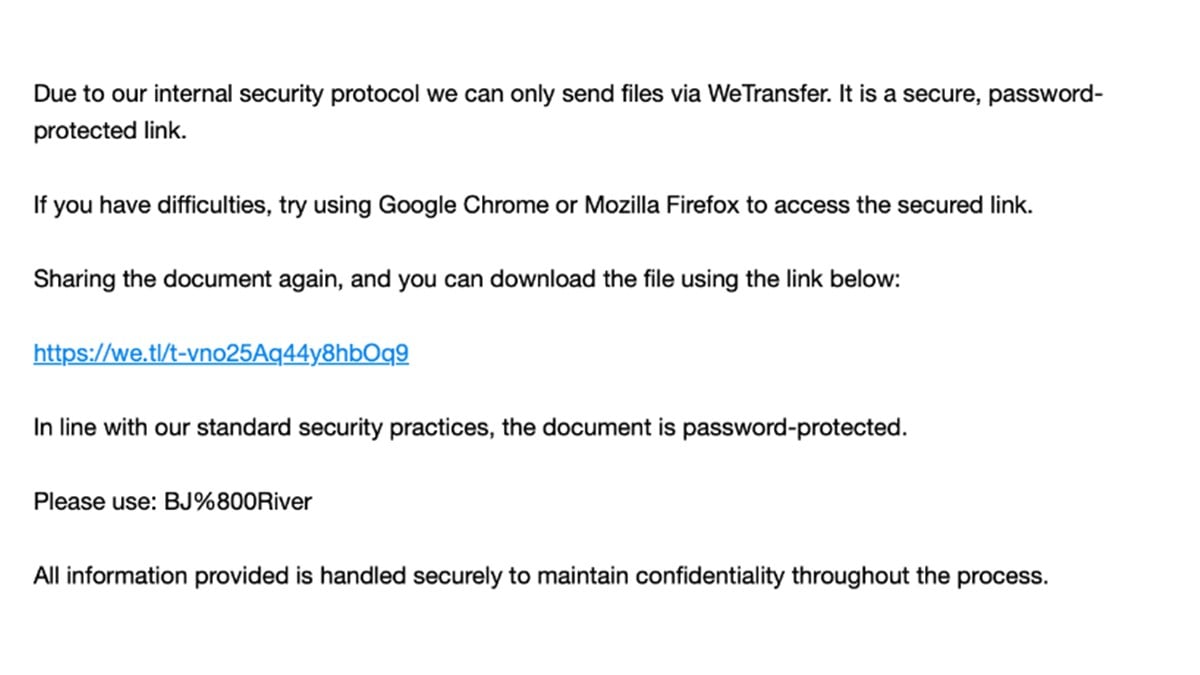
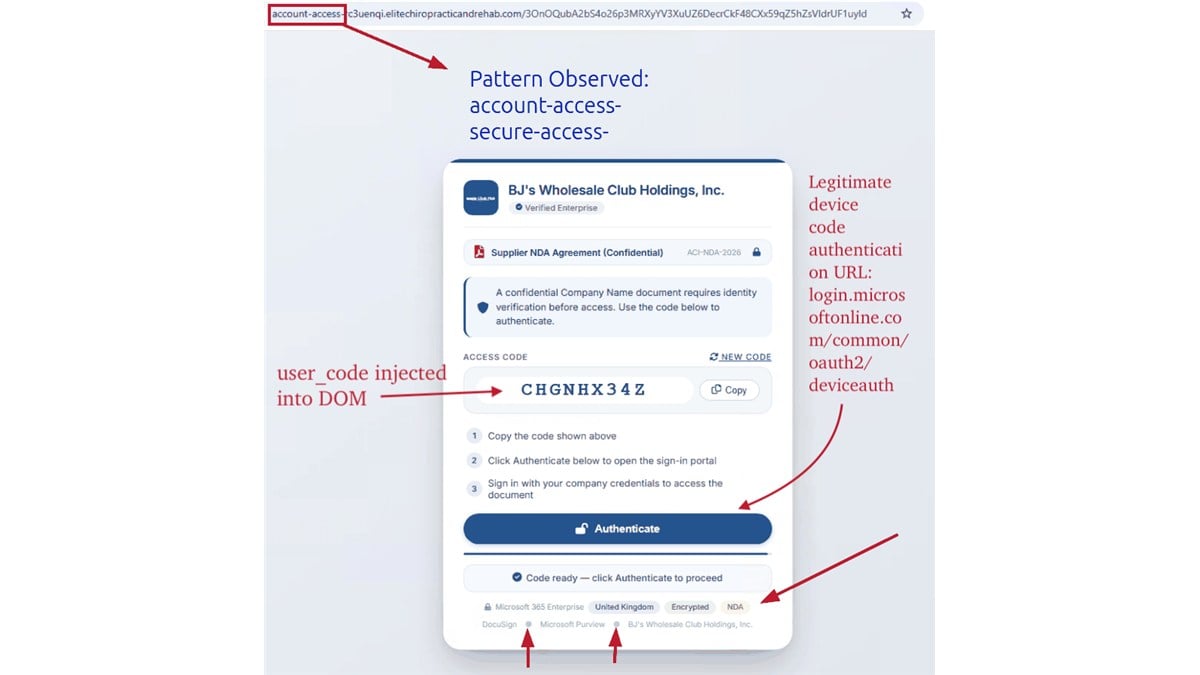
The documented path involved a WeTransfer link, a password-gated HTML file, and a page instructing the recipient to enter a supplied code at Microsoft’s legitimate sign-in service. After authentication, the attackers obtained account access and displayed a decoy NDA. The screenshots reproduced here come from that investigation.
The genuine login page is part of the deception
Device authorization has legitimate uses. It lets you authorize a device or application from a separate browser. The danger arises when somebody else starts the process and persuades you to complete it for them.
You may type your password only into the real Microsoft website and still approve the wrong sign-in. That is why checking the address bar, although essential, cannot answer the whole question in this attack.
Before entering a code, ask what you are authorizing and why a document from a prospective customer needs it. The relevant checks include:
- Did you start a device sign-in yourself?
- Do you recognize the application asking for access?
- Does the request make sense for simply reading an NDA?
- Has the alleged customer been verified outside this email conversation?
- Can your IT team inspect the file safely before you continue?
The impersonated businesses are not the perpetrators
The investigation describes misuse of familiar business identities and legitimate services. That does not make the real procurement company, Microsoft, or a file-sharing platform the scam operator.
Likewise, a genuine company name in a signature does not verify the person using it. A sales lead needs independent identity checks before it is allowed to introduce unusual login requirements into your workflow.
This article focuses on the procurement-to-NDA route. It is related to other device-code attacks, including the Kali365 phishing scheme, but describes a different campaign and a specific approach to sales teams.
Why the NDA Request Is So Effective
An NDA is a believable document to encounter before a business discussion. It promises that useful details are coming, while explaining why the sender has not yet shared them. A salesperson may feel that completing the paperwork is simply the next step toward a valuable opportunity.
The initial contact also creates continuity. A later email is no longer entirely unexpected because you have already replied to the inquiry. Your memory of that conversation can stand in for checking whether the person behind it is authentic.
A password-protected attachment adds another misleading signal. People associate passwords with confidentiality. But a password supplied by the sender only controls access to the file; it does not establish that the file is safe or that the sender represents the claimed business.
The right response is not to stop accepting new customers. It is to separate a customer’s business request from an instruction to authorize an unfamiliar login. The first can be legitimate while the second deserves immediate review.
Give staff a way to pause without losing ownership of the lead. A short internal check should feel like normal sales administration. If reporting a suspicious document becomes embarrassing or disruptive, people are more likely to continue alone.
How the GhostCode Scam Works
Step 1: A plausible buyer starts a conversation
The first message can be brief and relatively harmless. It provides a reason for your team to reply and creates a thread that later messages can build on. It does not need to contain a malicious link immediately.
Check whether the contact’s email domain belongs to the claimed organization. If the opportunity involves a large business, verify the person through a known company channel before accepting unusual document or payment instructions.
Step 2: Paperwork becomes the condition for moving forward
The supposed buyer introduces a document that must be reviewed before the conversation continues. That makes opening it feel productive. An employee who wants to be responsive may focus on removing friction rather than questioning the file format.
Business urgency should not change account-security rules. An NDA can be reviewed through an approved document process. The sender’s insistence on a special portal is information worth passing to your security team.
Step 3: The attachment sends the reader into a different workflow
An HTML attachment opens as a webpage. It can look like a document viewer even though it is not a conventional document. This distinction is easy to overlook when the file is presented as confidential paperwork.
Do not experiment with a suspicious attachment to see how far it goes. Preserve the original message and let your IT team inspect it using its own tools. Forwarding an opened file around the office can expose additional people.
Step 4: The code is presented as a requirement for viewing the file
A device code can look like a routine verification challenge. The critical question is who initiated it. If the code came from an unverified document portal, entering it may authorize a session you did not intend to create.
Microsoft’s legitimate sign-in screen does not certify the story told by the page that sent you there. Read the sign-in request in its own terms, especially any application or device name.
Step 5: Completing authentication can give someone else access
Multifactor authentication protects a login, but it cannot know whether you understand the login you are approving. A person can be deceived into completing a valid authentication process for an attacker-controlled session.
This does not mean MFA is useless or should be disabled. Keep it enabled. The additional defense is to reject authentication requests that you did not independently initiate or cannot explain.
Step 6: An ordinary-looking document can hide the problem
If a document eventually opens, the recipient may consider the task finished. That visible success can distract from the account access just granted. Getting the expected file is not proof that the preceding sign-in was safe.
Report the suspicious authorization even if the NDA looks normal afterward. Your IT team needs to assess the session and account state, not only the document that appeared on screen.
Company and Contact Checks
A recognizable buyer needs a verified contact
Compare the sender’s domain with the organization’s independently located website. A domain that includes a retailer’s name plus a procurement word can still be unrelated. Search results and signatures should be treated as leads to verify, not proof.
If you call the organization, use a number from its official site or an established business record. Do not call the number in the same suspicious signature to ask whether the signature is genuine.
A correct address can be copied into a false signature
Street addresses, job titles, and company registration details are often public. Their presence can make a message look researched without connecting its author to the business.
Confirm the relationship, not just the existence of the address. An actual office at the stated location tells you nothing about whether its staff sent the attachment.
The document portal is not your IT help desk
A page may offer assistance if you cannot complete its sign-in. That support route belongs to the same unverified process. It should not be allowed to explain away a warning from your employer’s security tools.
Contact internal IT through a known channel. Avoid installing a suggested viewer, enabling remote access, or sharing a code because the supposed customer says it is necessary to unlock the file.
Trace the document through an approved workflow
Record how the file arrived, its name, the sender, and the stated business purpose. If a procurement team cannot provide documents through a mutually acceptable process, the lead can wait while the identity is checked.
A legitimate opportunity does not require one employee to override security alone. Involve the people responsible for vendor checks, contracts, and account administration before allowing the conversation to proceed.
What to Tell IT After Entering a Device Code
If you only received the inquiry, say that. If you opened the HTML file but stopped at the code, say that too. Those are different exposures. A precise account helps the security team respond without assuming that every recipient completed the sign-in.
Keep the original file name and email rather than renaming or editing them. If you used a personal device for work, mention it. Also identify which work account was signed in at the time, particularly if your browser has several profiles.
Tell IT that you entered a code supplied by an external page into a Microsoft sign-in flow. That detail is more useful than describing the incident only as a suspicious NDA. It points the investigation toward authorization and session activity.
Also say whether you approved MFA, saw an application name, received a document afterward, or downloaded anything. Preserve the message and approximate times. Do not repeat the sign-in to take a better screenshot.
Your team may need to review sessions, registered devices, account permissions, mailbox activity, and recovery settings. The exact response depends on the account and organization. A password reset by itself should not be treated as proof that every form of access has been removed.
Avoid sending sensitive incident evidence to a stranger who offers help. The original account may contain customer and employee information. Use the reporting process your organization already trusts.
What to Do if You Have Fallen Victim to This Scam
-
Stop the document workflow. Close the suspicious page and do not enter more codes or approve additional prompts. End any conversation in which the sender is guiding you through authentication.
-
Contact your security team promptly. Explain the device-code step and whether MFA was completed. Ask for account containment and an access review. A fast report gives the team a better chance to limit further activity.
-
Preserve the original email and attachment safely. Keep sender information, timestamps, file names, and relevant screenshots. Follow internal instructions for submitting suspicious files. Do not open the attachment again or send it to colleagues as a warning.
-
Review account changes with IT. Let administrators assess active sessions, unfamiliar devices, mailbox rules, forwarding, and permissions. If you reset your password, do it through the genuine service and tell IT when the reset occurred.
-
Check for follow-on messages. An exposed mailbox can be used to impersonate you or learn about transactions. If suspicious messages were sent, coordinate warnings through a trusted channel so recipients know what to disregard.
-
Escalate any financial instruction. If the conversation led to a transfer or a changed bank account, contact your organization’s finance team and bank immediately. Preserve the instruction and transaction reference. Do not assume an apparently normal email thread means a payment request is genuine.
-
Assess the device separately. If anything was downloaded or installed, follow your organization’s endpoint response process. Malwarebytes can help check for malicious software where approved. AdGuard can help block known malicious pages and ads, but neither replaces revoking unauthorized account access.
-
Report the impersonation through official channels. Your security team can notify the affected service providers and impersonated organization. Avoid confronting the sender or accepting paid recovery offers from unsolicited contacts. Keep the case within trusted support and reporting routes.
Frequently Asked Questions
Is the GhostCode scam a fake Microsoft website?
Its danger includes abuse of a genuine Microsoft sign-in process. The surrounding document story persuades the recipient to complete authorization initiated by someone else.
Does MFA prevent this attack?
MFA remains important, but a victim may complete it for a session introduced by the attacker. Do not approve an authentication request merely because it appears during a document-opening process.
Is every NDA sent through WeTransfer malicious?
No. A legitimate service can be used to distribute a malicious file. Check the sender, file type, and requested authorization rather than treating the platform’s name as a verdict.
Does reading the first sales message compromise an account?
Not by itself. Receiving an inquiry is different from opening a file, entering a code, or granting access. Report the actions you actually took so the response matches the exposure.
Should I just change my password?
Tell IT first or immediately afterward. Account sessions, device registrations, and other access may also need review. Do not assume a password change completes the investigation.
What should sales teams change?
Establish a simple verification route for new contacts and unusual document requests. Staff should be able to pause a lead and involve IT without being pressured to complete an unfamiliar sign-in.
The Bottom Line
The GhostCode scam uses a believable business conversation to reach an account authorization decision. The crucial warning is a document that asks you to complete someone else’s device sign-in.
Verify the customer separately, use approved document workflows, and report any unexpected authorization promptly. A genuine login page is only safe when you understand what you are authorizing.

Join the discussion
0 commentsShare your experience or ask a question about this article.
Discussion
Start the conversation
Have a question or something useful to share? Add the first comment.