


The caller says your business could disappear from Google unless you finish a verification. You’re between customers, and fixing a listing sounds quicker than investigating it.
A Google listing call scam often starts with that familiar worry. Before agreeing to anything, it helps to understand what the caller is asking you to surrender.
Overview
The threat concerns your visibility, but the demand concerns money or access
This scam impersonates Google or implies official authority over your Business Profile. The caller pressures you to pay, disclose a code, or grant account access.
The claimed consequence is often losing your listing or missing customers. That makes an unsolicited sales or theft attempt sound like essential maintenance.
Google says adding or claiming a Business Profile is free. A caller cannot turn that service into a mandatory paid verification simply by declaring it overdue.
Paid marketing help is a separate matter. A genuine agency should identify itself and explain its own services rather than pretending its fee is Google’s requirement.
Some Google calls are real, including automated calls
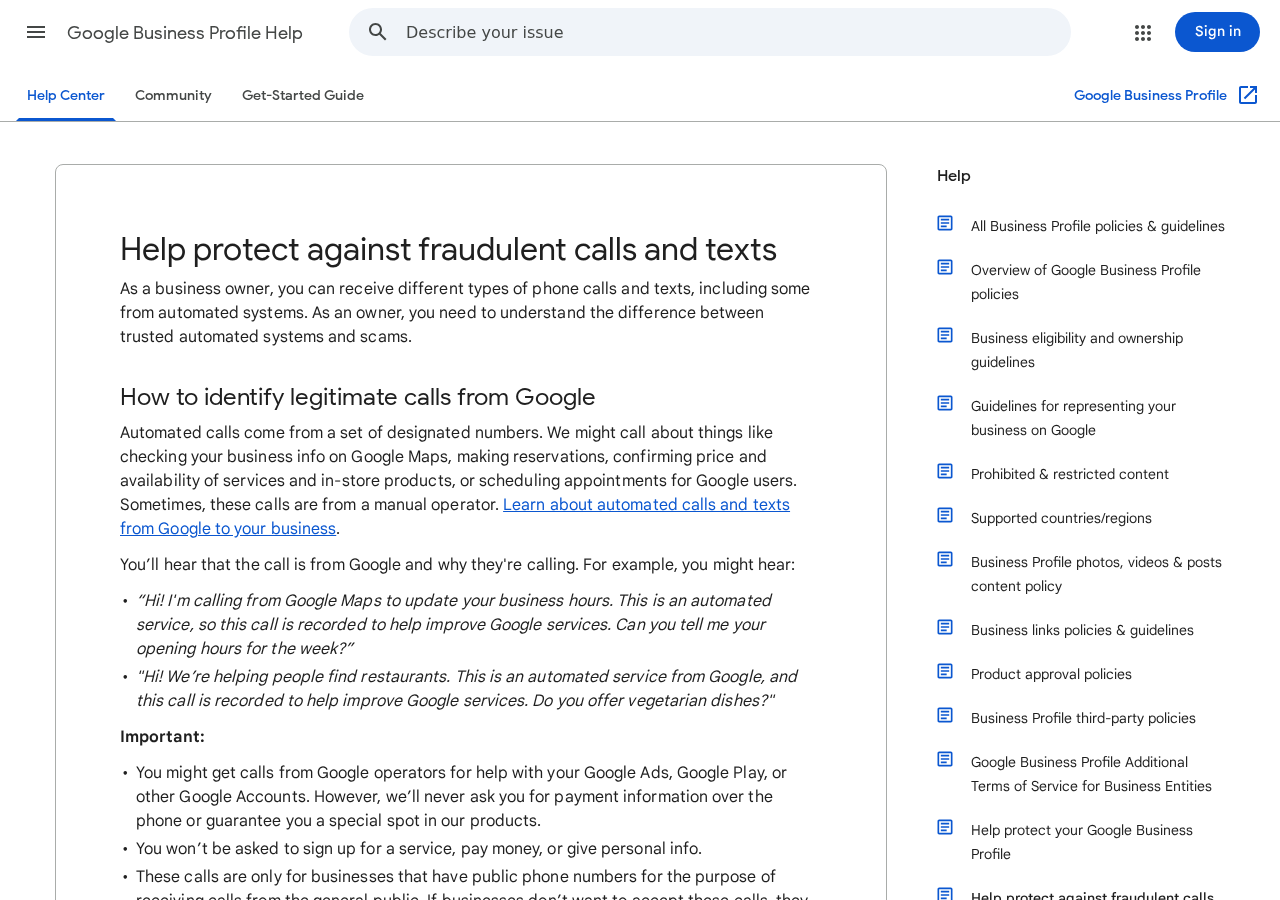
Google’s guidance on fraudulent calls explains that it may contact businesses to confirm public information or help with customer reservations.
That means an automated voice, by itself, isn’t proof of fraud. A real information check can concern opening hours, services, prices, or availability.
The dangerous claim is that payment or sensitive information is needed to protect a listing. Google says its legitimate calls won’t request payment information or guaranteed placement.
Check the purpose and requested action, not just whether the call sounds polished or the displayed number looks familiar.
These are the details that should stop the conversation
A listing emergency becomes suspicious when the caller won’t let you verify the issue independently or insists on controlling the next step.
- A fee supposedly required to keep a free Business Profile active.
- A request for a Google password or a sign-in code.
- An instruction to add an unfamiliar person as an owner.
- A threat of immediate deletion unless you pay on the call.
- A promised top position presented as a guaranteed Google benefit.
- Refusal to identify the caller’s actual company and service.
If the claim seems important, leave the call and check your profile through your normal Google account. A genuine issue doesn’t require trusting that caller.
Why Business Owners Get Pulled Into the Conversation
Public business information makes the pitch sound informed
Your name, address, opening hours, and telephone number may already appear in search results. A caller can repeat those details without having access to your account.
Knowing your business category doesn’t establish Google employment. It may only show that the caller looked at the same listing your customers can see.
A receptionist or employee may answer first. The pitch can exploit that person’s uncertainty about who handles the profile and which updates are routine.
Decide in advance who can authorize listing changes or marketing purchases. Staff can route genuine requests without agreeing to payment or account access.
A visibility threat feels expensive even before a charge appears
For a local business, losing search visibility sounds like losing bookings. The caller is asking you to protect an important asset under time pressure.
You may think a modest fee is cheaper than a day of missed customers. That comparison only works if the claimed problem and authority are real.
Hang up, finish serving the customer, and check the profile yourself. Don’t let a caller turn a busy moment into an account-access decision.
How the Google Listing Call Scam Works
Step 1: The caller borrows Google’s authority
The opening refers to your Google listing, Maps presence, or business verification. Some callers claim to work for Google; others use vaguer language about partnership.
That ambiguity matters. A business offering marketing services may want you to assume it has direct power over Google’s systems without saying so clearly.
Ask who is calling and what company employs them, but don’t treat their answer as independent verification. A made-up department can sound official.
The displayed number also isn’t a dependable credential. Caller ID can be spoofed, and a familiar area code doesn’t establish a legitimate local representative.
If the person won’t clearly distinguish their business from Google, end the discussion. You can consider legitimate agency help later through a transparent proposal.
Step 2: Your profile is described as overdue or endangered
The caller claims the listing needs an update, renewal, or urgent verification. A possible loss of visibility turns the pitch into an apparent emergency.
Some versions suggest customers won’t find you, or that the listing will be removed if you don’t act. The exact script can change.
There can be real verification or suspension issues. The safe response is to examine your profile directly, not assume every account warning is fictional.
If your dashboard shows a problem, use Google’s help process for that issue. The existence of a real problem doesn’t authenticate an unrelated caller.
Don’t let the person discourage you from signing in separately or talking to your existing manager. Preventing an independent check is another reason to stop.
A threat with no account evidence shouldn’t trigger a payment decision. Check the status before considering what, if anything, needs repair.
A phrase such as “final verification notice” is a claim, not a diagnosis. Compare it with the account’s actual status.
Step 3: The quick fix requires payment or a security code
The caller offers to complete verification while you’re on the line. That may involve a payment card, a recurring marketing agreement, or a code.
These are different risks. A misleading purchase can generate charges; a sign-in code can help someone enter an account or complete another unauthorized action.
Read any code message yourself. If it concerns signing in, resetting a password, or another account action, don’t relay it to an unsolicited caller.
Google may offer phone verification in some circumstances. Use a verification method you started inside the genuine profile workflow, not a stranger’s request to read a code.
A caller can claim a code is harmless because it’s temporary. Its limited lifetime is precisely why they may push you to share it immediately.
Don’t provide card details to buy time. You can check your business status without making an on-the-spot purchase from the person threatening it.
Step 4: The request expands into profile or device control
Some attempts seek permission to manage the Business Profile. Others may send a link or ask you to install software while they supposedly fix it.
Adding an owner is not a routine identity check. It’s an access decision that can affect who controls your business information.
Google explains the distinction between owners and managers. Treat ownership requests as consequential, even when the caller describes them as temporary.
A legitimate contractor doesn’t need your password to become a properly authorized manager. You should understand the role, scope, and agreement before granting access.
If software installation appears unexpectedly, stop. This is a possible escalation, not something every listing scam is known to use.
No remote session should be accepted because an unknown caller claims customers are disappearing. Account verification and computer control are separate actions.
Step 5: You discover a charge, changed listing, or continuing contact
After the conversation, you may receive an invoice, see a card charge, or notice an unfamiliar user attached to the profile. Other targets lose nothing.
Check the result rather than assuming the worst. A received call alone doesn’t mean your Google account or business profile has been compromised.
If you approved a paid service, examine what was represented and what was actually agreed. A dispute over misleading terms differs from an unauthorized charge.
If account access changed, preserve the notices and begin recovery through Google. Don’t pay the caller another fee to undo changes they caused.
Repeated follow-up can make the situation feel official. Keep records, but don’t continue giving information to someone whose authority you couldn’t establish.
Start with what you actually did. Giving a caller your opening hours calls for a different response than reading out a sign-in code.
Check the Profile Without Following the Caller
Start from the Google account that owns the business
Use your usual bookmark or open Google Search or Maps while signed into the account that manages your profile. Don’t start with the caller’s link.
Look for verification requests, status messages, unfamiliar changes, and access notices. Keep the wording of any real issue so you can use the appropriate help route.
If another staff member normally manages the listing, ask them to check it. Avoid creating competing accounts or transferring ownership just to investigate a call.
A profile can have a legitimate problem even when the call is fraudulent. Deal with the actual dashboard issue separately from the caller’s demand.
Keep an agency’s fees separate from Google’s free service
An agency may charge for photography, content, advertising, or profile management. Paying for genuine assistance isn’t inherently a scam.
Google’s third-party policy sets expectations for businesses managing profiles on customers’ behalf, including transparency about charges and access.
Request the service description, legal business name, total price, renewal terms, and cancellation process before buying. Don’t accept guaranteed rankings as proof of Google authorization.
The question is not whether the caller sells anything. It’s whether they accurately identify the service and let you make an informed choice.
What to Do if You Have Fallen Victim to This Scam
-
End the call and record what happened. Note the time, displayed number, claimed company, demand, and any email or invoice that followed.
Write down whether you paid, shared a code, approved access, or installed software. Those details will determine which protections you need.
Don’t call the displayed number to test the person again. It may be spoofed or controlled by someone unrelated to the actual call.
-
Review the business profile from your existing account. Check public details, status, ownership, and managers. Save unfamiliar changes before trying to correct them.
If you still have the necessary access, remove unauthorized users through the proper profile settings. Don’t remove a legitimate colleague without confirming their role.
If access has been lost, follow Google’s ownership and recovery help rather than paying a stranger for restoration.
-
Secure the Google account if credentials or sign-in codes were shared. Change the exposed password from a trusted device and inspect recent security activity.
Check recovery information and unfamiliar sessions. Use the account’s security tools to revoke unwanted access and strengthen sign-in protection.
Changing a password isn’t the whole repair if a separate person already has profile ownership. Review both account security and profile access.
-
Tell your card issuer about any payment. Explain the claimed mandatory verification and whether you agreed to a single charge or recurring service.
Ask which dispute category applies and how to stop additional billing. Keep the invoice, contract, charge description, and any written cancellation.
The FTC’s recovery guidance recommends contacting the relevant payment provider promptly. No complaint or chargeback guarantees repayment.
-
Check the device only if software or remote access was involved. Disconnect an active remote session and stop using that device for sensitive account work.
Inspect unfamiliar programs and extensions. Malwarebytes can help check for unwanted software after that exposure; obtain it through its genuine developer site.
AdGuard can reduce some malicious advertising encounters, but neither tool restores profile ownership or reverses a payment. A call alone doesn’t require scanning.
-
Report the impersonation through Google’s published reporting route. Its fraudulent-call help page links to the relevant form and explains the useful information to provide.
Include the claimed business, follow-up materials, and request. Avoid uploading unrelated customer records or private account information.
For financial fraud in the U.S., use ReportFraud.ftc.gov. Your phone provider may also offer options for filtering repeated unwanted calls.
-
Give staff one clear authorization rule. Nobody should disclose sign-in codes, buy verification, or add profile owners because an unsolicited caller demands it.
Let staff know who manages the listing and where genuine account issues should go. A simple contact path is easier to remember during a busy shift.
If other locations received similar calls, share the warning internally without circulating customer details or asking employees to confront the callers.
-
Watch for recovery pitches. A new caller may offer to remove charges or restore rankings for another fee. Treat that as a new request, not automatic help.
Work through your existing account, Google support, and payment provider. Keep checking relevant statements and profile access until the reported exposure is resolved.
You don’t need to buy a different marketing service to recover from the first misleading one.
Frequently Asked Questions
Does Google ever call businesses?
Yes. Google describes legitimate information checks and customer-related calls, including automated calls. Demands for payment or sensitive account information are the important warning signs.
Is there a fee to claim a Google Business Profile?
Google says adding or claiming an eligible profile is free. A third party’s service fee must not be misrepresented as a compulsory Google verification charge.
Should I read a verification code to an unexpected caller?
No. Only complete verification you initiated through the genuine account workflow. A code requested by a stranger may authorize something other than the action they describe.
Can a marketing agency manage my profile legitimately?
Yes, with an understood agreement and appropriate authorized access. The business should know the agency’s identity, charges, role, and process for ending the relationship.
What if my profile really is suspended?
Use the issue shown in your account and Google’s official help process. A genuine suspension does not prove an unsolicited caller can fix it.
Is blocking the phone number enough after sharing access?
No. Blocking addresses future calls, not existing account permissions or billing. Review the exposed account, profile roles, and payment arrangement as separate tasks.
The Bottom Line
Don’t pay or share codes with a Google listing call scam. A free profile doesn’t become a paid emergency because an unexpected caller threatens its visibility.
Check the real profile independently. If you already responded, repair the specific exposure: payment, Google account security, profile ownership, or unwanted software.

Join the discussion
0 commentsShare your experience or ask a question about this article.
Discussion
Start the conversation
Have a question or something useful to share? Add the first comment.