


A caller says an old debt needs immediate attention, even though you already have a payment arrangement. Then the conversation becomes personal, impatient, and uncomfortable.
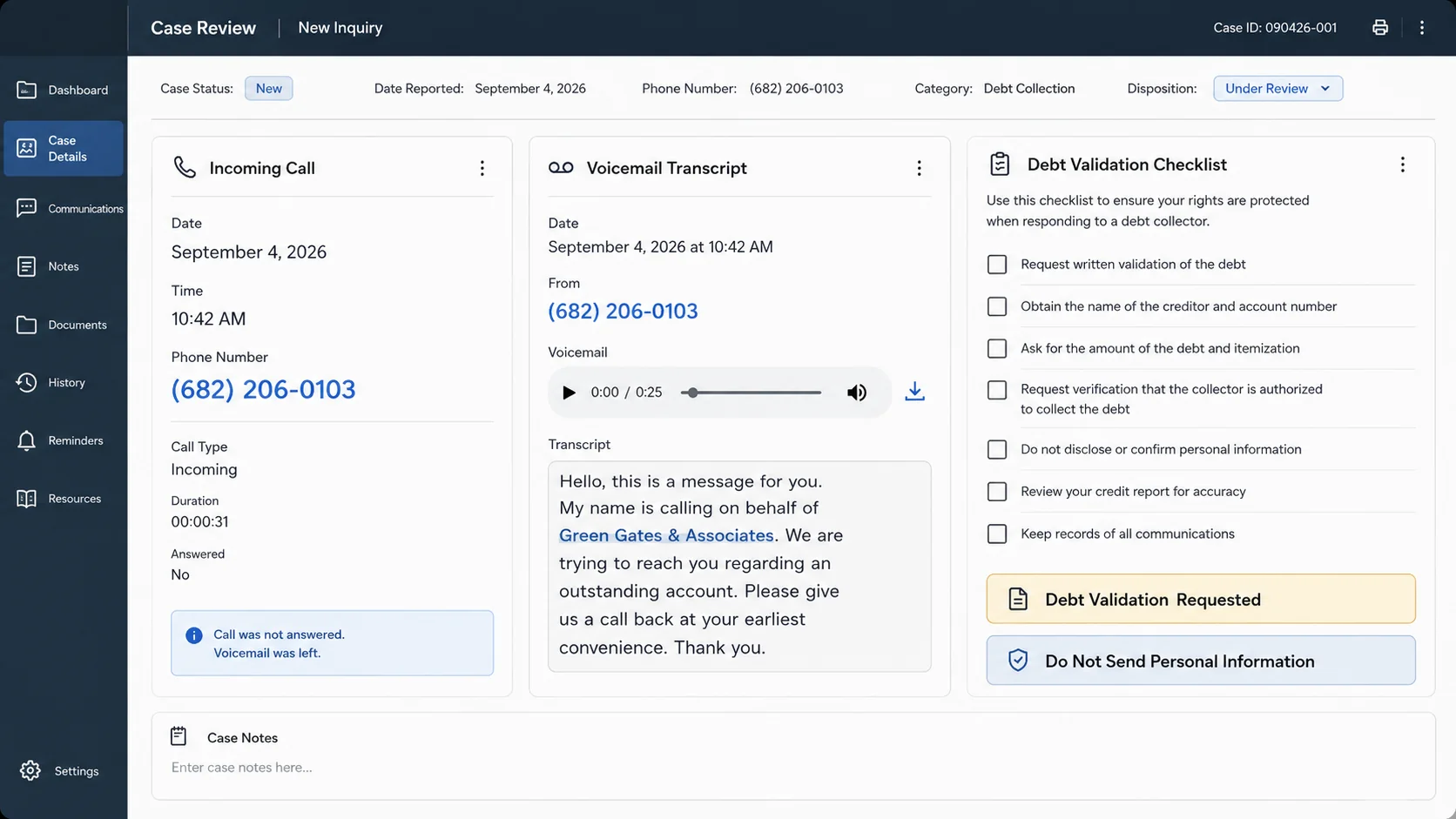
Calls associated with Green Gates & Associates and (682) 206-0103 raise important questions. Before sharing documents or money, here is what deserves verification.
Overview
What consumers are reporting
One detailed report describes recurring calls from (682) 206-0103 by someone claiming to represent Green Gates & Associates.
The consumer already had a payment plan with another company. Despite explaining that arrangement, the caller allegedly continued pressing for proof and further engagement.
According to the report, the caller made age-related remarks, questioned the consumer’s ability to manage the debt, and treated a validation request as deliberate stalling.
The caller then provided a Gmail address for documents. After the consumer declined, a voicemail arrived the following morning asking why nothing had been sent.
We have not independently authenticated the call recording, caller identity, or debt. The report therefore describes warning signs, not a final legal finding about Green Gates.
Why the call pattern is concerning
A genuine collector should expect identity questions. Written validation protects both sides by clarifying the creditor, amount, account, and authority to collect.
Pressure to bypass that process reverses normal risk. The stranger demands trust while resisting the documentation that would make trust reasonable.
Requests to email payment-plan records can expose account numbers, balances, signatures, addresses, and contact details. Those records may reveal more than the caller already knows.
A free Gmail account is not automatic proof of fraud. However, it is a poor destination for sensitive financial documents when corporate identity remains unverified.
- The caller allegedly contacted the consumer repeatedly.
- The claimed debt conflicted with an existing arrangement.
- A written validation request was reportedly discouraged.
- The conversation allegedly included insulting personal remarks.
- Documents were requested through a Gmail address.
- Follow-up pressure continued after the consumer declined.
What remains unconfirmed
We could not connect (682) 206-0103 to a clearly verified official website, licensing record, public corporate profile, or published creditor relationship.
That absence does not prove the number is fraudulent. Caller ID can be spoofed, and unrelated callers can borrow the name of a real organization.
It also remains possible that the call involved a legitimate account routed through a poorly documented or overly aggressive collection process.
The correct response is verification, not blind payment or blind reassurance. Treat the caller’s claims as unproven until independent records connect every important detail.
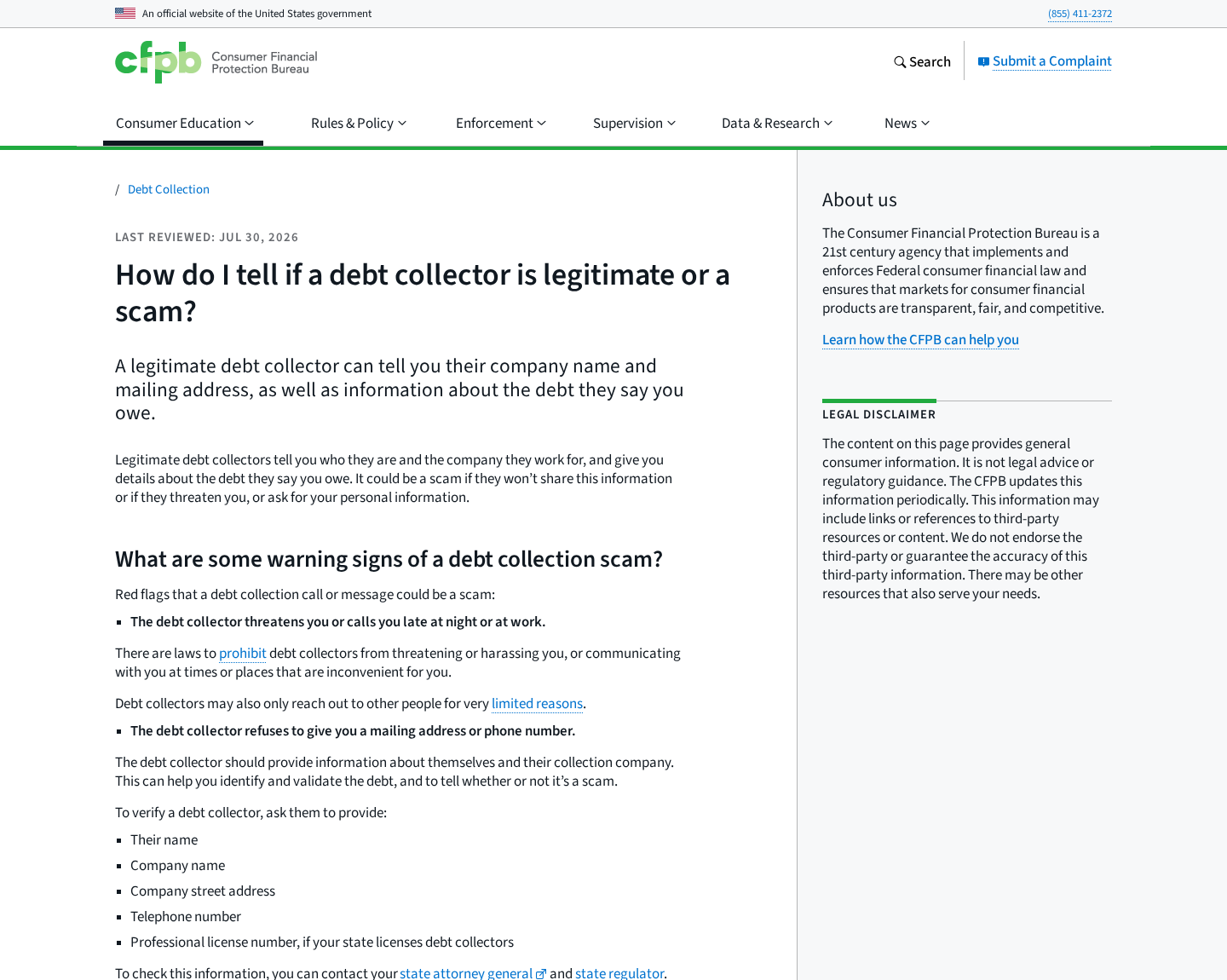
The Consumer Financial Protection Bureau advises asking for a company name, street address, telephone number, license information, and debt details.
Verify those details without using links or contact information supplied only by the caller. Contact the original creditor through a trusted statement or official website.
If the creditor cannot confirm the placement, do not send documents or payment merely because the caller knows your name or references a plausible balance.
How Suspicious Debt Collection Calls Work
Step 1: The caller starts with a believable fragment
Debt calls become convincing when they contain something recognizable: an old creditor, a familiar account type, a previous address, or part of a balance.
That information may come from legitimate account transfers, public records, data brokers, prior applications, leaked databases, or an earlier conversation.
Knowing one accurate detail does not prove authority to collect. A caller must establish who owns the debt and why that company may contact you.
Some callers stay deliberately vague, hoping the consumer will fill gaps. An innocent correction can reveal the real creditor, account status, or current payment provider.
Step 2: Repetition creates artificial legitimacy
A monthly call can feel official simply because it keeps returning. Frequency, however, is not evidence that the demand is accurate or lawful.
Repeated contact may wear down skepticism. A consumer eventually answers more questions, promises payment, or sends proof just to stop the interruptions.
Keep a call log with dates, times, numbers, names, and exact statements. Patterns become clearer when they are written down instead of remembered under stress.
Preserve voicemails and screenshots. They can help the original creditor, your attorney, regulators, or your telephone provider evaluate what happened.
Step 3: The conversation shifts from facts to emotion
When basic questions are not producing payment, an aggressive caller may introduce embarrassment, urgency, or fear of consequences.
Age-based comments or suggestions that someone cannot manage finances attack confidence. They do not validate a balance, contract, or collection assignment.
Federal law generally prohibits debt collectors from using harassment, oppression, or abuse. The CFPB lists repeated calls and abusive language among concerning conduct.
Do not argue about your competence. Return to specific questions: What is the company address? Who is the creditor? When will written validation arrive?
Step 4: A validation request is reframed as avoidance
Consumers have legitimate reasons to request written information. Mistaken identity, outdated records, paid accounts, duplicate placements, and fabricated debts all occur.
A caller may call that request a stall tactic because documentation slows the emotional momentum. Once written details arrive, each claim can be checked.
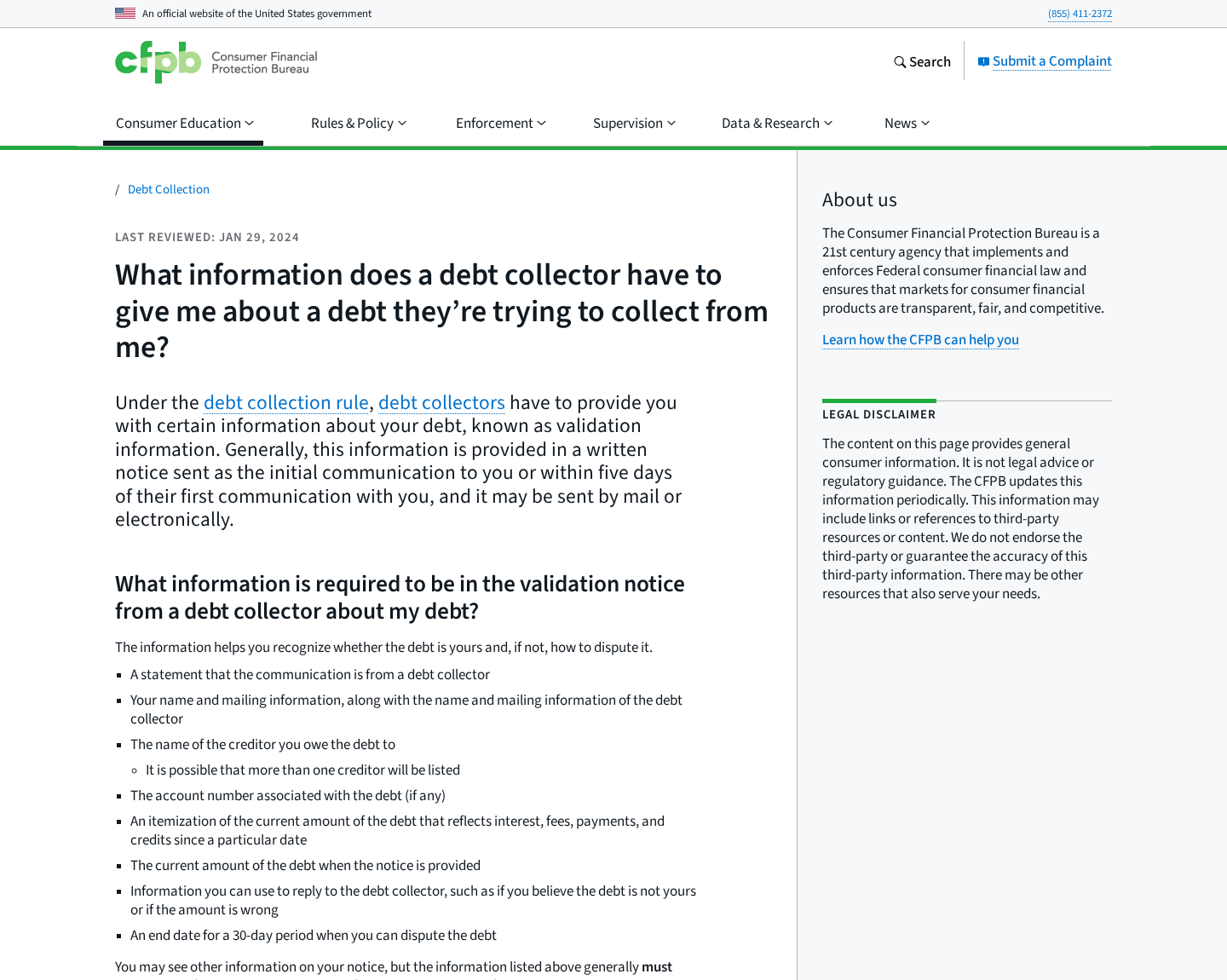
The CFPB says validation information generally must be provided during the initial communication or within five days.
That notice should identify the creditor and amount while explaining dispute rights. A demand to act first and verify later is the wrong order.
Step 5: The caller asks the consumer to supply proof
In the reported Green Gates call, the consumer was allegedly asked to send evidence of the existing payment arrangement.
That request shifts the burden. Instead of proving its own authority, the caller asks the target to disclose records that may contain valuable financial data.
Never send full bank statements, card statements, contracts, identification, or account numbers to an address that has not been independently verified.
If documentation is genuinely needed, obtain the collector’s formal mailing address and privacy practices. Redact unrelated balances, transactions, signatures, and identifying numbers.
Step 6: An informal email channel bypasses accountability
A company-controlled domain creates a limited link between an employee and an organization. A Gmail address provides no comparable public connection.
Even a corporate email should be checked independently. A lookalike domain can replace one letter, add a hyphen, or use an unfamiliar extension.
Call the company using a number found through a trusted regulator, state registry, original creditor, or established official website. Do not use the inbound caller’s callback number.
Ask whether the named employee works there and whether the company requested your documents. Record the verified representative’s name and department.
Step 7: Follow-up pressure tries to reopen the conversation
A voicemail asking why documents were not sent can create the impression that the consumer missed a deadline or broke an agreement.
Unless a verified written notice establishes an obligation, the caller’s expectation does not create one. You may pause communication while checking identity.
Do not click links or return calls from the message. Use independently sourced details and communicate in writing when possible.
If calls continue after a written request or become abusive, preserve the evidence. Consumer attorneys and regulators can assess rights under applicable law.
How to Verify the Debt Without Exposing Yourself
Start with the creditor you already know
Use the telephone number printed on an existing statement or obtained from the creditor’s official website. Ask whether the account was assigned, sold, or recalled.
If you have a payment plan, ask the current servicer whether another collector should be contacting you. Request confirmation in writing.
Compare every identifying detail
A valid notice should let you compare the creditor, account reference, balance, relevant dates, collector’s legal name, and address.
Do not volunteer missing information. Ask the caller to state what its records already contain, then compare privately.
Check licenses and complaint records carefully
Some states require collection agencies to hold licenses. Search the regulator’s official database using the legal entity, not only the caller’s brand name.
Complaints can reveal patterns but are not court findings. Read the underlying conduct, dates, and responses instead of relying only on a complaint count.
Use written disputes when the debt is unclear
The FTC recommends confirming a debt before paying. A timely written dispute creates a record and can trigger additional obligations.
Send correspondence through a trackable method. Keep copies of the letter, enclosure list, tracking result, validation notice, and every response.
Company, Phone Number, and Identity Checks
The name alone is not enough
“Green Gates & Associates” sounds professional, but a trading name does not identify a legal entity, state registration, owner, or collection license.
Ask for the complete legal name and physical street address. Search both through the appropriate state business registry and debt-collection regulator.
The telephone number remains unverified
We found reports involving (682) 206-0103, but not dependable evidence proving who controlled that number during each call.
Caller ID is not identity. Numbers can be spoofed, reassigned, or used by contractors whose relationship with a named company is unclear.
The Gmail request is a major warning sign
A request for financial documents through Gmail should stop the process until the recipient and organization are independently authenticated.
Do not test the address by sending a lightly redacted document. Even basic account context can help someone construct a more convincing follow-up.
No confirmed creditor relationship was established
The most important missing link is authorization from the original creditor or current owner. That relationship should be verifiable without relying on the inbound caller.
Until it is confirmed, treat the demand as disputed and the request for documents as unsafe. Verification is not refusal to pay a legitimate debt.
What Not to Reveal During an Unverified Call
Do not confirm your Social Security number, date of birth, banking institution, card numbers, employer, current address, or answers to security questions.
A caller may already know fragments. Correcting the remaining details helps complete an identity profile and makes later impersonation more convincing.
Do not share verification codes sent by text or email. A legitimate collector does not need a code that authorizes access to your financial account.
Avoid screen-sharing applications and remote-access tools. Debt validation never requires another person to control your phone or computer.
Do not pay with gift cards, cryptocurrency, wire transfer, or payment applications to a personal account. Those methods reduce recovery options.
When a verified debt requires payment, use a documented channel connected to the confirmed creditor or collector. Obtain a receipt and updated balance.
If the caller already obtained sensitive information, write down exactly what was disclosed. That inventory tells banks and identity-theft services what needs protection.
What to Do if You Received a Green Gates & Associates Call
- End the pressured conversation. Say you will respond after receiving and independently checking written validation. Do not debate, pay, or disclose additional information.
- Save the evidence. Keep call logs, voicemails, screenshots, caller names, callback numbers, email addresses, and exact statements about the debt.
- Contact the original creditor. Use a trusted statement or official website. Ask whether Green Gates & Associates or another agency currently handles the account.
- Request validation in writing. Ask for the creditor, amount, account reference, collector’s legal name, physical address, license information, and dispute instructions.
- Do not email financial records to Gmail. Verify the organization first. If documents become necessary, redact unrelated personal and financial information.
- Check your credit reports. Review official reports for the account, unfamiliar collections, incorrect balances, or identity-theft indicators.
- Secure exposed accounts. If you shared banking or identity details, contact the institution, change vulnerable credentials, and consider a fraud alert or credit freeze.
- Report abusive or deceptive conduct. Complaints may be filed with the CFPB, FTC, state attorney general, and applicable state collection regulator.
- Clean up digital risks. If the caller sent links or files, scan the device with Malwarebytes. AdGuard can block many deceptive pages and malicious advertisements.
Is Your Device Infected? Run a Free Malware Scan
Slow performance, constant pop-ups, or strange behavior? These are classic signs of a malware infection. A quick way to check is to scan your device with Malwarebytes Free, one of the most trusted malware removal tools available. If you only visited a scam page and didn’t download or install anything, this scan is optional.
The free version detects and removes the most common threats, including:
- Adware — the cause of those annoying pop-ups
- Browser hijackers — unwanted redirects and changed homepages
- Trojans and spyware — hidden programs stealing your data
- Potentially unwanted programs (PUPs) — software you never asked for
👉 Select your device below — Windows, Mac, or Android — then follow the simple steps to download Malwarebytes, scan your system, and remove any threats it finds. The scan usually takes 5 to 20 minutes.
Run a Malware Scan with Malwarebytes for Windows
Malwarebytes is one of the most popular and trusted anti-malware tools for Windows — and it’s completely free for removing infections. It catches threats that many antivirus programs miss, including adware, browser hijackers, and trojans. Follow the steps below to scan your PC and remove what Malwarebytes finds.
Download Malwarebytes
Click the button below to download the latest version of Malwarebytes for Windows from the official source. The free version is all you need — it will scan your computer and remove adware, browser hijackers, and other malicious software at no cost.
Download MalwarebytesOfficial installer for Windows 11 and 10. Your download starts right away.Want real-time protection? See Malwarebytes Premium Malwarebytes Free for WindowsScans and removes malware at no cost
-
Install Malwarebytes
When the download finishes, open your Downloads folder and double-click the MBSetup file. If Windows shows a User Account Control pop-up, click “Yes” to allow the installation.

Follow the On-Screen Prompts to Install Malwarebytes
The setup wizard will walk you through a few quick screens:
-
Choose where you’re installing the program — “Personal Computer” or “Work Computer” — then click Next.

-
Malwarebytes will now install on your device. This usually takes under a minute.

-
When installation is complete, the “Welcome to Malwarebytes” screen will open automatically.

-
On the final screen, click Open Malwarebytes to launch the program.

-
Optional: Check for rootkits with a Custom Scan
You don’t need to change any settings for a normal scan. The standard Threat Scan in the next step is enough for most problems, so you can go straight to it.
If you also want to check for rootkits, use a Custom Scan. In current versions of Malwarebytes, rootkit scanning is only available there:
- On the Scanner tile, click the three-dot menu and select Advanced Scan.
- Choose Custom Scan. In its options, check Scan for rootkits.
- Select your system drive (usually C:\) as the location to scan, then start the scan. It takes longer than a Threat Scan.
- When it finishes, review and quarantine the results as described in the steps below.
Rootkit scanning isn’t available on Windows devices with ARM processors.
Start the Scan
Click the blue Scan button. Malwarebytes will automatically update its virus database and start checking your computer for malware.

-
Wait for the Scan to Finish
The scan checks your entire system for browser hijackers and other malicious programs, so it can take 5 to 20 minutes depending on your computer. Feel free to do something else — just check back occasionally to see the progress.

-
Quarantine the Detected Threats
When the scan is done, you’ll see a list of everything Malwarebytes found — malware, adware, and potentially unwanted programs. Click the “Quarantine” button to remove all of them at once.

Malwarebytes will now remove the malicious files and registry entries and move them safely into quarantine.

-
Restart Your Computer
Some threats can only be fully removed after a reboot. If Malwarebytes asks you to restart, click Yes. Once you’re logged back in, Malwarebytes has finished removing the threats it found.

When the scan is done, check whether the problems you noticed have stopped. If they continue, see the options below.
If you are still having problems with your computer after completing these instructions, then please follow one of the steps:
- Run a computer scan with ESET Online Scanner
- Ask for help in our Windows Malware Removal Help & Support forum.
Run a Malware Scan with Malwarebytes for Mac
Malwarebytes for Mac is a free on-demand scanner that removes the malware other security software tends to miss — adware, browser hijackers, and unwanted programs included. Cleaning an infected Mac with Malwarebytes has always been completely free, and it’s our go-to recommendation. Follow the steps below to scan your Mac and remove what Malwarebytes finds.
-
Download Malwarebytes for Mac
Click the button below to download the latest version of Malwarebytes for Mac.
Download MalwarebytesOfficial installer for macOS. Your download starts right away.Want real-time protection? See Malwarebytes PremiumMalwarebytes Free for MacScans and removes malware at no cost -
Open the Malwarebytes setup file
When the download finishes, open your Downloads folder and double-click the setup file to begin the installation.

-
Follow the On-Screen Prompts to Install Malwarebytes
The Malwarebytes for Mac Installer will guide you through a few quick screens. Click “Continue” and keep following the prompts until the installation completes.



When the installation is complete, Malwarebytes opens to the Welcome to Malwarebytes screen. Click “Get started“.
Malwarebytes needs Full Disk Access to check your whole Mac. When it asks, open System Settings > Privacy & Security > Full Disk Access, turn on Malwarebytes (it may be listed as Malwarebytes Protection), and confirm with your password or Touch ID. Then return to Malwarebytes. On macOS Monterey and earlier, this setting is in System Preferences > Security & Privacy > Privacy.
-
Select “Personal Computer” or “Work Computer”
Malwarebytes will ask what type of computer you’re installing it on. Click either Personal Computer or Work Computer, whichever applies.

-
Start the Scan
Click the “Scan” button. Malwarebytes will automatically update its detection database and begin checking your Mac for malware.

-
Wait for the Scan to Finish
Malwarebytes will scan your Mac for adware, browser hijackers, and other malicious programs. This can take a few minutes, so feel free to do something else — just check back occasionally to see the progress.

-
Quarantine the Detected Threats
When the scan is done, you’ll see a list of everything Malwarebytes found. Click the “Quarantine” button to remove all the threats at once.

-
Restart Your Mac
Malwarebytes will now remove all the malicious files it found. Some threats can only be fully removed after a reboot — if Malwarebytes asks you to restart, allow it. Once you’re logged back in, check whether the problems you noticed have stopped. If they come back, save the scan report and ask for help in our forum.

If the problems you noticed continue after the scan, see the options below.
If you are still experiencing problems while trying to remove a malicious program from your computer, please ask for help in our Mac Malware Removal Help & Support forum.
Run a Malware Scan with Malwarebytes for Android
Malwarebytes for Android scans your phone or tablet for malware, adware, and potentially unwanted apps. The free version scans only when you start a scan. Real-time protection, which checks apps automatically, is part of the paid Premium version.
-
Download Malwarebytes for Android.
You can download Malwarebytes for Android by clicking the link below.
Get Malwarebytes for AndroidOpens Google Play in a new tab.Want real-time protection? See Malwarebytes Premium for AndroidMalwarebytes for AndroidScans your phone and removes malware at no cost -
Install Malwarebytes for Android on your phone.
In the Google Play Store, tap “Install” to install Malwarebytes for Android on your device.

When the installation process has finished, tap “Open” to begin using Malwarebytes for Android. You can also open Malwarebytes by tapping on its icon in your phone menu or home screen.

-
Follow the on-screen prompts to complete the setup process
When Malwarebytes opens, it walks you through a short setup. Tap Get started and follow the prompts. If you see an offer for a trial or a paid plan, read it before you accept. You can skip it and keep using the free scanner.
Malwarebytes will ask for permission to access the files on your phone so it can scan them. Tap Allow, or turn on the permission in the Android screen that opens, then return to Malwarebytes.
-
Run a scan with Malwarebytes for Android
On the main screen, tap Scan now. In some versions, you open the menu, tap Scanner, and then tap Run a scan.
-
Wait for the Malwarebytes scan to complete.
Malwarebytes will now start scanning your phone for adware and other malicious apps. This process can take a few minutes, so we suggest you do something else and periodically check on the status of the scan to see when it is finished.

-
Remove the detected apps.
When the scan has been completed, you will see a list of the threats that Malwarebytes for Android has detected. Next to each detected item, tap the menu icon (three dots), then choose to uninstall the app or delete the file. Android then asks you to confirm. Tap OK or Uninstall to remove the app.
-
Restart your phone.
When the detected apps are removed, restart your phone if Malwarebytes asks you to. Then check whether the problems you noticed have stopped.
If the problems you noticed continue after the scan, see the options below.
If you are still having problems with your phone after completing these instructions, then please follow one of the steps:
- Ask for help in our Mobile Malware Removal Help & Support forum.
- Only as a last resort, reset your phone to factory settings. Read the warning below first.
- Back up your photos, videos, files, and messages, for example to your Google account or a computer.
- Make sure you know your Google account email and password. The phone asks for them after the reset. If you changed the password recently, Google recommends waiting 24 hours before you reset.
- On a Samsung phone, also make sure you know your Samsung account password.
- If you use an authenticator app for two-step verification, move your accounts to another device or save your backup codes first.
Stay Protected: Block Ads and Malicious Sites
No scan can prove a device is completely clean, so it helps to block threats before they reach you. Most infections start with a malicious ad or a fake download button — so blocking them at the source is your best defense.
We recommend AdGuard, which blocks malicious ads, phishing pages, and dangerous redirects before they can reach you.
👉 Download AdGuard and browse safely
Frequently Asked Questions
Is Green Gates & Associates a proven scam?
No. The available report contains serious warning signs, but it does not establish that every call, employee, or company using that name is fraudulent.
Is (682) 206-0103 a confirmed Green Gates number?
We could not independently confirm ownership. Treat caller ID as unverified and contact any claimed company through a separately sourced number.
Can a collector ask for proof of another payment plan?
A collector may seek relevant information, but you should authenticate its identity and authority before sending documents containing sensitive account details.
Must a debt collector provide written validation?
Collectors generally must provide specified validation information initially or within five days. Exact rights can depend on jurisdiction and circumstances.
Can I block the telephone number?
You can block unwanted calls, but preserve evidence first. Blocking one number does not resolve a genuine debt or prevent calls from other numbers.
What if the debt is real but the caller is abusive?
A legitimate balance does not excuse harassment. Document the conduct, verify the account separately, and seek guidance from regulators or a consumer attorney.
The Bottom Line
The reported Green Gates & Associates call combines an unverified identity, resistance to validation, personal pressure, and a request for documents through Gmail.
Those facts justify caution, not an unsupported verdict about the entire company. Confirm the debt through the original creditor before sharing information or money.
A legitimate collector can survive careful verification. A caller who depends on urgency, embarrassment, or secrecy should never control your next financial decision.

Join the discussion
0 commentsShare your experience or ask a question about this article.
Community experiences
Did this happen to you?
Your experience could help someone recognize the same scam. Submit a private report for our team to review.
I experienced this tooReports are reviewed before publication. Sharing publicly is always your choice.
Discussion
Start the conversation
Have a question or something useful to share? Add the first comment.