

If you’ve stumbled upon a flashy offer promising early access to a new token called $GROK, you might want to think twice. What looks like an exclusive crypto investment opportunity could actually be a trap. The so-called “$GROK Presale” scam has already lured thousands of users into exposing sensitive personal data—and it’s still making the rounds.
Whether you’re a crypto veteran or just starting out, this guide will walk you through everything you need to know about the $GROK Presale scam—from how it works to how to protect yourself.
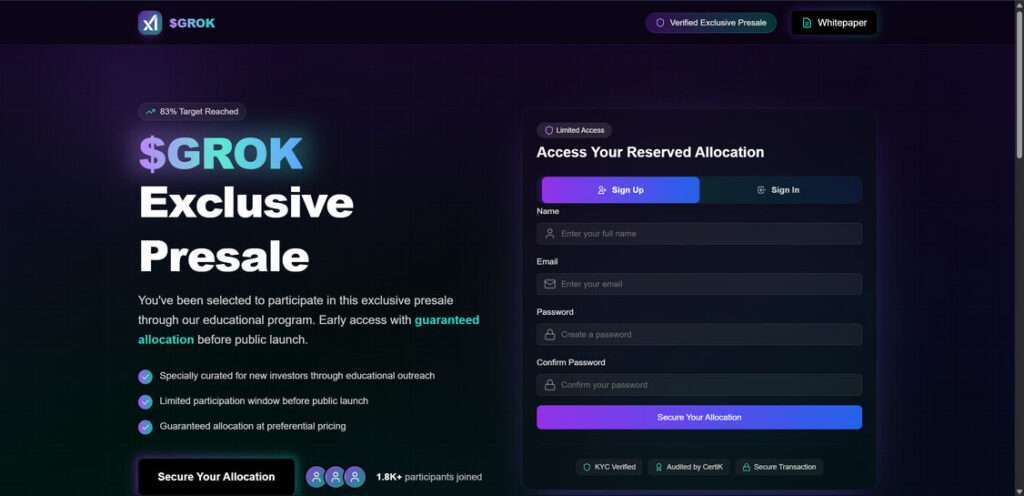
Scam Overview: Inside the $GROK Presale Deception
The so-called “$GROK Presale” is a calculated scam, built to appear as a legitimate early investment opportunity in a cryptocurrency allegedly connected to Grok AI or Elon Musk. In reality, it’s a sophisticated phishing and wallet-draining operation, designed to steal personal data, login credentials, and in some cases, entire crypto wallets.
At first glance, the site looks professional. It’s hosted at coingrok[.]app and other domains as well. The layout mimics real presale or IDO platforms, complete with fake branding, security claims, and limited-time offers. But behind the smooth design is a trap targeting crypto investors, especially those new to the space.
A Carefully Constructed Illusion
The fake GROK presale website uses several manipulative tactics to appear credible:
- Claims of a limited “educational outreach” presale
- Stated guarantees of token allocation at a preferential price
- Fake progress meters like “83% target reached”
- Supposed security audits by CertiK and SlowMist
- Badges indicating KYC verification and smart contract audits
None of these are real.
The site uses industry buzzwords and visual design to create the illusion of transparency and security. But the goal isn’t to raise capital—it’s to collect user data, access digital wallets, and drain funds.
The Most Dangerous Feature: Wallet Connection
Beyond basic phishing, this scam takes things further by encouraging users to connect their crypto wallets. This is where the scam escalates into direct theft.
After prompting users to “Secure Your Allocation,” the site opens a familiar-looking wallet connection interface. It supports various major wallets, including:
- MetaMask
- WalletConnect (QR code scanning)
- Trust Wallet
- Bitget Wallet
- Coinbase Wallet
- Rainbow
- Zerion
- Rabby
- OKX Wallet
- And a general “All Wallets (430+)” option
The interface even includes a prompt for users who don’t have a wallet yet, nudging them to create one—under the guise of participation.
Here’s what’s really happening:
If a user connects their wallet and confirms a seemingly harmless transaction, they may unknowingly authorize a malicious smart contract that gives scammers full access to their assets. This type of exploit, often called a crypto drainer, can instantly empty wallets, leaving users with no recourse.
Because all transactions on the blockchain are final, once the drainer is executed, funds are gone.
This tactic targets those who trust the process, especially beginners unfamiliar with how permissions and transaction approvals work in Web3 environments.
Email and Password Phishing Still in Play
In addition to the wallet attack, the site also harvests personal login credentials. Before being prompted to connect a wallet, users are typically asked to:
- Enter their email address
- Choose and confirm a password
- Click through buttons labeled “Sign Up,” “Sign In,” or “Secure Your Allocation”
This simple form can be extremely damaging, especially if the user reuses the same email and password combination across other platforms—such as crypto exchanges, DeFi apps, or personal accounts.
Scammers collect these credentials to:
- Attempt login access across major services
- Sell the information in bulk to other threat actors
- Use emails in future targeted phishing campaigns
The Adult Site Redirect Trick
After submitting your email and password—or in some cases, after clicking the allocation button—the website may redirect you to pornographic content or spammy affiliate pages. This move serves multiple malicious purposes:
- Distraction from the theft that just occurred
- Shame and confusion, reducing the chance victims will report it
- Affiliate revenue generation through forced traffic or popups
- Potential exposure to malware via low-quality redirect links
This tactic is not just offensive—it’s strategic. The redirect disrupts the victim’s focus, making it harder to trace what just happened and discouraging further investigation.
What the Attackers Gain
Whether you hand over your login info, connect your wallet, or do both, the outcome benefits the attackers. Their objectives include:
- Stealing cryptocurrency and NFTs from connected wallets
- Collecting emails and passwords for resale and account takeovers
- Monetizing traffic through adult site redirection
- Building target lists for future scams and phishing waves
The scam preys on those drawn in by hype, social media ads, or deceptive influencer videos.
No Connection to Elon Musk, Grok AI, or xAI
It must be emphasized: This presale has no connection to Elon Musk, xAI, or Grok AI.
The scammers are using the popularity of these names to lend credibility to their operation. In some cases, they even distribute deepfake videos of Elon Musk promoting the presale—entirely fabricated and meant to trick viewers into associating the fake token with legitimate innovation in AI and crypto.
The real Grok chatbot does not have a token, and there is no official presale of any kind.
How the $GROK Presale Scam Works
The $GROK Presale scam doesn’t rely on a single trick. It’s a multi-step operation designed to build trust, exploit hype, and extract as much value as possible from each victim. Below is a breakdown of how the scam typically works, from start to finish.
Step 1: The Hook — Ads, Social Media, and Deepfakes
Most victims first encounter the scam through social media promotions, fake news articles, or sponsored ads. These may appear on platforms like:
- Twitter (X)
- YouTube
- Telegram groups
- Discord servers
To increase credibility, scammers often use:
- AI-generated deepfake videos featuring Elon Musk, falsely endorsing the presale
- Mentions of Grok AI and xAI, which are legitimate projects unrelated to the scam
- Hype phrases like “next 100x token,” “early investor access,” or “limited time educational outreach”
These materials are designed to feel urgent and exclusive, driving users to click.
Step 2: Arrival at the Fake Presale Website
Clicking the ad or link takes users to a professional-looking website, such as coingrok[.]app. This site is carefully built to resemble a legitimate token presale platform.
Key elements of the fake site include:
- A countdown timer or progress bar (“83% Target Reached”)
- Claims of “Guaranteed Allocation” at a low price
- Logos of well-known firms like CertiK, SlowMist, and Coinbase
- Mentions of “KYC verified,” “Secure Transaction,” and “Audited Smart Contract”
The visual design and language are meant to reduce skepticism. The site creates the impression that this is a rare, verified opportunity for early investors.
Step 3: Fake Registration Form — Harvesting Login Credentials
Before users can “access” the presale, they’re prompted to register or sign in. The form asks for:
- Full name (sometimes optional)
- Email address
- Password (entered twice)
This simple step is where phishing begins.
Most people use the same email and password across multiple services. If the victim reuses credentials here, scammers can:
- Try logging into their email, exchange, or banking accounts
- Sell the credentials on dark web marketplaces
- Add the user to spam and phishing lists
This tactic is low-effort but highly effective, especially when paired with the illusion of legitimacy the site presents.
Step 4: The Wallet Connection Trap
After entering their email and password, users are presented with a “Secure Your Allocation” button. Clicking it leads to a wallet connection interface, which may look identical to the official Web3 modal used across real crypto apps.
The scam site supports a wide array of wallets:
- MetaMask
- WalletConnect (via QR code)
- Trust Wallet
- Bitget Wallet
- Coinbase Wallet
- Rainbow
- Zerion
- Rabby
- OKX Wallet
- “All Wallets – 430+”
There’s also a prompt for users who don’t yet have a wallet, nudging them to create one to participate—further expanding the scam’s reach.
Once a wallet is connected, the victim may be asked to approve a transaction or sign a message. These requests may appear harmless but are often tied to malicious smart contracts.
In many cases, victims unknowingly grant full access to their wallets, allowing a crypto drainer script to:
- Transfer all tokens, NFTs, and assets to a scammer-controlled wallet
- Trigger future transactions without further confirmation
- Exploit wallet permissions long after the interaction ends
Once this happens, the damage is immediate and irreversible. Blockchain transactions cannot be undone.
Step 5: Malicious Redirects or Distractions
After registration or wallet connection, the site may do one of several things:
- Redirect the user to pornographic or adult content
- Display an error message or claim the “allocation failed”
- Reload or freeze, while draining the connected wallet in the background
Redirecting to adult content serves multiple purposes:
- It distracts users from what just occurred
- It embarrasses victims, making them less likely to report the scam
- It allows scammers to profit via affiliate traffic or potentially load malware
This step is not random—it’s part of a deliberate effort to deflect attention while the scam runs its course.
Step 6: The Aftermath — Exploiting the Data and Wallet Access
Once a user has interacted with the scam site, the attackers may now have:
- Their email and password combination
- A crypto wallet connection or signed approval
- Device or session data that could be used for fingerprinting or future targeting
From here, scammers take different actions based on the data captured:
- Attempt unauthorized logins to email, exchanges, or DeFi apps
- Drain assets from wallets using approved smart contract permissions
- Sell email lists and credentials to third-party spam operators
- Target victims again using follow-up phishing campaigns (e.g., “You’ve been refunded” scams)
Some users may not realize they’ve been compromised until hours or days later—often when they check their wallet and see a zero balance.
Step 7: Expansion and Duplication
Scam sites like this don’t operate in isolation. Once the coingrok[.]app domain is flagged or taken down, the operation can quickly migrate to:
- A clone website on a different domain
- A new social media campaign with slightly different branding
- A reposted deepfake video using the same script
The backend tools and tactics remain the same. This is why awareness and early detection are critical.
What to Do If You’ve Fallen Victim to the $GROK Presale Scam
If you’ve interacted with coingrok[.]app or submitted any information, act quickly. Here are the steps you need to take:
1. Change All Passwords Immediately
If you entered your email and a password—change that password everywhere you use it.
- Use a password manager to create strong, unique passwords.
- Enable two-factor authentication (2FA) on all major accounts (Google, exchanges, etc.)
2. Scan Your Devices for Malware
The site may have triggered pop-ups or downloads. Use reputable anti-virus or anti-malware tools such as:
- Malwarebytes
- Bitdefender
- Norton
- Windows Defender (for basic scanning)
3. Contact Your Crypto Platforms
If you use exchanges like Coinbase, Binance, or MetaMask:
- Notify them immediately
- Monitor your wallet for unauthorized activity
- Freeze transactions if possible
Some platforms offer fraud response teams that can help limit damage.
4. Report the Scam
Help take the site down by reporting it to:
- Google Safe Browsing: https://safebrowsing.google.com/safebrowsing/report_phish/
- IC3.gov (FBI Internet Crime Complaint Center)
- Crypto Scam Databases like ScamSniffer, Web3IsGoingGreat
You can also use platforms like:
- Twitter/X (report scam ads or accounts)
- Reddit (inform relevant crypto communities)
5. Alert Your Contacts
If your account has been compromised, scammers may impersonate you. Warn friends and family not to click any suspicious links from you.
6. Monitor for Identity Theft
If you submitted more personal information (e.g., full name, phone number, etc.):
- Use services like HaveIBeenPwned.com to check breaches
- Consider placing a fraud alert with your local credit agency
- Keep an eye on your bank accounts and crypto wallets
7. Learn and Share
Share your experience in communities like:
- Reddit’s r/cryptocurrency
- Web3 Discord servers
- Scam alert groups on Telegram and Facebook
Raising awareness can prevent others from falling into the same trap.
Is Your Device Infected? Run a Free Malware Scan
Slow performance, constant pop-ups, or strange behavior? These are classic signs of a malware infection. The fastest way to find out is to scan your device with Malwarebytes Free — one of the most trusted malware removal tools available.
The free version detects and removes the most common threats, including:
- Adware — the cause of those annoying pop-ups
- Browser hijackers — unwanted redirects and changed homepages
- Trojans and spyware — hidden programs stealing your data
- Potentially unwanted programs (PUPs) — software you never asked for
👉 Select your device below — Windows, Mac, or Android — then follow the simple steps to download Malwarebytes, scan your system, and remove any threats it finds. The scan usually takes 5 to 20 minutes.
Run a Malware Scan with Malwarebytes for Windows
Malwarebytes is one of the most popular and trusted anti-malware tools for Windows — and it’s completely free for removing infections. It catches threats that many antivirus programs miss, including adware, browser hijackers, and trojans. Follow the steps below to scan and clean your PC in just a few minutes.
Download Malwarebytes
Click the button below to download the latest version of Malwarebytes for Windows from the official source. The free version is all you need — it will scan your computer and remove adware, browser hijackers, and other malicious software at no cost.
Download MalwarebytesOfficial installer for Windows 11 and 10. Your download starts right away.Want real-time protection? See Malwarebytes Premium Malwarebytes Free for WindowsScans and removes malware at no cost
-
Install Malwarebytes
When the download finishes, open your Downloads folder and double-click the MBSetup file. If Windows shows a User Account Control pop-up, click “Yes” to allow the installation.

Follow the On-Screen Prompts to Install Malwarebytes
The setup wizard will walk you through a few quick screens:
-
Choose where you’re installing the program — “Personal Computer” or “Work Computer” — then click Next.

-
Malwarebytes will now install on your device. This usually takes under a minute.

-
When installation is complete, the “Welcome to Malwarebytes” screen will open automatically.

-
On the final screen, click Open Malwarebytes to launch the program.

-
Enable “Scan for Rootkits”
Before scanning, turn on rootkit detection so Malwarebytes can find even the most hidden threats. Click the Settings gear icon on the left side of the screen.

In the settings menu, find “Scan for rootkits” and click the toggle so it turns blue.

Done? Click “Dashboard” in the left pane to return to the main screen.
Start the Scan
Click the blue Scan button. Malwarebytes will automatically update its virus database and start checking your computer for malware.

-
Wait for the Scan to Finish
The scan checks your entire system for browser hijackers and other malicious programs, so it can take 5 to 20 minutes depending on your computer. Feel free to do something else — just check back occasionally to see the progress.

-
Quarantine the Detected Threats
When the scan is done, you’ll see a list of everything Malwarebytes found — malware, adware, and potentially unwanted programs. Click the “Quarantine” button to remove all of them at once.

Malwarebytes will now remove the malicious files and registry entries and move them safely into quarantine.

-
Restart Your Computer
Some threats can only be fully removed after a reboot. If Malwarebytes asks you to restart, click Yes. Once you’re logged back in, Malwarebytes has finished removing the threats it found.

That’s it — your Windows PC is now clean of trojans, adware, and other malware, and should be back to running smoothly.
If you are still having problems with your computer after completing these instructions, then please follow one of the steps:
- Run a computer scan with ESET Online Scanner
- Ask for help in our Windows Malware Removal Help & Support forum.
Run a Malware Scan with Malwarebytes for Mac
Malwarebytes for Mac is a free on-demand scanner that removes the malware other security software tends to miss — adware, browser hijackers, and unwanted programs included. Cleaning an infected Mac with Malwarebytes has always been completely free, and it’s our go-to recommendation. Follow the steps below to scan and clean your Mac in just a few minutes.
-
Download Malwarebytes for Mac
Click the button below to download the latest version of Malwarebytes for Mac.
Download MalwarebytesOfficial installer for macOS. Your download starts right away.Want real-time protection? See Malwarebytes PremiumMalwarebytes Free for MacScans and removes malware at no cost -
Open the Malwarebytes setup file
When the download finishes, open your Downloads folder and double-click the setup file to begin the installation.

-
Follow the On-Screen Prompts to Install Malwarebytes
The Malwarebytes for Mac Installer will guide you through a few quick screens. Click “Continue” and keep following the prompts until the installation completes.



When the installation is complete, Malwarebytes opens to the Welcome to Malwarebytes screen. Click “Get started“.
-
Select “Personal Computer” or “Work Computer”
Malwarebytes will ask what type of computer you’re installing it on. Click either Personal Computer or Work Computer, whichever applies.

-
Start the Scan
Click the “Scan” button. Malwarebytes will automatically update its detection database and begin checking your Mac for malware.

-
Wait for the Scan to Finish
Malwarebytes will scan your Mac for adware, browser hijackers, and other malicious programs. This can take a few minutes, so feel free to do something else — just check back occasionally to see the progress.

-
Quarantine the Detected Threats
When the scan is done, you’ll see a list of everything Malwarebytes found. Click the “Quarantine” button to remove all the threats at once.

-
Restart Your Mac
Malwarebytes will now remove all the malicious files it found. Some threats can only be fully removed after a reboot — if Malwarebytes asks you to restart, allow it. Once you’re logged back in, your Mac is clean.

That’s it — your Mac is now free of adware, rogue browser extensions, and other potentially harmful software.
If you are still experiencing problems while trying to remove a malicious program from your computer, please ask for help in our Mac Malware Removal Help & Support forum.
Run a Malware Scan with Malwarebytes for Android
Malwarebytes for Android automatically detects and removes dangerous threats like malware and ransomware so you don’t have to worry about your most-used device being compromised. Aggressive detection of adware and potentially unwanted programs keeps your Android phone or tablet running smooth.
-
Download Malwarebytes for Android.
You can download Malwarebytes for Android by clicking the link below.
Get Malwarebytes for AndroidOpens Google Play in a new tab.Want real-time protection? See Malwarebytes Premium for AndroidMalwarebytes for AndroidScans your phone and removes malware at no cost -
Install Malwarebytes for Android on your phone.
In the Google Play Store, tap “Install” to install Malwarebytes for Android on your device.

When the installation process has finished, tap “Open” to begin using Malwarebytes for Android. You can also open Malwarebytes by tapping on its icon in your phone menu or home screen.

-
Follow the on-screen prompts to complete the setup process
When Malwarebytes will open, you will see the Malwarebytes Setup Wizard which will guide you through a series of permissions and other setup options.
This is the first of two screens that explain the difference between the Premium and Free versions. Swipe this screen to continue.
Tap on “Got it” to proceed to the next step.
Malwarebytes for Android will now ask for a set of permissions that are required to scan your device and protect it from malware. Tap on “Give permission” to continue.
Tap on “Allow” to permit Malwarebytes to access the files on your phone.
-
Update database and run a scan with Malwarebytes for Android
You will now be prompted to update the Malwarebytes database and run a full system scan.

Click on “Update database” to update the Malwarebytes for Android definitions to the latest version, then click on “Run full scan” to perform a system scan.

-
Wait for the Malwarebytes scan to complete.
Malwarebytes will now start scanning your phone for adware and other malicious apps. This process can take a few minutes, so we suggest you do something else and periodically check on the status of the scan to see when it is finished.

-
Click on “Remove Selected”.
When the scan has been completed, you will be presented with a screen showing the malware infections that Malwarebytes for Android has detected. To remove the malicious apps that Malwarebytes has found, tap on the “Remove Selected” button.

-
Restart your phone.
Malwarebytes for Android will now remove all the malicious apps that it has found. To complete the malware removal process, Malwarebytes may ask you to restart your device.
That’s it — your Android phone is now clean — no more malicious apps, adware, or browser redirects.
If you are still having problems with your phone after completing these instructions, then please follow one of the steps:
- Restore your phone to factory settings by going to Settings > General management > Reset > Factory data reset.
- Ask for help in our Mobile Malware Removal Help & Support forum.
Stay Protected: Block Ads and Malicious Sites
Now that your device is clean, keep it that way. Most infections start with a malicious ad or a fake download button — so blocking them at the source is your best defense.
We recommend AdGuard, which blocks malicious ads, phishing pages, and dangerous redirects before they can reach you.
👉 Download AdGuard and browse safely
Frequently Asked Questions (FAQ) About the $GROK Presale Scam
What is the “$GROK Presale” scam?
The “$GROK Presale” scam is a fraudulent phishing operation that poses as an exclusive cryptocurrency presale. It falsely claims to offer early access to a token called $GROK, misleading users by associating itself with Grok AI and Elon Musk. In reality, it has no ties to any legitimate entity and is designed to harvest personal information such as email addresses and passwords, and in some cases redirect users to malicious or pornographic websites.
Is there a legitimate $GROK token or presale?
No. There is currently no official $GROK token associated with Grok AI, xAI, or Elon Musk. Any presale claiming to offer early access to such a token is fraudulent and should be avoided.
What website is hosting the scam?
The scam has been primarily hosted on the domain coingrok.app, although it may also appear on other lookalike or newly registered domains. Scammers frequently rotate URLs to avoid takedowns, so the appearance of the scam may change, but the core tactics remain the same.
What happens if I enter my email and password on the scam site?
If you enter your credentials, they can be captured and used for malicious purposes. Common outcomes include:
- Your email and password being sold or used in credential stuffing attacks
- Unauthorized access to your crypto wallets or exchange accounts
- Receiving spam or phishing emails
- Exposure to malware through malicious redirects
How can I tell if a presale is a scam?
Warning signs include:
- Use of well-known names like Elon Musk without verifiable proof
- Claims of guaranteed allocations or limited-time offers with high pressure to act fast
- Fake verification seals from companies like CertiK or SlowMist
- Requests for sensitive personal information or crypto wallet details
- A lack of transparency about the team, project, or roadmap
Always cross-check any presale with official sources and look for validation from trusted crypto communities and channels.
What should I do if I was scammed?
Take the following steps immediately:
- Change any reused passwords, especially those tied to your email or crypto accounts
- Enable two-factor authentication on all important accounts
- Run a malware and antivirus scan on your device
- Notify your crypto platform or exchange of the incident
- Report the scam to appropriate authorities and cybercrime databases
- Warn friends and online communities to prevent further victims
Can I recover lost funds or stolen data?
Recovery is unlikely if funds were stolen from a decentralized wallet or if personal data was sold. However, you can mitigate future risks by securing your accounts, monitoring for unauthorized activity, and staying vigilant against future phishing attempts. Some crypto platforms or legal teams may assist in investigations if you act quickly.
Why is the scam using Elon Musk and Grok?
The scam leverages the popularity of Elon Musk and the growing interest in Grok AI to build trust and urgency. By using familiar names, deepfake videos, and AI-related buzzwords, scammers create a false sense of legitimacy. This is purely a tactic to manipulate users and has no connection to any real Grok or xAI project.
The Bottom Line
The “$GROK Presale” is a textbook phishing scam—slick in presentation, malicious in intent. It’s not associated with Grok AI, Elon Musk, or any legitimate crypto project. The scammers behind coingrok[.]app are after your email, password, and potentially your crypto funds.
If it sounds too good to be true—it usually is.
Stay skeptical. Protect your data. And always double-check before investing in any crypto opportunity.

Join the discussion
0 commentsShare your experience or ask a question about this article.
Discussion
Start the conversation
Have a question or something useful to share? Add the first comment.