


A tiny heater promises to warm an entire room while sharply cutting winter electricity costs. Helion presents that familiar idea with unusually polished confidence.
The product is real enough to order, yet the important questions begin after the advertisement has already made its strongest impression.
Overview
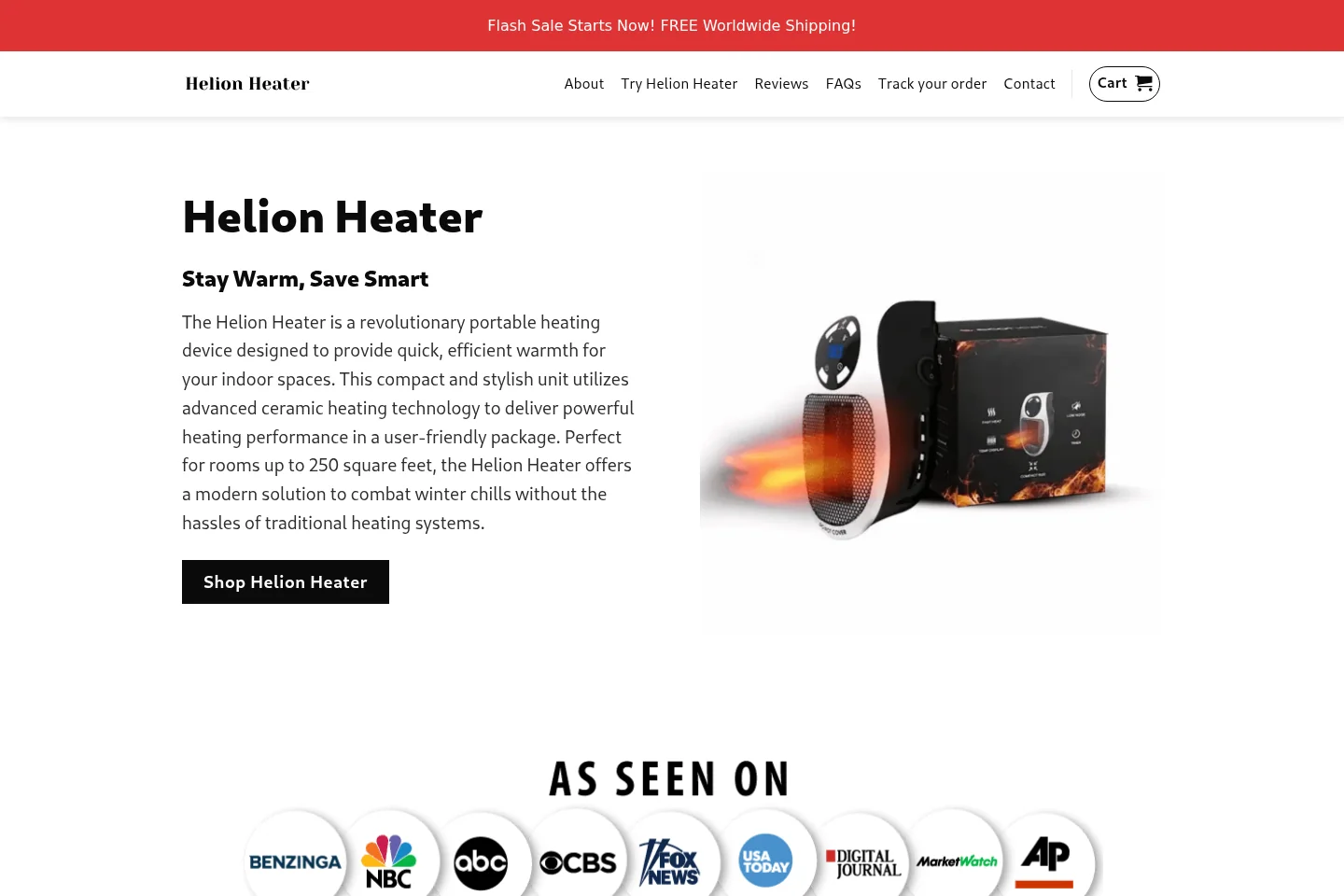
What Helion Portable Heater is
Helion Portable Heater is a compact electric space heater sold through a dedicated direct-response website.
The page describes ceramic heating, adjustable temperatures, a timer, anti-tip protection, and coverage for rooms measuring up to 250 square feet.
Those features sound practical, but they do not establish how much usable heat the device produces in an ordinary home.
A photograph and feature list cannot replace wattage, independent testing, certification details, and realistic operating guidance.
Why the promotion raises concern
The campaign combines urgent discounts, dramatic efficiency language, glowing testimonials, and a story suggesting an overlooked breakthrough.
This presentation encourages shoppers to compare Helion with expensive central heating, rather than with similar low-wattage plug-in devices.
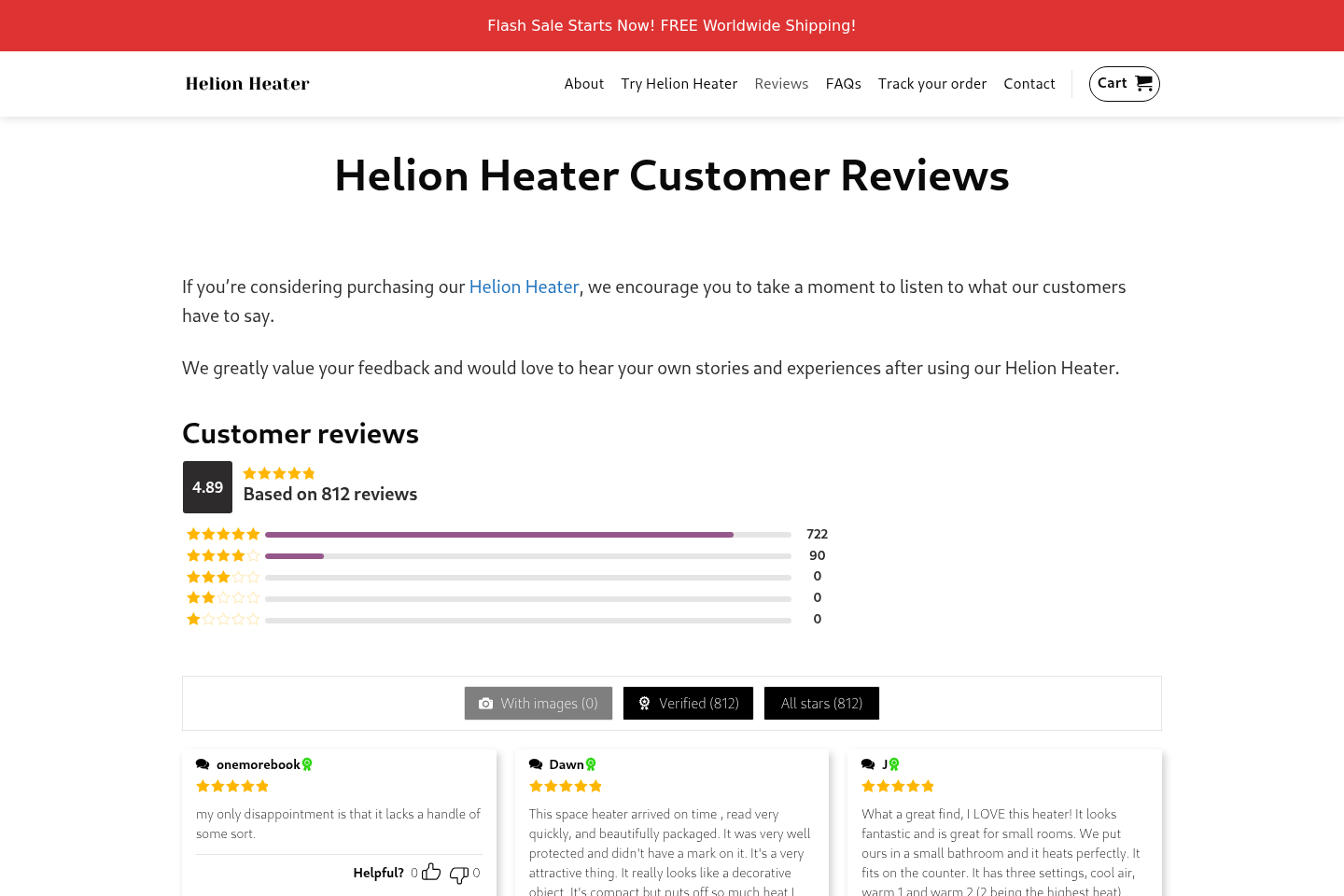
The seller’s review page displays an exceptional 4.89 rating from 812 reviews, with almost no meaningful criticism visible.
Such a remarkably clean distribution deserves scrutiny because normal consumer products usually attract varied experiences, even when buyers are broadly satisfied.
Our practical assessment
Helion appears to be a real physical heater, not an imaginary item that can never arrive.
However, the available evidence does not support treating the broad heating and savings promises as proven facts.
The main concerns are promotional exaggeration, generic-product characteristics, limited company transparency, and a return process that may be harder than the advertisement implies.
Important warning signs include:
- Claims that a very small heater can comfortably handle a much larger room.
- Savings language presented without a household-specific energy calculation.
- A near-perfect seller-controlled review profile with little visible disagreement.
- Pricing framed around a large temporary discount and artificial urgency.
- A business address associated with flexible or virtual office services.
- Few independently verifiable details about design, manufacturing, and laboratory testing.
- Safety wording that may sound stronger than the documentation available to shoppers.
Why a Small Heater Can Feel More Powerful Than It Is
A compact heater can create a noticeable pocket of warmth when placed close to a person.
That immediate sensation is persuasive, especially in a chilly bathroom, home office, or small bedroom.
Feeling warm beside the outlet does not mean the device can raise the temperature throughout 250 square feet.
Room heating depends on wattage, insulation, ceiling height, outdoor temperature, drafts, door openings, and the starting indoor temperature.
A seller cannot calculate meaningful savings without knowing those variables and the customer’s existing heating system.
Electric resistance heaters convert electricity into heat at broadly similar rates at the point of use.
One small device may reduce total consumption only when it replaces heating elsewhere, such as warming one occupied room instead of an entire home.
That is a change in heating behavior, not evidence that a branded heater has discovered unusually efficient physics.
If central heating continues operating normally, adding a plug-in heater can increase the electricity bill rather than reduce it.
Advertisements often skip this distinction because the honest explanation is less dramatic than a percentage-style savings promise.
The Teen Inventor Story and Other Persuasive Devices
Some Helion promotions have used a young-inventor narrative to make the product feel rebellious, original, and unfairly ignored by established manufacturers.
That storyline gives the buyer an emotional hero before providing technical evidence.
It also suggests that high heating bills continue because powerful interests resist a cheaper solution.
Consumers should separate the story from the appliance placed in the shopping cart.
A credible engineering claim should survive without a dramatic biography, family struggle, or industry-conspiracy plot.
Look for a named model, rated wattage, electrical specifications, safety certification, test reports, and a traceable manufacturer.
If those facts remain vague, the inventor narrative adds atmosphere rather than verification.
Prominent television-style logos can create another layer of borrowed authority.
A logo strip does not prove that a broadcaster tested, endorsed, or even discussed the exact product.
Search the claimed outlet independently and confirm whether a real report exists on its own domain.
Do not treat an image displayed by the seller as equivalent to editorial coverage.
What the Reviews Do and Do Not Prove
Helion’s customer-review page gives the product an unusually strong score and shows hundreds of verified-looking entries.
The page reports 812 reviews, with 89% rated five stars and no visible one-star, two-star, or three-star reviews in its summary.
That pattern is possible, but it is not typical enough to accept without further context.
The website controls how reviews are collected, moderated, labeled, ordered, and displayed.
A “verified” badge may mean the reviewer used a particular email or order reference, but the site does not clearly explain its verification standard.
Seller-hosted testimonials can help identify claimed use cases, but they should not be treated as independent performance testing.
Notice whether reviews include exact room dimensions, measured temperatures, outdoor conditions, wattage readings, and photographs showing long-term use.
General remarks about fast warmth are much easier to produce than evidence about whole-room performance or energy savings.
Also search for experiences outside the sales ecosystem, including complaints about delivery, returns, noise, plug temperature, and customer support.
A balanced evaluation considers both successful orders and difficult outcomes.
How the Helion Portable Heater Promotion Works
Step 1: A dramatic advertisement identifies a painful problem
The campaign begins with high winter bills, cold rooms, or a household supposedly forced to choose between warmth and affordability.
This emotional frame makes viewers receptive before they see technical specifications.
The advertisement may imply that conventional heaters waste extraordinary amounts of energy.
It rarely compares equal heat output under controlled conditions.
Step 2: A breakthrough narrative makes the device seem unique
The product is introduced as an ingenious answer that large heating companies allegedly overlooked or opposed.
Words such as ceramic, rapid, intelligent, or revolutionary make ordinary components sound proprietary.
Buyers are encouraged to remember the story, not ask whether visually similar devices already exist.
Step 3: Impressive numbers replace household-specific evidence
The promotion connects compact size with large room coverage and major savings.
Yet energy cost depends on power draw, operating time, local rates, insulation, and what other heating is reduced.
Without those inputs, a universal savings figure is a marketing claim, not a forecast.
Step 4: Social proof lowers the shopper’s resistance
High ratings, enthusiastic quotations, stock-style lifestyle imagery, and media logos make the offer look widely validated.
Visitors may assume hundreds of other families independently confirmed the claims.
The evidence is less persuasive when nearly all of it appears inside pages controlled by the same seller.
Step 5: Scarcity pushes the decision ahead of research
A countdown, inventory warning, seasonal promotion, or steep crossed-out price suggests hesitation could cost the buyer.
This pressure discourages model comparisons and policy reading.
In reality, direct-response offers often repeat similar deadlines after the displayed timer expires.
Step 6: The checkout encourages a larger commitment
Quantity bundles can make each unit appear cheaper while substantially increasing the total charge.
Extra warranties, shipping upgrades, or related items may appear after the initial decision.
Shoppers should record every selected option and inspect the final amount before submitting payment.
Step 7: Returns depend on conditions outside the headline guarantee
A prominent guarantee can sound effortless, but the practical policy may require authorization, tracking, original packaging, and customer-paid return postage.
International routing or slow responses can consume much of the return window.
The important promise is not the badge near the buy button, but the written procedure the seller actually follows.
Heating Performance: A Reality Check
The first specification to locate is wattage because it limits the heater’s maximum electrical input.
A common wall outlet in North America can safely supply only a limited load, and compact plug-in designs operate within that boundary.
Small units can be suitable for personal comfort or a tightly enclosed area.
They should not be assumed to replace a properly sized furnace, heat pump, baseboard system, or certified full-room appliance.
Coverage claims deserve particular caution because “up to” describes a favorable ceiling, not a promise for every room.
An interior room in mild weather is very different from a drafty corner room during a hard freeze.
Noise also matters when the fan sits near a bed or desk.
Advertisements may show peaceful use without providing measured sound levels.
Temperature displays can look precise while the actual room temperature remains uneven.
A thermostat near the hot outlet may cycle differently from a sensor placed across the room.
Independent certification marks should be verified in the certifier’s database when possible.
A printed symbol alone is less reassuring than a searchable listing tied to the exact model.
Safety Questions Buyers Should Ask
Portable heaters deserve careful handling because heat, electricity, fabric, dust, children, and pets often share the same small area.
The United States Consumer Product Safety Commission advises keeping portable heaters at least three feet from combustible materials.
The agency also recommends plugging heaters directly into a wall outlet rather than an extension cord or power strip.
Turn the unit off when sleeping or leaving the room, even if the advertisement emphasizes automatic protections.
Anti-tip protection matters less for a device mounted directly at an outlet, but outlet stability and surrounding clearance become more important.
Stop using any heater if the plug, outlet, wall plate, or surrounding plastic becomes unusually hot.
Loose receptacles can create resistance and heat that a promotional video will not reveal.
Never place clothing over the device or use it where water can contact an unsuitable electrical product.
Read the actual manual before operation, not only the abbreviated feature icons on the order page.
If the seller does not provide clear safety instructions, that omission should affect the buying decision.
Company, Address, and Fulfillment Checks
The listed address does not prove an operating headquarters
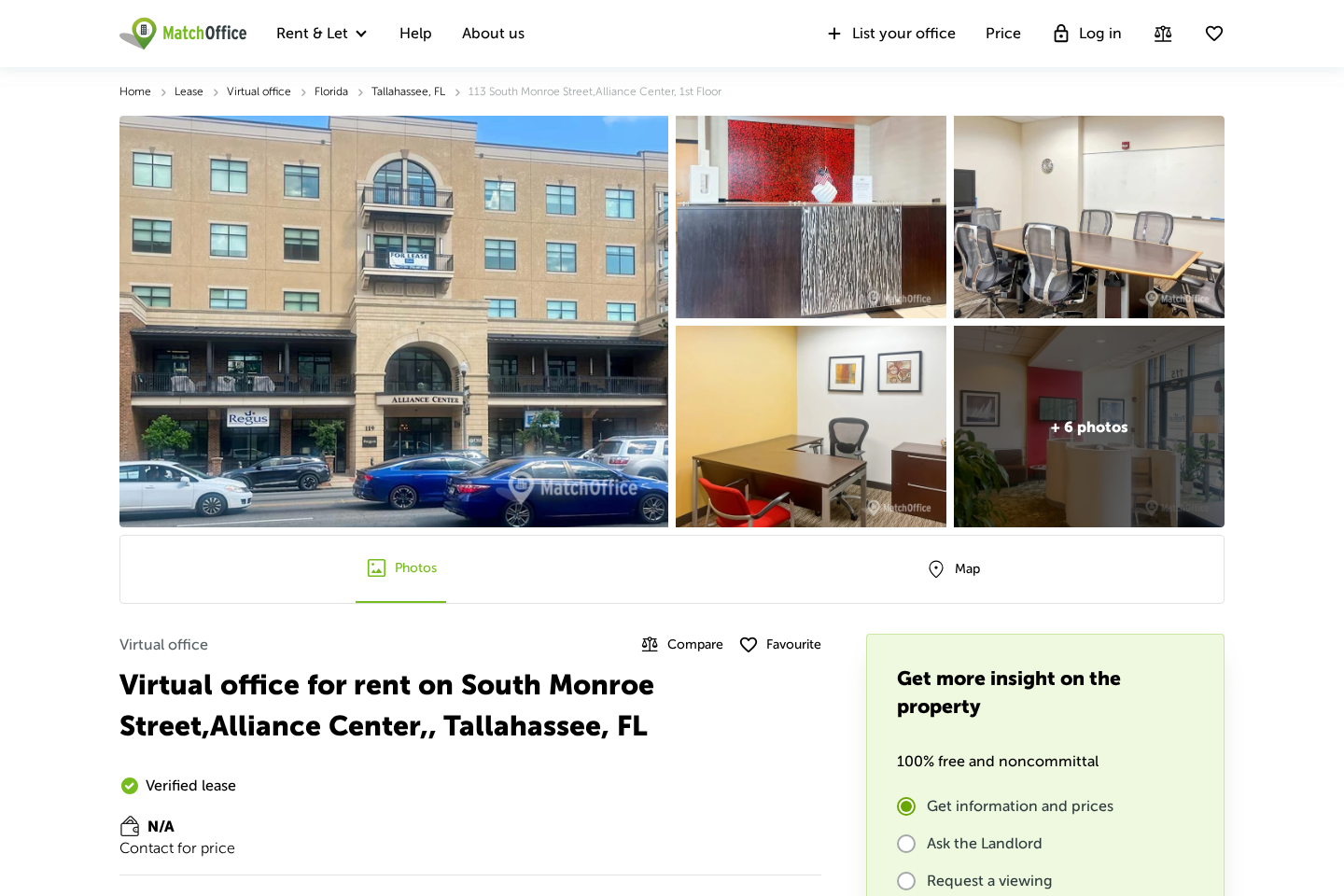
Helion’s website lists 113 South Monroe Street in Tallahassee, Florida.
Independent office listings market that address for virtual-office and flexible-workspace services.
A virtual address can be used legally, but it does not show where products are designed, tested, stocked, or managed.
Customers should not mistake an impressive downtown location for evidence of a staffed heater company.
The legal seller should be named consistently
Compare the company named in the terms, privacy policy, checkout, order email, package label, and card statement.
If those identities differ, ask which entity is responsible for warranties and refunds.
A brand name alone may be difficult to pursue during a billing dispute.
Save the legal pages because direct-response websites can change after a campaign ends.
A returns warehouse may know nothing about the product
The parcel’s return address may belong to a logistics contractor that handles many unrelated online brands.
That location can receive boxes without providing customer service or authorizing refunds.
Never mail an item back solely because an address appeared on the package.
Obtain written return authorization and preserve delivery tracking.
Manufacturing and certification require traceable evidence
The available marketing does not clearly establish who manufactures the exact device or where each unit is produced.
Visually similar heaters appear across mass-market listings, but appearance alone cannot prove a shared factory.
Ask for the model number, rated power, certification file, importer, and responsible domestic business.
Missing answers matter because electrical safety cannot be evaluated from branding alone.
How to Evaluate the Offer Before Paying
Begin by taking a screenshot of the advertised price, bundle quantity, guarantee, and claimed delivery time.
Then compare the exact model with ordinary retail heaters that provide clear wattage and recognized safety listings.
Calculate operating cost using wattage, expected daily hours, and the electricity rate shown on your utility bill.
For example, a heater used many hours daily can add substantial consumption even when its purchase price is modest.
Check whether your intended outlet is tight, undamaged, and positioned with safe clearance.
A compact design does not make unsafe placement acceptable.
Read the refund terms before entering card details.
Look specifically for restocking charges, return-shipping responsibility, unopened-condition rules, and the country where returns must be sent.
Use a credit card when available because it generally offers stronger dispute rights than debit cards, transfers, or payment applications.
Avoid buying several units merely to unlock a lower per-item price.
Test one product first if the offer still makes sense after research.
What to Do if You Have Fallen Victim to This Scam
- Document the complete offer. Save the advertisement, product page, checkout total, confirmation email, guarantee, tracking history, and all conversations with support.
- Contact the seller in writing. State the order number, exact problem, requested remedy, and policy deadline, then keep copies of every response.
- Request return authorization before shipping. Confirm the destination, required packaging, refund amount, and whether postage or deductions apply.
- Watch the payment account. Check for duplicate charges, unexpected add-ons, or later transactions that were not clearly authorized.
- Dispute an unresolved charge promptly. Give the card issuer your timeline and evidence, especially when goods never arrived or materially differed from the advertisement.
- Stop using an unsafe unit. Disconnect it if the plug overheats, plastic deforms, sparks appear, burning odors develop, or the outlet feels loose.
- Scan a device exposed to suspicious pages. Malwarebytes can check for unwanted software, while AdGuard can reduce malicious advertisements and deceptive redirects.
- Report serious safety or advertising concerns. Contact the relevant consumer-protection agency and product-safety regulator in your country.
Is Your Device Infected? Run a Free Malware Scan
Slow performance, constant pop-ups, or strange behavior? These are classic signs of a malware infection. A quick way to check is to scan your device with Malwarebytes Free, one of the most trusted malware removal tools available. If you only visited a scam page and didn’t download or install anything, this scan is optional.
The free version detects and removes the most common threats, including:
- Adware — the cause of those annoying pop-ups
- Browser hijackers — unwanted redirects and changed homepages
- Trojans and spyware — hidden programs stealing your data
- Potentially unwanted programs (PUPs) — software you never asked for
👉 Select your device below — Windows, Mac, or Android — then follow the simple steps to download Malwarebytes, scan your system, and remove any threats it finds. The scan usually takes 5 to 20 minutes.
Run a Malware Scan with Malwarebytes for Windows
Malwarebytes is one of the most popular and trusted anti-malware tools for Windows — and it’s completely free for removing infections. It catches threats that many antivirus programs miss, including adware, browser hijackers, and trojans. Follow the steps below to scan your PC and remove what Malwarebytes finds.
Download Malwarebytes
Click the button below to download the latest version of Malwarebytes for Windows from the official source. The free version is all you need — it will scan your computer and remove adware, browser hijackers, and other malicious software at no cost.
Download MalwarebytesOfficial installer for Windows 11 and 10. Your download starts right away.Want real-time protection? See Malwarebytes Premium Malwarebytes Free for WindowsScans and removes malware at no cost
-
Install Malwarebytes
When the download finishes, open your Downloads folder and double-click the MBSetup file. If Windows shows a User Account Control pop-up, click “Yes” to allow the installation.

Follow the On-Screen Prompts to Install Malwarebytes
The setup wizard will walk you through a few quick screens:
-
Choose where you’re installing the program — “Personal Computer” or “Work Computer” — then click Next.

-
Malwarebytes will now install on your device. This usually takes under a minute.

-
When installation is complete, the “Welcome to Malwarebytes” screen will open automatically.

-
On the final screen, click Open Malwarebytes to launch the program.

-
Optional: Check for rootkits with a Custom Scan
You don’t need to change any settings for a normal scan. The standard Threat Scan in the next step is enough for most problems, so you can go straight to it.
If you also want to check for rootkits, use a Custom Scan. In current versions of Malwarebytes, rootkit scanning is only available there:
- On the Scanner tile, click the three-dot menu and select Advanced Scan.
- Choose Custom Scan. In its options, check Scan for rootkits.
- Select your system drive (usually C:\) as the location to scan, then start the scan. It takes longer than a Threat Scan.
- When it finishes, review and quarantine the results as described in the steps below.
Rootkit scanning isn’t available on Windows devices with ARM processors.
Start the Scan
Click the blue Scan button. Malwarebytes will automatically update its virus database and start checking your computer for malware.

-
Wait for the Scan to Finish
The scan checks your entire system for browser hijackers and other malicious programs, so it can take 5 to 20 minutes depending on your computer. Feel free to do something else — just check back occasionally to see the progress.

-
Quarantine the Detected Threats
When the scan is done, you’ll see a list of everything Malwarebytes found — malware, adware, and potentially unwanted programs. Click the “Quarantine” button to remove all of them at once.

Malwarebytes will now remove the malicious files and registry entries and move them safely into quarantine.

-
Restart Your Computer
Some threats can only be fully removed after a reboot. If Malwarebytes asks you to restart, click Yes. Once you’re logged back in, Malwarebytes has finished removing the threats it found.

When the scan is done, check whether the problems you noticed have stopped. If they continue, see the options below.
If you are still having problems with your computer after completing these instructions, then please follow one of the steps:
- Run a computer scan with ESET Online Scanner
- Ask for help in our Windows Malware Removal Help & Support forum.
Run a Malware Scan with Malwarebytes for Mac
Malwarebytes for Mac is a free on-demand scanner that removes the malware other security software tends to miss — adware, browser hijackers, and unwanted programs included. Cleaning an infected Mac with Malwarebytes has always been completely free, and it’s our go-to recommendation. Follow the steps below to scan your Mac and remove what Malwarebytes finds.
-
Download Malwarebytes for Mac
Click the button below to download the latest version of Malwarebytes for Mac.
Download MalwarebytesOfficial installer for macOS. Your download starts right away.Want real-time protection? See Malwarebytes PremiumMalwarebytes Free for MacScans and removes malware at no cost -
Open the Malwarebytes setup file
When the download finishes, open your Downloads folder and double-click the setup file to begin the installation.

-
Follow the On-Screen Prompts to Install Malwarebytes
The Malwarebytes for Mac Installer will guide you through a few quick screens. Click “Continue” and keep following the prompts until the installation completes.



When the installation is complete, Malwarebytes opens to the Welcome to Malwarebytes screen. Click “Get started“.
Malwarebytes needs Full Disk Access to check your whole Mac. When it asks, open System Settings > Privacy & Security > Full Disk Access, turn on Malwarebytes (it may be listed as Malwarebytes Protection), and confirm with your password or Touch ID. Then return to Malwarebytes. On macOS Monterey and earlier, this setting is in System Preferences > Security & Privacy > Privacy.
-
Select “Personal Computer” or “Work Computer”
Malwarebytes will ask what type of computer you’re installing it on. Click either Personal Computer or Work Computer, whichever applies.

-
Start the Scan
Click the “Scan” button. Malwarebytes will automatically update its detection database and begin checking your Mac for malware.

-
Wait for the Scan to Finish
Malwarebytes will scan your Mac for adware, browser hijackers, and other malicious programs. This can take a few minutes, so feel free to do something else — just check back occasionally to see the progress.

-
Quarantine the Detected Threats
When the scan is done, you’ll see a list of everything Malwarebytes found. Click the “Quarantine” button to remove all the threats at once.

-
Restart Your Mac
Malwarebytes will now remove all the malicious files it found. Some threats can only be fully removed after a reboot — if Malwarebytes asks you to restart, allow it. Once you’re logged back in, check whether the problems you noticed have stopped. If they come back, save the scan report and ask for help in our forum.

If the problems you noticed continue after the scan, see the options below.
If you are still experiencing problems while trying to remove a malicious program from your computer, please ask for help in our Mac Malware Removal Help & Support forum.
Run a Malware Scan with Malwarebytes for Android
Malwarebytes for Android scans your phone or tablet for malware, adware, and potentially unwanted apps. The free version scans only when you start a scan. Real-time protection, which checks apps automatically, is part of the paid Premium version.
-
Download Malwarebytes for Android.
You can download Malwarebytes for Android by clicking the link below.
Get Malwarebytes for AndroidOpens Google Play in a new tab.Want real-time protection? See Malwarebytes Premium for AndroidMalwarebytes for AndroidScans your phone and removes malware at no cost -
Install Malwarebytes for Android on your phone.
In the Google Play Store, tap “Install” to install Malwarebytes for Android on your device.

When the installation process has finished, tap “Open” to begin using Malwarebytes for Android. You can also open Malwarebytes by tapping on its icon in your phone menu or home screen.

-
Follow the on-screen prompts to complete the setup process
When Malwarebytes opens, it walks you through a short setup. Tap Get started and follow the prompts. If you see an offer for a trial or a paid plan, read it before you accept. You can skip it and keep using the free scanner.
Malwarebytes will ask for permission to access the files on your phone so it can scan them. Tap Allow, or turn on the permission in the Android screen that opens, then return to Malwarebytes.
-
Run a scan with Malwarebytes for Android
On the main screen, tap Scan now. In some versions, you open the menu, tap Scanner, and then tap Run a scan.
-
Wait for the Malwarebytes scan to complete.
Malwarebytes will now start scanning your phone for adware and other malicious apps. This process can take a few minutes, so we suggest you do something else and periodically check on the status of the scan to see when it is finished.

-
Remove the detected apps.
When the scan has been completed, you will see a list of the threats that Malwarebytes for Android has detected. Next to each detected item, tap the menu icon (three dots), then choose to uninstall the app or delete the file. Android then asks you to confirm. Tap OK or Uninstall to remove the app.
-
Restart your phone.
When the detected apps are removed, restart your phone if Malwarebytes asks you to. Then check whether the problems you noticed have stopped.
If the problems you noticed continue after the scan, see the options below.
If you are still having problems with your phone after completing these instructions, then please follow one of the steps:
- Ask for help in our Mobile Malware Removal Help & Support forum.
- Only as a last resort, reset your phone to factory settings. Read the warning below first.
- Back up your photos, videos, files, and messages, for example to your Google account or a computer.
- Make sure you know your Google account email and password. The phone asks for them after the reset. If you changed the password recently, Google recommends waiting 24 hours before you reset.
- On a Samsung phone, also make sure you know your Samsung account password.
- If you use an authenticator app for two-step verification, move your accounts to another device or save your backup codes first.
Stay Protected: Block Ads and Malicious Sites
No scan can prove a device is completely clean, so it helps to block threats before they reach you. Most infections start with a malicious ad or a fake download button — so blocking them at the source is your best defense.
We recommend AdGuard, which blocks malicious ads, phishing pages, and dangerous redirects before they can reach you.
👉 Download AdGuard and browse safely
Frequently Asked Questions
Is Helion Portable Heater a real product?
A physical compact heater appears to be offered and customers may receive a device.
That does not independently validate every performance, efficiency, review, or savings claim used to sell it.
Can Helion heat 250 square feet?
Actual coverage depends on wattage and room conditions, including insulation, drafts, ceiling height, and outdoor temperature.
Treat “up to” coverage as a best-case marketing statement until independent testing demonstrates otherwise.
Will this heater reduce my electricity bill?
It may lower total use only if targeted heating allows another system to run less.
Adding it while maintaining the same central-heating schedule can increase consumption.
Are the customer reviews trustworthy?
The seller displays hundreds of overwhelmingly positive reviews, but the collection and moderation method is not sufficiently transparent for independent verification.
Use them as promotional material and compare them with external experiences.
Is the Tallahassee address fake?
The address exists, but independent listings associate it with virtual-office services.
That means it should not automatically be interpreted as Helion’s manufacturing, testing, support, or warehouse facility.
What is the safest way to buy a portable heater?
Choose a traceable retailer, verified certification, clear wattage, accessible instructions, realistic coverage guidance, and a workable local return policy.
Keep the heater three feet from combustible materials and plug it directly into a suitable wall outlet.
The Bottom Line
Helion Portable Heater appears to be a purchasable compact appliance, but its dramatic savings story and exceptional seller-controlled reviews deserve skepticism.
Judge it by verified electrical specifications, realistic room needs, safety documentation, and enforceable refund terms, not by urgency or an emotional inventor narrative.

Reviews & discussion
0 commentsShare a firsthand experience, or ask a question.
Community reviews
Helion Portable Heater
Moderated reader experiences, not an editorial verdict.
Start the conversation
Have a question or something useful to share? Add the first comment.