


Have you received a threatening email claiming you made a mistake or left a device unlocked? Don’t panic – it’s a scam. This “Hey, You Have Forgotten Something” email tries to extort money through false claims and blackmail. Ignore demands for Bitcoin and don’t respond, as scammers are bluffing.
In this article, I’ll break down exactly how this scam works and what to do if targeted. Let’s get started!
Scam Overview
The “Hey, You Have Forgotten Something” email scam is a form of cyber extortion that involves the attacker sending an email to the victim, claiming to have gained access to their electronic devices and personal information. The email typically begins with the ominous subject line, “Hey, you have forgotten something,” followed by a message asserting that the attacker has installed malware on the victim’s device through a compromised website.
The scammer alleges to have access to the victim’s screen activity, webcam footage, and sensitive files. They threaten to expose compromising images or videos of the victim to their contacts and on social media platforms unless a ransom is paid, usually in the form of cryptocurrency like Bitcoin.
What sets this scam apart is the level of detail and apparent authenticity in the email. The attacker may include the victim’s actual password or a portion of it, lending credence to their claims. They may also mention specific adult websites or online activities to further intimidate the victim. The email often includes a Bitcoin wallet address and a strict deadline for payment, heightening the sense of urgency and fear.
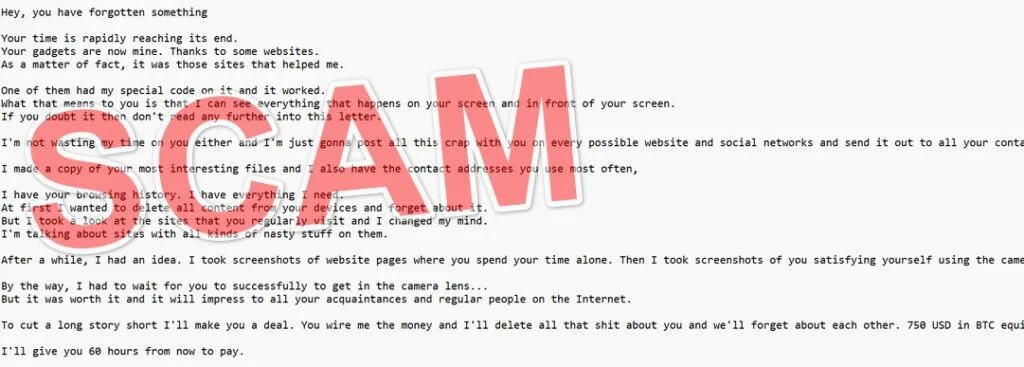
Here is what the email “Hey, You Have Forgotten Something” scam usually looks like:
Hey, you have forgotten something
Your time is rapidly reaching its end.
Your gadgets are now mine. Thanks to some websites.
As a matter of fact, it was those sites that helped me.One of them had my special code on it and it worked.
What that means to you is that I can see everything that happens on your screen and in front of your screen.
If you doubt it then don’t read any further into this letter.I’m not wasting my time on you either and I’m just gonna post all this crap with you on every possible website and social networks and send it out to all your contacts.
I made a copy of your most interesting files and I also have the contact addresses you use most often,
I have your browsing history. I have everything I need.
At first I wanted to delete all content from your devices and forget about it.
But I took a look at the sites that you regularly visit and I changed my mind.
I’m talking about sites with all kinds of nasty stuff on them.After a while, I had an idea. I took screenshots of website pages where you spend your time alone. Then I took screenshots of you satisfying yourself using the camera of one of your devices.
By the way, I had to wait for you to successfully to get in the camera lens…
But it was worth it and it will impress to all your acquaintances and regular people on the Internet.To cut a long story short I’ll make you a deal. You wire me the money and I’ll delete all that shit about you and we’ll forget about each other. 750 USD in BTC equivalent is fine with me. Send it to the wallet:
I’ll give you 60 hours from now to pay.
I told you what happens if you don’t pay, I don’t give a fuck, it’s up to you.
And don’t hold a grudge. Everybody’s got a job to do.
And one piece of advice from me for the future. Don’t leave your devices unattended.
However, it’s crucial to understand that these claims are false. The scammer has not actually gained access to the victim’s devices or personal information. Instead, they rely on social engineering techniques and publicly available data breaches to craft convincing emails that manipulate the victim’s emotions and coerce them into paying the ransom.
How the Scam Works
To fully grasp the mechanics of the “Hey, You Have Forgotten Something” email scam, let’s break down the step-by-step process:
Step 1: Acquiring Email Addresses and Personal Information
Scammers obtain email addresses and personal information through various means, such as data breaches, phishing attacks, or purchasing them on the dark web. They compile extensive lists of potential victims to target with their extortion emails.
Step 2: Crafting the Email
Using the acquired email addresses, the scammer composes a carefully worded email designed to instill fear and panic in the recipient. The email typically follows a similar structure:
- An attention-grabbing subject line like “Hey, you have forgotten something” or “Your time is up.”
- Claims of having installed malware on the victim’s device through a compromised website.
- Assertions of access to the victim’s screen activity, webcam footage, and sensitive files.
- Threats to expose compromising images or videos to the victim’s contacts and on social media.
- A ransom demand, usually in Bitcoin, with a strict payment deadline.
- A Bitcoin wallet address for the victim to send the payment.
To add authenticity, the scammer may include the victim’s actual password or a portion of it in the email. They may also reference specific adult websites or online activities to further intimidate the victim.
Step 3: Sending the Email
The scammer sends out the carefully crafted email to a large number of potential victims, hoping that a percentage of them will fall for the scam and pay the ransom out of fear and desperation.
Step 4: Collecting the Ransom
If a victim falls for the scam and sends the requested payment to the provided Bitcoin wallet address, the scammer collects the ransom. They may continue to monitor the wallet for additional payments from other victims.
Step 5: Disappearing
Once the scammer has collected the ransom, they typically disappear without fulfilling their promise to delete the alleged compromising material. The victim is left with a financial loss and the realization that they have been scammed.
It’s important to emphasize that the scammer’s claims are false. They have not actually gained access to the victim’s devices, screen activity, or webcam footage. The inclusion of the victim’s password or personal information in the email is often obtained from publicly available data breaches and is used to create an illusion of authenticity.
What to Do If You Have Fallen Victim to This Scam
If you have received an email similar to the “Hey, You Have Forgotten Something” scam, it’s essential to remain calm and take the following steps:
- Do not pay the ransom: Paying the scammer will only encourage them to continue their malicious activities and target more victims. There is no guarantee that they will delete any alleged compromising material, and they may even come back with additional demands.
- Report the email as spam: Mark the email as spam in your email client to help prevent future emails from the same sender from reaching your inbox.
- Change your passwords: Although the scammer’s claims are likely false, it’s a good practice to change your passwords for any online accounts associated with the email address that received the scam email. Use strong, unique passwords for each account and enable two-factor authentication whenever possible.
- Run a malware scan: While the scammer’s claims of installing malware on your device are usually unfounded, it’s still a good idea to run a thorough malware scan using reputable antivirus software to ensure your device is clean.
- Educate yourself and others: Share your experience with friends, family, and colleagues to raise awareness about this scam. Educate them on how to identify and handle such emails to prevent them from falling victim to similar schemes.
- Report the scam to authorities: If you have suffered a financial loss due to this scam, report it to your local law enforcement agency and the FBI’s Internet Crime Complaint Center (IC3). Provide as much information as possible, including the email, Bitcoin wallet address, and any other relevant details.
- Seek support: Falling victim to a scam can be emotionally distressing. If you feel overwhelmed or anxious, don’t hesitate to reach out to a trusted friend, family member, or mental health professional for support.
Is Your Device Infected? Run a Free Malware Scan
Slow performance, constant pop-ups, or strange behavior? These are classic signs of a malware infection. A quick way to check is to scan your device with Malwarebytes Free, one of the most trusted malware removal tools available. If you only visited a scam page and didn’t download or install anything, this scan is optional.
The free version detects and removes the most common threats, including:
- Adware — the cause of those annoying pop-ups
- Browser hijackers — unwanted redirects and changed homepages
- Trojans and spyware — hidden programs stealing your data
- Potentially unwanted programs (PUPs) — software you never asked for
👉 Select your device below — Windows, Mac, or Android — then follow the simple steps to download Malwarebytes, scan your system, and remove any threats it finds. The scan usually takes 5 to 20 minutes.
Run a Malware Scan with Malwarebytes for Windows
Malwarebytes is one of the most popular and trusted anti-malware tools for Windows — and it’s completely free for removing infections. It catches threats that many antivirus programs miss, including adware, browser hijackers, and trojans. Follow the steps below to scan your PC and remove what Malwarebytes finds.
Download Malwarebytes
Click the button below to download the latest version of Malwarebytes for Windows from the official source. The free version is all you need — it will scan your computer and remove adware, browser hijackers, and other malicious software at no cost.
Download MalwarebytesOfficial installer for Windows 11 and 10. Your download starts right away.Want real-time protection? See Malwarebytes Premium Malwarebytes Free for WindowsScans and removes malware at no cost
-
Install Malwarebytes
When the download finishes, open your Downloads folder and double-click the MBSetup file. If Windows shows a User Account Control pop-up, click “Yes” to allow the installation.

Follow the On-Screen Prompts to Install Malwarebytes
The setup wizard will walk you through a few quick screens:
-
Choose where you’re installing the program — “Personal Computer” or “Work Computer” — then click Next.

-
Malwarebytes will now install on your device. This usually takes under a minute.

-
When installation is complete, the “Welcome to Malwarebytes” screen will open automatically.

-
On the final screen, click Open Malwarebytes to launch the program.

-
Optional: Check for rootkits with a Custom Scan
You don’t need to change any settings for a normal scan. The standard Threat Scan in the next step is enough for most problems, so you can go straight to it.
If you also want to check for rootkits, use a Custom Scan. In current versions of Malwarebytes, rootkit scanning is only available there:
- On the Scanner tile, click the three-dot menu and select Advanced Scan.
- Choose Custom Scan. In its options, check Scan for rootkits.
- Select your system drive (usually C:\) as the location to scan, then start the scan. It takes longer than a Threat Scan.
- When it finishes, review and quarantine the results as described in the steps below.
Rootkit scanning isn’t available on Windows devices with ARM processors.
Start the Scan
Click the blue Scan button. Malwarebytes will automatically update its virus database and start checking your computer for malware.

-
Wait for the Scan to Finish
The scan checks your entire system for browser hijackers and other malicious programs, so it can take 5 to 20 minutes depending on your computer. Feel free to do something else — just check back occasionally to see the progress.

-
Quarantine the Detected Threats
When the scan is done, you’ll see a list of everything Malwarebytes found — malware, adware, and potentially unwanted programs. Click the “Quarantine” button to remove all of them at once.

Malwarebytes will now remove the malicious files and registry entries and move them safely into quarantine.

-
Restart Your Computer
Some threats can only be fully removed after a reboot. If Malwarebytes asks you to restart, click Yes. Once you’re logged back in, Malwarebytes has finished removing the threats it found.

When the scan is done, check whether the problems you noticed have stopped. If they continue, see the options below.
If you are still having problems with your computer after completing these instructions, then please follow one of the steps:
- Run a computer scan with ESET Online Scanner
- Ask for help in our Windows Malware Removal Help & Support forum.
Run a Malware Scan with Malwarebytes for Mac
Malwarebytes for Mac is a free on-demand scanner that removes the malware other security software tends to miss — adware, browser hijackers, and unwanted programs included. Cleaning an infected Mac with Malwarebytes has always been completely free, and it’s our go-to recommendation. Follow the steps below to scan your Mac and remove what Malwarebytes finds.
-
Download Malwarebytes for Mac
Click the button below to download the latest version of Malwarebytes for Mac.
Download MalwarebytesOfficial installer for macOS. Your download starts right away.Want real-time protection? See Malwarebytes PremiumMalwarebytes Free for MacScans and removes malware at no cost -
Open the Malwarebytes setup file
When the download finishes, open your Downloads folder and double-click the setup file to begin the installation.

-
Follow the On-Screen Prompts to Install Malwarebytes
The Malwarebytes for Mac Installer will guide you through a few quick screens. Click “Continue” and keep following the prompts until the installation completes.



When the installation is complete, Malwarebytes opens to the Welcome to Malwarebytes screen. Click “Get started“.
Malwarebytes needs Full Disk Access to check your whole Mac. When it asks, open System Settings > Privacy & Security > Full Disk Access, turn on Malwarebytes (it may be listed as Malwarebytes Protection), and confirm with your password or Touch ID. Then return to Malwarebytes. On macOS Monterey and earlier, this setting is in System Preferences > Security & Privacy > Privacy.
-
Select “Personal Computer” or “Work Computer”
Malwarebytes will ask what type of computer you’re installing it on. Click either Personal Computer or Work Computer, whichever applies.

-
Start the Scan
Click the “Scan” button. Malwarebytes will automatically update its detection database and begin checking your Mac for malware.

-
Wait for the Scan to Finish
Malwarebytes will scan your Mac for adware, browser hijackers, and other malicious programs. This can take a few minutes, so feel free to do something else — just check back occasionally to see the progress.

-
Quarantine the Detected Threats
When the scan is done, you’ll see a list of everything Malwarebytes found. Click the “Quarantine” button to remove all the threats at once.

-
Restart Your Mac
Malwarebytes will now remove all the malicious files it found. Some threats can only be fully removed after a reboot — if Malwarebytes asks you to restart, allow it. Once you’re logged back in, check whether the problems you noticed have stopped. If they come back, save the scan report and ask for help in our forum.

If the problems you noticed continue after the scan, see the options below.
If you are still experiencing problems while trying to remove a malicious program from your computer, please ask for help in our Mac Malware Removal Help & Support forum.
Run a Malware Scan with Malwarebytes for Android
Malwarebytes for Android scans your phone or tablet for malware, adware, and potentially unwanted apps. The free version scans only when you start a scan. Real-time protection, which checks apps automatically, is part of the paid Premium version.
-
Download Malwarebytes for Android.
You can download Malwarebytes for Android by clicking the link below.
Get Malwarebytes for AndroidOpens Google Play in a new tab.Want real-time protection? See Malwarebytes Premium for AndroidMalwarebytes for AndroidScans your phone and removes malware at no cost -
Install Malwarebytes for Android on your phone.
In the Google Play Store, tap “Install” to install Malwarebytes for Android on your device.

When the installation process has finished, tap “Open” to begin using Malwarebytes for Android. You can also open Malwarebytes by tapping on its icon in your phone menu or home screen.

-
Follow the on-screen prompts to complete the setup process
When Malwarebytes opens, it walks you through a short setup. Tap Get started and follow the prompts. If you see an offer for a trial or a paid plan, read it before you accept. You can skip it and keep using the free scanner.
Malwarebytes will ask for permission to access the files on your phone so it can scan them. Tap Allow, or turn on the permission in the Android screen that opens, then return to Malwarebytes.
-
Run a scan with Malwarebytes for Android
On the main screen, tap Scan now. In some versions, you open the menu, tap Scanner, and then tap Run a scan.
-
Wait for the Malwarebytes scan to complete.
Malwarebytes will now start scanning your phone for adware and other malicious apps. This process can take a few minutes, so we suggest you do something else and periodically check on the status of the scan to see when it is finished.

-
Remove the detected apps.
When the scan has been completed, you will see a list of the threats that Malwarebytes for Android has detected. Next to each detected item, tap the menu icon (three dots), then choose to uninstall the app or delete the file. Android then asks you to confirm. Tap OK or Uninstall to remove the app.
-
Restart your phone.
When the detected apps are removed, restart your phone if Malwarebytes asks you to. Then check whether the problems you noticed have stopped.
If the problems you noticed continue after the scan, see the options below.
If you are still having problems with your phone after completing these instructions, then please follow one of the steps:
- Ask for help in our Mobile Malware Removal Help & Support forum.
- Only as a last resort, reset your phone to factory settings. Read the warning below first.
- Back up your photos, videos, files, and messages, for example to your Google account or a computer.
- Make sure you know your Google account email and password. The phone asks for them after the reset. If you changed the password recently, Google recommends waiting 24 hours before you reset.
- On a Samsung phone, also make sure you know your Samsung account password.
- If you use an authenticator app for two-step verification, move your accounts to another device or save your backup codes first.
Stay Protected: Block Ads and Malicious Sites
No scan can prove a device is completely clean, so it helps to block threats before they reach you. Most infections start with a malicious ad or a fake download button — so blocking them at the source is your best defense.
We recommend AdGuard, which blocks malicious ads, phishing pages, and dangerous redirects before they can reach you.
👉 Download AdGuard and browse safely
Frequently Asked Questions about the “Hey, You Have Forgotten Something” Email Scam
Q1. What is the “Hey, You Have Forgotten Something” email scam?
The “Hey, You Have Forgotten Something” email scam is a type of cyber extortion where the scammer sends an email claiming to have hacked your electronic devices, accessed your sensitive information, and recorded compromising videos of you. The scammer threatens to expose this information unless you pay a ransom, usually in Bitcoin.
Q2. How do I know if I’ve received a “Hey, You Have Forgotten Something” scam email?
These scam emails typically have a subject line similar to “Hey, you have forgotten something” or “Your time is up.” The email may contain personal information like your password or mentions of adult websites you’ve allegedly visited. It will demand a ransom payment in Bitcoin within a specified timeframe.
Q3. Has the scammer really hacked my devices and accessed my information?
In most cases, no. Scammers use social engineering techniques and information from data breaches to craft convincing emails. They have not actually hacked your devices or recorded any compromising videos. The personal information mentioned in the email is usually obtained from publicly available data breaches.
Q4. Should I pay the ransom demanded in the email?
No, you should never pay the ransom. Paying the scammer will only encourage them to continue their malicious activities and target more victims. There is no guarantee that they will delete any alleged compromising material, and they may even come back with additional demands.
Q5. What should I do if I receive a “Hey, You Have Forgotten Something” scam email?
If you receive this scam email, do not panic or engage with the scammer. Mark the email as spam, change your passwords for any online accounts associated with the email address, and run a malware scan on your devices. If you have suffered financial loss, report the scam to your local law enforcement and the FBI’s Internet Crime Complaint Center (IC3).
Q6. How can I protect myself from falling victim to this scam?
To protect yourself from the “Hey, You Have Forgotten Something” scam, be cautious when opening emails from unknown senders. Enable two-factor authentication on your accounts, use strong and unique passwords, and keep your software and antivirus programs up to date. Educate yourself about common online scams and be wary of any unsolicited emails demanding payment or threatening to expose personal information.
Q7. What should I do if I’m feeling anxious or distressed after receiving this scam email?
Receiving a cyber extortion email can be emotionally distressing. If you feel overwhelmed or anxious, reach out to a trusted friend, family member, or mental health professional for support. Remember that you are not alone, and there are resources available to help you cope with the situation.
Q8. Can I trace the scammer behind the “Hey, You Have Forgotten Something” email?
Tracing the scammer can be difficult, as they often use anonymity tools and cryptocurrencies to cover their tracks. However, by reporting the scam to the appropriate authorities and providing them with the email, Bitcoin wallet address, and any other relevant information, you can aid in their investigations and potentially help prevent others from falling victim to the same scam.
The Bottom Line
The “Hey, You Have Forgotten Something” email scam is a disturbing example of how cybercriminals exploit human emotions for financial gain. By understanding the mechanics of this scam and taking proactive measures to protect yourself, you can minimize the risk of falling victim to such schemes.
Remember, the scammer’s claims are false, and paying the ransom will only perpetuate their malicious activities. If you receive an email similar to this scam, do not engage with the scammer or send any payments. Instead, report the email, change your passwords, run a malware scan, and educate others about the dangers of cyber extortion.
By staying informed, vigilant, and proactive, we can collectively combat these scams and create a safer online environment for everyone. Don’t let fear and intimidation control your actions. Stand firm, seek support, and take the necessary steps to protect yourself and your digital well-being.

Join the discussion
0 commentsShare your experience or ask a question about this article.
Discussion
Start the conversation
Have a question or something useful to share? Add the first comment.