


Imagine checking your inbox one morning and finding an email that sends shivers down your spine. The subject line reads, “Hey, you have forgotten something,” and the message claims that your gadgets are now in the hands of a malicious hacker. This is the reality for many victims of the “Your Gadgets Are Now Mine” email scam, a scheme designed to extort money through fear and intimidation.
Scam Overview
The “Your Gadgets Are Now Mine” scam is a type of sextortion email scam that has been circulating in recent months. Victims receive an unsoliciting email claiming that the sender has gained access to their gadgets, including their webcam and screen, through a “special code” embedded on certain websites. The scammer alleges to have captured compromising footage of the victim engaging in private acts and threatens to release this content to the victim’s contacts and on social media unless a ransom is paid, typically in Bitcoin.
What sets this scam apart is the level of detail and personalization in the emails. Scammers often include the victim’s actual password or a portion of it to add credibility to their claims. They may also mention specific websites the victim has visited, further heightening the sense of alarm and vulnerability. The language used is designed to instill fear and shame, preying on the victim’s worst nightmares of exposure and humiliation.
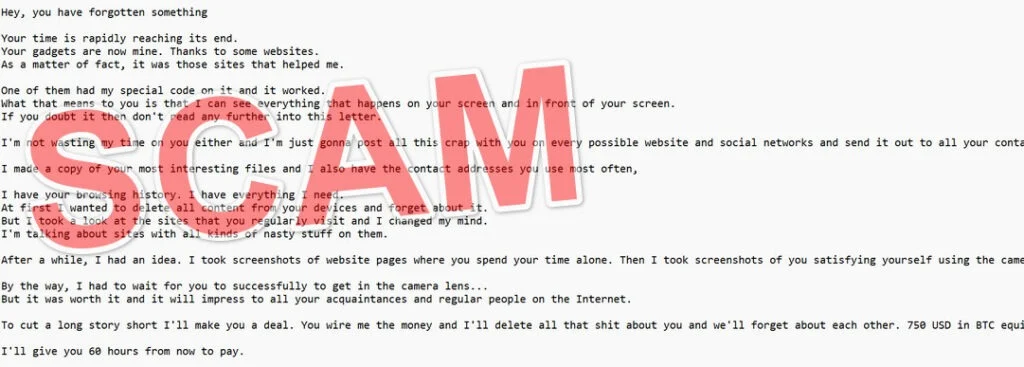
Here is what the “Your Gadgets Are Now Mine” scam reads:
Hey, you have forgotten something
Your time is rapidly reaching its end.
Your gadgets are now mine. Thanks to some websites.
As a matter of fact, it was those sites that helped me.One of them had my special code on it and it worked.
What that means to you is that I can see everything that happens on your screen and in front of your screen.
If you doubt it then don’t read any further into this letter.I’m not wasting my time on you either and I’m just gonna post all this crap with you on every possible website and social networks and send it out to all your contacts.
I made a copy of your most interesting files and I also have the contact addresses you use most often,
I have your browsing history. I have everything I need.
At first I wanted to delete all content from your devices and forget about it.
But I took a look at the sites that you regularly visit and I changed my mind.
I’m talking about sites with all kinds of nasty stuff on them.After a while, I had an idea. I took screenshots of website pages where you spend your time alone. Then I took screenshots of you satisfying yourself using the camera of one of your devices.
By the way, I had to wait for you to successfully to get in the camera lens…
But it was worth it and it will impress to all your acquaintances and regular people on the Internet.To cut a long story short I’ll make you a deal. You wire me the money and I’ll delete all that shit about you and we’ll forget about each other. 750 USD in BTC equivalent is fine with me. Send it to the wallet:
I’ll give you 60 hours from now to pay.
I told you what happens if you don’t pay, I don’t give a fuck, it’s up to you.
And don’t hold a grudge. Everybody’s got a job to do.
And one piece of advice from me for the future. Don’t leave your devices unattended.
Despite the convincing tactics, it’s important to note that these claims are always false. Scammers obtain victims’ information through data breaches and leaks, not by hacking individual devices. The goal is to manipulate victims into paying the ransom out of desperation and panic.
How The Scam Works
The “Your Gadgets Are Now Mine” scam follows a typical pattern designed to pressure victims into complying with the scammer’s demands:
Step 1: The Initial Email
Victims receive an unsolicited email with an attention-grabbing subject line, often implying that they have forgotten something important. The message body begins with bold claims that the sender has gained control of the victim’s gadgets and has been monitoring their activities.
Step 2: Proof of “Hacking”
To lend credibility to their claims, scammers often include personal details about the victim, such as an old password or a portion of it. They may also mention specific adult websites the victim has allegedly visited. This information is usually obtained through data breaches, not actual hacking.
Step 3: The Threat
The scammer then presents their threat: pay a ransom or have compromising content released to the victim’s contacts and posted online. They claim to have captured footage of the victim through their webcam engaging in intimate acts and taken screenshots of their browsing history on adult websites. The scammer gives a deadline, typically 48-72 hours, for the victim to comply.
Step 4: The Ransom Demand
The ransom amount varies but is usually demanded in cryptocurrency, most often Bitcoin. Scammers provide a Bitcoin wallet address where the funds should be sent. They warn against non-compliance, stating that failure to pay will result in the victim’s sensitive content being distributed.
Step 5: Aftermath
If the victim pays the ransom, the scammer may simply disappear with the funds. In some cases, they may demand additional payments, knowing they have a compliant victim. If the victim doesn’t pay, the scammer usually moves on to other targets, as following through with their threats would be time-consuming and risky.
What to Do If You’ve Fallen Victim to This Scam
If you’ve received a “Your Gadgets Are Now Mine” scam email, take the following steps:
- Don’t panic. Remember that these threats are almost always false. Scammers rely on fear to cloud your judgment.
- Do not reply to the email or engage with the scammer in any way. This will only encourage them and may escalate the situation.
- Do not pay the ransom. There’s no guarantee the scammer will delete your content, and it may open you up to future extortion attempts.
- Change your passwords immediately, especially if the scammer included an old or current password in their email. Use strong, unique passwords for each account.
- Run a virus scan on your devices to check for any malware or spyware. The scammer likely doesn’t have access to your gadgets, but it’s always a good precaution.
- Enable two-factor authentication (2FA) on all your accounts that offer it. This adds an extra layer of security to prevent unauthorized access.
- Report the scam email to your email provider and mark it as spam. This helps email filters better identify and block these types of scams in the future.
- If you’re feeling distressed or anxious, reach out to a trusted friend, family member, or mental health professional for support. Being targeted by a scam can be emotionally taxing.
Is Your Device Infected? Run a Free Malware Scan
Slow performance, constant pop-ups, or strange behavior? These are classic signs of a malware infection. A quick way to check is to scan your device with Malwarebytes Free, one of the most trusted malware removal tools available. If you only visited a scam page and didn’t download or install anything, this scan is optional.
The free version detects and removes the most common threats, including:
- Adware — the cause of those annoying pop-ups
- Browser hijackers — unwanted redirects and changed homepages
- Trojans and spyware — hidden programs stealing your data
- Potentially unwanted programs (PUPs) — software you never asked for
👉 Select your device below — Windows, Mac, or Android — then follow the simple steps to download Malwarebytes, scan your system, and remove any threats it finds. The scan usually takes 5 to 20 minutes.
Run a Malware Scan with Malwarebytes for Windows
Malwarebytes is one of the most popular and trusted anti-malware tools for Windows — and it’s completely free for removing infections. It catches threats that many antivirus programs miss, including adware, browser hijackers, and trojans. Follow the steps below to scan your PC and remove what Malwarebytes finds.
Download Malwarebytes
Click the button below to download the latest version of Malwarebytes for Windows from the official source. The free version is all you need — it will scan your computer and remove adware, browser hijackers, and other malicious software at no cost.
Download MalwarebytesOfficial installer for Windows 11 and 10. Your download starts right away.Want real-time protection? See Malwarebytes Premium Malwarebytes Free for WindowsScans and removes malware at no cost
-
Install Malwarebytes
When the download finishes, open your Downloads folder and double-click the MBSetup file. If Windows shows a User Account Control pop-up, click “Yes” to allow the installation.

Follow the On-Screen Prompts to Install Malwarebytes
The setup wizard will walk you through a few quick screens:
-
Choose where you’re installing the program — “Personal Computer” or “Work Computer” — then click Next.

-
Malwarebytes will now install on your device. This usually takes under a minute.

-
When installation is complete, the “Welcome to Malwarebytes” screen will open automatically.

-
On the final screen, click Open Malwarebytes to launch the program.

-
Optional: Check for rootkits with a Custom Scan
You don’t need to change any settings for a normal scan. The standard Threat Scan in the next step is enough for most problems, so you can go straight to it.
If you also want to check for rootkits, use a Custom Scan. In current versions of Malwarebytes, rootkit scanning is only available there:
- On the Scanner tile, click the three-dot menu and select Advanced Scan.
- Choose Custom Scan. In its options, check Scan for rootkits.
- Select your system drive (usually C:\) as the location to scan, then start the scan. It takes longer than a Threat Scan.
- When it finishes, review and quarantine the results as described in the steps below.
Rootkit scanning isn’t available on Windows devices with ARM processors.
Start the Scan
Click the blue Scan button. Malwarebytes will automatically update its virus database and start checking your computer for malware.

-
Wait for the Scan to Finish
The scan checks your entire system for browser hijackers and other malicious programs, so it can take 5 to 20 minutes depending on your computer. Feel free to do something else — just check back occasionally to see the progress.

-
Quarantine the Detected Threats
When the scan is done, you’ll see a list of everything Malwarebytes found — malware, adware, and potentially unwanted programs. Click the “Quarantine” button to remove all of them at once.

Malwarebytes will now remove the malicious files and registry entries and move them safely into quarantine.

-
Restart Your Computer
Some threats can only be fully removed after a reboot. If Malwarebytes asks you to restart, click Yes. Once you’re logged back in, Malwarebytes has finished removing the threats it found.

When the scan is done, check whether the problems you noticed have stopped. If they continue, see the options below.
If you are still having problems with your computer after completing these instructions, then please follow one of the steps:
- Run a computer scan with ESET Online Scanner
- Ask for help in our Windows Malware Removal Help & Support forum.
Run a Malware Scan with Malwarebytes for Mac
Malwarebytes for Mac is a free on-demand scanner that removes the malware other security software tends to miss — adware, browser hijackers, and unwanted programs included. Cleaning an infected Mac with Malwarebytes has always been completely free, and it’s our go-to recommendation. Follow the steps below to scan your Mac and remove what Malwarebytes finds.
-
Download Malwarebytes for Mac
Click the button below to download the latest version of Malwarebytes for Mac.
Download MalwarebytesOfficial installer for macOS. Your download starts right away.Want real-time protection? See Malwarebytes PremiumMalwarebytes Free for MacScans and removes malware at no cost -
Open the Malwarebytes setup file
When the download finishes, open your Downloads folder and double-click the setup file to begin the installation.

-
Follow the On-Screen Prompts to Install Malwarebytes
The Malwarebytes for Mac Installer will guide you through a few quick screens. Click “Continue” and keep following the prompts until the installation completes.



When the installation is complete, Malwarebytes opens to the Welcome to Malwarebytes screen. Click “Get started“.
Malwarebytes needs Full Disk Access to check your whole Mac. When it asks, open System Settings > Privacy & Security > Full Disk Access, turn on Malwarebytes (it may be listed as Malwarebytes Protection), and confirm with your password or Touch ID. Then return to Malwarebytes. On macOS Monterey and earlier, this setting is in System Preferences > Security & Privacy > Privacy.
-
Select “Personal Computer” or “Work Computer”
Malwarebytes will ask what type of computer you’re installing it on. Click either Personal Computer or Work Computer, whichever applies.

-
Start the Scan
Click the “Scan” button. Malwarebytes will automatically update its detection database and begin checking your Mac for malware.

-
Wait for the Scan to Finish
Malwarebytes will scan your Mac for adware, browser hijackers, and other malicious programs. This can take a few minutes, so feel free to do something else — just check back occasionally to see the progress.

-
Quarantine the Detected Threats
When the scan is done, you’ll see a list of everything Malwarebytes found. Click the “Quarantine” button to remove all the threats at once.

-
Restart Your Mac
Malwarebytes will now remove all the malicious files it found. Some threats can only be fully removed after a reboot — if Malwarebytes asks you to restart, allow it. Once you’re logged back in, check whether the problems you noticed have stopped. If they come back, save the scan report and ask for help in our forum.

If the problems you noticed continue after the scan, see the options below.
If you are still experiencing problems while trying to remove a malicious program from your computer, please ask for help in our Mac Malware Removal Help & Support forum.
Run a Malware Scan with Malwarebytes for Android
Malwarebytes for Android scans your phone or tablet for malware, adware, and potentially unwanted apps. The free version scans only when you start a scan. Real-time protection, which checks apps automatically, is part of the paid Premium version.
-
Download Malwarebytes for Android.
You can download Malwarebytes for Android by clicking the link below.
Get Malwarebytes for AndroidOpens Google Play in a new tab.Want real-time protection? See Malwarebytes Premium for AndroidMalwarebytes for AndroidScans your phone and removes malware at no cost -
Install Malwarebytes for Android on your phone.
In the Google Play Store, tap “Install” to install Malwarebytes for Android on your device.

When the installation process has finished, tap “Open” to begin using Malwarebytes for Android. You can also open Malwarebytes by tapping on its icon in your phone menu or home screen.

-
Follow the on-screen prompts to complete the setup process
When Malwarebytes opens, it walks you through a short setup. Tap Get started and follow the prompts. If you see an offer for a trial or a paid plan, read it before you accept. You can skip it and keep using the free scanner.
Malwarebytes will ask for permission to access the files on your phone so it can scan them. Tap Allow, or turn on the permission in the Android screen that opens, then return to Malwarebytes.
-
Run a scan with Malwarebytes for Android
On the main screen, tap Scan now. In some versions, you open the menu, tap Scanner, and then tap Run a scan.
-
Wait for the Malwarebytes scan to complete.
Malwarebytes will now start scanning your phone for adware and other malicious apps. This process can take a few minutes, so we suggest you do something else and periodically check on the status of the scan to see when it is finished.

-
Remove the detected apps.
When the scan has been completed, you will see a list of the threats that Malwarebytes for Android has detected. Next to each detected item, tap the menu icon (three dots), then choose to uninstall the app or delete the file. Android then asks you to confirm. Tap OK or Uninstall to remove the app.
-
Restart your phone.
When the detected apps are removed, restart your phone if Malwarebytes asks you to. Then check whether the problems you noticed have stopped.
If the problems you noticed continue after the scan, see the options below.
If you are still having problems with your phone after completing these instructions, then please follow one of the steps:
- Ask for help in our Mobile Malware Removal Help & Support forum.
- Only as a last resort, reset your phone to factory settings. Read the warning below first.
- Back up your photos, videos, files, and messages, for example to your Google account or a computer.
- Make sure you know your Google account email and password. The phone asks for them after the reset. If you changed the password recently, Google recommends waiting 24 hours before you reset.
- On a Samsung phone, also make sure you know your Samsung account password.
- If you use an authenticator app for two-step verification, move your accounts to another device or save your backup codes first.
Stay Protected: Block Ads and Malicious Sites
No scan can prove a device is completely clean, so it helps to block threats before they reach you. Most infections start with a malicious ad or a fake download button — so blocking them at the source is your best defense.
We recommend AdGuard, which blocks malicious ads, phishing pages, and dangerous redirects before they can reach you.
👉 Download AdGuard and browse safely
Frequently Asked Questions About the “Your Gadgets Are Now Mine” Scam
Q1: What is the “Your Gadgets Are Now Mine” scam?
A: The “Your Gadgets Are Now Mine” scam is a type of sextortion email scheme where scammers claim to have hacked your devices, recorded compromising footage of you, and threaten to release it unless you pay a ransom in Bitcoin.
Q2: How do scammers claim to have accessed my devices?
A: Scammers falsely claim to have gained access to your gadgets through a “special code” embedded on adult websites you’ve allegedly visited. They say this code allowed them to hack your webcam and screen, but in reality, they don’t have access to your devices.
Q3: Why does the scammer’s email include my password?
A: Scammers often include an old or current password in the email to make their claims seem more credible. However, they obtain these passwords through data breaches and leaks, not by hacking your devices. Seeing your password in the email can be alarming, but it doesn’t mean they have access to your gadgets or accounts.
Q4: What kind of compromising footage do scammers claim to have?
A: Scammers typically claim to have recorded you engaging in intimate acts through your webcam while visiting adult websites. They may say they have screenshots of your screen during these visits. However, these claims are almost always false, and scammers don’t actually have such footage.
Q5: What do scammers threaten to do with the alleged footage?
A: Scammers threaten to send the compromising footage and screenshots to your contacts, family, friends, and colleagues, as well as post it on social media and adult websites. They use this threat of public humiliation to pressure you into paying the ransom.
Q6: How much do scammers demand in ransom, and how do they want to be paid?
A: The ransom amount varies but is usually between $500 and $2000. Scammers typically demand payment in Bitcoin or other cryptocurrencies, as these transactions are harder to trace. They provide a Bitcoin wallet address where they want the funds sent.
Q7: What happens if I pay the ransom?
A: There’s no guarantee that scammers will delete the alleged footage even if you pay. They may disappear with your money, or they might demand additional payments since they know you’re willing to comply. Paying the ransom only identifies you as a target for future scams.
Q8: What should I do if I receive a “Your Gadgets Are Now Mine” scam email?
A: If you receive this scam email, don’t panic or engage with the scammer. Do not reply to the email or pay the ransom. Instead, mark the email as spam, change your passwords, enable two-factor authentication on your accounts, and run a virus scan on your devices to check for malware.
Q9: How can I protect myself from falling victim to sextortion scams like this?
A: To protect yourself from sextortion scams, be cautious about what personal information you share online, use strong and unique passwords for each account, enable two-factor authentication, and keep your devices’ security software up to date. Educate yourself about common online scams and trust your instincts if an email seems suspicious.
Q10: What should I do if I’m feeling distressed or anxious after receiving a scam email?
A: Being targeted by a sextortion scam can be incredibly stressful and emotionally taxing. If you’re feeling overwhelmed, anxious, or distressed, reach out to a trusted friend, family member, or mental health professional for support. Remember, you’re not alone, and there are resources available to help you cope with the aftermath of a scam attempt.
The Bottom Line
The “Your Gadgets Are Now Mine” scam is a particularly sinister email scheme that preys on victims’ deepest fears and insecurities. By claiming to have access to intimate footage and browsing history, scammers aim to manipulate victims into paying a ransom to avoid public humiliation. However, it’s crucial to remember that these threats are empty, and engaging with the scammer will only make matters worse.
If you find yourself targeted by this scam, stay calm and follow the steps outlined above. Change your passwords, enable 2FA, and report the email as spam. Most importantly, don’t let fear control your actions. Scammers thrive on panic and rash decisions, so taking a moment to breathe and think rationally is your best defense.
As our digital lives become increasingly intertwined, it’s more important than ever to stay vigilant against online threats. Educating yourself about common scams, maintaining strong cybersecurity practices, and being cautious about what information you share online can help protect you from falling victim to schemes like “Your Gadgets Are Now Mine.”
Remember, your gadgets are yours, and no scammer can take that away from you. Stay informed, stay secure, and stay one step ahead of those who seek to exploit your fears.

Join the discussion
0 commentsShare your experience or ask a question about this article.
Discussion
Start the conversation
Have a question or something useful to share? Add the first comment.