


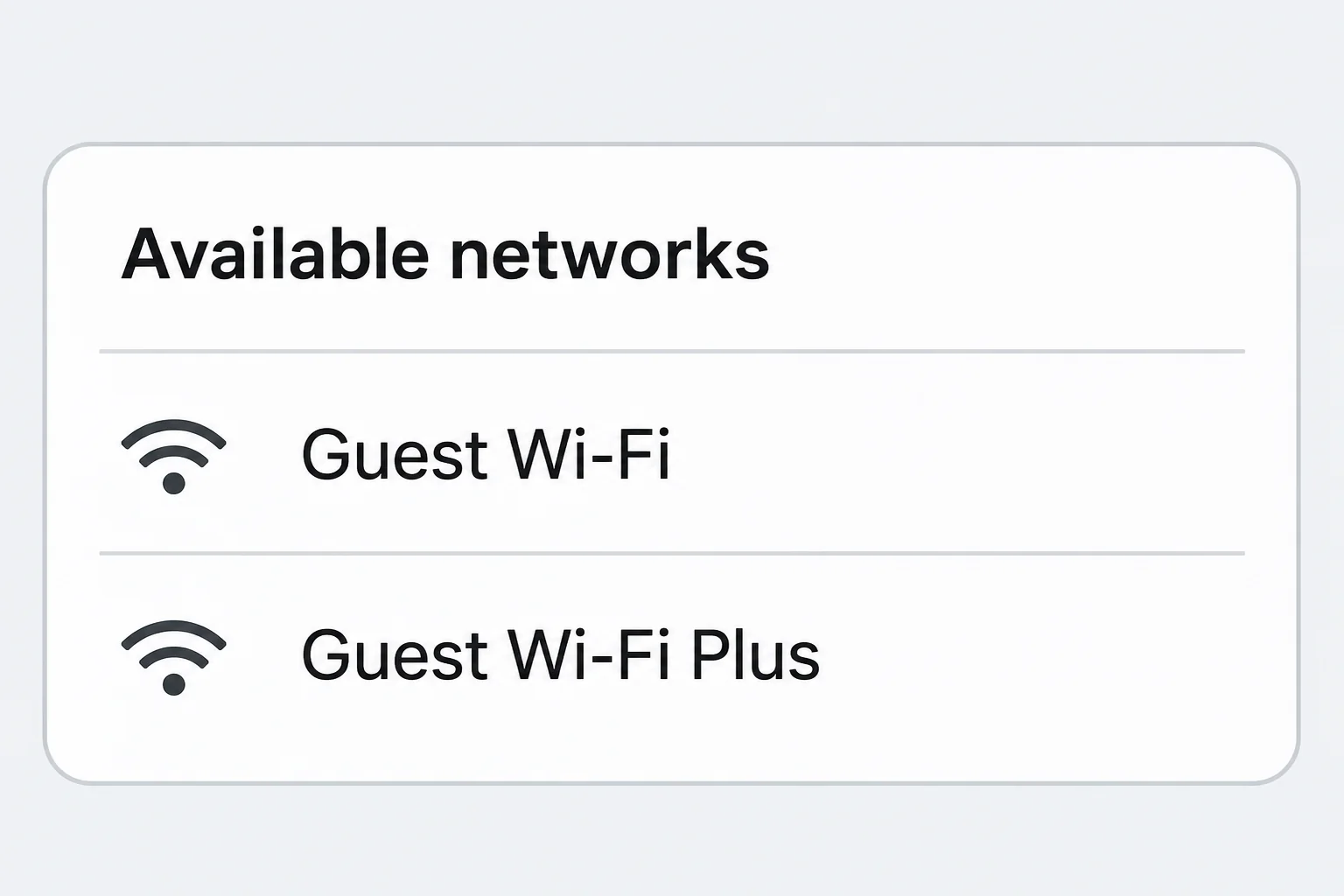
Your hotel says the lobby has guest Wi-Fi, but the network list shows two nearly identical names. Once you pick one, a sign-in screen wants information you didn’t expect.
Hotel Wi-Fi sign-in can legitimately use a portal. Check what the hotel told you to expect before you decide which screen to trust.
Overview
Verify the network name and the sign-in request separately
Ask hotel staff for the exact guest network name and what the login should ask for.
An extra word, space, or symbol is a reason to check, not proof of fraud.
Some hotels provide different names for conference spaces, guest rooms, or a paid tier. Don’t guess which one belongs to your booking based on a familiar-looking logo.
Even a matching name isn’t proof of ownership. If the portal behaves differently from what staff describe, stop and verify it through the desk or a trusted contact route.
A captive portal can be ordinary
A captive portal is the screen a network shows before it will give you internet access. Hotels may use it to display terms or verify that you’re a guest.
Apple’s guide to captive Wi-Fi documents that iPhones and iPads can open a separate join screen after you choose the network. Seeing that screen doesn’t establish anything malicious.
Read the request before you provide anything. A hotel-issued access code isn’t your email password, payment card number, or employer’s login.
HTTPS protects a connection, not the identity you assumed
Encryption protects content traveling to the site you reached. It doesn’t mean the site is the one you meant to trust or that a form asking for data is reasonable.
A browser certificate warning on a site you normally trust is a reason to stop. Don’t proceed through it just because the hotel says its network is open.
- Get the network and portal details through a trusted hotel contact.
- Use the expected guest sign-in, not a login for a separate service.
- Leave unexplained certificate errors, software requests, and payment prompts unapproved.
- Use mobile data or another trusted connection when you can’t resolve the discrepancy.
What to Do When Hotel Wi-Fi Asks You to Sign In
- Compare the displayed network name with instructions from the desk or your verified hotel app. Don’t use a link or phone number supplied by a suspicious portal.
- Join the expected network through your device’s Wi-Fi settings. Check whether the welcome screen asks for what the hotel described before typing anything.
- Close the screen if it asks for unrelated credentials, a card, a certificate, or an install. Confirm that request separately without bypassing security warnings.
- If you can’t verify the network or are about to do something sensitive, disconnect and use trusted mobile data when available. Follow your organization’s policy on managed devices.
- After your stay, remove the saved guest network or turn off automatic joining. If you already shared information, contact the affected provider through its normal channel.
Get more from the front desk than the network name
Ask what the hotel asks guests to enter, whether a room charge applies, and whether the login is on a separate provider’s page. Those details help check what you see.
If you’re at a conference, verify whether the event has its own connection. A hotel network may be genuine while still not being the one covered by your event access.
If staff describe a room number and guest name, that doesn’t authorize unrelated information. Ask how to enroll if the screen instead asks you to sign into a personal account.
Check fee information through the hotel rather than trusting an unfamiliar checkout that appeared after you joined. If a paid option is real, the desk can explain the price.
Read the first request before opening sensitive apps
If the system opens a welcome page, give it a moment to load and compare the request with what staff told you. Cancel if you can’t verify the connection.
A portal can time out and ask you to accept terms again. A repeat doesn’t make a surprise software installation or request for a third-party password more credible.
Use a normal trusted bookmark or app for banking or work after the network is connected. Don’t open these accounts through the portal’s links, even if the button looks familiar.
If the login screen never appears, ask staff how guests should reach it. Don’t install a tool from a search result promising to unlock the hotel’s internet.
Leave certificate and installation prompts alone
Chrome’s connection-error guidance notes that a portal can be involved in a connection error. That is a reason to check the portal, not ignore an HTTPS warning.
If the hotel confirms a portal but a known secure site still shows an error, use another connection for that site. Ask the hotel to resolve the guest network issue.
An ordinary guest connection should not require you to weaken browser security. A custom certificate, system profile, or installer deserves independent verification, especially on a managed device.
A page claiming you must install a browser update to connect is a separate warning sign. See the hotel Wi-Fi fake update case for that specific deception.
What a Normal Connection Does and Does Not Protect
A network password and website encryption are not substitutes
A hotel can publish a Wi-Fi password or attach access to a room.
That controls entry to the network; it doesn’t establish what a website does with the information you send.
The FTC’s public Wi-Fi guidance explains why widespread encryption makes ordinary public Wi-Fi safer than it used to be. It also warns that a deceptive website can use HTTPS.
The hotel portal might have a legitimate provider that uses a different address. If you didn’t expect that provider, confirm it with the hotel before entering information.
Don’t interpret a lock or secure connection as a testimonial about a page. It only helps protect the connection to that destination, which could still be the wrong one.
Private browsing does not change which network you joined
An Incognito window doesn’t verify that the hotspot belongs to the hotel or fix a certificate warning. It mainly affects what that browser session leaves behind on the device.
Some network activity can still be visible to the network operator, depending on how you connect. Avoid assuming the operator sees all encrypted page contents or sees nothing at all.
A VPN approved by your organization can protect traffic sent through its tunnel.
It doesn’t verify a login form, and it won’t undo a password you typed into the wrong page.
If your VPN doesn’t connect until after the guest login, use the verified portal procedure first. Don’t disable a required work VPN to get around a connection problem.
Match the Response to What You Actually Did
If you only opened or joined the network
Disconnect if you don’t recognize the network, then remove its saved entry if your device offers that option. Check that you’re connected to the replacement you intended to use.
Merely seeing a suspicious portal doesn’t establish that your account was taken over. Think about whether you actually entered credentials, approved a settings change, or downloaded anything.
If all you did was cancel the screen, don’t send your account details to anyone claiming to check it. Use hotel support for the connection question.
If you shared credentials or authorized a payment
Use a trusted connection to reach the affected service through its official site or app. Explain what you entered rather than describing it broadly as a hotel Wi-Fi problem.
If you submitted an email or work password, secure that account and review unrecognized sessions through the provider. If it’s an organization account, report through its normal security channel.
If you entered payment information into an unexpected form, contact the card issuer using the number you already trust. Keep any transaction receipt and the time of the incident.
Avoid reopening the questionable page to collect more details. A private note of the network name, approximate time and requested information can help without repeating the exposure.
If a network tries to reconnect after you leave
Apple documents separate controls for joining a network automatically and for automatic captive login. Check the option that matches your concern rather than assuming stopping one stops both.
On other systems, look for the saved network entry and the option to forget it. That controls your device’s future behavior, not who operates the nearby network.
If you travel often, review saved guest networks before your next trip. A list full of old networks makes it harder to notice which one your device selected.
Prepare a Connection You Can Use Without Guessing
Keep Windows on a public network profile
Microsoft’s Windows network settings say Windows 11 uses a public profile by default for a new network. Keep that setting on a guest network unless your administrator directs otherwise.
The Private network profile supports discovery and sharing with nearby devices. That can make sense at home, but hotel access doesn’t give you a reason to share a folder there.
Find the connection in Network & internet settings and inspect its properties if you’re unsure. A Public profile selection is a Windows choice, not a verdict about the hotel’s operator.
If someone suggests switching to Private to make the guest page work, ask how that would solve the login. Don’t change discovery settings to fix a portal you haven’t verified.
Make a fallback before traveling
Save the hotel’s official contact details and confirmation somewhere you can open offline. You can ask how to connect without searching for a support number from an unfamiliar network.
If your usual data plan doesn’t work at the destination, ask about an approved alternative before you need it.
A known fallback makes it easier to walk away from a questionable login.
Keep a short list of work activities that require an organization-approved connection.
A failed guest sign-in doesn’t justify changing a required VPN or uploading a confidential file through a different tool.
If you only need maps or a booking reference after arrival, store the necessary material before leaving.
There is no reason to approve an unexpected access request just to see your itinerary.
When several people in your group are joining, pass along the hotel’s verified instructions rather than a screenshot of whatever portal appears first.
That keeps the check tied to the right source.
A connection that was legitimate yesterday might have a different guest procedure at another property.
Confirm the instructions for the exact location instead of trusting a name from a previous hotel.
Use a known route for important reservations if you have to move between networks. A sign-in screen that looks like a booking site doesn’t need your booking-site password.
If the hotel confirms that a card is needed for paid access, ask if you can authorize the charge through the desk. You’ll have a clearer record and amount.
Treat a working web page as a connection check, not a security certification. The hotel can tell you whether your guest sign-in is expected; it can’t vouch for every site.
Frequently Asked Questions
Is a hotel Wi-Fi sign-in screen always suspicious?
No, a captive portal is a normal way to accept terms or sign into a guest network. Verify that the network and requested information match the hotel’s instructions.
If it requests a separate account password or a download you didn’t expect, close it. Confirm the request using a trusted contact method before trying again.
Does a password make a guest hotspot legitimate?
A password can restrict access but doesn’t independently establish who operates the network. Ask for the exact network details before you join, especially when similar names appear.
Check the portal too if one opens. A familiar network name shouldn’t outweigh a request that doesn’t match what the hotel described.
What if Chrome says my connection isn’t private before I can sign in?
A captive portal can be involved, but don’t continue through a warning on a sensitive website. Verify you joined the right network and use the hotel’s documented sign-in procedure.
If the warning persists on a trusted site, use a different connection. Don’t install a certificate from an unexpected page to make the warning disappear.
Can I use Incognito instead of mobile data?
Incognito doesn’t verify a hotspot or encrypt an otherwise unprotected website connection. It changes what the browser saves after a private session, not the network you’re using.
Use trusted mobile data if the guest network isn’t verified. Keep checking the site identity regardless of which connection you choose.
Should I trust a hotel portal that asks for payment?
Some services charge, but an unexpected payment page needs a separate check. Confirm the charge, provider and approved payment method with the hotel before submitting a card.
If the hotel says the service is included, don’t pay the form. Use the access procedure the hotel confirms.
Do I need to change every password if I joined the wrong network?
Joining alone doesn’t establish that someone acquired every password. Identify the information you actually entered and any unexpected activity before taking action.
If you sent a credential to a suspicious form, secure the affected account over a trusted connection. Review other accounts if that password was reused.
The Bottom Line
Verify the exact guest network and its expected login before entering anything. Use another connection when the portal asks for information or software the hotel can’t explain.
If you already entered a password or card number, contact the affected service through a route you trust. Disconnecting limits another exposure, but it can’t undo a submission.

Join the discussion
0 commentsShare your experience or ask a question about this article.
Community experiences
Did this happen to you?
Your experience could help someone recognize the same scam. Submit a private report for our team to review.
I experienced this tooReports are reviewed before publication. Sharing publicly is always your choice.
Discussion
Start the conversation
Have a question or something useful to share? Add the first comment.