


You turn on LinkedIn Private Mode, then find your own profile in a search. The result doesn’t necessarily mean your new setting failed.
LinkedIn uses separate controls for what people learn when you view them and what they can see when they look for you. Start with the direction of the exposure.
Overview
Private Mode changes what a profile owner sees about your visit
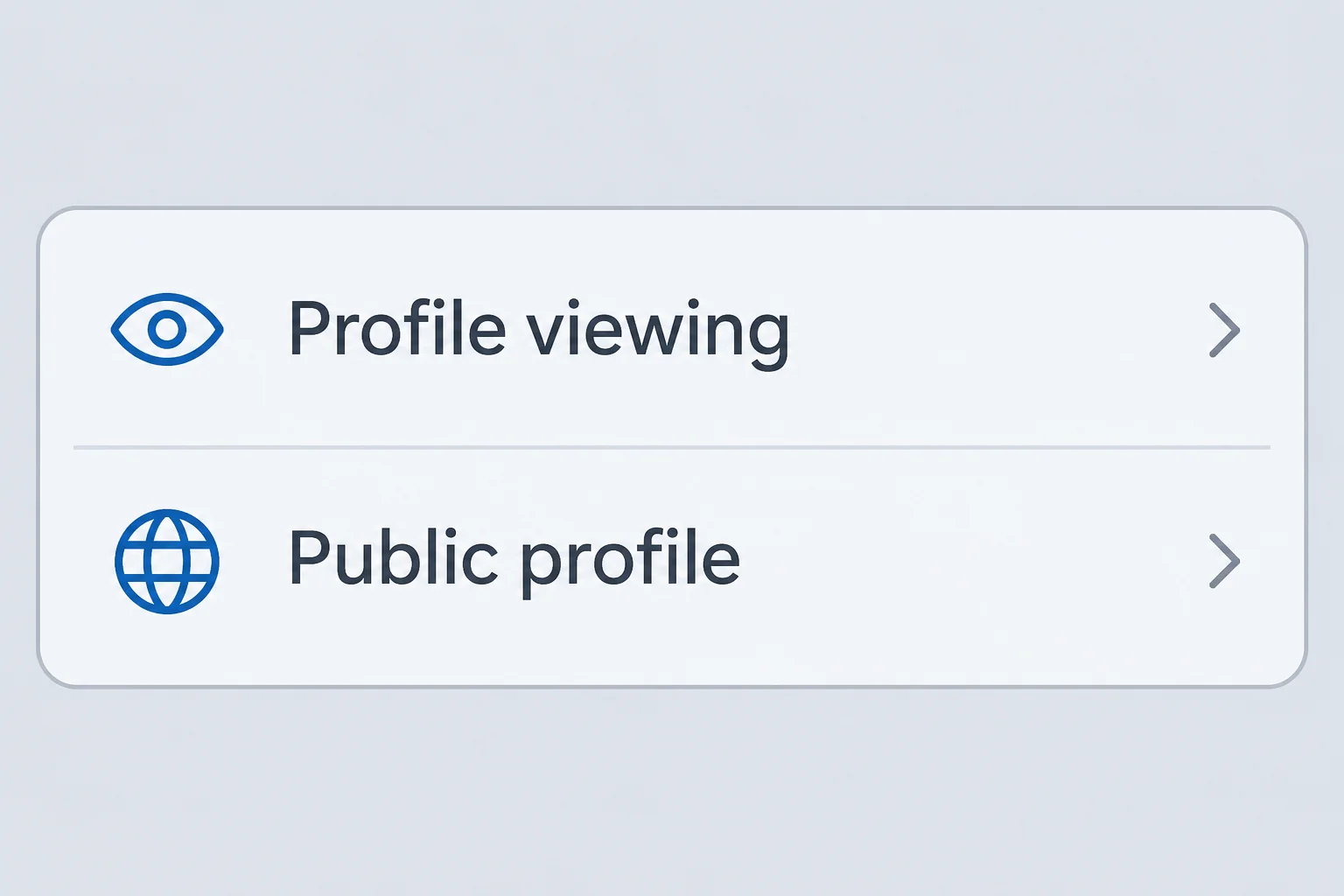
LinkedIn’s profile-viewing guidance describes three choices. One identifies you, another shows limited profile details, and Private Mode makes you appear as a LinkedIn member without your name.
Choosing Private Mode doesn’t make your own profile disappear. The setting applies to your appearance in someone else’s profile-view history, not to whether your public page exists.
Semi-private viewing is not the same choice. Context such as employer, role, or industry can still reveal more than you want, especially in a small field.
Public profile settings control a different audience
LinkedIn’s public profile guidance describes a simplified view for people who aren’t signed in and for search tools. You can limit eligible sections or switch off public visibility.
The public view is distinct from the profile signed-in members can see. Hiding the first won’t automatically hide you from colleagues or other users already on LinkedIn.
A search result can also persist after the underlying page has changed. LinkedIn says search engines can take weeks or months to reflect some changes.
Choose which clue you actually want to remove
A name attached to a profile visit, a headshot at the top of search results, and an old company name on your profile are different problems.
Before changing anything, note where you saw the exposure. A screenshot from a signed-in member calls for a different check than a result shown to someone with no LinkedIn account.
- Use profile-viewing settings for how your visits appear to other members.
- Use public-profile settings for what can appear outside the signed-in experience.
- Check photo visibility and actual profile content when the problem is one specific detail.
- Recheck the source and the search result separately after changing public visibility.
What to Do When Private Mode Doesn’t Hide Your LinkedIn Profile
- Identify whether the exposure appears in another member’s viewer history, a public search result, or your profile shown to a signed-in LinkedIn member.
- For future profile visits, open Settings & Privacy, select Visibility, and find the setting for visibility when viewing other profiles. Choose the level you actually want.
- For the public web, open the public profile settings and review the preview and eligible sections. Turn off the public view if that is the audience you want to exclude.
- Check separate photo or activity controls if the exposure involves a particular item. Avoid assuming a switch for your profile visits changes who sees your posts.
- Test only the audience relevant to your change. Use the public preview or sign out to check your own public link, then review the search snippet separately.
Set future browsing privacy before you select a person
On desktop, LinkedIn starts the route from Me, then Settings & Privacy. In the mobile app, open the account menu and look for the same Visibility section.
Within visibility, look for wording about what others see when you view them. LinkedIn describes a personal option, private profile characteristics, and full Private Mode.
A semi-private description can make sense when you don’t mind revealing professional context. Choose full Private Mode if employer or job information would defeat the purpose of the setting.
LinkedIn says choosing a highlighted person’s suggestion can open a mini profile and be treated as a view. Set the preference before choosing a person, not after looking.
Don’t revisit somebody’s profile simply to see what notification they got. Your saved preference is the part you can confirm without creating a second visit.
Decide what you want strangers outside LinkedIn to find
If you want recruiters to find a short public bio, leave the profile public and review only the fields you are comfortable exposing. The preview can help you check.
You may not be able to show one optional section without exposing basic profile information. If you need a stronger limit, switch off the public profile rather than guessing.
If a former employer shouldn’t be listed at all, edit the actual entry. Turning off a public section still leaves the original information in the signed-in profile.
Review the audience for your profile photo as well. LinkedIn’s photo controls explain that changing its audience can also affect the public view.
Avoid sending someone a fresh profile link to test whether it was hidden. Open your own public link while signed out if safe, or use LinkedIn’s built-in preview first.
Why Search Still Shows Your Name After a Change
A search engine can show a title or excerpt it saved earlier. That can lag behind the page that loads when someone clicks through.
Open the existing result only if you recognize the destination and it is safe. Compare its excerpt with what is currently visible to a signed-out visitor.
If LinkedIn now hides or removes the detail, check the search provider’s options for refreshing an outdated result. A refresh isn’t the same as removing an item that remains public.
If the detail is still visible on LinkedIn, go back to the actual profile or the page owner’s controls. A search-change request won’t edit your profile for you.
If the result points to a news site or another person’s post, a LinkedIn setting might have nothing to do with it. Check the exact source before trying more switches.
Keep a private record of the wording you removed and the time you changed it.
That makes it easier to see whether you are comparing an old result or different page.
Public search isn’t the only place a profile can appear
LinkedIn documents profiles appearing in approved services or public badges, with separate off-LinkedIn preferences where applicable. Check the audience in the exact product where somebody reported seeing your information.
A company directory can repeat information you once entered on LinkedIn without being connected to your current account. Updating the original field doesn’t automatically update that directory.
If there is a profile address in an email signature or portfolio, decide whether you want to remove the pointer too. It may still be circulated independently of search.
What LinkedIn Private Mode Changes About Viewer History
LinkedIn’s guidance says Basic users need the identifying viewing option to see their own viewer history. That’s a trade-off to understand before you change how your visits look.
A Premium account doesn’t reveal the names of viewers who selected full Private Mode. Don’t buy an upgrade merely because someone promises it will unmask a specific anonymous viewer.
If an extension or website claims it can reveal a private viewer, keep your credentials out of it. Compare its claim with what LinkedIn says the platform actually shows.
An increase in the viewer count doesn’t identify a particular person. Avoid using the timing of your own activity to assign names to anonymous visits.
If you need to stop unwanted contact, review the controls for that person’s access or messages. Anonymous viewing is not a substitute for managing harassment or an existing connection.
When someone has already seen or copied your information, switching modes doesn’t retract it. If there are threats, preserve the relevant messages privately and use LinkedIn’s reporting channels.
Check Discovery Outside Search and Inside LinkedIn
A directory lookup is not the same as a search result
LinkedIn’s off-platform visibility guidance identifies a separate choice for permitted services other than search tools. Use it if an outside email or business app shows a LinkedIn mini profile.
For example, you might want a consulting bio to appear in Google but not want an email integration filling in additional context. Inspect both settings rather than turning everything off.
LinkedIn says disabling the off-platform setting doesn’t change the public profile switch. A public result that stays visible after this change isn’t necessarily evidence that anything broke.
If someone shows you an entry in a separate app, ask for the name of that app rather than requesting their account or password.
You need the context, not their access.
Look at what else the other service already knows. An organization may keep its own contact record, even after it stops displaying information supplied by LinkedIn.
If an integration no longer shows your profile but its contact listing remains, inspect each source separately.
There may be no LinkedIn setting that edits a record held by another company.
Email visibility and discovering you by email are different
LinkedIn’s discoverability guidance lists controls for whether your profile can be discovered from an email address or number in certain supported contexts.
Those controls don’t make a person unsearchable by name.
Email visibility identifies who can see your email on LinkedIn. A separate toggle controls whether another member can include it in their data export.
An address typed into a bio, attached résumé, or public post is just content.
If you put your address there, edit the actual item rather than asking the email-visibility switch to hide it.
If fewer people should discover your personal address, read the audience option and the export toggle separately. Once somebody already has a copy, those settings won’t recall it.
Check that any address you do share publicly is one you intend to use for contacts. Don’t put a mailbox you rely on for account recovery in every public document.
Pick a setting that fits the exposure you can see
For a visible post, begin with the post’s own audience and content. An article shared during a career change can keep circulating even if you later reduce your public profile.
For a home or personal contact detail, edit the actual field or item first. Then check what still appears in search results or a signed-in connection view as separately needed.
If you want a public professional presence, choose a small set of fields you can maintain. A short current headline is easier to inspect than years of public activity.
If someone recognizes a team from your job title alone, use the more limited viewing mode for future visits rather than trying to make a very specific semi-private description anonymous.
Someone with a prior copy might share it even after your change.
Ask the service that now hosts the material about its reporting route when the retained copy causes a problem.
If you don’t want one person contacting you, choose a control meant for that relationship. Changing what everyone sees publicly is a much broader action with different consequences.
Search snippets, member views and mini profiles can show different fields. Decide which one matters to you and confirm the relevant setting instead of trying to make them match.
During a job search, you can keep a limited public profile for employers and use Private Mode for browsing. Neither choice sets the audience for your individual posts.
Review any second-language version of your profile as well. Editing one headline doesn’t tell you what a visitor sees in another language.
When you’re deciding what to reveal during a visit, think of the information the recipient can connect to you. One unusual employer and a narrow job title may be enough.
Frequently Asked Questions
Will Private Mode hide my LinkedIn profile from Google?
No, the setting changes how you appear when viewing someone else’s profile. Use public profile settings to limit the profile eligible to appear in public search.
Check an existing search result separately after the change. It may keep showing older text until the search engine refreshes it.
Can a Premium member see my name if I use full Private Mode?
LinkedIn says Premium doesn’t reveal the names of viewers in full Private Mode. That doesn’t guarantee a visit leaves no indication at all in the other person’s history.
If you choose semi-private viewing instead, some professional details can still appear. Pick the setting based on what information you’re willing to show.
Can I get viewer history on my own Basic account while browsing privately?
LinkedIn says a Basic user has to choose the identifying viewing option to see their own profile viewer history. Review that trade-off before you switch modes.
If you don’t want your identity to accompany future views, don’t change it just to test the history page for a specific person.
Does changing the setting erase a visit I made earlier?
Set the preference before your next visit. The documented control does not give you a way to recall information the other person may have already seen or saved.
Avoid assuming that a second visit changes the first one. Confirm your current choice directly in the settings rather than relying on an earlier interaction.
Can I show my profile but hide the photo?
Review LinkedIn’s specific photo visibility choices. Depending on the audience you choose, changing the photo setting can also change the public profile’s visible picture.
Check the public preview and the photo audience separately. A signed-in view isn’t a reliable substitute for the result an anonymous visitor gets.
Can I keep some details public without showing every section?
Public profile settings let you choose from eligible sections when the public view is on. Read what the preview actually shows, including fields you cannot toggle individually.
If one detail should be absent for every audience, update the underlying profile field. Hiding a public section doesn’t remove the original entry from signed-in views.
The Bottom Line
Use LinkedIn Private Mode to limit what your future profile visits reveal. Use the public profile settings instead if you want to change what strangers can find about you.
If your information is already showing, fix the page or audience that exposes it first. Recheck any old search result afterward without expecting the change to be immediate.

Join the discussion
0 commentsShare your experience or ask a question about this article.
Community experiences
Did this happen to you?
Your experience could help someone recognize the same scam. Submit a private report for our team to review.
I experienced this tooReports are reviewed before publication. Sharing publicly is always your choice.
Discussion
Start the conversation
Have a question or something useful to share? Add the first comment.