


A Chrome extension that helps with one kind of page asks to read and change data across the web. You want the feature, not access to every tab.
Chrome extension permissions can often be narrowed to the sites you choose. First work out what pages the tool actually needs to do its job.
Overview
Site access governs where an extension can act
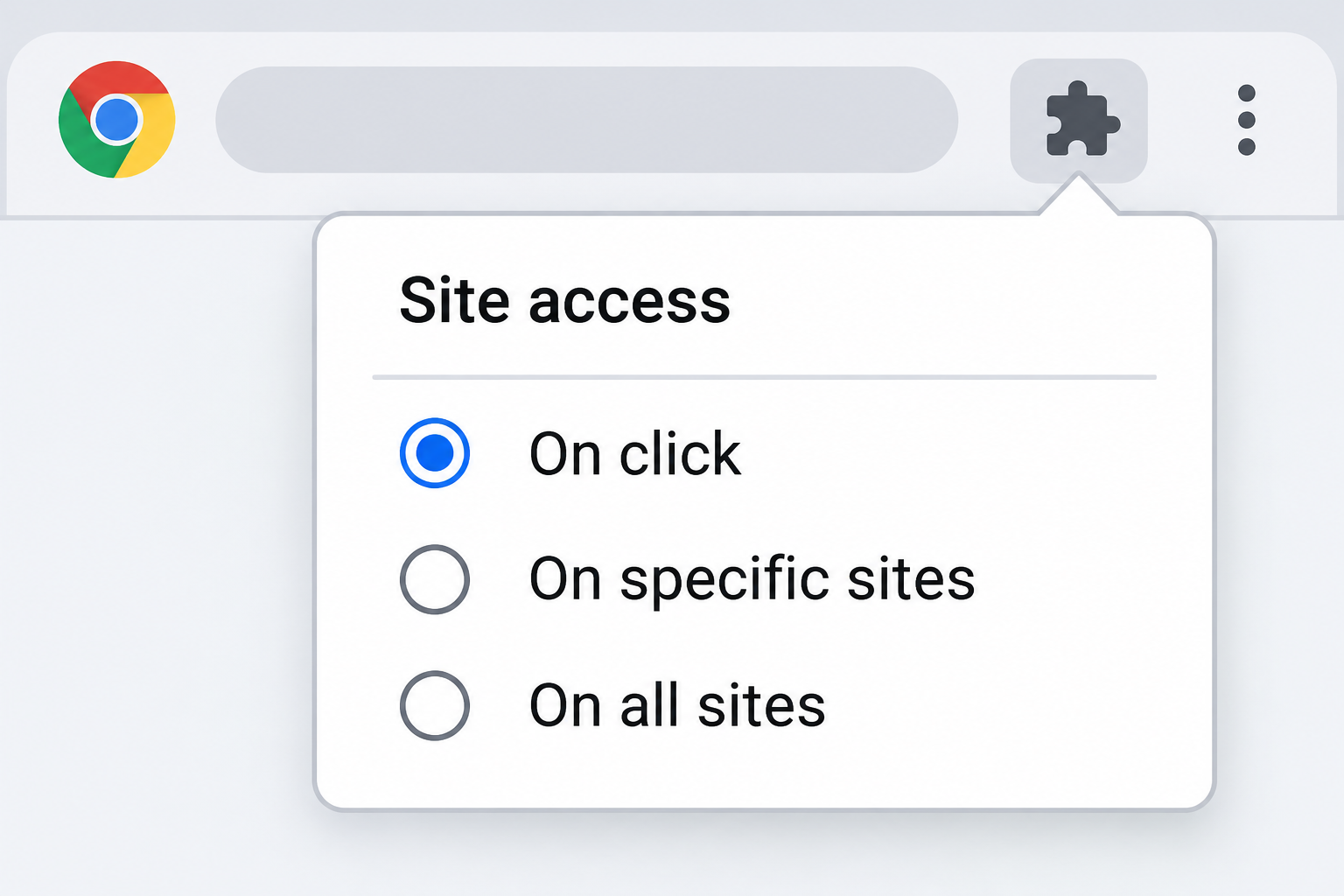
Chrome calls this setting site access because it controls which matching websites an extension can interact with. That includes the ability to read or change page data where permitted.
Think of a translation tool you need on a travel site. That useful purpose doesn’t necessarily require automatic access to your webmail, a claim portal, or a client’s document.
A site permission makes an action possible, but it isn’t a log of what the publisher did. A broad setting deserves scrutiny without proving that someone took your information.
The three choices solve different problems
Google’s Chrome extension instructions distinguish access when you select an extension, access on specific sites, and access on all supported sites. Not every extension presents the same choices.
Choose on-click access when you use the feature occasionally. Use a specific site when the tool genuinely needs to run automatically there but not on unrelated pages.
All-sites access leaves Chrome able to grant ongoing access across the sites covered by the extension’s permissions. Choose it only after considering what else you open in the same browser.
Separate site access from other permissions
Chrome says changing site access doesn’t cover extensions that change lower-level network access through VPN or proxy settings. Don’t use the site menu as your only check for those tools.
Allowing an extension in Incognito or giving it access to file URLs are separate decisions. The extension’s Details page is a better starting point than judging by its toolbar icon.
- Use on-click access when you can choose the tab before running the tool.
- Allow a specific site when automatic access is necessary for a verified workflow.
- Turn off or remove an unneeded extension instead of leaving it installed with broad rights.
- Ask your administrator about centrally managed extensions instead of trying to bypass the policy.
What to Do About Broad Chrome Extension Permissions
- Open Chrome’s Extensions menu from the profile where you installed the add-on. If you use both a personal and work profile, verify which one you are changing.
- Open the extension’s menu and look for the option that controls reading and changing site data. Use on-click access or restrict the extension to sites it actually needs.
- Go to Manage extensions, open Details, and check the allowed sites when that list is available. Remove old destinations you no longer use with that extension.
- Start a fresh tab on a harmless page where the tool is useful. Check that expected behavior works without granting access to a real account page just for testing.
- Disable or remove an extension that no longer earns its access. If it belongs to an organization, document its name and speak to the administrator first.
Start with the browser profile you actually use
Two Chrome windows on the same screen can belong to different profiles. The one that opens your company email may have a different extension list from your household profile.
Open the intended profile and review every installed extension, not just the ones beside the address bar. Unpinning an extension doesn’t remove it from Chrome.
Check the published name and publisher if two extensions have similar names or icons. Identifying the wrong extension can leave the actual permission unchanged and break an unrelated feature.
If Chrome is managed by work or school, it may not let you change all choices. Ask what function the extension serves and which websites it needs to see.
Select a setting that matches the feature
For a one-off summary of a public article, you might grant access when you choose the extension. This is different from making it available on every page before being asked.
For a tool that formats one trusted dashboard as soon as it loads, a site-specific rule can preserve that behavior. Don’t add your inbox unless it needs to operate there.
Access to a shared domain can be wider than one page. Read the exact site shown in Chrome, especially when personal and work documents use the same service.
Google’s instructions explain adding or removing allowed sites in the extension’s Details page. If there is no add option, check whether the selected access mode supports a specific-sites list.
Avoid granting all-sites access as your first troubleshooting attempt. It can hide the difference between a site that was never allowed and a feature that is broken for another reason.
Verify the result on a harmless page
Choose a public page that lets you test without revealing anything important. An extension that translates a menu doesn’t need to see an invoice for you to confirm it works.
For on-click mode, close the test tab when finished, then open a new one. Google says the extension needs to be selected again after closing the tab or window.
For site-specific access, check your allowed-site list again after saving.
The list tells you more than a badge that might appear on every tab without indicating what the extension can read.
If Chrome asks for more access to perform a second feature, pause and read the request.
You may be testing a separate capability with different requirements, not the one you just restricted.
What the Chrome Permission Settings Do Not Tell You
A quiet permission prompt doesn’t mean no access
Google’s extension documentation explains that an extension can receive temporary access to the active tab after an action. Some capabilities don’t require a broad installation warning.
That makes the moment you invoke the tool important. Clicking to summarize a public recipe exposes a different page from clicking to summarize a private message in your inbox.
Treat the prompt as evidence of capability, not as a receipt for past activity. Chrome’s settings don’t show you every portion of a page the publisher may already have received.
If you copied text into an extension’s separate input box, narrowing site access doesn’t take it back. Check the publisher’s privacy and retention terms for the separate service.
Incognito is a separate extension choice
Review Allow in Incognito for any extension you rely on in regular windows. Keep it off unless you specifically want that tool enabled there and understand the effect.
A private window changes what Chrome retains locally when you close it. It doesn’t mean an extension that you’ve explicitly allowed there cannot receive information through the abilities you grant.
If an extension offers access to file URLs, leave it off unless you have a real use for processing local files.
A local draft can contain material you’d never post online.
Keeping an option off doesn’t prove the extension has no way to receive information you actively choose to share. Read the workflow, not just the checkbox state.
Proxy and VPN extensions need a different question
Google says Chrome’s site-access choices do not apply in the same way to lower-level network access through proxies or VPNs. Review those tools as networking software, not as page helpers.
If you don’t recognize a VPN or proxy extension in an unmanaged profile, don’t use it merely because it is already installed. Investigate its publisher and how it got there.
For a work-managed VPN, check with IT before disabling it.
The safest alternative might be an approved profile or company device, not changing a network tool to make a popup disappear.
A translation tool and a proxy extension may both have an icon on the toolbar. Their controls and the information they can affect should not be assumed to match.
Three Ways to Keep a Useful Extension on a Short Leash
Separate occasional use from always-on writing help
A spelling helper in an online editor may need page access to suggest changes as you type. Decide which editor you allow before opening other tabs with confidential material.
If you only want suggestions for one document, use a copy with private details removed. An optional server-side AI feature may have its own handling rules beyond Chrome’s permissions.
If the feature only works with broader access than you can justify, stop and choose whether you really need it.
Convenience on a public site doesn’t settle access to private pages.
Check access after changes to the extension or your work
Review permissions when an extension asks for new access or changes how it presents its features. A useful add-on today might ask for more than you originally intended tomorrow.
Check the Chrome Web Store listing and the publisher’s own policy for the exact extension. Store labels and policy text are disclosures, not an independent record of your current session.
If you change jobs or stop using a site, remove that site from the allowlist. Leaving stale entries means you may forget an old permission is still active.
Remove old extensions you tried once and never used again. Keeping a long unused list creates more permission decisions to revisit when Chrome or a publisher changes something.
Take proportionate action if something looks wrong
If an extension only asked for permission and you refused it, don’t treat the prompt by itself as a confirmed compromise. Check your current settings before making account changes.
If it ran while an unusually sensitive account was open, identify the extension and the affected page privately. If you see unauthorized activity, use the provider’s security and recovery controls.
If work material could have been exposed, tell the appropriate person at your organization what was open and which extension was active.
Avoid including private page contents in a public post.
Uninstalling stops that installation from continuing to run. It doesn’t delete information from a service that already received it or reverse a change the extension made on a website.
When a Browser Tool Has Its Own Account
A browser add-on and its web service can keep working relationships with different accounts. Removing the extension doesn’t necessarily cancel a subscription or sign you out of the publisher’s site.
If you connect a writing or meeting tool to a cloud account, review that connection in the account that authorized it. Chrome site permissions aren’t the same as connected-app permissions.
When you don’t recognize a feature the publisher added, read its description before trying it. Use a public page as a test, not an inbox with a full message open.
A separate browser profile can help you keep a routine tool away from sensitive tabs.
Check its actual extension list before counting on that separation, especially if you use browser sync.
If a site still looks different with the extension disabled, check whether its own settings changed. The page appearance alone isn’t enough to tell what changed it.
Frequently Asked Questions
Does on-click access let the extension read the active page?
It can give access on the tab you deliberately use it on, subject to the extension’s capabilities and Chrome’s rules. Choose the tab before activating it.
If that page contains sensitive information, close it before asking the extension to operate elsewhere. You can test the same feature with public material instead.
Can I grant automatic access to just one website?
When the extension supports it, choose access on specific sites and check the allowed-site list. Don’t assume the option distinguishes individual documents under the same website.
Look at the address Chrome lists before you save it. Avoid allowing an entire service if you’re uncomfortable with access to unrelated pages there.
Is wide site access evidence that the extension stole data?
It shows a capability, not a record of what happened. Look for concrete signs such as unrecognized account activity, a documented publisher notice, or an action you saw happen.
If you want to reduce exposure without assuming a breach, narrow the setting or remove the extension if you no longer need it.
Will limiting site access also block the extension from private windows?
Incognito has a separate extension setting. Inspect it on the Details page instead of assuming a narrower list of allowed websites switches private-window access off.
If you didn’t intend the extension to work in Incognito, don’t enable it there. Its behavior in a normal window doesn’t answer what you selected for private windows.
Why can’t I change the extension on my work browser?
Your organization can manage the browser and control extensions. A setting that is unavailable on a managed profile isn’t automatically evidence of a malicious add-on.
Ask the organization which extension is approved and how to handle sensitive sites. Don’t try to defeat its controls on a device it manages.
Does uninstalling remove the publisher’s stored information?
Chrome removes the extension from the browser profile, not from the publisher’s servers. Anything the service already received has to be handled through its own data and account controls.
Look for retention or deletion choices through the official publisher if you’ve used a separate service. Remove the extension first if you no longer want it running.
The Bottom Line
Give a Chrome extension access to the fewest sites that support what you want it to do. If it can’t work within a scope you accept, leave it disabled.
If you’ve already shared sensitive content, changing the switch is only one part of the response. Handle actual account exposures or vendor copies through the relevant service.

Join the discussion
0 commentsShare your experience or ask a question about this article.
Community experiences
Did this happen to you?
Your experience could help someone recognize the same scam. Submit a private report for our team to review.
I experienced this tooReports are reviewed before publication. Sharing publicly is always your choice.
Discussion
Start the conversation
Have a question or something useful to share? Add the first comment.