

If you are seeing a fake alert from S.M.A.R.T Check or S.M.A.R.T Repair then you’re probably reading this article so you can understand how to get rid of it.Thankfully we’ve got the instructions to help you get rid of this virus.
First off all , you should know that , S.M.A.R.T Check and S.M.A.R.T Repair are both fake components of Data Recovery or Smart HDD malicious software, this infections will display fake alerts, claiming that several hard drive errors were detected on your computer.In reality, none of the reported issues are real, and are only used to scare you into buying S.M.A.R.T CHECK and stealing your personal financial information.
The infections has changed your desktop background to a black scren, has hidden your files and shortcuts and it’s causing browsing redirects.
If you’ve got a S.M.A.R.T CHECK infection , you’ll be seeing this screens :
![[Image: Smart Check.png]](http://malwaretips.com/blogs/wp-content/uploads/2012/05/Data-Recovery-Rogue.png "S.M.A.R.T Check")
![[Image: Smart Repair.png]](http://malwaretips.com/blogs/wp-content/uploads/2012/05/Data-Recovery-fake-alert.png "S.M.A.R.T Repair")
![[Image: Smart alert.png]](http://malwaretips.com/blogs/wp-content/uploads/2012/05/Data-Recovery-Rogue-alert.png "S.M.A.R.T Alert")
Registration codes for S.M.A.R.T CHECK
As an optional step,you can use the following license key to register S.M.A.R.T CHECK and stop the fake alerts.
Data Recovery Rogue: 08869246386344953972969146034087
SMART HDD Rogue: 15801587234612645205224631045976
Please keep in mind that entering the above registration code will NOT remove S.M.A.R.T CHECK from your computer , instead it will just stop the fake alerts so that you’ll be able to complete our removal guide more easily.
Removal guide for S.M.A.R.T CHECK
STEP 1 : Start your computer in Safe Mode with Networking
- Remove all floppy disks, CDs, and DVDs from your computer, and then restart your computer.
- Press and hold the F8 key as your computer restarts.Please keep in mind that you need to press the F8 key before the Windows start-up logo appears.
- On the Advanced Boot Options screen, use the arrow keys to highlight Safe Mode with Networking , and then press ENTER.
![[Image: Safemode.jpg]](//malwaretips.com/images/removalguide/safemode.jpg "Safe Mode with Networking screen")
- Log on to your computer with a user account that has administrator rights
![[Image: Safemode.jpg]](http://malwaretips.com/images/removalguide/safemode.jpg "Safe Mode with Networking screen")
STEP 2: Remove S.M.A.R.T CHECK malicious proxy server
S.M.A.R.T CHECK may add a proxy server which prevents the user from accessing the internet,follow the below instructions to remove the proxy.
- Start Internet Explorer
![[Image: S.M.A.R.T CHECK- IE]](//malwaretips.com/images/removalguide/Ieicon.png "IE 9") and if you are using Internet Explorer 9 ,click on the gear icon
and if you are using Internet Explorer 9 ,click on the gear icon ![[Image: IE gear icon]](//malwaretips.com/images/removalguide/icongear.jpg "Gear Icon") (Tools for Internet Explorer 8 users) ,then select Internet Options.
(Tools for Internet Explorer 8 users) ,then select Internet Options.
![[Image: Internet-options-IE.png]](//malwaretips.com/images/removalguide/ie1.png "Internet Options in IE")
- Go to the tab Connections.At the bottom, click on LAN settings.
![[Image: Remove-proxy-server2.png]](//malwaretips.com/images/removalguide/ie2.png "Connections tab in Internet Explorer")
- Uncheck the option Use a proxy server for your LAN. This should remove the malicious proxy server and allow you to use the internet again.
![[Image: Remove-proxy-server3.png]](//malwaretips.com/images/removalguide/ie3.png "Uncheck the option Use a proxy server for your LAN")
![[Image: S.M.A.R.T CHECK- IE]](http://malwaretips.com/images/removalguide/Ieicon.png "IE 9") and if you are using Internet Explorer 9 ,click on the gear icon
and if you are using Internet Explorer 9 ,click on the gear icon ![[Image: IE gear icon]](http://malwaretips.com/images/removalguide/icongear.jpg "Gear Icon") (Tools for Internet Explorer 8 users) ,then select Internet Options.
(Tools for Internet Explorer 8 users) ,then select Internet Options.![[Image: Internet-options-IE.png]](http://malwaretips.com/images/removalguide/ie1.png "Internet Options in IE")
![[Image: Remove-proxy-server2.png]](http://malwaretips.com/images/removalguide/ie2.png "Connections tab in Internet Explorer")
![[Image: Remove-proxy-server3.png]](http://malwaretips.com/images/removalguide/ie3.png "Uncheck the option Use a proxy server for your LAN")
If you are a Firefox users, go to Firefox(upper left corner) → Options → Advanced tab → Network → Settings → Select No Proxy
STEP 3: Run RKill to terminate known malware processes associated with S.M.A.R.T CHECK.
RKill is a program that attempts to terminate any malicious processes associated with S.M.A.R.T CHECK ,so that your normal security software can then run and clean your computer of infections.
As RKill only terminates a program’s running process, and does not delete any files, after running it you should not reboot your computer as any malware processes that are configured to start automatically will just be started again.
- While your computer is in Safe Mode with Networking ,please download the latest official version of RKill.

- Double-click on the RKill iconin order to automatically attempt to stop any processes associated with S.M.A.R.T CHECK.
![[Image: run-rkill-1.png]](//malwaretips.com/images/removalguide/rkill1.png "RKILL ICON")
- RKill will now start working in the background, please be patient while the program looks for various malware programs and tries to terminate them.
![[Image: run-rkill-2.png]](//malwaretips.com/images/removalguide/rkill2.png "RKILL Command prompt")
IF you receive a message that RKill is an infection, that is a fake warning given by the rogue. As a possible solution we advise you to leave the warning on the screen and then try to run RKill again.Run RKill until the fake program is not visible but not more than ten times.
IF you continue having problems running RKill, you can download the other renamed versions of RKill from here. - When Rkill has completed its task, it will generate a log. You can then proceed with the rest of the guide.
![[Image: S.M.A.R.T CHECK rkill3.jpg]](//malwaretips.com/images/removalguide/rkill3.png "RKILL LOG")
![[Image: run-rkill-1.png]](http://malwaretips.com/images/removalguide/rkill1.png "RKILL ICON")
![[Image: run-rkill-2.png]](http://malwaretips.com/images/removalguide/rkill2.png "RKILL Command prompt")
![[Image: S.M.A.R.T CHECK rkill3.jpg]](http://malwaretips.com/images/removalguide/rkill3.png "RKILL LOG")
WARNING: Do not reboot your computer after running RKill as the malware process will start again , preventing you from properly performing the next step.
STEP 4: Remove S.M.A.R.T CHECK malicious files with Malwarebytes Anti-Malware FREE
- Please download the latest official version of Malwarebytes Anti-Malware FREE.
- Install Malwarebytes’ Anti-Malware by double clicking on mbam-setup.
![[Image: malwarebytes-installer.png]](//malwaretips.com/images/removalguide/mbam1.png "Malwarebytes Anti-Malware Installer")
- When the installation begins, keep following the prompts in order to continue with the installation process. Do not make any changes to default settings and when the program has finished installing, make sure you leave both the Update Malwarebytes’ Anti-Malware and Launch Malwarebytes’ Anti-Malware checked. Then click on the Finishbutton. If Malwarebytes’ prompts you to reboot, please do not do so.
![[Image: install-malwarebytes.png]](//malwaretips.com/images/removalguide/mbam2.png "Install Malwarebytes Anti-Malware")
- Malwarebytes Anti-Malware will now start and you’ll be prompted to start a trial period , please select ‘Decline‘ as we just want to use the on-demand scanner.
![[Image: decline-trial-malwarebytes.png]](//malwaretips.com/images/removalguide/mbam3.PNG "Decline trial period in Malwarebytes Anti-Malware")
- On the Scanner tab,please select Perform full scan and then click on the Scan button to start scanning your computer for any possible infections.
![[Image: malwarebytes-full-system-scan.png]](//malwaretips.com/images/removalguide/mbam4.png "Perform a Full System Scan")
- Malwarebytes’ Anti-Malware will now start scanning your computer for S.M.A.R.T CHECK malicious files as shown below.
![[Image: malwarebytes-scanning.png]](//malwaretips.com/images/removalguide/mbam5.png "Malwarebytes Anti-Malware scanning for S.M.A.R.T CHECK")
- When the scan is finished a message box will appear, click OK to continue.
![[Image: malwarebytes-scan-finish.png]](//malwaretips.com/images/removalguide/mbam9.png "Malwarebytes when the scan is finished")
- You will now be presented with a screen showing you the malware infections that Malwarebytes’ Anti-Malware has detected.Please note that the infections found may be different than what is shown in the image.Make sure that everything is Checked (ticked) and click on the Remove Selected button.
![[Image: malwarebytes-scan-results.png]](//malwaretips.com/images/removalguide/mbam6.png "S.M.A.R.T CHECK infection scan results")
- Malwarebytes’ Anti-Malware will now start removing the malicious files.If during the removal process Malwarebytes will display a message stating that it needs to reboot, please allow this request.
![[Image: malwarebytes-reboot-prompt.png]](//malwaretips.com/images/removalguide/mbam10.png "Reboot prompt from Malwarebytes")
![[Image: malwarebytes-installer.png]](http://malwaretips.com/images/removalguide/mbam1.png "Malwarebytes Anti-Malware Installer")
![[Image: install-malwarebytes.png]](http://malwaretips.com/images/removalguide/mbam2.png "Install Malwarebytes Anti-Malware")
![[Image: decline-trial-malwarebytes.png]](http://malwaretips.com/images/removalguide/mbam3.PNG "Decline trial period in Malwarebytes Anti-Malware")
![[Image: malwarebytes-full-system-scan.png]](http://malwaretips.com/images/removalguide/mbam4.png "Perform a Full System Scan")
![[Image: malwarebytes-scanning.png]](http://malwaretips.com/images/removalguide/mbam5.png "Malwarebytes Anti-Malware scanning for S.M.A.R.T CHECK")
![[Image: malwarebytes-scan-finish.png]](http://malwaretips.com/images/removalguide/mbam9.png "Malwarebytes when the scan is finished")
![[Image: malwarebytes-scan-results.png]](http://malwaretips.com/images/removalguide/mbam6.png "S.M.A.R.T CHECK infection scan results")
![[Image: malwarebytes-reboot-prompt.png]](http://malwaretips.com/images/removalguide/mbam10.png "Reboot prompt from Malwarebytes")
STEP 5: Double check your system for any left over infections with HitmanPro
- This step can be performed in Normal Mode ,so please download the latest official version of HitmanPro.
- Double click on the previously downloaded file to start the HitmanPro installation.
![[Image: hitmanpro-icon.png]](//malwaretips.com/images/removalguide/hpro1.png "HitmanPro Installer")
NOTE : If you have problems starting HitmanPro, use the “Force Breach” mode. Hold down the left CTRL-key when you start HitmanPro and all non-essential processes are terminated, including the malware process. (How to start HitmanPro in Force Breach mode – Video) - Click on Next to install HitmanPro on your system.
![[Image: installing-hitmanpro.png]](//malwaretips.com/images/removalguide/hpro2.png "HitmanPro installation process")
- The setup screen is displayed, from which you can decide whether you wish to install HitmanPro on your machine or just perform a one-time scan, select a option then click on Next to start a system scan.
![[Image: hitmanpro-setup-options.png]](//malwaretips.com/images/removalguide/hpro3.png "HitmanPro setup options")
- HitmanPro will start scanning your system for malicious files. Depending on the size of your hard drive, and the performance of your computer, this step will take several minutes.
![[Image: hitmanpro-scanning.png]](//malwaretips.com/images/removalguide/hpro4.png "HitmanPro scanning for S.M.A.R.T CHECK")
- Once the scan is complete,a screen displaying all the malicious files that the program found will be shown as seen in the image below.After reviewing each malicious object click Next.
![[Image: hitmanpro-scan-results.png]](//malwaretips.com/blogs/wp-content/uploads/2012/02/rsz_hpro5.png "HitmanPro S.M.A.R.T CHECK scan results")
- Click Activate free license to start the free 30 days trial and remove the malicious files.
![[Image: hitmanpro-activation.png]](//malwaretips.com/images/removalguide/hpro6.png "Activate HitmanPro free license to remove detected infections")
- HitmanPro will now start removing the infected objects, and in some instances, may suggest a reboot in order to completely remove the malware from your system. In this scenario, always confirm the reboot action to be on the safe side.
![[Image: hitmanpro-icon.png]](http://malwaretips.com/images/removalguide/hpro1.png "HitmanPro Installer")
![[Image: installing-hitmanpro.png]](http://malwaretips.com/images/removalguide/hpro2.png "HitmanPro installation process")
![[Image: hitmanpro-setup-options.png]](http://malwaretips.com/images/removalguide/hpro3.png "HitmanPro setup options")
![[Image: hitmanpro-scanning.png]](http://malwaretips.com/images/removalguide/hpro4.png "HitmanPro scanning for S.M.A.R.T CHECK")
![[Image: hitmanpro-scan-results.png]](http://malwaretips.com/blogs/wp-content/uploads/2012/02/rsz_hpro5.png "HitmanPro S.M.A.R.T CHECK scan results")
![[Image: hitmanpro-activation.png]](http://malwaretips.com/images/removalguide/hpro6.png "Activate HitmanPro free license to remove detected infections")
STEP 6: Unhide your files and folders
S.M.A.R.T CHECK modifies your file system in such a way that all files and folders become hidden, to restore the default settings , you’ll need to run the below program.
- Download Unhide.exe, to unhide your files and folders.
- Double-click on the Unhide.exe icon on your desktop and allow the program to run.The whole process should not take more than 5 minutes to complete,and at the end this utility will generate a report.
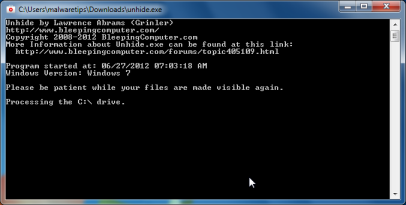
STEP 7 : Restore your shortcuts and remove any left over malicious registry keys
S.M.A.R.T CHECK has moved your shortcuts files in the Temporary Internet folder and added some malicious registry keys to your Windows installation , to restore your files we will need to perform a scan with RogueKiller.
- Please download the latest official version of RogueKiller.
- Double click on RogueKiller.exe to start this utility and then wait for the Prescan to complete.This should take only a few seconds and then you can click the Start button to perform a system scan.
![[Image: roguekiller-1.png]](//malwaretips.com/blogs/wp-content/uploads/2012/04/roguek-1.png "Click on the Start button to perform a system scan")
- After the scan has completed, press the Delete button to remove any malicious registry keys.
![[Image: roguekiller-2.png]](//malwaretips.com/blogs/wp-content/uploads/2012/04/roguek-2.png "Press Delete to remove the malicious registry keys")
- Next we will need to restore your shortcuts, so click on the ShortcutsFix button and allow the program to run.
![[Image: roguekiller-1.png]](//malwaretips.com/blogs/wp-content/uploads/2012/04/roguek-3.png "Click on the Start button to perform a system scan")
![[Image: roguekiller-1.png]](http://malwaretips.com/blogs/wp-content/uploads/2012/04/roguek-1.png "Click on the Start button to perform a system scan")
![[Image: roguekiller-2.png]](http://malwaretips.com/blogs/wp-content/uploads/2012/04/roguek-2.png "Press Delete to remove the malicious registry keys")
![[Image: roguekiller-1.png]](http://malwaretips.com/blogs/wp-content/uploads/2012/04/roguek-3.png "Click on the Start button to perform a system scan")
STEP 8: Get your desktop look back!
Data Recovery changes your desktop background to a solid black color,to change it back to default one follow the below instruction.
- Windows XP : Click on the Start button and then select Control Panel. When the Control Panel opens, please click on the Display icon. From this screen you can now change your Theme and desktop background.
- Windows 7 and Vista : Click on the Start button and then select Control Panel. When the Control Panel opens, please click on the Appearance and Personalization category. Then select Change the Theme or Change Desktop Background to revert back to your original Theme and colors.
If you are still experiencing problems while trying to remove Smart HDD from your machine, please start a new thread in our Malware Removal Assistance forum.
What’s next? Join our amazing community and build up your malware defenses !









I got this attack on my computer and like everyone else it simply took over the whole machine. We decided to follow your steps in removing this virus. We followed each step carefully and allowed the PC to do it’s thing “IN IT’S OWN TIME” the results was fantastic when we got to the unhide stage to see all the files and icons return was such a joy and relief. We can’t thank you enough for allowing people like ourselves the confidence to attempt such a task and to get a 100% result. You are a good man, it took a while maybe because my main harddrive is a 2tb but also the computer seems to run a lot faster as well. Thank you once again Stelian and good luck with everything you do. Richard Gardener
I went through your instructions and it seemed I got rid of the virus 3 days ago. However, now it seems the ‘S.M.A.R.T Check’ virus has changed into simply the ‘Check’ virus… I’ll explain.
Everything appears the same as in your images above except that the program title doesn’t say ‘S.M.A.R.T Check’, it now says ‘Check’. But it’s not just this name difference that sets them apart. This new version will not allow me to complete the first step in this guide, changing the proxy. The first time around (3 days ago) with the ‘S.M.A.R.T Check’ I was able to restart my computer in smart mode with networking and fix the proxy issues. Now with this ‘Check’ version, it won’t allow me to do that at all. I am using my Mac desktop to write this right now, the virus is on my windows 7 laptop.
I didn’t go out and download anything to cause this so I must have a program on my computer that goes out and sources this virus from the internet or something… I don’t know, maybe that makes sense. Obviously not a techie.
I’m at a complete loss on how to fix this one…
Hello,
You are using an Administrator account right?
Can you please do a new scan with HitmanPro and Malwarebytes?
OK,lets make some further check-ups:
1.Run a scan with Kaspersky Virus Removal Tool
Click here to download the Kaspersky Virus Removal Tool.
2.Run a scan with Eset Online Scanner.
ESET Online Scanner Download Link (This link will automatically download ESET Online Scanner on your computer.)
The computer belongs just to me so I foolishly never created a admin account/password. I have always used the built-in admin… I can’t get Kaspersky to run. But ESET Scanner did. I don’t know how to attach the logs in this comment so I went ahead and created this forum post:
http://malwaretips.com/Thread-Trying-To-Remove-S-M-A-R-T-Check-Virus
Thanks.
THANK YOU for taking the time to put all this together!! great job!!!!
Thank you so much Stelian!
Your guide really helped me. My Computer is finally back to normal again. :)
Now i’m only wondering how i got the “infection” in the first place? :S
// Tobbe from Sweden
You should have your own app or icon for my desktop- brilliant instructions! This saved a lot of data on my hard drive I was about to give up on – thanks so much!
I wish you would also write a guide as to how to get rid of those Window’s Genuine Advantage notifications. I can’t do that either and since the IT guy fixed my computer last year they pop up every time I start my computer and I can’t update anything.
OMG, I cannot express the depth of my gratitude to you for carefully outlining this strategy Stelian! I am the most un -tech savvy person there is and I followed your instructions to a “T” and it WORKED! Your explicit instructions, the screen shots and all the options and the thoroughness of your fix were perfect for someone who had no idea about what she’s doing. When this vicious thing took over my computer I was ready to take it to an IT guy I used last year when a similar thing happened but as luck would have it he just left for a month long vacation so I was forced to try and fix this on my own and I did it in two days in about 4 hours! You are en excellent teacher! I did have a few problems along the way, I was unable to use hitmanpro in safe mode, the bottom was cut off and I was unable to click on the next option to run it. When I tried to run it in normal mode that too was impossible because the virus blocked everything I tried to do and even attacked me with another virus in the midst of all of it, the blekko redirect virus. After that, I had to try and figure out how to get rid of that one too which seems to be gone now as well. Anyhoo, I went back into safe mode, did everything except hitmanpro, and that stabilized things to the point where I could go into normal mode and run hitmanpro but the hitmanpro had to be my last step after everything else was stabilized. I cannot thank you enough, I wish I could bake you a cake or something or buy your Starbucks for you for a month. You saved me about 150 to $200 buy doing this on my own.! I have now downloaded Kaspersky pure and I really hope that this protects me better than the free antivirus stuff I was using. Thank you again Stelian! You have been a lifesaver!
Hitman Pro does not give me a free trial option.
Hello,
I’ll send your problem to the HitmanPro developers,in the mean time please perform the below steps:
Please download and run a scan with Emsisoft Anti-Malware:
Make sure that everything is Checked (ticked) and click on the ‘Quarantine selected objects’ button.
If during the removal process Emsisoft will display a message stating that it needs to reboot, please allow this request.
Next,please run a scan with ESET Online Scanner.
ESET Online Scanner Download Link (This link will automatically download ESET Online Scanner on your computer.)
If you are still experiencing problems , start a thread in our Malware Removal Support forum : http://malwaretips.com/Forum-Malware-Removal-Assistance
When I restart in Safe mode and go to Firefox, it says it “is already running but not responding. To open a new window, you must first close the existing Firefox process or restart your system.” I’ve already tried restarting in safe mode a couple times. What should I do now?
Please follow this steps to start Internet Explorer:
@echo offSTART /max iexplore.exe
Next please download/Run Rkill and then run a scan with Malwarebytes.
1.Download a different named Rkill (direct download links bellow):
http://download.bleepingcomputer.com/grinler/WiNlOgOn.exe
http://download.bleepingcomputer.com/grinler/uSeRiNiT.exe
http://download.bleepingcomputer.com/grinler/rkill.scr
2.And then follow the guide starting with the Malwarebytes scan.
3. Report back for further instructions!
I tried it and everything seems to be back to normal! Thank you so much!!
Hi and thanks. I have succesfully done everything to remove the Smart check down to step# 6. Can’t download Unhide.exe niether RogueKiller. All files appear empty. What should I do? Thanks in advace.
1.Try to download any re-named version of Rkill (direct download links bellow):
http://download.bleepingcomputer.com/grinler/WiNlOgOn.exe
http://download.bleepingcomputer.com/grinler/uSeRiNiT.exe
http://download.bleepingcomputer.com/grinler/rkill.scr
2. Perform a system scan with Emsisoft Anti-Malware:
Make sure that everything is Checked (ticked) and click on the ‘Quarantine selected objects’ button.
If during the removal process Emsisoft will display a message stating that it needs to reboot, please allow this request.
Worked perfectly for me. Thank you very much for the detailed instructions.
Hi. I followed the instructions through Step 4. Malwarebytes found 5 infections and I chose to remove all. When I rebooted in order to start Step 5 the S.M.A.R.T. warnings started again. In Step 3, RKill ran fine with no fake warnings. However, the log file indicated that it did not terminate any processes like expected in your screen shot. Should I try again? Any other tips? Thanks.
You can try to run the Malwarebytes scan, however please continue with the rest of the scans (HitmanPro and Rkill)
Next,please perform a scan with Emsisoft:
Make sure that everything is Checked (ticked) and click on the ‘Quarantine selected objects’ button.
If during the removal process Emsisoft will display a message stating that it needs to reboot, please allow this request.
If you are still experiencing problems , start a thread in our Malware Removal Support forum : http://malwaretips.com/Forum-Malware-Removal-Assistance
Wow thank you very much you guys saved me hours of work and frustration
Dear Stelian, I saw your guide helped a lot of people. My wife got same trouble, and I worked for 10 hours today for fix this SMART sh*t. I got the SMART Data Recovery, plus a fake page of the STATE POLICE that appears in NORMAL MODE (not from the begininng of the infection). My OS is WIN XP SP3. I cannot keep your guide to the end, because in SAFE MODE WITH NETWORK when I attempt to scan with Malware or kill rootkits with IExplorer, after the programs scanned for 5-10 minutes my laptop turns suddenly off. I’m scared because after that is impossibile to make the laptop restarted. I have to push the start button 2 or 3 times before it starts again… In Normal Mode everything is perfect… Perfect exept the virus I mean. Could you help me? TDSS appears to works not. I will really apprecieate help! Thank you a bunch!
Hello,
Ok,try to do this…
STEP 1 : While in NORMAL MODE,download HitmanPro and then start this program in ForceBreach Mode
1.Here are the direct download links for HitmanPro,
– http://dl.surfright.nl/HitmanPro36.exe (For 32bit)
– http://dl.surfright.nl/HitmanPro36_x64.exe (For 64bit)
2.Hold down the left CTRL-key when you start HitmanPro and all non-essential processes are terminated, including this rogue malicious process
Here is a video that explains with graphic details how to do this : http://www.youtube.com/watch?v=m6eRWTv2STk
3. If it start ,let it scan and remove all the detected threats.
STEP 2: Download/Run Rkill and then run a scan with Malwarebytes.
1.Download a different named Rkill (direct download links bellow):
http://download.bleepingcomputer.com/grinler/WiNlOgOn.exe
http://download.bleepingcomputer.com/grinler/uSeRiNiT.exe
http://download.bleepingcomputer.com/grinler/rkill.scr
2.And then follow the guide starting with the Malwarebytes scan.
STEP3 : Perform a system scan with Emsisoft Anti-Malware:
Make sure that everything is Checked (ticked) and click on the ‘Quarantine selected objects’ button.
If during the removal process Emsisoft will display a message stating that it needs to reboot, please allow this request.
If you are still experiencing problems , start a thread in our Malware Removal Support forum : http://malwaretips.com/Forum-Malware-Removal-Assistance
Dear Stelian,
the problem is that I cannot do anything in NORMAL, because the ransomware appears before I can do anything, and after that it’s impossibile to interact. People suggest to try LIVE CD of OS or Dr.Web Cure it. Do you have any more simple suggestion? Thanx a lot for your support! God bless you!
Ah, I see…. You should create a bootable disk like Kaspersky Rescue CD – http://malwaretips.com/blogs/how-to-use-kaspersky-rescue-disk/
OR you can try to manually remove the malicious registry change and file. – http://malwaretips.com/blogs/uninstall-prs-for-music/#comment-1761
I tryed the Safe with Prompt, but the file Shell is with the right address (explorer.exe). So I’m gonna try Dr Web Cure it or Kaspersky Rescue CD… But my hopes are going lower…
Try the Kaspersky Rescue Disk …. however make sure to clean your registry with Kaspersky WindowsUnlocker as seen here : http://malwaretips.com/blogs/uninstall-prs-for-music
OR
You can use HitmanPro on USB/CD and clean your PC as seen here: http://www.youtube.com/watch?v=TVbMv8AwrQc
wow this guide really helped thanks a million!!!
Im having trouble with the unhiding part. All it does is freeze.
Also the smptp folder only has folder one and folder four because that rogue killer thing doesn’t go past about 60%
I can’t get my desktop back to how it should be because when I click on the settings I had it doesnt change
Lastly I have no idea what this whole copy those smptp folders thing is. I’ve been fighting with this computer for over eight hours now and I could really use a break. Thanks
Plese run Unhide.exe
Then perform a scan with Emsisoft Anti-Malware :
Make sure that everything is Checked (ticked) and click on the ‘Quarantine selected objects’ button.
That’s great but doesn’t solve my problem. The Unhide program freezes. And I’ve already run the Emsisoft program. And I don’t know what it means when it says to copy the smptp files to wherever. And the desktop won’t stop being a black screen. I’ll try all this again of course, but any other tips would be great. Thanks.
Please start a new thread in our Malware Removal Assistance forum : http://malwaretips.com/Forum-Malware-Removal-Assistance
My roommate or one of the kids got this on my computer while I was at work… I am so glad it is fixed!! This worked very well and was easy to use!!
Right on the money. This was very useful. God Bless you
Thanks for your help
Thank you So Much! My wifes co worker was using the the office laptop and some how mysteriously the SMART Malware appeared and made it impossible for them to get access to some desktop folders. Your steps were easy to follow and really worked!
Thanks to the good guys like you and the developers of the freeware software, we can stop the bad guys from messing up systems that people need!
Thanks again,
Vince
Stay safe Vince!
Thank you so so much for this. It helped me greatly. Screw these a holes who find enjoyment out of messing up peoples lives. I didn’t know if I’d be able to do it but your knowledge was presented clearly that even relative novice could complete this with in a few hrs.
My wife got this virus-totally messed up the laptop. This site and the step by step instructions helped me remove the virus and alls its bugs. It takes time but its better than an IT bill of 3-400 dollars.
Thank you for all the effort you put into this blog to help people out.
Paul J