

An ominous email appearing in your inbox claiming to have compromising information about you is alarming for anyone. The “I’m Afraid I Have News That May Be A Bit Distressing” email scam preys on fear to extort money from victims. This fraudulent email includes threats to expose private information and fabricated evidence to convince recipients to pay a bitcoin ransom.
In this article, we will break down how this email scam works, what to watch out for, and steps to take if you receive this message. Let’s get started!
Overview of the Email Scam
The “I’m Afraid I Have News That May Be A Bit Distressing” email scam is a form of sextortion scam that cybercriminals use to extort money from victims. The scam email claims the sender has compromised the recipient’s device and obtained personal information, photos, videos, and browsing history.
The email then threatens to create an embarrassing video using AI technology showing the victim in a compromising position on one side of a split screen, and their online activity on the other side. The scammer demands payment of $1250 in bitcoin to avoid having this fake video shared with the victim’s contacts.
This is a complete fabrication by the scammers intended to scare recipients into paying the ransom. The email uses intimidation tactics and false claims about having access to devices to trick victims. While the email itself contains distressing threats, it is all a bluff by scammers looking to profit.
The scam email is carefully crafted to seem convincing. It includes specific dates, bitcoin wallet addresses, and the victim’s email or name to appear legitimate. The message urges victims to pay quickly, usually within 48 hours, to create a sense of urgency.
Some versions of the scam email also try to upsell the victim on buying additional antivirus software, likely earning the scammers affiliate marketing commissions.
This scam takes advantage of people’s fear of being embarrassed or extorted online. However, the reality is these scammers do not have any compromising videos, access to devices, or personal information on the recipients. Their threats are empty, but convincing enough to dupe victims into paying.
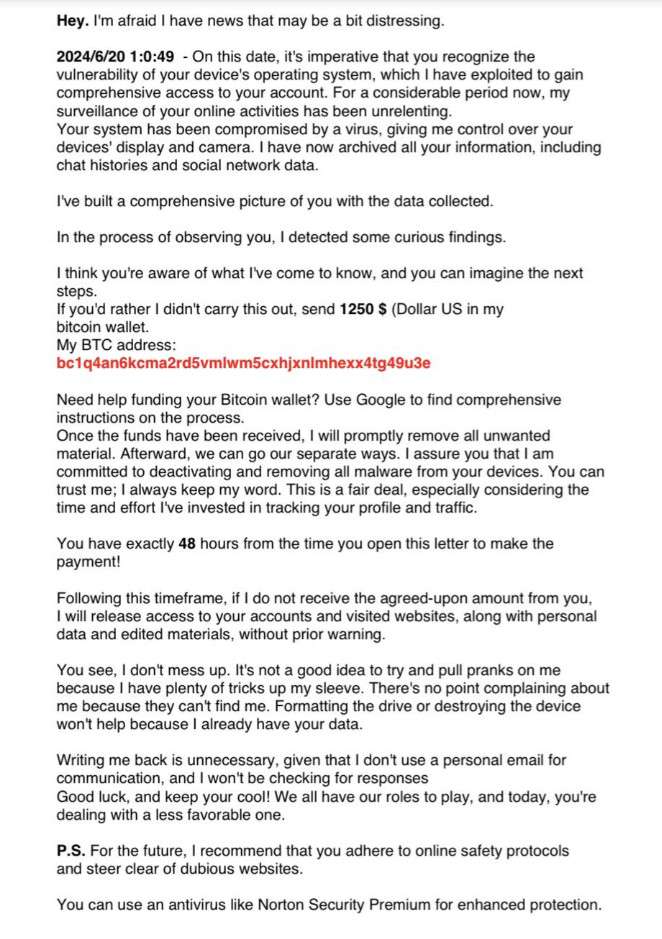
Here is how a variant of the “I’m Afraid I Have News That May Be A Bit Distressing” email scam looks:
Hey. I’m afraid I have news that may be a bit distressing.
[date] – On this significant day, I have managed to penetrate the defenses of your device’s operating system, securing total command over your account. My eyes have been privy to your virtual comings and goings for a considerable duration.
Your system has been compromised by a virus, giving me control over your devices’ display and camera. I have now archived all your information, including chat histories and social network data.
I found myself musing over the potential uses of this data.I’ve recently come up with a groundbreaking idea: making use of Al for crafting a split-screen video. On one side, you’re seen performing ****, and on the other, you’re navigating through a website. Such videos are the talk of the town!I mean, what we ended up with, it’s just… wow.
Truth be told, I couldn’t have predicted this outcome.
With just a single click, this video could be shared with all your friends through email, social networks, and messaging apps. Plus, I could expose your private email and messaging app usage.
If you would prefer that I not do it, transfer 1250 $ (dollar US in my bitcoin wallet.
My BTC address:
bc1qdz7jcukvgc8vgkas70dt2qhkx83sejhuuvsuwp
If you’re wondering how to fund a Bitcoin wallet, Google can provide you with step-by-step funding instructions.
Once the funds arrive, I will promptly address the removal of undesirable material. Subsequently, we can disengage from one another. I also pledge to deactivate and remove any malware from your devices. Trust in my word, for I consistently fulfill my commitments. This is a reasonable deal, especially considering the time and energy I’ve invested in monitoring your profile and traffic.
You have a total of 48 hours from the time you open this letter to complete your payment!
After this specified period, should I not receive the stipulated payment from you, I will make all your accounts, visited websites, personal information, and edited videos available to the public without prior notification.
Keep it in mind that I am meticulous and don’t make errors. It’s unwise to jest with me because I have an abundance of options at my disposal. There’s no use in filing complaints, as they won’t be able to track me down. Even formatting the drive or destroying the device won’t make a difference because I already possess your data.
Writing back to me is a pointless endeavor, as I don’t communicate through personal email, and I won’t be monitoring responses
May luck be on your side, and don’t allow this to agitate you! We all have our own roles, and today, you just happened to be in a less favorable position.
p.s.Going forward, it’s a good idea to follow internet safety guidelines and refrain from visiting suspicious websites.
For optimal security, you can install VIPRE or a similar antivirus.
lioma
Next, let’s break down how this scam works.
How the Scam Email Works
The “I’m Afraid I Have News” scam is designed to capitalize on victims’ anxieties around privacy violations and vulnerability online. Here is how the scammers carry out this extortion scam:
1. Scammers Send Mass Emails Impersonally Addressing Recipients
The scammers will send the email out to thousands of potential victims at once. The email is made to seem personalized by including the recipient’s name and email address. However, the message itself is generic enough to be mass-distributed.
2. Email Claims Recipient’s Device Was Hacked
The email will say the recipient’s device and accounts have been compromised by a virus or hacking attack. This sets up the pretense that the scammers have access when they actually do not.
3. Threatens to Create Embarrassing Video Using AI
A unique aspect of this scam is the threat to use AI and deepfake technology to fabricate an embarrassing video of the victim. This video would supposedly show the victim in a compromising position along with their online activity.
This fake AI video does not actually exist, but the threat creates fear. The average person is not familiar with the limitations of AI, so this seems plausible.
4. Demands Payment in Bitcoin to Avoid Releasing Video
The scammers give a bitcoin wallet address and demand a payment of around $1,250 within 48 hours to avoid releasing the fake video. Bitcoin is used to try to remain anonymous.
5. Urges Victims Not to Try to Contact Them
The email tells recipients not to bother replying as they will not respond. This is to avoid scrutiny of their scam tactics.
6. Follows With Variations if Victim Doesn’t Pay
If the victim does not pay promptly, the scammers may send follow up emails with lower ransom demands, additional threats, or fake testimonials. This maintains pressure as the deadlines pass.
7. Moves On if No Payment, Retains Email for Future Scams
Eventually the scammers will move on if no payment is made. The victim’s email goes on a list to be targeted with other scams in the future.
What to Do If You Get the “I’m Afraid I Have News” Email Scam
If this disturbing email appears in your inbox, don’t panic. Remember that the contents are fabricated to trick you. Here are the steps to take:
Do Not Reply to the Email
Replying will just confirm your email is active. The scammers are not actually monitoring the account used to send the message.
Do Not Pay the Ransom
Wiring money or bitcoin to the scammers will only enable and encourage them. Even if you pay, they will likely continue to target you for more money.
Change Passwords on Your Accounts
Update your passwords for email, banking, and other important accounts in case they were compromised. Use strong, unique passwords for each account. Enable two-factor authentication where possible.
Run Anti-Malware Scans
Run complete scans using updated antivirus and anti-malware software to check for viruses, keyloggers, or other infections. This will ensure your systems are secure.
Alert Contacts of Potential Scam
Let your friends, family, colleagues and contacts know to disregard any suspicious videos or messages about you as they may be targeted as well.
Report the Scam Email
Forward the email to the Anti-Phishing Working Group (reportphishing@apwg.org) and the FTC (spam@uce.gov) to aid in shutting down these scams. You can also report it to your email provider.
Monitor Accounts Closely
Keep a close eye on your financial accounts and login details for any unauthorized access attempts. Take precautions like instituting account withdrawal delays where applicable.
Seek Help if Blackmailed
If the scammers follow through on blackmail attempts, immediately contact law enforcement and an attorney. Do not comply with ransom demands.
Is Your Device Infected? Run a Free Malware Scan
Slow performance, constant pop-ups, or strange behavior? These are classic signs of a malware infection. The fastest way to find out is to scan your device with Malwarebytes Free — one of the most trusted malware removal tools available.
The free version detects and removes the most common threats, including:
- Adware — the cause of those annoying pop-ups
- Browser hijackers — unwanted redirects and changed homepages
- Trojans and spyware — hidden programs stealing your data
- Potentially unwanted programs (PUPs) — software you never asked for
👉 Select your device below — Windows, Mac, or Android — then follow the simple steps to download Malwarebytes, scan your system, and remove any threats it finds. The scan usually takes 5 to 20 minutes.
Run a Malware Scan with Malwarebytes for Windows
Malwarebytes is one of the most popular and trusted anti-malware tools for Windows — and it’s completely free for removing infections. It catches threats that many antivirus programs miss, including adware, browser hijackers, and trojans. Follow the steps below to scan and clean your PC in just a few minutes.
Download Malwarebytes
Click the button below to download the latest version of Malwarebytes for Windows from the official source. The free version is all you need — it will scan your computer and remove adware, browser hijackers, and other malicious software at no cost.
Download MalwarebytesOfficial installer for Windows 11 and 10. Your download starts right away.Want real-time protection? See Malwarebytes Premium Malwarebytes Free for WindowsScans and removes malware at no cost
-
Install Malwarebytes
When the download finishes, open your Downloads folder and double-click the MBSetup file. If Windows shows a User Account Control pop-up, click “Yes” to allow the installation.

Follow the On-Screen Prompts to Install Malwarebytes
The setup wizard will walk you through a few quick screens:
-
Choose where you’re installing the program — “Personal Computer” or “Work Computer” — then click Next.

-
Malwarebytes will now install on your device. This usually takes under a minute.

-
When installation is complete, the “Welcome to Malwarebytes” screen will open automatically.

-
On the final screen, click Open Malwarebytes to launch the program.

-
Enable “Scan for Rootkits”
Before scanning, turn on rootkit detection so Malwarebytes can find even the most hidden threats. Click the Settings gear icon on the left side of the screen.

In the settings menu, find “Scan for rootkits” and click the toggle so it turns blue.

Done? Click “Dashboard” in the left pane to return to the main screen.
Start the Scan
Click the blue Scan button. Malwarebytes will automatically update its virus database and start checking your computer for malware.

-
Wait for the Scan to Finish
The scan checks your entire system for browser hijackers and other malicious programs, so it can take 5 to 20 minutes depending on your computer. Feel free to do something else — just check back occasionally to see the progress.

-
Quarantine the Detected Threats
When the scan is done, you’ll see a list of everything Malwarebytes found — malware, adware, and potentially unwanted programs. Click the “Quarantine” button to remove all of them at once.

Malwarebytes will now remove the malicious files and registry entries and move them safely into quarantine.

-
Restart Your Computer
Some threats can only be fully removed after a reboot. If Malwarebytes asks you to restart, click Yes. Once you’re logged back in, Malwarebytes has finished removing the threats it found.

That’s it — your Windows PC is now clean of trojans, adware, and other malware, and should be back to running smoothly.
If you are still having problems with your computer after completing these instructions, then please follow one of the steps:
- Run a computer scan with ESET Online Scanner
- Ask for help in our Windows Malware Removal Help & Support forum.
Run a Malware Scan with Malwarebytes for Mac
Malwarebytes for Mac is a free on-demand scanner that removes the malware other security software tends to miss — adware, browser hijackers, and unwanted programs included. Cleaning an infected Mac with Malwarebytes has always been completely free, and it’s our go-to recommendation. Follow the steps below to scan and clean your Mac in just a few minutes.
-
Download Malwarebytes for Mac
Click the button below to download the latest version of Malwarebytes for Mac.
Download MalwarebytesOfficial installer for macOS. Your download starts right away.Want real-time protection? See Malwarebytes PremiumMalwarebytes Free for MacScans and removes malware at no cost -
Open the Malwarebytes setup file
When the download finishes, open your Downloads folder and double-click the setup file to begin the installation.

-
Follow the On-Screen Prompts to Install Malwarebytes
The Malwarebytes for Mac Installer will guide you through a few quick screens. Click “Continue” and keep following the prompts until the installation completes.



When the installation is complete, Malwarebytes opens to the Welcome to Malwarebytes screen. Click “Get started“.
-
Select “Personal Computer” or “Work Computer”
Malwarebytes will ask what type of computer you’re installing it on. Click either Personal Computer or Work Computer, whichever applies.

-
Start the Scan
Click the “Scan” button. Malwarebytes will automatically update its detection database and begin checking your Mac for malware.

-
Wait for the Scan to Finish
Malwarebytes will scan your Mac for adware, browser hijackers, and other malicious programs. This can take a few minutes, so feel free to do something else — just check back occasionally to see the progress.

-
Quarantine the Detected Threats
When the scan is done, you’ll see a list of everything Malwarebytes found. Click the “Quarantine” button to remove all the threats at once.

-
Restart Your Mac
Malwarebytes will now remove all the malicious files it found. Some threats can only be fully removed after a reboot — if Malwarebytes asks you to restart, allow it. Once you’re logged back in, your Mac is clean.

That’s it — your Mac is now free of adware, rogue browser extensions, and other potentially harmful software.
If you are still experiencing problems while trying to remove a malicious program from your computer, please ask for help in our Mac Malware Removal Help & Support forum.
Run a Malware Scan with Malwarebytes for Android
Malwarebytes for Android automatically detects and removes dangerous threats like malware and ransomware so you don’t have to worry about your most-used device being compromised. Aggressive detection of adware and potentially unwanted programs keeps your Android phone or tablet running smooth.
-
Download Malwarebytes for Android.
You can download Malwarebytes for Android by clicking the link below.
Get Malwarebytes for AndroidOpens Google Play in a new tab.Want real-time protection? See Malwarebytes Premium for AndroidMalwarebytes for AndroidScans your phone and removes malware at no cost -
Install Malwarebytes for Android on your phone.
In the Google Play Store, tap “Install” to install Malwarebytes for Android on your device.

When the installation process has finished, tap “Open” to begin using Malwarebytes for Android. You can also open Malwarebytes by tapping on its icon in your phone menu or home screen.

-
Follow the on-screen prompts to complete the setup process
When Malwarebytes will open, you will see the Malwarebytes Setup Wizard which will guide you through a series of permissions and other setup options.
This is the first of two screens that explain the difference between the Premium and Free versions. Swipe this screen to continue.
Tap on “Got it” to proceed to the next step.
Malwarebytes for Android will now ask for a set of permissions that are required to scan your device and protect it from malware. Tap on “Give permission” to continue.
Tap on “Allow” to permit Malwarebytes to access the files on your phone.
-
Update database and run a scan with Malwarebytes for Android
You will now be prompted to update the Malwarebytes database and run a full system scan.

Click on “Update database” to update the Malwarebytes for Android definitions to the latest version, then click on “Run full scan” to perform a system scan.

-
Wait for the Malwarebytes scan to complete.
Malwarebytes will now start scanning your phone for adware and other malicious apps. This process can take a few minutes, so we suggest you do something else and periodically check on the status of the scan to see when it is finished.

-
Click on “Remove Selected”.
When the scan has been completed, you will be presented with a screen showing the malware infections that Malwarebytes for Android has detected. To remove the malicious apps that Malwarebytes has found, tap on the “Remove Selected” button.

-
Restart your phone.
Malwarebytes for Android will now remove all the malicious apps that it has found. To complete the malware removal process, Malwarebytes may ask you to restart your device.
That’s it — your Android phone is now clean — no more malicious apps, adware, or browser redirects.
If you are still having problems with your phone after completing these instructions, then please follow one of the steps:
- Restore your phone to factory settings by going to Settings > General management > Reset > Factory data reset.
- Ask for help in our Mobile Malware Removal Help & Support forum.
Stay Protected: Block Ads and Malicious Sites
Now that your device is clean, keep it that way. Most infections start with a malicious ad or a fake download button — so blocking them at the source is your best defense.
We recommend AdGuard, which blocks malicious ads, phishing pages, and dangerous redirects before they can reach you.
👉 Download AdGuard and browse safely
Frequently Asked Questions about the “I’m Afraid I Have News” Email Scam
1. What is the “I’m Afraid I Have News” email scam?
The “I’m Afraid I Have News” email scam is a type of sextortion scam where recipients are sent an email claiming the sender has compromising videos and information about them. The email threatens to release embarrassing videos and screenshots unless the victim pays a ransom in bitcoin. The emails are sent out en masse in an attempt to extort money through intimidation and false claims.
2. How does the “I’m Afraid I Have News” scam email work?
These scammers send generic emails to thousands of recipients at once, using their names and emails to seem personalized. The email claims to have accessed the victim’s device and data through a virus. It threatens to use AI to create a fake explicit video of the victim alongside their browsing history, demanding bitcoin to avoid releasing it. The scammers make up fake deadlines, bitcoin wallet addresses, and threats to create urgency. Their goal is to trick recipients into paying out of fear and embarrassment.
3. What information do the scammers claim to have about me?
The email will claim the scammers have access to your devices, accounts, photos, videos, browsing history, and other personal data. They will threaten to release altered photos and screenshots along with the AI-generated video. These claims are falsified – the scammers do not actually have any compromising media or information about you. Their threats to release materials are completely fabricated.
4. How did the scammers get my email address?
These scammers likely obtained your email through a data breach or by purchasing lists of addresses online. They use botnets to spread the scam out to thousands of potential victims at once. Your specific email was likely picked off a mailing list rather than targeted individually.
5. Why do they demand payment in bitcoin?
Scammers request payment through bitcoin or other cryptocurrencies because transactions are difficult to trace. Bitcoin allows them to receive money while maintaining anonymity, which is key to avoiding detection and prosecution.
6. What happens if I pay the bitcoin ransom?
There is no guarantee the scammers will actually delete the data if you pay. More likely, they will retain your email and try to extort increasing amounts of money. Paying the ransom also enables these criminals to keep up their operation. With no intention of following through on their threats, it’s best not to pay anything.
7. Could the scammers really have compromising videos of me?
It is highly unlikely the scammers actually possess any videos, photos, or screenshots of you, inappropriate or otherwise. The content they threaten to share is fabricated. Their claims to have access to your device’s camera or detect your online activity are false. The AI video is also a complete bluff.
8. What should I do if I receive this “I’m Afraid I Have News” email?
Do not engage with or reply to the scammer. Update your email, banking, and other account passwords immediately. Run anti-virus scans to check for malware. Report the scam email to authorities. Let your contacts know to disregard any suspicious messages about you. Monitor your accounts closely for fraudulent activity. Seek legal assistance if the scammers attempt to follow through on blackmail.
9. How can I protect myself from this scam?
Be cautious of any unsolicited emails demanding money or threatening reputation harm. Use unique passwords and two-factor authentication on accounts. Keep software updated and run regular anti-virus scans. Avoid clicking links or attachments in suspicious messages. Never provide personal information or pay demands to unknown parties. Report scam emails to help authorities disrupt these operations.
10. Are these “I’m Afraid I Have News” emails a real threat?
While the email content itself is distressing, it is ultimately an empty threat meant to scare you into paying. The scammers are lying about having any real compromising information or the ability to hack your device. Do not let fear or embarrassment allow yourself to be manipulated by these predatory scammers.
The Bottom Line
The “I’m Afraid I Have News That May Be A Bit Distressing” sextortion email scam plays off people’s fears of privacy violations and embarrassment. While the threats seem real, it is just a fabrication aimed at extorting bitcoin payments. Use caution when opening unsolicited emails, do not provide personal information, and avoid wiring any funds. With vigilance, Internet users can protect themselves and help shut down these criminal operations.

Join the discussion
0 commentsShare your experience or ask a question about this article.
Discussion
Start the conversation
Have a question or something useful to share? Add the first comment.