


An unexpected tax notice can command attention faster than almost any ordinary email. The formal wording, a reference number, and a deadline make hesitation feel risky.
The “IRS Account Detail Verification” message leans heavily on that reaction. Its polished appearance hides an unusually serious second stage that deserves careful examination.
Overview
What the email says
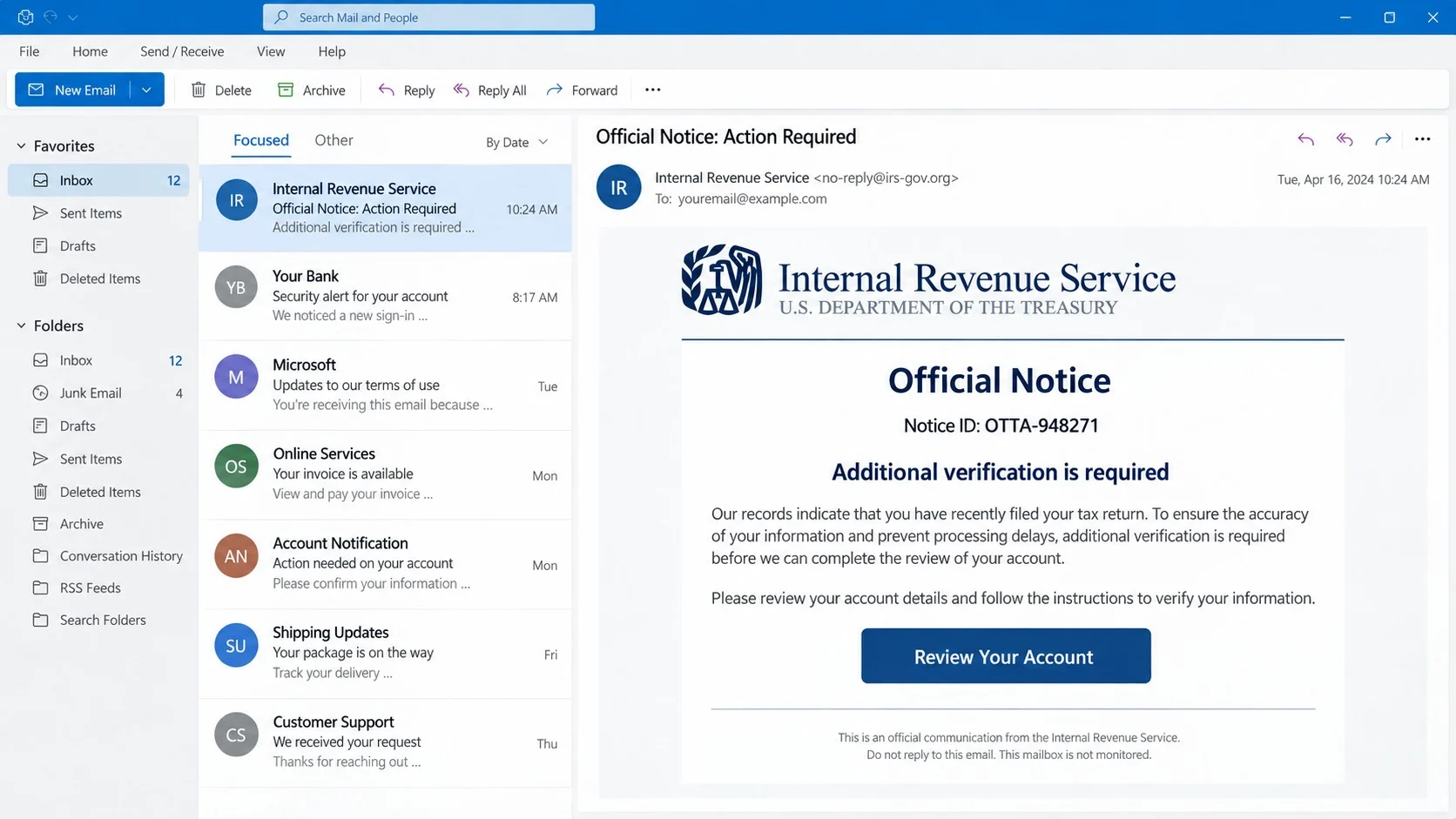
The message impersonates the Internal Revenue Service and claims a recent tax filing requires additional identity or account verification.
One observed version uses Notice ID OTTA-948271 and a “Review Your Account” button. It warns that ignoring the request could delay processing or trigger further review.
The body describes a protected, encrypted document and recommends a desktop or laptop browser. That instruction quietly prepares the recipient for a software download.
What happens after the button
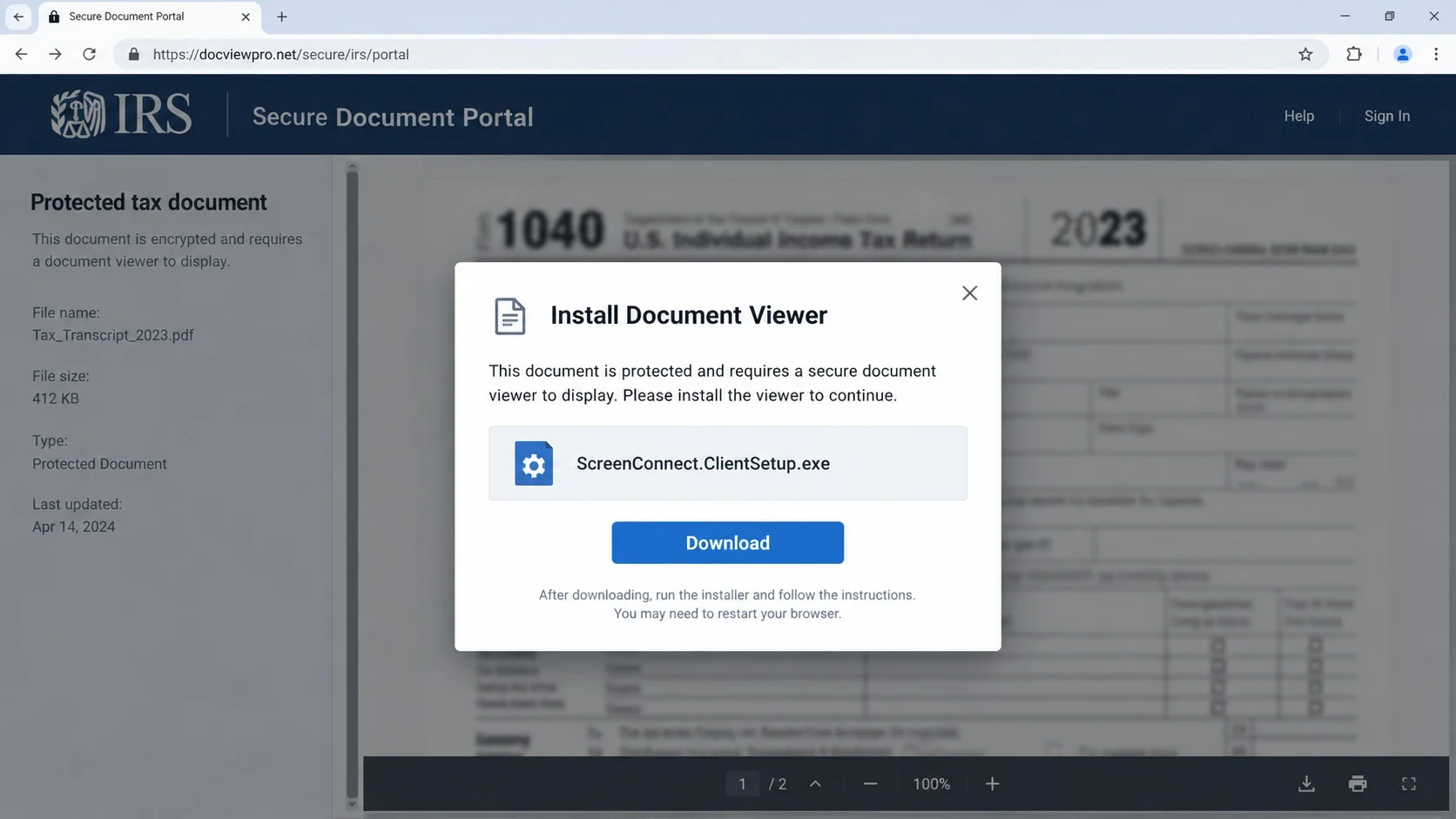
The button opens a counterfeit secure-document portal. A blurred tax form appears in the background, making the page seem like a protected government record.
The site says a special document viewer is needed. It then offers an executable named ScreenConnect.ClientSetup.exe instead of displaying an ordinary web document.
Running that file can install a preconfigured remote-access client. The setup is designed to connect the computer to infrastructure controlled by the attacker.
Why this is more dangerous than ordinary phishing
- The lure exploits fear surrounding taxes and government compliance.
- The linked page attempts to install software rather than merely collect a password.
- The payload abuses a legitimate remote-support product to make activity appear less suspicious.
- A successful connection can expose the screen, files, browser sessions, and financial records.
- The intruder may install additional malware or create another path back into the computer.
- Compromise can continue silently after the fake tax document is forgotten.
This campaign is malspam, meaning deceptive email is used to deliver malware. Receiving or reading the message alone does not install the remote-access tool.
How the IRS Account Verification Email Virus Works
Step 1: A fabricated IRS notice reaches the inbox
The campaign begins with bulk email made to resemble a formal agency communication. Logos, official-sounding language, and privacy statements create administrative authority.
The sender may use a display name containing “Internal Revenue Service” or “IRS.GOV.” Display names are editable labels and do not authenticate the sending address.
The notice references a recent return without supplying verifiable filing details. That broad claim can fit millions of recipients during and after tax season.
A numbered notice increases realism. Criminals can invent unlimited identifiers, so the presence of OTTA-948271 does not connect the message to an agency record.
The greeting may be generic or include an email address. Neither demonstrates access to a taxpayer account, because addresses are easily acquired from breaches and marketing lists.
Recipients are encouraged to focus on consequences rather than provenance. Fear of a delayed refund or extra review can override normal caution.
Step 2: The call to action leads away from government systems
The “Review Your Account” button hides the real destination behind styled text. A recipient sees an official command, not the unrelated address embedded underneath.
Hovering over the button may reveal a non-government domain. On mobile mail clients, pressing and holding can display a preview without opening the page.
Redirect services may insert additional stops before the landing page. Those hops help operators replace disabled infrastructure without resending the original campaign.
The real IRS does not require taxpayers to install remote-support software from an unsolicited email. It also does not need an unknown document portal for routine account access.
A taxpayer who wants to check an issue should leave the email closed and reach the official IRS account independently through a saved bookmark or typed address.
Calling a number found inside the suspicious message would be equally unsafe. Verification must use independently sourced agency contact information.
Step 3: A fake document portal creates a believable obstacle
The landing page displays a blurred tax form, protected-document language, and familiar viewer controls. These details make the missing content feel technically plausible.
Instead of asking for a password immediately, the page claims the visitor lacks a required viewer. This detour lowers suspicion around downloading an executable.
File extensions matter. A document might end in PDF, while ScreenConnect.ClientSetup.exe is a Windows program capable of installing software.
The page may start the download automatically or wait for the visitor to press Download. Saving the file alone is less dangerous than executing it.
Windows can show a publisher or warning prompt, but victims may continue because the site framed installation as necessary for tax compliance.
Never treat a blurred preview as proof that a real document exists. It is merely an image placed behind the attacker’s instructions.
Step 4: The installer establishes remote access
ScreenConnect is a legitimate remote-support platform used by real businesses and technicians. The product’s existence does not make this unsolicited installer legitimate.
Attackers can preconfigure a client so it registers with their server. After execution, the computer may appear inside their remote-management console.
The intruder can potentially view the desktop, interact with windows, transfer files, inspect folders, and execute commands according to the granted configuration.
Because remote-management tools have lawful uses, basic security controls may not classify every copy as conventional malware. Context and configuration are crucial.
A silent connection can allow reconnaissance before theft begins. Criminals may first inspect documents and browser history to understand the victim’s finances.
If the installer was run, disconnecting the network quickly can interrupt control while the computer is isolated and assessed.
Step 5: The attacker searches for valuable access
Tax documents contain names, addresses, Social Security numbers, income information, employer details, and banking data. Those records can support identity fraud.
Open browser sessions may provide access to email, cloud storage, shopping accounts, and financial services without requiring the attacker to know each password.
Saved passwords and cookies are also attractive. An intruder may copy browser databases or deploy an information-stealing program for automated collection.
Remote control enables convincing financial fraud. The criminal can watch a victim sign in, alter payment details, or open a fake bank dialog over the desktop.
Work computers can expose company records and shared drives. One employee’s mistake may therefore become a broader organizational incident.
The attacker may also contact people from the victim’s email, using genuine tax or payment context to create stronger follow-up messages.
Step 6: Persistence and additional payloads extend the compromise
Removing the downloaded installer does not necessarily end access. The installed service, configuration files, scheduled tasks, or secondary tools may remain.
A remote operator can add another account, change security settings, disable protections, or install ransomware and credential stealers.
Some criminals maintain access quietly and wait for useful activity. Others act quickly, attempting transfers or password resets within minutes.
That uncertainty is why a run installer requires incident-response treatment. The computer should not be trusted merely because no pop-up or slowdown appears.
Security logs, startup entries, services, browser sessions, and account activity all need review. Organizations should preserve evidence before rebuilding managed systems.
A clean reinstall may be appropriate when remote control is confirmed and the scope cannot be established confidently.
ScreenConnect Is Legitimate, but This Installer Is Not
Remote-support products allow technicians to help users and administer computers. Their capabilities also make them attractive to criminals seeking reliable access.
The distinction lies in authorization. A trusted technician schedules support, identifies the organization, explains the connection, and uses an independently verified channel.
This campaign arrives unexpectedly, hides behind an IRS document, and pressures the recipient to run a preconfigured client. Those circumstances invalidate the request.
Security software may label the file as a remote-access tool rather than a virus. That description should not be dismissed when installation was unsolicited.
The legitimate vendor and the IRS are not responsible for the campaign. Criminals are abusing recognizable services and government imagery to manufacture trust.
Users should report the malicious configuration and message while avoiding accusations against the genuine product based solely on this abuse.
How to Verify an IRS Account Notice
Start with the communication method
Unexpected email demanding software installation is incompatible with normal tax-account handling. Government correspondence should not require a remote-control client to reveal a notice.
Check physical mail and the official account reached independently. Do not use the email’s button, reply address, phone number, or downloadable application.
A genuine issue should remain visible after you enter the official account through your own route. Scammers rely on keeping verification inside their controlled path.
Inspect the complete sender and link destination
Expand the sender details and compare the actual domain with the display name. Look for added words, unusual endings, substitutions, and mismatched reply addresses.
Preview the button destination without opening it. Any non-government address, shortening service, advertising redirect, or anonymous document host is a decisive warning.
Remember that a page can copy an IRS logo perfectly. The browser’s address bar has more evidentiary value than graphics inside the page.
Question the requested file type
A file ending in EXE is a program, not a tax document. A legitimate online notice can be displayed in a browser or downloaded as a conventional document.
Remote-support installers deserve special caution because they can intentionally grant another party control. Never run one to satisfy an unsolicited government message.
If an email gateway renamed or archived the file, inspect the contents only within an approved organizational security process.
Confirm through a separate trusted channel
Use the contact information printed on genuine tax correspondence or listed through the official government directory. Explain the claimed notice and ask whether it exists.
Business recipients should also notify their security team. Administrators can search mailboxes for the same subject and block the infrastructure across the organization.
Do not forward a live attachment casually. Use the company’s reporting button or follow its procedure for submitting suspicious messages.
What to Do If You Ran the Fake Document Viewer
- Disconnect the affected computer. Turn off Wi-Fi or unplug Ethernet immediately. Do not continue banking, email, or tax work on that system.
- Notify the responsible team. On a work device, contact security through a clean phone or computer. Avoid shutting down if investigators request live evidence.
- Remove remote access safely. Identify the unexpected ScreenConnect client, service, and configuration. Organizations should let incident responders preserve evidence before removal.
- Run comprehensive scans. Use Malwarebytes and the built-in antivirus from a trusted recovery path. Scan for secondary payloads, persistence, and information stealers.
- Change passwords elsewhere. From a clean device, reset email, financial, tax, cloud, and work credentials. Sign out other sessions and replace reused passwords.
- Call financial institutions. Use numbers printed on cards or statements. Report possible remote access, review transfers, and request stronger monitoring where appropriate.
- Protect identity records. Monitor credit and tax activity, preserve the email and file details, and follow identity-theft reporting procedures for your country.
- Install AdGuard after recovery. It can reduce exposure to malicious ads and redirect pages, but it cannot undo remote control or replace malware cleanup.
Is Your Device Infected? Run a Free Malware Scan
Slow performance, constant pop-ups, or strange behavior? These are classic signs of a malware infection. A quick way to check is to scan your device with Malwarebytes Free, one of the most trusted malware removal tools available. If you only visited a scam page and didn’t download or install anything, this scan is optional.
The free version detects and removes the most common threats, including:
- Adware — the cause of those annoying pop-ups
- Browser hijackers — unwanted redirects and changed homepages
- Trojans and spyware — hidden programs stealing your data
- Potentially unwanted programs (PUPs) — software you never asked for
👉 Select your device below — Windows, Mac, or Android — then follow the simple steps to download Malwarebytes, scan your system, and remove any threats it finds. The scan usually takes 5 to 20 minutes.
Run a Malware Scan with Malwarebytes for Windows
Malwarebytes is one of the most popular and trusted anti-malware tools for Windows — and it’s completely free for removing infections. It catches threats that many antivirus programs miss, including adware, browser hijackers, and trojans. Follow the steps below to scan your PC and remove what Malwarebytes finds.
Download Malwarebytes
Click the button below to download the latest version of Malwarebytes for Windows from the official source. The free version is all you need — it will scan your computer and remove adware, browser hijackers, and other malicious software at no cost.
Download MalwarebytesOfficial installer for Windows 11 and 10. Your download starts right away.Want real-time protection? See Malwarebytes Premium Malwarebytes Free for WindowsScans and removes malware at no cost
-
Install Malwarebytes
When the download finishes, open your Downloads folder and double-click the MBSetup file. If Windows shows a User Account Control pop-up, click “Yes” to allow the installation.

Follow the On-Screen Prompts to Install Malwarebytes
The setup wizard will walk you through a few quick screens:
-
Choose where you’re installing the program — “Personal Computer” or “Work Computer” — then click Next.

-
Malwarebytes will now install on your device. This usually takes under a minute.

-
When installation is complete, the “Welcome to Malwarebytes” screen will open automatically.

-
On the final screen, click Open Malwarebytes to launch the program.

-
Optional: Check for rootkits with a Custom Scan
You don’t need to change any settings for a normal scan. The standard Threat Scan in the next step is enough for most problems, so you can go straight to it.
If you also want to check for rootkits, use a Custom Scan. In current versions of Malwarebytes, rootkit scanning is only available there:
- On the Scanner tile, click the three-dot menu and select Advanced Scan.
- Choose Custom Scan. In its options, check Scan for rootkits.
- Select your system drive (usually C:\) as the location to scan, then start the scan. It takes longer than a Threat Scan.
- When it finishes, review and quarantine the results as described in the steps below.
Rootkit scanning isn’t available on Windows devices with ARM processors.
Start the Scan
Click the blue Scan button. Malwarebytes will automatically update its virus database and start checking your computer for malware.

-
Wait for the Scan to Finish
The scan checks your entire system for browser hijackers and other malicious programs, so it can take 5 to 20 minutes depending on your computer. Feel free to do something else — just check back occasionally to see the progress.

-
Quarantine the Detected Threats
When the scan is done, you’ll see a list of everything Malwarebytes found — malware, adware, and potentially unwanted programs. Click the “Quarantine” button to remove all of them at once.

Malwarebytes will now remove the malicious files and registry entries and move them safely into quarantine.

-
Restart Your Computer
Some threats can only be fully removed after a reboot. If Malwarebytes asks you to restart, click Yes. Once you’re logged back in, Malwarebytes has finished removing the threats it found.

When the scan is done, check whether the problems you noticed have stopped. If they continue, see the options below.
If you are still having problems with your computer after completing these instructions, then please follow one of the steps:
- Run a computer scan with ESET Online Scanner
- Ask for help in our Windows Malware Removal Help & Support forum.
Run a Malware Scan with Malwarebytes for Mac
Malwarebytes for Mac is a free on-demand scanner that removes the malware other security software tends to miss — adware, browser hijackers, and unwanted programs included. Cleaning an infected Mac with Malwarebytes has always been completely free, and it’s our go-to recommendation. Follow the steps below to scan your Mac and remove what Malwarebytes finds.
-
Download Malwarebytes for Mac
Click the button below to download the latest version of Malwarebytes for Mac.
Download MalwarebytesOfficial installer for macOS. Your download starts right away.Want real-time protection? See Malwarebytes PremiumMalwarebytes Free for MacScans and removes malware at no cost -
Open the Malwarebytes setup file
When the download finishes, open your Downloads folder and double-click the setup file to begin the installation.

-
Follow the On-Screen Prompts to Install Malwarebytes
The Malwarebytes for Mac Installer will guide you through a few quick screens. Click “Continue” and keep following the prompts until the installation completes.



When the installation is complete, Malwarebytes opens to the Welcome to Malwarebytes screen. Click “Get started“.
Malwarebytes needs Full Disk Access to check your whole Mac. When it asks, open System Settings > Privacy & Security > Full Disk Access, turn on Malwarebytes (it may be listed as Malwarebytes Protection), and confirm with your password or Touch ID. Then return to Malwarebytes. On macOS Monterey and earlier, this setting is in System Preferences > Security & Privacy > Privacy.
-
Select “Personal Computer” or “Work Computer”
Malwarebytes will ask what type of computer you’re installing it on. Click either Personal Computer or Work Computer, whichever applies.

-
Start the Scan
Click the “Scan” button. Malwarebytes will automatically update its detection database and begin checking your Mac for malware.

-
Wait for the Scan to Finish
Malwarebytes will scan your Mac for adware, browser hijackers, and other malicious programs. This can take a few minutes, so feel free to do something else — just check back occasionally to see the progress.

-
Quarantine the Detected Threats
When the scan is done, you’ll see a list of everything Malwarebytes found. Click the “Quarantine” button to remove all the threats at once.

-
Restart Your Mac
Malwarebytes will now remove all the malicious files it found. Some threats can only be fully removed after a reboot — if Malwarebytes asks you to restart, allow it. Once you’re logged back in, check whether the problems you noticed have stopped. If they come back, save the scan report and ask for help in our forum.

If the problems you noticed continue after the scan, see the options below.
If you are still experiencing problems while trying to remove a malicious program from your computer, please ask for help in our Mac Malware Removal Help & Support forum.
Run a Malware Scan with Malwarebytes for Android
Malwarebytes for Android scans your phone or tablet for malware, adware, and potentially unwanted apps. The free version scans only when you start a scan. Real-time protection, which checks apps automatically, is part of the paid Premium version.
-
Download Malwarebytes for Android.
You can download Malwarebytes for Android by clicking the link below.
Get Malwarebytes for AndroidOpens Google Play in a new tab.Want real-time protection? See Malwarebytes Premium for AndroidMalwarebytes for AndroidScans your phone and removes malware at no cost -
Install Malwarebytes for Android on your phone.
In the Google Play Store, tap “Install” to install Malwarebytes for Android on your device.

When the installation process has finished, tap “Open” to begin using Malwarebytes for Android. You can also open Malwarebytes by tapping on its icon in your phone menu or home screen.

-
Follow the on-screen prompts to complete the setup process
When Malwarebytes opens, it walks you through a short setup. Tap Get started and follow the prompts. If you see an offer for a trial or a paid plan, read it before you accept. You can skip it and keep using the free scanner.
Malwarebytes will ask for permission to access the files on your phone so it can scan them. Tap Allow, or turn on the permission in the Android screen that opens, then return to Malwarebytes.
-
Run a scan with Malwarebytes for Android
On the main screen, tap Scan now. In some versions, you open the menu, tap Scanner, and then tap Run a scan.
-
Wait for the Malwarebytes scan to complete.
Malwarebytes will now start scanning your phone for adware and other malicious apps. This process can take a few minutes, so we suggest you do something else and periodically check on the status of the scan to see when it is finished.

-
Remove the detected apps.
When the scan has been completed, you will see a list of the threats that Malwarebytes for Android has detected. Next to each detected item, tap the menu icon (three dots), then choose to uninstall the app or delete the file. Android then asks you to confirm. Tap OK or Uninstall to remove the app.
-
Restart your phone.
When the detected apps are removed, restart your phone if Malwarebytes asks you to. Then check whether the problems you noticed have stopped.
If the problems you noticed continue after the scan, see the options below.
If you are still having problems with your phone after completing these instructions, then please follow one of the steps:
- Ask for help in our Mobile Malware Removal Help & Support forum.
- Only as a last resort, reset your phone to factory settings. Read the warning below first.
- Back up your photos, videos, files, and messages, for example to your Google account or a computer.
- Make sure you know your Google account email and password. The phone asks for them after the reset. If you changed the password recently, Google recommends waiting 24 hours before you reset.
- On a Samsung phone, also make sure you know your Samsung account password.
- If you use an authenticator app for two-step verification, move your accounts to another device or save your backup codes first.
Stay Protected: Block Ads and Malicious Sites
No scan can prove a device is completely clean, so it helps to block threats before they reach you. Most infections start with a malicious ad or a fake download button — so blocking them at the source is your best defense.
We recommend AdGuard, which blocks malicious ads, phishing pages, and dangerous redirects before they can reach you.
👉 Download AdGuard and browse safely
How to Determine Whether the File Was Executed
A file sitting in Downloads is not the same as an installed client. Risk rises sharply if the user double-clicked it and approved a setup prompt.
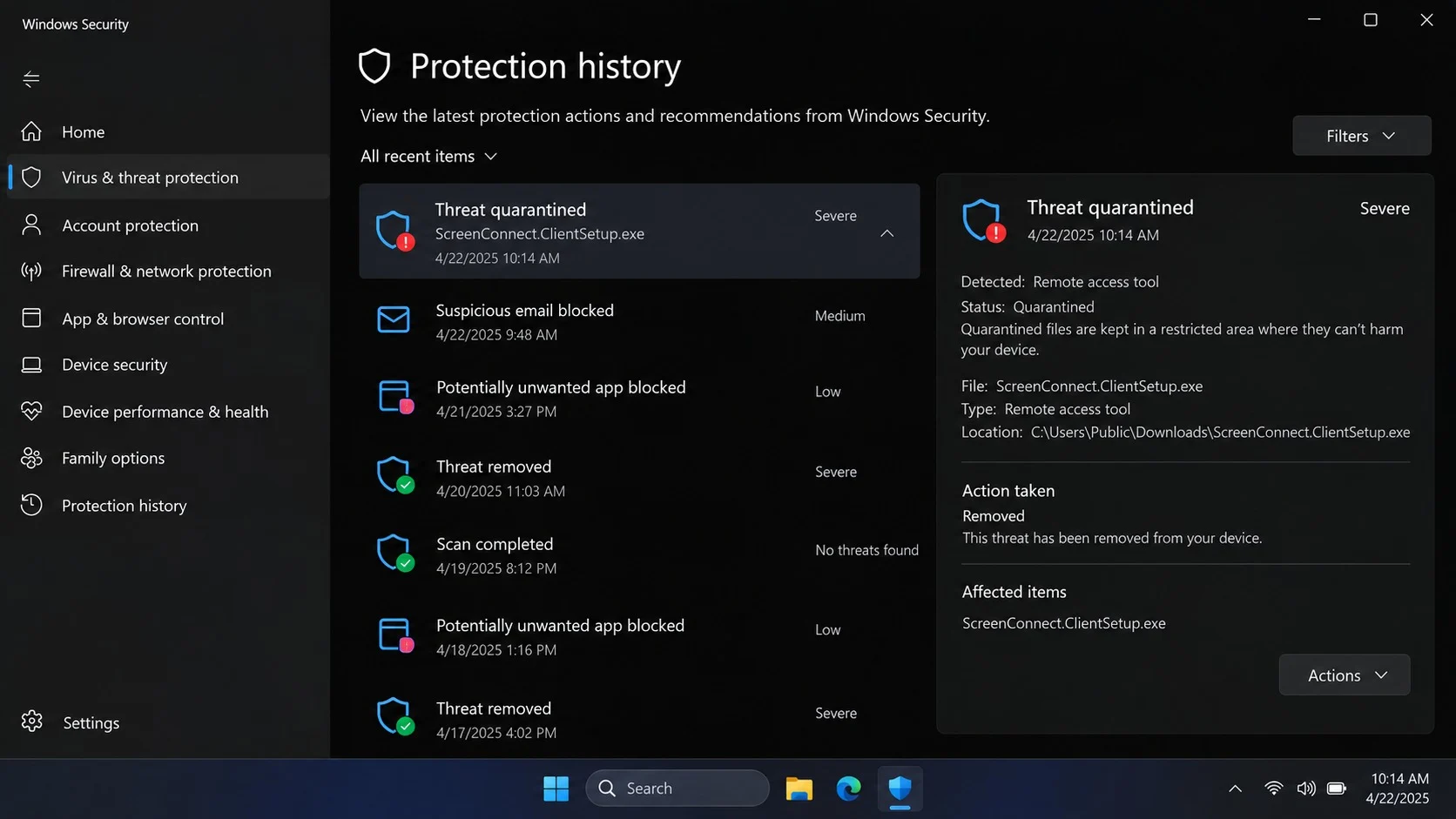
Check browser download history, operating-system event logs, installed applications, services, and security protection history for the filename and nearby timestamps.
Look for unfamiliar remote-support tray icons or services. Absence of a visible icon does not prove the software never ran.
Security tools may record a quarantine or block event. Preserve those details, including detection time, path, hash, and action taken.
If execution remains uncertain, treat the device cautiously until a full assessment is complete. Logging into important accounts from it can expose fresh credentials.
Businesses should correlate endpoint evidence with network connections and identity logs. A remote session may leave records even if the local file was later deleted.
What to Monitor After Cleanup
Watch email security alerts, password resets, new forwarding rules, and unfamiliar application authorizations. Email is often the recovery channel for other services.
Review bank and card activity daily at first. Report unknown transfers immediately because recovery options can narrow as time passes.
Check tax-account activity and future correspondence for filings or changes you did not initiate. Identity misuse can surface long after the original compromise.
Monitor credit reports and consider a fraud alert or freeze when highly sensitive identity documents were accessible.
On business systems, rotate exposed secrets, tokens, and credentials beyond the user’s password. Remote access may reveal shared resources and administrative sessions.
Continue scanning after updates and restart. A clean first scan is encouraging, but it cannot reconstruct everything a remote operator viewed or copied.
Where evidence supports broad access, rebuilding the device from trusted media provides stronger assurance than removing only the visible client.
Keep an incident timeline. Dates, alerts, phone calls, financial reports, and case numbers make follow-up with institutions far easier.
Frequently Asked Questions
Can reading the IRS Account Verification email infect my computer?
No. Reading the message normally does not install the described remote-access client. Infection requires downloading and executing the promoted installer.
Delete or report the email if you did not interact. A malware scan is optional reassurance unless a file was downloaded or run.
Is ScreenConnect itself malware?
No. It is legitimate remote-support software used by authorized technicians. Criminals can abuse preconfigured clients to obtain access without informed consent.
An unexpected copy delivered through a fake IRS portal should be treated as hostile regardless of the legitimate product name.
What if I downloaded the installer but never opened it?
Delete or quarantine the file and empty the relevant download location. Run a scan to confirm that no other payload was saved.
Review download history carefully. If you remember approving installation, treat the computer as compromised rather than relying on the file’s present location.
Why would the fake portal show a blurred tax form?
The blur creates anticipation and supplies a reason the document cannot be read yet. It turns the malicious installer into a seemingly necessary viewing tool.
The background can be a generic image. It does not indicate that criminals possess the recipient’s actual return.
Should I remove ScreenConnect immediately from a work computer?
Disconnect the device and contact the security team first. Investigators may need live data, logs, configuration details, and network evidence before removal.
On a personal computer, isolation and prompt removal are appropriate, followed by complete scans and account recovery from another clean device.
Will changing my password end remote access?
No. Password changes protect accounts, while the installed client controls the computer separately. Both the endpoint and exposed identities require remediation.
Revoke sessions and application tokens after cleaning or rebuilding the machine, then monitor for new activity.
The Bottom Line
The IRS Account Detail Verification message is a malware-delivery operation, not a routine phishing page. Its fake viewer can grant criminals powerful remote access.
If the installer ran, isolate the computer, involve security professionals, scan thoroughly, protect financial and tax accounts, and consider rebuilding when the intrusion scope remains uncertain.

Join the discussion
0 commentsShare your experience or ask a question about this article.
Community experiences
Did this happen to you?
Your experience could help someone recognize the same scam. Submit a private report for our team to review.
I experienced this tooReports are reviewed before publication. Sharing publicly is always your choice.
Discussion
Start the conversation
Have a question or something useful to share? Add the first comment.