

The “I’ve accessed your device” email is a chilling message that no one ever wants to find in their inbox. It’s a scam that has been making the rounds recently, preying on people’s deepest fears and insecurities. The email claims that the sender has gained access to your personal devices, has compromising information about you, and threatens to expose it unless you pay a ransom. This devious scheme, also known as sextortion or blackmail scam, is designed to manipulate victims into parting with their money. But don’t panic just yet – in this article, we’ll dive deep into the mechanics of this scam, explore how it works, and let you know how to protect yourself from falling victim to these digital extortionists.
Scam Overview
The “I’ve accessed your device” email scam, also known as sextortion or blackmail scam, is a type of phishing attack that aims to manipulate victims into paying a ransom. The scammer sends an email claiming to have gained access to the recipient’s devices, including their computer, phone, and even webcam. They assert that they have obtained sensitive information, such as personal files, browsing history, and compromising video footage of the victim. The email often contains specific details, such as a password or a snippet of personal information, to lend credibility to their claims.
The scammer then threatens to release the alleged compromising material to the victim’s contacts, friends, and family, as well as post it on social media platforms and other public forums. They demand a ransom payment, typically in cryptocurrency like Bitcoin, within a specified timeframe to prevent the release of the information. The email is carefully crafted to instill fear and panic, pressuring the victim to comply with the demands.
What makes this scam particularly concerning is the psychological manipulation employed by the scammers. They prey on people’s deepest fears and insecurities, exploiting the idea that everyone has something to hide. By claiming to have access to private moments captured through the victim’s webcam, the scammers create a sense of vulnerability and exposure. They also use time pressure tactics, setting a deadline for payment and emphasizing the urgency of the situation.
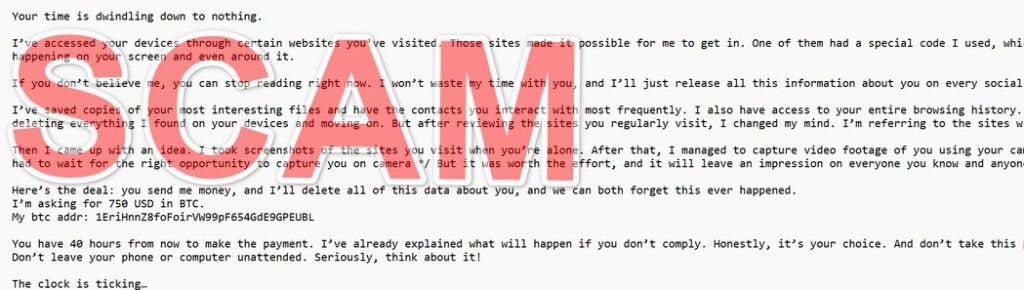
Here is how the “I’ve accessed your device” email scam looks:
Your time is dwindling down to nothing.
I’ve accessed your devices through certain websites you’ve visited. Those sites made it possible for me to get in. One of them had a special code I used, which worked perfectly. Now, I can see everything happening on your screen and even around it.
If you don’t believe me, you can stop reading right now. I won’t waste my time with you, and I’ll just release all this information about you on every social media platform and send it to everyone you know.
I’ve saved copies of your most interesting files and have the contacts you interact with most frequently. I also have access to your entire browsing history. I have all the data I need. At first, I thought of deleting everything I found on your devices and moving on. But after reviewing the sites you regularly visit, I changed my mind. I’m referring to the sites with questionable content.
Then I came up with an idea. I took screenshots of the sites you visit when you’re alone. After that, I managed to capture video footage of you using your camera in some rather private moments. /* By the way, I had to wait for the right opportunity to capture you on camera */ But it was worth the effort, and it will leave an impression on everyone you know and anyone on the Internet.
Here’s the deal: you send me money, and I’ll delete all of this data about you, and we can both forget this ever happened.
I’m asking for 750 USD in BTC.
[ bitcoin adresss]You have 40 hours from now to make the payment. I’ve already explained what will happen if you don’t comply. Honestly, it’s your choice. And don’t take this personally. It’s just business. A word of advice: Don’t leave your phone or computer unattended. Seriously, think about it!
The clock is ticking…
It’s important to note that in most cases, the scammers do not actually have access to the victim’s devices or any compromising information. They rely on social engineering techniques and publicly available data to craft convincing emails. However, the mere possibility of exposure is often enough to cause significant distress and prompt some victims to pay the ransom.
How the Scam Works
The “I’ve accessed your device” email scam follows a systematic approach to deceive and extort victims. Here’s a step-by-step breakdown of how the scam typically unfolds:
Step 1: Acquiring Email Addresses and Personal Information
Scammers obtain email addresses and personal information through various means, such as data breaches, phishing campaigns, or purchasing lists on the dark web. They may also use automated tools to scrape websites and social media profiles for publicly available information.
Step 2: Crafting the Scam Email
Using the collected information, the scammer crafts a personalized email designed to instill fear and panic. They claim to have gained access to the recipient’s devices, often providing a password or personal detail as “proof.” The email is written in a threatening tone, emphasizing the alleged compromising material they possess.
Step 3: Making Ransom Demands
The scammer demands a ransom payment, usually in cryptocurrency like Bitcoin, to prevent the release of the compromising information. They provide a specific Bitcoin address and set a deadline for payment, typically ranging from a few hours to a couple of days. The urgency is intended to pressure the victim into making a hasty decision.
Step 4: Psychological Manipulation
Throughout the email, the scammer employs various psychological manipulation techniques to heighten the victim’s fear and anxiety. They may claim to have captured video footage of the victim in compromising situations, such as visiting adult websites or engaging in private acts. They also emphasize the potential consequences of non-compliance, such as public humiliation and damage to personal relationships.
Step 5: Exploiting Fear and Uncertainty
The scammer relies on the victim’s fear and uncertainty to coerce them into paying the ransom. They bank on the idea that even if the victim suspects the claims may be false, the mere possibility of exposure is enough to prompt payment. The scammer may also use time pressure tactics, stating that the price will increase if the payment is not made within the specified timeframe.
Step 6: Collecting the Ransom
If the victim falls for the scam and makes the payment, the scammer collects the ransom in cryptocurrency. Due to the pseudonymous nature of cryptocurrencies, it is difficult to trace the funds and identify the perpetrator. Once the payment is received, the scammer typically disappears, leaving the victim without any further communication.
What to Do If You’ve Fallen Victim to This Scam
If you receive an email claiming that your device has been accessed and demanding a ransom, it’s crucial to remain calm and take the following steps:
1. Do Not Engage with the Scammer
Avoid replying to the email or attempting to communicate with the scammer. Engaging with them may provide them with additional information or encourage them to target you further.
2. Do Not Pay the Ransom
Resist the urge to pay the demanded ransom. Paying the scammer does not guarantee that they will delete the alleged compromising material. In fact, it may encourage them to target you again in the future, knowing that you are willing to comply with their demands.
3. Report the Email as Spam
Mark the email as spam or junk in your email client. This helps email providers improve their spam filters and prevents similar emails from reaching your inbox in the future.
4. Change Your Passwords
If the scammer mentioned a genuine password in the email, change it immediately across all accounts where you use that password. It’s also advisable to enable two-factor authentication wherever possible for added security.
5. Scan Your Devices for Malware
While it’s unlikely that the scammer has actual access to your devices, it’s still a good practice to run a malware scan on your computer and mobile devices. Use reputable antivirus software to ensure your devices are free from any malicious software.
6. Inform Authorities
If you feel threatened or believe you are a victim of a crime, contact your local law enforcement agency. Provide them with a copy of the email and any relevant information. They can advise you on the appropriate steps to take and investigate the matter further.
7. Educate Yourself and Others
Share your experience with friends, family, and colleagues to raise awareness about this scam. Educate them on the signs to look out for and the importance of not giving in to the scammer’s demands.
Is Your Device Infected? Run a Free Malware Scan
Slow performance, constant pop-ups, or strange behavior? These are classic signs of a malware infection. The fastest way to find out is to scan your device with Malwarebytes Free — one of the most trusted malware removal tools available.
The free version detects and removes the most common threats, including:
- Adware — the cause of those annoying pop-ups
- Browser hijackers — unwanted redirects and changed homepages
- Trojans and spyware — hidden programs stealing your data
- Potentially unwanted programs (PUPs) — software you never asked for
👉 Select your device below — Windows, Mac, or Android — then follow the simple steps to download Malwarebytes, scan your system, and remove any threats it finds. The scan usually takes 5 to 20 minutes.
Run a Malware Scan with Malwarebytes for Windows
Malwarebytes is one of the most popular and trusted anti-malware tools for Windows — and it’s completely free for removing infections. It catches threats that many antivirus programs miss, including adware, browser hijackers, and trojans. Follow the steps below to scan and clean your PC in just a few minutes.
Download Malwarebytes
Click the button below to download the latest version of Malwarebytes for Windows from the official source. The free version is all you need — it will scan your computer and remove adware, browser hijackers, and other malicious software at no cost.
Download MalwarebytesOfficial installer for Windows 11 and 10. Your download starts right away.Want real-time protection? See Malwarebytes Premium Malwarebytes Free for WindowsScans and removes malware at no cost
-
Install Malwarebytes
When the download finishes, open your Downloads folder and double-click the MBSetup file. If Windows shows a User Account Control pop-up, click “Yes” to allow the installation.

Follow the On-Screen Prompts to Install Malwarebytes
The setup wizard will walk you through a few quick screens:
-
Choose where you’re installing the program — “Personal Computer” or “Work Computer” — then click Next.

-
Malwarebytes will now install on your device. This usually takes under a minute.

-
When installation is complete, the “Welcome to Malwarebytes” screen will open automatically.

-
On the final screen, click Open Malwarebytes to launch the program.

-
Enable “Scan for Rootkits”
Before scanning, turn on rootkit detection so Malwarebytes can find even the most hidden threats. Click the Settings gear icon on the left side of the screen.

In the settings menu, find “Scan for rootkits” and click the toggle so it turns blue.

Done? Click “Dashboard” in the left pane to return to the main screen.
Start the Scan
Click the blue Scan button. Malwarebytes will automatically update its virus database and start checking your computer for malware.

-
Wait for the Scan to Finish
The scan checks your entire system for browser hijackers and other malicious programs, so it can take 5 to 20 minutes depending on your computer. Feel free to do something else — just check back occasionally to see the progress.

-
Quarantine the Detected Threats
When the scan is done, you’ll see a list of everything Malwarebytes found — malware, adware, and potentially unwanted programs. Click the “Quarantine” button to remove all of them at once.

Malwarebytes will now remove the malicious files and registry entries and move them safely into quarantine.

-
Restart Your Computer
Some threats can only be fully removed after a reboot. If Malwarebytes asks you to restart, click Yes. Once you’re logged back in, Malwarebytes has finished removing the threats it found.

That’s it — your Windows PC is now clean of trojans, adware, and other malware, and should be back to running smoothly.
If you are still having problems with your computer after completing these instructions, then please follow one of the steps:
- Run a computer scan with ESET Online Scanner
- Ask for help in our Windows Malware Removal Help & Support forum.
Run a Malware Scan with Malwarebytes for Mac
Malwarebytes for Mac is a free on-demand scanner that removes the malware other security software tends to miss — adware, browser hijackers, and unwanted programs included. Cleaning an infected Mac with Malwarebytes has always been completely free, and it’s our go-to recommendation. Follow the steps below to scan and clean your Mac in just a few minutes.
-
Download Malwarebytes for Mac
Click the button below to download the latest version of Malwarebytes for Mac.
Download MalwarebytesOfficial installer for macOS. Your download starts right away.Want real-time protection? See Malwarebytes PremiumMalwarebytes Free for MacScans and removes malware at no cost -
Open the Malwarebytes setup file
When the download finishes, open your Downloads folder and double-click the setup file to begin the installation.

-
Follow the On-Screen Prompts to Install Malwarebytes
The Malwarebytes for Mac Installer will guide you through a few quick screens. Click “Continue” and keep following the prompts until the installation completes.



When the installation is complete, Malwarebytes opens to the Welcome to Malwarebytes screen. Click “Get started“.
-
Select “Personal Computer” or “Work Computer”
Malwarebytes will ask what type of computer you’re installing it on. Click either Personal Computer or Work Computer, whichever applies.

-
Start the Scan
Click the “Scan” button. Malwarebytes will automatically update its detection database and begin checking your Mac for malware.

-
Wait for the Scan to Finish
Malwarebytes will scan your Mac for adware, browser hijackers, and other malicious programs. This can take a few minutes, so feel free to do something else — just check back occasionally to see the progress.

-
Quarantine the Detected Threats
When the scan is done, you’ll see a list of everything Malwarebytes found. Click the “Quarantine” button to remove all the threats at once.

-
Restart Your Mac
Malwarebytes will now remove all the malicious files it found. Some threats can only be fully removed after a reboot — if Malwarebytes asks you to restart, allow it. Once you’re logged back in, your Mac is clean.

That’s it — your Mac is now free of adware, rogue browser extensions, and other potentially harmful software.
If you are still experiencing problems while trying to remove a malicious program from your computer, please ask for help in our Mac Malware Removal Help & Support forum.
Run a Malware Scan with Malwarebytes for Android
Malwarebytes for Android automatically detects and removes dangerous threats like malware and ransomware so you don’t have to worry about your most-used device being compromised. Aggressive detection of adware and potentially unwanted programs keeps your Android phone or tablet running smooth.
-
Download Malwarebytes for Android.
You can download Malwarebytes for Android by clicking the link below.
Get Malwarebytes for AndroidOpens Google Play in a new tab.Want real-time protection? See Malwarebytes Premium for AndroidMalwarebytes for AndroidScans your phone and removes malware at no cost -
Install Malwarebytes for Android on your phone.
In the Google Play Store, tap “Install” to install Malwarebytes for Android on your device.

When the installation process has finished, tap “Open” to begin using Malwarebytes for Android. You can also open Malwarebytes by tapping on its icon in your phone menu or home screen.

-
Follow the on-screen prompts to complete the setup process
When Malwarebytes will open, you will see the Malwarebytes Setup Wizard which will guide you through a series of permissions and other setup options.
This is the first of two screens that explain the difference between the Premium and Free versions. Swipe this screen to continue.
Tap on “Got it” to proceed to the next step.
Malwarebytes for Android will now ask for a set of permissions that are required to scan your device and protect it from malware. Tap on “Give permission” to continue.
Tap on “Allow” to permit Malwarebytes to access the files on your phone.
-
Update database and run a scan with Malwarebytes for Android
You will now be prompted to update the Malwarebytes database and run a full system scan.

Click on “Update database” to update the Malwarebytes for Android definitions to the latest version, then click on “Run full scan” to perform a system scan.

-
Wait for the Malwarebytes scan to complete.
Malwarebytes will now start scanning your phone for adware and other malicious apps. This process can take a few minutes, so we suggest you do something else and periodically check on the status of the scan to see when it is finished.

-
Click on “Remove Selected”.
When the scan has been completed, you will be presented with a screen showing the malware infections that Malwarebytes for Android has detected. To remove the malicious apps that Malwarebytes has found, tap on the “Remove Selected” button.

-
Restart your phone.
Malwarebytes for Android will now remove all the malicious apps that it has found. To complete the malware removal process, Malwarebytes may ask you to restart your device.
That’s it — your Android phone is now clean — no more malicious apps, adware, or browser redirects.
If you are still having problems with your phone after completing these instructions, then please follow one of the steps:
- Restore your phone to factory settings by going to Settings > General management > Reset > Factory data reset.
- Ask for help in our Mobile Malware Removal Help & Support forum.
Stay Protected: Block Ads and Malicious Sites
Now that your device is clean, keep it that way. Most infections start with a malicious ad or a fake download button — so blocking them at the source is your best defense.
We recommend AdGuard, which blocks malicious ads, phishing pages, and dangerous redirects before they can reach you.
👉 Download AdGuard and browse safely
Frequently Asked Questions (FAQs) About the “I’ve Accessed Your Device” Email Scam
Q1. What is the “I’ve accessed your device” email scam?
A1. The “I’ve accessed your device” email scam, also known as sextortion or blackmail scam, is a type of phishing attack where scammers send an email claiming to have hacked into your devices, accessed your personal information, and recorded compromising video footage of you. They threaten to release this information unless you pay a ransom, usually in cryptocurrency like Bitcoin.
Q2. How do the scammers get my email address and personal information?
A2. Scammers can obtain your email address and personal information through various means, such as data breaches, phishing campaigns, or by purchasing lists on the dark web. They may also use automated tools to scrape publicly available information from websites and social media profiles.
Q3. Is it true that the scammers have access to my devices and compromising information?
A3. In most cases, the scammers do not actually have access to your devices or any compromising information. They rely on social engineering techniques and publicly available data to craft convincing emails designed to scare you into paying the ransom.
Q4. What should I do if I receive an “I’ve accessed your device” email?
A4. If you receive this type of email, remain calm and do not engage with the scammer. Do not reply to the email or attempt to communicate with them. Mark the email as spam or junk in your email client and report it to the appropriate authorities if you feel threatened.
Q5. Should I pay the ransom demanded by the scammer?
A5. No, you should never pay the ransom demanded by the scammer. Paying the ransom does not guarantee that they will delete the alleged compromising material, and it may encourage them to target you again in the future. Remember, in most cases, they do not actually possess any compromising information.
Q6. What steps can I take to protect myself from this scam?
A6. To protect yourself from the “I’ve accessed your device” email scam, follow these steps:
- Be cautious when opening emails from unknown senders and avoid clicking on suspicious links or downloading attachments.
- Use strong, unique passwords for all your accounts and enable two-factor authentication wherever possible.
- Keep your software and operating systems up to date with the latest security patches.
- Use reputable antivirus software and run regular scans on your devices.
- Be mindful of the information you share online and adjust your privacy settings on social media platforms.
Q7. What should I do if the scammer mentions a genuine password in the email?
A7. If the scammer includes a genuine password in the email, it’s likely that the password was obtained through a data breach or phishing campaign. Change that password immediately across all accounts where you use it and enable two-factor authentication for added security.
Q8. Can I report the “I’ve accessed your device” email scam to the authorities?
A8. Yes, if you feel threatened or believe you are a victim of a crime, you should report the incident to your local law enforcement agency. Provide them with a copy of the email and any relevant information. You can also report the scam to the FBI’s Internet Crime Complaint Center (IC3) or your country’s equivalent.
Q9. How can I help prevent others from falling victim to this scam?
A9. You can help prevent others from falling victim to the “I’ve accessed your device” email scam by sharing your experience and knowledge with friends, family, and colleagues. Educate them about the signs to look out for and the importance of not giving in to the scammer’s demands. Encourage them to maintain good online security practices and to report any suspicious emails they receive.
Q10. What should I do if I’m feeling distressed or anxious after receiving this scam email?
A10. If you’re feeling distressed or anxious after receiving the “I’ve accessed your device” email scam, it’s important to remember that you’re not alone. Reach out to trusted friends, family members, or a mental health professional for support. You can also contact victim support services in your area for guidance and assistance in dealing with the emotional impact of this scam.
The Bottom Line
The “I’ve accessed your device” email scam is a disturbing trend in the world of cybercrime. By preying on people’s fears and vulnerabilities, scammers attempt to extort money through psychological manipulation and empty threats. It’s crucial to remain vigilant and informed about such scams to protect yourself and your loved ones from falling victim.
Remember, in most cases, the scammer does not actually have access to your devices or any compromising information. They rely on scare tactics and social engineering to pressurize victims into making hasty decisions. By staying calm, avoiding engagement with the scammer, and taking appropriate steps to secure your accounts and devices, you can safeguard yourself against this malicious scheme.
If you do fall victim to this scam, know that you are not alone, and there is no shame in seeking help. Report the incident to the authorities, inform your close contacts, and take measures to prevent future occurrences. Together, we can combat these scams by spreading awareness and supporting one another in the face of cybercrime.








