Don’t Fall for the “I’ve Recorded Many Videos of You” Email Scam
Written by: Thomas Orsolya
Published on:
A menacing email has been terrorizing people’s inboxes, threatening to send explicit videos to all contacts. This “I’ve Recorded Many Videos of You Jerking Off” scam preys on victims’ deepest fears of embarrassment and exposure. But before spiraling into panic, arm yourself with knowledge. Learn exactly how this extortion scam works and the simple steps to protect yourself. Outsmarting cybercriminals begins with understanding their tricks.
Scam Overview
The “I’ve Recorded Many Videos Of You Jerking Off” email scam starts with an alarming message claiming the sender has secretly recorded compromising videos of the recipient through malware installed on their devices.
The email goes on to provide disturbing and graphic details, such as listing specific genres of pornography the victim has supposedly watched. This is likely an intimidation tactic, as the scammers do not actually have any such videos.
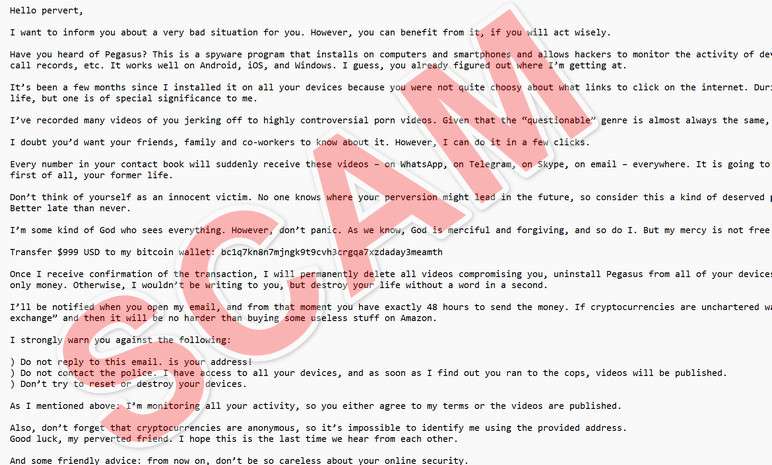
Here is how the “I’ve Recorded Many Videos Of You Jerking Off” email scam looks:
Hello pervert,
I want to inform you about a very bad situation for you. However, you can benefit from it, if you will act wisely.
Have you heard of Pegasus? This is a spyware program that installs on computers and smartphones and allows hackers to monitor the activity of device owners. It provides access to your webcam, messengers, emails, call records, etc. It works well on Android, iOS, and Windows. I guess, you already figured out where I’m getting at.
It’s been a few months since I installed it on all your devices because you were not quite choosy about what links to click on the internet. During this period, I’ve learned about all aspects of your private life, but one is of special significance to me.
I’ve recorded many videos of you jerking off to highly controversial porn videos. Given that the “questionable” genre is almost always the same, I can conclude that you have sick perversion.
I doubt you’d want your friends, family and co-workers to know about it. However, I can do it in a few clicks.
Every number in your contact book will suddenly receive these videos – on WhatsApp, on Telegram, on Skype, on email – everywhere. It is going to be a tsunami that will sweep away everything in its path, and first of all, your former life.
Don’t think of yourself as an innocent victim. No one knows where your perversion might lead in the future, so consider this a kind of deserved punishment to stop you. Better late than never.
I’m some kind of God who sees everything. However, don’t panic. As we know, God is merciful and forgiving, and so do I. But my mercy is not free.
Transfer $999 USD to my bitcoin wallet: bc1q7kn8n7mjngk9t9cvh3crgqa7xzdaday3meamth
Once I receive confirmation of the transaction, I will permanently delete all videos compromising you, uninstall Pegasus from all of your devices, and disappear from your life. You can be sure – my benefit is only money. Otherwise, I wouldn’t be writing to you, but destroy your life without a word in a second.
I’ll be notified when you open my email, and from that moment you have exactly 48 hours to send the money. If cryptocurrencies are unchartered waters for you, don’t worry, it’s very simple. Just google “crypto exchange” and then it will be no harder than buying some useless stuff on Amazon.
I strongly warn you against the following:
) Do not reply to this email. is your address! ) Do not contact the police. I have access to all your devices, and as soon as I find out you ran to the cops, videos will be published. ) Don’t try to reset or destroy your devices.
As I mentioned above: I’m monitoring all your activity, so you either agree to my terms or the videos are published.
Also, don’t forget that cryptocurrencies are anonymous, so it’s impossible to identify me using the provided address. Good luck, my perverted friend. I hope this is the last time we hear from each other.
And some friendly advice: from now on, don’t be so careless about your online security.
How the Email is Structured
The scam email is structured to maximize intimidation and fear. Here is how a typical email is laid out:
An introduction explaining that spyware was installed on the victim’s devices, granting the hacker access to their camera, messages, and browsing activity. Popular spyware Pegasus is often referenced to sound more credible.
A claim that the hacker has recorded multiple videos of the victim masturbating to extreme pornographic content over a period of months. This aims to make the victim panic.
An threat to send the explicit videos to all of the victim’s contacts unless a ransom of $999 in bitcoin is paid within 48 hours.
Stern warnings not to ignore the demands, go to the police, or attempt to reset devices.
A bitcoin wallet address is provided for the ransom payment.
The email closes by saying the hacker’s only motivation is money and they will disappear after payment.
Tactics Used to Trick Victims
These emails use various psychological tactics and technical references to convince recipients the threat is real, including:
Pretending to be an all-knowing, godlike hacker who sees everything. This taps into fears of total digital surveillance.
Making claims that the recipient’s online activity and private information has been monitored for months.
Citing spyware like Pegasus to add legitimacy.
Providing graphic, disturbing details about the content of the supposed videos. This causes panic and embarrassment.
Threatening to send videos to all contacts in an instant. This threatens total reputation destruction.
Warning not to go to authorities or attempt to reset devices, claiming they are monitoring for those actions.
Implying bitcoin payments are anonymous and untraceable.
Setting a short deadline to pay adds urgency.
How the Scam Works
This cleverly crafted extortion scam is designed to terrify recipients into immediate payment. But understanding exactly how the scammers operate can help you see through their deception.
Step 1: Building Email Lists Through the Dark Web and Data Breaches
The first thing the scammers need is a large list of potential victim email addresses. They likely purchase these in bulk on dark web marketplaces, accessing huge databases of credentials illegally obtained through data breaches. For example, email addresses from breaches of sites like LinkedIn, MySpace, or gaming forums end up for sale. These give scammers an easy way to reach millions of inboxes. Some estimate email lists can be purchased for as little as $5 per one million addresses.
Step 2: Using Social Engineering Tactics to Create Alarming Emails
With email lists in hand, the scammers employ calculated psychological tactics to craft alarming messages. The emails use personalization, technical jargon, threats, and urgency to frighten recipients. For example, naming specific porn genres demonstrates extensive monitoring knowledge. Citing real spyware like Pegasus makes the hacker appear credible and technologically advanced. Threatening instant reputation destruction by contacting “every number” in a victim’s address book adds urgency. False authority is established by claiming to be an all-seeing hacker “deity” who catches people in “deserved punishment.” These social engineering techniques exploit human emotions and vulnerabilities in the service of deception.
Step 3: Automating Mass Emailing for Maximum Reach
Rather than individually targeting victims, the scam relies on mass-emailing for optimal exposure. Bulk email services and botnets allow a single scammer to reach hundreds of thousands of inboxes quickly and automatically. botnets refer to networks of infected computers that can be controlled remotely. By gaining access to these compromised devices, scammers can distribute huge volumes of emails anonymously. Tens of millions of these scam emails may be sent per month, aiming to snare even a small percentage of recipients. It’s a numbers game, preying on the one-in-a-thousand users frightened enough to pay.
Step 4: Sit Back and Wait for Victims to Take the Bait
With intimidating emails blanketing inboxes, the scammers simply wait to see who takes the bait. The emails are essentially fishing lures, hoping to hook those gullible or naive enough to think the threats are real. The scammers know that out of millions of recipients, some percentage will believe them and send bitcoin. Fear can override rationality. Those desperate to prevent the release of imaginary videos will fall into the trap.
Step 5: Draining Bitcoin Ransoms from Duped Victims
Once scam emails are sent, any ransom payments in bitcoin are automatically forwarded to the scammer’s wallet. The anonymity of crypto transactions lets them evade tracking. Bitcoin ATMs may also be used to cash out ransoms. Some scammers may temporarily reassure victims that videos were deleted as promised, only to re-demand more money threatening to release them again. These secondary exploits target those already hooked.
Step 6: Disappearing Completely After Successful Extortion
After draining adequate ransom funds, the scammers simply abandon email accounts and wallet addresses used for the scam. No real extra effort is required since no actual videos existed. The scammers essentially vanish into thin air, armed with an untraceable virtual bag of ransom money. Even if victims realize it was a scam, the bitcoin transactions are irreversible. Many recipients are too embarrassed to even report falling for the extortion plot.
Step 7: Scaling Up Scam Operations for More Money
If a scam campaign yields profits, the process repeats and expands. More bitcoin is invested into buying larger email lists, sending more messages, and reeling in higher ransoms. Successful scams effectively fund their own growth, accessing exponentially more victims. A single scammer with an automated infrastructure can scale a scam aggressively across jurisdictions. Many continue operating indefinitely as long as profits flow in bitcoin.
Hopefully this breakdown gives you a clearer picture of how tech-savvy scammers patiently orchestrate mass-scale extortion. Understanding their methods is key to recognizing and responding appropriately to similar cybercrime ploys you may encounter. Knowledge conquers fear.
What to Do if You Get This Scam Email
If this disturbing extortion email lands in your inbox, stay calm and avoid falling into the scammer’s trap. Here are the key steps to take:
1. Do Not Reply to the Email
Replying could confirm to the scammers your email is active. Plus, any information you provide could be used against you in follow-up scam attempts.
2. Do Not Pay the Ransom
No matter how threatening the email is, rest assured the scammers do not actually possess any compromising videos of you. Paying them encourages more scamming.
3. Contact Your Email Provider
Report the scam email as phishing/spam so additional protections can be put in place and other users protected.
4. Run Anti-Virus Software
Run a scan to check if any malware like keyloggers were accidentally downloaded. While highly unlikely, extra security precautions are wise.
5. Change Online Account Passwords
As a precaution, change passwords on your email, financial, and social media accounts in case of a breach. Enable two-factor authentication.
6. Alert Contacts about Potential Follow-up Scams
Let close contacts know about the scam in case the scammers target them with similar threats mentioning your name.
7. Report the Scam Attempt
File reports about the scam attempt with the FTC and IC3 to help authorities track and shutdown scammers.
Is Your Device Infected? Run a Free Malware Scan
Slow performance, constant pop-ups, or strange behavior? These are classic signs of a malware infection. The fastest way to find out is to scan your device with Malwarebytes Anti-Malware Free — one of the most trusted malware removal tools available.
The free version detects and removes the most common threats, including:
Adware — the cause of those annoying pop-ups
Browser hijackers — unwanted redirects and changed homepages
Trojans and spyware — hidden programs stealing your data
Potentially unwanted programs (PUPs) — software you never asked for
👉 Select your device below — Windows, Mac, or Android — then follow the simple steps to download Malwarebytes, scan your system, and remove any threats it finds. The whole process takes about 5 minutes.
Malwarebytes for WindowsMalwarebytes for MacMalwarebytes for Android
Run a Malware Scan with Malwarebytes for Windows
Malwarebytes is one of the most popular and trusted anti-malware tools for Windows — and it’s completely free for removing infections. It catches threats that many antivirus programs miss, including adware, browser hijackers, and trojans. Follow the steps below to scan and clean your PC in just a few minutes.
Download Malwarebytes
Click the button below to download the latest version of Malwarebytes for Windows from the official source. The free version is all you need — it will scan your computer and remove adware, browser hijackers, and other malicious software at no cost.
(The link opens in a new page where your download will start)
Install Malwarebytes
When the download finishes, open your Downloads folder and double-click the MBSetup file. If Windows shows a User Account Control pop-up, click “Yes” to allow the installation.
Follow the On-Screen Prompts to Install Malwarebytes
The setup wizard will walk you through a few quick screens:
Choose where you’re installing the program — “Personal Computer” or “Work Computer” — then click Next.
Malwarebytes will now install on your device. This usually takes under a minute.
When installation is complete, the “Welcome to Malwarebytes” screen will open automatically.
On the final screen, click Open Malwarebytes to launch the program.
Enable “Scan for Rootkits”
Before scanning, turn on rootkit detection so Malwarebytes can find even the most hidden threats. Click the Settings gear icon on the left side of the screen.
In the settings menu, find “Scan for rootkits” and click the toggle so it turns blue.
Done? Click “Dashboard” in the left pane to return to the main screen.
Start the Scan
Click the blue Scan button. Malwarebytes will automatically update its virus database and start checking your computer for malware.
Wait for the Scan to Finish
The scan checks your entire system for browser hijackers and other malicious programs, so it can take several minutes. Feel free to do something else — just check back occasionally to see the progress.
Quarantine the Detected Threats
When the scan is done, you’ll see a list of everything Malwarebytes found — malware, adware, and potentially unwanted programs. Click the “Quarantine” button to remove all of them at once.
Malwarebytes will now remove the malicious files and registry entries and move them safely into quarantine.
Restart Your Computer
Some threats can only be fully removed after a reboot. If Malwarebytes asks you to restart, click Yes. Once you’re logged back in, your PC is clean and you can continue with the next steps in this guide.
When the scan finishes, click Quarantine to remove everything Malwarebytes found. That’s it — your Windows PC is now clean of trojans, adware, and other malware, and should be back to running smoothly.
If your current antivirus allowed this malicious program on your computer, you may want to consider purchasing Malwarebytes Premium to protect against these types of threats in the future. If you are still having problems with your computer after completing these instructions, then please follow one of the steps:
Malwarebytes for Mac is a free on-demand scanner that removes the malware other security software tends to miss — adware, browser hijackers, and unwanted programs included. Cleaning an infected Mac with Malwarebytes has always been completely free, and it’s our go-to recommendation. Follow the steps below to scan and clean your Mac in just a few minutes.
Download Malwarebytes for Mac
Click the button below to download the latest version of Malwarebytes for Mac.
When the download finishes, open your Downloads folder and double-click the setup file to begin the installation.
Follow the On-Screen Prompts to Install Malwarebytes
The Malwarebytes for Mac Installer will guide you through a few quick screens. Click “Continue” and keep following the prompts until the installation completes.
When the installation is complete, Malwarebytes opens to the Welcome to Malwarebytes screen. Click “Get started“.
Select “Personal Computer” or “Work Computer”
Malwarebytes will ask what type of computer you’re installing it on. Click either Personal Computer or Work Computer, whichever applies.
Start the Scan
Click the “Scan” button. Malwarebytes will automatically update its detection database and begin checking your Mac for malware.
Wait for the Scan to Finish
Malwarebytes will scan your Mac for adware, browser hijackers, and other malicious programs. This can take a few minutes, so feel free to do something else — just check back occasionally to see the progress.
Quarantine the Detected Threats
When the scan is done, you’ll see a list of everything Malwarebytes found. Click the “Quarantine” button to remove all the threats at once.
Restart Your Mac
Malwarebytes will now remove all the malicious files it found. Some threats can only be fully removed after a reboot — if Malwarebytes asks you to restart, allow it. Once you’re logged back in, your Mac is clean.
Once the scan is done, remove every threat it detected. Your Mac is now free of adware, rogue browser extensions, and other potentially harmful software.
If your current antivirus allowed a malicious program on your computer, you might want to consider purchasing the full-featured version of Malwarebytes Anti-Malware to protect against these types of threats in the future. If you are still experiencing problems while trying to remove a malicious program from your computer, please ask for help in our Mac Malware Removal Help & Support forum.
Run a Malware Scan with Malwarebytes for Android
Malwarebytes for Android automatically detects and removes dangerous threats like malware and ransomware so you don’t have to worry about your most-used device being compromised. Aggressive detection of adware and potentially unwanted programs keeps your Android phone or tablet running smooth.
Download Malwarebytes for Android.
You can download Malwarebytes for Android by clicking the link below.
In the Google Play Store, tap “Install” to install Malwarebytes for Android on your device.
When the installation process has finished, tap “Open” to begin using Malwarebytes for Android. You can also open Malwarebytes by tapping on its icon in your phone menu or home screen.
Follow the on-screen prompts to complete the setup process
When Malwarebytes will open, you will see the Malwarebytes Setup Wizard which will guide you through a series of permissions and other setup options. This is the first of two screens that explain the difference between the Premium and Free versions. Swipe this screen to continue. Tap on “Got it” to proceed to the next step. Malwarebytes for Android will now ask for a set of permissions that are required to scan your device and protect it from malware. Tap on “Give permission” to continue. Tap on “Allow” to permit Malwarebytes to access the files on your phone.
Update database and run a scan with Malwarebytes for Android
You will now be prompted to update the Malwarebytes database and run a full system scan.
Click on “Update database” to update the Malwarebytes for Android definitions to the latest version, then click on “Run full scan” to perform a system scan.
Wait for the Malwarebytes scan to complete.
Malwarebytes will now start scanning your phone for adware and other malicious apps. This process can take a few minutes, so we suggest you do something else and periodically check on the status of the scan to see when it is finished.
Click on “Remove Selected”.
When the scan has been completed, you will be presented with a screen showing the malware infections that Malwarebytes for Android has detected. To remove the malicious apps that Malwarebytes has found, tap on the “Remove Selected” button.
Restart your phone.
Malwarebytes for Android will now remove all the malicious apps that it has found. To complete the malware removal process, Malwarebytes may ask you to restart your device.
After the scan, tap Remove Selected to delete all detected threats. Your Android phone is now clean — no more malicious apps, adware, or browser redirects.
If your current antivirus allowed a malicious app on your phone, you may want to consider purchasing the full-featured version of Malwarebytes to protect against these types of threats in the future. If you are still having problems with your phone after completing these instructions, then please follow one of the steps:
Restore your phone to factory settings by going to Settings > General management > Reset > Factory data reset.
Now that your device is clean, keep it that way. Most infections start with a malicious ad or a fake download button — so blocking them at the source is your best defense.
We recommend AdGuard, which blocks malicious ads, phishing pages, and dangerous redirects before they can reach you.
Frequently Asked Questions About the “I’ve Recorded You Jerking Off” Scam
1. How do the scammers get my email address?
The scammers purchase large lists of email addresses, often stolen from data breaches and sold on the dark web. Your email may have been leaked from a breach of a site like LinkedIn, MySpace, gaming forums, or even adult content sites.
2. What are the chances the scammers actually have compromising videos of me?
Virtually zero. This scam relies entirely on fabricated threats and social engineering techniques to extort money. The scammers send millions of these emails without actually hacking devices or recording any videos.
3. Why do the emails include such graphic, disturbing details?
The explicit references to pornography and masturbation are intended to disturb recipients and instill maximum fear and embarrassment. This causes panic which makes victims more likely to pay the ransom.
4. Will the scammers actually send videos to all my contacts if I don’t pay?
No, there are no videos to send. The threats of leaking footage to your contacts are a bluff intended to scare you into paying. No contact information is actually leaked.
5. Should I reply to the email or try to negotiate with the scammers?
Absolutely not. Replying simply confirms your email is active. The scammers cannot be reasoned with, and any engagement encourages further scam attempts. Immediately delete the email.
6. What happens if I pay the ransom as demanded?
The scammers will collect the bitcoin payment, but you’ll never hear from them again. No videos actually exist, so nothing is deleted. Paying the ransom funds more scamming.
7. Can I track down the scammers if I pay them?
No. The ransom payments in bitcoin are designed to be anonymous and untraceable. Once paid, it’s virtually impossible to identify the scammers or recover the funds.
8. Should I contact the police if I receive the scam email?
You can file an online report about the scam attempt, but since no actual crime has occurred yet, police involvement may be limited. Reporting the email to your provider as phishing is more impactful.
9. What steps should I take to protect myself after getting the email?
Do not reply or pay the ransom. Scan devices for malware, change account passwords, alert contacts about potential related scams, and report the phishing attempt to email providers.
10. How can I reduce the chances of receiving another scam email?
Using unique passwords for each account, enabling two-factor authentication, avoiding clicking suspicious links, and being cautious when providing your email address online can help minimize your exposure.
The Bottom Line
The “I’ve Recorded Many Videos Of You Jerking Off” scam email is a despicable attempt to extort money from innocent victims using fear and embarrassment. But understanding the scam tactics and following the right steps can help you steer clear of this exploit.
Remember, replying or paying the ransom only encourages more scam attempts. Safely deleting the email, scanning your device, and changing passwords limits any potential damage. With vigilance and calm, you can protect yourself online. Don’t let faceless scammers intimidate you into illogical actions.
10 Rules to Avoid Online Scams
Here are 10 practical safety rules to help you avoid malware, online shopping scams, crypto scams, and other online fraud. Each tip includes a quick “if you already got hit” action.
Stop and verify before you click, log in, download, or pay.
Most scams win by creating urgency. Verify using a trusted method: type the website address yourself, use the official app, or call a known number (not the one in the message).
If you already clicked: close the page, do not enter passwords, and run a malware scan.
Keep your operating system, browser, and apps updated.
Updates patch security holes used by malware and malicious ads. Turn on automatic updates where possible.
If you saw a scary “update now” pop-up: close it and update only through your device settings or the official app store.
Use layered protection: antivirus plus an ad blocker.
Antivirus helps block malware. An ad blocker reduces scam redirects, phishing pages, and malvertising.
If your browser is acting weird: remove unknown extensions, reset the browser, then run a full scan.
Install apps, software, and extensions only from official sources.
Avoid cracked software, “keygens,” and random downloads. During installs, choose Custom/Advanced and decline bundled offers you do not recognize.
If you already installed something suspicious: uninstall it, restart, and scan again.
Treat links and attachments as untrusted by default.
Phishing often impersonates delivery services, banks, and popular brands. If it is unexpected, do not open attachments or log in through the message.
If you entered credentials: change the password immediately and enable 2FA.
Shop safely: research the store, then pay with protection.
Be cautious with brand-new stores, “closing sale” stories, and prices that make no sense. Prefer credit cards or PayPal for dispute options. Avoid wire transfers, gift cards, and crypto payments.
If you already paid: contact your card issuer or PayPal quickly to dispute the transaction.
Crypto rule: never pay a “fee” to withdraw or recover money.
Common patterns include fake profits, then “tax,” “gas,” or “verification” fees. Another is a “recovery agent” who demands upfront crypto.
If you already sent crypto: stop paying, save evidence (wallet addresses, TXIDs, chats), and report the scam to the platform used.
Secure your accounts with unique passwords and 2FA (start with email).
Use a password manager and unique passwords for every account. Enable 2FA using an authenticator app when possible.
If you suspect an account takeover: change passwords, sign out of all devices, and review recent logins and recovery settings.
Back up important files and keep one backup offline.
Backups protect you from ransomware and device failure. Keep at least one backup on an external drive that is not always connected.
If you suspect infection: do not connect backup drives until the system is clean.
If you think you are a victim: stop losses, document evidence, and escalate fast.
Move quickly. Speed matters for disputes, account recovery, and limiting damage.
Stop payments and contact: do not send more money or respond to the scammer.
Call your bank or card issuer: block transactions, replace the card if needed, and start a dispute or chargeback.
Secure your email first: change the email password, enable 2FA, and remove unfamiliar recovery options.
Secure other accounts: change passwords, enable 2FA, and log out of all sessions.
Scan your device: remove suspicious apps or extensions, then run a full malware scan.
Save evidence: screenshots, emails, order pages, tracking pages, wallet addresses, TXIDs, and chat logs.
Report it: to the payment provider, marketplace, social platform, exchange, or wallet service involved.
These rules are intentionally simple. Most online losses happen when decisions are rushed. Slow down, verify independently, and use payment methods and account controls that give you recourse.
Thomas is an expert at uncovering scams and providing in-depth reporting on cyber threats and online fraud. As an editor, he is dedicated to keeping readers informed on the latest developments in cybersecurity and tech.