

Scammers are aggressively using the Kuwait Post name to send phishing text messages and emails aimed at stealing personal and financial information from unsuspecting victims. These sophisticated scams convince recipients to share confidential details under the guise of a missed parcel delivery or other postage-related issue that requires urgent attention.
This in-depth article will uncover how the Kuwait Post scams operate, red flags to watch for, and most critically, how to protect yourself from being deceived. With more citizens and businesses relying on postal services amidst the pandemic, awareness of these delivery and customs imposter scams is crucial.
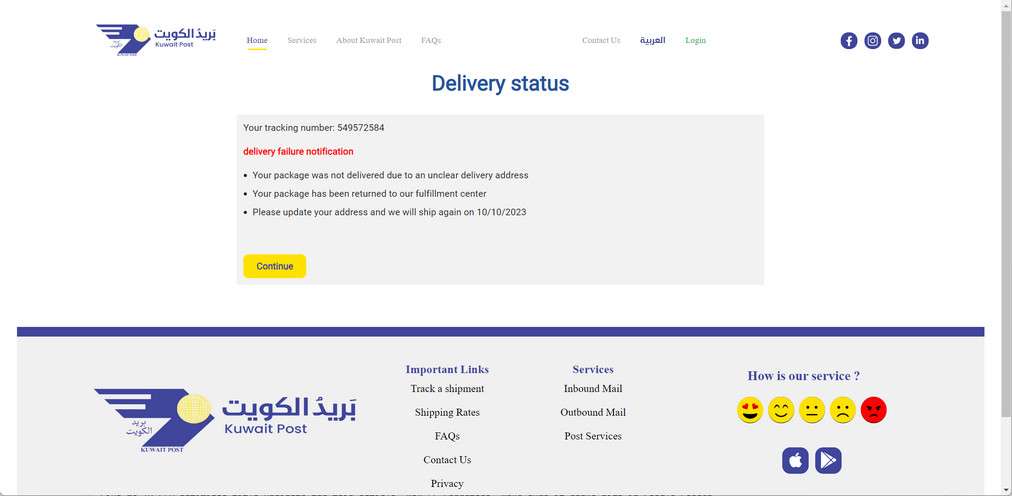
Overview of the Kuwait Post Scam
This scam involves fraudulent text messages or emails that appear to come from Kuwait Post about issues with a package delivery or customs fees. The messages are made to look official using the Kuwait Post logo, colors, and messaging style.
Some variant of the following postal-related issues are typically cited:
- A parcel is stuck in customs and fees must be paid
- There is a pending delivery you must confirm
- Your package delivery address needs to be validated
- Your shipment has shipping issues that require payment
No matter the story, the scammers posing as Kuwait Post then provide a phone number to call or link to click so the problem can supposedly be resolved. Their ultimate aim is to steal financial and personal information or infect devices with malware.
This scam surged during the pandemic as more citizens shopped online and anxiously awaited postal deliveries. Victims expect parcels and don’t suspect notifications from Kuwait Post are fraudulent.
The sophistication varies. Some scams have typos and inconsistencies, while others can appear very credible, replicating official Kuwait Post fonts, colors and logos. Imposter scams increased so much that Kuwait Post has posted warnings on its website.
Key things to know about the scam:
- Uses real Kuwait Post branding – The texts and emails looks like authentic Kuwait Post communications. This fools many people.
- Pressures urgent action – Messages often say immediate payment is required or penalties will be incurred. This rushes victims into clicking without thinking.
- Directs victims to fake sites – The links and numbers go to convincing sham Kuwait Post pages where users enter personal or financial data.
- May include parcel numbers – Fake parcel IDs and details make the scam more believable and personalized.
- Originates from burner phones/accounts – Texts come from constantly changing cell numbers and disposable accounts are used for emails.
- Seeks sensitive information – Whether through fake sites or calls, the scammers want personal info, bank logins, credit card details, etc.
- Preys on parcel anticipation – People expecting a delivery are more likely to fall for notifications about shipping problems from the courier.
This scam has infiltrated Kuwait as more citizens fall victim. But awareness of how to spot fraudulent Kuwait Post communications will curb deception.
How the Kuwait Post Scam Works
Kuwait Post scammers operate through text messages or emails. Here are the step-by-step details on how both versions of the scam unfold:
Kuwait Post SMS Scam
- A text message is sent from a phone number disguised as an official notice from Kuwait Post. The number changes regularly to avoid blocking.
- The message claims there is an urgent issue with a package delivery using Kuwait Post branding and messaging. Common reasons given are customs fees owed or address confirmation needed.
- A link is embedded in the text to supposedly address the delivery problem. The link goes to a fake website impersonating the real Kuwait Post site.
- On the phony site, victims are instructed to enter personal information like name, address, ID number, phone, etc. to confirm delivery details. In other cases, financial account info is sought.
- The scammers now possess the victim’s sensitive data, either using it directly for identity theft or selling it online. If bank details are given, accounts can be drained.
- With the confidential information acquired, the criminals disappear. The temporary number and website leave virtually no trail. The victim’s data is now in the hands of scammers.
Kuwait Post Email Scam
- An email is sent to recipients spoofing the legitimate email and website of Kuwait Post. The “From” address mimics Kuwait Post but goes to the scammer.
- The email claims the recipient has a pending delivery, but there is a problem needing urgent action. Customs charges, address confirmation, redelivery fees, and shipping issues are commonly cited.
- A link within the email leads to a fake Kuwait Post website seeking personal information when entered by victims. In other cases, it may download malware onto the user’s device.
- The scam email prompts entry of bank account data, credit card numbers, photo ID, etc. to pay fictional fees – allowing immediate account access.
- Along with potential bank theft and malware installation, the scammers obtain personal data like name, phone, ID numbers, address, etc. to facilitate identity fraud.
- As with the text scam, the criminals have now acquired sensitive user details through the sham emails and sites. The disposable accounts used make the scammers difficult to trace.
Red Flags of the Scam:
- Spelling and grammar mistakes
- Threatening urgent calls to action
- Requests for financial account information
- Links to odd URLs or domain names
- Requests to download software
- Phone numbers from outside Kuwait
- Lack of specific user and shipment details
What to Do if You Have Fallen Victim to the Scam
If you suspect you have been targeted or already fallen victim to a Kuwait Post text or email scam, take these recommended steps:
1. Contact your bank and credit card issuer.
If any financial information was shared, immediately contact your bank and card issuer. They can freeze accounts and block fraudulent charges. The quicker you notify them, the better.
2. Change any compromised passwords.
If you entered login credentials on fake sites or downloaded malware, rapidly change passwords for your email, bank accounts, social media, and other critical accounts. Enable two-factor authentication if possible.
3. Scan devices for malware.
Use quality antivirus software like Norton or McAfee to scan all involved devices for viruses and malware. Remove any infections detected.
4. Place fraud alert on your credit.
Contact credit bureaus to declare fraud alerts for your file. This flags any new activity for review, making it harder for scammers to open accounts in your name.
5. Monitor accounts and credit reports.
Watch bank statements, credit reports, and online logins closely for signs of misuse of your information in the months following the scam targeting you. Proactive monitoring helps.
6. Report the scam.
Alert Kuwait Post about both scam texts and emails by filing a complaint on their website. Also report SMS scams directly to your mobile operator.
7. Document details as evidence.
Retain records like screenshots of scam texts, emails, and sites as proof for claims and investigations. Note relevant dates, phone numbers, messages, losses, etc.
8. Wipe devices completely if severe infection.
For serious malware attacks, fully reset infected devices to factory default settings. This cleans out embedded malware. Reinstall apps afterwards.
9. Seek further help if identity theft occurs.
If scammers misuse your stolen data, file an identity theft report and contact agencies like the Identity Theft Resource Center for extended fraud resolution guidance.
Falling prey to the Kuwait Post scam can create substantial personal and financial troubles. But taking quick and thorough actions can help curb damages and prevent further negative impacts going forward.
Is Your Device Infected? Run a Free Malware Scan
Slow performance, constant pop-ups, or strange behavior? These are classic signs of a malware infection. The fastest way to find out is to scan your device with Malwarebytes Free — one of the most trusted malware removal tools available.
The free version detects and removes the most common threats, including:
- Adware — the cause of those annoying pop-ups
- Browser hijackers — unwanted redirects and changed homepages
- Trojans and spyware — hidden programs stealing your data
- Potentially unwanted programs (PUPs) — software you never asked for
👉 Select your device below — Windows, Mac, or Android — then follow the simple steps to download Malwarebytes, scan your system, and remove any threats it finds. The scan usually takes 5 to 20 minutes.
Run a Malware Scan with Malwarebytes for Windows
Malwarebytes is one of the most popular and trusted anti-malware tools for Windows — and it’s completely free for removing infections. It catches threats that many antivirus programs miss, including adware, browser hijackers, and trojans. Follow the steps below to scan and clean your PC in just a few minutes.
Download Malwarebytes
Click the button below to download the latest version of Malwarebytes for Windows from the official source. The free version is all you need — it will scan your computer and remove adware, browser hijackers, and other malicious software at no cost.
Download MalwarebytesOfficial installer for Windows 11 and 10. Your download starts right away.Want real-time protection? See Malwarebytes Premium Malwarebytes Free for WindowsScans and removes malware at no cost
-
Install Malwarebytes
When the download finishes, open your Downloads folder and double-click the MBSetup file. If Windows shows a User Account Control pop-up, click “Yes” to allow the installation.

Follow the On-Screen Prompts to Install Malwarebytes
The setup wizard will walk you through a few quick screens:
-
Choose where you’re installing the program — “Personal Computer” or “Work Computer” — then click Next.

-
Malwarebytes will now install on your device. This usually takes under a minute.

-
When installation is complete, the “Welcome to Malwarebytes” screen will open automatically.

-
On the final screen, click Open Malwarebytes to launch the program.

-
Enable “Scan for Rootkits”
Before scanning, turn on rootkit detection so Malwarebytes can find even the most hidden threats. Click the Settings gear icon on the left side of the screen.

In the settings menu, find “Scan for rootkits” and click the toggle so it turns blue.

Done? Click “Dashboard” in the left pane to return to the main screen.
Start the Scan
Click the blue Scan button. Malwarebytes will automatically update its virus database and start checking your computer for malware.

-
Wait for the Scan to Finish
The scan checks your entire system for browser hijackers and other malicious programs, so it can take 5 to 20 minutes depending on your computer. Feel free to do something else — just check back occasionally to see the progress.

-
Quarantine the Detected Threats
When the scan is done, you’ll see a list of everything Malwarebytes found — malware, adware, and potentially unwanted programs. Click the “Quarantine” button to remove all of them at once.

Malwarebytes will now remove the malicious files and registry entries and move them safely into quarantine.

-
Restart Your Computer
Some threats can only be fully removed after a reboot. If Malwarebytes asks you to restart, click Yes. Once you’re logged back in, Malwarebytes has finished removing the threats it found.

That’s it — your Windows PC is now clean of trojans, adware, and other malware, and should be back to running smoothly.
If you are still having problems with your computer after completing these instructions, then please follow one of the steps:
- Run a computer scan with ESET Online Scanner
- Ask for help in our Windows Malware Removal Help & Support forum.
Run a Malware Scan with Malwarebytes for Mac
Malwarebytes for Mac is a free on-demand scanner that removes the malware other security software tends to miss — adware, browser hijackers, and unwanted programs included. Cleaning an infected Mac with Malwarebytes has always been completely free, and it’s our go-to recommendation. Follow the steps below to scan and clean your Mac in just a few minutes.
-
Download Malwarebytes for Mac
Click the button below to download the latest version of Malwarebytes for Mac.
Download MalwarebytesOfficial installer for macOS. Your download starts right away.Want real-time protection? See Malwarebytes PremiumMalwarebytes Free for MacScans and removes malware at no cost -
Open the Malwarebytes setup file
When the download finishes, open your Downloads folder and double-click the setup file to begin the installation.

-
Follow the On-Screen Prompts to Install Malwarebytes
The Malwarebytes for Mac Installer will guide you through a few quick screens. Click “Continue” and keep following the prompts until the installation completes.



When the installation is complete, Malwarebytes opens to the Welcome to Malwarebytes screen. Click “Get started“.
-
Select “Personal Computer” or “Work Computer”
Malwarebytes will ask what type of computer you’re installing it on. Click either Personal Computer or Work Computer, whichever applies.

-
Start the Scan
Click the “Scan” button. Malwarebytes will automatically update its detection database and begin checking your Mac for malware.

-
Wait for the Scan to Finish
Malwarebytes will scan your Mac for adware, browser hijackers, and other malicious programs. This can take a few minutes, so feel free to do something else — just check back occasionally to see the progress.

-
Quarantine the Detected Threats
When the scan is done, you’ll see a list of everything Malwarebytes found. Click the “Quarantine” button to remove all the threats at once.

-
Restart Your Mac
Malwarebytes will now remove all the malicious files it found. Some threats can only be fully removed after a reboot — if Malwarebytes asks you to restart, allow it. Once you’re logged back in, your Mac is clean.

That’s it — your Mac is now free of adware, rogue browser extensions, and other potentially harmful software.
If you are still experiencing problems while trying to remove a malicious program from your computer, please ask for help in our Mac Malware Removal Help & Support forum.
Run a Malware Scan with Malwarebytes for Android
Malwarebytes for Android automatically detects and removes dangerous threats like malware and ransomware so you don’t have to worry about your most-used device being compromised. Aggressive detection of adware and potentially unwanted programs keeps your Android phone or tablet running smooth.
-
Download Malwarebytes for Android.
You can download Malwarebytes for Android by clicking the link below.
Get Malwarebytes for AndroidOpens Google Play in a new tab.Want real-time protection? See Malwarebytes Premium for AndroidMalwarebytes for AndroidScans your phone and removes malware at no cost -
Install Malwarebytes for Android on your phone.
In the Google Play Store, tap “Install” to install Malwarebytes for Android on your device.

When the installation process has finished, tap “Open” to begin using Malwarebytes for Android. You can also open Malwarebytes by tapping on its icon in your phone menu or home screen.

-
Follow the on-screen prompts to complete the setup process
When Malwarebytes will open, you will see the Malwarebytes Setup Wizard which will guide you through a series of permissions and other setup options.
This is the first of two screens that explain the difference between the Premium and Free versions. Swipe this screen to continue.
Tap on “Got it” to proceed to the next step.
Malwarebytes for Android will now ask for a set of permissions that are required to scan your device and protect it from malware. Tap on “Give permission” to continue.
Tap on “Allow” to permit Malwarebytes to access the files on your phone.
-
Update database and run a scan with Malwarebytes for Android
You will now be prompted to update the Malwarebytes database and run a full system scan.

Click on “Update database” to update the Malwarebytes for Android definitions to the latest version, then click on “Run full scan” to perform a system scan.

-
Wait for the Malwarebytes scan to complete.
Malwarebytes will now start scanning your phone for adware and other malicious apps. This process can take a few minutes, so we suggest you do something else and periodically check on the status of the scan to see when it is finished.

-
Click on “Remove Selected”.
When the scan has been completed, you will be presented with a screen showing the malware infections that Malwarebytes for Android has detected. To remove the malicious apps that Malwarebytes has found, tap on the “Remove Selected” button.

-
Restart your phone.
Malwarebytes for Android will now remove all the malicious apps that it has found. To complete the malware removal process, Malwarebytes may ask you to restart your device.
That’s it — your Android phone is now clean — no more malicious apps, adware, or browser redirects.
If you are still having problems with your phone after completing these instructions, then please follow one of the steps:
- Restore your phone to factory settings by going to Settings > General management > Reset > Factory data reset.
- Ask for help in our Mobile Malware Removal Help & Support forum.
Stay Protected: Block Ads and Malicious Sites
Now that your device is clean, keep it that way. Most infections start with a malicious ad or a fake download button — so blocking them at the source is your best defense.
We recommend AdGuard, which blocks malicious ads, phishing pages, and dangerous redirects before they can reach you.
👉 Download AdGuard and browse safely
Frequently Asked Questions About Kuwait Post Scams
What are Kuwait Post scams?
They are fake text messages and emails sent by scammers impersonating Kuwait Post. They claim issues with deliveries to trick people into providing personal and financial information.
How do I recognize these Kuwait Post scams?
Watch for odd links, urgent threats, spelling/grammar errors, requests for sensitive data, non-Kuwait numbers, missing order details, and other red flags. Verify any suspicions directly with Kuwait Post.
What do the scammers want?
Their aim is to steal identities, drain bank accounts, and install malware using the fraudulent shipping communications. Posing as Kuwait Post lets them elicit sensitive data.
What should I do if I receive a suspicious message?
Do not click links, provide information, make payments, or call numbers provided. Report scam emails to Kuwait Post and text scams to your mobile operator.
What if I already provided information or clicked a link?
Quickly contact your bank, scan devices for malware, enable two-factor authentication on accounts, place fraud alerts with credit bureaus, monitor your credit, and report the scam.
How can I avoid Kuwait Post scams?
Analyze messages closely, look for red flags, contact Kuwait Post to verify concerns, avoid opening attachments/links, and never provide personal or financial data to unconfirmed sources.
How common are these scams?
These scams have surged along with e-commerce and delivery volumes. Scammers increasingly pretend to be Kuwait Post hoping victims anxiously await parcels.
Who is responsible for these scams?
Individual scammers and organized cybercrime rings in Kuwait and abroad run these cons. They are difficult to trace as they use burner phones and fake accounts.
What risks do I face if I provide my information?
Identity theft, bank account draining, credit damage, and device malware infections. Scammers exploit leaked personal and financial data.
Can Kuwait Post help if I’m scammed?
Unfortunately Kuwait Post is not liable, but can provide information to authorities to aid investigations. You must file claims and reports regarding any losses from scams.
How can I protect myself from these scams?
Be vigilant inspecting parcel communications, contact Kuwait Post to verify odd requests, avoid opening attachments/links, and never provide personal or financial information to unconfirmed sources.
The Bottom Line
Scam texts and emails impersonating Kuwait Post are a growing threat that citizens should be vigilant against. These fraudulent shipping notifications are designed to harvest users’ personal details and money.
By learning the scam tactics, recognizing warning signs, and acting fast if targeted, individuals can protect themselves from the havoc of identity theft and bank account draining. The insights provided here offer the awareness needed to avoid becoming another victim of these parcel delivery and customs scams.
Stay alert for questionable digital communications claiming to be from Kuwait Post. Verify any delivery issues directly with them. Follow prudent cyber security habits regarding links, downloads, and providing sensitive information to unconfirmed sources. With proper scam awareness, these frauds can be contained. But it requires an informed public that examines messages critically and understands this threat. Use the knowledge in this article to identify and evade Kuwait Post scams.

Join the discussion
0 commentsShare your experience or ask a question about this article.
Discussion
Start the conversation
Have a question or something useful to share? Add the first comment.