


An email says someone left you a short voice message. There is a duration, an automated footer and a button that looks ready to play it.
Before you open the recording, check what your computer actually received. The difference between the promised message and the downloaded file matters here.
Overview
A voicemail notification leads to a different kind of file
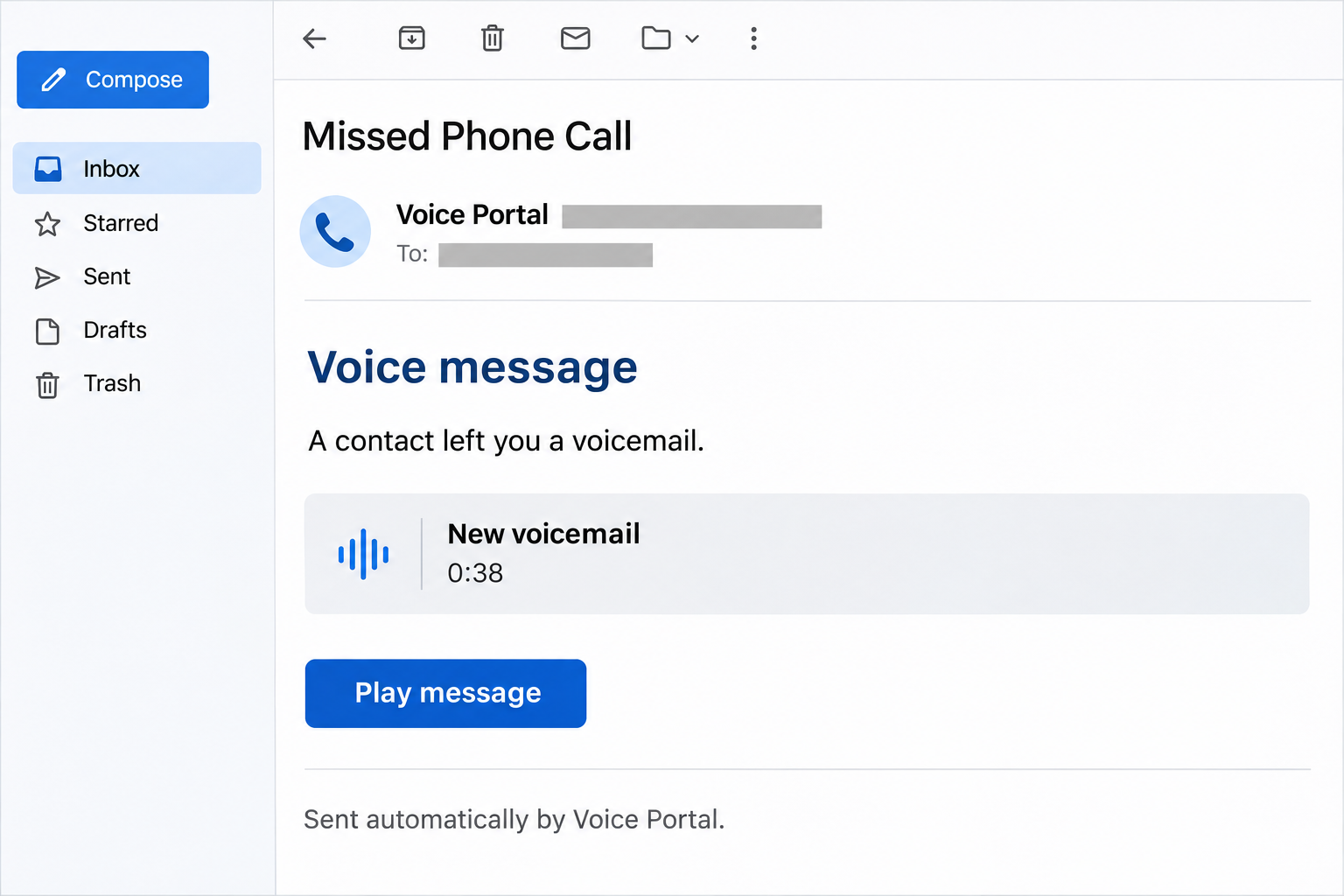
The Left Voicemail email scam starts with a supposed missed call. Its link leads to a page presenting a recording, but the download contains executable script content.
In the documented example, a randomly named ZIP archive contains a .vbs or .js file. There is no audio recording inside that archive.
The fake page borrows familiar Google branding
The download screen imitates a Google Voice or Gmail portal. That presentation does not make the email a genuine notification from Google.
The exact final malware payload remains unidentified in the published analysis. Treat claims naming a particular ransomware or password stealer as unconfirmed for this campaign.
Your next step depends on what you opened
Receiving the message, downloading an archive and executing its contents are different exposures. Establish which occurred before choosing a response.
- Check actual voicemail through your established phone service.
- Leave unexpected scripts unopened, even inside an audio-themed download.
- Contact workplace IT before changing a managed computer.
- Use the cleanup procedure below if you ran the script.
Why a Thirty-Eight-Second Recording Makes a Convincing Hook
A short voice message suggests a small task. You might expect a customer, a delivery driver or someone whose call you missed during work.
The duration gives the invitation a concrete shape without explaining who called. That missing detail encourages you to press the button to find out.
An automated footer also discourages ordinary conversation. Instead of replying to ask about the call, you are steered toward the one action the sender supplied.
None of those details establishes a real message. Open the voicemail service you normally use and check whether a corresponding recording appears there.
If you do not use the named service, do not create an account to investigate the email. Ask the supposed caller through an independently known contact method.
How the Left Voicemail Email Scam Works
Step 1: An ordinary-looking missed-call email supplies the invitation
The recorded sample uses a missed-call subject and says a contact left a voicemail. A play button sits beneath the supposed message information.
The sender asks you to trust the notification before you know whether your actual phone service has a recording. Recognition of an email layout fills that gap.
Step 2: The button opens a branded download screen
Instead of playing audio, the route reaches a page styled around familiar Google services. The displayed recording appears to have a .wav filename.
A filename printed on a webpage is only a label. It cannot tell you what the download button will actually send to your computer.
Look at the file delivered by the browser rather than treating the page’s description as confirmation. Do not open an unexpected download to resolve that uncertainty.
Step 3: The promised recording becomes a ZIP containing a script
The inspected download is an archive with a changing filename. Its contents are script files rather than the voice recording advertised on the page.
That substitution is the important warning sign. A request to hear someone speak has become a request to run instructions on your computer.
A ZIP archive is a container, not a guarantee of safety. Extracting files to inspect their names should never become permission to execute them.
Step 4: Running the script creates a malware exposure
On a system configured to execute the script, opening it can start malicious activity. The specific outcome depends on what the script does and which protections intervene.
You may not receive a visible warning or see an obvious new application. An apparently normal desktop does not settle whether execution caused harm.
Stop ordinary use of an affected computer while arranging a scan or professional response. Do not keep trying the file because the promised recording never appeared.
Work Out Whether You Ran Anything
Start with the browser’s downloads list and the folder where the archive was saved. Record the filename without double-clicking it again.
Think through the actions you remember taking. Did you only save the ZIP, view its contents, extract a file, or open the extracted script?
If Windows asked which application should open the file, do not install a suggested player or script tool. A voicemail does not justify that additional setup.
For a work computer, give IT the approximate time and actions you remember. Do not forward the malicious file to colleagues or test it on another machine.
If you are uncertain whether execution occurred, say so. A security technician can investigate that uncertainty more usefully than a confident guess about what happened.
Check the Filename Without Playing the File
Windows can hide familiar filename extensions, leaving you with a name that reveals little about the file’s actual type. Make those endings visible before reviewing a download.
On Windows 11, open File Explorer and choose View, Show, then File name extensions. This changes the display without launching the suspicious file.
On Windows 10, use the View tab and File name extensions option. Microsoft explains the platform differences in its File Explorer instructions.
Read the final extension rather than a familiar word earlier in the name. Renaming a script to resemble a recording cannot turn its contents into audio.
If you have already downloaded the archive, you can scan that saved file without executing it. Avoid repeatedly extracting or moving its contents while waiting for advice.
Keep a note of the original download name for your security helper. Changing the name or extension can make your description harder to match to scanner findings.
For an untouched personal download, report the email and remove the unwanted archive. For a workplace incident, preserve it as your security team instructs.
What to Do if You Have Fallen Victim to This Scam
-
Close the deceptive page and stop interacting with the download.
Do not run it again or follow instructions to disable security software. Keep the original message available for reporting.
-
Notify your organization’s security team on a managed device.
Use a known contact route and describe the downloaded file. Follow their containment instructions before deleting evidence, installing tools or restarting.
-
Isolate a personal computer if you executed the script.
Disconnect Wi-Fi or Ethernet while arranging help. Use another trusted device for account recovery and financial activity during the investigation.
-
Follow the Windows cleanup procedure if it applies.
The illustrated steps below cover a personal Windows computer. A workplace response plan takes priority over these consumer instructions.
-
Handle any password or financial disclosure separately.
If you also entered credentials, secure that account through its real service. Contact your financial provider promptly about unauthorized transactions or exposed payment information.
-
Report the email through your mail provider’s phishing controls.
Include the actual message rather than only its displayed sender name. U.S. readers can report associated criminal losses at IC3.gov.
How to Clean a Windows PC After Running the Script
Use these steps for a personally managed Windows computer. If the computer holds sensitive work information, seek professional help before making changes that could remove evidence.
Do not download another tool from the voicemail page. Keep account recovery on a separate trusted device until you have addressed the computer exposure.
Step 1: Obtain the genuine installer and prepare for cleanup
Download Malwarebytes using the site’s established installer route below. If this computer is isolated, obtain the installer using a trusted device and transfer it carefully.
The buttons retain MalwareTips’ download and affiliate routes. A paid protection plan is optional; the Custom Scan route described here is available in Malwarebytes Free.
If the installer link will not load, use Malwarebytes’ official download page and choose Windows. Avoid replacement downloads advertised by an unsolicited support contact.
Use a controlled internet connection when the installer or scanner needs updates. If suspicious activity continues during setup, disconnect again and arrange assisted cleanup.
Step 2: Install Malwarebytes without accepting unrelated offers
Open your Downloads folder and locate the genuine MBSetup installer. Double-click that installer, then review the Windows permission prompt before allowing installation.
Check that the prompt identifies Malwarebytes as the publisher. Cancel if a different program appears or the file came from the suspicious voicemail route.
The Downloads example below highlights the Malwarebytes installer icon. Use the file you obtained through the verified route, rather than an unfamiliar lookalike.

Continue through the installation screens and choose the appropriate personal-device option. Skip optional browser additions or paid offers you do not want.
Open Malwarebytes when setup finishes and allow it to obtain current updates. Do not switch off Windows protection to make the installation proceed.
Step 3: Configure a Custom Scan for the affected storage
On the Scanner tile, select the three-dot menu, then Advanced Scan. Choose Custom Scan to open the location and detection settings.
Expand the file-selection tree and select the Windows system drive, normally C:. Include another local drive if you saved or extracted the suspicious download there.
Keep the normal detection options enabled and review how potentially unwanted programs or modifications will be handled. Then select the Start Custom Scan control.
This follows Malwarebytes’ Custom Scan instructions. Its current feature table distinguishes free Custom Scans from paid Threat Scans.
Allow the scan to finish rather than stopping after it checks the original archive. Running a script can create files beyond the download folder.
Step 4: Review detections, quarantine threats and restart if requested
Read the detection list and record the reported names and locations. Select the threats for quarantine, then choose Quarantine to apply the action.
If you cannot identify an item, save the report and seek help before allowing it. Do not exclude a detection merely because the computer still seems usable.
This older results example shows the quarantine control after a Threat Scan. Its sample findings identify neither your scan type nor this campaign’s payload.

When Malwarebytes requests a restart, save legitimate open work and follow that prompt. Reopen the application afterward and check the report for unresolved actions.
Keep quarantined items isolated while you obtain advice. Restoring the original script to test whether it still works would recreate the exposure.
A completed scan reports what that scan detected. It cannot certify that no information escaped before removal or that every possible threat has been excluded.
Step 5: Check remaining concerns before returning to normal use
Install pending Windows and browser security updates. If Microsoft Defender is your active antivirus, open Windows Security and select Virus & threat protection.
Under protection updates, check for updated intelligence. Use Scan options, Full scan and Scan now for a further check when appropriate.
Microsoft’s Windows Security instructions also explain the offline scan option. It restarts the computer, so save your work before choosing it.
If another antivirus manages protection, use that product’s supported controls. Do not uninstall working protection simply because a Defender option is unavailable.
Recurring detections, disabled protection or continuing suspicious activity need assisted investigation. Ask in the MalwareTips Windows malware-removal forum or consult a trusted technician.
Account Recovery Continues After Device Cleanup
If you used passwords on the computer after running the script, review the affected services from a separate trusted device. Start with your primary email account.
Follow each service’s recovery process, replace exposed or reused passwords and examine unfamiliar sessions. Review recovery addresses, phone numbers and forwarding rules where applicable.
Tell the provider about actions you did not authorize. A malware scan cannot cancel a bank transfer, remove an attacker-created forwarding rule or recover a stolen account.
If files become unreadable or a ransom demand appears, stop writing to affected storage. Preserve the demand and obtain case-specific recovery advice before restoring backups.
That is a conditional response to an actual symptom. This voicemail campaign’s unidentified payload does not justify telling every recipient that their files were encrypted.
Frequently Asked Questions
Is the Missed Phone Call email really from Google?
The documented message and download page impersonate voicemail services. Google branding on that page does not make its script download a genuine recording.
Does receiving this email mean my computer is infected?
No, receiving the message alone does not establish infection. The documented chain depends on downloading and executing malicious script content.
What if I downloaded the ZIP but never opened its contents?
Keep the archive unopened and report the message. A saved file is different from an executed script; explain any uncertainty when asking for help.
Why would an audio message contain JavaScript or VBScript?
The inspected archive substituted script content for the promised audio. Do not execute either file type to access a supposed voicemail recording.
Which malware family does the script install?
The published analysis does not identify the final payload. Use actual detection reports when investigating your computer, rather than assuming a specific malware family.
Do I have to purchase Malwarebytes to follow these steps?
The described Custom Scan is available in the free edition. Paid prevention features are separate, and buying a subscription cannot guarantee recovery from this exposure.
The Bottom Line
Do not play this supposed voicemail through its email link or run the downloaded script. Check real messages through your established phone service instead.
If you executed the file, contain the exposure and arrange cleanup. Use a separate trusted device to secure affected accounts while the computer is investigated.

Join the discussion
0 commentsShare your experience or ask a question about this article.
Community experiences
Did this happen to you?
Your experience could help someone recognize the same scam. Submit a private report for our team to review.
I experienced this tooReports are reviewed before publication. Sharing publicly is always your choice.
Discussion
Start the conversation
Have a question or something useful to share? Add the first comment.