


A Malwarebytes website-block alert appears while you are browsing, or perhaps while another application is open. The interruption can leave several important questions unanswered.
Before deciding what needs fixing, identify the event behind the warning. Its connection to your own actions matters more than its alarming appearance.
Overview
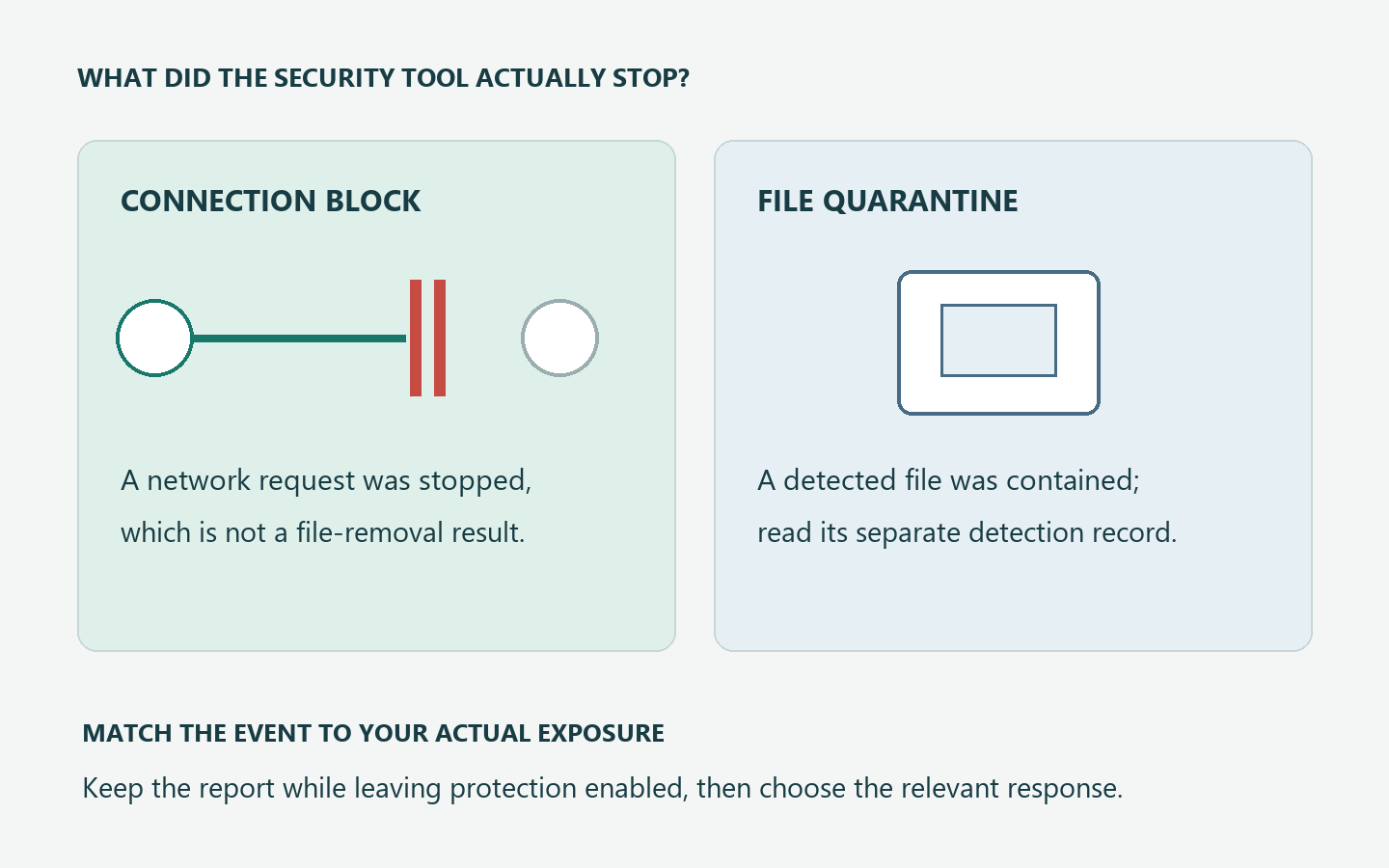
A blocked connection and a quarantined file are different events
Malwarebytes separates notifications about blocked website connections from malware it automatically quarantines. Read the event category before treating either message as a complete diagnosis.
A connection block tells you that a particular network attempt was stopped. It does not, by itself, identify an installed malicious file requiring removal.
The source of the warning changes its meaning
- A desktop protection event belongs in the independently opened security application.
- A quarantined-file finding has its own item and detection history.
- A Browser Guard tracking notice concerns a different protection category.
- A webpage claiming infection may be an impersonation rather than a genuine product alert.
Choose the response from the exposure
A stopped browser request with no further interaction calls for different handling than an unknown program repeatedly contacting blocked destinations after a suspicious installation.
Keep protection enabled, preserve the event, and identify what you actually did. Do not allow an unknown destination simply to make repeated alerts disappear.
First, Establish Where the Message Came From
Do not use a warning’s logo as authentication. Open Malwarebytes from its usual installed shortcut or Start entry and look for the corresponding event.
The current Detection History instructions direct Windows users to Detection History, then History. A report’s menu offers viewing and TXT export.
Match the event to the time and activity you remember. If no matching record appears, keep investigating the message’s origin rather than assuming every visible warning is authentic.
A browser extension and the desktop application are separate places to check. An extension’s page does not need a corresponding desktop detection to be genuine.
Meanwhile, a webpage can display a security company’s name without belonging to that company. Keep those three origins separate when asking somebody for help.
Watch for a warning that turns into a sales call
A page claiming your computer is infected and demanding a support call fits a different problem. Do not call its number or grant remote access.
The FTC describes tech-support impersonation involving bogus warnings, remote access, and payment demands. A company’s copied branding does not authenticate that request.
Close the page without following its instructions and reach any needed support independently. If you already paid or gave access, address that separate exposure promptly.
Read the Event Before Reading the Destination
Start with the category and action: what was detected, and what did the security tool do? Those answers determine which remaining questions matter.
Malwarebytes’ notification documentation distinguishes blocked connections, quarantined malware, ransomware, and blocked exploits. A general warning color cannot replace those distinctions.
Next, preserve the available details rather than trying to memorize a disappearing notification. Include the report and a brief note about the app you were using.
If the report identifies an application or destination, copy the supplied information accurately into private notes. Do not guess missing fields from an older tutorial.
Current interfaces can change, so this guide does not promise that every report contains identical fields. Export the available record before asking support to interpret it.
The address bar is not every connection a page makes
A webpage can request images, scripts, advertising, and other resources from multiple hosts. MDN’s browser-loading explanation describes these additional resource requests.
Therefore, an unfamiliar destination does not necessarily mean you typed that address. A browser-associated event can concern a component requested while another page was open.
That explanation is not permission to trust the blocked host. It simply keeps the investigation attached to the correct browsing session instead of an invented deliberate visit.
An outgoing label is a direction, not a verdict
If a report labels activity outgoing, that describes the connection’s direction. It does not independently explain why the application attempted the connection.
Combine the record with what happened beforehand, the associated application when identified, and any independent findings. A single label cannot settle whether installation or execution occurred.
Likewise, repeated blocks establish recurrence, not its complete cause. Preserve the pattern without turning a count into a malware diagnosis or a guarantee of safety.
Four Worked Situations With Different Next Actions
These examples show how different records lead to different responses. Compare the observation and next action rather than searching for a matching warning count.
A blocked request during one browsing session
Sam opens a news page and sees a genuine desktop connection-block notification. The matching report belongs to that browsing session, and Sam downloads nothing.
Sam closes the page and records the event. Ordinary work continues without another block, and no separate file detection or suspicious installation has been identified.
The useful conclusion is narrow: that observed request was blocked. There is no reason to invent a quarantined file or buy another product because the notification appeared.
Sam does not reopen the questionable destination to reproduce the warning. The report already provides a safer starting point if another event later needs comparison.
If that pattern changes, the response can change too. A later unexplained recurrence is new information rather than proof that the first interpretation was careless.
A Browser Guard tracking-attempt notice
Jordan follows a discount link and sees a Browser Guard tracking notice. The exact category matters more than the general fact that a website was blocked.
Malwarebytes explains that a Tracking Attempt notice can concern hidden tracking and does not necessarily indicate a malicious website.
Jordan decides not to continue through the link. That privacy decision does not require declaring that every file on the computer is infected.
Nor does a tracking explanation authenticate the offer behind the link. Whether a merchant is trustworthy remains a separate question from why that tracker was blocked.
Jordan keeps the protection in place and reaches any needed retailer independently. Bypassing the block would not answer whether the offer deserved trust.
Recurring activity after an unfamiliar installation
Taylor installs an unverified utility and subsequently receives repeated genuine blocks. The timing creates a concrete lead, especially if records associate the activity with that application.
It still does not prove that every unfamiliar process is malicious. Taylor preserves the installer name, source, installation time, and available reports before seeking help.
Because execution occurred, simply closing the browser would leave an important exposure unaddressed. Taylor stops sensitive work and follows the Windows cleanup branch below.
On a work-managed computer, Taylor contacts IT instead of experimenting with cleanup tools. Organizational responders may need to preserve evidence before making changes.
Taylor does not delete arbitrary system files or allow the program’s destinations. Either action could make the investigation worse without resolving the installation’s trustworthiness.
A separate file detection accompanies the block
Casey finds both a connection report and a quarantined-item finding. These records might be related, but their existence alone does not establish their exact relationship.
Casey keeps both reports and compares their timing with a recent download. The file’s recorded disposition matters independently of what happened to the network request.
A quarantined item should not be restored to test whether it causes another alert. Keep it contained while the vendor or a qualified helper reviews a suspected mistake.
Malwarebytes’ quarantine instructions distinguish contained items from restoration and permanent deletion. Neither action is a routine way to interpret a connection block.
If the file was executed before detection, Casey records that fact explicitly. Containing a later copy does not answer every question about earlier activity or account exposure.
Match the Evidence to a Proportionate Response
| What you can establish | Useful next action | Conclusion to avoid |
|---|---|---|
| One request was blocked during a known browsing session. | Close the questionable page and preserve its matching report. | A block proves that installed malware was removed. |
| Browser Guard specifically reports a tracking attempt. | Keep privacy protection and assess the link separately. | Every tracking notice proves the website distributes malware. |
| Blocks recur after unexplained software execution. | Preserve the timeline and use the relevant cleanup path. | Silencing the warning fixes the executed software. |
| A file finding exists alongside connection events. | Read both records and retain the item’s containment. | A connection report substitutes for the file’s disposition. |
| A webpage demands payment or a support call. | Leave the page and obtain help independently. | A familiar logo authenticates the caller or page. |
Preserve a Pattern Without Recreating the Risk
A helpful timeline has three columns: when the alert occurred, what you were doing, and what the independently opened tool recorded.
Distinguish observation from inference in that note. For example, record that the first alert followed an installation, rather than stating that the installer definitely caused it.
Note whether later events occurred during ordinary use, without deliberately revisiting suspicious sites or launching questionable files. Repetition during normal work is already useful evidence.
Export important reports promptly because Malwarebytes currently retains Detection History reports for up to 30 days. Keep private exports somewhere you can locate for support.
Before sharing, inspect reports for personal paths, account names, or other sensitive details. A public forum post does not need your entire browsing history.
When recurrence has no clear explanation, submit the relevant reports through the vendor’s official support channel. Ask about the event category and associated activity, not just the warning count.
Check Browser Changes Without Resetting Everything
If the pattern includes unwanted extensions, redirects, or changed search settings, record those specific changes. A connection warning alone does not justify rebuilding every browser profile.
Google’s unwanted-software guidance identifies recurring extensions and unauthorized browser changes as reasons to investigate. It also cautions against suspicious update or download prompts.
In Chrome, open More, Extensions, then Manage extensions to inspect the installed list. Google’s extension-management instructions describe that path and individual removal.
Remove an extension you have established is unwanted, not every unfamiliar item by name alone. On managed browsers, ask the administrator about required extensions first.
If the message is actually an abusive site’s notification, review that site’s permission instead. Chrome documents notification controls under Settings, Privacy and security, Site settings, then Notifications.
The Chrome notification instructions concern website permission, not disabling antivirus. Removing an abusive site’s notification access and suppressing genuine security warnings are different actions.
What to Do After a Website-Block Alert
-
Establish whether the message comes from the desktop app, Browser Guard, or a webpage. Open the relevant installed protection independently rather than following a warning’s contact link.
-
Preserve the matching event and note your activity. Read its actual category and action before assuming a file was downloaded, quarantined, or executed.
-
For a one-off questionable browsing request without further interaction, close the page and keep protection enabled. Do not revisit the destination merely to test the block.
-
For recurring unexplained activity or suspicious execution, retain the timeline and obtain a deeper assessment. Use the conditional Windows procedure below when its exposure applies.
-
Handle account exposure separately if you entered a password or granted remote access. Use a different trusted device and the affected service’s official recovery route.
-
Escalate unresolved events with the exported records and specific symptoms. Avoid broad exclusions, random repair tools, and purchases presented as the only way to stop notifications.
Windows Cleanup When Suspicious Software Was Executed
Use this branch for an untrusted installation, executed payload, or unexplained activity needing a malware assessment. A single blocked browsing request does not require this procedure.
These Windows instructions do not remove software from a Mac or phone. On a managed computer, stop here and contact the responsible security team.
Step 1: Preserve the event and contain a credible incident
Save the relevant reports and note what ran before making changes. Avoid opening the questionable file again or sending it to a public analysis service.
If active compromise is suspected, disconnect that computer from the network and stop sensitive work. Use another trusted device for support and account protection.
Keep backup media disconnected, and do not erase unique documents or system files. Serious compromise or irreplaceable data may require qualified incident-response help before scanning.
Step 2: Download the legitimate Windows scanner
Use one of the download routes below. Keep the earlier suspicious file closed instead of returning to its download page for another installer.
Download the Malwarebytes Installer for Your Windows Computer
Open the Free Malwarebytes Scanner Download Page Instead
You can use manual scanning and quarantine without buying ongoing protection. A paid prevention plan is optional, not a requirement for this cleanup.
Compare Optional Malwarebytes Premium Protection for Windows Devices
MalwareTips may receive a commission through the affiliate links. You can still follow the free scanning procedure without purchasing the paid plan.
Open your Downloads folder and locate the MBSetup file obtained through the verified route. Do not select a similarly named file from an earlier download.

Step 3: Install the scanner and let it update
Open MBSetup and check the expected publisher before approving Windows’ permission prompt. Follow the setup screens to install the application on your personal computer.
Setup may offer additional products, a trial, or a subscription. Decline optional offers you do not want, using Skip where that choice appears.
Open Malwarebytes when installation finishes and allow available updates. If setup is blocked or fails, keep the error details and seek help.
Do not disable existing protection or obtain a replacement installer from an advertisement. On an organization-managed computer, let your security team choose the tools.
Step 4: Choose the free Custom Scan
On the Scanner tile, open the three-dot menu and choose Advanced Scan.
Expand the file finder and select your local Windows system drive, usually C:\. Include relevant local folders, but leave backup drives disconnected.
Set detections of PUPs and PUMs to be treated as malware. Choose Start Custom Scan and let the examination finish before reviewing its report.
Custom Scan is available without purchasing protection. If the dashboard offers a paid Threat Scan, return to the Custom Scan route instead of purchasing protection.
Use this menu path: Scanner tile menu > Advanced Scan > Custom Scan. This avoids the separate dashboard Scan button.
Step 5: Review the locations before taking action
Read each detection’s name and file location. Keep confirmed malicious files selected for Quarantine, then save the report so you can compare later results.
If a finding affects irreplaceable data or remains uncertain, seek qualified help before changing it. Never restore an untrusted item merely to make an application work.

Step 6: Complete a requested restart and check again
If Malwarebytes requests a restart, save open work and accept it. Reopen the application afterward and check whether any removal action still needs attention.
Run another updated scan and compare its findings with the saved report. New or recurring detections deserve investigation instead of repeated blind deletion.
A clean report cannot settle every account or recovery question. Continue the case-specific checks in this article, even when the original warning stops appearing.

Step 7: Resolve what the scan cannot explain
Compare later blocks with the original reports during ordinary use. Do not visit blocked sites or rerun the suspicious software to manufacture a test.
If unexplained activity persists, keep protection enabled and request individual Windows malware-removal help. Include the timeline and redacted reports rather than guessing which system files to delete.
If you entered credentials, use a trusted device to change affected passwords and review account sessions through the real service. A scan does not revoke stolen access.
For unauthorized payments or remote-access fraud, contact the payment provider and appropriate support separately. Removing malware cannot reverse a transfer or guarantee account recovery.
When responders cannot restore trust in the installation, discuss a planned rebuild and verified data recovery. Do not improvise a destructive reset to silence alerts.
Frequently Asked Questions
Does a blocked website mean my computer is infected?
A genuine block establishes that the recorded attempt was stopped. Assess the event category and your exposure before deciding whether installed malware needs investigation.
Why does the destination differ from my address bar?
Pages can request resources from several hosts. Compare the event with your browsing session rather than assuming you deliberately visited every recorded destination.
Do repeated outgoing blocks prove that malware is installed?
Repetition and direction are clues requiring context, not a complete diagnosis. Unexplained recurrence after suspicious execution warrants closer assessment without allowing the blocked activity.
Is a Browser Guard tracking block a malware finding?
A Tracking Attempt notice can concern privacy-related tracking rather than a malicious website. Read the specific category and assess the underlying link independently.
Should I restore a file to see whether it caused the block?
Do not restore a suspected file as an experiment. Preserve its quarantine and relevant reports while the vendor or a qualified helper investigates the relationship.
What if a warning asks me to call support?
Do not use a number supplied by an infection-claim webpage. Close it and reach genuine support independently, especially before granting remote access or paying.
The Bottom Line
Read a Malwarebytes website block as an event requiring context, not a universal infection verdict. Keep the block in place and preserve its actual record.
Close questionable pages, investigate unexplained recurrence, and address any executed software or exposed accounts separately. Never allow an unknown destination just to silence the warning.

Join the discussion
0 commentsShare your experience or ask a question about this article.
Community experiences
Did this happen to you?
Your experience could help someone recognize the same scam. Submit a private report for our team to review.
I experienced this tooReports are reviewed before publication. Sharing publicly is always your choice.
Discussion
Start the conversation
Have a question or something useful to share? Add the first comment.