

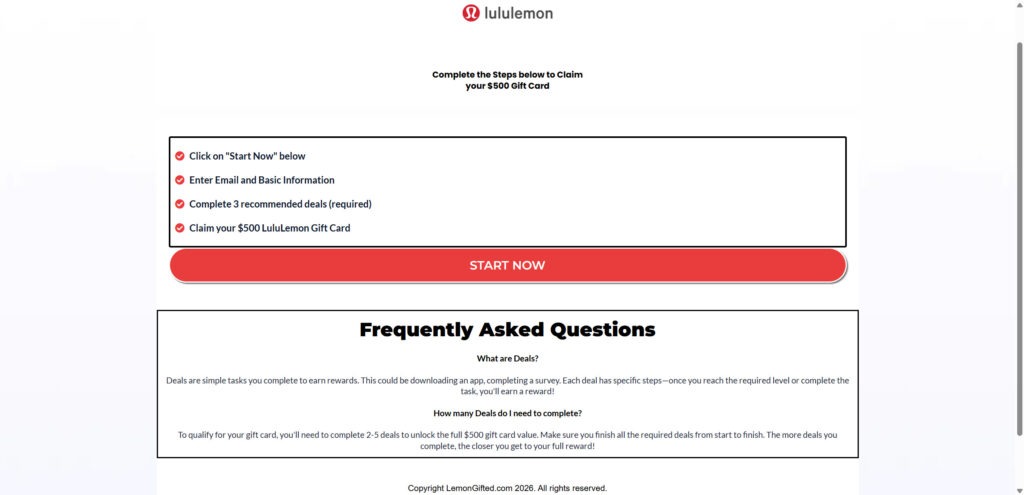
LemonGifted.com appears as a “claim your $500 gift card” page that uses familiar branding, a simple checklist, and a prominent “Start Now” button.
If you found it through an ad, pop-up, redirect, email, or text message, it can be hard to tell what you are looking at in the moment. Pages like this are built to feel quick, safe, and structured.
This article explains what LemonGifted.com is, how the scam typically works, and what to do if you already entered information or started completing “deals.”
Scam Overview
LemonGifted.com is commonly presented as a gift card claim portal tied to Lululemon, usually promising a $500 gift card.
The page format is designed to feel like a legitimate reward workflow. It often includes:
- A recognizable brand name and logo at the top
- A headline like “Complete the steps below to claim your $500 gift card”
- A checklist that looks clear and easy to follow
- A large button such as “START NOW”
- A FAQ section that pre-answers objections
The message is simple: do a few steps, get a high-value gift card.
That simplicity is the hook.
The single line that gives the trap away
On LemonGifted.com-style pages, one line shows up again and again:
Complete 3 recommended deals (required)
Or, in the FAQ, language that says you may need to complete 2 to 5 deals to unlock the full gift card value.
That “deals required” requirement is the core mechanism behind most gift card reward scams.
Legitimate brand promotions do not require you to complete unrelated third-party “deals” to unlock a gift card.
When the reward is locked behind “recommended deals,” you are not in a normal giveaway.
You are in a monetization funnel.
What these “deals” really are
The site usually defines “deals” as simple tasks you complete to earn rewards, like:
- Downloading an app
- Completing a survey
- Signing up for a trial
- Registering for a service
This is often framed as harmless and quick.
But in practice, “deal” lists frequently include offers that are designed to generate revenue for someone, such as:
- Free trials that require a credit card
- Subscriptions that auto-renew after a short trial window
- Sample offers with shipping fees that lead to recurring billing
- Membership programs with monthly charges
- Lead forms that collect personal data for marketing lists
Some deals are mostly about data capture. Others can lead to real charges.
Either way, the gift card is being used as bait to push you into those actions.
Why this is best described as an affiliate reward scam
Affiliate marketing can be legitimate when it is transparent.
What makes LemonGifted.com scammy is the way it is presented and the way the reward is positioned.
The common pattern looks like this:
- The page implies the reward is real and within reach.
- The page makes you believe the steps are standard “eligibility” requirements.
- The page pushes you into third-party deals that generate commission.
- The reward becomes vague, delayed, or impossible to claim.
This kind of funnel typically earns money when you complete offers, not when you receive a gift card.
That creates a built-in incentive to maximize your participation while minimizing reward delivery.
Why the page looks clean and “official”
A lot of people expect scams to look sloppy.
Modern reward scam pages are often polished because they are built like conversion landing pages. The design is intentionally minimal, with a single call-to-action and a simple progression.
Common trust-building design choices include:
- Clean layout and lots of whitespace
- A short checklist that feels procedural and legitimate
- A large button that looks like the “next step”
- A FAQ section that reduces doubt
- Language that suggests there are rules and eligibility requirements
This is not proof of legitimacy.
It is a deliberate attempt to reduce hesitation.
Why Lululemon is used as the brand hook
Well-known brands are effective bait because they lower skepticism instantly.
A Lululemon $500 gift card promise works because:
- The brand is recognizable
- The products are premium, so $500 feels “plausible” to some users
- Gift cards are common in real marketing campaigns
- The reward seems practical, not flashy
Scammers and deceptive funnels choose brands that people trust and that fit a high-value reward story.
The “2 to 5 deals” wording is a major warning sign
In the LemonGifted.com-style FAQ, you often see language like:
“To qualify for your gift card, you’ll need to complete 2 to 5 deals to unlock the full $500 gift card value.”
That structure matters.
It creates a moving target.
If you complete two deals and nothing happens, the page can claim you need five.
If you complete five and nothing happens, it can claim a deal did not track.
This is how the funnel keeps you engaged.
A reward that can always be delayed is a reward that can be used to extract more value from you.
Tracking and “did not credit” is part of the system
Reward funnels rely on affiliate tracking to “credit” your completion.
Tracking can fail for normal reasons, including:
- Cookies blocked or cleared
- Private browsing mode
- Switching browsers or devices
- VPN usage
- Ad blockers and privacy extensions
- Not completing a hidden step inside an offer
But here is the problem: tracking ambiguity is also a convenient excuse to deny completion.
If you do not receive the reward, the funnel can claim:
- Your deal is pending
- Your deal did not credit
- You did not finish all required steps
- You need to complete a different deal
From your perspective, it feels like you are doing everything right and still not getting the reward.
From the funnel’s perspective, that friction keeps you doing more deals.
Why victims often never get the gift card
Most people who go through these pages report one of these outcomes:
- They complete deals and the reward never appears.
- The site claims their deals are “pending” indefinitely.
- The site claims a deal did not track, so it does not count.
- The page keeps pushing additional offers, even after multiple completions.
Sometimes a funnel may eventually provide some form of reward, but it is often not what users expected, and it is frequently wrapped in more conditions.
For most users, the core promise, a simple $500 gift card after a few steps, does not materialize.
The real risks go beyond “wasting time”
The missing gift card is frustrating, but the real risks are bigger.
Financial risk
Many deals are trials and subscriptions.
That can lead to:
- Unexpected charges after a short trial period
- Recurring monthly billing
- Charges under unfamiliar merchant names
- Hard-to-cancel memberships
Because the charge may not say “LemonGifted” or “Lululemon,” people often do not connect it back to the click.
Privacy risk
Email addresses and phone numbers are valuable.
Once entered, they can be added to marketing lists and used for retargeting.
Common aftermath includes:
- Increased spam emails
- Scam texts about deliveries, refunds, or account issues
- More “gift card” scam offers using other brands
- Marketing calls or robocalls
Follow-up scam risk
After you engage once, follow-up messages often appear, such as:
- “Your gift card is pending, confirm details”
- “Complete one more step to unlock the reward”
- “Pay a small processing fee”
- “Verify your identity”
These follow-ups are frequently more dangerous than the original page because they are tailored to your behavior.
The simplest reality check
If a site promises a brand gift card but requires you to complete multiple third-party deals, you should treat it as a reward funnel designed to monetize you.
That single rule will help you avoid most gift card claim scams, including LemonGifted.com.
How The Scam Works
Step 1: You get funneled in through an ad, pop-up, or redirect
Most people do not find LemonGifted.com by typing it directly.
They arrive via:
- Pop-up ads and redirect chains
- Social media posts or ads framed as giveaways
- Spam emails or texts with a “claim now” link
- Push notification spam from websites
- Low-quality ad networks that allow misleading landers
The goal is fast clicks, not informed decisions.
Step 2: The landing page creates a “guided process”
When the page loads, it immediately gives you structure:
- A headline promising a $500 gift card
- A checklist of steps
- A bold “START NOW” button
This is designed to short-circuit analysis.
Instead of asking you to evaluate legitimacy, it invites you to follow instructions.
Step 3: “Start Now” is the commitment trigger
The first click is important.
Before clicking, you are a visitor.
After clicking, you feel like a participant.
That psychological shift makes people more likely to continue, even when the next steps feel odd.
Scam funnels are built around this exact behavior.
Step 4: Email and basic info capture happens early
The next step is usually collecting an email address and basic information.
This is framed as necessary for:
- Confirmation
- Reward delivery
- Updates
- Eligibility
In practice, it does two things:
- It creates a trackable identity for affiliate attribution.
- It generates a monetizable lead even if you leave immediately.
This is why spam often increases afterward.
Step 5: The site introduces “recommended deals” as a requirement
This is the pivot point.
The page tells you to complete 3 recommended deals (required), and the FAQ often expands that to 2 to 5 deals.
This is where the business model becomes obvious.
The “deals” are not part of a real brand promotion.
They are the monetization layer.
Step 6: You are sent to an offer wall
Once you enter your email, you are typically routed into an offer list.
The offers vary by region and device, but common categories include:
- Trial subscriptions
- App installs
- Survey registrations
- Membership programs
- Product sample deals with shipping charges
The offer wall is designed to maximize conversion, not to protect you.
Step 7: Easy offers come first, then higher-risk offers appear
Many funnels start with low-friction offers:
- Create an account
- Submit an email
- Install an app
Once you complete one, the funnel escalates to offers that pay more.
Those often require payment details.
This is where victims get hit with unwanted subscriptions.
Step 8: “Pending” and “verification” keep the reward out of reach
After you complete deals, the page often does not deliver the reward.
Instead, it may imply:
- Verification is required
- Deals are pending
- You need more deals to unlock full value
This creates a loop.
You keep doing offers because you feel close.
That is exactly what the funnel is designed to produce.
Step 9: Tracking excuses deny completion
If the reward still does not appear, the funnel can claim:
- The deal did not credit
- You did not complete all steps
- Your completion is still processing
- You need a different deal
Because tracking is complex and invisible to users, it is easy to blame.
And because you want the reward, you are more likely to try again.
Step 10: The fallout starts after you leave
Even if you close the page, consequences can include:
- Increased spam and gift card follow-ups
- Charges from trials you forgot to cancel
- Confusing billing descriptors on your statement
- Continued redirect behavior if push notifications were enabled
This is why these scams are costly even without an obvious “pay now” step.
What To Do If You Have Fallen Victim to This Scam
- Stop and do not complete any more deals.
Chasing the reward increases your risk. The safest move is to exit the funnel. - Take screenshots and record the domain.
Save the LemonGifted.com URL and capture the page showing the $500 claim and the “recommended deals required” requirement. - Check your email for offer confirmations.
Search for keywords like: “welcome,” “trial,” “subscription,” “receipt,” “invoice,” “membership,” and “billing.”
Make a list of everything you signed up for. - Cancel any trials or subscriptions immediately.
If you entered card details anywhere, assume it will renew. Cancel through the merchant’s billing page and save cancellation confirmations. - Check App Store subscriptions if you installed apps.
Review subscriptions in:
- Apple App Store (Subscriptions)
- Google Play (Subscriptions)
Cancel anything you do not recognize or do not intend to keep.
- Review your bank statements carefully.
Look for small test charges and unfamiliar merchants. Monitor for at least 30 days because some trials bill later. - Call your card issuer if you see suspicious billing or cannot cancel.
Ask about disputing charges, blocking merchants, and replacing your card if needed.
If your card was used across multiple offers, replacing it is often the cleanest solution. - Secure your email account first.
Change your email password and enable 2-factor authentication. Your email is the reset key for many accounts. - Change passwords you reused anywhere.
If you reused a password during signups, change it on your important accounts, especially banking, shopping, and social. - Expect spam and treat follow-up reward messages as suspicious.
Emails that say “finish steps,” “verify reward,” or “claim now” are often attempts to pull you back into the same funnel or into a new scam. - Disable browser push notifications if you enabled them.
If you started receiving pop-up alerts from websites, remove notification permissions for unknown sites in your browser settings. - Scan your device and remove suspicious extensions.
Uninstall extensions you do not recognize and run a reputable security scan if redirects persist. - Report the scam where you encountered it.
Report the ad or post that sent you to LemonGifted.com. If you are in the United States, you can also report scams to the FTC at ReportFraud.ftc.gov.
Is Your Device Infected? Run a Free Malware Scan
Slow performance, constant pop-ups, or strange behavior? These are classic signs of a malware infection. The fastest way to find out is to scan your device with Malwarebytes Free — one of the most trusted malware removal tools available.
The free version detects and removes the most common threats, including:
- Adware — the cause of those annoying pop-ups
- Browser hijackers — unwanted redirects and changed homepages
- Trojans and spyware — hidden programs stealing your data
- Potentially unwanted programs (PUPs) — software you never asked for
👉 Select your device below — Windows, Mac, or Android — then follow the simple steps to download Malwarebytes, scan your system, and remove any threats it finds. The scan usually takes 5 to 20 minutes.
Run a Malware Scan with Malwarebytes for Windows
Malwarebytes is one of the most popular and trusted anti-malware tools for Windows — and it’s completely free for removing infections. It catches threats that many antivirus programs miss, including adware, browser hijackers, and trojans. Follow the steps below to scan and clean your PC in just a few minutes.
Download Malwarebytes
Click the button below to download the latest version of Malwarebytes for Windows from the official source. The free version is all you need — it will scan your computer and remove adware, browser hijackers, and other malicious software at no cost.
Download MalwarebytesOfficial installer for Windows 11 and 10. Your download starts right away.Want real-time protection? See Malwarebytes Premium Malwarebytes Free for WindowsScans and removes malware at no cost
-
Install Malwarebytes
When the download finishes, open your Downloads folder and double-click the MBSetup file. If Windows shows a User Account Control pop-up, click “Yes” to allow the installation.

Follow the On-Screen Prompts to Install Malwarebytes
The setup wizard will walk you through a few quick screens:
-
Choose where you’re installing the program — “Personal Computer” or “Work Computer” — then click Next.

-
Malwarebytes will now install on your device. This usually takes under a minute.

-
When installation is complete, the “Welcome to Malwarebytes” screen will open automatically.

-
On the final screen, click Open Malwarebytes to launch the program.

-
Enable “Scan for Rootkits”
Before scanning, turn on rootkit detection so Malwarebytes can find even the most hidden threats. Click the Settings gear icon on the left side of the screen.

In the settings menu, find “Scan for rootkits” and click the toggle so it turns blue.

Done? Click “Dashboard” in the left pane to return to the main screen.
Start the Scan
Click the blue Scan button. Malwarebytes will automatically update its virus database and start checking your computer for malware.

-
Wait for the Scan to Finish
The scan checks your entire system for browser hijackers and other malicious programs, so it can take 5 to 20 minutes depending on your computer. Feel free to do something else — just check back occasionally to see the progress.

-
Quarantine the Detected Threats
When the scan is done, you’ll see a list of everything Malwarebytes found — malware, adware, and potentially unwanted programs. Click the “Quarantine” button to remove all of them at once.

Malwarebytes will now remove the malicious files and registry entries and move them safely into quarantine.

-
Restart Your Computer
Some threats can only be fully removed after a reboot. If Malwarebytes asks you to restart, click Yes. Once you’re logged back in, Malwarebytes has finished removing the threats it found.

That’s it — your Windows PC is now clean of trojans, adware, and other malware, and should be back to running smoothly.
If you are still having problems with your computer after completing these instructions, then please follow one of the steps:
- Run a computer scan with ESET Online Scanner
- Ask for help in our Windows Malware Removal Help & Support forum.
Run a Malware Scan with Malwarebytes for Mac
Malwarebytes for Mac is a free on-demand scanner that removes the malware other security software tends to miss — adware, browser hijackers, and unwanted programs included. Cleaning an infected Mac with Malwarebytes has always been completely free, and it’s our go-to recommendation. Follow the steps below to scan and clean your Mac in just a few minutes.
-
Download Malwarebytes for Mac
Click the button below to download the latest version of Malwarebytes for Mac.
Download MalwarebytesOfficial installer for macOS. Your download starts right away.Want real-time protection? See Malwarebytes PremiumMalwarebytes Free for MacScans and removes malware at no cost -
Open the Malwarebytes setup file
When the download finishes, open your Downloads folder and double-click the setup file to begin the installation.

-
Follow the On-Screen Prompts to Install Malwarebytes
The Malwarebytes for Mac Installer will guide you through a few quick screens. Click “Continue” and keep following the prompts until the installation completes.



When the installation is complete, Malwarebytes opens to the Welcome to Malwarebytes screen. Click “Get started“.
-
Select “Personal Computer” or “Work Computer”
Malwarebytes will ask what type of computer you’re installing it on. Click either Personal Computer or Work Computer, whichever applies.

-
Start the Scan
Click the “Scan” button. Malwarebytes will automatically update its detection database and begin checking your Mac for malware.

-
Wait for the Scan to Finish
Malwarebytes will scan your Mac for adware, browser hijackers, and other malicious programs. This can take a few minutes, so feel free to do something else — just check back occasionally to see the progress.

-
Quarantine the Detected Threats
When the scan is done, you’ll see a list of everything Malwarebytes found. Click the “Quarantine” button to remove all the threats at once.

-
Restart Your Mac
Malwarebytes will now remove all the malicious files it found. Some threats can only be fully removed after a reboot — if Malwarebytes asks you to restart, allow it. Once you’re logged back in, your Mac is clean.

That’s it — your Mac is now free of adware, rogue browser extensions, and other potentially harmful software.
If you are still experiencing problems while trying to remove a malicious program from your computer, please ask for help in our Mac Malware Removal Help & Support forum.
Run a Malware Scan with Malwarebytes for Android
Malwarebytes for Android automatically detects and removes dangerous threats like malware and ransomware so you don’t have to worry about your most-used device being compromised. Aggressive detection of adware and potentially unwanted programs keeps your Android phone or tablet running smooth.
-
Download Malwarebytes for Android.
You can download Malwarebytes for Android by clicking the link below.
Get Malwarebytes for AndroidOpens Google Play in a new tab.Want real-time protection? See Malwarebytes Premium for AndroidMalwarebytes for AndroidScans your phone and removes malware at no cost -
Install Malwarebytes for Android on your phone.
In the Google Play Store, tap “Install” to install Malwarebytes for Android on your device.

When the installation process has finished, tap “Open” to begin using Malwarebytes for Android. You can also open Malwarebytes by tapping on its icon in your phone menu or home screen.

-
Follow the on-screen prompts to complete the setup process
When Malwarebytes will open, you will see the Malwarebytes Setup Wizard which will guide you through a series of permissions and other setup options.
This is the first of two screens that explain the difference between the Premium and Free versions. Swipe this screen to continue.
Tap on “Got it” to proceed to the next step.
Malwarebytes for Android will now ask for a set of permissions that are required to scan your device and protect it from malware. Tap on “Give permission” to continue.
Tap on “Allow” to permit Malwarebytes to access the files on your phone.
-
Update database and run a scan with Malwarebytes for Android
You will now be prompted to update the Malwarebytes database and run a full system scan.

Click on “Update database” to update the Malwarebytes for Android definitions to the latest version, then click on “Run full scan” to perform a system scan.

-
Wait for the Malwarebytes scan to complete.
Malwarebytes will now start scanning your phone for adware and other malicious apps. This process can take a few minutes, so we suggest you do something else and periodically check on the status of the scan to see when it is finished.

-
Click on “Remove Selected”.
When the scan has been completed, you will be presented with a screen showing the malware infections that Malwarebytes for Android has detected. To remove the malicious apps that Malwarebytes has found, tap on the “Remove Selected” button.

-
Restart your phone.
Malwarebytes for Android will now remove all the malicious apps that it has found. To complete the malware removal process, Malwarebytes may ask you to restart your device.
That’s it — your Android phone is now clean — no more malicious apps, adware, or browser redirects.
If you are still having problems with your phone after completing these instructions, then please follow one of the steps:
- Restore your phone to factory settings by going to Settings > General management > Reset > Factory data reset.
- Ask for help in our Mobile Malware Removal Help & Support forum.
Stay Protected: Block Ads and Malicious Sites
Now that your device is clean, keep it that way. Most infections start with a malicious ad or a fake download button — so blocking them at the source is your best defense.
We recommend AdGuard, which blocks malicious ads, phishing pages, and dangerous redirects before they can reach you.
👉 Download AdGuard and browse safely
The Bottom Line
LemonGifted.com is a classic “gift card claim” funnel that uses a $500 brand gift card promise to push users into required deals.
If a site says you must complete multiple “recommended deals” or “sponsor offers” to unlock a gift card, treat it as a trap. The operator is monetizing your signups and data, and the reward is typically vague, delayed, or never delivered.
If you already interacted with LemonGifted.com, focus on cleanup: cancel subscriptions, monitor statements, secure your accounts, and ignore follow-up messages that try to pull you back in.
FAQ
Is LemonGifted.com legit?
No. LemonGifted.com fits the pattern of a gift card reward funnel that uses a $500 Lululemon gift card offer to push users into “required deals” or partner offers.
Is LemonGifted.com an official Lululemon website?
No. LemonGifted.com is not an official Lululemon domain. Real brand promotions should be clearly tied to official brand channels, with verifiable terms and support.
Why does LemonGifted.com ask me to complete deals?
Because that is how the site makes money. Each completed deal can generate affiliate commission, especially when users sign up for trials, subscriptions, apps, or third-party services.
What are the “recommended deals” on LemonGifted.com?
They are third-party offers that can include:
- Free trials that require a credit card
- Subscription services that auto-renew
- App installs with paid upsells
- Sample offers with shipping fees
- Surveys and sweepstakes that collect personal data
Will I actually get the $500 Lululemon gift card?
Most people do not. Many users get stuck in “pending” or “verification” loops, or they are told one or more deals did not credit properly.
Why does the site say I need to complete 2 to 5 deals?
Because the requirement is often flexible and vague. That makes it easier for the site to keep moving the finish line and push users into more offers.
Why does it say my deal did not credit or is still pending?
That is a common tactic in reward funnels. The site may blame cookies, ad blockers, switching devices, VPN use, or incomplete steps inside the offer, then encourage you to complete more deals.
Can LemonGifted.com lead to unwanted charges?
Yes. Some deals involve trials or memberships that convert into recurring billing. Charges may show up later under merchant names you do not recognize.
I only entered my email. Is that still a problem?
It can be. You may start receiving more spam, follow-up reward emails, scam texts, or marketing messages after submitting your information.
I entered my phone number. What should I expect?
You may receive scam texts, robocalls, or marketing calls. Be cautious with any follow-up message that asks you to click a link, verify your reward, or pay a fee.
I entered payment information for an offer. What should I do now?
Take action right away:
- Cancel any trials or subscriptions you started
- Check your bank or card statements for pending or posted charges
- Contact your card issuer if you see suspicious billing or cannot cancel
- Consider replacing your card if you used it across multiple offers
How can I spot a similar gift card scam quickly?
Watch for these red flags:
- The site is not on an official brand domain
- You must complete third-party deals to unlock the reward
- The reward stays vague, pending, or unconfirmed
- The page uses “Start Now” pressure and simple step lists
- Support and official rules are missing or unclear
Where should I report LemonGifted.com?
Report it to:
- The platform where you saw the ad or link
- Your browser’s phishing or deceptive site report tool
- Your email provider or mobile carrier if it came through spam
- The FTC at ReportFraud.ftc.gov if you are in the United States
- Lululemon customer support to report brand impersonation








