

Live Security Platinum is a computer virus which will display fake security alerts,reporting that malware has been detected on your computer.This alerts are professional looking pop-ups and when you click on them, you are advised to buy Live Security Platinum in order to remove the detected threats.
In reality, none of the reported issues are real, and are only used to scare you into buying Live Security Platinum and stealing your personal financial information.
Apart from the bogus alerts,as part of its self-defense mechanism,Live Security Platinum has disabled the Windows system utilities, including the Windows Task Manager and Registry Editor,and will block you from running certain programs that could lead to its removal.
Further more,this rogue antivirus has modified your Windows files associations so now you can’t run files that end in a .exe extension.
If your computer is infected with Live Security Platinum,then you are seeing this images:
![[Image: Live Security Platinum virus]](http://malwaretips.com/blogs/wp-content/uploads/2012/06/Live-Security-Platinum-2.png "Live Security Platinum virus")
![[Image: Live Security Platinum Alert]](http://malwaretips.com/blogs/wp-content/uploads/2012/06/Live-Security-Platinum-4.png "Live Security Platinum fake alert")
![[Image: Live Security Platinum Activation request]](http://malwaretips.com/blogs/wp-content/uploads/2012/06/Live-Security-Platinum-3.png "Live Security Platinum activation")
![[Image: Live Security Platinum Warning]](http://malwaretips.com/blogs/wp-content/uploads/2012/06/Live-Security-Platinum-1.png "Live Security Platinum fake warning")
Registration codes for Live Security Platinum
As an optional step,you can use the following license key to register Live Security Platinum and stop the fake alerts.
Live Security Platinum license key: AA39754E-715219CE
Please keep in mind that entering the above registration code will NOT remove Live Security Platinum from your computer , instead it will just stop the fake alerts so that you’ll be able to complete our removal guide more easily.
Live Security Platinum Removal Guide
STEP 1 : Start your computer in Safe Mode with Networking
- Remove all floppy disks, CDs, and DVDs from your computer, and then restart your computer.
- Press and hold the F8 key as your computer restarts.Please keep in mind that you need to press the F8 key before the Windows start-up logo appears.
Note: With some computers, if you press and hold a key as the computer is booting you will get a stuck key message. If this occurs, instead of pressing and holding the “F8 key”, tap the “F8 key” continuously until you get the Advanced Boot Options screen. - On the Advanced Boot Options screen, use the arrow keys to highlight Safe Mode with Networking , and then press ENTER.
![[Image: Safemode.jpg]](//malwaretips.com/images/removalguide/safemode.jpg "Safe Mode with Networking screen")
![[Image: Safemode.jpg]](http://malwaretips.com/images/removalguide/safemode.jpg "Safe Mode with Networking screen")
STEP 2: Remove Live Security Platinum malicious proxy server
Live Security Platinum may add a proxy server which prevents the user from accessing the internet,follow the below instructions to remove the proxy.
- Start the Internet Explorer browser and if you are using Internet Explorer 9 ,click on the gear icon
![[Image: IE gear icon]](//malwaretips.com/images/removalguide/icongear.jpg "Gear Icon") (Tools for Internet Explorer 8 users) ,then select Internet Options.
(Tools for Internet Explorer 8 users) ,then select Internet Options.
![[Image: Internet-options-IE.png]](//malwaretips.com/images/removalguide/ie1.png "Internet Options in IE")
- Go to the tab Connections.At the bottom, click on LAN settings.
![[Image: Remove-proxy-server2.png]](//malwaretips.com/images/removalguide/ie2.png "Connections tab in Internet Explorer")
- Uncheck the option Use a proxy server for your LAN. This should remove the malicious proxy server and allow you to use the internet again.
![[Image: Remove-proxy-server3.png]](//malwaretips.com/images/removalguide/ie3.png "Uncheck the option Use a proxy server for your LAN")
![[Image: IE gear icon]](http://malwaretips.com/images/removalguide/icongear.jpg "Gear Icon") (Tools for Internet Explorer 8 users) ,then select Internet Options.
(Tools for Internet Explorer 8 users) ,then select Internet Options.![[Image: Internet-options-IE.png]](http://malwaretips.com/images/removalguide/ie1.png "Internet Options in IE")
![[Image: Remove-proxy-server2.png]](http://malwaretips.com/images/removalguide/ie2.png "Connections tab in Internet Explorer")
![[Image: Remove-proxy-server3.png]](http://malwaretips.com/images/removalguide/ie3.png "Uncheck the option Use a proxy server for your LAN")
If you are a Firefox users, go to Firefox(upper left corner) → Options → Advanced tab → Network → Settings → Select No Proxy
STEP 3: Repair your Windows Registry from Live Security Platinum malicious changes.
Smart Fortress 2012 has changed your Windows registry settings so that when you try to run a executable file (ending with .exe ) , it will instead launch the infection rather than the desired program.
- Download the registryfix.reg file to fix the malicious registry changes from Live Security Platinum.
Download RegistryFix.regOpens the download page in a new tab. - Double-click on registryfix.reg file to run it. Click “Yes” for Registry Editor prompt window,then click OK.
![[Image: fix registry]](//malwaretips.com/blogs/wp-content/uploads/2011/12/registry.png "Live Security Platinum - Virus Removal Guide 1")
![[Image: fix registry]](http://malwaretips.com/blogs/wp-content/uploads/2011/12/registry.png "Live Security Platinum - Virus Removal Guide 1")
STEP 4: Run RKill to terminate known malware processes associated with Live Security Platinum.
RKill is a program that will attempt to terminate all malicious processes associated with Live Security Platinum,so that we will be able to perform the next step without being interrupted by this malicious software.
Because this utility will only stop Live Security Platinum running process, and does not delete any files, after running it you should not reboot your computer as any malware processes that are configured to start automatically will just be started again.
- While your computer is in Safe Mode with Networking ,please download the latest official version of RKill.Please note that we will use a renamed version of RKILL so that Live Security Platinum won’t block this utility from running.
Download RKillYour download starts right away. - Double-click on the iExplore.exe icon in order to automatically attempt to stop any processes associated with Live Security Platinum.
![[Image: run-rkill-1.png]](//malwaretips.com/images/removalguide/rkill1.png "RKILL ICON")
- RKill will now start working in the background, please be patient while the program looks for various malware programs and tries to terminate them.
![[Image: run-rkill-2.png]](//malwaretips.com/images/removalguide/rkill2.png "RKILL Command prompt")
IF you are having problems starting or running RKill, you can download any other renamed versions of RKill from here. - When Rkill has completed its task, it will generate a log. You can then proceed with the rest of the guide.
![[Image: Live Security Platinum rkill3.jpg]](//malwaretips.com/images/removalguide/rkill3.png "RKILL LOG")
![[Image: run-rkill-1.png]](http://malwaretips.com/images/removalguide/rkill1.png "RKILL ICON")
![[Image: run-rkill-2.png]](http://malwaretips.com/images/removalguide/rkill2.png "RKILL Command prompt")
![[Image: Live Security Platinum rkill3.jpg]](http://malwaretips.com/images/removalguide/rkill3.png "RKILL LOG")
WARNING: Do not reboot your computer after running RKill as the malware process will start again , preventing you from properly performing the next step.
STEP 5: Remove Live Security Platinum malicious files with Malwarebytes Anti-Malware FREE
- Download the latest official version of Malwarebytes Anti-Malware FREE.
Download MalwarebytesFree official installer. Your download starts right away. - Start the Malwarebytes’ Anti-Malware installation process by double clicking on mbam-setup file.
![[Image: Malwarebytes Installer]](//malwaretips.com/images/removalguide/malwarebytes-setup.png "Malwarebytes Anti-Malware Installer")
- When the installation begins, keep following the prompts in order to continue with the setup process. Do not make any changes to default settings and when the program has finished installing, make sure you leave both the Update Malwarebytes’ Anti-Malware and Launch Malwarebytes’ Anti-Malware checked. Then click on the Finish button. If Malwarebytes’ prompts you to reboot, please do not do so.
![[Image: Finishing Malwarebytes installation]](//malwaretips.com/images/removalguide/update-malwarebytes.png "Malwarebytes last setup screen")
- Malwarebytes Anti-Malware will now start and you’ll be prompted to start a trial period , please select ‘Decline‘ as we just want to use the on-demand scanner.
![[Image: Decline Malwarebytes trial]](//malwaretips.com/images/removalguide/malwarebytes-trial.png "Decline trial period in Malwarebytes Anti-Malware")
- On the Scanner tab,select Perform full scan and then click on the Scanbutton to start scanning your computer.
![[Image: Starting a full system sca]](//malwaretips.com/images/removalguide/start-scan-malwarebytes.png "Perform a Full System Scan with Malwarebytes Anti-Malware")
- Malwarebytes’ Anti-Malware will now start scanning your computer for Live Security Platinum malicious files as shown below.
![[Image: Malwarebytes scanning for malicious files]](//malwaretips.com/images/removalguide/scan-malwarebytes.png "Malwarebytes Anti-Malware scanning for Live Security Platinum")
- When the scan is finished a message box will appear, click OK to continue.
![[Image: Malwarebytes scan results]](//malwaretips.com/images/removalguide/results-malwarebytes.png "Malwarebytes when the system scan has finished")
- You will now be presented with a screen showing you the malware infections that Malwarebytes’ Anti-Malware has detected.Please note that the infections found may be different than what is shown in the image.Make sure that everything is Checked (ticked) and click on the Remove Selected button.
![[Image: Infections found by Malwarebytes]](//malwaretips.com/images/removalguide/detection-malwarebytes.png "Removing the infections found by Malwarebytes")
- Malwarebytes’ Anti-Malware will now start removing the malicious files.After completing this task it will display a message stating that it needs to reboot,please allow this request and then let your PC boot in Normal mode.
![[Image: Malwarebytes Installer]](http://malwaretips.com/images/removalguide/malwarebytes-setup.png "Malwarebytes Anti-Malware Installer")
![[Image: Finishing Malwarebytes installation]](http://malwaretips.com/images/removalguide/update-malwarebytes.png "Malwarebytes last setup screen")
![[Image: Decline Malwarebytes trial]](http://malwaretips.com/images/removalguide/malwarebytes-trial.png "Decline trial period in Malwarebytes Anti-Malware")
![[Image: Starting a full system sca]](http://malwaretips.com/images/removalguide/start-scan-malwarebytes.png "Perform a Full System Scan with Malwarebytes Anti-Malware")
![[Image: Malwarebytes scanning for malicious files]](http://malwaretips.com/images/removalguide/scan-malwarebytes.png "Malwarebytes Anti-Malware scanning for Live Security Platinum")
![[Image: Malwarebytes scan results]](http://malwaretips.com/images/removalguide/results-malwarebytes.png "Malwarebytes when the system scan has finished")
![[Image: Infections found by Malwarebytes]](http://malwaretips.com/images/removalguide/detection-malwarebytes.png "Removing the infections found by Malwarebytes")
STEP 6: Double check your system for any left over infections with HitmanPro
- This step can be performed in Normal Mode ,so please download the latest official version of HitmanPro.
Download HitmanProOfficial Sophos download. Free scan, free 30-day trial to remove threats. - Double click on the previously downloaded fileto start the HitmanPro installation.
![[Image: HitmanPro Icon]](//malwaretips.com/images/removalguide/hpro1.png "HitmanPro Installer")
IF you are experiencing problems while trying to start HitmanPro, you can use the Force Breach mode.To start HitmanPro in Force Breach mode, hold down the left CTRL-key when you start HitmanPro and all non-essential processes are terminated, including the malware process. (How to start HitmanPro in Force Breach mode – Video) - Click on Next to install HitmanPro on your system.
![[Image: Starting HitmanPro]](//malwaretips.com/images/removalguide/hitmanpro36-start.png "HitmanPro installation process")
- The setup screen is displayed, from which you can decide whether you wish to install HitmanPro on your machine or just perform a one-time scan, select a option then click on Next to start a system scan.
![[Image: HitmanPro installation screen]](//malwaretips.com/images/removalguide/hitmanpro36-installation.png "HitmanPro setup options")
- HitmanPro will start scanning your system for malicious files as seen in the image below.
![[Image: HitmanPron scanning for Live Security Platinum]](//malwaretips.com/images/removalguide/hitmanpro36-scan.png "HitmanPro while scanning for Live Security Platinum virus")
- Once the scan is complete,you’ll see a screen which will display all the malicious files that the program has found.Click on Next to remove this malicious files.
![[Image: HitmanPro scan results]](//malwaretips.com/images/removalguide/hitmanpro36-results.png "HitmanPro displaying scan results")
- Click Activate free license to start the free 30 days trial and remove the malicious files.
![[Image: Activate HitmanPro license]](//malwaretips.com/images/removalguide/hitmanpro36-activation.png "Activate the HitmanPro free 30 days trial to remove any detected infections")
- HitmanPro will now start removing the infected objects.If this program will ask you to restart your computer,please allow this request.
![[Image: HitmanPro Icon]](http://malwaretips.com/images/removalguide/hpro1.png "HitmanPro Installer")
![[Image: Starting HitmanPro]](http://malwaretips.com/images/removalguide/hitmanpro36-start.png "HitmanPro installation process")
![[Image: HitmanPro installation screen]](http://malwaretips.com/images/removalguide/hitmanpro36-installation.png "HitmanPro setup options")
![[Image: HitmanPron scanning for Live Security Platinum]](http://malwaretips.com/images/removalguide/hitmanpro36-scan.png "HitmanPro while scanning for Live Security Platinum virus")
![[Image: HitmanPro scan results]](http://malwaretips.com/images/removalguide/hitmanpro36-results.png "HitmanPro displaying scan results")
![[Image: Activate HitmanPro license]](http://malwaretips.com/images/removalguide/hitmanpro36-activation.png "Activate the HitmanPro free 30 days trial to remove any detected infections")
STEP 7: Remove the left over malicious registry keys and files
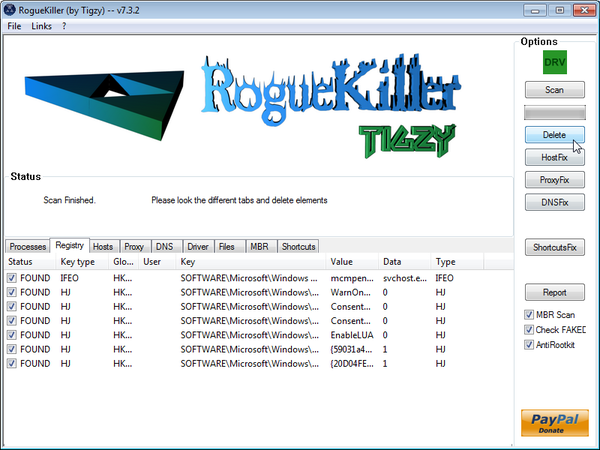
Live Security Platinum has sadded some malicious registry keys to your Windows installation , to remove this malicious changes we need to run a scan with RogueKiller.
- Please download the latest official version of RogueKiller.
Download RogueKillerOpens the download page in a new tab. - Double click on RogueKiller.exe to start this utility and then wait for the Prescan to complete.This should take only a few seconds and then you can click the Start button to perform a system scan.
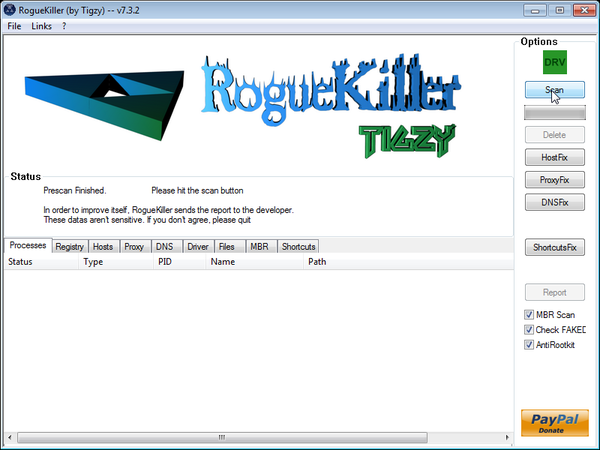
- After the scan has completed, press the Delete button to remove any malicious registry keys.
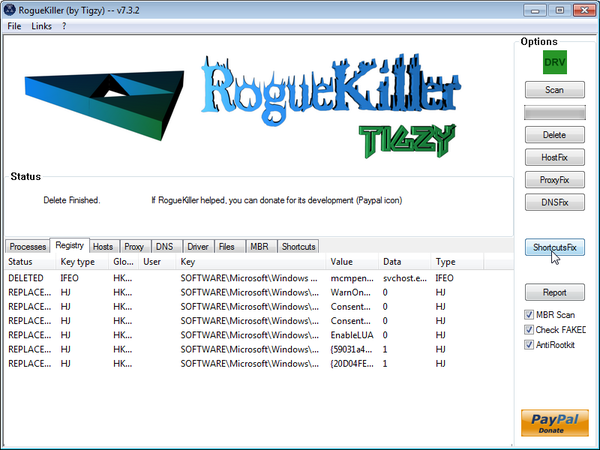
- Next we will need to restore your shortcuts, so click on the ShortcutsFix button and allow the program to run.









Thank you so much for taking the time to put this together! It saved all the pictures of my little guys.
Good karma,
Brad
Right after i run Rkill, i get a message saying my computer will shut down and since it does, I’m not able to finish the rest of the steps. Any advice?
Hello Sebastian,
Your Services service is most likely infected with this virus and this is why you are having this problems.
STEP 1: Run a scan with Malwarebytes Anti-Malware in Chameleon Mode in Norman mode:
STEP 2: Run a scan with RogueKiller
RogueKiller Download Link (This link will automatically download RogueKiller on your computer)
STEP 3 Please perform a scan with HitmanPro as seen on the guide.
If you are having problems starting this program please use the ForceBreach mode as described in the guide.
STEP 4: Run a scan with ESET Online Scanner:
ESET Online Scanner Download Link (This link will automatically download ESET Online Scanner on your computer.)
Waiting for your reply to tell me how everything is running!
Good luck…
This tutorial has helped me save 2 machines in 2 days. Thank you.
Hi, i ran through your guide but i think i screwed something up, after the reboot my system started and i was able to use google chorme, but when i came back and started it again all programs, (i’m assuming all .exe), will not load. i get the message to try and start program with web service. any advice would be much appreciated.
Hello Tim,
Uninstall,restart and then reinstall back Chrome.If you are still having problems than reply back!:)
i tried that but i have no internet browser at all, i can’t open any program, even ones from my external hard drive. the only program i have been able to open was nvidia control panel. did i mess up my registry?
i just retried uninstalling chrome but i got the error “windows cannot open this file: file: rundll32.exe”
i got every thing working. thank you for the guide. :)
Thank you so very much! I’m computer illiterate and your step by step guide is clearly idiot proof! Thank you again, kind soul!
the method to kill this virus is way to long and there is a more simple way to kill this nonsense…
1.) This virus program program will create a shortcut, left click on it and select properties
2.) Open file location, which will take you to the folder where the virus application is stored… make a note of the folder location (for me it was “ProgramData” folder…
3.) You will not be able to delete the virus folder immidiately because it launches itself and as u should know you cannot delete a folder or program that is being used… you have to delete it before it has a chance to launch… so shut down your computer.
4.) start your computer, and as soon as you are able – go directly to the folder that has the virus application and delete the application before it has a chance to launch itself
5.) restore your computer to an earlier date (this restore will repair registry)
Clearify: for me the virus was stored inside a folder located in the “ProgramData” folder… ProgramData/547643765735896958/live.exe
delete the “547643765735896958” …then do a system restore… and “547643765735896958” is just a made up folder name and live.exe is just made up name… you have to determine YOUR virus location by left clicking on the shortcut that the virus creates…. the left click on shortcut-select properties – open file location… and that location is the folder that needs to be deleted.
Thank u so much that was the best advice I’ve ever gotten. I have a degree in mechanical engineering nd not computer science but thank u again! And for me to trust someone’s words on the internet too!
How do I restore my computer to an earlier date?
Hello Jade,
Restoring your computer won’t help you because the virus will still be on your system even after you’ve done this.
I strongly suggest that you run a scan with the tools from the guide but this is after all your choice.
Good lucK!
Thank you! This virus is such a problem!
Easylee you saved me from so much work. I did what you said, but deleted it in safe mode so I wouldnot have to hurry. Evertime I went in to see if it was gone it would add another file. Thank you so much it was so easy.
When I try to download Malwarebytes, I check both options and it says Acces denied, and rolls back. Now what?
Hello Jennifer,
Did you run Rkill before trying to run Malwarebytes?
Can you please follow this steps:
STEP 1: Run a scan with Malwarebytes Anti-Malware in Chameleon Mode in Norman mode:
STEP 2: Run a scan with RogueKiller
RogueKiller Download Link (This link will automatically download RogueKiller on your computer)
STEP 3 Please perform a scan with HitmanPro as seen on the guide.
If you are having problems starting this program please use the ForceBreach mode as described in the guide.
STEP 4: Run a scan with ESET Online Scanner:
ESET Online Scanner Download Link (This link will automatically download ESET Online Scanner on your computer.)
Waiting for your reply to tell me how everything is running!
Good luck…
THANK YOU SO MUCH!!!! This problem was driving me mental and your steps were really easy to follow. You saved my day!!!
Thanks for your guide, it really works.
question: I skipped step 4 (Rkill) because I couldnt run it (also using th several different links provided). Is this a problem?
Hello D,
That’s not a problem as long as you’ve managed to run a scan with Malwarebytes and the other tools.
As an additional steps I can recommend that you run a scan with :
1.Run a scan with Kaspersky Virus Removal Tool
Click here to download the Kaspersky Virus Removal Tool.
2.Run a scan with Eset Online Scanner.
ESET Online Scanner Download Link (This link will automatically download ESET Online Scanner on your computer.)
After I’ve removed Live Security Platinum, can I remove the programs that that were installed during these seven steps?
Hello Al,
Yes,you can uninstall all the utilities that we’ve used.
Stay safe!
I have run everything original fixes step by step as well as gone as far as eset Kasprisky every program seems to remove fragments of virus but still can not open ie in normal mode
Update. I did update my Internet settings back to default and was able to get Internet after disabling windows firewall and other internet security. Now how can I restore to use Internet with firewall and security being enabled.
Hello Kah,
Can you please run a scan with Combofix, ESET online scanner and post the logs here so that I can get an idea on what’s going on :
STEP 1 : Run a scan with Combofix
Download ComboFix from one of the following locations:
COMBOFIX DOWNLOAD LINK #1 (This link will automatically download Combofix on your computer)
COMBOFIX DOWNLOAD LINK #2 (This link will automatically download Combofix on your computer)
VERY IMPORTANT !!! Save as Combo-Fix.exe during the download.ComboFix must be renamed before you download to your Desktop
Additional notes:
STEP 2: Run a scan with ESET Online Scanner:
ESET Online Scanner Download Link (This link will automatically download ESET Online Scanner on your computer.)
Now,let try to repair your computer:
1. Click the Start buton
2. Type “cmd” in the Search Box and then press Enter
3. Right-click “cmd.exe” and select “Run as administrator”
4. Click “Continue” on the “User Account Control” Window
5. In the command prompt type the following command
sc create BITS binpath= “c:\windows\system32\svchost.exe -k netsvcs” start= delayed-auto6.Restart your computer and check if the problem is solved.
Next, download Windows Repair All In One and install this utility.
Go to the Startup Repairs tab and click the Start button (bottom right)
Note: When asked if you would like to create a restore point. It is recommended just in-case something does not go as planned.
Note: Leave everything else unchecked
Thank you for posting this information. Thanks again……
This is fantastic. Thank You so much for going out of your way to help with this. It worked terrifically.
Following these instructions now. Unfortunately my SmartScreen filter is preventing me from getting the RogueKiller.exe. What do?
I will likely need it, since I have yet to successfully reactivate my Microsoft Security Essentials (I think it’s claiming to not be installed …?)
Okay, herpaderp ended. Managed to figure out how run RogueKiller anyway.
And now it’s yelling about a ZeroAccess thing. o_o
And then it’s gone … and now I’m stuck with a disabled Windows Security Center. -_-
(Sorry about the comment spam, I’m very frazzled right now.)
Hello Tuan,
Can you please run a scan with Combofix, ESET online scanner and post the logs here so that I can get an idea on what’s going on :
STEP 1 : Run a scan with Combofix
Download ComboFix from one of the following locations:
COMBOFIX DOWNLOAD LINK #1 (This link will automatically download Combofix on your computer)
COMBOFIX DOWNLOAD LINK #2 (This link will automatically download Combofix on your computer)
VERY IMPORTANT !!! Save as Combo-Fix.exe during the download.ComboFix must be renamed before you download to your Desktop
Additional notes:
STEP 2: Run a scan with ESET Online Scanner:
ESET Online Scanner Download Link (This link will automatically download ESET Online Scanner on your computer.)
Now,let try to repair your computer:
1. Click the Start buton
2. Type “cmd” in the Search Box and then press Enter
3. Right-click “cmd.exe” and select “Run as administrator”
4. Click “Continue” on the “User Account Control” Window
5. In the command prompt type the following command
sc create BITS binpath= “c:\windows\system32\svchost.exe -k netsvcs” start= delayed-auto6.Restart your computer and check if the problem is solved.
Next, download Windows Repair All In One and install this utility.
Go to the Startup Repairs tab and click the Start button (bottom right)
Note: When asked if you would like to create a restore point. It is recommended just in-case something does not go as planned.
Note: Leave everything else unchecked
So far I’ve been running HitmanPro, Malwarebytes Free and RogueKiller repeatedly (along with two ESET scans). Shortly after I finished the steps in the article above, I ran the ESET scanner as suggested in comments below mine and that discovered an additional number of trojans that I let it quarantine and remove. Since then, RogueKiller has found one more suspicious registry key (about a day after the fact, when the other two antimalwares were checking out clear), but other than that, none of my current malware removers (Malwarebytes, HitmanPro, RogueKiller and a successfully reinstalled Microsoft Security Essentials) have found anything malicious.
I have however discovered that I’m missing the Background Intelligent Transfer Service and Automatic Update entries in the services.msc list, and this has already proven to cripple my Windows Update (even though I – seemingly – had restored it with Microsoft’s Fix it tool).
Personally, I have to admit that I’m finding that ComboFix software rather volatile of a software to use, judging from your instructions. I have just finished another ESET scan, and it’s coming up clean. Should I attempt to use the cmd command to restore the BITS function and run that repair tool at the end of your suggestion?
Finally, one more question:
Shortly after I finished the last step of this guide, I made a manual backup of most of my personal files – very nearly exclusively MSOffice documents and files, image files of the standard varieties, PDF documents and .txt files. I performed this backup through the old copypaste technique, copying the relevant folders in groups onto the harddrive and letting them overwrite the previous backup. My question is this: is there any possibility of the various malware components associated with this virus having embedded themselves somehow into my “My Documents” directories?
(I ask this question in the event that I might end up having to perform a full system restore and wipe my harddrive anyway.)
Well look at that. I did a system restore back to Tuesday this week where I had performed a Windows Update, and that solved it. Thank you nevertheless for your article, as it did help me regain control over my computer to start with.
I will definitely surf much more safely from now on …
Hello Tuan,
Yes, if you are having problems with the Windows updates then you need to re-register your BITS service.
If you didn’t back-up any files that ended in a .exe extension then you don’t have any reason to worry.
As far as Combofix goes,this tool is very good and can help me understand what’s going on however if you don’t want to do this steps is totally up to you.
I can recommend that you run a scan with Kaspersky Virus Removal Tool:
Click here to download the Kaspersky Virus Removal Tool.
Good luck!
I simply restored my system back 4 days before this problem and that seemed to take care of the problem, without having to go through this long process. So, I wonder – why don’t you just recommend restoring back before the Live Security Platinum?
Hello,
You should run a scan with Malwarebytes and HitmanPro just in case….. :)
Stay safe!
Allow me to impart my most sincere appreciation to your simple suggestion of using the local system restore function, King. I just did that and lo and behold, I now have a working Windows Defender firewall, Windows Update and Security Center again.
My hat goes off to you.
As easy as it seems to just do a system retore to a point, it does resolve the issue momentary. Unfortunatly it doesn’t fully remove the virus that embeds itself in your computer. It’s like getting a tick, sure you can just pull it off and leave the head behind, but that may or may not protect you from infections, or issues happening in the long run. You want to ensure that you get that tick out with it’s head intacted, same with any virus that you get. If you just simply restoring the computer you are only putting a bandaid on it, and may be risking a re-infection since it was not properly removed.
Hi, Firstly THANK YOU Stellian!!! Excellent very clear instructions and thus far have had no further problems… @King: While it may have worked for you one of the first things I tried was a system restore and the virus stopped me from running the restore (or doing anything else!) It blocked everything, this information was PRICELESS for me! :D
Steven, Thank you for the invaluable assistance . I was starting from a point of being unable to run any .exe and receiving continuous bogus alerts. Your instructions were excellent and all issues appear to be resolved.
Thanks , sooooooo much. I was working on a project for school for 2hours and all the sudden the virus pops up. I begin serching on the internet (amazingly it still worked) and found this page followed the steps and my computer is running great.! I also installed nortan security. THANK YOU!!!!!!!!!!!!!!!!!! :-)
When I try to download rougekiller my computer tells me it’s unsafe to downlad and has been blocked by smartfilter
Hello bobby,
You can ignore that alert…Internet Explorer has displayed that alert because this file isn’t commonly downloaded …
Also:
1.Run a scan with Kaspersky Virus Removal Tool
Click here to download the Kaspersky Virus Removal Tool.
2.Run a scan with Eset Online Scanner.
ESET Online Scanner Download Link (This link will automatically download ESET Online Scanner on your computer.)
–
Really? So because you don’t realize that this guide pretty much uninstalls the firewall you’re just going to ignore my comment? Hey every one, when you finish every step in this guide, it uninstalls your windows update service, your windows firewall service and your security essentials service. The “Fix all in one” program does not fix this issue. You can easily reinstall security essentials, but in order to repair your firewall and windows update you have to reinstall windows.
Hello Matt,
Did you try to re-register the BITS service?
hi, I just got the live security platinum virus yesterday, and then i followed ur steps, and it was fixed. however when i turn on my laptop today, i can open any programs, but after a while, all the programs are freeze and do not responding, do you have any idea why?
Hello chloe,
Can you please run a scan with Combofix and ESET online scanner and post the logs here so that I can get an idea on what’s going on :
STEP 1 : Run a scan with Combofix
Download ComboFix from one of the following locations:
COMBOFIX DOWNLOAD LINK #1 (This link will automatically download Combofix on your computer)
COMBOFIX DOWNLOAD LINK #2 (This link will automatically download Combofix on your computer)
VERY IMPORTANT !!! Save as Combo-Fix.exe during the download.ComboFix must be renamed before you download to your Desktop
Notes:
STEP 2: Run a scan with ESET Online Scanner:
ESET Online Scanner Download Link (This link will automatically download ESET Online Scanner on your computer.)
Waiting for your reply to tell me if your machine is ok and the logs from this utilities.
here is the log, i followed the steps and eset scanner found 8 threats, but my computer still freeze after i start my laptop 5-10 mins
ComboFix 12-09-07.03 – Chloe 2/09/07 周五 17:48:25.1.4 – x64 NETWORK
Hello chloe,
Your Combofix log shows that you’ve still got some infection on this machine.Can you please start a thread in our Malware Removal Assistance forum as we need to remove this viruses.