

Live Security Platinum is a computer virus which will display fake security alerts,reporting that malware has been detected on your computer.This alerts are professional looking pop-ups and when you click on them, you are advised to buy Live Security Platinum in order to remove the detected threats.
In reality, none of the reported issues are real, and are only used to scare you into buying Live Security Platinum and stealing your personal financial information.
Apart from the bogus alerts,as part of its self-defense mechanism,Live Security Platinum has disabled the Windows system utilities, including the Windows Task Manager and Registry Editor,and will block you from running certain programs that could lead to its removal.
Further more,this rogue antivirus has modified your Windows files associations so now you can’t run files that end in a .exe extension.
If your computer is infected with Live Security Platinum,then you are seeing this images:
![[Image: Live Security Platinum virus]](http://malwaretips.com/blogs/wp-content/uploads/2012/06/Live-Security-Platinum-2.png "Live Security Platinum virus")
![[Image: Live Security Platinum Alert]](http://malwaretips.com/blogs/wp-content/uploads/2012/06/Live-Security-Platinum-4.png "Live Security Platinum fake alert")
![[Image: Live Security Platinum Activation request]](http://malwaretips.com/blogs/wp-content/uploads/2012/06/Live-Security-Platinum-3.png "Live Security Platinum activation")
![[Image: Live Security Platinum Warning]](http://malwaretips.com/blogs/wp-content/uploads/2012/06/Live-Security-Platinum-1.png "Live Security Platinum fake warning")
Registration codes for Live Security Platinum
As an optional step,you can use the following license key to register Live Security Platinum and stop the fake alerts.
Live Security Platinum license key: AA39754E-715219CE
Please keep in mind that entering the above registration code will NOT remove Live Security Platinum from your computer , instead it will just stop the fake alerts so that you’ll be able to complete our removal guide more easily.
Live Security Platinum Removal Guide
STEP 1 : Start your computer in Safe Mode with Networking
- Remove all floppy disks, CDs, and DVDs from your computer, and then restart your computer.
- Press and hold the F8 key as your computer restarts.Please keep in mind that you need to press the F8 key before the Windows start-up logo appears.
Note: With some computers, if you press and hold a key as the computer is booting you will get a stuck key message. If this occurs, instead of pressing and holding the “F8 key”, tap the “F8 key” continuously until you get the Advanced Boot Options screen. - On the Advanced Boot Options screen, use the arrow keys to highlight Safe Mode with Networking , and then press ENTER.
![[Image: Safemode.jpg]](//malwaretips.com/images/removalguide/safemode.jpg "Safe Mode with Networking screen")
![[Image: Safemode.jpg]](http://malwaretips.com/images/removalguide/safemode.jpg "Safe Mode with Networking screen")
STEP 2: Remove Live Security Platinum malicious proxy server
Live Security Platinum may add a proxy server which prevents the user from accessing the internet,follow the below instructions to remove the proxy.
- Start the Internet Explorer browser and if you are using Internet Explorer 9 ,click on the gear icon
![[Image: IE gear icon]](//malwaretips.com/images/removalguide/icongear.jpg "Gear Icon") (Tools for Internet Explorer 8 users) ,then select Internet Options.
(Tools for Internet Explorer 8 users) ,then select Internet Options.
![[Image: Internet-options-IE.png]](//malwaretips.com/images/removalguide/ie1.png "Internet Options in IE")
- Go to the tab Connections.At the bottom, click on LAN settings.
![[Image: Remove-proxy-server2.png]](//malwaretips.com/images/removalguide/ie2.png "Connections tab in Internet Explorer")
- Uncheck the option Use a proxy server for your LAN. This should remove the malicious proxy server and allow you to use the internet again.
![[Image: Remove-proxy-server3.png]](//malwaretips.com/images/removalguide/ie3.png "Uncheck the option Use a proxy server for your LAN")
![[Image: IE gear icon]](http://malwaretips.com/images/removalguide/icongear.jpg "Gear Icon") (Tools for Internet Explorer 8 users) ,then select Internet Options.
(Tools for Internet Explorer 8 users) ,then select Internet Options.![[Image: Internet-options-IE.png]](http://malwaretips.com/images/removalguide/ie1.png "Internet Options in IE")
![[Image: Remove-proxy-server2.png]](http://malwaretips.com/images/removalguide/ie2.png "Connections tab in Internet Explorer")
![[Image: Remove-proxy-server3.png]](http://malwaretips.com/images/removalguide/ie3.png "Uncheck the option Use a proxy server for your LAN")
If you are a Firefox users, go to Firefox(upper left corner) → Options → Advanced tab → Network → Settings → Select No Proxy
STEP 3: Repair your Windows Registry from Live Security Platinum malicious changes.
Smart Fortress 2012 has changed your Windows registry settings so that when you try to run a executable file (ending with .exe ) , it will instead launch the infection rather than the desired program.
- Download the registryfix.reg file to fix the malicious registry changes from Live Security Platinum.
Download RegistryFix.regOpens the download page in a new tab. - Double-click on registryfix.reg file to run it. Click “Yes” for Registry Editor prompt window,then click OK.
![[Image: fix registry]](//malwaretips.com/blogs/wp-content/uploads/2011/12/registry.png "Live Security Platinum - Virus Removal Guide 1")
![[Image: fix registry]](http://malwaretips.com/blogs/wp-content/uploads/2011/12/registry.png "Live Security Platinum - Virus Removal Guide 1")
STEP 4: Run RKill to terminate known malware processes associated with Live Security Platinum.
RKill is a program that will attempt to terminate all malicious processes associated with Live Security Platinum,so that we will be able to perform the next step without being interrupted by this malicious software.
Because this utility will only stop Live Security Platinum running process, and does not delete any files, after running it you should not reboot your computer as any malware processes that are configured to start automatically will just be started again.
- While your computer is in Safe Mode with Networking ,please download the latest official version of RKill.Please note that we will use a renamed version of RKILL so that Live Security Platinum won’t block this utility from running.
Download RKillYour download starts right away. - Double-click on the iExplore.exe icon in order to automatically attempt to stop any processes associated with Live Security Platinum.
![[Image: run-rkill-1.png]](//malwaretips.com/images/removalguide/rkill1.png "RKILL ICON")
- RKill will now start working in the background, please be patient while the program looks for various malware programs and tries to terminate them.
![[Image: run-rkill-2.png]](//malwaretips.com/images/removalguide/rkill2.png "RKILL Command prompt")
IF you are having problems starting or running RKill, you can download any other renamed versions of RKill from here. - When Rkill has completed its task, it will generate a log. You can then proceed with the rest of the guide.
![[Image: Live Security Platinum rkill3.jpg]](//malwaretips.com/images/removalguide/rkill3.png "RKILL LOG")
![[Image: run-rkill-1.png]](http://malwaretips.com/images/removalguide/rkill1.png "RKILL ICON")
![[Image: run-rkill-2.png]](http://malwaretips.com/images/removalguide/rkill2.png "RKILL Command prompt")
![[Image: Live Security Platinum rkill3.jpg]](http://malwaretips.com/images/removalguide/rkill3.png "RKILL LOG")
WARNING: Do not reboot your computer after running RKill as the malware process will start again , preventing you from properly performing the next step.
STEP 5: Remove Live Security Platinum malicious files with Malwarebytes Anti-Malware FREE
- Download the latest official version of Malwarebytes Anti-Malware FREE.
Download MalwarebytesFree official installer. Your download starts right away. - Start the Malwarebytes’ Anti-Malware installation process by double clicking on mbam-setup file.
![[Image: Malwarebytes Installer]](//malwaretips.com/images/removalguide/malwarebytes-setup.png "Malwarebytes Anti-Malware Installer")
- When the installation begins, keep following the prompts in order to continue with the setup process. Do not make any changes to default settings and when the program has finished installing, make sure you leave both the Update Malwarebytes’ Anti-Malware and Launch Malwarebytes’ Anti-Malware checked. Then click on the Finish button. If Malwarebytes’ prompts you to reboot, please do not do so.
![[Image: Finishing Malwarebytes installation]](//malwaretips.com/images/removalguide/update-malwarebytes.png "Malwarebytes last setup screen")
- Malwarebytes Anti-Malware will now start and you’ll be prompted to start a trial period , please select ‘Decline‘ as we just want to use the on-demand scanner.
![[Image: Decline Malwarebytes trial]](//malwaretips.com/images/removalguide/malwarebytes-trial.png "Decline trial period in Malwarebytes Anti-Malware")
- On the Scanner tab,select Perform full scan and then click on the Scanbutton to start scanning your computer.
![[Image: Starting a full system sca]](//malwaretips.com/images/removalguide/start-scan-malwarebytes.png "Perform a Full System Scan with Malwarebytes Anti-Malware")
- Malwarebytes’ Anti-Malware will now start scanning your computer for Live Security Platinum malicious files as shown below.
![[Image: Malwarebytes scanning for malicious files]](//malwaretips.com/images/removalguide/scan-malwarebytes.png "Malwarebytes Anti-Malware scanning for Live Security Platinum")
- When the scan is finished a message box will appear, click OK to continue.
![[Image: Malwarebytes scan results]](//malwaretips.com/images/removalguide/results-malwarebytes.png "Malwarebytes when the system scan has finished")
- You will now be presented with a screen showing you the malware infections that Malwarebytes’ Anti-Malware has detected.Please note that the infections found may be different than what is shown in the image.Make sure that everything is Checked (ticked) and click on the Remove Selected button.
![[Image: Infections found by Malwarebytes]](//malwaretips.com/images/removalguide/detection-malwarebytes.png "Removing the infections found by Malwarebytes")
- Malwarebytes’ Anti-Malware will now start removing the malicious files.After completing this task it will display a message stating that it needs to reboot,please allow this request and then let your PC boot in Normal mode.
![[Image: Malwarebytes Installer]](http://malwaretips.com/images/removalguide/malwarebytes-setup.png "Malwarebytes Anti-Malware Installer")
![[Image: Finishing Malwarebytes installation]](http://malwaretips.com/images/removalguide/update-malwarebytes.png "Malwarebytes last setup screen")
![[Image: Decline Malwarebytes trial]](http://malwaretips.com/images/removalguide/malwarebytes-trial.png "Decline trial period in Malwarebytes Anti-Malware")
![[Image: Starting a full system sca]](http://malwaretips.com/images/removalguide/start-scan-malwarebytes.png "Perform a Full System Scan with Malwarebytes Anti-Malware")
![[Image: Malwarebytes scanning for malicious files]](http://malwaretips.com/images/removalguide/scan-malwarebytes.png "Malwarebytes Anti-Malware scanning for Live Security Platinum")
![[Image: Malwarebytes scan results]](http://malwaretips.com/images/removalguide/results-malwarebytes.png "Malwarebytes when the system scan has finished")
![[Image: Infections found by Malwarebytes]](http://malwaretips.com/images/removalguide/detection-malwarebytes.png "Removing the infections found by Malwarebytes")
STEP 6: Double check your system for any left over infections with HitmanPro
- This step can be performed in Normal Mode ,so please download the latest official version of HitmanPro.
Download HitmanProOfficial Sophos download. Free scan, free 30-day trial to remove threats. - Double click on the previously downloaded fileto start the HitmanPro installation.
![[Image: HitmanPro Icon]](//malwaretips.com/images/removalguide/hpro1.png "HitmanPro Installer")
IF you are experiencing problems while trying to start HitmanPro, you can use the Force Breach mode.To start HitmanPro in Force Breach mode, hold down the left CTRL-key when you start HitmanPro and all non-essential processes are terminated, including the malware process. (How to start HitmanPro in Force Breach mode – Video) - Click on Next to install HitmanPro on your system.
![[Image: Starting HitmanPro]](//malwaretips.com/images/removalguide/hitmanpro36-start.png "HitmanPro installation process")
- The setup screen is displayed, from which you can decide whether you wish to install HitmanPro on your machine or just perform a one-time scan, select a option then click on Next to start a system scan.
![[Image: HitmanPro installation screen]](//malwaretips.com/images/removalguide/hitmanpro36-installation.png "HitmanPro setup options")
- HitmanPro will start scanning your system for malicious files as seen in the image below.
![[Image: HitmanPron scanning for Live Security Platinum]](//malwaretips.com/images/removalguide/hitmanpro36-scan.png "HitmanPro while scanning for Live Security Platinum virus")
- Once the scan is complete,you’ll see a screen which will display all the malicious files that the program has found.Click on Next to remove this malicious files.
![[Image: HitmanPro scan results]](//malwaretips.com/images/removalguide/hitmanpro36-results.png "HitmanPro displaying scan results")
- Click Activate free license to start the free 30 days trial and remove the malicious files.
![[Image: Activate HitmanPro license]](//malwaretips.com/images/removalguide/hitmanpro36-activation.png "Activate the HitmanPro free 30 days trial to remove any detected infections")
- HitmanPro will now start removing the infected objects.If this program will ask you to restart your computer,please allow this request.
![[Image: HitmanPro Icon]](http://malwaretips.com/images/removalguide/hpro1.png "HitmanPro Installer")
![[Image: Starting HitmanPro]](http://malwaretips.com/images/removalguide/hitmanpro36-start.png "HitmanPro installation process")
![[Image: HitmanPro installation screen]](http://malwaretips.com/images/removalguide/hitmanpro36-installation.png "HitmanPro setup options")
![[Image: HitmanPron scanning for Live Security Platinum]](http://malwaretips.com/images/removalguide/hitmanpro36-scan.png "HitmanPro while scanning for Live Security Platinum virus")
![[Image: HitmanPro scan results]](http://malwaretips.com/images/removalguide/hitmanpro36-results.png "HitmanPro displaying scan results")
![[Image: Activate HitmanPro license]](http://malwaretips.com/images/removalguide/hitmanpro36-activation.png "Activate the HitmanPro free 30 days trial to remove any detected infections")
STEP 7: Remove the left over malicious registry keys and files
Live Security Platinum has sadded some malicious registry keys to your Windows installation , to remove this malicious changes we need to run a scan with RogueKiller.
- Please download the latest official version of RogueKiller.
Download RogueKillerOpens the download page in a new tab. - Double click on RogueKiller.exe to start this utility and then wait for the Prescan to complete.This should take only a few seconds and then you can click the Start button to perform a system scan.
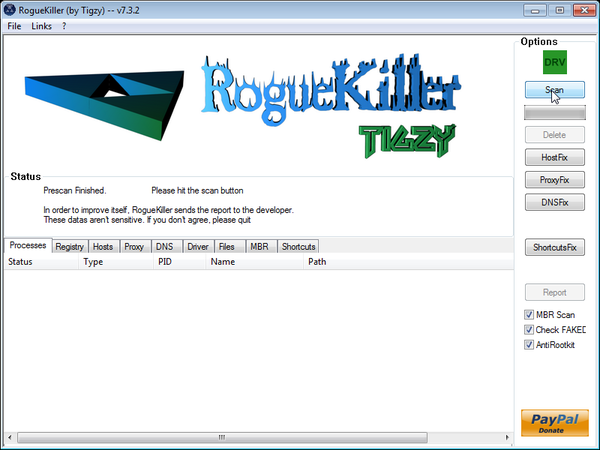
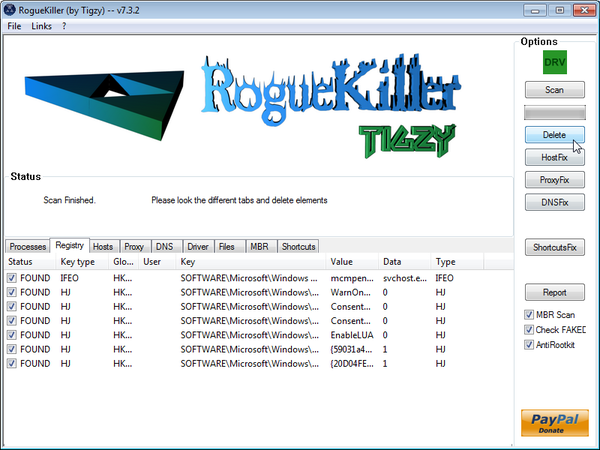
- After the scan has completed, press the Delete button to remove any malicious registry keys.
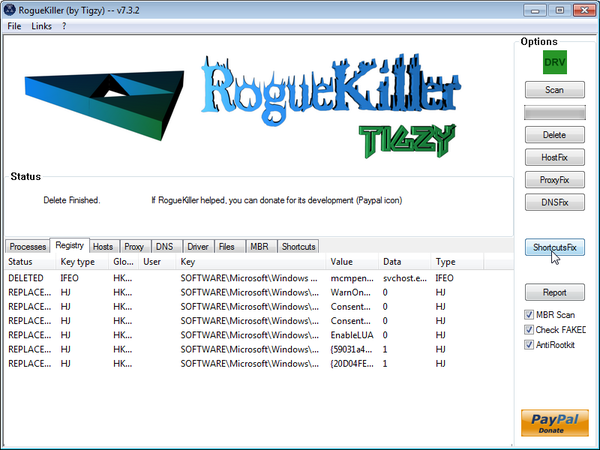
- Next we will need to restore your shortcuts, so click on the ShortcutsFix button and allow the program to run.









THhis worked awesome. THank you so much for doing this simple step-by-step. Worked great
Hello, thank you very much for this help. I was about to panic when this virus infected my laptop. Everything was going on fine, but my firewall cannot be turned on. I did some steps that I found on the comments above such as using the windows all in one repair, but it still doesn’t work. Can you give some help?
Hello Fazrezal,
Please follow this steps:
STEP 1: Run a scan with ESET Online Scanner:
ESET Online Scanner Download Link (This link will automatically download ESET Online Scanner on your computer.)
STEP 2: Repair Background Intelligent Transfer Service service
1. Click the Start buton
2. Type “cmd” in the Search Box and then press Enter
3. Right-click “cmd.exe” and select “Run as administrator”
4. Click “Continue” on the “User Account Control” Window
5. In the command prompt type the following command
sc create BITS binpath= “c:\windows\system32\svchost.exe -k netsvcs” start= delayed-auto6.Restart your computer and check if the problem is solved.
STEP 3: Remove the residual damage from Live Security Platinum
Download Windows Repair All In One and install this utility.
Go to the Startup Repairs tab and click the Start button (bottom right)
Note: When asked if you would like to create a restore point. It is recommended just in-case something does not go as planned.
Note: Leave everything else unchecked
Restart your computer and see if your everything works!
RKill says no malware found to kill and no stop etc etc but the Live security IS on my computer. Now what do I do?
Hello,
Please follow this steps:
STEP 1: Run a scan with Malwarebytes Anti-Malware in Chameleon Mode in Norman mode:
STEP 2: Run a scan with RogueKiller
RogueKiller Download Link (This link will automatically download RogueKiller on your computer)
STEP 3 Please perform a scan with HitmanPro as seen on the guide.
If you are having problems starting this program please use the ForceBreach mode as described in the guide.
STEP 4: Run a scan with ESET Online Scanner:
ESET Online Scanner Download Link (This link will automatically download ESET Online Scanner on your computer.)
Waiting for your reply to tell me how everything is running!
Good luck…
Thank you so much for the reply!
I’m a bit confused because the description says that Chameleon helps install Malwarebytes Anti-Malware, it gave me 12 links but none of them worked, however Malwarebytes Anti-Malware is already installed on my computer (I downloaded it last night after RKill failed to stop anything and I posted that comment). Last night Malwarebytes scanned and detected 12 threats which it destroyed, and after the reboot the Live Security Platinum icons were removed, which I suppose is a good thing.
HitmanPro then came, but instead of the large number of threats that were found in the guide, it only found 1 actual threat, which it removed. I then re-ran it and found nothing.
Then after that last night I ran Rougekiller and again, instead of the many in the guide only 1 threat was found. I deleted it, re-ran it again and this time found nothing.
However, my Firefox now seems to be hit with this annoying redirect bug that sometimes redirects it to random sites.
Can you please tell me if the virus is gone? Because all the tools in the guide found less threats than they were supposed to plus the redirecting virus.
Thanks again.
Hello,
Can you please run a scan with Combofix and ESET online scanner and post the logs here so that I can get an idea on what’s going on :
STEP 1 : Run a scan with Combofix
Download ComboFix from one of the following locations:
COMBOFIX DOWNLOAD LINK #1 (This link will automatically download Combofix on your computer)
COMBOFIX DOWNLOAD LINK #2 (This link will automatically download Combofix on your computer)
VERY IMPORTANT !!! Save as Combo-Fix.exe during the download.ComboFix must be renamed before you download to your Desktop
Notes:
STEP 2: Run a scan with ESET Online Scanner:
ESET Online Scanner Download Link (This link will automatically download ESET Online Scanner on your computer.)
Waiting for your reply to tell me if your machine is ok and the logs from this utilities.
OH MY GOODNESS!!! You are the nicest guy ever to leave this here… I was absolutely pannicking.
thanks so much
Chelsey
I freaking love you
Thanks bro, I really appreciated. Keep up the good work. I followed all your instructions it worked great. I took almost 3 hours deleting different files, but you hit it right on the head. One shot one kill.
Thank you for describing in an easy way to deal with this problem.
I have completed all the steps and got rid of the virus, but when I try to go into normal mode, after about a minute, my computer freezes up. I have a Lenovo B570 Intel i3 computer with Windows 7 64-bit.
Hello Timothy,
Can you please run a scan with Combofix and ESET online scanner and post the logs here so that I can get an idea on what’s going on :
STEP 1 : Run a scan with Combofix
Download ComboFix from one of the following locations:
COMBOFIX DOWNLOAD LINK #1 (This link will automatically download Combofix on your computer)
COMBOFIX DOWNLOAD LINK #2 (This link will automatically download Combofix on your computer)
VERY IMPORTANT !!! Save as Combo-Fix.exe during the download.ComboFix must be renamed before you download to your Desktop
Notes:
STEP 2: Run a scan with ESET Online Scanner:
ESET Online Scanner Download Link (This link will automatically download ESET Online Scanner on your computer.)
Waiting for your reply to tell me if your machine is ok and the logs from this utilities.
Hi Mr. Pilici,
The LSP infected my primary computer tonight, and I’m reaching your site here by hooking up my secondary back-up comp. I’ve manually transcribed your above 1-7 steps for eliminating this god-awful virus.
From the comments above, I have confidence it will work. I’m somewhat of a comp novice, so bear with me. When I start out in Safe Mode Networking and push ‘ENTER’, does my comp then go to a normal screen or login where I can then download all the programs you list to remove LSP?
And how would I get to your convenient download links on this page if I were using my infected primary computer? Won’t LSP stop me from getting here in the first place?
Do I just google say, “RogueKiller downloads” to get it and the others? Thanks for your help, I hope you can answer my questions before I hook my sick comp back up to the internet and try your steps. I’ll check back tomorrow night, 9-6-12 with my back-up here.
Again, thanks a bunch. If this works, you will have saved me a bunch of money, time, fear, and hassles!
Hello Sam,
Don’t worry,if you follow this steps LSP will be gone.
Good luck!
Okay, I’m going to try this in a few.
Thanks for the response.
Cant tell you how much I appreciate everyhting.
This has been a nightmare that I thought will never end.
Thank you so much!!!
Keep doing the great work that you do. So happy right now!
Thank you,
Maya
Hello, I did this guide step by step, and it worked. When it finished, some issues with security essentials, my firewall, and windows updates had started. All three of them keep saying that the service isn’t running. I tried the method you suggested to Gregory, and that didn’t work either. Any other suggestions?
THANK YOU SOOOOO much for posting this. It was a long process BUT I got my computer back!!! YOU are fantastic!!
Thankyou very much, I ran through to stage 6 and everything seems ok, I tried stage 7 but my computer won’t let the site load, apparently it’s deemed too risky. I would like to run it to be safe but don’t know how.
Again thanks for your time and effort.
Hello chris,
You can ignore that alert…Internet Explorer has displayed that alert because this file isn’t commonly downloaded …
Also:
1.Run a scan with Kaspersky Virus Removal Tool
Click here to download the Kaspersky Virus Removal Tool.
2.Run a scan with Eset Online Scanner.
ESET Online Scanner Download Link (This link will automatically download ESET Online Scanner on your computer.)
–
Hi, I have been following your steps, which are clear and so far appear to be working. I downloaded hitmanpro as you suggested, ran scan and was looking for the free trial as you highlight but there is no click through, on,y buy now. It appears it is an updated version ie hitmanpro 3.6.1 build 164 which differs from your screen grab. It found 13 threats, but I can’t remove these unless I buy the software. Please help. Is there another product or way around this? Thanks. Your blog has been really awesome, you are great for the web. J
Hello John,
We can manually remove this files however let’s see if we can get rid of some of them using the below software:
1.Run a scan with Kaspersky Virus Removal Tool
Click here to download the Kaspersky Virus Removal Tool.
2.Run a scan with Eset Online Scanner.
ESET Online Scanner Download Link (This link will automatically download ESET Online Scanner on your computer.)
NEXT,please re-run a scan with HitmanPro and post the log or a screenshot here and I’ll give you instructions on how to remove the left over files.
Good luck!
Stelian,
Thank you so much for your generous help, and the very detailed and helpful instructions.
Randall
so i’ve been going through the process of removing this virus, and when i go to download roguekiller, smartscreen filter blocks it saying the website is known for having malicious software…
any suggestions?
Hello Cory,
You can ignore that alert…Internet Explorer has displayed that alert because this file isn’t commonly downloaded …
Also:
1.Run a scan with Kaspersky Virus Removal Tool
Click here to download the Kaspersky Virus Removal Tool.
2.Run a scan with Eset Online Scanner.
ESET Online Scanner Download Link (This link will automatically download ESET Online Scanner on your computer.)
–
I, like many others have caught this virus. I began following your steps and when I went to uncheck the proxy in LAN settings noticed it was already unchecked. I am currently on a friends computer to find this page and thought I’d try the next step on mine since it was unchecked and when I searched the web to try and get Smart Fortress I was getting sent to bogus sites (must be still infected). Is there anything I can do? I am in safe mode where all icons are over sized and windows help and support open.. Please and thanks for your help!!!
Hello Joe,
If there is no proxy then this is great…Now I’ll need a log to see what’s going on:
STEP 1 : Run a scan with Combofix
Download ComboFix from one of the following locations:
COMBOFIX DOWNLOAD LINK #1 (This link will automatically download Combofix on your computer)
COMBOFIX DOWNLOAD LINK #2 (This link will automatically download Combofix on your computer)
VERY IMPORTANT !!! Save as Combo-Fix.exe during the download.ComboFix must be renamed before you download to your Desktop
Additional notes:
STEP 2: Run a scan with ESET Online Scanner:
ESET Online Scanner Download Link (This link will automatically download ESET Online Scanner on your computer.)
Waiting for the logs and details on how the machine is working…
Thank you, so much. This virus sucked, had no idea it was so comprehensive. Really appreciate all the kind work that went into making this guide – you’re awesome.
Perfect way to get the stuff out ! was a great help and thanks.
Stelian after following your guide to the letter i believe i have removed the virus. But for some reason i can’t run Automatic Updates nor update my Microsoft Security Essentials? (I have tried reinstalling)
Any tips for that or should i look in forums?
Hello Gregory,
Please follow this steps:
STEP 1: Run a scan with ESET Online Scanner:
ESET Online Scanner Download Link (This link will automatically download ESET Online Scanner on your computer.)
Now,let try to repair your computer:
1. Click the Start buton
2. Type “cmd” in the Search Box and then press Enter
3. Right-click “cmd.exe” and select “Run as administrator”
4. Click “Continue” on the “User Account Control” Window
5. In the command prompt type the following command
sc create BITS binpath= “c:\windows\system32\svchost.exe -k netsvcs” start= delayed-auto6.Restart your computer and check if the problem is solved.
Next, download Windows Repair All In One and install this utility.
Go to the Startup Repairs tab and click the Start button (bottom right)
Note: When asked if you would like to create a restore point. It is recommended just in-case something does not go as planned.
Note: Leave everything else unchecked
Dear Awesome Sir:
I think I am almost there on a windows 7 laptop. However, I’ve done all the steps and finished windows all in one repair, but still I can’t turn on the windows firewall.
I try to start the windows firewall service and I get an error: “1068: the dependancy service or group failed to start”
Okay, I ran the all in one repair again. This time I checked only firewall repair, and restore windows services and the firewall is now on. Thanks very much for this great set of instructions. You saved me!
YOU ARE AWESOME!!!!!!