


A sign-in message looks right, and so does the address you can see. It’s the one you expected, or at least it looks that way at a glance.
Sometimes the difference is smaller than a typo you would notice. Before giving the page anything, check how you arrived there.
Overview
A familiar-looking address can be a different destination
A lookalike domain is a web address that resembles one you know without being the same place. Some frauds rely on characters whose shapes are nearly indistinguishable.
That is what The Guardian’s scam watch described: visual similarities can make an address seem genuine even while sending you to another destination.
The term homoglyph describes the visual resemblance. Legitimate domains can use many languages and scripts; the problem is a site falsely presenting itself as a different organization.
You don’t need to learn to recognize every letter in every alphabet. An independently opened app or bookmark helps you avoid making that visual judgment under pressure.
This is not just an exercise in spotting tiny differences
Microsoft’s account of the RaccoonO365 takedown gives a documented example of its name being imitated at the address level in a phishing operation.
In that example, a sequence of ordinary letters could resemble a single one. A suspicious address doesn’t have to use a character from another writing system to look convincing.
A fake sign-in page can look reasonable after you arrive. If you reached it via an unexpected message, appearance isn’t a substitute for knowing the service you opened.
Lookalike addresses are one way to get you there. A misleading link label, a copied sender name, and a real-looking page involve different checks.
Three things your screen may show you
- The sender’s display name is how a message presents itself, not proof that a company controls the account behind it.
- The visible words on a button can differ from the actual destination opened in the browser.
- The website itself can show a familiar logo even though its address belongs to somebody else.
The strongest response is to stop treating those cues as independent votes for legitimacy. A single fraudulent message can present all of them together.
How Lookalike Domain Phishing Works
Step 1: A normal request makes a specific destination seem expected
The message may talk about a shared file, a subscription, or sign-in trouble. The subject makes you expect to see a page for a familiar service.
That expectation affects what you notice. If the text says a colleague shared a file, you might focus on the file rather than asking whether that colleague sent it.
A message can arrive at a convenient moment purely by chance. Don’t assume that a request timed near a real delivery or payment came from the same service.
Check through the service where the action would normally happen. If the notice concerns a document, open your ordinary document inbox instead of using the link.
Step 2: The address looks close enough to escape a quick read
A browser distinguishes characters that our eyes can confuse. Two addresses do not become the same destination just because they look alike in a font.
Spelling checks can help catch an obvious mistake. They won’t reliably catch every near match, particularly when your screen makes the address small or cuts it off.
The safest comparison uses a known starting point. Find the service through a trusted app or a bookmark you’ve used before and look for the request there.
If you need to inspect the message for reporting, you can preserve it without opening the destination. The mail provider can receive the message through its phishing tool.
Step 3: The page asks for something the real service could ask for
A sign-in prompt on a fake page may ask for your email address, password, or a one-time code. The page borrows a legitimate reason to need those things.
Pause when a page asks you to sign in again after you opened an unexpected link. The reset or document may be real, but the route needs independent verification.
The same principle applies to payment details and account permissions. A prompt for permission is asking you to authorize an action, not merely view information.
If you didn’t enter or approve anything, close the page without exploring it. Don’t submit made-up credentials just to see what the page does.
Step 4: What you supplied matters more than how convincing it looked
If a password went into the form, treat it as exposed. A message that says your password was rejected doesn’t tell you who received what you typed.
If you shared a security code or accepted an unexpected sign-in prompt, tell the affected provider. Recovery may involve ending sessions or reviewing newly connected apps.
A card number calls for a different response than an account password. Use the card issuer’s known channel and explain which details you gave away.
For a work account, contact your IT or security team promptly. The effect could extend to shared files, mail or other accounts governed by the same identity system.
Check the Request, Not Just the Address
Start where you normally use the service
Open a trusted bookmark or the actual app. Look for the file, message, charge, or notice the email claimed was waiting.
If a contact claims to have shared something personally, use an established separate channel to ask about it. Don’t depend only on replies to the message.
Sometimes the real service will confirm an event but not the email. Follow the official account’s instructions even if the event described in the message did happen.
If you cannot independently verify the request, leave it unanswered until you can. Opening the suspect page doesn’t become necessary just because the sender is impatient.
Don’t confuse its appearance with its connection
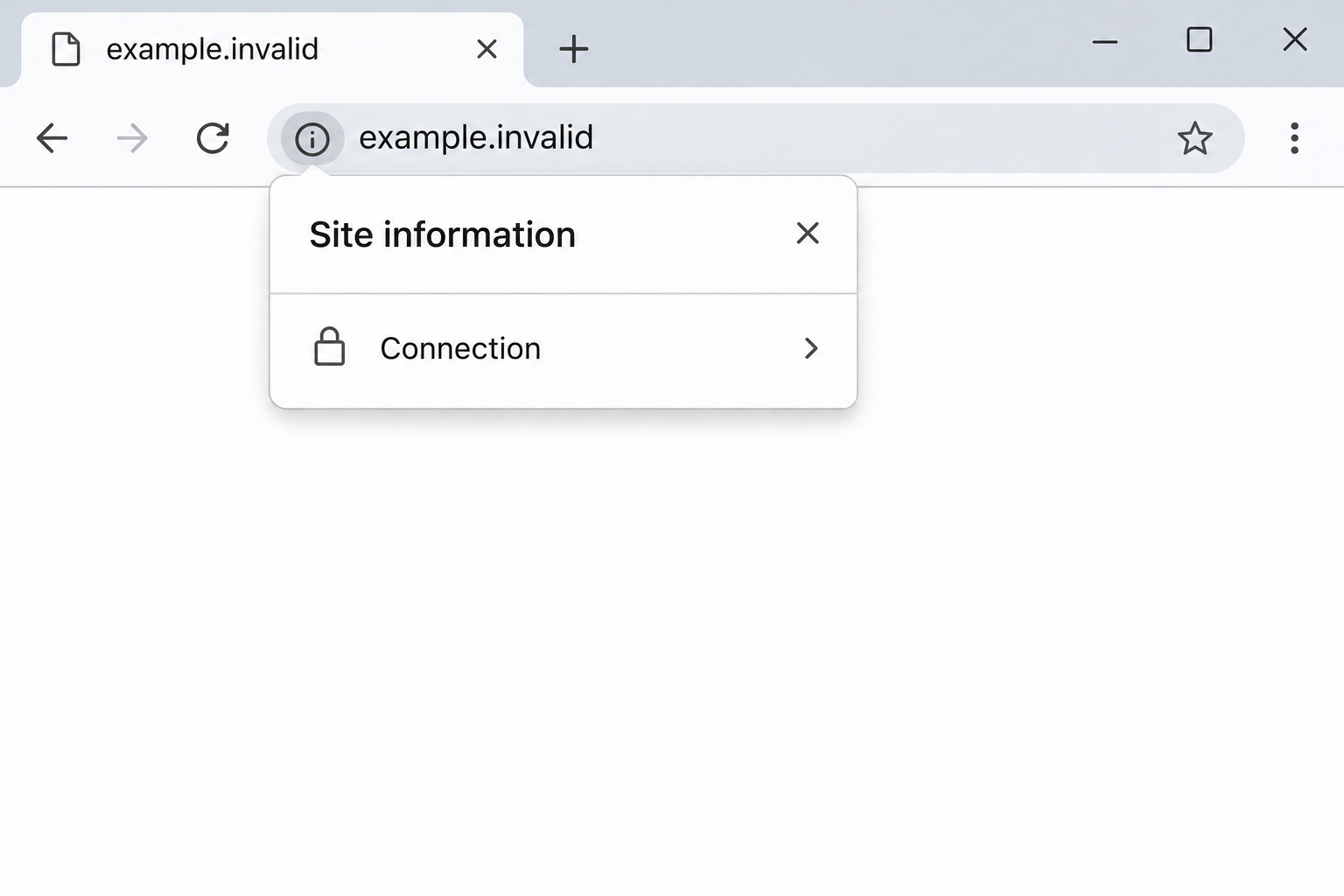
Browsers may show different details for a connection, depending on the browser and device. A protected connection to the wrong site is still the wrong site.
The same point applies to a logo on a sign-in page. Someone can copy a picture without being authorized to use the brand or collect information.
A warning from your browser deserves attention, but a missing warning does not authenticate a link. Treat it as one signal, not an approval.
A redirect may also be part of a legitimate sign-in process. If you deliberately started from a trusted service, use that service’s support to verify unusual changes.
Use extra protections without relying on them alone
A password manager that doesn’t offer your usual saved login can be a useful reason to stop. It doesn’t conclusively explain why the page is different.
A passkey can help protect against some phishing because it is tied to the service that registered it. Use your provider’s actual enrollment process rather than an emailed prompt.
If you use code-based verification, do not read the code to someone who says they are troubleshooting. It is still security information even when the account name sounds right.
Microsoft’s phishing guidance recommends verifying through known channels when you’re unsure. That’s especially helpful when the discrepancy is too small to settle by looking.
When a Message Comes Through a Shared Work Account
An invoice in a shared mailbox may be visible to several people. If you suspect it, warn the team through an established channel before somebody else acts.
Do not forward an active link into a general chat as proof. Share the relevant date and subject or send the original through your team’s designated reporting process.
If a mailbox is legitimately shared, don’t change its access arrangements on your own unless that is your role. Give the security team the facts needed to contain the problem.
A workplace account can unlock more than mail. If you approved something, try to identify the service or app listed in your legitimate account, and report it promptly.
If somebody else already answered the message, ask what they sent rather than who is to blame. Different information calls for different protective steps.
When an Address Looks Different for a Legitimate Reason
Don’t guess from an unfamiliar language alone
An international organization may use country-specific domains or characters in the local language. That isn’t evidence of an attack unless something else connects the domain to impersonation.
If a supplier changes the address of its payment or document portal, ask through an existing contact. Matching the new address to a verified announcement can prevent unnecessary alarm.
Where a business uses an outside provider, check whether the original organization names that service. A vendor’s logo on the unfamiliar page doesn’t establish the relationship by itself.
Read the service’s own notice before trusting a third-party reminder
If you normally use one app but a message sends you to a browser, open the app first. Look for a notice that identifies any legitimate change.
An address shown in plain text and a destination used by a button can differ. It isn’t enough that the link’s label happens to display the familiar name.
If something official directs you elsewhere, start again from the service’s established route and see whether it leads to the same place. You don’t need to use the original email.
Keep relevant details without preserving a working trap
If you’re making a general warning, share the subject or claimed organization rather than the live destination. A screenshot for coworkers doesn’t need an active link.
An analyst working on an official report may ask for the original message. Send it through that process, not through a public discussion where people may open it.
If the page offered a file, record its name without running it. Tell your IT team or provider exactly what happened if you opened it.
Don’t copy links into a search box to check them casually. It is possible to open the very page you were trying to avoid with an accidental press.
If someone says the link was harmless because other people clicked without a problem, avoid drawing that conclusion. Different recipients may report different outcomes or actions.
What to Do if You Have Fallen Victim to This Scam
Close the suspect page and identify what you supplied.
Write down whether you viewed the page, typed a password, shared a code, approved access, or entered card information. That distinction determines which response you need.
Make a separate note if a file downloaded. Don’t open it to check whether it does what the message claimed.
Protect the actual account through the provider you know.
Change a password you entered on the suspect page and replace reused copies on other accounts. Check recent sessions and end unfamiliar ones if the provider allows it.
Inspect recovery details, connected apps and, where relevant, mail forwarding. Notify the people who administer a shared or work account.
Contact your payment provider if you shared financial information.
Explain what you entered and whether you can see any unfamiliar activity. Ask how the issuer can protect your account and what to do about payments you don’t recognize.
Use its usual app or the number on a card or statement. Ignore contact details supplied by the message or a follow-up caller.
Keep the original message and make a safe report.
Save its subject, sender, time, and the original message where appropriate. Use your provider’s phishing tool or your organization’s reporting channel.
The UK National Cyber Security Centre’s reporting guidance explains how to handle suspicious messages. Use the reporting route appropriate for your own location.
Check whether anyone else received or acted on the same request.
Warn them through a link-free message using a route they recognize. If a work account was exposed, let the security team decide how to notify other people.
Ask anyone who entered information to contact the provider responsible for that specific account. Don’t collect passwords or codes on behalf of others.
Frequently Asked Questions
Do foreign characters in an address automatically make it fake?
No, websites can legitimately use their own languages and scripts. The problem is impersonating an unrelated organization, not using a particular language.
Will the browser always display an obviously different address?
No, browsers and fonts may display information differently. Use a known starting point for important sign-ins instead of trying to catch every visual difference.
Does a protected connection prove the page belongs to the real company?
No, a protected connection doesn’t establish that the website is the service you meant to reach. Verify how you arrived and who the service actually is.
Does opening the page mean my password was stolen?
Not necessarily, because viewing a page and entering data are different actions. If you did enter information or approve access, secure the account promptly.
Can I use a search result instead of the original link?
A search can help locate a service, but check the resulting destination too. A bookmark or an app you already use can be a simpler starting point.
What if the impersonation came from a colleague’s real email account?
Verify it with the colleague outside that conversation and report it through work channels. A message from a genuine account can still be unauthorized.
The Bottom Line
Don’t sign in through an unexpected link just because the address looks right. Start from the genuine service and check whether it recognizes the request.
If you entered information, protect the account or payment method that was exposed and report the message. You don’t need to prove which letter was different first.

Join the discussion
0 commentsShare your experience or ask a question about this article.
Community experiences
Did this happen to you?
Your experience could help someone recognize the same scam. Submit a private report for our team to review.
I experienced this tooReports are reviewed before publication. Sharing publicly is always your choice.
Discussion
Start the conversation
Have a question or something useful to share? Add the first comment.