

A technical notice says a mail migration failed. It includes an error code, your email address, and instructions that sound like routine hosting maintenance.
If DNS is not something you normally manage, the message can feel both confusing and important. Here is what to check before changing anything.
Overview
A repair notice designed to obtain account access
The Mail DNS Configuration Notice email scam uses a supposed configuration failure to steer recipients toward a login page presented as a repair step.
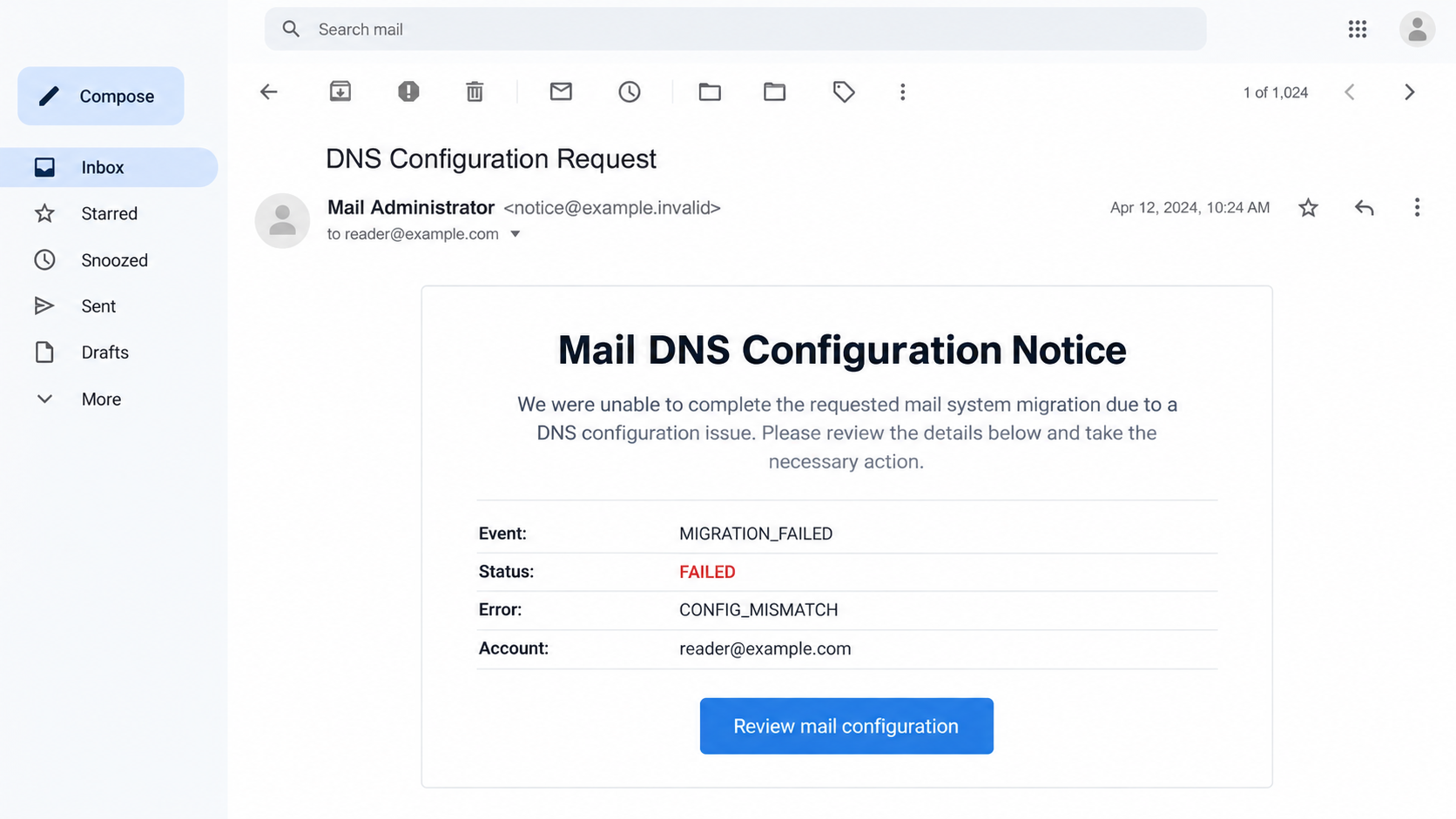
The reported specimen includes MIGRATION_FAILED and CONFIG_MISMATCH labels. These look like diagnostic results, but the email does not prove that any migration actually occurred.
Its instructions reference hosting and email settings. The reported destination then imitates a Google sign-in page to collect an email address and password.
That is account impersonation, not a legitimate reason to disclose credentials. Google branding on a page does not establish who is receiving the information.
Cloud hosting does not make the form official
The campaign’s reported page used Google Cloud Storage. A customer-hosted page on cloud infrastructure is not automatically a Google authentication service.
This distinction is crucial. The infrastructure provider, page operator, and company whose login design appears on screen can be different parties.
- An unexpected maintenance notice supplies the pretext.
- Technical labels make an unverified problem look diagnosed.
- A configuration request sends the recipient toward a login.
- A familiar sign-in design encourages disclosure of credentials.
The allegation belongs to the deceptive message and form, not to Google or every service hosted on its infrastructure.
What this investigation does not establish
We have not performed a login submission, inspected a recipient’s actual DNS records, or identified the campaign’s operator. No real configuration change is established.
The reported credential lure is enough to justify avoiding the link. It does not justify claiming your domain, inbox, or hosting account has already been compromised.
The image is an original illustration with fictional account details. Its diagnostic labels explain the lure; they are not a scan of your mail system.
What DNS Actually Has to Do With Email
DNS helps services locate the systems associated with a domain. Email uses particular records to identify where messages for that domain should be delivered.
MX records direct incoming mail to mail servers. They are domain-level settings, rather than a secret repair command every mailbox user must carry out.
Google’s DNS reference explains the different record types used for service setup and domain administration.
That background helps expose the mismatch in the request. Ordinary mailbox users should not improvise DNS changes because an unsolicited message includes a technical code.
A genuine migration normally has an owner: your hosting provider, managed-service company, or internal administrator. Ask that person whether a migration is underway.
Do not alter records merely to see whether the warning disappears. Unnecessary changes can cause an actual outage while leaving the suspicious email unexplained.
If you manage the domain yourself, use the provider’s established dashboard and documentation. The email should not choose a new login destination for you.
How the Mail DNS Configuration Scam Works
Step 1: The email presents maintenance as an existing obligation
The notice does not ask whether you requested a change. It starts from the assumption that some technical work has already failed and requires your attention.
That framing encourages you to accept the premise before investigating it. You may worry that ignoring the message will make you responsible for an outage.
Check the underlying event first. A real maintenance task should connect to an account notice, support ticket, planned change, or administrator you recognize.
If you cannot establish that connection, the error wording has no independent authority. It is still just text supplied by the sender.
Step 2: Diagnostic formatting fills the gap in credibility
Error names, status fields, and timestamps resemble logs. That appearance can make a message seem machine-generated and therefore less likely to be dishonest.
Yet anyone composing an email can arrange text into a technical table. Precision in presentation does not prove precision in diagnosis.
A good diagnostic notice should identify the relevant service in a way your administrator can verify. It should not depend entirely on an unexplained external button.
Keep the distinction simple: a message reports a problem; your trusted system or administrator must confirm whether that problem exists.
Step 3: The repair instruction makes a login feel necessary
Many genuine configuration tasks begin by signing in. The lure takes advantage of that familiar sequence to make a password request appear procedural.
But authentication is not a harmless preliminary step. It is where you decide which service receives credentials and what account is being accessed.
If your ordinary hosting panel suddenly seems to require an unrelated account, stop and check the provider’s documentation through an independent route.
Some legitimate services use Google sign-in. That fact does not validate a Google-looking form reached through a message with no verified maintenance context.
Step 4: The page borrows the appearance of a trusted provider
A familiar login layout can make the requested action feel smaller than it is. You recognize the design and may stop checking the destination.
Pay attention to the actual account flow instead. A cloud-hosted document or web page should not be treated as authorized authentication merely because its host is recognizable.
Do not enter a password to find out whether the page works. That test would disclose the very information the suspicious form is requesting.
If your password manager normally fills the genuine service but does not recognize this page, treat that difference as another reason to stop.
Step 5: Stolen access could outlast the supposed repair
If credentials are disclosed and accepted by the real service, unauthorized access may become possible. The exact consequences depend on the account and its protections.
A mailbox account and a hosting administrator account do not grant identical privileges. Explain which credentials you supplied when asking for help.
Access to email can expose conversations and password-reset messages. Broader administrative access may affect more users or services and deserves urgent specialist review.
Those are potential consequences of credential compromise, not findings that this campaign changed a particular victim’s records or stole every connected account.
Do not assume the issue is resolved because the fake repair page disappears. Account security must be checked at the genuine service.
Checks for Employees, Owners, and Administrators
If you only use the mailbox
You do not need to become a DNS expert to reject this request. Your role is to report the notice without granting it access.
Ask your help desk whether the company is migrating mail. Use a number, portal, or chat channel already listed in your workplace resources.
Do not reply with your password or send screenshots containing recovery codes. A support conversation should not require you to disclose those secrets.
If mail still works normally, mention that observation. If it does not, describe the actual symptom without assuming the suspicious notice identifies its cause.
If you own a small business domain
Keep track of which company handles domain registration, DNS hosting, and email. These services may be supplied by different organizations.
That separation is not inherently suspicious. The problem is an unsolicited message that asks you to trust a new route without explaining an existing service relationship.
Store emergency support details somewhere accessible without the affected mailbox. If email becomes unavailable, you still need a trusted way to reach the responsible provider.
Before planned migrations, agree on who communicates changes and where notices will appear. An established maintenance channel makes unexpected repair demands easier to evaluate.
Check support tickets and recent changes through the appropriate provider. If a contractor manages the setup, ask them to confirm the notice directly.
Do not forward administrative credentials to the person whose signature appears in the email. Verify their role using your original engagement records.
If you administer the affected accounts
Preserve the message’s headers and destination address through your normal incident process. These details are more useful than relying solely on a screenshot.
Review relevant authentication activity if someone entered credentials. Determine whether the account had mailbox-only access, delegated permissions, or broader administrative privileges.
Check configuration audit records when administrative access may have been exposed. Restore settings only after identifying unauthorized changes and preserving the information needed for investigation.
Avoid deploying a broad configuration fix based on the email’s error code. That risks turning a false alarm into disruption across legitimate services.
What to Do If You Responded
-
Stop following the repair instructions. Close the linked page and do not approve additional prompts, run commands, or install a configuration tool.
Note whether you clicked only, entered credentials, approved an authentication request, or changed any real settings. Each detail affects the response.
-
Notify the administrator for a work account immediately. Give them the time of the interaction and the exact account involved.
Do not delay because the password still works. Unauthorized access and normal access can exist at the same time.
-
Secure the genuine account from a trusted route. Replace an exposed password and address any reuse on other services.
Review signed-in devices, account recovery details, and unexpected security changes. Revoke unfamiliar sessions or permissions where the provider offers those controls.
Google provides an account-compromise recovery guide for users who suspect someone else accessed their account.
-
Review mail access after a suspected takeover. Check forwarding, delegates, filters, and sent messages, or ask your administrator to do so.
A password change should be part of the response, not a reason to skip suspicious settings that might allow continued access or conceal messages.
-
Escalate any real DNS or hosting changes. Record what you changed and when. Ask the responsible administrator to compare it with the authorized configuration.
Do not guess replacement records from a search result. The correct values depend on your provider and domain setup.
If the changes disrupted business email, use another established communication channel to coordinate recovery rather than trusting instructions arriving in the affected inbox.
-
Check the device if a download was involved. If you ran an unexpected utility or installer, stop sensitive work until it has been assessed.
Malwarebytes can help detect unwanted software on a personal computer. Workplace security teams should direct the response on managed equipment.
-
Remove permissions added during the visit. Review any unfamiliar extension or website notification permission you accepted while trying to fix the alleged problem.
AdGuard may help reduce risky advertising exposure later. It cannot restore DNS settings, invalidate a stolen password, or replace an administrator’s investigation.
-
Share a precise warning with affected colleagues. Describe the configuration pretext and report the message through your organization’s phishing process.
Avoid forwarding a clickable lure widely. Preserve the original for the security team and use a safe description for routine awareness.
Why Technical Language Is Not the Same as Technical Authority
A configuration notice can sound convincing because it names something outside your everyday knowledge. The uncertainty itself becomes part of the pressure.
You are not required to understand every acronym before questioning who sent the request. Establishing authority comes before carrying out technical instructions.
For a genuine planned change, someone should know the purpose, timing, and responsible team. Those ordinary facts are often more useful than the error label.
A copied account address is also weak evidence. Email addresses are routinely shared with vendors, customers, and public contact directories.
Knowing that address does not mean the sender can see the mailbox. Avoid treating personalization as proof of a security breach.
Finally, do not dismiss all future maintenance emails. Use the same independent verification process so genuine tasks still reach the people authorized to perform them.
The point is controlled trust: a confirmed service, a known administrative route, and an action appropriate to your role.
Frequently Asked Questions
Does CONFIG_MISMATCH prove my email settings are broken?
No. An error label inside an email is not a diagnostic check of your account. Your provider or administrator must verify any actual problem.
Should every employee update DNS after receiving this?
No. Domain settings belong with authorized administrators. Ordinary mailbox users should report the notice rather than attempt unfamiliar configuration changes.
Can a Google-hosted page still be deceptive?
Yes. Customer-controlled cloud content is distinct from Google’s own authentication system. Hosting does not authenticate the purpose or owner of a password form.
Is using Google to sign in always suspicious?
No. Legitimate Google sign-in integrations exist. The concern is an unverified maintenance request leading to a form that merely imitates that trusted workflow.
What if I changed settings but never entered a password?
Contact the person responsible for the domain and document the changes. Configuration damage can require correction independently of credential theft.
Do I need a malware scan after only reading the notice?
Reading this message does not establish malware execution. Device scanning becomes particularly relevant if you downloaded and ran software or encountered other suspicious behavior.
The Bottom Line
The Mail DNS Configuration Notice scam turns technical uncertainty into a login request. An official-looking error cannot authorize a stranger to collect your account credentials.
Verify maintenance through the provider or administrator you already know. Leave real DNS settings alone unless the responsible person confirms what needs changing.

Join the discussion
0 commentsShare your experience or ask a question about this article.
Discussion
Start the conversation
Have a question or something useful to share? Add the first comment.