

A subscription reminder arrives just when you have other things to do. The price looks familiar, the warning looks urgent, and renewing seems simple.
But the McAfee Antivirus Subscription Pending email has details worth reading twice, especially if the subject line names a different security company.
Overview
A billing warning that changes identities
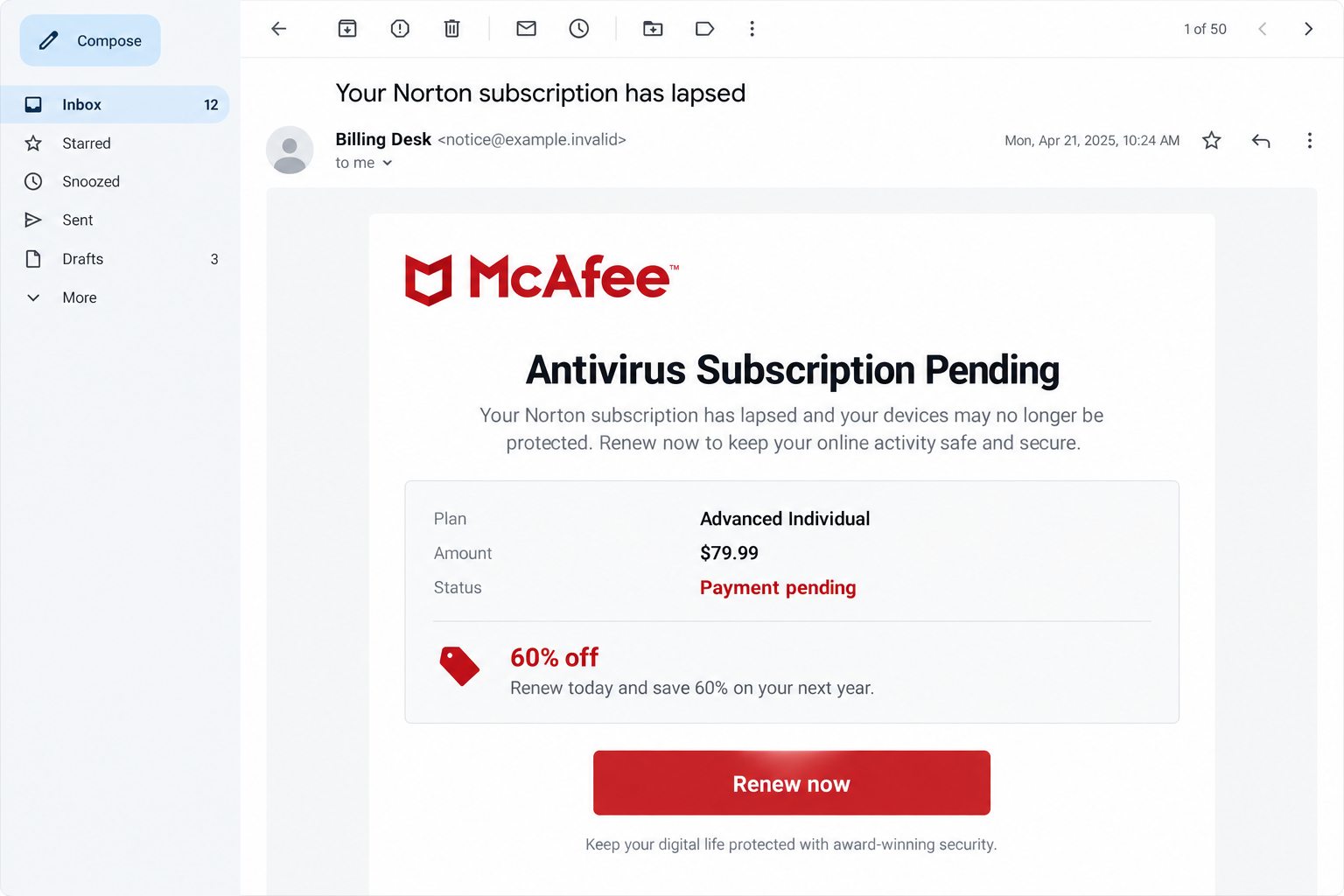
The reported campaign impersonates antivirus billing services. Its subject invokes Norton, while the message presents a McAfee subscription as awaiting payment.
That is not a normal explanation of an account problem. It is a reason to stop and verify which service, if any, actually needs attention.
The specimen advertises a $79.99 plan and a 60% discount. Those are claims inside the suspicious message, not prices we have verified with McAfee.
It also says payment attempts failed. Receiving that statement does not establish that your card was charged, declined, or even known to the sender.
The renewal button leads into a different story
The reported link leads to a fake cloud-storage payment warning. Instead of resolving antivirus billing, the page shifts the reader toward another supposed account emergency.
That mismatch matters more than a polished logo. A payment request must make sense from the original account notice through the destination and merchant.
McAfee and Norton are legitimate security brands. This article concerns an email abusing their names, not an accusation that either company operates the campaign.
- The subject and message invoke different antivirus brands.
- A pending-payment claim creates pressure to renew.
- A discount makes quick action feel rewarding.
- The reported destination changes the problem to cloud storage.
What is established, and what is not
The available campaign record documents the email and a deceptive payment destination. We have not submitted payment details or independently identified the people controlling it.
We also have no basis to claim a specific subscription, successful debit, or infection occurred for everyone who received the message.
The image above illustrates the conflicting billing cues using fictional sender details. It is not a capture of your account or evidence of a charge.
Why This Message Can Catch Your Attention
Antivirus renewals are easy to forget. A security product may have arrived with a computer, been purchased years earlier, or been managed by someone else.
That uncertainty gives a billing warning room to work. You may recognize the company without remembering whether you still have an active subscription.
The sender does not need to resolve that uncertainty. The message only needs you to believe that checking through its button is the quickest solution.
The discount adds another nudge. Instead of simply investigating a problem, you are invited to protect your device and save money in one action.
A busy reader might focus on the amount, skim the branding, and miss the switch from one company to another.
There is no need to feel foolish if that happened. The useful question now is what you did next, because reading differs from paying.
How the McAfee Subscription Pending Scam Works
Step 1: A familiar security name opens the conversation
The email frames itself as routine account administration. An expired subscription or failed renewal sounds like something a security provider would legitimately contact you about.
Unlike an extravagant prize offer, this lure asks you to fix an ordinary inconvenience. That makes it easier to process as unfinished business.
The Norton reference in the subject can attract one group of customers, while McAfee branding in the body catches another reader’s attention.
Whether that mismatch reflects careless reuse or another explanation is unknown. The inconsistency is visible; the sender’s internal planning is not.
At this stage, the email has not demonstrated that you own the advertised plan. A company name is not an account record.
Step 2: A pending payment turns uncertainty into urgency
The message presents the subscription as unresolved and suggests that earlier payment attempts failed. This encourages you to think something requires immediate correction.
Someone concerned about online safety might worry that delaying renewal will leave a device exposed. The wording tries to make caution feel risky.
However, a billing email cannot reliably tell you which protections are currently running on your computer. Check the installed security application separately.
Likewise, the amount printed in the message is not proof of a debt. Your actual subscription page and financial records are better starting points.
If the notice is wrong, you do not need to pay a small amount to prevent a larger problem. You need independent verification.
Step 3: The offer directs you away from your normal account route
The renewal button supplies a convenient path. Clicking avoids the minor effort of opening a known app or typing a familiar address.
This is the critical trade: the sender chooses where you go, while the recognizable brand encourages you to treat that destination as trustworthy.
The reported campaign used cloud hosting for its destination. Hosting infrastructure can carry customer-controlled content, including deceptive pages.
A recognizable infrastructure provider therefore does not authenticate the billing demand. It does not establish that the provider wrote or endorsed the page.
You do not need to decode every address component to act safely. Leave the message and approach the genuine company through your usual route.
Step 4: The destination replaces renewal with a cloud-storage emergency
The reported page changes the subject to cloud storage and payment. That breaks the account story the original email was supposed to explain.
Do not supply a charitable explanation for the sender, such as assuming several unrelated services must share a new payment portal.
A genuine bundle or third-party billing arrangement should be independently verifiable. The page itself cannot establish that relationship merely by presenting familiar graphics.
Countdowns or threatened loss of access push readers toward action before they examine the mismatch. A timer is not evidence of a real deadline.
If the destination names a service you never used, that is not a reason to complete its form just to cancel it.
Step 5: The risk depends on what you disclose or authorize
A deceptive payment form can expose card details and other submitted information. A login prompt can instead put the entered account credentials at risk.
Those are exposure paths, not a claim that every version asks identical questions or that every visitor loses money.
The safest response changes with your actions. Closing an untouched page is different from entering a password, approving a bank prompt, or installing software.
Keep that distinction when seeking help. Tell your bank or support team exactly what you submitted, rather than only saying you clicked a scam.
A precise account of events helps the right person secure the affected service without inventing additional damage.
Check the Real Subscription Without Using the Email
Start with the product already installed
Open the security application from your device, not a download offered by the message. Look for the account or subscription information inside that application.
If someone else manages the subscription, ask them through an established contact method. A family account or workplace license may explain why billing is unfamiliar.
Do not install another antivirus package just because the email claims protection stopped. First establish what you have and whether its status actually changed.
Compare the account, not the advertisement
Review the product name, renewal date, and payment status on the genuine account. Compare those details with your receipt or existing purchase records.
An unfamiliar plan name or price deserves investigation, but it does not require following the suspicious link to obtain an explanation.
If your real account needs renewal, complete that decision within the independently opened service. There is no need to return to the email’s offer.
McAfee’s scam-awareness guidance provides an official starting point for recognizing impersonation and finding legitimate assistance.
Keep a real charge separate from a fake notice
You might receive a scam on the same day as a genuine subscription charge. Timing alone does not connect the two.
Check the statement description and transaction amount with your card issuer or the genuine merchant. Do not use contact details supplied by the suspicious message.
A real renewal dispute belongs with the actual provider. Card data entered into a fake form belongs with your financial institution’s fraud team.
Explaining that difference prevents a common delay: arguing with legitimate support about a transaction it never processed.
What to Do if You Have Fallen Victim to This Scam
-
Stop the interaction and write down the stage you reached. Note whether you read, clicked, typed information, approved a payment, or installed anything.
Close the suspicious page. Do not keep testing its buttons to see whether a charge will disappear or the account warning will change.
-
Contact your card issuer if you supplied payment information. Use its official app or the number on your card, and describe the deceptive renewal form.
Ask whether the card should be replaced or restricted, and how to dispute any resulting unauthorized transaction. Follow the issuer’s advice for your situation.
Record reference numbers and relevant dates. Do not assume replacing a card alone resolves every payment arrangement or dispute already opened.
-
Secure any password you entered. Visit the affected service independently, change the exposed password, and change other accounts where you reused it.
Review active sessions and recovery details. Enable available multifactor protection, and reject unexpected approval prompts that you did not initiate.
-
Investigate software only if software was involved. If you downloaded or ran an installer, stop using that device for sensitive activities until it is checked.
Malwarebytes can help scan for unwanted or malicious software. Obtain it from the genuine vendor, not a button on the suspicious warning page.
On a managed work device, contact IT before making cleanup changes. They may need logs and the downloaded file for their investigation.
-
Review browser permissions if you granted them. Revoke suspicious notification permission and remove unfamiliar extensions you installed during the interaction.
AdGuard may reduce exposure to some malicious advertisements and tracking. It cannot reverse a payment, revoke stolen credentials, or guarantee that every deceptive page disappears.
-
Preserve useful evidence, then report the message. Save its subject, sender details, destination address, and any transaction receipt without sharing private card information publicly.
Use your mailbox’s phishing-report feature. If this arrived at work, follow the organization’s reporting process so colleagues can be warned about the same lure.
-
Watch for a second approach. An unsolicited caller offering a guaranteed refund may simply be exploiting the first incident.
Never pay an advance recovery fee, hand over a verification code, or grant remote access because someone claims to represent the payment investigation.
Small Checks That Make Future Renewal Messages Easier
Keep a short record of subscriptions you actually use, including the normal renewal month and who manages the account.
You do not need a complicated system. A saved receipt and a bookmark to the genuine account can remove much of the uncertainty.
When a warning arrives, compare it with that record before reading the sales pitch. This gives you a starting point the sender does not control.
On mobile, expand the sender details rather than relying on the display name. Small screens can hide the address behind a reassuring label.
Do not judge authenticity only by spelling. A cleanly written message can still send you somewhere unrelated to the service it claims to represent.
Similarly, a secure connection protects data in transit; it does not certify the honesty of whoever receives it.
If the price seems attractive, compare it from within the genuine account. Treat the offer as an advertisement to verify, not a deadline to obey.
Finally, agree on a household rule for unexpected billing notices: nobody installs software or shares bank codes to resolve a subscription email.
That simple boundary is useful even when the next message uses a different logo, amount, or supposed reason for payment failure.
Frequently Asked Questions
Is the McAfee Antivirus Subscription Pending email genuine?
The campaign described here is deceptive. Check any real subscription through the installed product or an independently opened account, not its renewal button.
Why does the subject mention Norton?
The specimen mixes a Norton subject with McAfee billing content. The cause of that inconsistency is unknown, but it undermines the message’s account story.
Does the $79.99 amount mean money was taken?
No. A printed amount is only a claim. Verify transactions directly with your bank or card issuer before treating the email as evidence of payment.
Is the 60% discount a real McAfee promotion?
We have not verified that offer. A discount shown in an impersonation email should not be treated as an authorized price from the genuine company.
Do I need to cancel cloud storage after clicking?
Not merely because the landing page mentions it. Check any account you actually hold independently; do not create or pay for an account to cancel it.
Can reading this email infect my computer?
The message alone does not establish an infection. The relevant questions are whether you opened a risky attachment, installed software, or supplied sensitive information.
The Bottom Line
The McAfee Subscription Pending scam uses renewal anxiety, inconsistent branding, and an unrelated payment destination to pull readers away from normal account checks.
Verify your subscription independently. If you already shared information, respond to that specific exposure promptly rather than following another instruction from the message.

Join the discussion
0 commentsShare your experience or ask a question about this article.
Discussion
Start the conversation
Have a question or something useful to share? Add the first comment.