

A company-styled notice recommends clearing Spam and Trash, archiving large attachments, and reviewing mailbox settings. Those are sensible housekeeping tips, which makes the final link to a supposedly secure company portal feel routine.
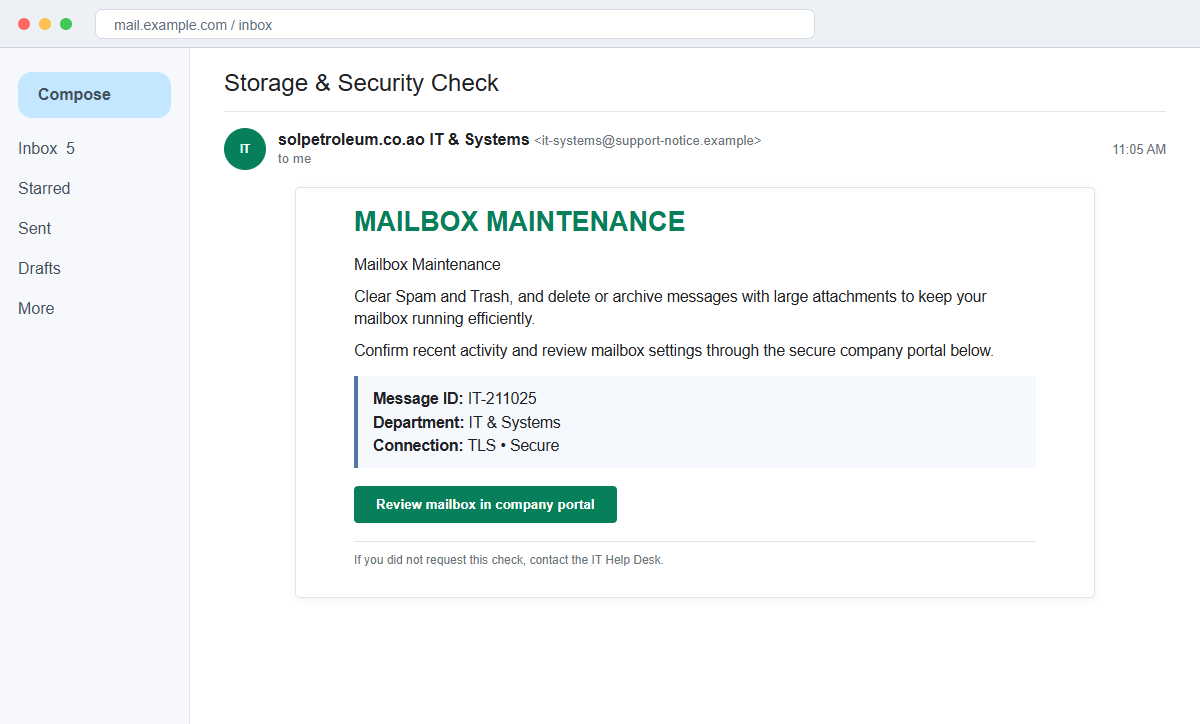
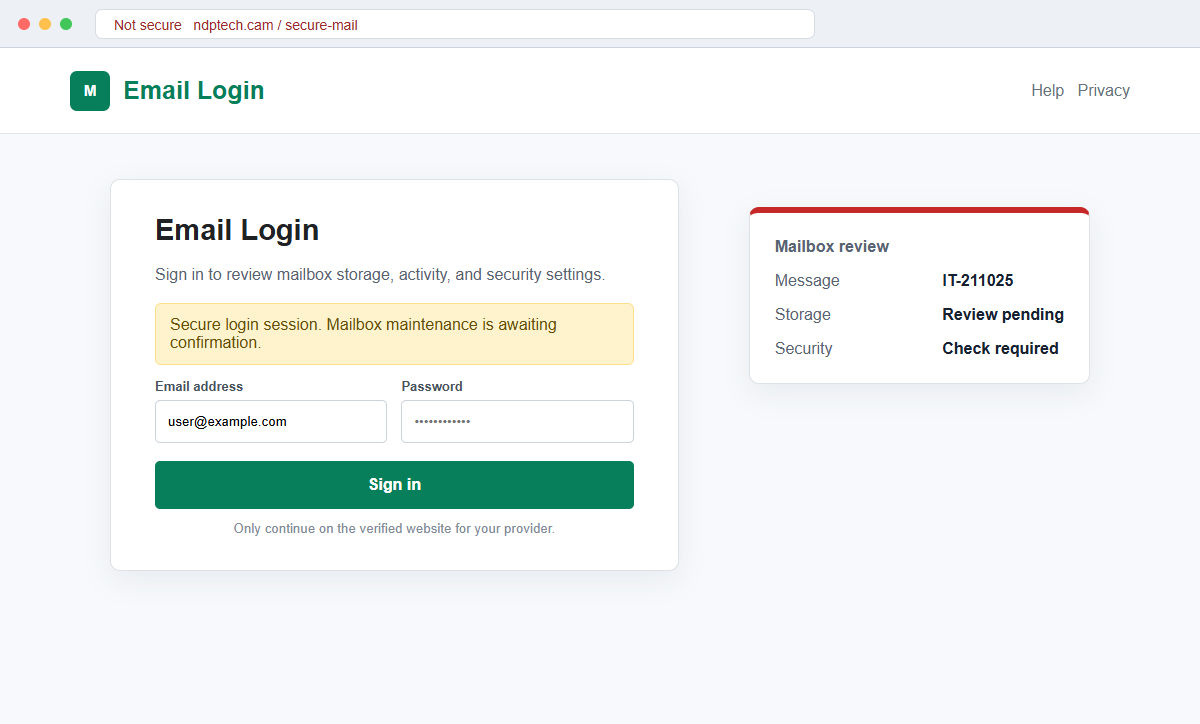
The Mailbox Storage Security Check email scam uses that practical advice as cover for a phishing page. The portal link opens an unrelated domain where a fake email login form records the account address and password.
A visible message ID, an IT department name, and a TLS Secure label add technical polish without proving who sent the email.
Attackers can copy a company domain into the message even when they have no access to its systems.
Do not use the portal link. Open webmail through the normal company route, review storage there, and ask IT whether it sent the notice.
Overview
Useful mailbox advice makes the message feel authentic
The email may tell recipients to empty Spam and Trash, delete or archive large attachments, and confirm activity and settings. These are reasonable storage-management steps that a real help desk could recommend.
The campaign uses those truthful details to carry a false conclusion: that the recipient must follow the supplied link to complete a security check.
Technical labels imitate an internal IT notice
A heading such as Mailbox Maintenance, Message ID IT-211025, and a line saying the notice was sent by a named company's IT & Systems team create an internal-ticket appearance.
The link may say Review mailbox in company portal and display TLS Secure nearby. Those words are page content, not independent confirmation of encryption, identity, or company ownership.
The secure portal is a credential collection form
The destination opens a generic Email Login page on an unrelated .cam domain. It asks for email and password and may include a Secure login session checkbox and Forgot password link.
Submitting the form can expose a business mailbox that contains sensitive conversations and access routes. The organization named in the lure has no verified connection to the fraudulent page.
- The subject says Storage & Security Check.
- The header identifies a Mailbox Maintenance notice.
- A message ID such as IT-211025 is displayed.
- A company IT & Systems team is named.
- The email recommends clearing Spam and Trash.
- Large attachments should supposedly be archived or deleted.
- The recipient is asked to confirm activity and settings.
- A link says Review mailbox in company portal.
- TLS Secure is printed beside the link.
- The destination is unrelated to the company and requests a password.
Why Sensible Security Advice Can Hide a Phishing Link
Mailbox quotas, large attachments, and overflowing trash folders are real issues. When an email begins with advice people already recognize, they may assume the associated portal is equally legitimate.
The scam also mixes storage and security. Storage creates a practical reason to act, while security makes the action feel responsible. The combination reduces the chance that the recipient will question why a password is required.
A message ID looks traceable, but an attacker can invent any sequence of letters and numbers. A real ticket should be searchable in the company's help-desk portal or verifiable with IT through a known contact.
The named company domain can be copied from the recipient's address or public website. Seeing the correct employer name inside the message does not authenticate the sender or the destination.
TLS is a real encryption protocol, but printing TLS Secure in an email has no technical effect. Even a browser padlock only confirms encryption to the current domain, which may still be controlled by a criminal.
The campaign may say to contact the IT Help Desk if the request was not expected. That reassuring sentence can be part of the template.
Only a help desk reached through the company's established directory can verify the notice.
How the Fake Mailbox Portal Turns One Password Into Wider Access
The linked Email Login form collects the address and password. A checkbox labeled Secure login session changes only the appearance of the page unless it is backed by the real provider's authenticated service.
The attacker can test the password quickly and may trigger a multi-factor prompt. A follow-up page or message may ask the victim to enter a code or approve a notification to finish the storage review.
Successful access exposes recent mail, attachments, internal contacts, calendars, and password reset routes. Search terms can reveal invoices, contracts, identity records, bank details, payroll documents, and confidential projects.
Rules and delegates can create persistence. Copies of incoming mail may be sent outside the company while alerts, replies, and warnings are moved away from the inbox.
The real address can then deliver phishing that looks internal. Coworkers may trust a fake shared document, storage alert, project invitation, or payment request because it comes from a familiar account.
If the password was reused, the attacker may try the same combination against cloud storage, VPN, payroll, social media, shopping, or personal accounts. Every reused credential should be replaced.
How the Mailbox Storage Security Check Email Scam Works
Step 1: The campaign copies a company identity
The attacker selects a business email address and inserts its domain or organization into the message. Public information is enough to create a convincing IT department name.
A role account or employee list may be targeted because a compromised company mailbox can reach trusted coworkers, suppliers, and customers.
Step 2: Real housekeeping tips establish credibility
The notice recommends clearing Spam and Trash and managing large attachments. These are low-risk actions that make the message sound like it was written by an administrator.
The recipient may skim past the sender details because the advice matches ordinary mailbox behavior.
Step 3: A security check is added to the maintenance task
The email says activity and settings should be confirmed to preserve mailbox security. This changes a storage reminder into an authentication event without explaining what suspicious activity occurred.
A real administrator can show the storage quota and security alerts inside webmail. The recipient should not need an unverified link to discover them.
Step 4: Message IDs and TLS language add false technical weight
The template displays an IT-style message number and a TLS Secure label near the portal link. Both can be typed into an email and neither authenticates the sender.
Technical vocabulary works because many recipients know it relates to security but cannot verify it at a glance.
Step 5: The company portal link opens an unrelated login
The destination uses a domain that does not belong to the employer or provider. A generic email login asks for the address and password and may mimic ordinary webmail controls.
The presence of HTTPS does not make the relationship genuine. The registered domain remains the central identity check.
Step 6: Credentials are captured and a second factor may be requested
When the form is submitted, the attacker receives the values. An error or loading message can keep the visitor on the page while the real account is tested.
If multi-factor protection blocks the sign-in, the campaign may ask for a code or send repeated approval prompts. Deny them and contact IT.
Step 7: The mailbox becomes a platform for further attacks
Criminals search mail, create rules, reset linked accounts, and send trusted internal messages. They may wait for a useful financial or document conversation before acting.
The original storage notice may be deleted from the mailbox to hide the entry point. Provider and company logs are therefore important when reconstructing the timeline.
Company and Checkout Checks
Check storage inside normal webmail
Open the official application or bookmarked portal and view quota, large messages, Trash, Spam, and account alerts there. Perform genuine cleanup without using the email link.
If the official account shows plenty of space and no security request, preserve and report the message rather than testing its portal.
Validate the ticket with the real help desk
Search the known ticket system for the displayed message ID or call IT through the company directory. Ask whether the sender name and maintenance procedure match current policy.
Do not use a number or reply address included only in the suspicious notice.
Compare domains instead of visual labels
Expand the sender address and preview the portal link. Compare their registered domains with the employer's webmail and identity-provider domains.
Ignore words such as company portal, secure, TLS, and IT Systems when the underlying address does not match.
Review the exact authentication request
A genuine company sign-in should use the established single sign-on or webmail identity page. The browser or password manager may also recognize that known domain.
Cancel a generic Email Login page on an unrelated host. Do not enter a password merely to find out what happens next.
Warning Signs to Check Before You Act
- A storage notice also demands a security confirmation.
- The company name appears only inside the message body.
- A message ID cannot be found in the real help desk.
- The email gives generic cleanup tips but no actual quota figure.
- Review mailbox in company portal is an embedded external link.
- TLS Secure is printed as a marketing-style label.
- The destination uses a domain unrelated to the employer.
- A generic Email Login page replaces the normal company sign-in.
- The form asks for both address and password.
- A Secure login session checkbox tries to create reassurance.
- The official webmail shows no matching security task.
- An unexpected multi-factor prompt follows the visit.
Good storage advice does not authenticate the link placed below it. Clean the mailbox inside the real service and verify security requests with the help desk you already know.
What to Do if You Have Fallen Victim to This Scam
- Change the exposed password immediately. Open your company webmail, email provider, or IT self-service portal through a bookmarked address or official application through a saved bookmark or its official application, not through the Mailbox Storage Security Check message. Set a long password through the real provider after that mailbox-storage message. Change matching or closely related passwords on other accounts.
- Treat the password entered after the storage security check as compromised. Set a long password through the real provider after that mailbox-storage message. Change matching or closely related passwords on other accounts. Audit the authentication methods registered after this mailbox-storage case. Remove unknown telephone numbers, recovery addresses, app passwords, and security keys.
- End the access created through the storage security check. Sign out all other sessions from the email provider’s account page, revoke unfamiliar OAuth grants, and reconnect trusted mail applications only after the password change. This closes tokens that can survive a simple reset.
- Review the mailbox for changes connected with the storage security check. Remove unknown forwarding addresses, delegates, inbox rules, filters, and automatic replies. The mailbox history surrounding this mailbox-storage incident may expose attacker activity. Inspect sent mail, deleted items, trash, and recovery messages.
- Protect the wider account chain. Prioritize email, cloud storage, and password-reset destinations. The mailbox involved in that mailbox-storage message may unlock other accounts through reset links. Change those credentials before an intruder does.
- Ask IT to inspect the company account and related recipients. Give the security team the original message, headers, Message ID shown in the lure, destination address, and submission time. Ask for sign-in, rule, delegate, token, and mailbox-audit review and determine whether other employees received the same campaign.
- Check the device used to open the storage security check. Use Malwarebytes after that mailbox-storage message whenever an attachment or browser add-on was opened. Review installed software before returning to banking or email.
- Reduce the chance of reopening a related page. AdGuard or another reputable DNS and content blocker may stop known phishing hosts and malicious advertisements tied to the storage security check. Keep checking destination addresses after this mailbox-storage case. New campaign domains can appear faster than blocklists update.
- Report the phishing message. Use the mail provider's Report Phishing control and notify your employer's IT and security teams, email provider, and the company or domain being impersonated. Keep the original headers for this mailbox-storage incident, not only a cropped screenshot. Administrators can use them to trace and block related messages.
- Warn mail administrator and recent contacts through a separate channel. Explain that the storage security check may have exposed the account and ask them to distrust recent file shares, password requests, invoices, payment changes, or urgent replies until the timeline is confirmed.
- Expect follow-up fraud based on the storage security check. Anyone citing this mailbox-storage incident while promising recovery must be verified independently. A demand for money first is a warning sign. Seek support for this mailbox-storage phishing attempt through known channels. A provider or incident responder verified for this mailbox-storage phishing attempt is safer than an unsolicited fixer.
Frequently Asked Questions
Is the Mailbox Storage Security Check email legitimate?
No. The documented campaign uses a fake maintenance notice and an unrelated login page to steal email credentials.
Could my mailbox genuinely be close to its storage limit?
Yes, but the quota can be checked inside official webmail. A real storage issue does not make an external password form trustworthy.
Does the TLS Secure label prove the portal is protected?
No. Text inside an email proves nothing, and HTTPS only encrypts the connection to the current domain. It does not establish company ownership.
Why does the message include an IT ticket number?
An invented message ID makes the email look internal. Verify it in the real ticket system or with IT through a known route.
What if I clicked but did not enter my password?
Close the page, check for downloads or extensions, and report the message. Verify storage and security only inside official webmail.
What if the compromised mailbox belongs to my employer?
Change the password and notify IT immediately. The security team may need to revoke sessions, inspect rules and logs, warn other recipients, and protect linked systems.
The Bottom Line
The Mailbox Storage Security Check email scam surrounds a credential form with practical cleanup advice, an IT message ID, and technical language designed to look reassuring.
The useful advice is camouflage. The external portal and generic Email Login form are the real purpose of the message.
Check quotas through official webmail and verify tickets with the real help desk. If credentials were submitted, secure the account, revoke access, inspect rules and linked services, and warn the organization before the mailbox is used for further phishing.

Join the discussion
0 commentsShare your experience or ask a question about this article.
Discussion
Start the conversation
Have a question or something useful to share? Add the first comment.