

MemoFlow arrives with nearly every reassurance a cautious supplement buyer might want: thousands of reviews, a money-back promise, and an easy monthly-delivery option.
Yet clicking through the offer reveals a stranger picture. The bottle, merchant, membership terms, and refund language do not fit together as neatly as advertised.
Overview
What MemoFlow promises
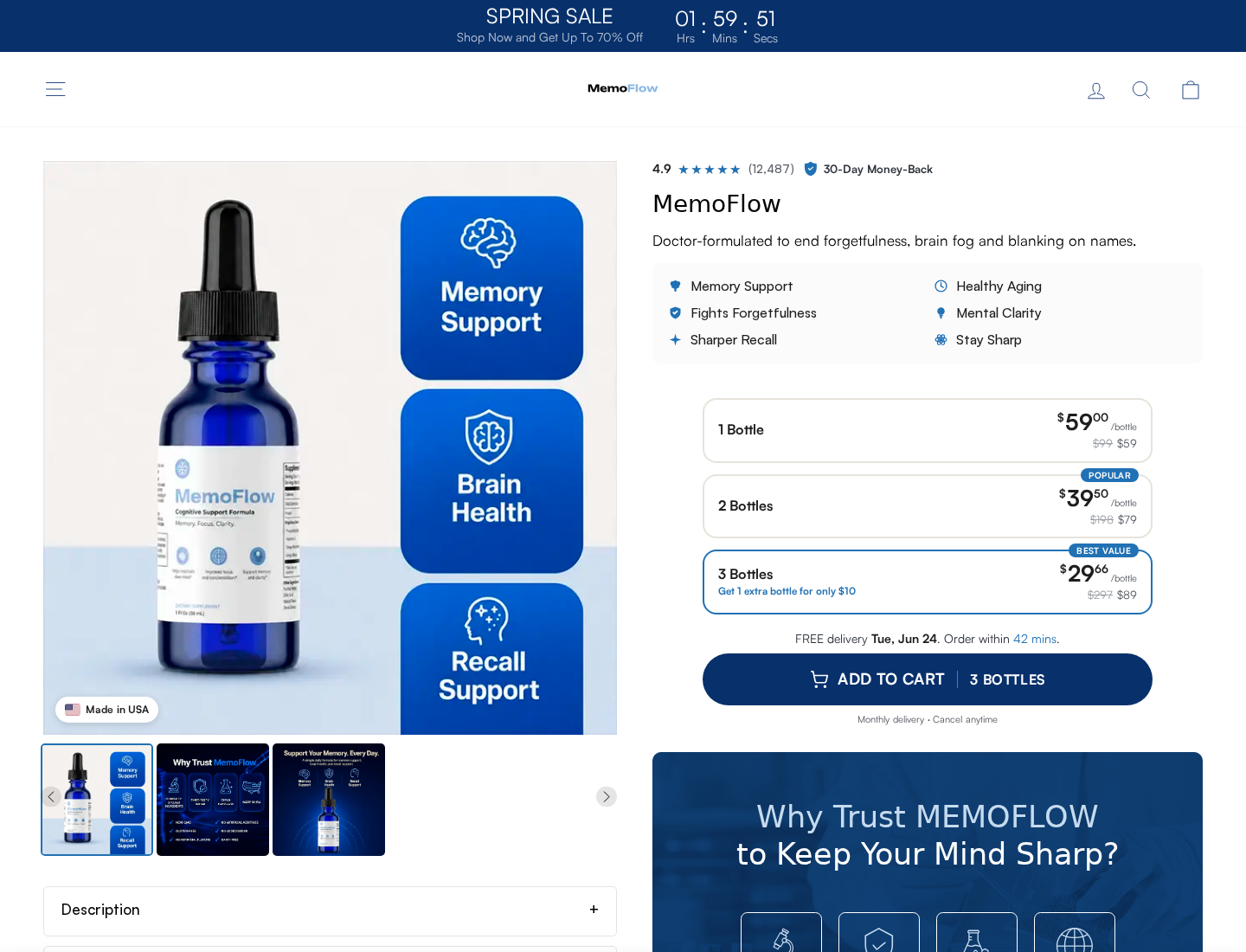
MemoFlow is presented as a daily memory-support supplement. Its storefront uses a polished green bottle, brain-health language, customer testimonials, and bulk package discounts.
The page displays a 4.9 rating from 12,487 reviews. It also advertises a 30-day money-back guarantee and “monthly delivery” that buyers may cancel anytime.
Package pricing during our review began at $59 for one bottle. Two bottles were shown at $39.50 each, while three dropped to $29.66 each.
The page positions the larger selections as better values. That familiar comparison can pull attention away from the merchant identity and recurring-delivery language nearby.
What happens after clicking the order button
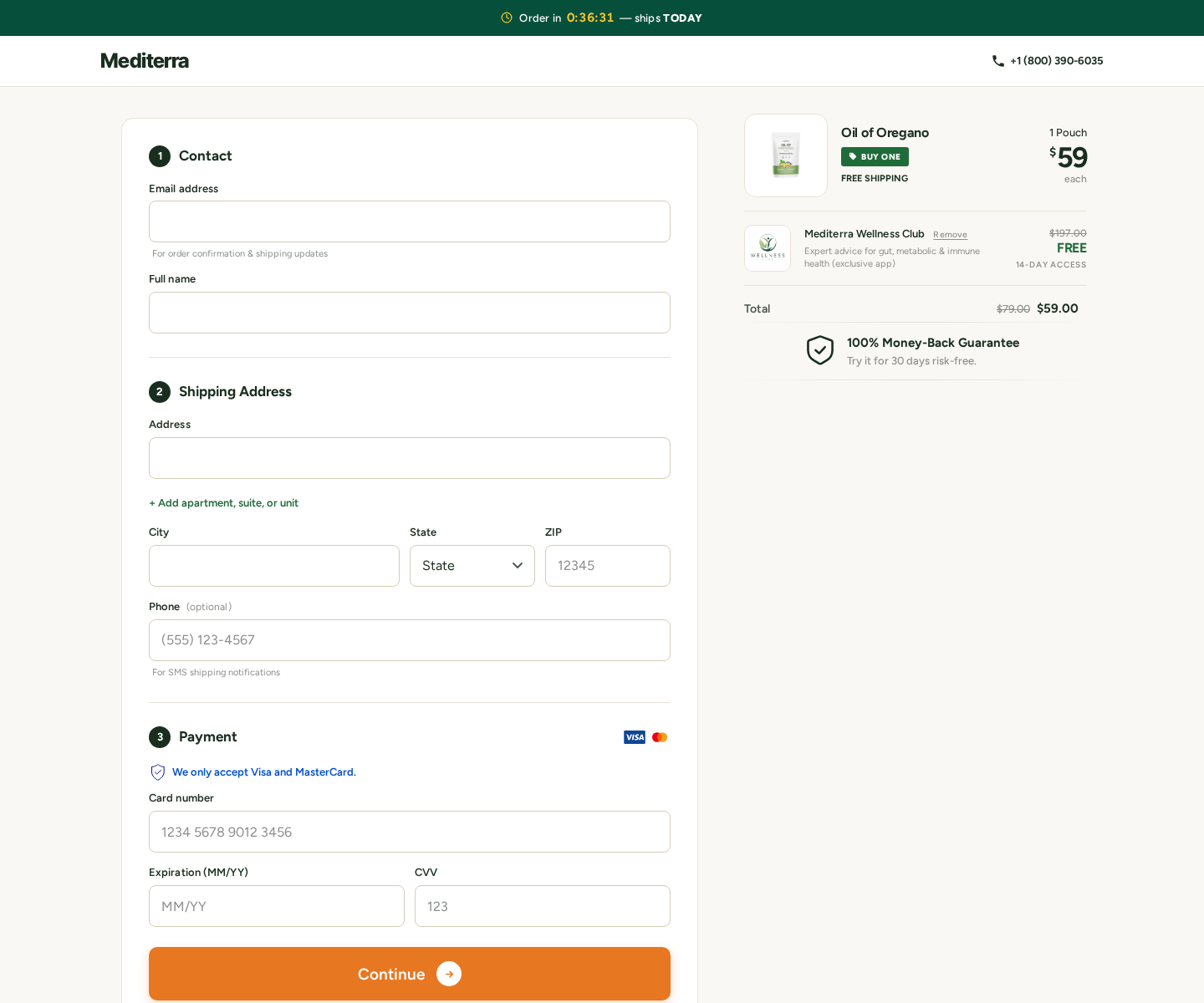
The order link did not keep us on usememoflow.com. It opened a checkout on cc.usemediterra.com, which carried Mediterra branding instead.
More surprisingly, the checkout displayed an “Oil of Oregano” pouch rather than the MemoFlow bottle shown on the original sales page.
The page also promoted a free 14-day Wellness Club offer. Its displayed language described a $197 annual renewal and supplies shipping every 30 days.
That mismatch is too important to dismiss as styling. A buyer clicking for memory drops could encounter another product, another company name, and additional membership terms.
- The advertised product and checkout product did not match.
- The sales domain and payment domain were different.
- Monthly delivery appeared on the MemoFlow storefront.
- A Wellness Club trial appeared during checkout.
- The club disclosed a $197 annual renewal.
- Support details varied across connected pages.
Why we recommend avoiding the offer
A trustworthy checkout should confirm the selected product, quantity, total charge, seller, shipping schedule, and renewal terms without forcing the shopper to reconcile contradictions.
MemoFlow’s funnel failed that basic test during our review. We would not enter payment details while the order page displays a different supplement.
The storefront’s enormous review count also lacks visible independent verification. The domain was registered in July 2026, shortly before this investigation.
A young domain does not prove a product is fake. Combined with five-figure testimonials, mismatched checkout content, and shifting support details, it increases the uncertainty.
We found no product-specific clinical trial demonstrating that MemoFlow produces the sweeping memory benefits promoted through affiliated advertising.
We also found no evidence that the seller’s guarantee independently verifies ingredient identity, purity, dose accuracy, or effectiveness.
For these reasons, our verdict is straightforward: the current offer carries too many billing and transparency risks to recommend.
How the MemoFlow Sales Funnel Works
Step 1: Emotional memory advertising creates urgency
MemoFlow may appear after a story about forgetfulness, Alzheimer’s disease, a hidden remedy, or a supposed medical breakthrough.
Some promotions use public figures and news-like presentations. The emotional focus remains consistent: memory decline is frightening, and conventional medicine allegedly missed something simple.
That framing reaches people already worried about themselves or a parent. Fear shortens the time they spend checking who operates the store.
MemoFlow can therefore inherit credibility from the story before the bottle even appears. The product feels like the conclusion to an investigation, not an advertisement.
Step 2: The storefront supplies social proof
The MemoFlow page displays smiling customers, glowing accounts, star graphics, and a precise total of 12,487 reviews.
Precision can make a claim feel audited. However, a number printed by the seller is not the same as a review history hosted by an independent platform.
Look for dates, verified transactions, critical reviews, reviewer profiles, and a transparent method explaining how the rating was calculated.
Without those elements, the testimonials function as sales copy. They should not be treated as evidence that the formula improves memory.
Step 3: Tiered pricing nudges a larger commitment
One bottle costs substantially more per unit than the multi-bottle choices. The design encourages shoppers to compare savings rather than evaluate whether they need the product.
A buyer may choose three bottles to avoid “overpaying,” even though no bottle has been tried. The apparent bargain increases the immediate exposure.
Bulk buying matters when refund terms depend on sealed merchandise. Opening multiple containers can reduce the amount a seller considers returnable.
Calculate the complete card charge. Ignore crossed-out values and ask what happens if the first bottle produces no useful result.
Step 4: Monthly delivery normalizes repeat billing
The storefront visibly offers monthly delivery and says it can be canceled anytime. That option should be understood as a recurring order, not a simple convenience.
Recurring programs depend on buyers remembering the renewal date, recognizing the card descriptor, and reaching support before the next shipment processes.
Save the exact frequency, price, cancellation method, deadline, and confirmation process. “Cancel anytime” does not explain how quickly a cancellation takes effect.
If you intend a one-time purchase, verify that no subscription button, club checkbox, or delivery toggle remains selected at the final confirmation.
Step 5: The order leaves the MemoFlow domain
Clicking the package button transfers the visitor to cc.usemediterra.com. Domain changes are easy to overlook because the colors and checkout layout remain polished.
The merchant controlling payment should be unmistakable. Here, the new page introduced Mediterra without clearly resolving its relationship to MemoFlow.
Separate sales and checkout domains are common in affiliate commerce. The risk arises when ownership, receipt descriptors, and customer-service responsibility become unclear.
Before entering a card, read the browser address and capture the order page. That screenshot may later establish which terms appeared at the moment of purchase.
Step 6: An unrelated product appears at checkout
Our checkout showed Oil of Oregano, not the green MemoFlow bottle. The listed item and the shopper’s intended order therefore did not match.
This could reflect a broken campaign, reused checkout template, incorrect routing, or a changed offer. None is acceptable when payment information is requested.
A shopper should never assume the warehouse will correct the product after payment. The order summary is the record likely used for fulfillment and disputes.
If the item name, image, quantity, or price is wrong, stop. Do not submit the order simply because the original page promised MemoFlow.
Step 7: A trial adds another renewal clock
The Mediterra checkout promoted a 14-day Wellness Club trial. The language we reviewed referred to a $197 annual renewal after that period.
It also stated that supplies ship every 30 days. That creates two timelines a buyer may need to track: regular shipments and an annual club charge.
Free trials can be costly when cancellation instructions are buried, support is slow, or the consumer assumes closing the page canceled enrollment.
Never rely on the word “free” alone. Read what begins after the trial, which payment method is charged, and whether a preselected control authorized enrollment.
Step 8: Refund conditions narrow the advertised promise
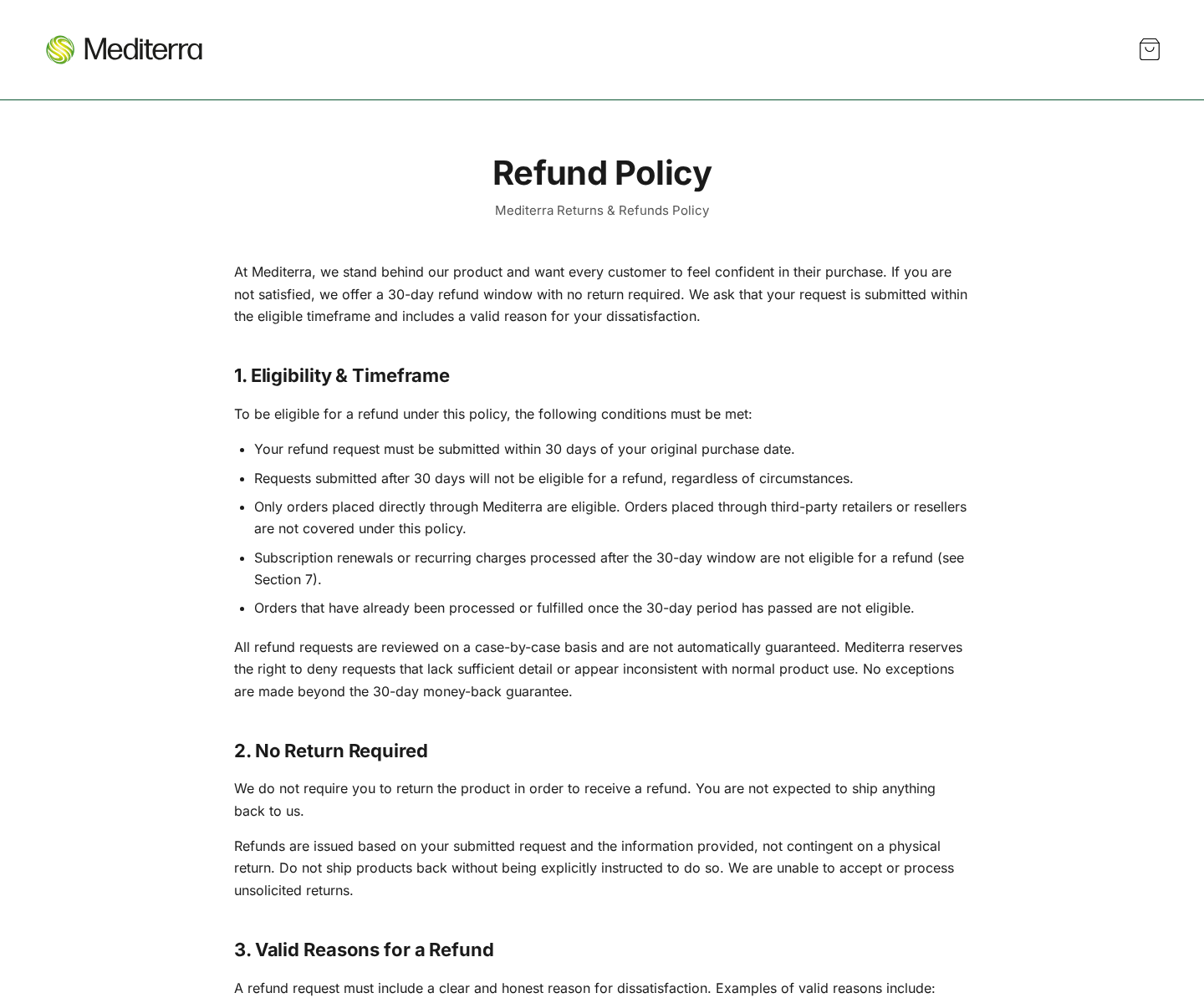
MemoFlow promotes a 30-day money-back message. Connected Mediterra policy pages add practical conditions and say approvals may be handled case by case.
The refund language says renewal charges after the window are not eligible. That limitation matters when a consumer discovers recurring billing late.
Support may require an order number, reason, return authorization, unopened product, or tracked shipment. Each extra condition can delay the process.
A guarantee is only as useful as the written policy, reachable support, valid return destination, and time remaining when the buyer notices a problem.
Subscription and Refund Risks Explained
There may be more than one recurring commitment
The MemoFlow page offers monthly delivery. The later checkout advertises a Wellness Club and mentions separate supply shipments.
Those elements should be treated individually. Canceling a product shipment may not automatically cancel a club, and canceling a club may not stop another delivery plan.
Ask support to identify every active program under your email, telephone number, address, and card. Request written confirmation that each has ended.
Cancellation timing can decide whether another box ships
Mediterra terms reviewed for this investigation say subscription cancellation should occur at least 24 hours before shipment.
Waiting until a charge posts may be too late under those terms. Contact the seller immediately, even if the next renewal date is uncertain.
Do not rely only on a telephone promise. Keep the email, ticket number, chat transcript, and cancellation confirmation.
The 30-day clock may begin before you test the product
Shipping time consumes part of a short refund period when the policy counts from purchase rather than delivery.
Check the precise trigger. Photograph the package on arrival and contact support promptly if the wrong item, damaged bottle, or incomplete order arrives.
Company, Address, and Fulfillment Checks
The brand and checkout operator differ
The customer begins with MemoFlow but encounters Mediterra during payment. The relationship between those names should be clearly disclosed before billing.
A receipt must identify the legal merchant and recognizable card descriptor. Brand artwork alone does not establish who owes the buyer a refund.
The contact details shift across pages
The current MemoFlow site linked +1 (323) 379-5341 and support@usememoflow.com. Other promotional material displayed an older telephone number.
The Mediterra checkout listed support@mediterra.com and +1 (800) 390-6035. Multiple contacts can divide responsibility when an order goes wrong.
The published address resembles a return warehouse
Promotional material referenced 19655 East 35th Drive, Suite 100, Aurora, Colorado 80011.
That location also appears in return instructions for unrelated supplement brands. It resembles a fulfillment or returns facility, not proof of MemoFlow’s headquarters.
A warehouse can receive parcels without controlling formulas, billing, advertising, or refund decisions. Do not mistake a return label for corporate accountability.
Manufacturing and testing remain unclear
We did not find transparent evidence identifying the finished-product manufacturer, batch testing laboratory, certificates for current lots, or product-specific clinical research.
That does not prove the bottles came from China, and we will not make that claim without shipping or manufacturing records.
The documented problem is simpler: buyers are asked to trust memory claims while the supply chain and responsible company remain difficult to verify.
A Safer Way to Read the Checkout
Begin at the final total and work backward. Confirm the item name, bottle count, shipping cost, tax, trial, renewal, and delivery frequency.
Search the page for “monthly,” “recurring,” “membership,” “trial,” “annual,” and “cancel.” Important obligations may appear far from the purchase button.
Check every selected control, including small boxes and delivery toggles. A bright discount may depend on recurring shipments rather than a one-time order.
Read the merchant name beside the payment form. Compare it with the brand, policy owner, support domain, and descriptor promised for your statement.
Take screenshots before submitting. If any field contradicts the original offer, leave the checkout and do not let a countdown change that decision.
Use a credit card with dispute protections, not debit, gift cards, cryptocurrency, or bank transfer. No payment method can fix misleading terms.
What to Do if You Have Fallen Victim to This Scam
- Capture the complete funnel. Save the MemoFlow page, selected package, Mediterra checkout, product mismatch, trial language, refund policy, receipt, and card descriptor.
- Identify every enrollment. Ask support to list monthly deliveries, Wellness Club membership, annual renewals, and any other recurring program linked to you.
- Cancel each program separately. Send written notices to the relevant support addresses. Request confirmation showing the cancellation date and affected order numbers.
- Request a refund immediately. Cite the advertised guarantee and any checkout mismatch. Ask for a return authorization, destination, deadline, and eligible amount.
- Keep products sealed when possible. Photograph received items and packaging. Use tracked shipping only after written return instructions arrive.
- Monitor the payment method. Watch for monthly shipments, club renewals, and descriptors containing Mediterra or another unfamiliar name.
- Dispute unauthorized charges. Give your bank the saved enrollment terms, cancellation messages, tracking, and proof that the checkout showed a different product.
- Report deceptive advertising. Send misleading health claims and undisclosed endorsements to the FTC. Report questionable supplement claims to the FDA.
- Protect your browser and device. Scan with Malwarebytes if you downloaded files or followed suspicious redirects. AdGuard can reduce malicious advertisements and tracking.
Is Your Device Infected? Run a Free Malware Scan
Slow performance, constant pop-ups, or strange behavior? These are classic signs of a malware infection. The fastest way to find out is to scan your device with Malwarebytes Free — one of the most trusted malware removal tools available.
The free version detects and removes the most common threats, including:
- Adware — the cause of those annoying pop-ups
- Browser hijackers — unwanted redirects and changed homepages
- Trojans and spyware — hidden programs stealing your data
- Potentially unwanted programs (PUPs) — software you never asked for
👉 Select your device below — Windows, Mac, or Android — then follow the simple steps to download Malwarebytes, scan your system, and remove any threats it finds. The scan usually takes 5 to 20 minutes.
Run a Malware Scan with Malwarebytes for Windows
Malwarebytes is one of the most popular and trusted anti-malware tools for Windows — and it’s completely free for removing infections. It catches threats that many antivirus programs miss, including adware, browser hijackers, and trojans. Follow the steps below to scan and clean your PC in just a few minutes.
Download Malwarebytes
Click the button below to download the latest version of Malwarebytes for Windows from the official source. The free version is all you need — it will scan your computer and remove adware, browser hijackers, and other malicious software at no cost.
Download MalwarebytesOfficial installer for Windows 11 and 10. Your download starts right away.Want real-time protection? See Malwarebytes Premium Malwarebytes Free for WindowsScans and removes malware at no cost
-
Install Malwarebytes
When the download finishes, open your Downloads folder and double-click the MBSetup file. If Windows shows a User Account Control pop-up, click “Yes” to allow the installation.

Follow the On-Screen Prompts to Install Malwarebytes
The setup wizard will walk you through a few quick screens:
-
Choose where you’re installing the program — “Personal Computer” or “Work Computer” — then click Next.

-
Malwarebytes will now install on your device. This usually takes under a minute.

-
When installation is complete, the “Welcome to Malwarebytes” screen will open automatically.

-
On the final screen, click Open Malwarebytes to launch the program.

-
Enable “Scan for Rootkits”
Before scanning, turn on rootkit detection so Malwarebytes can find even the most hidden threats. Click the Settings gear icon on the left side of the screen.

In the settings menu, find “Scan for rootkits” and click the toggle so it turns blue.

Done? Click “Dashboard” in the left pane to return to the main screen.
Start the Scan
Click the blue Scan button. Malwarebytes will automatically update its virus database and start checking your computer for malware.

-
Wait for the Scan to Finish
The scan checks your entire system for browser hijackers and other malicious programs, so it can take 5 to 20 minutes depending on your computer. Feel free to do something else — just check back occasionally to see the progress.

-
Quarantine the Detected Threats
When the scan is done, you’ll see a list of everything Malwarebytes found — malware, adware, and potentially unwanted programs. Click the “Quarantine” button to remove all of them at once.

Malwarebytes will now remove the malicious files and registry entries and move them safely into quarantine.

-
Restart Your Computer
Some threats can only be fully removed after a reboot. If Malwarebytes asks you to restart, click Yes. Once you’re logged back in, Malwarebytes has finished removing the threats it found.

That’s it — your Windows PC is now clean of trojans, adware, and other malware, and should be back to running smoothly.
If you are still having problems with your computer after completing these instructions, then please follow one of the steps:
- Run a computer scan with ESET Online Scanner
- Ask for help in our Windows Malware Removal Help & Support forum.
Run a Malware Scan with Malwarebytes for Mac
Malwarebytes for Mac is a free on-demand scanner that removes the malware other security software tends to miss — adware, browser hijackers, and unwanted programs included. Cleaning an infected Mac with Malwarebytes has always been completely free, and it’s our go-to recommendation. Follow the steps below to scan and clean your Mac in just a few minutes.
-
Download Malwarebytes for Mac
Click the button below to download the latest version of Malwarebytes for Mac.
Download MalwarebytesOfficial installer for macOS. Your download starts right away.Want real-time protection? See Malwarebytes PremiumMalwarebytes Free for MacScans and removes malware at no cost -
Open the Malwarebytes setup file
When the download finishes, open your Downloads folder and double-click the setup file to begin the installation.

-
Follow the On-Screen Prompts to Install Malwarebytes
The Malwarebytes for Mac Installer will guide you through a few quick screens. Click “Continue” and keep following the prompts until the installation completes.



When the installation is complete, Malwarebytes opens to the Welcome to Malwarebytes screen. Click “Get started“.
-
Select “Personal Computer” or “Work Computer”
Malwarebytes will ask what type of computer you’re installing it on. Click either Personal Computer or Work Computer, whichever applies.

-
Start the Scan
Click the “Scan” button. Malwarebytes will automatically update its detection database and begin checking your Mac for malware.

-
Wait for the Scan to Finish
Malwarebytes will scan your Mac for adware, browser hijackers, and other malicious programs. This can take a few minutes, so feel free to do something else — just check back occasionally to see the progress.

-
Quarantine the Detected Threats
When the scan is done, you’ll see a list of everything Malwarebytes found. Click the “Quarantine” button to remove all the threats at once.

-
Restart Your Mac
Malwarebytes will now remove all the malicious files it found. Some threats can only be fully removed after a reboot — if Malwarebytes asks you to restart, allow it. Once you’re logged back in, your Mac is clean.

That’s it — your Mac is now free of adware, rogue browser extensions, and other potentially harmful software.
If you are still experiencing problems while trying to remove a malicious program from your computer, please ask for help in our Mac Malware Removal Help & Support forum.
Run a Malware Scan with Malwarebytes for Android
Malwarebytes for Android automatically detects and removes dangerous threats like malware and ransomware so you don’t have to worry about your most-used device being compromised. Aggressive detection of adware and potentially unwanted programs keeps your Android phone or tablet running smooth.
-
Download Malwarebytes for Android.
You can download Malwarebytes for Android by clicking the link below.
Get Malwarebytes for AndroidOpens Google Play in a new tab.Want real-time protection? See Malwarebytes Premium for AndroidMalwarebytes for AndroidScans your phone and removes malware at no cost -
Install Malwarebytes for Android on your phone.
In the Google Play Store, tap “Install” to install Malwarebytes for Android on your device.

When the installation process has finished, tap “Open” to begin using Malwarebytes for Android. You can also open Malwarebytes by tapping on its icon in your phone menu or home screen.

-
Follow the on-screen prompts to complete the setup process
When Malwarebytes will open, you will see the Malwarebytes Setup Wizard which will guide you through a series of permissions and other setup options.
This is the first of two screens that explain the difference between the Premium and Free versions. Swipe this screen to continue.
Tap on “Got it” to proceed to the next step.
Malwarebytes for Android will now ask for a set of permissions that are required to scan your device and protect it from malware. Tap on “Give permission” to continue.
Tap on “Allow” to permit Malwarebytes to access the files on your phone.
-
Update database and run a scan with Malwarebytes for Android
You will now be prompted to update the Malwarebytes database and run a full system scan.

Click on “Update database” to update the Malwarebytes for Android definitions to the latest version, then click on “Run full scan” to perform a system scan.

-
Wait for the Malwarebytes scan to complete.
Malwarebytes will now start scanning your phone for adware and other malicious apps. This process can take a few minutes, so we suggest you do something else and periodically check on the status of the scan to see when it is finished.

-
Click on “Remove Selected”.
When the scan has been completed, you will be presented with a screen showing the malware infections that Malwarebytes for Android has detected. To remove the malicious apps that Malwarebytes has found, tap on the “Remove Selected” button.

-
Restart your phone.
Malwarebytes for Android will now remove all the malicious apps that it has found. To complete the malware removal process, Malwarebytes may ask you to restart your device.
That’s it — your Android phone is now clean — no more malicious apps, adware, or browser redirects.
If you are still having problems with your phone after completing these instructions, then please follow one of the steps:
- Restore your phone to factory settings by going to Settings > General management > Reset > Factory data reset.
- Ask for help in our Mobile Malware Removal Help & Support forum.
Stay Protected: Block Ads and Malicious Sites
Now that your device is clean, keep it that way. Most infections start with a malicious ad or a fake download button — so blocking them at the source is your best defense.
We recommend AdGuard, which blocks malicious ads, phishing pages, and dangerous redirects before they can reach you.
👉 Download AdGuard and browse safely
Frequently Asked Questions
Is MemoFlow a legitimate memory supplement?
A bottle may be sold under that name, but we found insufficient evidence for its advertised benefits and serious problems in the current checkout journey.
Does MemoFlow use automatic monthly delivery?
The storefront displayed a monthly-delivery option. Buyers must verify whether that option is selected and save the renewal terms before payment.
Why did the checkout show Oil of Oregano?
We cannot determine whether it was broken routing, a reused template, or another error. The mismatch is reason enough to stop the order.
What is the Mediterra Wellness Club?
The checkout promoted a 14-day trial with a displayed $197 annual renewal. Read the current terms because offers can change.
Can MemoFlow treat Alzheimer’s disease?
No reliable evidence reviewed supports that claim. Memory symptoms need medical evaluation because causes, urgency, and appropriate treatment vary.
How long is the refund period?
The connected pages promoted 30 days, but policy conditions matter. Contact support immediately and obtain written return instructions.
The Bottom Line
MemoFlow’s current funnel combines unverified reviews, recurring-delivery language, a different checkout brand, an unrelated product, and a club renewal offer.
Those are concrete problems visible before purchase. They make arguments about the formula almost secondary because the order itself cannot be trusted to remain consistent.
Do not enter payment details until every product, charge, renewal, seller, and refund term agrees. In the checkout we reviewed, they did not.

Join the discussion
0 commentsShare your experience or ask a question about this article.
Discussion
Start the conversation
Have a question or something useful to share? Add the first comment.