The MetaMask 2FA Activation Scam is one of those attacks that feels real the moment it appears. The email looks official. The message sounds helpful. The link seems harmless. Everything is crafted to make you believe you are protecting your wallet, not risking it.
That is exactly why this scam works so well. It takes a familiar security process and turns it into a trap designed to steal your seed phrase and drain your assets within minutes.
If you want to understand how this scam tricks even careful users, how the fake website works, and how to protect yourself, keep reading.
Scam Overview
The MetaMask 2FA Activation Scam begins with a phishing email that looks surprisingly genuine. It mirrors MetaMask’s friendly tone, uses clean design, and claims that a new layer of security is being rolled out. The message often arrives with subject lines such as “2FA Activation Required” or “Security: 2FA Mandatory”. These phrases carry enough urgency to get your attention without raising suspicion. They sound like the kind of notice a security conscious company would send.
Inside the email, the attackers explain that MetaMask is making two factor authentication mandatory. They mention a deadline, often set around a date like 10 December 2025. The presence of a deadline is not accidental. Criminals use deadlines because they push people into taking action quickly. When you fear losing access to part of your wallet, the instinct is to resolve the issue right away.
The body of the message thanks you for being a valued member of the MetaMask community. It assures you that your security is important. It then asks you to click a button labeled “Enable 2FA Now”. This button leads to a website that the attackers control, not the official MetaMask domain.
The phishing link used in many cases is 2fa.metamask-coin.com. At first glance, it looks harmless. The words MetaMask and 2FA are right there. But this domain is not owned by MetaMask. Security services have flagged it as malicious, and similar links rotate constantly as attackers create new domains to replace the old ones.
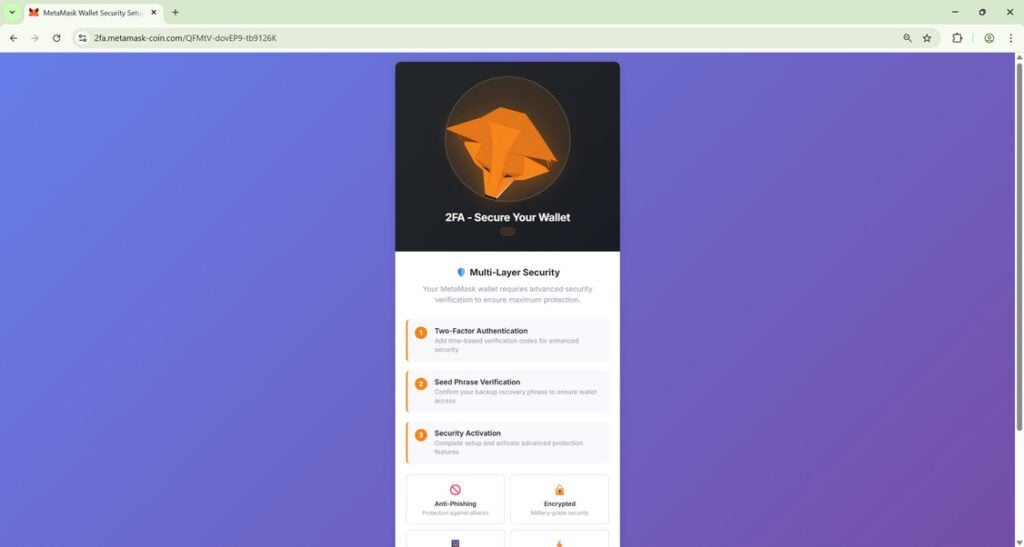
Once the victim clicks the link, the deception deepens. The fraudulent website is designed to look exactly like a MetaMask security portal. The logo is correct. The colors match. The layout feels familiar. The sections describing multi layer security are carefully styled to resemble genuine MetaMask pages. The look of the site is one of the main reasons victims do not realize something is wrong.
The page introduces a feature called Multi Layer Security. This includes three steps: two factor authentication, seed phrase verification, and final activation. These steps sound like standard wallet procedures. The scammers rely on this familiarity because it lowers your guard.
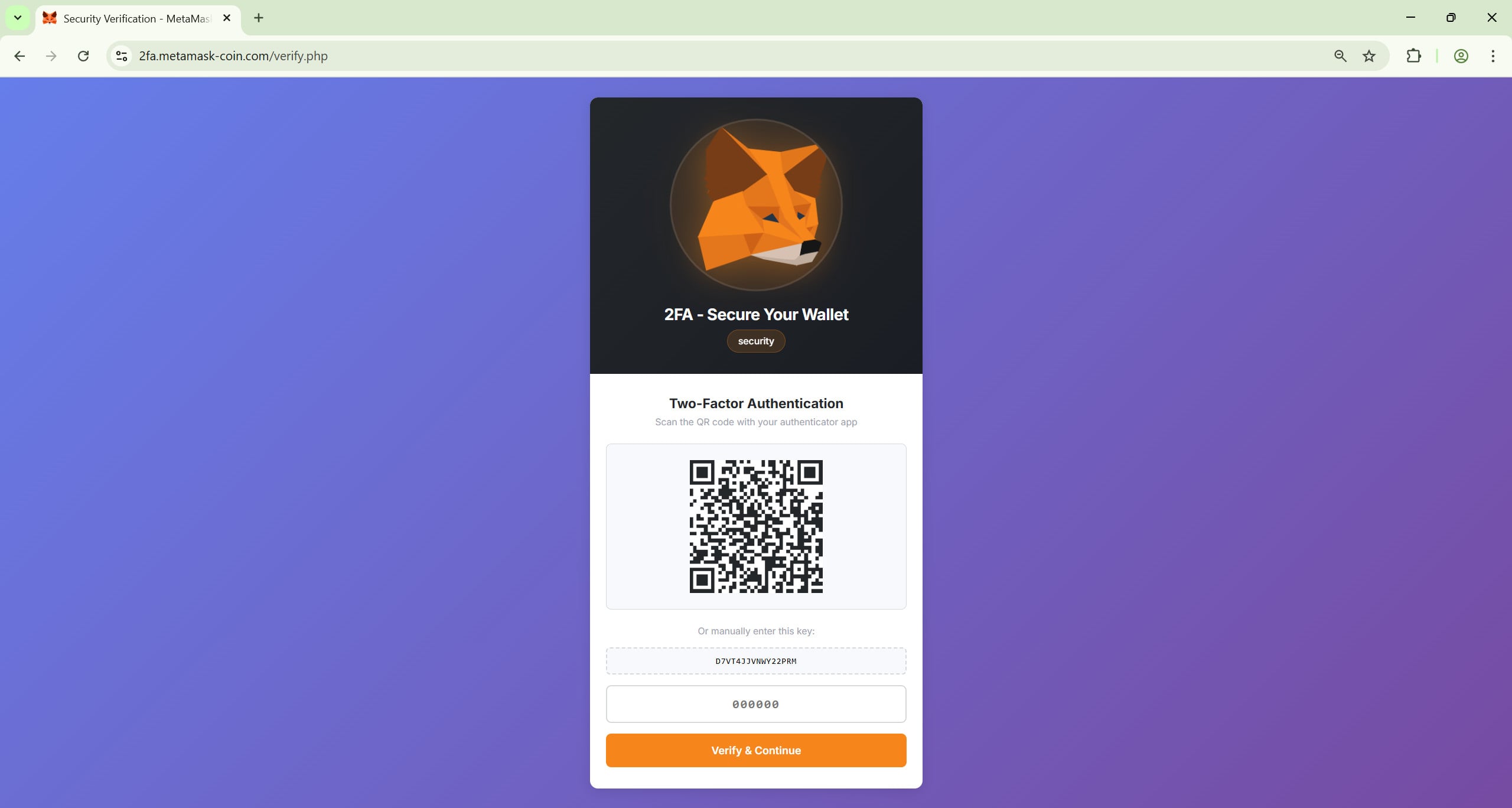
The site displays a QR code that appears to be part of a legitimate 2FA setup. Under the QR code is a key that you can enter manually into an authentication app. Everything about this interface feels real because it copies the experience used by trustworthy platforms.
Once you scan the code or enter the key, the site asks for a verification code from your authentication app. This creates the illusion of a real security process. But the verification code is useless to the scammers. They only include it to maintain the disguise.
The real danger begins when the site moves to a step labeled Seed Phrase Verification. It presents this step as a required part of activating 2FA. The language is comforting. It may say that your seed phrase will not be stored, that it is only used to confirm account ownership, or that it is needed to link your authentication with your wallet.
These statements are lies.
MetaMask never asks for a seed phrase outside of the wallet application. Any site requesting it is attempting to steal your wallet.
Once the victim enters their seed phrase on the phishing site, attackers gain full control. They can import the wallet instantly and drain all assets. This process is often automated. By the time the victim realizes something is wrong, the funds are already gone.
The attack is carefully engineered to feel legitimate at every step. The tone of the email, the style of the website, and the structure of the instructions all serve one purpose. They convince the victim that they are improving their security when they are actually handing over everything they own.
Now that you have a clear understanding of the overall design, let us move deeper and walk through every stage of the scam from beginning to end. Seeing the process in detail brings clarity to the entire scheme.
How The Scam Works
To truly understand the MetaMask 2FA Activation Scam, it helps to follow the exact path a victim experiences. Each section below walks you step by step through the full attack, with an emphasis on the psychological tactics and the small moments where trust is gained or lost. Once you know how these pieces fit together, you can identify similar attacks instantly.
The Scam Begins with a Polished Email
The first step is the arrival of a professional looking email. At a glance, the message feels like a genuine security notification. It does not rely on heavy threats or dramatic warnings. Instead, it adopts a calm, friendly tone that sounds helpful.
The subject line might read “2FA Activation Required” or something equally neutral. Most people who use MetaMask appreciate strong security, so a message about two factor authentication feels legitimate. The email explains that MetaMask is introducing mandatory 2FA and that users must activate it before a specific date. The mention of a deadline is meant to push readers into acting quickly. That urgency is a key element of the scam.
The email includes a clear call to action. A button labeled “Enable 2FA Now” sits in the center of the message. The criminals want the victim to click without thinking. They rely on instinct rather than careful examination. When the reader clicks the button, the phishing attack begins.
The Link Takes the Victim to a Fake MetaMask Website
Clicking the button sends the victim to a site controlled by scammers. The URL looks similar to the official MetaMask domain. It might start with 2fa.metamask, followed by additional words to make it seem credible.
The site loads quickly and looks extremely professional. It features the MetaMask fox logo at the top. The color scheme matches the real one. The typography feels familiar. Even the spacing between elements mirrors genuine MetaMask pages. The design is one of the most convincing parts of the scam.
Many victims describe the site as indistinguishable from the original. There are no obvious spelling mistakes, sloppy elements, or mismatched fonts. Everything is polished. That level of detail is intentional. The attackers know that crypto users tend to be cautious, so they invest time into making the site appear flawless.
The Page Introduces a Fake Multi Layer Security Process
Once on the site, the victim sees a description of a new security feature called Multi Layer Security. This process includes three steps:
Two factor authentication setup
Seed phrase verification
Activation of enhanced security
These steps are presented in a calm, structured way that feels helpful. The wording makes it seem like MetaMask is rolling out a smart new system designed to protect users from unauthorized access. Victims often feel reassured by this because it sounds like MetaMask is taking security seriously.
The Fake QR Code Creates a Sense of Authenticity
The site displays a QR code, which is one of the most convincing parts of the entire scam. Many legitimate companies use QR codes for authentication. Scanning the code with an authenticator app feels like a real security upgrade.
Below the QR code is a text based key. The instructions say that you can type this key into your authentication app if scanning does not work. This detail makes the process feel even more legitimate. Criminals intentionally mirror real authentication flows to gain trust.
When you scan the QR code, your authenticator app will generate a code. The site then prompts you to enter the verification code. This is only a trick. The verification code serves no real purpose for the attackers. They simply want to keep the illusion intact so that nothing feels unusual.
The Page Moves Toward Collecting Wallet Credentials
Up until now, everything has felt routine. The deception is deep enough that the victim believes they are engaging in a standard security process. Only when the site asks for wallet credentials does the danger fully appear.
The page displays a message saying that the 2FA setup cannot be completed until you verify ownership of your wallet. It says that you must confirm your seed phrase to link the authentication system to your MetaMask account.
The wording is calm, reassuring, and carefully crafted. It may say that your seed phrase will not be stored. It may tell you that the phrase is needed for a one time verification. It may claim that this step is standard during major security upgrades.
This is the moment where many victims fall for the trap. They believe the site is legitimate because the earlier steps felt so normal. They have already scanned a QR code and entered a verification code, so entering the seed phrase feels like the final step of a routine process.
But MetaMask will never ask for a seed phrase on a website. This is the core red flag. The seed phrase is the master key to your wallet. Anyone who gains access to it gains access to everything you own.
Attackers Immediately Take Control of the Wallet
Once the victim submits their seed phrase, the attackers act quickly. Most phishing pages are linked to automated systems that monitor new entries in real time. The moment a seed phrase appears, it is imported into a wallet under the attackers’ control.
The criminals then transfer all assets from the wallet to their own addresses. The transfers happen quickly because the attackers know victims may notice something wrong and attempt to move their assets. The criminals often use scripts that begin draining funds within seconds.
Once the transactions are completed, they cannot be reversed. The blockchain does not allow cancellation once a transfer has been broadcast. This finality is one reason cryptocurrency scams can be so devastating.
Victims Realize the Scam Too Late
Many victims do not realize something went wrong until they attempt to open their real MetaMask wallet. They may see that their token balances are at zero or that their NFTs have disappeared. By the time they check the transaction history, the funds have already been moved to addresses controlled by the criminals.
It is a heartbreaking moment because there is no simple way to undo what happened. The scam is designed to strike quickly and leave no room for error or recovery. This is why awareness is essential. Understanding the step by step flow helps you identify these attacks instantly.
Now that you understand the exact sequence of events, let us move to the part that matters most when things go wrong. The next section gives you a clear plan to follow if you have already fallen victim to this scam.
How To Spot The Scam Emails, Texts, and Phishing Websites
Recognizing the MetaMask 2FA Activation Scam becomes much easier once you know the signals that give it away. The attackers rely on urgency, polished design, and convincing language, but there are always clues hidden in the small details. This section shows you exactly what to look for so you can identify the scam long before it becomes a threat.
How To Spot the Scam Emails and Text Messages
Scam emails and scam text messages share the same core traits. They try to push you into clicking a link without taking time to verify it. When you know what to look for, the warning signs become clear.
The message creates artificial urgency
Scammers want you to take action immediately. Common tactics include:
Claiming deadlines for mandatory 2FA activation
Warning of restricted wallet access
Suggesting that your funds may be at risk
Pressuring you to click a link instead of visiting the official site
Urgency is one of the easiest red flags to recognize.
The sender address is not an official MetaMask domain
MetaMask does not contact users from random or unfamiliar email domains. Scam messages often come from addresses that look similar but are not the real thing.
Watch out for:
Long, unusual email names
Misspelled versions of MetaMask
Domains ending in .com, .org, .info, or .support instead of metamask.io
If the sender does not match the official domain, the message is fraudulent.
The email includes a link for wallet verification or activation
MetaMask never asks users to click links to secure their wallet. Any message telling you to activate 2FA, verify ownership, or confirm your seed phrase through a link is a scam. This rule alone protects you from the majority of phishing attacks.
The language sounds helpful but unusual
Scammers use friendly, neutral wording to avoid suspicion. However, the tone often feels slightly off. Watch for:
Overly generic greetings
Phrases that sound like automated templates
Odd spacing or inconsistent formatting
Messages that claim to improve security without any technical detail
If the tone feels strangely vague or too polished, trust your instincts.
The message asks for information MetaMask never requests
MetaMask will never request:
Your seed phrase
Your private key
Verification codes
Identity documents through email
Account activation through links
Any request for sensitive information is a confirmed scam.
How To Spot the Scam Websites
The phishing websites used in this scam are carefully designed to look authentic, but they always contain flaws that reveal their true purpose. Spotting these flaws early keeps you safe.
The domain name is not metamask.io
This is the most important rule. MetaMask’s only official domain is:
metamask.io
Anything else, even if it includes the word MetaMask, is fraudulent. Examples include:
metamask-coin.com
metamask-security.com
metamask-login.net
2fa.metamask-auth.com
Scammers add words like 2fa, security, login, or verify to make their domains look legitimate. Always type the official MetaMask address manually instead of clicking links.
The site asks for your seed phrase
MetaMask never asks for your seed phrase on a website. It is only used inside the MetaMask app or extension when restoring a wallet. If a website requests your seed phrase for any reason, it is trying to steal your funds.
Common fake prompts include:
Ownership verification
Wallet synchronization
2FA activation
Security upgrades
Seed phrase validation
None of these are real.
The site includes a QR code for 2FA activation
MetaMask does not use QR based 2FA activation pages. If you see a QR code combined with a fake setup process, you are on a phishing site. The QR code only exists to make the page feel legitimate.
The site mirrors the MetaMask style too perfectly
Phishing pages often look almost identical to MetaMask’s interface. That level of perfection is suspicious, because MetaMask’s real pages differ slightly depending on the platform.
Be cautious if:
Everything looks too symmetrical
The design seems frozen and not interactive
Buttons do nothing or lead nowhere
Text is overly simplified
These subtle clues suggest the site is a copy, not the original.
The page forces you through a strict sequence of steps
Phishing sites usually lock you into a narrow process:
Scan a QR code
Enter a verification code
Enter your seed phrase
Confirm ownership
Real MetaMask settings are flexible and allow you to move freely between options. If a page forces you step by step toward entering sensitive information, it is not authentic.
HTTPS does not guarantee safety
Attackers often use valid SSL certificates because they are easy to obtain. The lock icon does not mean the site is trustworthy. Only the domain name matters.
No links to official documentation
Fake websites do not link to MetaMask’s support pages or help center. If the site has no links to real resources, or links that do nothing, it is a sign of fraud.
The Quick Rule That Catches Almost Every Scam
If an email or website asks for your seed phrase, it is a scam. If it asks you to enable 2FA through a link, it is a scam. If it claims you must verify your wallet through a form, it is a scam.
Following these three rules protects you from nearly all MetaMask phishing attempts.
Here is a fully detailed section with variants of scam emails and texts used in the MetaMask 2FA Activation Scam. Warm tone, short paragraphs, no dividers, no emojis, only H2 and H3, and perfect mobile readability.
Variants of Scam Emails and Text Messages
Scammers rarely rely on a single template. They constantly adjust their wording, timing, and layout to bypass filters and catch new victims off guard. Below are realistic examples of how these fraudulent MetaMask 2FA messages often appear. Reading through them helps you recognize the patterns and avoid falling for similar attempts in the future.
Variant 1: The Fake Mandatory Security Update
Subject: Important: MetaMask Security Upgrade Required Message: We are rolling out a security upgrade to protect user wallets from recent threats. Two factor authentication is now required for all MetaMask users. Please activate 2FA before 10/12/2025 to avoid interruptions. Activate 2FA here: [malicious link]Failure to complete this update may result in limited wallet functionality.
Variant 2: The Urgent Account Restriction Notice
Subject: Immediate Action Needed: Wallet Access Limited Message: Your MetaMask wallet has been flagged for missing security verification. For your protection, key features have been restricted until two factor authentication is activated. Click below to complete verification: [malicious link]If you do not complete this step, your wallet may remain partially locked.
Variant 3: The Friendly Community Message
Subject: Welcome Back to MetaMask Security Improvements Message: As part of our commitment to your safety, we are introducing mandatory two factor authentication for all community members. Activation takes less than one minute. Enable 2FA today: [malicious link]Thank you for helping us keep the MetaMask ecosystem safe.
Variant 4: The Ownership Verification Scam
Subject: Verify Wallet Ownership Message: We are performing an update across the network. Please verify ownership of your MetaMask wallet by completing the new 2FA security protocol. Start verification: [malicious link]This helps ensure only you can access your assets.
Variant 5: The Fake Security Alert
Subject: Security Alert: Suspicious Activity Detected Message: We detected unusual activity on your MetaMask wallet. To secure your account, we require you to activate 2FA immediately. Click below to secure your wallet: [malicious link]If this action is not completed, we cannot guarantee continued protection of your assets.
Variant 6: The Mobile SMS Version
Text Message: MetaMask Notice: Your wallet requires 2FA activation to prevent restricted access. Complete the security update now: [shortened malicious URL]Reply STOP to unsubscribe.
Variant 7: The Threatened Feature Suspension
Subject: Wallet Features Will Be Suspended Message: Your MetaMask wallet will lose access to several features due to missing 2FA activation. Complete the new security process now to avoid disruption. Activate here: [malicious link]
Variant 8: The Polite Security Reminder
Subject: Reminder: Activate Your MetaMask 2FA Message: This is a friendly reminder to complete your two factor authentication setup. This update is required for continued safe use of MetaMask. Enable 2FA: [malicious link]We appreciate your cooperation.
Variant 9: The Fake Compliance Check
Subject: Compliance Update Required Message: Your MetaMask wallet must complete a compliance related 2FA activation to remain active. Please finish the verification process as soon as possible. Complete now: [malicious link]
Variant 10: The “Final Notice” Pressure Email
Subject: Final Notice: 2FA Activation Deadline Message: This is your final notice. Mandatory 2FA activation has not been completed on your wallet. After 10/12/2025, access to your wallet may be restricted. Activate 2FA immediately: [malicious link]
Variant 11: The Suspicious Device Login Trick
Subject: New Device Detected Message: A login attempt from a new device was detected. For your protection, we require activation of MetaMask 2FA to confirm your identity. Secure your account: [malicious link]
Variant 12: The Wallet Sync Request
Subject: Sync Required for Security Update Message: Your wallet must be synced with our new 2FA system before security updates can continue. Please complete the sync by activating 2FA. Start sync: [malicious link]
Variant 13: The Clean Minimalistic Version
Subject: MetaMask 2FA Required Message: Activate two factor authentication to continue using your wallet securely. Start now: [malicious link]
Variant 14: The Paid Ad or Social Scam Message
Social Ad Message: Important MetaMask update. All users must activate 2FA before the new security deadline. Click here to complete setup: [malicious link]
Variant 15: The Short SMS Threat
Text Message: MetaMask security warning. Activate 2FA now to avoid wallet restrictions: [malicious link]
What To Do If You Have Fallen Victim to This Scam
If you interacted with the phishing email or submitted information to the fake MetaMask site, do not panic. You need to act quickly but calmly. The steps below are structured to help you regain control and protect your remaining assets.
Move all remaining funds to a new wallet Create a new MetaMask wallet or use another reputable wallet provider. Transfer everything that remains. Do not reuse your compromised seed phrase under any circumstances.
Revoke permissions from decentralized applications Use trusted token approval revocation tools to remove any permissions that could allow attackers to initiate transactions. This step helps ensure that the compromised wallet cannot authorize transfers without your knowledge.
Reset passwords connected to your crypto activity If your wallet was connected to exchanges or websites and you used similar login information anywhere else, reset those passwords now.
Scan your device for malware Use a reputable security tool to check for spyware, keyloggers, or malicious browser extensions. Some phishing campaigns include hidden scripts that attempt to capture data even after the initial attack.
Document everything Take screenshots of the phishing email, the website you visited, and any suspicious activity in your wallet. Evidence can help cybersecurity teams investigate the domain and shut it down.
Report the attack Submit reports to MetaMask support, your local cybercrime authority, and internet fraud agencies. These reports help track new phishing domains and warn others.
Warn people if you shared any connected accounts If your wallet was used in online communities or you linked it to profiles, alert your contacts. Criminals sometimes use compromised accounts to spread additional phishing messages.
Strengthen your online security habits Enable strong passwords, activate two factor authentication on your email, use a password manager, and avoid clicking unsolicited links. These habits reduce the risk of future attacks.
Learn how MetaMask communicates MetaMask does not send security upgrade links that ask for your seed phrase. It does not require mandatory 2FA activation through email. Knowing these facts helps you reject phishing attempts right away.
Take time to compose yourself Scams can be emotionally overwhelming. Pause, breathe, and then move through the remaining steps with clarity. Calm decisions lead to better protection.
These steps will help you regain control and reduce additional risks after the attack.
Is Your Device Infected? Scan for Malware
If your computer or phone is slow, showing unwanted pop-ups, or acting strangely, malware could be the cause. Running a scan with Malwarebytes Anti-Malware Free is one of the most reliable ways to detect and remove harmful software. The free version can identify and clean common infections such as adware, browser hijackers, trojans, and other unwanted programs.
Malwarebytes works on Windows, Mac, and Android devices. Choose your operating system below and follow the steps to scan your device and remove any malware that might be slowing it down.
Malwarebytes for WindowsMalwarebytes for MacMalwarebytes for Android
Run a Malware Scan with Malwarebytes for Windows
Malwarebytes stands out as one of the leading and widely-used anti-malware solutions for Windows, and for good reason. It effectively eradicates various types of malware that other programs often overlook, all at no cost to you. When it comes to disinfecting an infected device, Malwarebytes has consistently been a free and indispensable tool in the battle against malware. We highly recommend it for maintaining a clean and secure system.
Download Malwarebytes
Download the latest version of Malwarebytes for Windows using the official link below. Malwarebytes will scan your computer and remove adware, browser hijackers, and other malicious software for free.
(The above link will open a new page from where you can download Malwarebytes)
Install Malwarebytes
After the download is complete, locate the MBSetup file, typically found in your Downloads folder. Double-click on the MBSetup file to begin the installation of Malwarebytes on your computer. If a User Account Control pop-up appears, click “Yes” to continue the Malwarebytes installation.
Follow the On-Screen Prompts to Install Malwarebytes
When the Malwarebytes installation begins, the setup wizard will guide you through the process.
You’ll first be prompted to choose the type of computer you’re installing the program on—select either “Personal Computer” or “Work Computer” as appropriate, then click on Next.
Malwarebytes will now begin the installation process on your device.
When the Malwarebytes installation is complete, the program will automatically open to the “Welcome to Malwarebytes” screen.
On the final screen, simply click on the Open Malwarebytes option to start the program.
Enable “Rootkit scanning”.
Malwarebytes Anti-Malware will now start, and you will see the main screen as shown below. To maximize Malwarebytes’ ability to detect malware and unwanted programs, we need to enable rootkit scanning. Click on the “Settings” gear icon located on the left of the screen to access the general settings section.
In the settings menu, enable the “Scan for rootkits” option by clicking the toggle switch until it turns blue.
Now that you have enabled rootkit scanning, click on the “Dashboard” button in the left pane to get back to the main screen.
Perform a Scan with Malwarebytes.
To start a scan, click the Scan button. Malwarebytes will automatically update its antivirus database and begin scanning your computer for malicious programs.
Wait for the Malwarebytes scan to complete.
Malwarebytes will now scan your computer for browser hijackers and other malicious programs. This process can take a few minutes, so we suggest you do something else and periodically check the status of the scan to see when it is finished.
Quarantine detected malware
Once the Malwarebytes scan is complete, it will display a list of detected malware, adware, and potentially unwanted programs. To effectively remove these threats, click the “Quarantine” button.
Malwarebytes will now delete all of the files and registry keys and add them to the program’s quarantine.
Restart your computer.
When removing files, Malwarebytes may require a reboot to fully eliminate some threats. If you see a message indicating that a reboot is needed, please allow it. Once your computer has restarted and you are logged back in, you can continue with the remaining steps.
Once the scan completes, remove all detected threats. Your Windows computer should now be clean and running smoothly again, free of trojans, adware, and other malware.
If your current antivirus allowed this malicious program on your computer, you may want to consider purchasing Malwarebytes Premium to protect against these types of threats in the future. If you are still having problems with your computer after completing these instructions, then please follow one of the steps:
Malwarebytes for Mac is an on-demand scanner that can destroy many types of malware that other software tends to miss without costing you absolutely anything. When it comes to cleaning up an infected device, Malwarebytes has always been free, and we recommend it as an essential tool in the fight against malware.
Download Malwarebytes for Mac.
You can download Malwarebytes for Mac by clicking the link below.
When Malwarebytes has finished downloading, double-click on the setup file to install Malwarebytes on your computer. In most cases, downloaded files are saved to the Downloads folder.
Follow the on-screen prompts to install Malwarebytes.
When the Malwarebytes installation begins, you will see the Malwarebytes for Mac Installer which will guide you through the installation process. Click “Continue“, then keep following the prompts to continue with the installation process.
When your Malwarebytes installation completes, the program opens to the Welcome to Malwarebytes screen. Click the “Get started” button.
Select “Personal Computer” or “Work Computer”.
The Malwarebytes Welcome screen will first ask you what type of computer are you installing this program, click either Personal Computer or Work Computer.
Click on “Scan”.
To scan your computer with Malwarebytes, click on the “Scan” button. Malwarebytes for Mac will automatically update the antivirus database and start scanning your computer for malware.
Wait for the Malwarebytes scan to complete.
Malwarebytes will scan your computer for adware, browser hijackers, and other malicious programs. This process can take a few minutes, so we suggest you do something else and periodically check on the status of the scan to see when it is finished.
Click on “Quarantine”.
When the scan has been completed, you will be presented with a screen showing the malware infections that Malwarebytes has detected. To remove the malware that Malwarebytes has found, click on the “Quarantine” button.
Restart computer.
Malwarebytes will now remove all the malicious files that it has found. To complete the malware removal process, Malwarebytes may ask you to restart your computer.
After scanning, delete any detected threats. Your Mac should now be free from adware, unwanted extensions, and other potentially harmful software.
If your current antivirus allowed a malicious program on your computer, you might want to consider purchasing the full-featured version of Malwarebytes Anti-Malware to protect against these types of threats in the future. If you are still experiencing problems while trying to remove a malicious program from your computer, please ask for help in our Mac Malware Removal Help & Support forum.
Run a Malware Scan with Malwarebytes for Android
Malwarebytes for Android automatically detects and removes dangerous threats like malware and ransomware so you don’t have to worry about your most-used device being compromised. Aggressive detection of adware and potentially unwanted programs keeps your Android phone or tablet running smooth.
Download Malwarebytes for Android.
You can download Malwarebytes for Android by clicking the link below.
In the Google Play Store, tap “Install” to install Malwarebytes for Android on your device.
When the installation process has finished, tap “Open” to begin using Malwarebytes for Android. You can also open Malwarebytes by tapping on its icon in your phone menu or home screen.
Follow the on-screen prompts to complete the setup process
When Malwarebytes will open, you will see the Malwarebytes Setup Wizard which will guide you through a series of permissions and other setup options. This is the first of two screens that explain the difference between the Premium and Free versions. Swipe this screen to continue. Tap on “Got it” to proceed to the next step. Malwarebytes for Android will now ask for a set of permissions that are required to scan your device and protect it from malware. Tap on “Give permission” to continue. Tap on “Allow” to permit Malwarebytes to access the files on your phone.
Update database and run a scan with Malwarebytes for Android
You will now be prompted to update the Malwarebytes database and run a full system scan.
Click on “Update database” to update the Malwarebytes for Android definitions to the latest version, then click on “Run full scan” to perform a system scan.
Wait for the Malwarebytes scan to complete.
Malwarebytes will now start scanning your phone for adware and other malicious apps. This process can take a few minutes, so we suggest you do something else and periodically check on the status of the scan to see when it is finished.
Click on “Remove Selected”.
When the scan has been completed, you will be presented with a screen showing the malware infections that Malwarebytes for Android has detected. To remove the malicious apps that Malwarebytes has found, tap on the “Remove Selected” button.
Restart your phone.
Malwarebytes for Android will now remove all the malicious apps that it has found. To complete the malware removal process, Malwarebytes may ask you to restart your device.
When the scan is finished, remove all detected threats. Your Android phone should now be free of malicious apps, adware, and unwanted browser redirects.
If your current antivirus allowed a malicious app on your phone, you may want to consider purchasing the full-featured version of Malwarebytes to protect against these types of threats in the future. If you are still having problems with your phone after completing these instructions, then please follow one of the steps:
Restore your phone to factory settings by going to Settings > General management > Reset > Factory data reset.
After cleaning your device, it’s important to protect it from future infections and annoying pop-ups. We recommend installing an ad blocker such as AdGuard. AdGuard blocks malicious ads, prevents phishing attempts, and stops dangerous redirects, helping you stay safe while browsing online.
The Bottom Line
The MetaMask 2FA Activation Scam is one of the most convincing phishing attacks circulating today. It uses friendly language, a polished design, and a realistic 2FA setup flow to lure victims into revealing their seed phrase. The entire scam is built on trust. Criminals know that wallet users care deeply about security, so they create a situation where victims believe they are doing the right thing.
Understanding how this scam works gives you the power to avoid it. Real MetaMask security notifications never ask for a seed phrase through an email or website. They never require mandatory 2FA activation through external links. Once you recognize these facts, phishing attempts become easy to identify.
FAQ
What is the MetaMask 2FA Activation Scam?
It is a phishing scheme where criminals send fake emails claiming that MetaMask is introducing mandatory two factor authentication. The emails instruct users to click a link to enable 2FA. That link leads to a fraudulent website designed to steal private keys or seed phrases. Once the attackers receive the seed phrase, they immediately take control of the wallet and drain all assets.
Does MetaMask ever send emails asking users to enable 2FA?
No. MetaMask does not send emails requiring you to activate 2FA. They also do not send security updates that require clicking external links. Any message telling you to enable 2FA through an email is a scam.
Is MetaMask making 2FA mandatory?
No. There is no mandatory 2FA rollout. The scammers invented this claim to create urgency and trick victims into clicking their fake link. Always check MetaMask’s official website or verified social channels for real announcements.
How can I tell if an email from MetaMask is fake?
Look for these red flags:
Any link asking you to verify your wallet
Requests for your seed phrase or private key
Deadlines or threats of restricted access
Domains that do not end with metamask.io
Poor grammar, unusual formatting, or suspicious links
MetaMask does not request sensitive information through email, and they never ask you to complete setup steps through external websites.
What happens if I click the link in the phishing email?
Clicking the link alone does not compromise your wallet. The danger begins the moment you enter credentials into the fake website. If you did not submit your seed phrase or private key, you are safe. Clear your browser history and delete the email.
What if I scanned the QR code on the fake website?
Scanning the QR code by itself does not give attackers access to your wallet. The QR code only creates the illusion of an authentication process. The real threat comes from entering your seed phrase or recovery information. If you scanned the code but did not type anything sensitive, your wallet is still secure.
What if I entered my seed phrase into the scam website?
If you entered your seed phrase, the attackers have complete control of your wallet. You need to move any remaining assets to a new wallet immediately. Never reuse the compromised seed phrase. Once stolen, it cannot be made safe again.
Can stolen cryptocurrency be recovered?
Unfortunately, no. Blockchain transactions are irreversible. Once the attackers move funds out of your wallet, there is no way to retrieve them. This is why it is crucial to act quickly by transferring remaining assets to a new wallet.
Why is the scam so convincing?
The design closely copies the real MetaMask interface. The language in the email is professional and calm. The website includes a QR code, authenticator style fields, and multi step instructions. These elements create a false sense of authenticity and make the process feel routine and safe.
How does the phishing site look so real?
Attackers replicate MetaMask’s branding by copying colors, logos, spacing, and layout elements. They also use familiar words like security upgrade, verification, and authentication. Most victims describe the phishing site as almost identical to official MetaMask pages.
Why do scammers ask for my seed phrase?
The seed phrase is the master key to your wallet. Anyone who has it can import your wallet and move all your funds. Scammers cannot do anything with your email or your MetaMask password. They need the seed phrase because it grants full, permanent access.
Can MetaMask support recover my stolen funds?
No. MetaMask does not store seed phrases or control user wallets. Because blockchain transactions are irreversible, MetaMask cannot return stolen funds or roll back scams. Their support team can only guide you in securing remaining assets and reporting the incident.
How do I secure my wallet after falling for the scam?
You must create a brand new wallet with a fresh seed phrase. Transfer any remaining assets right away. Revoke old dApp permissions. Reset your account passwords and run a malware scan. Then report the scam to MetaMask and cybercrime authorities.
How can I avoid MetaMask phishing scams in the future?
Follow these habits:
Never click wallet related links in emails
Always type the MetaMask website manually
Never enter your seed phrase outside the MetaMask app
Bookmark the official metamask.io website
Enable 2FA only on your email account, not through external wallet links
These simple precautions remove almost all risk of phishing.
What should I do if I am unsure whether a MetaMask message is real?
Open your browser and manually visit metamask.io. If the message is legitimate, the information will be available on the official website or supported through the official app. If you do not see the same notice there, the message you received is a scam.
Why do scammers target MetaMask users?
MetaMask holds valuable crypto assets. If attackers steal a seed phrase, they get instant access to tokens, NFTs, and connected accounts. This makes MetaMask users a high value target and one of the most common victims of phishing campaigns.
Is there a safe way MetaMask contacts users?
MetaMask occasionally posts announcements on official channels such as their website, app notifications, or verified social media accounts. They do not send direct emails asking for login information, seed phrases, or security activations.
Does MetaMask require seed phrase verification for security upgrades?
No. Legitimate MetaMask updates never require seed phrase entry on a website. The seed phrase is only used when you first create your wallet or when you manually restore it. Any request outside those moments is fraudulent.
Should I report phishing attempts even if I did not fall for them?
Yes. Reporting phishing messages helps MetaMask and cybersecurity agencies identify new phishing domains, update warning systems, and protect other users. Every report strengthens collective security.
Thomas is an expert at uncovering scams and providing in-depth reporting on cyber threats and online fraud. As an editor, he is dedicated to keeping readers informed on the latest developments in cybersecurity and tech.