

A Microsoft Azure notice arrives saying something needs immediate attention. The layout looks familiar, and the possibility of losing access makes the message difficult to ignore.
If your work depends on cloud services, even a vague warning can feel serious. Before following its instructions, separate the message’s appearance from the account event it claims.
Overview
A cloud warning can become an account-access trap
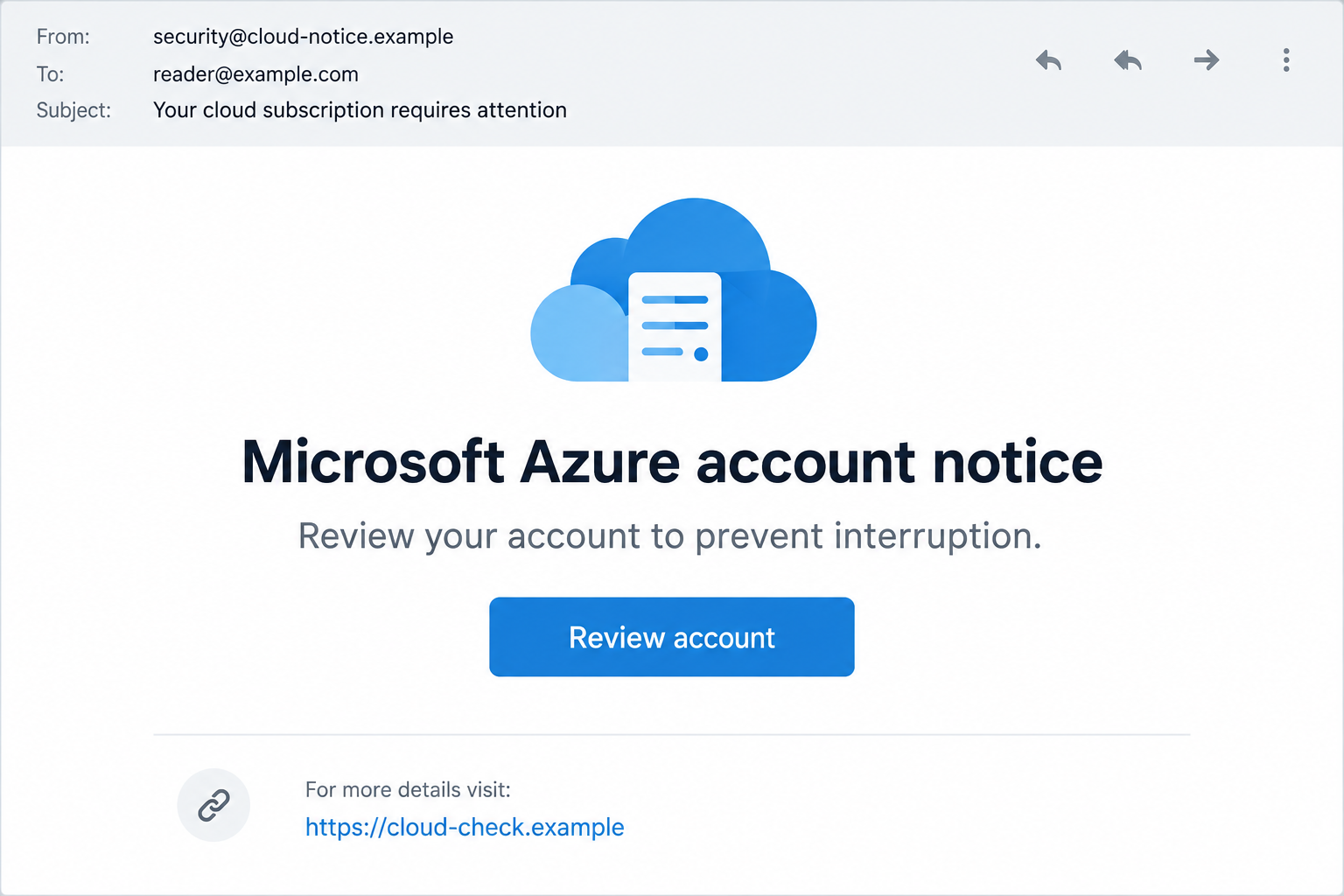
The Microsoft Azure email scam uses cloud-security or subscription language to steer recipients toward an unsafe action. The message may threaten interruption, suspension, or another urgent consequence.
Some versions seek a login through a linked page. Others use billing or security concerns to move the recipient into a fraudulent support conversation.
The accusation belongs to the deceptive message or caller, not Microsoft Azure itself. Azure is a legitimate cloud platform with genuine monitoring and security notifications.
A real alert still needs the right response. The goal isn’t to ignore cloud incidents, but to verify the claimed issue without accepting an unknown sender’s route.
A genuine-looking notification isn’t a complete trust check
A spoofed message can copy a service’s appearance. A different problem arises when configurable notification content is used to carry misleading instructions.
Microsoft’s Azure Monitor tutorial shows that alert rules have configurable names and descriptions. A familiar template can therefore contain information supplied by a rule’s creator.
That feature doesn’t prove how a particular suspicious email was sent. It explains why branding and technical-looking fields cannot authenticate every instruction inside an alert.
Checking the delivery system and checking the business claim are separate tasks. A trusted-looking envelope is not a substitute for finding the relevant account record.
Find the claimed event through a route you already know
Account owners can check their established Azure access route. Employees who don’t manage the subscription should contact their organization’s known IT or security team.
- Security claim: identify the affected account or resource through established organizational procedures.
- Billing claim: compare the alleged problem with real subscription and billing information.
- Login request: don’t submit credentials through an unexpected email destination.
- Support request: don’t install software or move money because a caller claims to represent Microsoft.
No employee should need to delete cloud resources or disable security controls simply to check an email. Those actions can create damage of their own.
Real Azure Alerts Versus the Story in Your Inbox
Genuine security communications exist
Microsoft’s Azure Service Health security-notification overview explains communications involving subscription or tenant security issues.
Relevant administrators and configured contacts may receive genuine notifications. It would be wrong to declare every unexpected Microsoft-related alert fraudulent.
The useful comparison is specific: which subscription, tenant, resource, or incident does the message concern, and who in your organization is responsible for it?
A person who cannot view that information should not conclude the event is false merely because their account lacks access. Ask the responsible administrator.
Notification settings can shape what arrives
Azure Monitor action groups define notification recipients and actions. Email is one of the available notification methods.
Microsoft also documents customizable log-search alert subjects. Familiar cloud wording can be configured for legitimate operational purposes.
The practical lesson is not that customization is malicious. It is that customizable text doesn’t automatically become Microsoft’s endorsement of a payment or callback instruction.
A long resource path can be informative to an administrator. To a recipient who doesn’t recognize it, it can also create an impression of legitimacy without resolving ownership.
Don’t confuse a monitoring event with a bank charge
A cloud-monitoring alert describes a condition someone configured the system to monitor. A financial demand needs its own basis in actual billing records.
An alarming description can mention a purchase or balance. That text alone does not establish that the recipient’s payment method was charged.
If a notice names a charge, compare the real billing account and payment activity. Don’t let an alert description become the only evidence of a debt.
This distinction protects both Azure users and people who don’t use Azure. Receiving a branded email doesn’t automatically establish that you have a subscription to fix.
How the Microsoft Azure Email Scam Works
Step 1: A familiar service name creates a reason to open the message
The email presents itself as a cloud notice rather than a sales pitch. Security, billing, and account-access language gives it a place among genuine work notifications.
A subject about interruption can matter even before the reader understands the technical details. Nobody wants a business system to stop because they overlooked a routine notice.
That anxiety is useful to an impersonator. It narrows attention toward the apparent fix while reducing the time spent checking who sent the instructions.
Look at the claimed event before the branding. A recognizable name explains what the sender wants you to believe, not whether it has authority over your account.
Step 2: Technical formatting makes the warning feel specific
Resource labels, alert names, subscription references, or a severity indicator can make a message resemble an operational notification.
Some details may be copied, while others may come from an actual configurable alert. Neither situation automatically validates a request to provide secrets or call an unfamiliar number.
A long subscription identifier can feel reassuring when you don’t understand it. Ask the administrator whether it belongs to your organization, rather than assuming it does.
The question is not whether the text looks technical. It is whether the alleged resource and event belong to the relevant organization and require the stated action.
Step 3: A deadline turns the message into a decision
The warning may imply that waiting will cause suspension or lost access. That pushes the recipient to act before asking the colleague who normally handles cloud issues.
A real incident can be urgent, but urgency doesn’t authenticate the chosen destination. An established internal escalation route remains useful precisely when time is short.
Don’t dismiss the claimed issue just to stop the pressure. Pass it to the right team and verify it independently rather than negotiating with the sender.
If you own the subscription, check the account through your normal access method. If you don’t, avoid experimenting with tenant settings you aren’t responsible for.
Step 4: The offered fix leads to a page or a caller
A review button can lead to a copied sign-in form. A callback request can connect the recipient with someone pretending to be a support or billing representative.
Those are different entry points, but both put the next action under the impersonator’s control. A page’s familiar design or a caller’s professional manner doesn’t change that.
A real charge can be investigated without relying on the telephone number embedded in an alarming message. A real account can be reached without its unexpected review button.
Use a saved organizational route or support channel found independently. Avoid a search advertisement offering immediate account restoration if you haven’t confirmed who operates it.
Step 5: “Verification” asks for something the attacker can use
A phishing form can collect a password. A follow-up prompt may seek a security code, authentication approval, payment details, or permission to access an account.
Read the purpose of any approval on your own device. Authorizing a sign-in or app is not the same as acknowledging that you received a security notice.
A fraudulent support call may instead ask for remote access. That can expose visible information and let the caller direct actions on the affected computer.
Don’t approve a request just to remove the warning. The action can create an actual security problem where the original message only claimed one existed.
Step 6: A reassuring ending can delay reporting
The page might promise the review is complete or the caller may say the account is now protected. That ending encourages the recipient to return to work.
If secrets or approvals were shared, don’t wait for visible damage. Tell the responsible team what happened while the details are still clear.
A password change may be one part of containment, not the entire response. Existing sessions, approved applications, and account settings may also need review by authorized staff.
Checking the Sender, Link, and Account Claim
Read the address without treating it as a verdict
An unrelated sender domain is a warning sign. A Microsoft-looking display name can be entered by someone who has no relationship with Microsoft.
Conversely, a Microsoft-owned delivery address doesn’t make all supplied message content trustworthy. The origin and the requested action still need to fit the account context.
Keep the complete message for the security team. Headers can help technical investigation, but ordinary readers shouldn’t need to interpret them before declining a risky request.
Check the destination before entering anything
Look at the actual destination rather than the words printed on the button. A link labeled “Microsoft” can point somewhere else.
A browser padlock protects a connection; it does not certify the honesty of the page operator. A convincing copied form can still collect information for an attacker.
Don’t submit an invented password to see what happens. That experiment gives the site another interaction and doesn’t establish whether the underlying flow is trustworthy.
Match the notice to the right account
A personal Microsoft account and an organization-managed work account aren’t the same recovery situation. Your employer may control the latter’s authentication and access policies.
Knowing that difference prevents a well-meant response from becoming another mistake. Use the personal-account recovery process only when the exposed account is actually personal.
For workplace access, contact the known administrator and follow the organization’s procedure. Don’t send work credentials or incident records to a stranger offering instant tenant repair.
What to Do if You Have Fallen Victim to This Scam
Begin with what you actually did: opened a message, visited a page, entered a password, approved a request, paid, or installed software.
-
Stop interacting with the message. Close the suspicious page and end any support call. Do not continue a review process to make the warning disappear.
If you only read the email, don’t assume your account was taken over. Preserve it for reporting and check the claimed issue through an independent route.
-
Notify the correct account owner. For a work identity or company subscription, contact your known IT or security team promptly.
Give them the time, destination, and exact actions taken. Avoid deleting resources or changing shared configurations yourself unless they direct an authorized response.
-
Secure exposed credentials through a trusted device. Tell the administrator if you entered a work password or reused it elsewhere.
For a personal account, use Microsoft’s compromised-account recovery guidance. Account settings and sessions may need attention beyond replacing the password.
-
Report codes, approvals, and permissions separately. A security prompt may have authorized a different action from the one the email described.
Explain whether you entered a code, accepted a sign-in, or consented to an application. Authorized administrators can assess sessions and permissions without guessing your exposure.
-
Contain remote access if it occurred. Disconnect the affected device from the network when an untrusted caller still controls it, then use another device for essential contact.
Ask workplace IT to handle managed equipment. On a personal device, remove unauthorized support access and have suspicious software assessed before using it for sensitive accounts.
-
Contact the payment provider if money was involved. Explain whether the issue was a charge you didn’t authorize or a payment you were persuaded to make.
Ask about cancellation, recall, or dispute options appropriate to that payment. Preserve the transaction reference and don’t promise yourself a refund before the provider investigates.
-
Use cleanup tools only for relevant digital exposure. If the flow installed an app, file, or extension, Malwarebytes can help check for unwanted software.
AdGuard can add protection against some known malicious destinations. Neither tool revokes a stolen session, cancels a payment, or guarantees that every new phishing page is blocked.
-
Preserve the evidence and report the impersonation. Save the email, link destination, caller information, and any receipts without publishing confidential tenant details.
Microsoft’s phishing guidance explains reporting suspicious messages. Use your organization’s established reporting method when work data is involved.
Helping an Organization Respond Without Creating More Damage
Pass along the original, not just a cropped warning
The security team benefits from the complete message and the actions taken. A screenshot of a logo may omit the destination that explains the danger.
Use the approved reporting route instead of forwarding the link to a group chat with instructions to test it. Colleagues should not repeat the exposure.
State whether you interacted with the page. That detail can help distinguish a suspicious-message review from an account-containment incident.
Keep the response inside established authority
A forged warning can sound like permission to shut systems down. It isn’t. An email should not become an unofficial change request for production infrastructure.
Administrators should correlate the claim with real records and follow their incident procedure. Other employees can support that process by reporting accurately and avoiding new approvals.
Tell the team whether the warning concerned a subscription, a sign-in, or a payment. That helps them involve the right person without following the sender’s instructions.
Frequently Asked Questions
Does Microsoft Azure send real security emails?
Yes. Genuine security and monitoring notifications exist. Verify the specific account event rather than treating all branded messages as either safe or fraudulent.
Can a legitimate notification template contain misleading text?
Configurable alert fields can contain creator-supplied content. That explains a trust limitation, but does not establish how any particular email was generated.
What if I don’t use Azure?
Don’t create an account or pay to fix the notice. If it concerns work, ask the known administrator whether it belongs to your organization’s environment.
Does clicking the review button prove I was hacked?
No. Account exposure depends on what happened next. Report submitted credentials, downloaded software, or approved requests separately from simply viewing a page.
Should I delete the resource named in the alert?
No, not based on an unverified message. Let the authorized owner assess real account records and decide whether a change is necessary.
Can security software fix a stolen Azure session?
A scan can help with unwanted software, but account sessions and permissions need account-level containment. For organizational access, involve the responsible security team.
The Bottom Line
Don’t follow an unverified Microsoft Azure email scam into a login or support call. Confirm the claimed event through the real account owner and established access route.
If you shared credentials, approved access, or installed software, report those actions promptly. Contain the actual exposure instead of trying to satisfy the email’s warning.

Join the discussion
0 commentsShare your experience or ask a question about this article.
Discussion
Start the conversation
Have a question or something useful to share? Add the first comment.