


Windows says your computer is up to date. That sounds reassuring, especially if you restarted after seeing November’s update notification.
But Outlook is the app you opened this morning. Its update can follow a different route, and the difference matters here.
Overview
The November fix belongs to Outlook’s update path
Microsoft’s November 10 security release addresses CVE-2026-124194, a vulnerability in affected versions of Microsoft Office Outlook. The company says it detected exploitation.
The fix is delivered for the affected Office products. A recent Windows update is good news, but it isn’t evidence that your Outlook installation received this fix.
For a typical home installation, check inside an Office app. On a managed computer, ask IT to check the build on your actual device.
Receiving a message isn’t the same as opening a file
The Microsoft security advisory says exploitation requires user interaction. It specifically says the Outlook Preview Pane is not a route for this vulnerability.
That distinction matters if an unfamiliar email is in your inbox. You don’t need to assume that seeing it on the screen compromised your account.
If you opened an unexpected message file in Outlook, report what happened. You don’t need to reopen it or work out whether it was dangerous yourself.
Check the application, not just the date on your calendar
- Personal PC: Open an Office app yourself and check its update controls. Don’t install an update supplied by an email.
- Work PC: Note the product and build and ask your help desk about the exact fix if updates are managed.
- Suspicious file: Preserve the message without interacting further. Tell support whether you opened the file and whether you entered anything afterward.
- Multiple computers: Verify the one where you opened the file and the others where you still use the affected client.
An update prevents the flaw from being used against the patched app. It doesn’t tell you what happened before the update was installed.
Keep those tasks separate: bring Office up to date, then handle any suspicious activity through the account owner or IT team.
What Microsoft Confirmed About the Outlook Flaw
Why a moderate severity rating still deserves attention
Severity describes the technical characteristics of a flaw. Whether criminals are already using it is a different question, and Microsoft answers that one explicitly.
Microsoft rates this vulnerability as moderate but marks it as exploited. You don’t need to wait for it to be called critical before updating.
Conversely, the advisory is not a list of affected people. It doesn’t say your organization received a particular message or that every Office customer was attacked.
For a user, the useful response is to verify a fix now. Whether a specific message needs incident investigation depends on what actually happened.
What could be exposed
The advisory describes a risk to authentication information. That is material your computer can use when proving identity to other systems, not the text of your inbox.
In a workplace, an identity may have access to files or services beyond mail. That’s one reason to tell IT about a suspicious file promptly.
It is not necessary to find a pop-up or notice to report what you opened. The issue concerns circumstances in which the usual warning might not appear.
Don’t treat that as proof you were affected. Give the responder the app, time, and file details they can use to look for evidence.
Which Outlook are you using?
People use the name Outlook for different products. A browser tab, a Windows desktop app, and a phone app can all show the same inbox.
For this advisory, check the affected products in Microsoft’s update guide. Don’t assume the version shown in one app tells you anything about another app.
You may use webmail now but still open saved mail files in a desktop application. Check what’s installed, not just the shortcut you usually select.
If your workplace says it moved to a newer app, ask what happens on older devices. An unused shortcut and a removed installation are different things.
How to Check the Office Update on Windows
Start inside a familiar Office application
Save your work first. Word is a convenient place to check because you don’t need to open a message or attachment to reach its update controls.
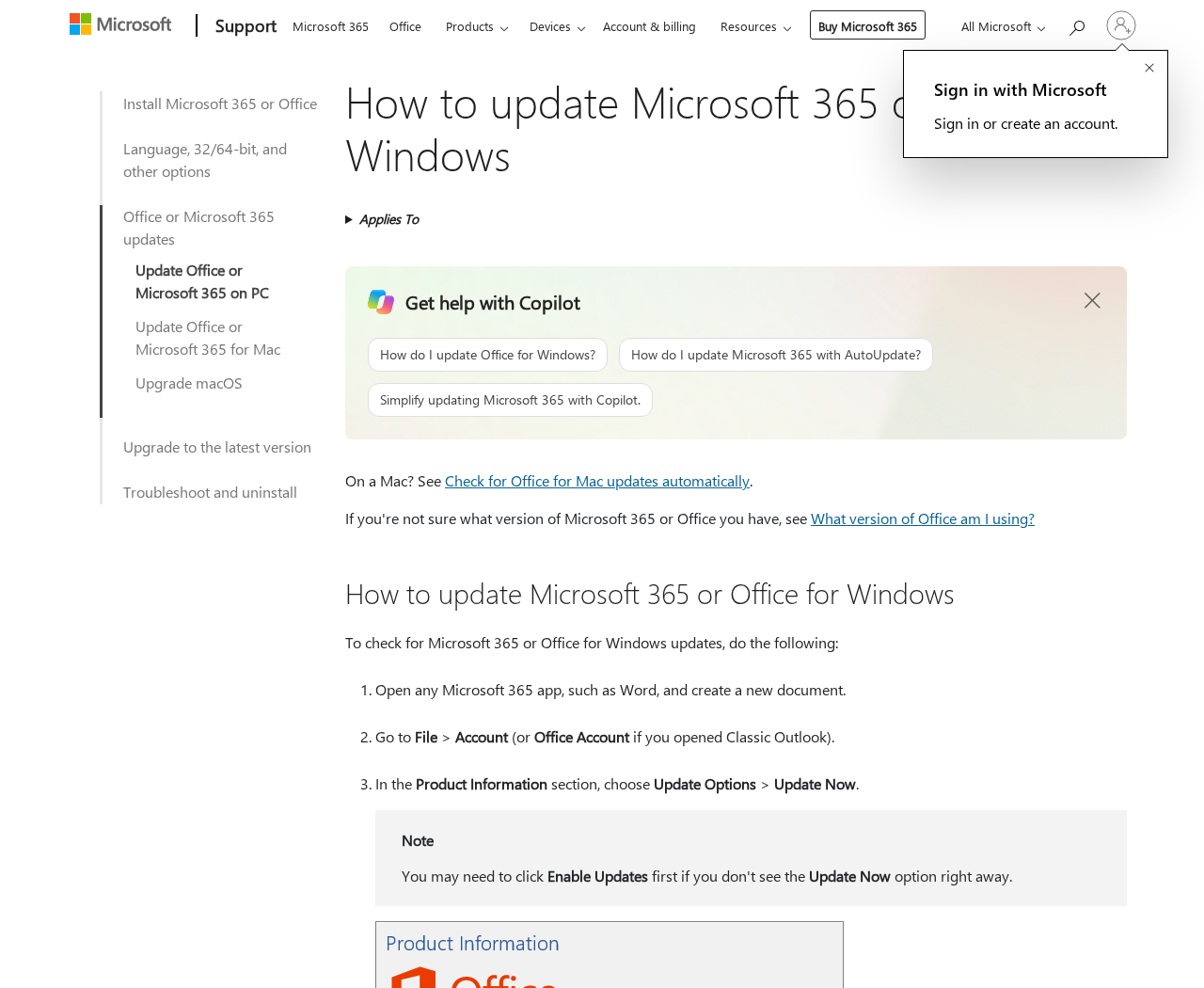
Open Word and select File, then Account. If you use classic Outlook for the check, the account page may be called Office Account.
Under Product Information, select Update Options, then Update Now. If the app asks you to enable updates first, follow Microsoft’s instructions for your own installation.
Use the Microsoft Office update guide if your screen differs. Some installations don’t show the same buttons because they’re licensed or managed differently.
Allow the update to finish, then reopen the affected app. A download in progress and a completed update are not the same state.
Write down the actual product and version
On the account page, look for the product name and version information. The About screen can help if you need to send the build to support.
Keep the full version rather than just the first number. A patch can change a small part of the build while the product name stays the same.
Don’t compare your build with the number from an unrelated Office product. Different update channels and license types can receive the fix under different build numbers.
Check the product row in Microsoft’s advisory, or have support match it for you. You want a match for your actual installation, not somebody else’s screenshot.
What if there’s no Update Options button?
On a work computer, that can be expected. Microsoft notes that volume licensing or a policy that controls updates can change what’s visible on the page.
Do not try to bypass company settings or install a package from a search ad. Send IT the build, device name, and advisory identifier instead.
If you use more than one work machine, mention which one you checked. An administrator may have updated a primary computer while another remains pending.
For a personal machine, follow the official update guidance for the installed edition. If the product no longer receives security updates, ask about a supported replacement.
What to Do if You Opened an Unexpected Outlook File
- Don’t open it again. Leave the original message intact and stop interacting with the file, any associated links, and the sender.
- Note what happened. Write down the time, device, sender shown, file name, and whether you opened the attachment or only saw the email.
- Report it through your normal help channel. For work mail, use the company’s phishing reporting tool or service desk. Don’t forward the attachment to coworkers.
- Check the affected Office build. Ask IT whether that device had the fix before the event and whether it needs immediate containment.
- Say if you entered a password or approved a prompt. That can require separate account protection even if the device had already been patched.
- Review account activity with the owner. Look for sign-ins or changes you don’t recognize. On a managed account, follow the response team’s instructions.
If you only previewed the email
Microsoft excludes the Preview Pane for this specific vulnerability. If all you did was look at the message there, say so when reporting it.
Still treat links and unexpected files with care. A message can be dangerous for an entirely different reason than the one described in the November advisory.
Use the report button rather than opening the file just to identify it. Your security team can decide how to inspect it without involving your account.
If you run a small business without a help desk
Start with the computer where the file was opened. Note what happened and check its Office version before contacting the provider that manages your business email.
Ask whether it can review recent account activity and help you secure access. If a different company manages the device, explain that there are two systems involved.
Don’t ask employees to test the same attachment on another computer. Send a written alert that describes how to recognize the message without including the file.
Make a short list of devices used for the same accounts, including spare laptops. Check their builds individually rather than sending a blanket confirmation to staff.
Don’t Let the Patch Notice Become a New Phishing Opportunity
A legitimate alert can tell you that a fix exists without asking you to run an attached file. Start the update from Office or your organization’s approved channel.
If a caller says they need remote access to apply the patch, verify that request with the team you normally use before granting access.
Be precise when warning coworkers. Tell them what needs updating and what to do with the suspicious message. Don’t tell everyone their password has already been stolen.
After an update window, check which devices actually reported success. A laptop asleep in a drawer doesn’t benefit because the other computers restarted.
For a device you won’t use for weeks, leave a reminder to update it before opening mail files again. Include that device when you return to it.
When a product is retired, a newer-looking notification doesn’t make it supported. Use Microsoft’s lifecycle information or your IT team to identify an upgrade route.
Two Records That Answer Different Questions
The patch record tells you whether the device was ready
Start with the version on the affected computer. Write down when you checked it and whether Office asked you to close any applications during installation.
If your help desk says a patch was assigned, ask whether the device reported installing it. A deployment schedule and a completed install aren’t the same thing.
If Word says it is up to date but your workplace tracks Outlook separately, let your help desk resolve the difference. Don’t change update channels on your own.
If you use a shared workstation, say which login you used and roughly when. A colleague checking the machine now cannot reconstruct which account opened the file.
When you’re troubleshooting remotely with a relative, ask them to read the build from the About page. You don’t need to ask them to share their password.
The event record tells you what needs investigating
Suppose the patch finished at noon, but you opened an unfamiliar file at breakfast. Tell the responder both times rather than saying that your computer is updated.
The reverse is also useful. If support verifies the fix was already installed, it can investigate any other suspicious behavior without assuming this vulnerability explains it.
Use plain words to describe what happened. “I opened the file from the download folder” is more useful than “I think I got hacked.”
Keep screenshots of alerts if they already exist. Don’t try to recreate a prompt, and don’t upload a work message to a public file checking service.
If you received an unexpected password prompt after opening the file, say whether you dismissed it or entered information. Those actions can lead to different account checks.
Make it easy for your team to follow up
Send the facts through the official reporting channel and note the case number. If another person received the same message, tell them where to report it.
Keep the original in place unless your team tells you to quarantine it. A copy of the text alone might not contain what an investigator needs.
Ask whether the team wants you to stop using the device. If it does, use the approved alternative while it checks the account and patch history.
For a personal device, use the official support route for the service involved. A phone number in the suspicious message cannot verify itself.
Don’t let the initial report become your only reminder. Once support closes it, confirm which device was patched and whether any account changes are still due.
Frequently Asked Questions
Do Windows updates alone fix the November Outlook vulnerability?
Don’t assume they do. Confirm that the applicable Office update reached the affected product and that the installed build reflects it.
Does seeing an email in the Outlook Preview Pane exploit this flaw?
Microsoft says the Preview Pane isn’t an attack vector for CVE-2026-124194. That’s specific to this issue, not a promise about every suspicious email.
Where can I find my installed Office build?
Open File and then Account in an Office application. Look under Product Information or use the application’s About page to find the version and build.
What if my employer controls updates?
Ask the help desk to confirm the patch on the device you’re using. Don’t disable management controls or download an unofficial installer to work around them.
Should I change my password simply because the update exists?
No. Apply the update. Report suspicious files, sign-ins, or credentials you entered, then follow the response appropriate to what happened.
Does applying the patch clear a previous account compromise?
No. It addresses the flaw going forward. Account activity and possible exposure before the update still need separate review if there’s reason for concern.
The Bottom Line
Check the Outlook security update inside Office or ask IT to confirm your build. Don’t use a Windows restart as your only evidence.
If you opened a suspicious file, don’t open it again. Report the original message, the time, and what you did so your support team can respond.

Join the discussion
0 commentsShare your experience or ask a question about this article.
Discussion
Start the conversation
Have a question or something useful to share? Add the first comment.