PayPal Bitcoin Purchase Confirmation Email Scam – What To Know
Written by: Thomas Orsolya
Published on:
It usually hits at the exact wrong moment.
You open your inbox and see a message that looks like a payment confirmation. It mentions PayPal. It mentions Bitcoin. And it includes a very specific amount, like $217.21, plus a name that sounds real, like “Angela Jones” and even a location like Alaska.
For a split second, your brain does the math: “If this is real, my money is already gone.”
That jolt of panic is not an accident. It is the engine that drives the scam, and it is why these emails keep showing up in inboxes every day.
This article breaks down what that message really is, why it looks convincing, and how to protect yourself even if you already replied, called, or followed the instructions.
Scam Overview
The “Bitcoin purchase through PayPal” email is a classic example of a modern impersonation scam that blends two tactics:
It borrows the trust of a household brand, PayPal.
It uses the fear factor of cryptocurrency, which many people associate with “irreversible” transactions.
The email typically claims you purchased Bitcoin (or paid a crypto vendor) and that your PayPal account will be charged. The amount is often high enough to scare you, but not so high that it feels impossible. $217.21 is a perfect example of a believable “test charge” amount.
Sometimes the email looks like a receipt. Sometimes it looks like an invoice. Sometimes it looks like an “order completed” notice. The details vary, but the goal stays the same: get you to act quickly, without thinking.
The most important truth: an invoice is not the same as a payment
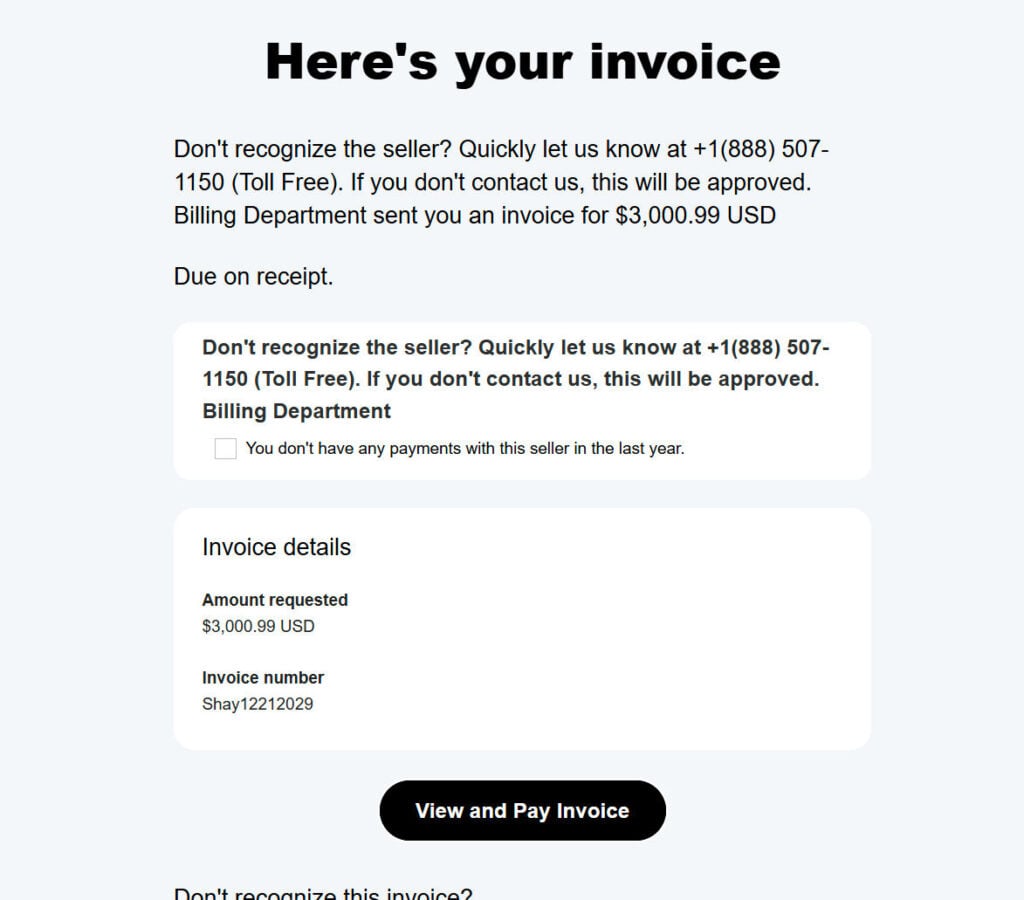
A lot of these scams are built around PayPal invoices and money requests. PayPal itself warns that scammers may send invoices or payment requests for things you never ordered, or include alarming notes that push you to call a phone number. PayPal’s guidance is straightforward: do not pay, and verify by logging into your account through the official PayPal website or app.
That matters because many victims assume “If PayPal emailed me, it must be a real charge.”
But an invoice can be created by a scammer, then sent to you, just like someone can mail you a fake bill in real life. It is a request for money, not proof that money left your account.
Why the scam mentions Bitcoin specifically
Bitcoin is used in these emails for three reasons:
Fear of irreversibility People believe crypto payments cannot be reversed. That belief creates urgency.
Confusion and low familiarity Even confident internet users can feel unsure when a message includes “wallet,” “blockchain,” “transaction ID,” or “BTC.”
Shame and silence Many victims do not want to admit they were tricked by a crypto-related scam, so scammers expect fewer reports and faster payouts.
Banks and security teams have been warning about PayPal-branded messages that claim charges were made to cryptocurrency providers, and that the email pushes the recipient to call a number to dispute the charge.
The name and location are often fake on purpose
The email might use a very specific identity cue like “Angela Jones in Alaska.”
Scammers add human details like a name, a state, or a “billing address” to make the message feel grounded. A random “customer support department” sounds generic. A specific person in a specific place feels real.
But these details are usually invented, stolen, or automatically generated. They are not proof of a legitimate transaction.
Why it sometimes looks like a real PayPal email
Here is where this scam gets extra sneaky.
There are two main delivery methods:
Spoofed emails that only look like PayPal These are fake messages sent from random domains that imitate PayPal branding.
Real PayPal-generated invoice emails abused by scammers In some campaigns, scammers use PayPal’s own invoicing system to send a genuine PayPal email that contains a link to a PayPal-hosted invoice page. The “scam” part is the invoice note and the phone number, not the PayPal email infrastructure itself.
That second method is why even careful people get fooled. They check the email and think, “It really is from PayPal.” Sometimes it is.
But PayPal being the messenger does not make the invoice legitimate.
The hook is urgency, not technology
Most people imagine phishing as a “click this link” trap.
This scam often goes a different route: it pushes you to call a phone number. That technique is commonly called callback phishing or phone-based phishing. The email itself may contain no malicious links at all, because the scam happens when you speak to the “support agent.”
PayPal explicitly warns about invoice and money request scams that include alarming messages telling you to call quickly.
Common signs of this PayPal Bitcoin scam
These messages vary, but they often include several of these elements:
A subject line like “Payment Confirmation,” “Invoice,” “Order Completed,” or “Bitcoin Purchase”
A claim that a Bitcoin transaction was processed or will process soon
A line saying you must call within 24 hours or the charge will finalize
A “support” number embedded in the invoice note or message body
An amount designed to cause panic: $217.21, $499, $738, $999, and similar figures are common ranges reported in warnings and news coverage
Awkward wording, mismatched capitalization, or strange formatting
A sender name that looks official, but the real email address is off (in spoofed versions)
What scammers want from you
Even though the email talks about Bitcoin, the scammers usually want one of these outcomes:
Your PayPal login details
Access to your email account (so they can reset PayPal and banking passwords)
Remote control of your computer or phone
A payment that is hard to reverse (gift cards, wire transfer, crypto, or peer-to-peer transfers)
Your personal information (to enable identity theft or future scams)
The scary part is that the first step is often just a phone call. After that, the scammer takes over the pace of the interaction, and the victim is reacting instead of thinking.
PayPal’s position: verify inside your account, report suspicious messages
PayPal’s security guidance is consistent across multiple help pages:
Do not click suspicious links.
Do not call phone numbers listed in suspicious emails.
That reporting step matters because it helps PayPal detect patterns and shut down accounts being used to send scam invoices.
How The Scam Works
Below is the step-by-step flow of how the “I bought Bitcoin through PayPal” scam typically plays out, including the moment where most people get trapped.
Step 1: The bait message lands in your inbox
You receive an email claiming a Bitcoin purchase was made via PayPal. It might look like:
A receipt
A PayPal invoice
A payment confirmation
A “your account will be charged” warning
In many reported examples, the message includes an invoice number, transaction wording, and a total amount, designed to mimic a real billing event. Security teams have published examples of these PayPal BTC-themed confirmations to warn users about them.
The email may be sent broadly, meaning the scammer does not know if you even use PayPal. They are fishing for the small percentage of recipients who will panic and respond.
Step 2: The panic hook: “You were charged for Bitcoin”
The email is engineered to create a specific emotional sequence:
Confusion: “Bitcoin? I did not buy Bitcoin.”
Fear: “Is my PayPal account hacked?”
Urgency: “I need to stop this right now.”
Action: “Call this number to cancel.”
Scammers often choose amounts that feel plausible for a crypto purchase, and they might include tax, a service fee, or a “processing charge” to make the total look realistic.
Step 3: The trap: a phone number that pretends to be PayPal
The email instructs you to call a “PayPal Support” number.
This is the center of the scam.
PayPal warns that scam invoices and money requests may include a note urging you to call a phone number, because scammers hope you will share personal or financial details over the phone.
The number is not PayPal. It is the scammer’s call center, sometimes staffed by multiple people.
If you call, you have moved from a passive situation (an email you can delete) into an active, high-pressure conversation controlled by the attacker.
Step 4: The “helpful agent” builds trust fast
Once you call, the scammer typically follows a script:
They introduce themselves as PayPal, or as a PayPal “security team.”
They confirm the scary details from the email: Bitcoin, the amount, a name, a location.
They say the charge is pending and can be canceled, but only if you “verify” information.
This is social engineering. It is not hacking in the Hollywood sense. It is manipulation.
They may ask for:
Your full name and address
The email tied to your PayPal account
A one-time code sent to your phone or email
Your PayPal login or banking details
That “one-time code” request is especially dangerous. If they can get a code meant for you, they can often access your account.
Step 5: The pivot: remote access or “dispute processing”
In many versions of this scam, the caller is instructed to install software or take actions that give the scammer control.
Investigations into PayPal invoice-based phishing have documented campaigns where victims who called the provided number were asked to download remote access tools, allowing scammers to take control of the computer.
The scammer might frame it as:
“We need to secure your device.”
“We must reverse the authorization.”
“We will open a dispute form for you.”
What is really happening is they are trying to gain access to your accounts, your browser, your saved passwords, or your online banking session.
Step 6: The money move: how they actually get paid
Once the scammer has enough access or enough trust, they push for a payment method that benefits them.
Common outcomes include:
Gift card purchases They may instruct you to buy gift cards “to verify your identity” or “to create a secure refund channel.” That is always a lie.
Bank transfers or wire transfers They may claim a “refund department” is sending money, but they need you to “send back” a fee.
Crypto transfers Ironically, they may end by pushing you to buy crypto and send it to a wallet address because “it is the fastest reversal method.”
PayPal payments to the scammer They may trick you into sending money as Friends and Family, which usually has far fewer protections than Goods and Services.
At this stage, the scam is no longer about the original $217.21 claim. That number was just bait. The real goal is to extract as much as possible.
Step 7: The “refund illusion” that confuses victims
A common twist in phone-based scams is the refund illusion:
The scammer claims they issued a refund.
They show you fake confirmation screens (or manipulate your view if they have remote access).
They pretend they “over-refunded” you.
They pressure you to send the difference back.
This is a well-known structure across many impersonation and tech support scams, because it turns the victim into someone who feels responsible for fixing the problem.
Step 8: Why “Alaska” and personal details are used
Details like “Angela Jones in Alaska” do two things:
They make the email feel like it came from a real transaction database.
They reduce your instinct to treat it as generic spam.
Scammers know that a vague email is easier to ignore. A specific one feels like it must be connected to something that actually happened.
That is why they include:
A name
A state
A dollar amount with cents
A fake invoice number
A fake transaction ID
The specificity is a costume.
Step 9: What if you never call?
If you do not call, most of these scams fail.
That is why scammers keep sending them at scale. They are counting on a small conversion rate. Even if only a tiny percentage of recipients call, the payoff is huge.
The safest move is also the simplest:
Do not call the number.
Do not reply to the email.
Check your PayPal account directly.
Report the message.
PayPal’s own reporting instructions emphasize not calling listed numbers and forwarding suspicious emails to phishing@paypal.com.
Step 10: Newer twists you might see
Scammers constantly adjust tactics. Recent reporting has described schemes that abuse legitimate PayPal features to send messages that appear authentic, then push users toward a fake support number or other takeover steps.
That does not change the core rule: never use contact details provided inside a suspicious email. Always navigate to PayPal through your own app or a trusted bookmark.
How the email looks: common variants you might receive
Scammers reuse the same core story, but they change the wrapper so it feels “new” and believable. Below are the most common versions people report seeing, plus the wording patterns that show up again and again.
Variant 1: “Payment completed” or “purchase confirmation” receipt
This one looks like a finalized charge and tries to trigger instant panic.
Common subject lines
“Payment Confirmation: Bitcoin Order”
“Your transaction is complete”
“Receipt for your $217.21 purchase”
“Order confirmed: Crypto purchase”
What the body usually includes
A total like $217.21 with tax or a “processing fee”
An “order ID” or “transaction ID” that looks official
A line like “If you did not authorize this, call support immediately”
A signature that impersonates PayPal Billing or Support
What they want you to do
Call a “support” number, often labeled urgent or 24-hour dispute
Variant 2: The invoice or money request that looks like a bill
This version is extra convincing because the layout can resemble real invoice notices.
Common subject lines
“You received an invoice”
“Invoice due: $217.21”
“Money request received”
“Action required: invoice pending”
What the body usually includes
A simple “You have a new invoice” message
A note section that contains the scam pitch, usually including a phone number
Language like “Bitcoin purchase confirmed” even though it is just an invoice request
What they want you to do
Call the number in the invoice note instead of reviewing your account safely
Variant 3: “Pending charge” with a short cancellation window
This one pressures you with time, usually “24 hours” or “12 hours”.
Common subject lines
“Pending charge alert”
“Authorization in progress”
“Your payment will be processed”
“Cancel within 24 hours”
What the body usually includes
“Your account will be charged in 24 hours”
“If this wasn’t you, contact support to stop the transaction”
A big, visible total like $217.21 and smaller text full of urgency
What they want you to do
Act fast, call fast, think later
Variant 4: The “subscription” or “auto-renewal” twist
Instead of a single purchase, they claim you enrolled in something tied to crypto.
Common subject lines
“Subscription activated”
“Auto-renewal scheduled”
“Your plan renews today”
“Membership charge: $217.21”
What the body usually includes
A renewal date (often “today”)
A fake plan name like “Crypto Protection,” “Wallet Support,” or “Premium Security”
A “cancel by calling” instruction
What they want you to do
Call so they can run the phone scam script and push payment or remote access
Variant 5: PDF attachment “invoice” that hides the scam message inside
Some scammers attach a PDF so the email itself looks clean and “professional.”
Common subject lines
“Invoice attached”
“Your receipt is ready”
“Billing document for your records”
What the attachment name might look like
“Invoice_217.21.pdf”
“PayPal_Receipt.pdf”
“BillingStatement.pdf”
What the PDF often contains
A big total like $217.21
A fake billing address, sometimes with a state like Alaska
A “support” phone number printed as the main action
What they want you to do
Open the attachment and call the number inside it
Variant 6: The ultra-short mobile version
This is designed for quick taps on a phone.
Common subject lines
“Bitcoin charge alert”
“Unrecognized transaction”
“Immediate action required”
What the body usually includes
2 to 3 lines total
A total like $217.21
A single instruction: call “support” now
What they want you to do
Call immediately before you slow down and verify inside your account
Variant 7: The “identity detail” version with a name and location
This is the style you described, using a person name and place to feel specific.
What it often includes
A name like “Angela Jones”
A location like Alaska
A billing line that looks like a shipping address or account profile
A convincing total like $217.21 with cents, not a round number
What they want you to think
“This is too specific to be fake”
Reality
Specific details are often invented or copied and pasted to increase believability
Quick checklist: phrases that show up across most variants
If you see several of these in the same message, treat it as highly suspicious.
“You purchased Bitcoin” when you did not
“Call to cancel” or “Call to dispute”
A tight deadline like 24 hours
A phone number presented as the only solution
Odd capitalization (BIT COIN) or awkward wording
A “support agent” name that is not verifiable
Pressure language like “final notice,” “urgent,” “immediately”
If you want, paste the exact email text (remove any phone numbers or personal info), and I’ll rewrite this section to match the exact variant you received, line by line, so readers recognize it instantly.
What To Do If You Have Fallen Victim to This Scam
If you interacted with the email, do not panic. You can still take smart steps that limit the damage. Move calmly, and work through the checklist.
Stop the conversation and cut off access immediately If you are on the phone with them, hang up. If you installed any software, disconnect your device from the internet (Wi-Fi or ethernet) so remote control cannot continue.
If you gave remote access, remove it and scan your device Uninstall any remote access tools you were told to install. Run a full security scan. If you are not confident, consider getting help from a trusted local technician, not someone who contacted you first.
Log into PayPal only through the official app or website Do not use links from the email. Type the address yourself or use the official mobile app. Review your Activity for any real transactions, invoices, or money requests. PayPal explains you can decline, cancel, or report suspicious invoices directly inside your account.
Change your PayPal password and enable 2-step verification Use a long, unique password that you do not reuse anywhere else. Turn on 2-step verification so a stolen password alone is not enough to log in.
Secure your email account next Your email inbox is the master key for password resets. Change your email password, enable 2-factor authentication, and sign out of other sessions if your provider offers that option.
Contact your bank or card issuer if any money moved, or if you shared card details Explain you responded to an impersonation scam. Ask about blocking charges, replacing cards, and monitoring for suspicious activity.
Report the email to PayPal Forward the suspicious email to phishing@paypal.com, then delete it. PayPal explicitly recommends this process and warns against calling any numbers in suspicious messages.
Report or cancel the suspicious invoice or money request inside PayPal If the invoice appears in your PayPal Activity, report it using PayPal’s built-in tools. PayPal provides steps to cancel or report a suspicious request or invoice.
Document everything while it is fresh Save the email (as an attachment if possible), write down the phone number they used, note what you shared, and record times and dates. This helps with disputes, reports, and any account recovery steps.
Report the scam to the FTC if you are in the United States The FTC’s reporting site is ReportFraud.ftc.gov, used to report scams and fraud.
If money was stolen or accounts were accessed, consider reporting to IC3 The FBI’s Internet Crime Complaint Center (IC3) collects reports about online fraud and cyber-enabled crimes.
Watch for follow-up scams After someone responds once, scammers often try again. You might receive “recovery” offers from fake investigators or fake chargeback services. Treat unsolicited help as suspicious.
If you feel overwhelmed, focus on the highest-impact actions first In order of urgency:
Remove remote access
Change PayPal and email passwords
Contact your bank
Report the email and invoice
You do not need to do everything perfectly. You just need to regain control step by step.
Is Your Device Infected? Run a Free Malware Scan
Slow performance, constant pop-ups, or strange behavior? These are classic signs of a malware infection. The fastest way to find out is to scan your device with Malwarebytes Anti-Malware Free — one of the most trusted malware removal tools available.
The free version detects and removes the most common threats, including:
Adware — the cause of those annoying pop-ups
Browser hijackers — unwanted redirects and changed homepages
Trojans and spyware — hidden programs stealing your data
Potentially unwanted programs (PUPs) — software you never asked for
👉 Select your device below — Windows, Mac, or Android — then follow the simple steps to download Malwarebytes, scan your system, and remove any threats it finds. The whole process takes about 5 minutes.
Malwarebytes for WindowsMalwarebytes for MacMalwarebytes for Android
Run a Malware Scan with Malwarebytes for Windows
Malwarebytes is one of the most popular and trusted anti-malware tools for Windows — and it’s completely free for removing infections. It catches threats that many antivirus programs miss, including adware, browser hijackers, and trojans. Follow the steps below to scan and clean your PC in just a few minutes.
Download Malwarebytes
Click the button below to download the latest version of Malwarebytes for Windows from the official source. The free version is all you need — it will scan your computer and remove adware, browser hijackers, and other malicious software at no cost.
(The link opens in a new page where your download will start)
Install Malwarebytes
When the download finishes, open your Downloads folder and double-click the MBSetup file. If Windows shows a User Account Control pop-up, click “Yes” to allow the installation.
Follow the On-Screen Prompts to Install Malwarebytes
The setup wizard will walk you through a few quick screens:
Choose where you’re installing the program — “Personal Computer” or “Work Computer” — then click Next.
Malwarebytes will now install on your device. This usually takes under a minute.
When installation is complete, the “Welcome to Malwarebytes” screen will open automatically.
On the final screen, click Open Malwarebytes to launch the program.
Enable “Scan for Rootkits”
Before scanning, turn on rootkit detection so Malwarebytes can find even the most hidden threats. Click the Settings gear icon on the left side of the screen.
In the settings menu, find “Scan for rootkits” and click the toggle so it turns blue.
Done? Click “Dashboard” in the left pane to return to the main screen.
Start the Scan
Click the blue Scan button. Malwarebytes will automatically update its virus database and start checking your computer for malware.
Wait for the Scan to Finish
The scan checks your entire system for browser hijackers and other malicious programs, so it can take several minutes. Feel free to do something else — just check back occasionally to see the progress.
Quarantine the Detected Threats
When the scan is done, you’ll see a list of everything Malwarebytes found — malware, adware, and potentially unwanted programs. Click the “Quarantine” button to remove all of them at once.
Malwarebytes will now remove the malicious files and registry entries and move them safely into quarantine.
Restart Your Computer
Some threats can only be fully removed after a reboot. If Malwarebytes asks you to restart, click Yes. Once you’re logged back in, your PC is clean and you can continue with the next steps in this guide.
When the scan finishes, click Quarantine to remove everything Malwarebytes found. That’s it — your Windows PC is now clean of trojans, adware, and other malware, and should be back to running smoothly.
If your current antivirus allowed this malicious program on your computer, you may want to consider purchasing Malwarebytes Premium to protect against these types of threats in the future. If you are still having problems with your computer after completing these instructions, then please follow one of the steps:
Malwarebytes for Mac is a free on-demand scanner that removes the malware other security software tends to miss — adware, browser hijackers, and unwanted programs included. Cleaning an infected Mac with Malwarebytes has always been completely free, and it’s our go-to recommendation. Follow the steps below to scan and clean your Mac in just a few minutes.
Download Malwarebytes for Mac
Click the button below to download the latest version of Malwarebytes for Mac.
When the download finishes, open your Downloads folder and double-click the setup file to begin the installation.
Follow the On-Screen Prompts to Install Malwarebytes
The Malwarebytes for Mac Installer will guide you through a few quick screens. Click “Continue” and keep following the prompts until the installation completes.
When the installation is complete, Malwarebytes opens to the Welcome to Malwarebytes screen. Click “Get started“.
Select “Personal Computer” or “Work Computer”
Malwarebytes will ask what type of computer you’re installing it on. Click either Personal Computer or Work Computer, whichever applies.
Start the Scan
Click the “Scan” button. Malwarebytes will automatically update its detection database and begin checking your Mac for malware.
Wait for the Scan to Finish
Malwarebytes will scan your Mac for adware, browser hijackers, and other malicious programs. This can take a few minutes, so feel free to do something else — just check back occasionally to see the progress.
Quarantine the Detected Threats
When the scan is done, you’ll see a list of everything Malwarebytes found. Click the “Quarantine” button to remove all the threats at once.
Restart Your Mac
Malwarebytes will now remove all the malicious files it found. Some threats can only be fully removed after a reboot — if Malwarebytes asks you to restart, allow it. Once you’re logged back in, your Mac is clean.
Once the scan is done, remove every threat it detected. Your Mac is now free of adware, rogue browser extensions, and other potentially harmful software.
If your current antivirus allowed a malicious program on your computer, you might want to consider purchasing the full-featured version of Malwarebytes Anti-Malware to protect against these types of threats in the future. If you are still experiencing problems while trying to remove a malicious program from your computer, please ask for help in our Mac Malware Removal Help & Support forum.
Run a Malware Scan with Malwarebytes for Android
Malwarebytes for Android automatically detects and removes dangerous threats like malware and ransomware so you don’t have to worry about your most-used device being compromised. Aggressive detection of adware and potentially unwanted programs keeps your Android phone or tablet running smooth.
Download Malwarebytes for Android.
You can download Malwarebytes for Android by clicking the link below.
In the Google Play Store, tap “Install” to install Malwarebytes for Android on your device.
When the installation process has finished, tap “Open” to begin using Malwarebytes for Android. You can also open Malwarebytes by tapping on its icon in your phone menu or home screen.
Follow the on-screen prompts to complete the setup process
When Malwarebytes will open, you will see the Malwarebytes Setup Wizard which will guide you through a series of permissions and other setup options. This is the first of two screens that explain the difference between the Premium and Free versions. Swipe this screen to continue. Tap on “Got it” to proceed to the next step. Malwarebytes for Android will now ask for a set of permissions that are required to scan your device and protect it from malware. Tap on “Give permission” to continue. Tap on “Allow” to permit Malwarebytes to access the files on your phone.
Update database and run a scan with Malwarebytes for Android
You will now be prompted to update the Malwarebytes database and run a full system scan.
Click on “Update database” to update the Malwarebytes for Android definitions to the latest version, then click on “Run full scan” to perform a system scan.
Wait for the Malwarebytes scan to complete.
Malwarebytes will now start scanning your phone for adware and other malicious apps. This process can take a few minutes, so we suggest you do something else and periodically check on the status of the scan to see when it is finished.
Click on “Remove Selected”.
When the scan has been completed, you will be presented with a screen showing the malware infections that Malwarebytes for Android has detected. To remove the malicious apps that Malwarebytes has found, tap on the “Remove Selected” button.
Restart your phone.
Malwarebytes for Android will now remove all the malicious apps that it has found. To complete the malware removal process, Malwarebytes may ask you to restart your device.
After the scan, tap Remove Selected to delete all detected threats. Your Android phone is now clean — no more malicious apps, adware, or browser redirects.
If your current antivirus allowed a malicious app on your phone, you may want to consider purchasing the full-featured version of Malwarebytes to protect against these types of threats in the future. If you are still having problems with your phone after completing these instructions, then please follow one of the steps:
Restore your phone to factory settings by going to Settings > General management > Reset > Factory data reset.
Now that your device is clean, keep it that way. Most infections start with a malicious ad or a fake download button — so blocking them at the source is your best defense.
We recommend AdGuard, which blocks malicious ads, phishing pages, and dangerous redirects before they can reach you.
A PayPal email claiming you bought Bitcoin for $217.21, tied to a name like “Angela Jones in Alaska,” is designed to trigger panic, not to inform you.
The scam works best when you call the number in the message. That is where the pressure, the manipulation, and the money loss usually happen.
If you receive one of these emails, verify your PayPal activity only by logging in through the official app or site, report the message, and move on. If you already interacted, you can still protect yourself by cutting off access, securing accounts, and contacting your bank.
The email wants you to rush. Your best defense is to slow down, verify, and stay in control.
FAQ
Is this email proof that I bought Bitcoin through PayPal?
No. These scams often use a fake receipt or a PayPal invoice or money request to make it look like a completed purchase. Always verify by logging into your PayPal account directly in the official app or by typing PayPal’s website yourself, not by clicking links in the email.
What does it mean if the email is an “invoice” instead of a “payment”?
An invoice is a request for money, not a confirmation that money left your account. Scammers can send invoices to many people and add scary notes that push you to call a phone number.
I see the invoice inside my PayPal account. Does that mean my account is hacked?
Not necessarily. Receiving an invoice or money request does not mean someone accessed your account. It often means a scammer targeted your email address. You can report or cancel suspicious requests directly inside PayPal.
Why does the email include a real-looking name and location like “Angela Jones in Alaska”?
Because specificity creates urgency and makes the message feel real. Scammers add names, addresses, and exact totals like $217.21 to trigger panic and make you act quickly.
Should I call the number in the email to cancel the charge?
No. That phone number is usually the scam. The “support agent” will try to get your personal information, login details, or even remote access to your device. PayPal warns that scam invoices and money requests may include a phone number in the note.
What if I already called them, but I did not pay anything?
Treat it as a near miss and lock things down anyway. Change your PayPal password, secure your email account, enable 2-step verification, and watch your PayPal activity and bank statements closely.
What if I clicked a link, but did not enter any information?
Close the page, do not call any numbers, and log into PayPal independently to confirm there is no real transaction. If you are on a computer, run a security scan to be safe.
What if I entered my PayPal login information on a page from the email?
Change your PayPal password immediately and enable 2-step verification. Then secure your email account too, since email access can be used to reset PayPal passwords.
What if I installed remote access software because “support” told me to?
Disconnect from the internet, uninstall the remote tool, and run a full security scan. Then change passwords from a clean device if possible. If you used online banking on that device during the call, contact your bank right away.
Can PayPal reverse a charge if I actually sent money?
It depends on how the payment was sent and what happened, but you should report it inside PayPal immediately and contact your bank or card issuer as well. If you sent money via methods that are hard to reverse (like crypto transfers or some peer-to-peer payments), recovery is much harder.
10 Rules to Avoid Online Scams
Here are 10 practical safety rules to help you avoid malware, online shopping scams, crypto scams, and other online fraud. Each tip includes a quick “if you already got hit” action.
Stop and verify before you click, log in, download, or pay.
Most scams win by creating urgency. Verify using a trusted method: type the website address yourself, use the official app, or call a known number (not the one in the message).
If you already clicked: close the page, do not enter passwords, and run a malware scan.
Keep your operating system, browser, and apps updated.
Updates patch security holes used by malware and malicious ads. Turn on automatic updates where possible.
If you saw a scary “update now” pop-up: close it and update only through your device settings or the official app store.
Use layered protection: antivirus plus an ad blocker.
Antivirus helps block malware. An ad blocker reduces scam redirects, phishing pages, and malvertising.
If your browser is acting weird: remove unknown extensions, reset the browser, then run a full scan.
Install apps, software, and extensions only from official sources.
Avoid cracked software, “keygens,” and random downloads. During installs, choose Custom/Advanced and decline bundled offers you do not recognize.
If you already installed something suspicious: uninstall it, restart, and scan again.
Treat links and attachments as untrusted by default.
Phishing often impersonates delivery services, banks, and popular brands. If it is unexpected, do not open attachments or log in through the message.
If you entered credentials: change the password immediately and enable 2FA.
Shop safely: research the store, then pay with protection.
Be cautious with brand-new stores, “closing sale” stories, and prices that make no sense. Prefer credit cards or PayPal for dispute options. Avoid wire transfers, gift cards, and crypto payments.
If you already paid: contact your card issuer or PayPal quickly to dispute the transaction.
Crypto rule: never pay a “fee” to withdraw or recover money.
Common patterns include fake profits, then “tax,” “gas,” or “verification” fees. Another is a “recovery agent” who demands upfront crypto.
If you already sent crypto: stop paying, save evidence (wallet addresses, TXIDs, chats), and report the scam to the platform used.
Secure your accounts with unique passwords and 2FA (start with email).
Use a password manager and unique passwords for every account. Enable 2FA using an authenticator app when possible.
If you suspect an account takeover: change passwords, sign out of all devices, and review recent logins and recovery settings.
Back up important files and keep one backup offline.
Backups protect you from ransomware and device failure. Keep at least one backup on an external drive that is not always connected.
If you suspect infection: do not connect backup drives until the system is clean.
If you think you are a victim: stop losses, document evidence, and escalate fast.
Move quickly. Speed matters for disputes, account recovery, and limiting damage.
Stop payments and contact: do not send more money or respond to the scammer.
Call your bank or card issuer: block transactions, replace the card if needed, and start a dispute or chargeback.
Secure your email first: change the email password, enable 2FA, and remove unfamiliar recovery options.
Secure other accounts: change passwords, enable 2FA, and log out of all sessions.
Scan your device: remove suspicious apps or extensions, then run a full malware scan.
Save evidence: screenshots, emails, order pages, tracking pages, wallet addresses, TXIDs, and chat logs.
Report it: to the payment provider, marketplace, social platform, exchange, or wallet service involved.
These rules are intentionally simple. Most online losses happen when decisions are rushed. Slow down, verify independently, and use payment methods and account controls that give you recourse.
Thomas is an expert at uncovering scams and providing in-depth reporting on cyber threats and online fraud. As an editor, he is dedicated to keeping readers informed on the latest developments in cybersecurity and tech.