


A PayPal email says a refund has been approved. The amount looks generous, but a support agent soon claims far too much money was transferred and begs you to send the difference back.
The balance on the screen may appear to confirm every word. That apparent money can be nothing more than a carefully staged illusion.
Overview
The PayPal refund story turns a small promise into a large loss
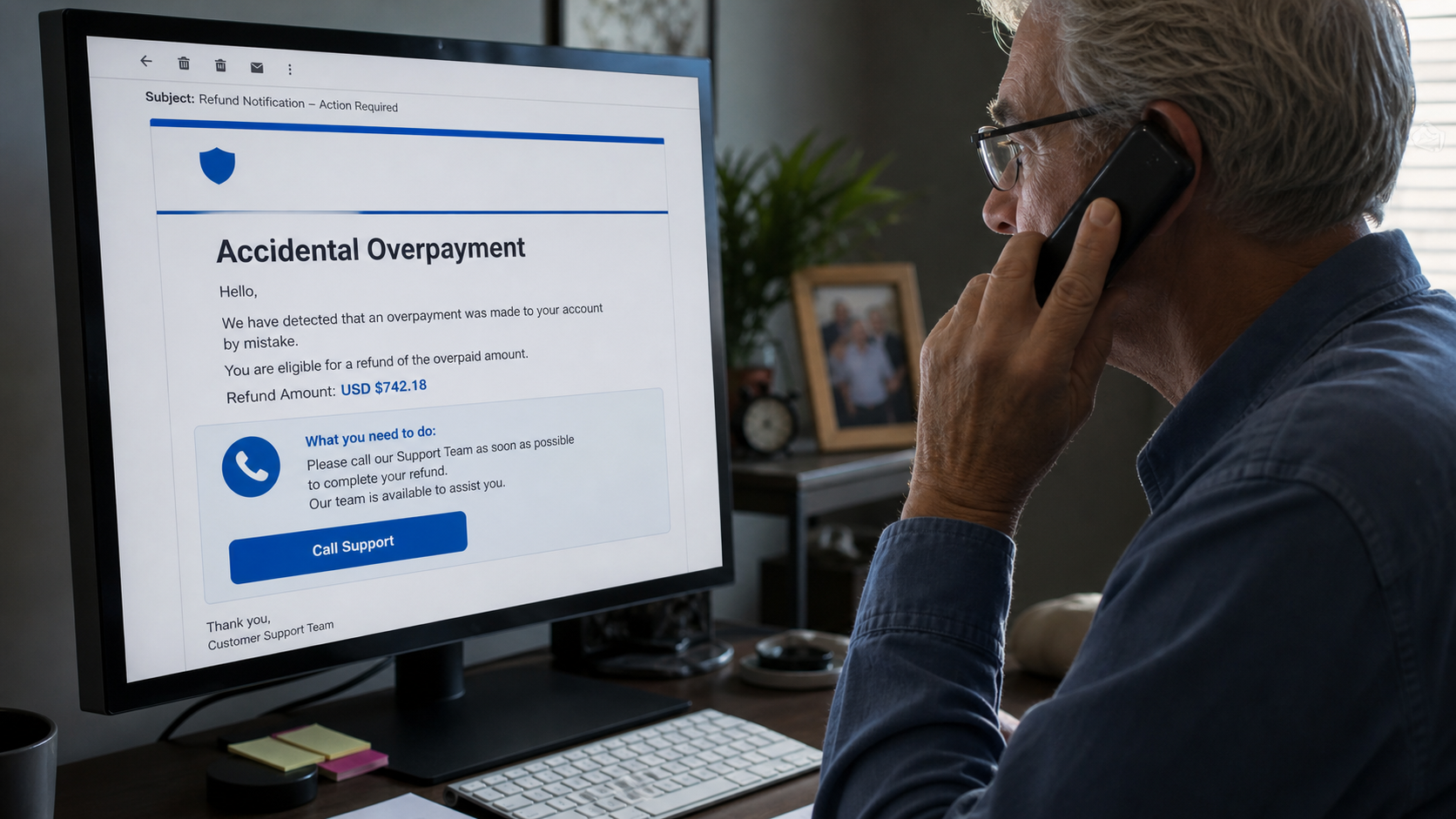
A PayPal refund scam impersonates PayPal, a merchant, or a fraud investigator and tells the victim that a refund is available or has been processed incorrectly. The victim is then persuaded to return an imaginary overpayment using real money.
The first contact may be an email, invoice, text, pop-up, or call. It can mention a purchase the recipient does not recognize, a subscription renewal, or a refund supposedly waiting for confirmation.
Criminals often target older adults and keep them on the phone for hours. They may use remote-access software, altered webpages, bank transfers, cryptocurrency ATMs, gift cards, cash, or precious metals to complete the theft.
The displayed balance is not reliable evidence
A scammer with remote access can edit what appears in a browser, move money between a victim’s own accounts, or display a copied bank page. A changed number on a screen does not prove that external funds arrived.
Warnings include:
- An unsolicited refund email includes a support phone number
- The agent asks you to install remote-control software
- You are told to type the refund amount into a form
- The caller claims you entered too many zeros
- You must keep the incident secret from bank employees
- The refund must be repaid through cash, gold, gift cards, or crypto
- A courier is sent to collect money from your home
Real cases show how far the scheme can escalate
Refund scams are not limited to small online transfers. The U.S. Department of Justice has described fraud groups that used fake PayPal or technology-company charges, remote access, and fabricated over-refunds to make older victims send their own money.
In one 2026 federal case, a network’s refund schemes instructed victims to send alleged overpayments by wire transfer or bulk cash. The underlying operation targeted thousands of older adults and caused losses in the millions.
Why Victims Believe the Accidental Overpayment
The scammer creates a situation where honesty is used against the victim. Someone who believes they received too much money may feel morally obligated to return it quickly.
The fake agent acts panicked and may claim the mistake will cost them their job. That emotional pressure shifts attention away from the basic question: did any external deposit actually settle?
Remote access gives the caller control over what the victim sees and when. The screen may go black while the criminal edits the page, transfers money between accounts, or conceals transactions.
The caller may also impersonate a bank employee. Phone numbers displayed inside a fake banking page can route the victim to another member of the same criminal group.
How the Scam Works
Step 1: A fake charge or refund notice creates concern
The victim receives a message about an unfamiliar PayPal purchase, subscription, or refund. A phone number is prominently displayed for disputes or cancellations.
The amount is chosen to provoke a call. The message may look like an invoice, but receiving an invoice does not mean a charge has been made.
Step 2: The victim calls a fraudulent support center
A polished agent answers using PayPal language and asks the victim to confirm basic details. The caller may say a refund can be processed immediately if the victim follows instructions.
Because the victim placed the call, the person answering can feel more trustworthy. The number, however, came from the scam message itself.
Step 3: Remote-access software is installed
The fake representative says a secure support tool is needed to cancel the charge or complete the refund. In reality, remote-control software lets the criminal view and operate the device.
The victim may be asked to sign in to online banking while the session is active. This exposes balances, account numbers, transaction history, and authentication prompts.
Step 4: A false over-refund appears on the screen
The agent asks the victim to enter a small refund amount, then claims an extra zero was typed. A bank balance suddenly appears higher by $10,000, $29,500, or another dramatic amount.
The criminal may have edited the webpage or moved money from savings to checking. No PayPal money was deposited, but the screen is presented as proof of an expensive mistake.
Step 5: Guilt, fear, and secrecy are used to force repayment
The caller says the employee will be fired, the victim could be charged with theft, or the bank will freeze the account. The victim is told not to mention the refund to bank staff because the transaction is confidential.
Some scammers claim law enforcement is running a sting operation. A request to lie to your bank or participate secretly in an investigation is a major warning sign.
Step 6: Real money is sent through an irreversible method
The victim withdraws cash, buys gold or gift cards, uses a cryptocurrency ATM, wires funds, or hands a package to a courier. These methods reduce the chance of a successful reversal.
If a bank employee asks questions, the scammer may provide a cover story such as buying a car, helping a relative, or making a home improvement.
Step 7: The criminal demands more or disappears
After one payment, another accounting problem may appear. Taxes, penalties, security deposits, or an additional mistaken transfer can be invented to keep the victim engaged.
Eventually the caller cuts contact. The fake refund vanishes because it never existed, while the cash, gold, cryptocurrency, or transfer came from the victim’s real assets.
Company, Address, and Fulfillment Checks
Confirm PayPal activity inside the real account
Open PayPal independently and examine Activity, notifications, invoices, and disputes. Do not let the email, pop-up, or caller provide the path you use to verify the claim.
A sender may create a real invoice containing a fraudulent phone number. The invoice exists, but it remains only a request for payment and does not authenticate the support instructions written inside it.
Verify the merchant and physical address separately
If a transaction names a seller, find the seller’s official website and contact details without using the message. An unfamiliar address on an invoice can be copied, invented, or unrelated.
Do not ship cash, cards, gold, or merchandise to an address supplied by a caller. A courier pickup is not a legitimate method for reversing an electronic refund.
Check whether any product or service was actually fulfilled
Compare the date, item, subscription, and amount with your real purchase records. Scammers use generic antivirus, device, and membership descriptions because many recipients cannot immediately rule them out.
If no order exists, do not create a financial problem by attempting to fix the fake one. Report the message and leave the supposed transaction untouched.
Refunds should follow the original payment channel
A genuine merchant refund normally returns through the payment system. It does not require you to withdraw cash, buy cryptocurrency, or transfer money to an employee’s account.
Ask PayPal and your bank to explain any settled credit in their own records. Never accept a remote caller’s browser display as the final ledger.
How Family Members Can Interrupt an Elder Refund Scam
Long calls and secrecy isolate the victim. Agree in advance that any request for large withdrawals, gold, gift cards, cryptocurrency, or a courier pickup should trigger a call to a trusted family member.
Bank alerts can help identify unusual transfers, but they should be arranged with the account owner’s consent. The goal is support and a second opinion, not taking away independence.
Discuss remote-access software openly. Many victims do not realize that a tool used by real workplaces can also let a stranger control the screen and watch passwords.
If a relative is already on a suspicious call, encourage them to hang up and contact the bank from another device. Do not debate the scammer through the compromised computer.
Watch for behavioral signs such as secrecy, repeated trips to the bank, sudden interest in cryptocurrency machines, or a courier expected at the home. These clues should prompt a calm conversation and immediate independent verification.
After an incident, consider adding a trusted contact to financial accounts where the institution offers that option. This can give staff another safe person to reach without transferring ownership or control of the funds.
How Scammers Fake the Bank Balance
Editing the page inside the browser
A remote operator can temporarily change the text displayed on a webpage without changing the underlying bank record. Refreshing or signing in from another device may reveal the true balance.
Moving the victim’s own money
The scammer may transfer funds from savings, a credit line, or another connected account into checking. The checking balance rises, but total assets do not.
Using a copied bank website
A fraudulent page can imitate a bank’s interface and show any balance the operator wants. It may include a fake support number so attempts to verify the deposit reach the same group.
Never let a caller watch you sign in to financial accounts. If remote software was installed, disconnect the device from the internet and use another trusted device to contact the bank.
How to Verify a PayPal Refund Safely
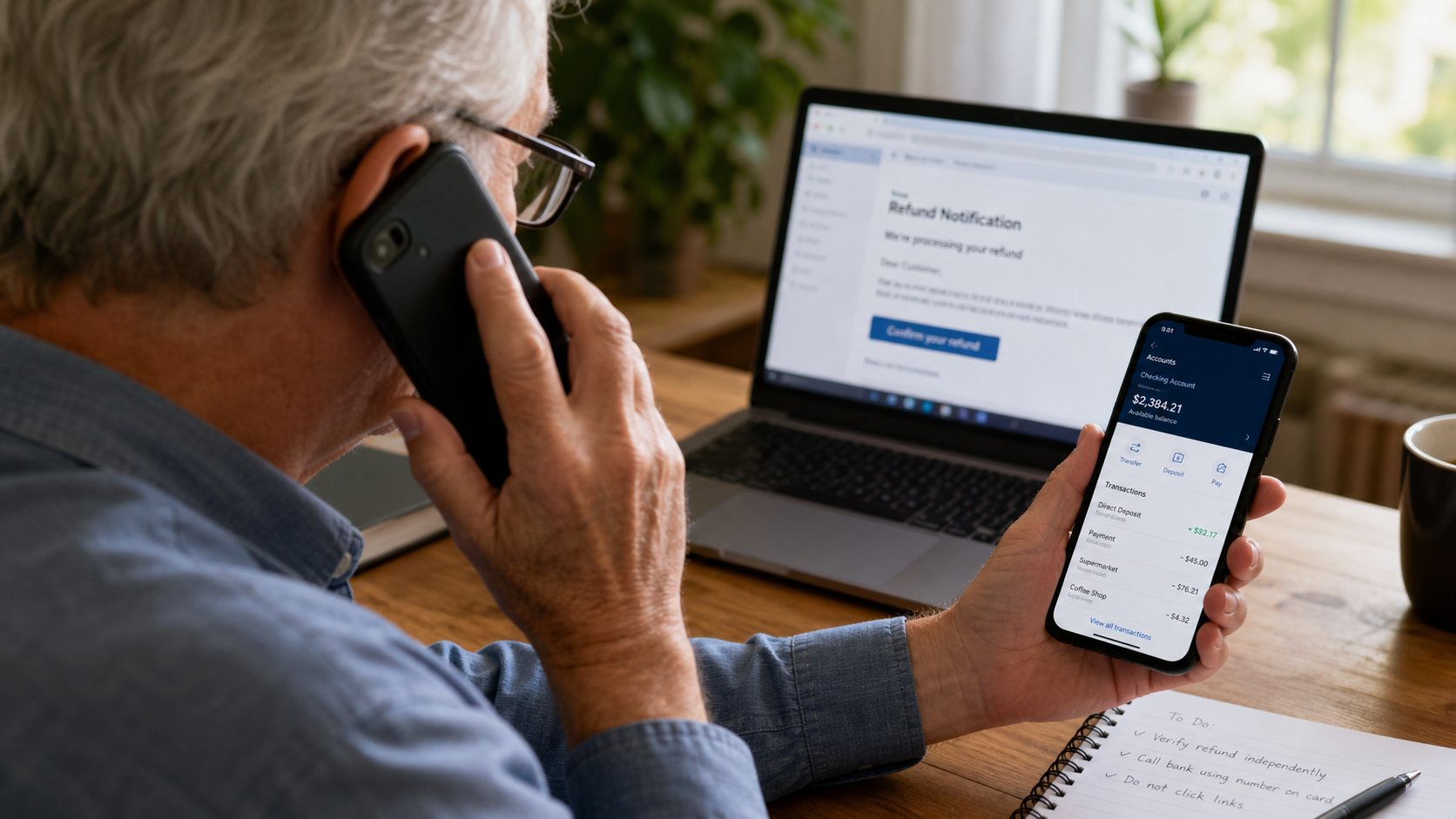
Do not call the number in the email or invoice. Open the official PayPal app or type `paypal.com` into the browser yourself, then review Activity and notifications.
Compare the claimed transaction with the settled activity shown by PayPal and your bank. Pending entries, browser text, screenshots, and a caller’s explanation are not substitutes for independent confirmation.
PayPal states that suspicious messages can be forwarded to `phishing@paypal.com`. After forwarding, delete the message and avoid every link, attachment, and number it contains.
A legitimate support representative will not need gift cards, cryptocurrency, gold, bulk cash, or remote access to correct a PayPal transaction.
What to Do if You Have Fallen Victim to This Scam
- End the call and disconnect remote access. Turn off network access on the affected device. Do not warn the scammer about your next steps or accept a transfer to another “security department.”
- Call your bank’s fraud department from a trusted device. Use the number on your card or official website. Request freezes, transfer recalls, account protections, and review of movements between your own accounts.
- Contact PayPal through the official app or website. Report the impersonation, secure the account, review activity, remove unknown devices, and dispute transactions that actually appear.
- Change exposed credentials. From a clean device, replace passwords for email, banking, PayPal, and any reused accounts. Enable multifactor authentication and review recovery settings.
- Have the affected computer examined. Remove remote-control tools and other unwanted software, update the operating system, and scan for malware before using the device for sensitive activity again.
- Report couriers, cash, gold, crypto, and gift-card payments. Contact the relevant provider and law enforcement immediately. Preserve wallet addresses, serial numbers, receipts, shipping records, vehicle details, and video footage.
- Tell trusted relatives and reject recovery scams. Shame and secrecy help criminals. A family member can help monitor accounts, while anyone demanding an upfront fee to recover funds should be treated as another fraudster.
- Scan the affected computer before using it again. Remove remote-control tools and run Malwarebytes to look for credential stealers, backdoors, and other unwanted software.
- Block known malicious support pages. AdGuard can help stop phishing sites and harmful redirects, but it cannot recover cash or replace direct contact with banks and PayPal.
Is Your Device Infected? Run a Free Malware Scan
Slow performance, constant pop-ups, or strange behavior? These are classic signs of a malware infection. A quick way to check is to scan your device with Malwarebytes Free, one of the most trusted malware removal tools available. If you only visited a scam page and didn’t download or install anything, this scan is optional.
The free version detects and removes the most common threats, including:
- Adware — the cause of those annoying pop-ups
- Browser hijackers — unwanted redirects and changed homepages
- Trojans and spyware — hidden programs stealing your data
- Potentially unwanted programs (PUPs) — software you never asked for
👉 Select your device below — Windows, Mac, or Android — then follow the simple steps to download Malwarebytes, scan your system, and remove any threats it finds. The scan usually takes 5 to 20 minutes.
Run a Malware Scan with Malwarebytes for Windows
Malwarebytes is one of the most popular and trusted anti-malware tools for Windows — and it’s completely free for removing infections. It catches threats that many antivirus programs miss, including adware, browser hijackers, and trojans. Follow the steps below to scan your PC and remove what Malwarebytes finds.
Download Malwarebytes
Click the button below to download the latest version of Malwarebytes for Windows from the official source. The free version is all you need — it will scan your computer and remove adware, browser hijackers, and other malicious software at no cost.
Download MalwarebytesOfficial installer for Windows 11 and 10. Your download starts right away.Want real-time protection? See Malwarebytes Premium Malwarebytes Free for WindowsScans and removes malware at no cost
-
Install Malwarebytes
When the download finishes, open your Downloads folder and double-click the MBSetup file. If Windows shows a User Account Control pop-up, click “Yes” to allow the installation.

Follow the On-Screen Prompts to Install Malwarebytes
The setup wizard will walk you through a few quick screens:
-
Choose where you’re installing the program — “Personal Computer” or “Work Computer” — then click Next.

-
Malwarebytes will now install on your device. This usually takes under a minute.

-
When installation is complete, the “Welcome to Malwarebytes” screen will open automatically.

-
On the final screen, click Open Malwarebytes to launch the program.

-
Optional: Check for rootkits with a Custom Scan
You don’t need to change any settings for a normal scan. The standard Threat Scan in the next step is enough for most problems, so you can go straight to it.
If you also want to check for rootkits, use a Custom Scan. In current versions of Malwarebytes, rootkit scanning is only available there:
- On the Scanner tile, click the three-dot menu and select Advanced Scan.
- Choose Custom Scan. In its options, check Scan for rootkits.
- Select your system drive (usually C:\) as the location to scan, then start the scan. It takes longer than a Threat Scan.
- When it finishes, review and quarantine the results as described in the steps below.
Rootkit scanning isn’t available on Windows devices with ARM processors.
Start the Scan
Click the blue Scan button. Malwarebytes will automatically update its virus database and start checking your computer for malware.

-
Wait for the Scan to Finish
The scan checks your entire system for browser hijackers and other malicious programs, so it can take 5 to 20 minutes depending on your computer. Feel free to do something else — just check back occasionally to see the progress.

-
Quarantine the Detected Threats
When the scan is done, you’ll see a list of everything Malwarebytes found — malware, adware, and potentially unwanted programs. Click the “Quarantine” button to remove all of them at once.

Malwarebytes will now remove the malicious files and registry entries and move them safely into quarantine.

-
Restart Your Computer
Some threats can only be fully removed after a reboot. If Malwarebytes asks you to restart, click Yes. Once you’re logged back in, Malwarebytes has finished removing the threats it found.

When the scan is done, check whether the problems you noticed have stopped. If they continue, see the options below.
If you are still having problems with your computer after completing these instructions, then please follow one of the steps:
- Run a computer scan with ESET Online Scanner
- Ask for help in our Windows Malware Removal Help & Support forum.
Run a Malware Scan with Malwarebytes for Mac
Malwarebytes for Mac is a free on-demand scanner that removes the malware other security software tends to miss — adware, browser hijackers, and unwanted programs included. Cleaning an infected Mac with Malwarebytes has always been completely free, and it’s our go-to recommendation. Follow the steps below to scan your Mac and remove what Malwarebytes finds.
-
Download Malwarebytes for Mac
Click the button below to download the latest version of Malwarebytes for Mac.
Download MalwarebytesOfficial installer for macOS. Your download starts right away.Want real-time protection? See Malwarebytes PremiumMalwarebytes Free for MacScans and removes malware at no cost -
Open the Malwarebytes setup file
When the download finishes, open your Downloads folder and double-click the setup file to begin the installation.

-
Follow the On-Screen Prompts to Install Malwarebytes
The Malwarebytes for Mac Installer will guide you through a few quick screens. Click “Continue” and keep following the prompts until the installation completes.



When the installation is complete, Malwarebytes opens to the Welcome to Malwarebytes screen. Click “Get started“.
Malwarebytes needs Full Disk Access to check your whole Mac. When it asks, open System Settings > Privacy & Security > Full Disk Access, turn on Malwarebytes (it may be listed as Malwarebytes Protection), and confirm with your password or Touch ID. Then return to Malwarebytes. On macOS Monterey and earlier, this setting is in System Preferences > Security & Privacy > Privacy.
-
Select “Personal Computer” or “Work Computer”
Malwarebytes will ask what type of computer you’re installing it on. Click either Personal Computer or Work Computer, whichever applies.

-
Start the Scan
Click the “Scan” button. Malwarebytes will automatically update its detection database and begin checking your Mac for malware.

-
Wait for the Scan to Finish
Malwarebytes will scan your Mac for adware, browser hijackers, and other malicious programs. This can take a few minutes, so feel free to do something else — just check back occasionally to see the progress.

-
Quarantine the Detected Threats
When the scan is done, you’ll see a list of everything Malwarebytes found. Click the “Quarantine” button to remove all the threats at once.

-
Restart Your Mac
Malwarebytes will now remove all the malicious files it found. Some threats can only be fully removed after a reboot — if Malwarebytes asks you to restart, allow it. Once you’re logged back in, check whether the problems you noticed have stopped. If they come back, save the scan report and ask for help in our forum.

If the problems you noticed continue after the scan, see the options below.
If you are still experiencing problems while trying to remove a malicious program from your computer, please ask for help in our Mac Malware Removal Help & Support forum.
Run a Malware Scan with Malwarebytes for Android
Malwarebytes for Android scans your phone or tablet for malware, adware, and potentially unwanted apps. The free version scans only when you start a scan. Real-time protection, which checks apps automatically, is part of the paid Premium version.
-
Download Malwarebytes for Android.
You can download Malwarebytes for Android by clicking the link below.
Get Malwarebytes for AndroidOpens Google Play in a new tab.Want real-time protection? See Malwarebytes Premium for AndroidMalwarebytes for AndroidScans your phone and removes malware at no cost -
Install Malwarebytes for Android on your phone.
In the Google Play Store, tap “Install” to install Malwarebytes for Android on your device.

When the installation process has finished, tap “Open” to begin using Malwarebytes for Android. You can also open Malwarebytes by tapping on its icon in your phone menu or home screen.

-
Follow the on-screen prompts to complete the setup process
When Malwarebytes opens, it walks you through a short setup. Tap Get started and follow the prompts. If you see an offer for a trial or a paid plan, read it before you accept. You can skip it and keep using the free scanner.
Malwarebytes will ask for permission to access the files on your phone so it can scan them. Tap Allow, or turn on the permission in the Android screen that opens, then return to Malwarebytes.
-
Run a scan with Malwarebytes for Android
On the main screen, tap Scan now. In some versions, you open the menu, tap Scanner, and then tap Run a scan.
-
Wait for the Malwarebytes scan to complete.
Malwarebytes will now start scanning your phone for adware and other malicious apps. This process can take a few minutes, so we suggest you do something else and periodically check on the status of the scan to see when it is finished.

-
Remove the detected apps.
When the scan has been completed, you will see a list of the threats that Malwarebytes for Android has detected. Next to each detected item, tap the menu icon (three dots), then choose to uninstall the app or delete the file. Android then asks you to confirm. Tap OK or Uninstall to remove the app.
-
Restart your phone.
When the detected apps are removed, restart your phone if Malwarebytes asks you to. Then check whether the problems you noticed have stopped.
If the problems you noticed continue after the scan, see the options below.
If you are still having problems with your phone after completing these instructions, then please follow one of the steps:
- Ask for help in our Mobile Malware Removal Help & Support forum.
- Only as a last resort, reset your phone to factory settings. Read the warning below first.
- Back up your photos, videos, files, and messages, for example to your Google account or a computer.
- Make sure you know your Google account email and password. The phone asks for them after the reset. If you changed the password recently, Google recommends waiting 24 hours before you reset.
- On a Samsung phone, also make sure you know your Samsung account password.
- If you use an authenticator app for two-step verification, move your accounts to another device or save your backup codes first.
Stay Protected: Block Ads and Malicious Sites
No scan can prove a device is completely clean, so it helps to block threats before they reach you. Most infections start with a malicious ad or a fake download button — so blocking them at the source is your best defense.
We recommend AdGuard, which blocks malicious ads, phishing pages, and dangerous redirects before they can reach you.
👉 Download AdGuard and browse safely
Frequently Asked Questions
Can PayPal accidentally send too much refund money?
Errors can happen in financial systems, but you should verify them directly with PayPal and your bank. Never return an alleged overpayment using a method chosen by an unsolicited caller.
Why did my online bank balance really look higher?
The page may have been edited, copied, or showing money moved from another account you own. Ask the bank to verify settled external deposits independently.
Does PayPal use remote-access software for refunds?
A caller who wants control of your computer to process a refund should be treated as fraudulent. Do not install software or expose online banking.
Is a PayPal invoice proof that I was charged?
No. An invoice is a request for payment and can include text entered by the sender. Check actual account activity in the official app or website.
Why do scammers tell victims to lie to bank employees?
Bank questions can expose the fraud and stop a withdrawal. The cover story isolates the victim from professionals trained to recognize unusual transactions.
Can money sent in a refund scam be recovered?
Recovery is not guaranteed, but rapid reporting gives banks, exchanges, couriers, and police the best chance to freeze or trace assets. Do not pay a private recovery agent upfront.
The Bottom Line
A PayPal refund scam creates imaginary money on a screen and asks you to repay it with real assets. Verify every transaction independently, refuse remote access, and never send cash, gold, gift cards, cryptocurrency, or bank transfers to correct a caller’s alleged mistake.

Join the discussion
0 commentsShare your experience or ask a question about this article.
Discussion
Start the conversation
Have a question or something useful to share? Add the first comment.