

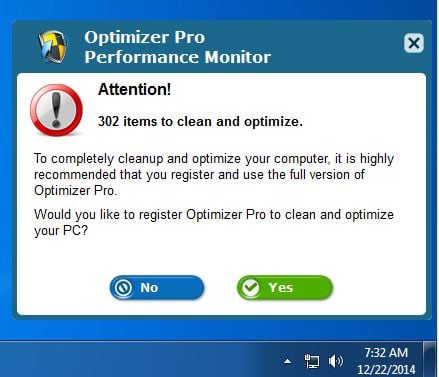
PC Optimizer Pro is a potentially unwanted program, which is advertised as a system optimizer, and once installed it claims that several issues were been detected on your computer. However, if you try to fix these issues, PC Optimizer Pro will state that you need to buy its full version before being able to do so.
![[Image: PC Optimizer Pro scam]](https://malwaretips.com/blogs/wp-content/uploads/2013/08/PC-Optimizer-Pro-scam.jpg "How to remove PC Optimizer Pro from Windows (Removal Guide) 1")
![[Image: PC Optimizer Pro fake registry cleaner]](https://malwaretips.com/blogs/wp-content/uploads/2013/08/PC-Optimizer-Pro-fake-registry-cleaner.jpg "How to remove PC Optimizer Pro from Windows (Removal Guide) 2")
![[Image: PC Optimizer Pro virus]](https://malwaretips.com/blogs/wp-content/uploads/2013/08/PC-Optimizer-Pro-virus.jpg "How to remove PC Optimizer Pro from Windows (Removal Guide) 4")
![[Image: PC Optimizer Pro]](https://malwaretips.com/blogs/wp-content/uploads/2013/08/PC-Optimizer-Pro-malware.jpg "How to remove PC Optimizer Pro from Windows (Removal Guide) 5")
PC Optimizer Pro is bundled with other free software that you download off of the Internet. Unfortunately, some free downloads do not adequately disclose that other software will also be installed and you may find that you have installed adware without your knowledge.
The Windows registry is a database that Windows and its applications store their settings in. It contains hundreds of thousands of entries. Some of the entries may be slightly outdated — maybe you’ve uninstalled a program and it left a key or two behind, or maybe a there’s a file extension with no associated application.
PC Optimizer Pro scan your registry for these outdated entries and offer to remove them. Because there are so many registry entries to go through, this program may sometimes also remove useful registry entries, causing you problems. The Web is full of stories from people who have run a registry cleaner and encountered problems. In a best case scenario, PC Optimizer Pro will remove a few hundred unnecessary entries and reduce the size of your registry by a few kilobytes. This makes no difference in perceptible performance.
If you must use a registry cleaner, you don’t have to pay anything. Using a free registry cleaner, such as the registry cleaner included with the respected CCleaner utility, is good enough.
Always opt for the custom installation and deselect anything that is not familiar, especially optional software that you never wanted to download and install in the first place. It goes without saying that you should not install software that you don’t trust.
How to remove PC Optimizer Pro (Uninstall Guide)
Please perform all the steps in the correct order. If you have any questions or doubt at any point, STOP and ask for our assistance.
- STEP 1: Uninstall PC Optimizer Pro from Windows
- STEP 2: Use Malwarebytes to Scan for Malware and Unwanted Programs
- STEP 3: Double-check for malicious programs with HitmanPro
STEP 1 : Uninstall PC Optimizer Pro from Windows
In this first step, we will try to uninstall PC Optimizer Pro by using the Windows Control Panel.
- Go to the uninstall menu.
Windows 10 or Windows 8.1
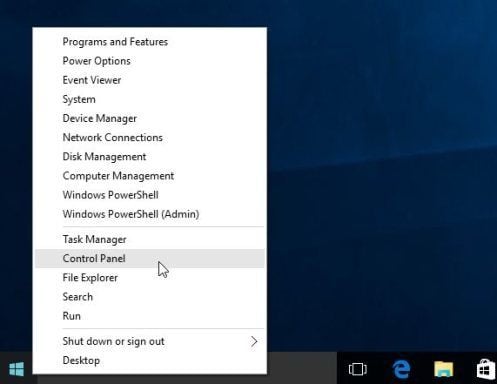
- To uninstall a program on Windows 10 or Windows 8, right-click on the Windows Start button and choose “Control Panel” from the pop-up menu.

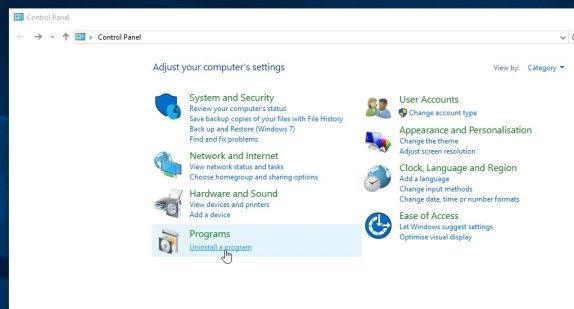
- When the “Control Panel” window opens click on the “Uninstall a program” option under “Programs” category.
Windows 7
- If you are using Windows XP, Windows Vista or Windows 7, click the “Start” button, then click on the “Control Panel” menu option.
- When the “Control Panel” window opens click on the “Uninstall a program” option under “Programs” category.
- To uninstall a program on Windows 10 or Windows 8, right-click on the Windows Start button and choose “Control Panel” from the pop-up menu.
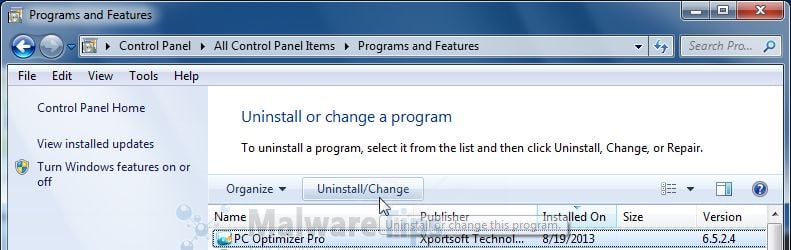
- When the “Programs and Features” screen is displayed, scroll through the list of currently installed programs and uninstall PC Optimizer Pro.
To view the most recently installed programs, you can click on the “Installed On” column to sort your program by the installation date. Scroll through the list, and uninstall any unwanted or unknown programs.If you cannot find any unwanted programs on your computer, then you can proceed with the next step.If you are having issues while trying to uninstall the PC Optimizer Pro program, you can use Revo Uninstaller to completely remove this unwanted program from your machine.
![[Image: Control Panel in Windows Start Menu]](https://malwaretips.com/blogs/wp-content/uploads/2014/08/windows-start-menu-control-panel.jpg "Control Panel in Windows Start Menu")
![[Image: Uninstall a program]](https://malwaretips.com/blogs/wp-content/uploads/2013/03/uninstall-a-program-windows.jpg "Click on Uninstall a program")
STEP 2: Use Malwarebytes to Scan for Malware and Unwanted Programs
Malwarebytes is a powerful on-demand scanner which will scan and remove from your PC any malicious program that may have been installed along with PC Optimizer Pro. It is important to note that Malwarebytes will run alongside antivirus software without conflicts.
- You can download download Malwarebytes from the below link.
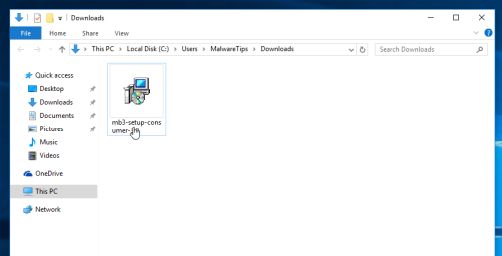
MALWAREBYTES DOWNLOAD LINK (This link open a new page from where you can download “Malwarebytes”) - When Malwarebytes has finished downloading, double-click on the “mb3-setup-consumer” file to install Malwarebytes on your computer.
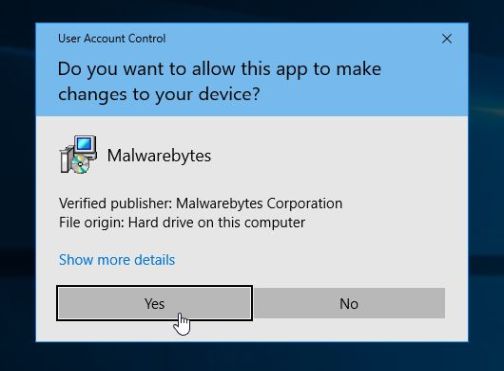
You may be presented with an User Account Control pop-up asking if you want to allow Malwarebytes to make changes to your device. If this happens, you should click “Yes” to continue with the installation.
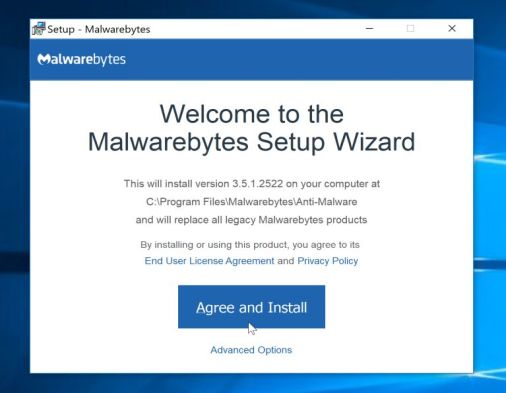
- When the Malwarebytes installation begins, you will see the Malwarebytes Setup Wizard which will guide you through the installation process.
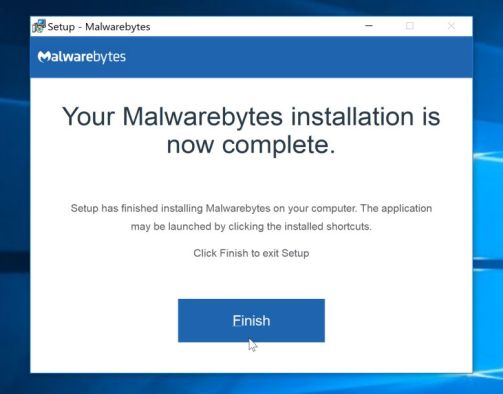
To install Malwarebytes on your machine, keep following the prompts by clicking the “Next” button.
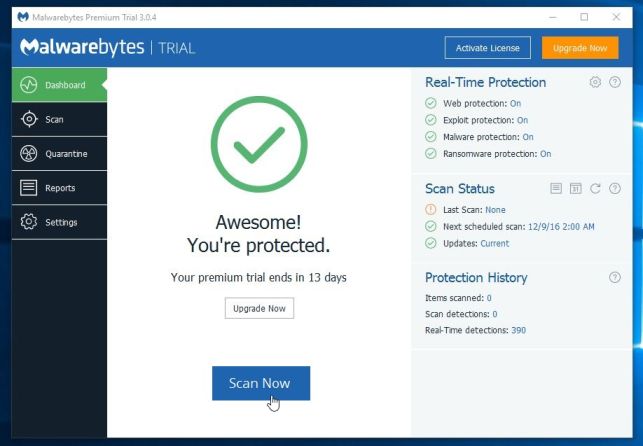
- Once installed, Malwarebytes will automatically start and update the antivirus database. To start a system scan you can click on the “Scan Now” button.
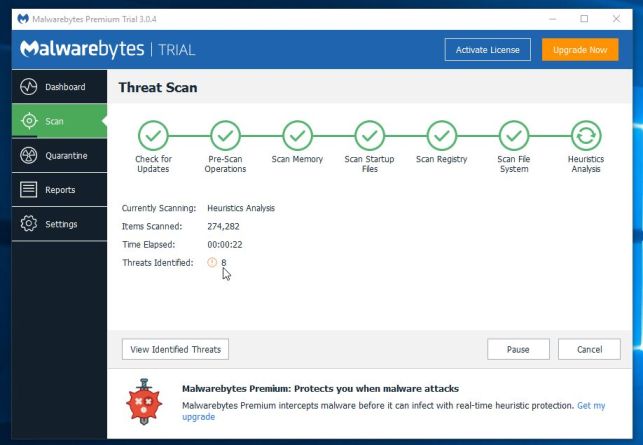
- Malwarebytes will now start scanning your computer for malicious programs.
This process can take a few minutes, so we suggest you do something else and periodically check on the status of the scan to see when it is finished.
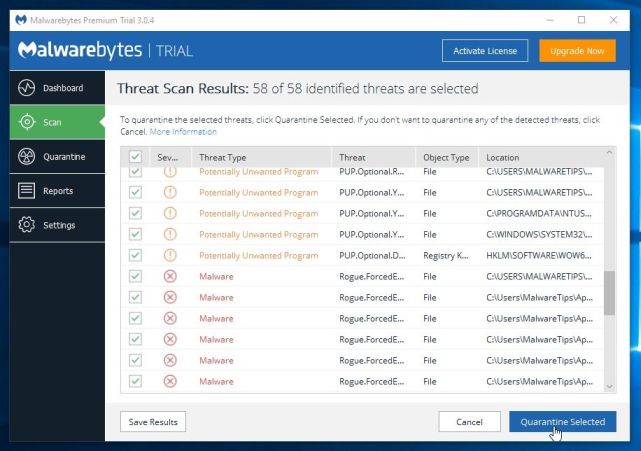
- When the scan has completed, you will be presented with a screen showing the malware infections that Malwarebytes has detected.
To remove the malicious programs that Malwarebytes has found, click on the “Quarantine Selected” button.
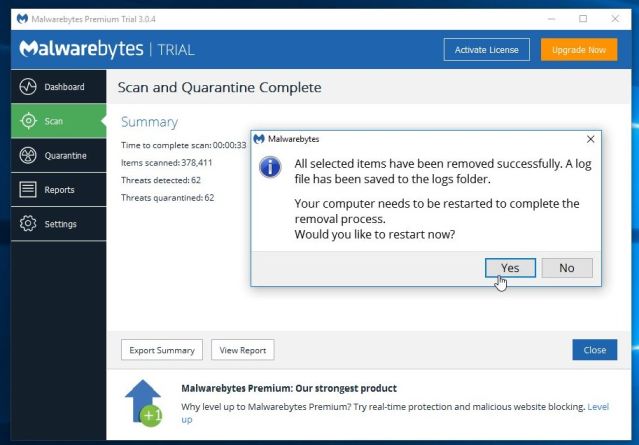
- Malwarebytes will now quarantine all the malicious files and registry keys that it has found.
To complete the malware removal process, Malwarebytes may ask you to restart your computer.
When the malware removal process is complete, you can close Malwarebytes and continue with the rest of the instructions.
STEP 3: Double-check for malicious programs with HitmanPro
HitmanPro can find and remove malware, adware, bots, and other threats that even the best antivirus suite can oftentimes miss. HitmanPro is designed to run alongside your antivirus suite, firewall, and other security tools.
- You can download HitmanPro from the below link:
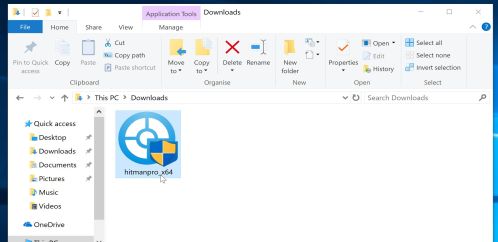
HITMANPRO DOWNLOAD LINK (This link will open a new web page from where you can download “HitmanPro”) - When HitmanPro has finished downloading, double-click on the “hitmanpro” file to install this program on your computer.
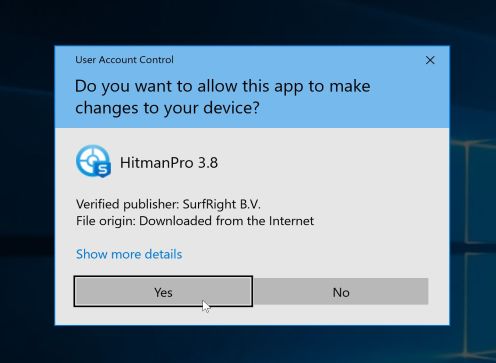
You may be presented with an User Account Control pop-up asking if you want to allow HitmanPro to make changes to your device. If this happens, you should click “Yes” to continue with the installation.
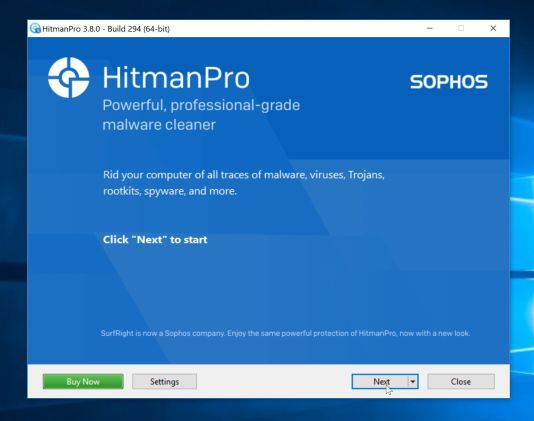
- When the program starts you will be presented with the start screen as shown below. Now click on the Next button to continue with the scan process.
- HitmanPro will now begin to scan your computer for malware.
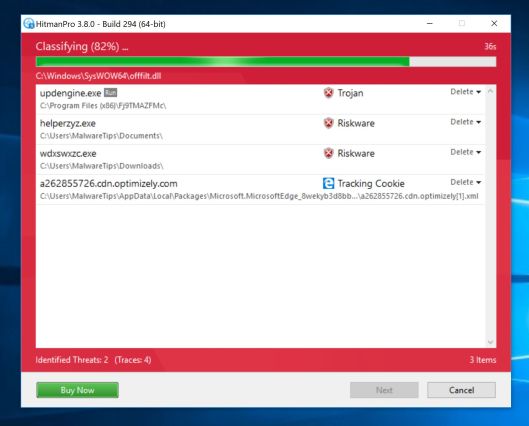
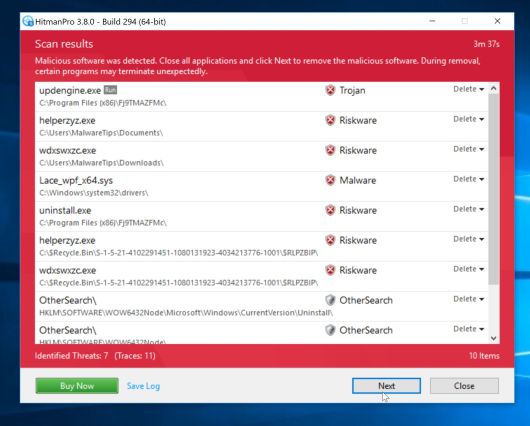
- When it has finished it will display a list of all the malware that the program found as shown in the image below. Click on the “Next” button, to remove malware.
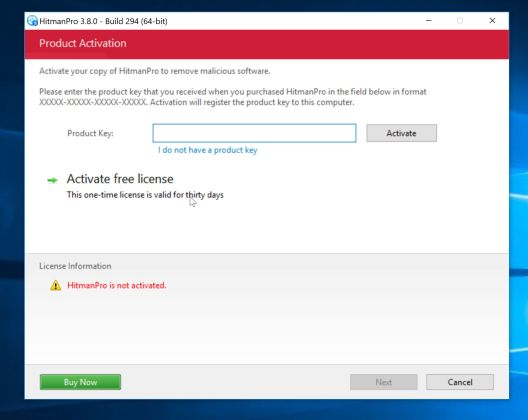
- Click on the “Activate free license” button to begin the free 30 days trial, and remove all the malicious files from your computer.
Your computer should now be free of the PC Optimizer Pro. If you are still experiencing problems while trying to remove PC Optimizer Pro from your machine, please do one of the following:
- Run a system scan with Zemana AntiMalware
- Start a new thread in our Malware Removal Assistance forum.









Thanks u very much and may u be happy, peaceful n well..Warmesr Regards fm EM
PC Optimizer pro is really good utility , help me in keeping my PC optimized and running write. They are running a offer these days . Just superb guys . Best in customer service.
Great write up thank you!
Thank you SO much! My mom downloaded the optimizer pro accidentally and called me in tears. Thanks to you we are up and running again with out having to wipe out the whole lap top and start all over. Saved us so much time. A million times Thank You!
You are the shining white fire that burns the dreaded infection on the computers of the people who read your advice. Thank you so much for preventing a computer catastrophe!
Wow, thank you doesn’t seem to be enough! This is a huge help and absolutely wonderful to know there are people out there that want to help! Thank you! Great site and great work you are doing!
Well done…thank you. You should accept donations in Bitcoin. :)
thanks a lot! :)
thank you so much and even now my steam games are running smoother i would donate but im underage but thank you so much
Not surprising, what kind of adult would fall for a shitty PUP like this?
A lot of people. and theyre not just kids….I fix the mal lthe time…..
Clearly you do not work in tech support, LOL!
I’m helping a friend remove it, but if I could I would donate.
Thank you very much! Directions worked perfectly, and pieces of this obnoxious virus were just washing away!!! THANK YOU! :)
thank you, thank you ! Great support !
Totally waiting to see if this works
You are a lifesaver,sir!
I bought this laptop less than a week ago,and Optimizer Pro as well as My PCBackup invade it.
Hail Google and your site!
I wish I could donate,but Im under-age and hence,don’t have a salary :P
But your site is amazing and I’ll share it!
Keep up the great work!
TYVM! Good help I am buying these products :)
THANK YOU VERY MUCH!!!!!!!!!!
Thank youu so veryy muchh!
OMG!! Thank you so much for these tips!! I downloaded oovoo & pro optimizer got onto my computer somehow & screwed up my whole computer, but thanks to you it’s back to normal :)
Salut,
Poti sa rulezi un scan cu Combofix ca sa vad ce se intampla cu laptop-ul. Uite instructiunile:
You can download ComboFix from here: http://download.bleepingcomputer.com/sUBs/ComboFix.exe
VERY IMPORTANT !!! Save as Combo-Fix.exe during the download.ComboFix must be renamed before you download to your Desktop
Close any open browsers.
Very Important!!!> Temporarily disable your anti-virus, script blocking and any anti-malware real-time protection before performing a scan. They can interfere with ComboFix or remove some of its embedded files which may cause “unpredictable results”.
WARNING: Combofix will disconnect your machine from the Internet as soon as it starts
Please do not attempt to re-connect your machine back to the Internet until Combofix has completely finished.
If there is no internet connection after running Combofix, then restart your computer to restore back your connection.
1. Double click on ComboFix.exe & follow the prompts.
2. Accept the disclaimer and allow to update if it asks
3. When finished, it shall produce a log for you.
Notes:
Do not mouse-click Combofix’s window while it is running. That may cause it to stall.
Do not “re-run” Combofix. If you have a problem, reply back for further instructions.
If after the reboot you get errors about programs being marked for deletion then reboot, that will cure it.
Please post the Combofix, so that I can get an idea on what’s going on.
Next, please run a scan with HitmanPro and Malwarebytes, then let me know how is your computer running.
Salut.
Mersi mult pentru raspuns. In timp ce asteptam moderarea comentului m-am mai uitat pe site si am descoperit faza cu “Safe mod and network”. Asa am reusit sa trec mai departe la pasii urmatori si sper eu ca am rezolvat treaba. Acum o sa incerc sa-i las pe laptop (cum am mai citit pe aici si pe forum) mai multe layere de aparare si sa aiba si el mai multa grija pe unde mai da click.
N-am mai reusit sa te tin la curent pt ca a trebuit sa plec la servici.
Asa cum zice cineva prin commenturi: “Two thumbs up”. Iti multumesc mult de tot pentru site-ul asta si sper sa reusesc sa-i zic ceva lui Mos Craciun despre tine.
Tine-o tot asa.
thank you sooooooooooo much i got rid of all the stupid viruses i had
thank you thank you thank you!
Thank you so much. Finally got rid of PCOptimizer Pro!!! :)