

Gaming and tech enthusiasts beware – a devious new email scam has emerged that leverages two major brands, PayPal and PlayStation, to target unsuspecting consumers.
These fraudulent PlayStation PayPal invoices claim you owe money for an expensive PlayStation console order processed through your PayPal account. But in reality, you never made such a purchase.
The scam combines convincing PlayStation and PayPal branding and logos with urgent threats to fool recipients into calling the provided phone number. But the call centers are entirely fake – clever schemes by criminals who will steal your money if given the chance.
This comprehensive guide will uncover all the deceptive tricks used in the PlayStation PayPal invoice scam campaign. With knowledge of how to spot the warning signs, you can keep your wallet and identity protected. Don’t let enthusiasm over gaming tech blind you to this fraud.
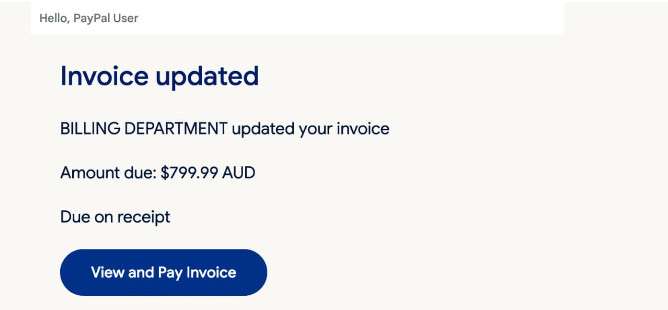
An Emerging Threat Targeting PlayStation and PayPal Users
Reports have rapidly increased of the PlayStation PayPal invoice payment scam as fraudsters seek to capitalize on the popularity of Sony gaming platforms and PayPal digital payments.
The scam emails include:
- Realistic PlayStation and PayPal logos and branding
- A large invoice for a PlayStation console plus games and accessories
- Claim the order was processed through your PayPal account
- Threats your PSN account will be suspended if the fake bill isn’t paid
- A phone number to call for resolving the supposed unauthorized order
But it’s all a fraudulent ploy to deceive you and steal your money. These emails have nothing to do with Sony, PlayStation, or PayPal in reality. Here’s what you need to know to recognize this scam.
Spotting the Deceptive Tactics in Fake PlayStation Invoices
The PlayStation PayPal scam relies on credible branding and fabricated invoices to trick anxious recipients. Watch for these signs an invoice is fake:
- Price matches a real PlayStation model like $499 for a PS5 Digital Edition
- Includes additional realistic purchases like extra controllers and games
- A due date that creates false urgency to pay quickly
- Threat to suspend your PSN account if unpaid
- PayPal logo to make it seem processed through your account
- Phone number provided to call about the invoice
- Sony and PayPal logos and copyrights copied from real sites to appear legit
But upon closer inspection, there are always red flags:
- Grammatical/spelling errors uncommon for real companies
- Unrecognized invoice number not found in your PayPal account
- Threats of account suspension when no notification inside PayPal
- Requests to call a number rather than login to PayPal to resolve issues
With awareness of these scam giveaways, you can identify and avoid fraudulent PlayStation PayPal invoices. Don’t let familiar logos trick you – scrutinize the full details.
Anatomy of the Fake PlayStation PayPal Invoice Scam Emails
To help you instantly recognize these fraudulent emails, let’s break down the common elements contained in the PlayStation PayPal scam messages:
Sender Details
The sender email address is spoofed to appear like an official PayPal or PlayStation notification:
- Addresses often include “service@paypal.com”, “playstation@email.sony.com”, or random names.
- The name shown may say “PayPal”, “PlayStation”, “PlayStation Network”, etc.
But on closer inspection, the address is completely fake, using an invented email domain.
Subject Line
Subject lines always indicate an urgent payment update, such as:
- Your PayPal PlayStation Invoice
- Payment Failed for PlayStation Order
- Update Your PlayStation PayPal Order
- PayPal Invoice for PlayStation Purchase
- Overdue: PlayStation Order Through PayPal
These subject lines aim to get your urgent attention if you’re awaiting a PlayStation console.
Email Body Content
The scam email bodies all follow a similar template. Here are some key traits:
- PlayStation and PayPal logos prominently shown.
- A 6-digit invoice number at the top to seem legitimate.
- Your name, email, and partial account number displayed.
- Details of a PlayStation order processed through PayPal that you didn’t actually place.
- A payment deadline, usually 24-48 hours, to spur urgency.
- Threat that failure to pay will result in PSN account suspension.
- A U.S. toll-free number provided to call regarding the invoice.
- Official-looking email footer and fine print.
This structured content plays on fear of losing your gaming account or access to an awaited PlayStation console. But awareness of the templates makes them easy to detect.
How the PlayStation PayPal Scam Unfolds
Now that you know the trademarks of the scam emails, let’s walk through the typical sequence of how the full PlayStation PayPal invoice scam unfolds:
Step 1: Fraudulent Email Received
You receive an email with the PlayStation and PayPal logos, an unknown invoice, threats of PSN suspension, and a support phone number. It’s aimed to worry you into hastily calling.
Step 2: Call Connects to Fake PlayStation Support Center
When you call the number, an offshore call center answers posing as PlayStation support. They cite the invoice and request remote access to your computer to supposedly fix security issues that allowed the unauthorized transaction.
Step 3: Scammers Gain Remote Access to Your Device
If you allow remote access, the criminals can install malware, steal data, and take control of your device. This grants them access to sensitive personal and financial information.
Step 4: Scammers Steal Your Money and Identity
Once inside your device and accounts, the scammers steal your money and your identity. They may siphon PayPal funds, use stolen credit cards to buy goods under your name that they resell for cash, or commit other forms of fraud and theft. The damage can be extensive.
Step 5: Ongoing Fraud and Account Lockouts
In the months following the scam, you may discover additional fraudulent charges made under your identity or have accounts locked due to suspicious activity. Clearing your name and recovering from fraud can be a lengthy process.
Avoid becoming a victim by recognizing the signs of fake PlayStation PayPal invoices before calling scammer phone numbers or providing any personal information.
10 Ways to Identify Fake PlayStation PayPal Invoices
Here are 10 clear indicators an invoice involving PlayStation and PayPal is a complete scam:
- You aren’t expecting a PlayStation order or delivery.
- The order contains extra items you didn’t purchase like games and accessories.
- The email includes urgent threats of account suspension if you don’t pay.
- There’s a short 1-2 day deadline to pay the invoice.
- The sender email is not a real PlayStation or PayPal address.
- You don’t recognize the 6-digit invoice number.
- The total amount matches a real PlayStation model price like $499.
- The email asks you to call a phone number about the invoice.
- There are spelling/grammar errors uncommon for Sony or PayPal.
- The linked phone number has bad reviews online mentioning scams.
If an invoice makes you uneasy, trust your instincts and scrutinize it fully before taking any action.
What to Do if You Receive a Fake PlayStation PayPal Invoice
If you get an email with a suspicious PlayStation invoice demanding payment through your PayPal account, take these steps:
- Do not click any links or attachments in the email. They may contain malware.
- Do not call the phone number under any circumstances. It will reach scammers.
- Report the email as phishing/spam to your email provider.
- Log in to your PayPal account to view notifications and invoices.
- Contact PlayStation and PayPal customer service through official channels to confirm the legitimacy of any bills.
- Monitor your PayPal account and credit reports for signs of unauthorized access or identity theft.
- Change passwords on your important online accounts as a precaution.
With quick action, you can avoid becoming a victim. Remember, real companies don’t threaten urgent account suspension via email or phone. Verify bills through official account login.
What to Do if You Already Fell for the Scam
If you called the number and provided personal information or remote access, stay calm and take these steps:
- Contact your bank and credit card companies to freeze accounts and cards. Watch for fraudulent charges.
- Change passwords on all financial, email, social media and gaming accounts. Enable two-factor authentication where possible.
- Scan devices for malware and completely wipe computers/phones that were accessed remotely.
- Place fraud alerts and monitor your credit reports. Look for signs of new fraudulent accounts opened in your name.
- Contact PlayStation to secure your PSN account if compromised and reset your password.
- Report the scam to the FTC and your local police to help authorities stop the criminals.
Protecting Yourself from Fake PlayStation Invoices
The PlayStation invoice scam takes advantage of people anxiously awaiting the delivery of their new console. Here are some tips to avoid being deceived:
- Never trust unsolicited emails: Sony will only contact you via the email associated with your PSN account. Verify anything suspicious.
- Beware of threats and urgency: Real companies give reasonable timeframes to resolve issues, not 24 hour threats.
- Don’t call random numbers: Only call official PlayStation support numbers listed on their real website.
- Log in to PSN to view billing: Your real purchase and invoice history is visible in your PlayStation account.
- Inspect sender details: Fake addresses like “playstation@email.sony.com” should raise alarms.
- Look for poor grammar/spelling: Real PlayStation emails are written professionally and error-free.
- Confirm unfamiliar invoices: Don’t recognize that invoice number? It’s surely bogus.
With healthy skepticism, you can avoid being manipulated into calling scammers about fake PlayStation invoices. Verify any uncertainties directly through official PlayStation customer service before taking action.
Is Your Device Infected? Run a Free Malware Scan
Slow performance, constant pop-ups, or strange behavior? These are classic signs of a malware infection. The fastest way to find out is to scan your device with Malwarebytes Free — one of the most trusted malware removal tools available.
The free version detects and removes the most common threats, including:
- Adware — the cause of those annoying pop-ups
- Browser hijackers — unwanted redirects and changed homepages
- Trojans and spyware — hidden programs stealing your data
- Potentially unwanted programs (PUPs) — software you never asked for
👉 Select your device below — Windows, Mac, or Android — then follow the simple steps to download Malwarebytes, scan your system, and remove any threats it finds. The scan usually takes 5 to 20 minutes.
Run a Malware Scan with Malwarebytes for Windows
Malwarebytes is one of the most popular and trusted anti-malware tools for Windows — and it’s completely free for removing infections. It catches threats that many antivirus programs miss, including adware, browser hijackers, and trojans. Follow the steps below to scan and clean your PC in just a few minutes.
Download Malwarebytes
Click the button below to download the latest version of Malwarebytes for Windows from the official source. The free version is all you need — it will scan your computer and remove adware, browser hijackers, and other malicious software at no cost.
Download MalwarebytesOfficial installer for Windows 11 and 10. Your download starts right away.Want real-time protection? See Malwarebytes Premium Malwarebytes Free for WindowsScans and removes malware at no cost
-
Install Malwarebytes
When the download finishes, open your Downloads folder and double-click the MBSetup file. If Windows shows a User Account Control pop-up, click “Yes” to allow the installation.

Follow the On-Screen Prompts to Install Malwarebytes
The setup wizard will walk you through a few quick screens:
-
Choose where you’re installing the program — “Personal Computer” or “Work Computer” — then click Next.

-
Malwarebytes will now install on your device. This usually takes under a minute.

-
When installation is complete, the “Welcome to Malwarebytes” screen will open automatically.

-
On the final screen, click Open Malwarebytes to launch the program.

-
Enable “Scan for Rootkits”
Before scanning, turn on rootkit detection so Malwarebytes can find even the most hidden threats. Click the Settings gear icon on the left side of the screen.

In the settings menu, find “Scan for rootkits” and click the toggle so it turns blue.

Done? Click “Dashboard” in the left pane to return to the main screen.
Start the Scan
Click the blue Scan button. Malwarebytes will automatically update its virus database and start checking your computer for malware.

-
Wait for the Scan to Finish
The scan checks your entire system for browser hijackers and other malicious programs, so it can take 5 to 20 minutes depending on your computer. Feel free to do something else — just check back occasionally to see the progress.

-
Quarantine the Detected Threats
When the scan is done, you’ll see a list of everything Malwarebytes found — malware, adware, and potentially unwanted programs. Click the “Quarantine” button to remove all of them at once.

Malwarebytes will now remove the malicious files and registry entries and move them safely into quarantine.

-
Restart Your Computer
Some threats can only be fully removed after a reboot. If Malwarebytes asks you to restart, click Yes. Once you’re logged back in, Malwarebytes has finished removing the threats it found.

That’s it — your Windows PC is now clean of trojans, adware, and other malware, and should be back to running smoothly.
If you are still having problems with your computer after completing these instructions, then please follow one of the steps:
- Run a computer scan with ESET Online Scanner
- Ask for help in our Windows Malware Removal Help & Support forum.
Run a Malware Scan with Malwarebytes for Mac
Malwarebytes for Mac is a free on-demand scanner that removes the malware other security software tends to miss — adware, browser hijackers, and unwanted programs included. Cleaning an infected Mac with Malwarebytes has always been completely free, and it’s our go-to recommendation. Follow the steps below to scan and clean your Mac in just a few minutes.
-
Download Malwarebytes for Mac
Click the button below to download the latest version of Malwarebytes for Mac.
Download MalwarebytesOfficial installer for macOS. Your download starts right away.Want real-time protection? See Malwarebytes PremiumMalwarebytes Free for MacScans and removes malware at no cost -
Open the Malwarebytes setup file
When the download finishes, open your Downloads folder and double-click the setup file to begin the installation.

-
Follow the On-Screen Prompts to Install Malwarebytes
The Malwarebytes for Mac Installer will guide you through a few quick screens. Click “Continue” and keep following the prompts until the installation completes.



When the installation is complete, Malwarebytes opens to the Welcome to Malwarebytes screen. Click “Get started“.
-
Select “Personal Computer” or “Work Computer”
Malwarebytes will ask what type of computer you’re installing it on. Click either Personal Computer or Work Computer, whichever applies.

-
Start the Scan
Click the “Scan” button. Malwarebytes will automatically update its detection database and begin checking your Mac for malware.

-
Wait for the Scan to Finish
Malwarebytes will scan your Mac for adware, browser hijackers, and other malicious programs. This can take a few minutes, so feel free to do something else — just check back occasionally to see the progress.

-
Quarantine the Detected Threats
When the scan is done, you’ll see a list of everything Malwarebytes found. Click the “Quarantine” button to remove all the threats at once.

-
Restart Your Mac
Malwarebytes will now remove all the malicious files it found. Some threats can only be fully removed after a reboot — if Malwarebytes asks you to restart, allow it. Once you’re logged back in, your Mac is clean.

That’s it — your Mac is now free of adware, rogue browser extensions, and other potentially harmful software.
If you are still experiencing problems while trying to remove a malicious program from your computer, please ask for help in our Mac Malware Removal Help & Support forum.
Run a Malware Scan with Malwarebytes for Android
Malwarebytes for Android automatically detects and removes dangerous threats like malware and ransomware so you don’t have to worry about your most-used device being compromised. Aggressive detection of adware and potentially unwanted programs keeps your Android phone or tablet running smooth.
-
Download Malwarebytes for Android.
You can download Malwarebytes for Android by clicking the link below.
Get Malwarebytes for AndroidOpens Google Play in a new tab.Want real-time protection? See Malwarebytes Premium for AndroidMalwarebytes for AndroidScans your phone and removes malware at no cost -
Install Malwarebytes for Android on your phone.
In the Google Play Store, tap “Install” to install Malwarebytes for Android on your device.

When the installation process has finished, tap “Open” to begin using Malwarebytes for Android. You can also open Malwarebytes by tapping on its icon in your phone menu or home screen.

-
Follow the on-screen prompts to complete the setup process
When Malwarebytes will open, you will see the Malwarebytes Setup Wizard which will guide you through a series of permissions and other setup options.
This is the first of two screens that explain the difference between the Premium and Free versions. Swipe this screen to continue.
Tap on “Got it” to proceed to the next step.
Malwarebytes for Android will now ask for a set of permissions that are required to scan your device and protect it from malware. Tap on “Give permission” to continue.
Tap on “Allow” to permit Malwarebytes to access the files on your phone.
-
Update database and run a scan with Malwarebytes for Android
You will now be prompted to update the Malwarebytes database and run a full system scan.

Click on “Update database” to update the Malwarebytes for Android definitions to the latest version, then click on “Run full scan” to perform a system scan.

-
Wait for the Malwarebytes scan to complete.
Malwarebytes will now start scanning your phone for adware and other malicious apps. This process can take a few minutes, so we suggest you do something else and periodically check on the status of the scan to see when it is finished.

-
Click on “Remove Selected”.
When the scan has been completed, you will be presented with a screen showing the malware infections that Malwarebytes for Android has detected. To remove the malicious apps that Malwarebytes has found, tap on the “Remove Selected” button.

-
Restart your phone.
Malwarebytes for Android will now remove all the malicious apps that it has found. To complete the malware removal process, Malwarebytes may ask you to restart your device.
That’s it — your Android phone is now clean — no more malicious apps, adware, or browser redirects.
If you are still having problems with your phone after completing these instructions, then please follow one of the steps:
- Restore your phone to factory settings by going to Settings > General management > Reset > Factory data reset.
- Ask for help in our Mobile Malware Removal Help & Support forum.
Stay Protected: Block Ads and Malicious Sites
Now that your device is clean, keep it that way. Most infections start with a malicious ad or a fake download button — so blocking them at the source is your best defense.
We recommend AdGuard, which blocks malicious ads, phishing pages, and dangerous redirects before they can reach you.
👉 Download AdGuard and browse safely
Frequently Asked Questions About the PlayStation PayPal Invoice Scam
1. How can I tell if a PlayStation PayPal invoice is fake?
Fake PlayStation invoices often come from non-official email addresses and contain urgent threats of PSN suspension if unpaid. Real Sony invoices allow reasonable timeframes to address issues. Fake bills also show unfamiliar transaction details not visible in your PayPal account activity.
2. What happens if I call the phone number on a fake invoice?
The numbers in scam PlayStation emails lead to offshore call centers where criminals posing as Sony support will request remote access to your computer to steal personal data and money from your accounts. Never call numbers provided in suspicious emails.
3. Why do scammers threaten to suspend my PSN account?
Scammers use threats of immediate account suspension to spur victims into urgently calling the number and complying with demands to avoid disruption to gaming. But real PlayStation only suspends accounts after multiple ignored notifications.
4. How can I report fake PlayStation PayPal invoices?
Do not click any links in scam emails. Report them as phishing to your email provider. Forward scam invoices to PayPal at spoof@paypal.com and to PlayStation customer support. File complaints with the FTC and police about the scam.
5. What precautions should I take if I provided scammers remote access?
If you allowed scammers remote access, immediately change all account passwords and freeze financial accounts. Scan devices for malware, wipe any remotely accessed devices, and place fraud alerts to prevent identity theft.
6. How can I avoid falling for the PlayStation PayPal invoice scam?
Always directly login to PayPal and PSN to view billing notices instead of trusting emails. Analyze sender details of emails and never call random phone numbers in suspicious messages. Also watch for poor grammar/spelling and urgent threats in scam invoices.
7. Can PayPal be used to pay for PlayStation products?
Yes, PayPal can be safely used to make real PlayStation purchases. But always login directly to PayPal and PlayStation Network to view legitimate invoices. Never trust emails claiming PlayStation orders were processed through your PayPal account.
8. Where can I find the official PlayStation customer support number?
Find the legitimate PlayStation customer service number listed on the official playstation.com website. Do not call random numbers provided in suspicious emails claiming to be from Sony.
9. What should I do if my PSN account gets suspended?
If your real PSN account gets suspended, login to PlayStation Network to check the notification instructions. Suspensions could be from policy violations or hacking concerns. Contact official PlayStation customer service to resolve any account limitations.
10. How can I safely buy a PlayStation console?
Only buy PlayStation consoles and products through authorized retailers like Amazon, Best Buy, GameStop, and other major chains, or directly through official Sony channels. Avoid unauthorized resellers.
In Summary
The PlayStation invoice payment scam shows that even reputable brands like Sony can be impersonated if you aren’t careful. But by recognizing the deceitful patterns in the fraudulent emails and calls, you can avoid becoming another victim. If you receive a questionable invoice, do not call the provided number or panic into immediate payment. Verify the situation by logging into your PlayStation Network account and contacting official customer service channels. Keep your gaming focus on entertainment rather than falling prey to scams.

Join the discussion
0 commentsShare your experience or ask a question about this article.
Discussion
Start the conversation
Have a question or something useful to share? Add the first comment.