

Police-save.empirehydrogen.org is a malicious domain which locks Internet Explorer, Firefox and Google Chrome, then asks their owners to pay fines for allegedly violating several laws through their online activity. Police-save.empirehydrogen.org is basically just a web page containing a malicious javascript that does not allow you to close the browser window or switch to a different web page.
![[Image: Police-save.empirehydrogen.org virus]](https://malwaretips.com/blogs/wp-content/uploads/mwt-media/ab/ab86edb3252d571cfbc2cde027bf465a96cc98d7cef0568a828c5dab26a6b3db/8e20d0cba357339e91527ffc2aa357808282d4a4c81b6e3987c229738199deb5-779.webp "Police-save.empirehydrogen.org virus")
The Police-save.empirehydrogen.org virus will display a bogus notification that pretends to be from your local law enforcement agency (Examples: FBI, Department of Justice, Royal Canadian Mounted Police, Australian Federal Police, Police Central e-crime Unit) and states that your computer has been blocked due to it being involved with the distribution of pornographic material, spam and copyrighted content.
It goes on to say that you need to pay a ransom of 300$ in order to get access to your files and computer again. In order to pay this ransom you need purchase a MoneyPak voucher and submit it in the web browser. The malware’s authors prefer these payment services because transactions made through them cannot be reversed and are hard to trace.
Furthermore, to make this alert seem more authentic, Police-save.empirehydrogen.org also has the ability to access your installed webcam, so that the bogus alert shows what is happening in the room.
If your computer is infected with the Police-save.empirehydrogen.org browser hijacker, this infection will display a localized webpage that covers the entire web browser of the infected computer and demands payment for the supposed possession of illicit material. The message displayed by this ransomware infection can be localized depending on the user’s location, with text written in the appropriate language.
![[Image: Police-save.empirehydrogen.org browser virus]](https://malwaretips.com/blogs/wp-content/uploads/mwt-media/2b/2bbad81b68b7cfb4f990678c814a4546ba0fa3837d18c98e2d39433b38b78595/01e4e9b41e61bf43bdabe31b29e372d84fe81406ebad80d3fd5b0f8001e5ab0e-1105.webp "Police-save.empirehydrogen.org browser virus")
The text of the popup that is displayed when you try to close the browser window is:
![[Image: Police-save.empirehydrogen.org browser blocked virus]](https://malwaretips.com/blogs/wp-content/uploads/mwt-media/60/60d0a51d1b69a54cc09d4672f8f341c3c5fe502168cf49f22ad82cc469ab7fbe/022b7cdc68ba0a7df2f7828a83c2d6ef2a33380046d32b66b53a86b14e67fcc1-556.webp "Police-save.empirehydrogen.org browser blocked virus")
Are you sure you want to leave this page?
Message from webpage:
YOUR BROWSER HAS BEEN BLOCKED UP FOR SAFETY REASONS.
ALL PC DATA WILL BE DETAINED.
ALL YOUR FILES ARE ENCRYPTED.YOUR BROWSER HAS BEEN BLOCKED UP. Leave this page or Stay on this page.
Cyber criminals often updated the design of this lock screen, however you should always keep in mind that no law enforcement agency (eg: FBI, Department of Justice, Royal Canadian Mounted Police or Police Central e-crime Unit) will never lock down your computer or monitor your online activities.
The Police-save.empirehydrogen.org lock screen is a scam, and you should ignore any alerts that this malicious software might generate. Under no circumstance should you send a MoneyPak, Ukash or Paysafecard voucher to these cyber criminals, and if you have, you can should request a refund, stating that you are the victim of a computer virus and scam.
How to remove the Police-save.empirehydrogen.org virus (Removal Guide)
This page is a comprehensive guide, which will remove the Police-save.empirehydrogen.org infection from a Windows computer and an Apple Mac OS X machine. Please perform all the steps in the correct order. If you have any questions or doubt at any point, STOP and ask for our assistance.
How to Remove Police-save.empirehydrogen.org virus from a Windows PC
STEP 1: Remove Police-save.empirehydrogen.org browser hijacker from Internet Explorer, Firefox and Chrome
STEP 2: Remove Police-save.empirehydrogen.org virus with Malwarebytes Anti-Malware Free
STEP 3: Double-check for the Police-save.empirehydrogen.org infection with HitmanPro
STEP 1: Remove Police-save.empirehydrogen.org browser hijacker from Internet Explorer, Firefox and Chrome
- Open Task Manager by right-clicking the taskbar, and then clicking Start Task Manager. Alternatively to start the Windows Task Mager, you can press Ctrl+Alt+Del and click on Task Manager or simply press on Ctrl+Shift+Esc.
![[Image: Start Windows Task Manager]](https://malwaretips.com/blogs/wp-content/uploads/mwt-media/ba/baea0024ec15ad273bf35f985a1e6cc0f20b1f97df248a43b0c7a44101c2429c/6bcdaada38a362e8475b5129b3c9ed869ec459875f106d124469edebe7071467-503.webp "Start Windows Task Manager")
- Click the Processes tab to see a list of all the processes that are currently running under your user account and a description of each process.
![[Image: Select the Process tab]](https://malwaretips.com/blogs/wp-content/uploads/mwt-media/62/625f0842e4a41d227d9771a18ff2d15cb8c7078e635a17b3b27d6515ac61d92d/b97a02df8be07b3f2fb79291f26c57870c6c3356ce0b31f068595226e6665ffb-592.webp "Select the Process tab")
To view all of the processes currently running on the computer, click Show processes from all users. - Scroll through the list till you see your web browser’s process and left-click on it once so it becomes highlighted. Once you have selected the browser’s process, click on the End Process button as show in the picture below.
If you are using this browser: End this process: Internet Explorer iexplore.exe Chrome chrome.exe Safari Safari.exe SeaMonkey seamonkey.exe Opera opera.exe Firefox firefox.exe ![[Image: Search for iexplorer.exe, firefox.exe or chrome.exe]](https://malwaretips.com/blogs/wp-content/uploads/mwt-media/61/61d612d7bb722b9c39dc8fbb297249795d6bf8eb7d55bfa842d62a7838e0a195/a7b1a57ff5e8056a5337242255bd5f3e019d363c867d0312da2cc17226cc4c77-592.webp "Search for iexplorer.exe, firefox.exe or chrome.exe")
- When you click on the End Process button, Task Manager will ask you to confirm if you are sure you want to terminate it as shown in the image below.
![[Image: Kill the malicious process in Windows PC]](https://malwaretips.com/blogs/wp-content/uploads/mwt-media/93/93c1ab86d50bbfc852ec8f5720829d6d4fe9082e277852b67410ca1b6a7712f4/754b93b7d21f952b09ba35291ad4895a1f2dc0aa9d1a2c765f92a4d8aec56e31-593.webp "Kill the malicious process in Windows PC")
At this point you should press the Yes button in order to kill the process. - Your browser window should now be closed. The next time you open your browser, do not allow the browser to open the last opened page.
STEP 2: Remove Police-save.empirehydrogen.org virus with Malwarebytes Anti-Malware Free
Malwarebytes Anti-Malware Free utilizes Malwarebytes powerful technology to detect and remove all traces of malware including worms, trojans, rootkits, rogues, dialers, spyware and more.
- You can download Malwarebytes Anti-Malware Free from the below link, then double-click on the icon named mbam-setup.exe to install this program.
Download MalwarebytesFree official installer. Your download starts right away. - When the installation begins, keep following the prompts in order to continue with the setup process, then at the last screen click on the Finish button.
![[Image: Malwarebytes Anti-Malware final installation screen]](https://malwaretips.com/blogs/wp-content/uploads/mwt-media/47/471448d4dd5aa1d55ea545effccf0ac9c8ccb5a29622da4e38ac677b5d8c37b5/9f473303c15a00262451cc5a56b904de929157b59e19e3cfb2c03ec88f643390-402.webp "Malwarebytes Anti-Malware installation screen")
- On the Scanner tab, select Perform quick scan, and then click on the Scan button to start searching for Police-save.empirehydrogen.org malicious files.
![[Image: Malwarebytes Anti-Malware Quick Scan]](https://malwaretips.com/blogs/wp-content/uploads/mwt-media/1e/1eb209597ca2f06e596fd060345ac7e3100355f1ec8fc8ea2d9dec7abbb05ea0/3afba9b0b97b56945ffc33817ac48f7433c799241a22e422966180b76473a906-521.webp "Run a Quick Scan with Malwarebytes Anti-Malware")
- Malwarebytes’ Anti-Malware will now start scanning your computer for Police-save.empirehydrogen.org virus as shown below.
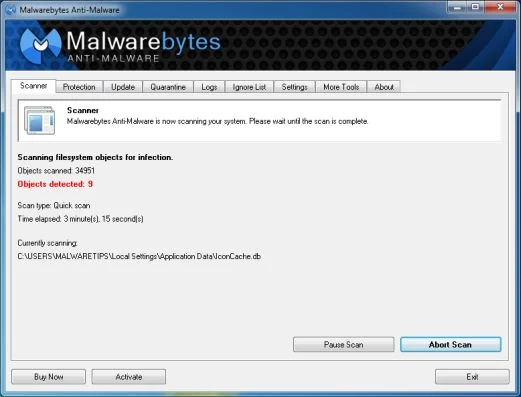
- When the Malwarebytes Anti-Malware scan has finished, click on the Show Results button.
![[Image: Malwarebytes Anti-Malware scan results]](https://malwaretips.com/blogs/wp-content/uploads/mwt-media/84/84c62dd46289424dbc686abc53672cb0810111920c8c0bbd69e973844d0a9ab0/a4c04aa700e641f47afec9965f79ff346740668e5952955ccbe5b4c3658b5897-521.webp "Malwarebytes when the system scan has completed")
- You will now be presented with a screen showing you the computer infections that Malwarebytes Anti-Malware has detected. Make sure that everything is Checked (ticked), then click on the Remove Selected button.
![[Image: Malwarebytes Anti-Malwar removing Police-save.empirehydrogen.org virus]](https://malwaretips.com/blogs/wp-content/uploads/mwt-media/d8/d86b6a8bac0e4ece9fd2d259a83db71487943f6b04b567edb0e9adcc3200f492/4eb94651b0e34cc99689c56dc71cd0a49444498ed05c5803ea55fda1cfee1b1f-521.webp "Malwarebytes Anti-Malwar removing Police-save.empirehydrogen.org virus")
STEP 3: Double-check for the Police-save.empirehydrogen.org infection with HitmanPro
HitmanPro is a second opinion scanner, designed to rescue your computer from malware (viruses, trojans, rootkits, etc.) that have infected your computer despite all the security measures you have taken (such as anti virus software, firewalls, etc.).
- You can download HitmanPro from the below link:
Download HitmanProOfficial Sophos download. Free scan, free 30-day trial to remove threats. - Double-click on the file named HitmanPro.exe (for 32-bit versions of Windows) or HitmanPro_x64.exe (for 64-bit versions of Windows). When the program starts you will be presented with the start screen as shown below.
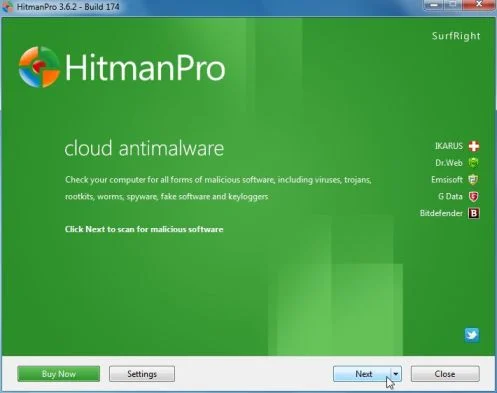 Click on the Next button, to install HitmanPro on your computer.
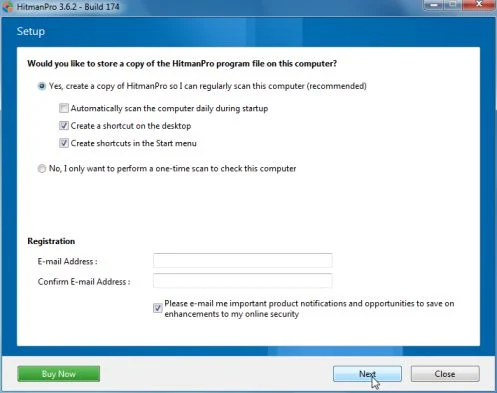
- HitmanPro will now begin to scan your computer for Police-save.empirehydrogen.org malicious files.
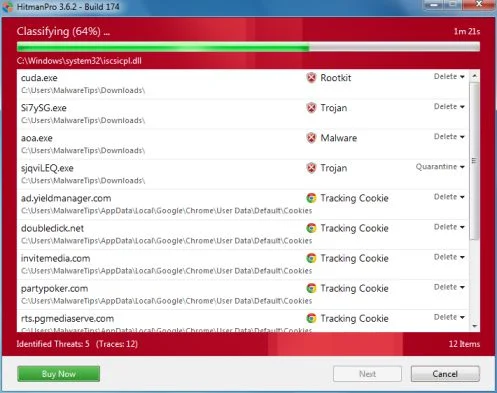
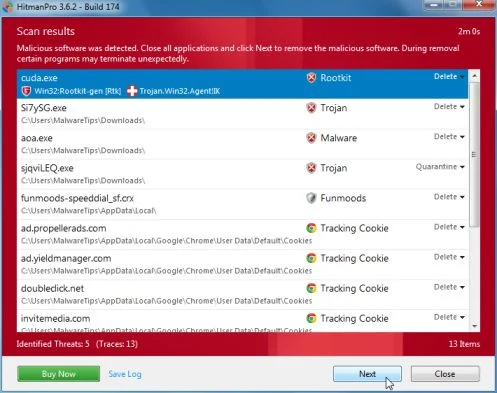
- When it has finished it will display a list of all the malware that the program found as shown in the image below. Click on the Next button, to remove the Police-save.empirehydrogen.org virus.
- Click on the Activate free license button to begin the free 30 days trial, and remove all the malicious files from your computer.
![[Image: HitmanPro 30 days activation button]](https://malwaretips.com/blogs/wp-content/uploads/mwt-media/7f/7f063c87fa029d8cd40df3f7faf43765ba1bb9e82c8d5a64c8a49de788018196/2a8400863f3c81fd7d6411e20166dfacdf0bc73e14522edea93a637003240dc1-497.webp "HitmanPro free 30 days trial")
Your computer should now be free of Police-save.empirehydrogen.org infection. If your current anti-virus solution let this infection through, you may want to consider purchasing the PRO version of Malwarebytes Anti-Malware to protect against these types of threats in the future, and perform regular computer scans with HitmanPro.
How to Remove Police-save.empirehydrogen.org virus from an Apple Mac OS X
For years, Windows users have been plagued by ransomware demanding several hundred dollars to unlock their computers.
The bad guys know there is a growing market of Apple consumers who, for the most part, feel pretty safe about browsing the Internet on a Mac without the need for any security product.
Cyber-criminals, well known for not re-inventing the wheel, have ‘ported’ the latest ransomware to OS X, not by using some complicated exploit but rather leveraging the browser and its ‘restore from crash’ feature. The Police-save.empirehydrogen.org ransomware page is being pushed onto unsuspecting users browsing regular sites but in particular when searching for popular keywords.
To remove Police-save.empirehydrogen.org from your Apple MAC OS X browser you can follow any of below options.
OPTION 1: Remove Police-save.empirehydrogen.org malicious web page from Apple Mac OS X by resetting Safari to its default settings
OPTION 2: Remove Police-save.empirehydrogen.org browser hijacker Apple Mac OS X virus using Force Quit for your browser
OPTION 1: Remove Police-save.empirehydrogen.org malicious web page from Apple Mac OS X by resetting Safari to its default settings
To remove the Police-save.empirehydrogen.org browser hijacker from Safari, we will need to reset your browser to its default settings.
- Click on the Safari menu and then choose Reset Safari
![[Image: Select Reset Safari from the menu]](//malwaretips.com/blogs/wp-content/uploads/2013/07/Reset-Safari.png "Select Reset Safari from the menu")
- In the new windows, make sure all items are marked and click on the Reset button.
![[Image: Reset Safari to default settings]](//malwaretips.com/blogs/wp-content/uploads/2013/07/Reset-Safari-to-default-settings.png "Reset Safari to default settings")
![[Image: Select Reset Safari from the menu]](http://malwaretips.com/blogs/wp-content/uploads/2013/07/Reset-Safari.png "Select Reset Safari from the menu")
![[Image: Reset Safari to default settings]](http://malwaretips.com/blogs/wp-content/uploads/2013/07/Reset-Safari-to-default-settings.png "Reset Safari to default settings")
You can also watch this video on how to reset Safari to its default settings:
OPTION 2: Remove Police-save.empirehydrogen.org browser hijacker Apple Mac OS X virus using Force Quit for your browser
- Press Command + Option + Escape simultaneously. This will open the open the Force Quit Applications window.
![[Image: Press Command + Option + Escape to start Force Quit menu]](https://malwaretips.com/blogs/wp-content/uploads/mwt-media/ad/ad3ae72aed9a241a1afd187c6912b1b1f993aa3c2a3dc9a1ba533ec97272979f/717d7f6aa1f03bf15754f0923d3ef83b87f241ed96b0e53ff96c534b02023bed-844.webp "Press Command + Option + Escape to start Force Quit menu")
- Select Safari, Chrome, Firefox or any other browser in which your are seeing the Police-save.empirehydrogen.org ransomware notification.
![[Image: Select Firefox, Chrome or Safari from Force Quit menu]](https://malwaretips.com/blogs/wp-content/uploads/mwt-media/3e/3e70d28886634769ab9021504c09ca06dfa1a3726a6360bee3f5c20db0a02fc3/f8d170f59b7aefebdbcab4b2aaed2ea00a613e933a53ae631820b6d959f9ff0a-346.webp "Select Firefox, Chrome or Safari from Force Quit menu")
- Click the button that says “Force Quit“. This will forcefully end your browser program, thus removing the Police-save.empirehydrogen.org browser hijacker.
![[Image: Click on the Force Quit button to remove Police-save.empirehydrogen.org virus]](https://malwaretips.com/blogs/wp-content/uploads/mwt-media/28/28749c6d21958cc3d5c1b89bb2df95e301e5fd68b993cd1fc47ce7a77c9113fd/9da9cfbfe447b3585babc48e1a8ec5c7c12706024c40b204f73e3e3a00ad3600-350.webp "Remove Police-save.empirehydrogen.org virus (Removal Guide) 1")
If you cannot switch from the unresponsive app, press Command + Option + Shift + Esc for three seconds to force it to quit. This key combination tells OS X to force quit the frontmost app.
You can also watch this video on how to Force Quit a program on an Apple Mac OS X:
If you are still experiencing problems while trying to remove Police-save.empirehydrogen.org virus from your Windows or Apple MAC OS X machine, please start a new thread in our Malware Removal Assistance forum.

Join the discussion
0 commentsShare your experience or ask a question about this article.
Your progress
Did these steps help?
Let us know how the guide worked for you.
Describe what you see and the step you reached. Keep passwords and other private information out.
Discussion
Start the conversation
Have a question or something useful to share? Add the first comment.