

Popcorn Time may be a name you have not thought about since an older laptop was your main computer. Seeing it again can feel oddly familiar.
Before dismissing it as another forgotten application, check which version is installed. One abandoned branch deserves attention even if you no longer watch anything through it.
Overview
The Affected Software Is the Old Time4Popcorn Fork
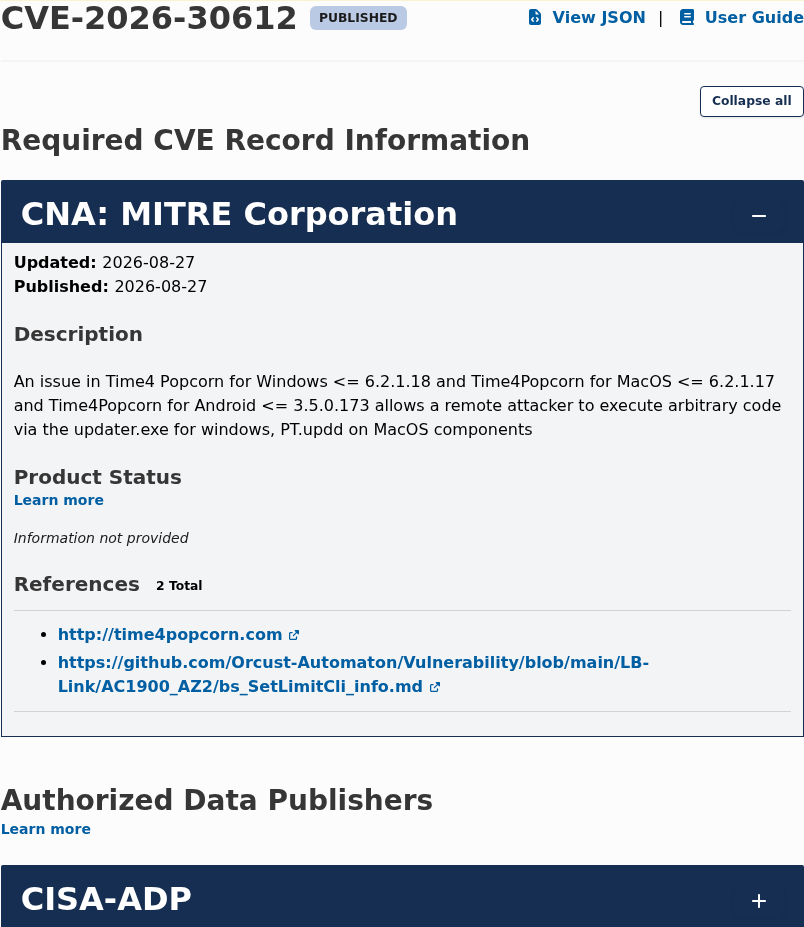
A security flaw affects the update component of Time4Popcorn, an abandoned application also distributed using the Popcorn Time name.
That shared name can be confusing. The finding does not automatically apply to every project, installer, extension, or newer service called Popcorn Time.
The researchers specifically distinguish their findings from a newer project using the name since 2025. Check the installed software rather than assuming the logo settles its identity.
The Important Difference Is What Happens in the Background
- Windows installations can retain an automatic updater running through a service.
- The affected macOS software uses a privileged helper and launch daemon.
- The update mechanism trusts insecure delivery without the necessary authenticity checks.
- Android’s path differs: the application checks when opened, and installing a replacement APK requires user approval.
- Researchers intervened to disable many desktop updaters, but removing the abandoned application remains the safer course.
A Vulnerability Is Not Proof That Everyone Was Infected
The issue is tracked as CVE-2026-30612. It describes an opportunity for unwanted code execution, not a count of confirmed criminal takeovers.
Likewise, estimates of exposed devices should not be reported as millions of proven infections. A device can have vulnerable software without evidence that an attacker used it.
The practical answer is still clear: remove the abandoned fork, check its remaining updater, and investigate separately if there are signs of compromise.
Why Closing the App Was Not Enough
A background service is designed to operate independently of the window you open. Closing the movie interface does not necessarily stop a component installed to check for updates.
That distinction matters most on a computer kept for years. The owner may have forgotten the application while its updater continues starting with the system.
An update component also operates across a trust boundary. It receives information from a server and may use that information to replace software on the device.
Secure delivery and verification are therefore essential. A familiar program name cannot compensate for an updater that accepts a replacement without properly establishing its authenticity.
Ordinary HTTPS protects a connection, while signature verification can establish that software came from an authorized publisher. They are related safeguards, not interchangeable labels.
In this case, the abandoned infrastructure and deficient checks created a route through which someone else could supply code with extensive privileges.
You do not need to reproduce that route to protect your computer. Downloading a sample or running a test updater would add risk without answering the cleanup question.
How the Abandoned Updater Creates a Security Risk
Step 1: An Old Installation Leaves a Separate Component Behind
The affected desktop software installs an updater that can start automatically. It is not dependent on a user selecting a film or opening the main interface.
That makes an otherwise quiet machine worth checking. A lack of advertising pop-ups or visible changes is not evidence that the component is absent.
On Windows, the researchers identify Updater.exe in a Popcorn Time folder. On macOS, the component has a different name and location.
Step 2: The Component Contacts Infrastructure That Outlived Its Maintainers
The application was abandoned, but its update requests continued. Domains associated with that infrastructure eventually became available to other parties.
An installed client may still regard its old destination as trusted. It has no human understanding that the organization behind an address has disappeared.
This is why an expired update domain is more than a broken website. The consequence depends on what the installed software will do with a response.
Step 3: Insecure Delivery Removes an Important Check
The researchers describe unencrypted update traffic and missing executable-signature verification. On the affected desktop versions, a supplied update could run without another user decision.
That is more serious than a misleading advertisement asking someone to download a program. The existing background component provides the delivery route.
The technical advisory explains the affected components and platform-specific differences. Use it for identification, not as an invitation to test exploitation.
Step 4: Desktop Privileges Increase the Possible Impact
The vulnerable Windows and macOS update processes could execute with high privileges. That can give an attacker more control than an ordinary downloaded document would have.
Possible consequences of malicious code depend on what is delivered. The vulnerability alone does not identify ransomware, a password stealer, or another payload on your device.
On Android, the user is asked to approve an APK installation. Refusing that prompt is important, but uninstalling the affected application removes the recurring temptation.
Step 5: A Protective Intervention Reduces One Risk, Not Every Weakness
Eye Research used the infrastructure to distribute a change disabling vulnerable desktop updaters. The researchers later transferred controlled domains to the Shadowserver Foundation.
That intervention was defensive, not evidence that the update system had always been safe. It also did not modernize the whole abandoned application.
Other obsolete components remain a reason to remove it. Do not treat the possibility of having received the protective change as permission to resume using an unsupported client.
Identify the Component Before Stopping Anything
Windows: A Generic Service Name Needs a Specific File Path
The advisory calls the component Update Service. That name is too generic to justify stopping every similarly named service you find.
Check its executable path. The documented locations are C:\Program Files\Popcorn Time\Updater.exe and C:\Program Files (x86)\Popcorn Time\Updater.exe.
Use the matching application folder and service properties together. An unrelated updater used by security software or another legitimate program should be left alone.
macOS: Look for the Named Helper and Launch Daemon
The documented helper is /Library/PrivilegedHelperTools/PT.updd. The associated launch-daemon file is /Library/LaunchDaemons/PT.updd.plist.
These exact names provide a useful starting point. They do not authorize deleting whole Library folders or every unfamiliar background item.
If you cannot establish the connection to the old application, stop and ask for assistance. Guessing at system components can damage something unrelated.
Android: The Updater Is Part of the App
The affected Android version does not use the same always-running desktop service. Its update check occurs when the application is opened.
Removing a browser notification permission would not uninstall that application. Use Android’s app controls to identify and remove the old client itself.
What to Do If You Installed Time4Popcorn
-
Stop using the abandoned application. Decline update prompts and do not obtain a replacement installer from a search advertisement or an unsolicited message.
-
Preserve useful information first. Note the installed app’s name, version if available, and location. Save relevant security alerts without sharing private files publicly.
-
Remove the old app through normal controls. On Windows, open Settings, Apps, Installed apps and find the matching application. Choose Uninstall and follow its prompts.
On macOS, quit the app and remove the identified application using its appropriate uninstall procedure. Removing the app alone still requires checking the separate helper.
On Android, open the app’s information screen in Settings and choose Uninstall. Do not accept another APK as a prerequisite for removal.
-
Check the specific desktop updater. On Windows, open Services and inspect the documented Update Service properties. Confirm its executable points into the matching Popcorn Time folder.
For that verified component only, stop the service and set its startup type to Disabled. Do not alter Windows Update or an unrelated service.
On macOS, compare the exact helper and daemon paths with the advisory. Use qualified help if you are unfamiliar with launch-daemon management.
-
Restart and check the result. Confirm the app is gone and the matching updater is not running again. A component returning after restart needs further investigation.
-
Run an appropriate security scan. Update your existing protection or use the platform-specific Malwarebytes instructions below. Review detections, quarantine confirmed threats, and retain the report.
-
Protect accounts if compromise is suspected. Use a trusted device to change exposed credentials, review sessions, and enable additional authentication. A clean scan cannot reverse prior account access.
-
Get help with unresolved remnants. Use the MalwareTips removal-help forum if identification or removal is uncertain. Do not substitute broad deletion commands for diagnosis.
Scanning Without Confusing It With Updater Removal
On a Windows Computer
The site’s Malwarebytes Windows installer provides the existing official download route. Run it only on the Windows device you intend to inspect.
Follow setup carefully and decline optional offers you do not want. The free Windows version supports manual scanning and quarantine; paid real-time protection is a separate choice.
Update the detection database, start a Threat Scan, and let it finish. Review the findings before quarantining, then restart if requested.
Keep the report. A detection’s name, location, and time help distinguish an unwanted program from evidence of a more extensive intrusion.
The site’s Windows real-time protection route is optional. Buying a subscription is not required to prove the old updater was removed.
On a Mac
Use the separate Malwarebytes for Mac download, not the Windows executable. Install it and follow the current setup instructions.
If requested, grant the documented Full Disk Access permission in Privacy & Security. Do not disable system security to make an unrelated tool run.
Run the scan, review detected items, and follow quarantine and restart prompts. Then verify the named helper again rather than treating any scan as a guarantee.
Optional ongoing protection is available through the site’s Malwarebytes Mac route. The important first task is identifying and removing the affected installation.
On an Android Device
Install the legitimate app from Malwarebytes on Google Play if an additional check is needed. Avoid APKs offered by the old streaming client.
Update it, allow the permissions needed for the chosen scan, and start Scan now. Confirm Android’s uninstall prompts for any detected malicious applications.
Real-time and automatic features depend on the plan. The site’s Android protection route is separate from the immediate decision to uninstall Time4Popcorn.
When to Disconnect and Ask for More Help
If files are being encrypted, unfamiliar remote-control software appears, or security tools report active malware, disconnect the device from networks and seek assistance promptly.
For a work computer, contact your IT or security team before making changes. Give them the application path and detection details rather than trying several unverified cleaners.
If the only finding is the old application, begin with the targeted removal and verification steps. Its presence does not automatically justify wiping the entire computer.
Do not reset passwords on a device you believe is actively compromised. Use a trusted device and secure the email account that receives password-reset messages.
An ad blocker cannot stop a native background updater. AdGuard may help with malicious advertising encountered elsewhere, but it is not a remedy for this vulnerability.
Check the Devices and Backups You Rarely Use
An old household laptop can escape notice because it is switched on only for occasional tasks. Include those machines when checking where the application was installed.
Before giving away or returning a work device, tell its responsible administrator about the finding. Do not assume another user will recognize an abandoned streaming client.
Keep personal documents backed up separately before uninstalling software. That precaution is different from restoring an entire old system image containing the same application.
If you later restore a full computer backup, repeat the application and updater check. Restoration can bring back software you previously removed.
Write down the verified component path and the removal result. That record is useful if a family member or technician helps finish the cleanup.
Frequently Asked Questions
Does This Affect Every Popcorn Time Product?
No. The findings concern the abandoned Time4Popcorn fork, also distributed as Popcorn Time. Identify the installed software and component rather than relying on the shared name.
Could the Updater Run Without Opening a Movie?
On the affected Windows and macOS installations, the background component could start automatically. Not using the main application did not necessarily stop its update requests.
Does the Vulnerability Mean My Passwords Were Stolen?
No. Exposure and confirmed compromise are different findings. Remove the risk, inspect for separate evidence, and secure accounts if there are indications of unauthorized access.
Did the Researchers’ Fix Make the Whole App Safe?
No. Disabling an updater addresses that route, not every obsolete component in an abandoned application. Removal and a check for remnants remain the recommended course.
Should I Stop Every Service Called Update Service?
No. Match the executable to the documented Popcorn Time folder first. A generic name is not enough to identify the affected component.
Is Android Affected in the Same Way as Windows?
No. The Android app checks when opened and asks for approval to install an APK. Decline that update and uninstall the affected app through Android’s settings.
The Bottom Line
Remove the abandoned Time4Popcorn application and verify that its matching updater stays stopped after restart. Do not install a supposed replacement update from an unfamiliar source.
If the component remains or a scan finds something else, preserve the details and get help. The goal is a verified removal, not a blanket assumption of infection.

Join the discussion
0 commentsShare your experience or ask a question about this article.
Discussion
Start the conversation
Have a question or something useful to share? Add the first comment.